Mac battery problems: drain, health and charging
Mac battery problems usually come down to one of four things: an app using a lot of energy, a battery worn with age, charging that macOS paused on purpose, or a charger too weak for the work. The battery menu, Battery settings and System Information show which one it is, and each has a fix you can make yourself.
Which battery problem do I have?
Each problem has a sign you can check, and a guide that goes deeper.
| Problem | The sign | What to do | Guide |
|---|---|---|---|
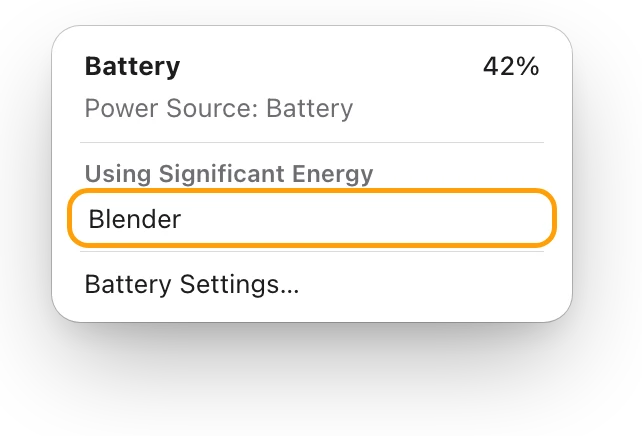
| Drains fast | The battery menu lists apps using a lot of energy | Quit apps you don’t need; use Low Power Mode on battery | Draining fast |
| Worn battery | Battery Health says Service Recommended | Keep using it, or have it serviced | Service Recommended |
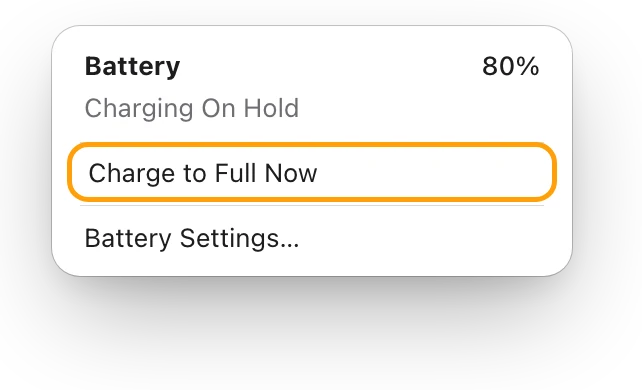
| Charging paused | Plugged in, stopped at 80%, and the battery menu says Charging On Hold | Leave it, or choose Charge to Full Now | Not charging |
| Charger too weak | Not Charging or Slow Charger in the battery menu | Use at least the wattage Apple recommends | Charger wattage |
| Short battery life | The charge doesn’t last as long as you need | Dim the display and quit apps you aren’t using | Battery life |
| Always on the charger | You work plugged in all day | Keep it plugged in and cool: Optimized Battery Charging or a Charge Limit looks after the battery | Plugged in all the time |
| No percentage | Only the battery icon shows in the menu bar | Turn on Show Percentage in Menu Bar settings | Show percentage |
Why is my MacBook battery draining so fast?
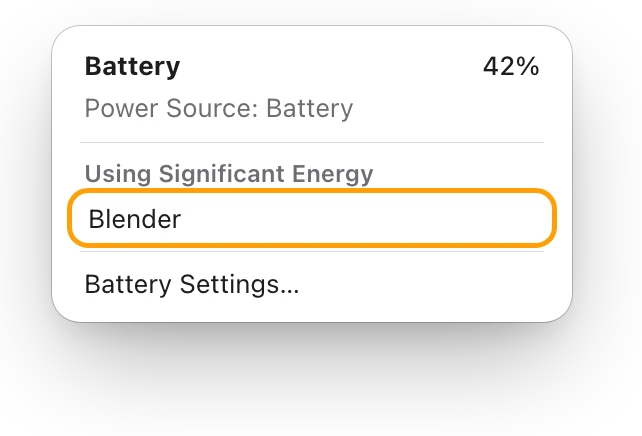
Check first for an app using a lot of energy. macOS shows which one.
- Click the battery icon in the menu bar. It lists the apps, if any, using a lot of energy. If you aren’t using one, quit it, especially on battery.
- For every app at once, open Activity Monitor (in Applications > Utilities), click Energy, then click the Energy Impact column heading to sort the list, highest first. Energy Impact is a relative measure of each app’s energy use right now; lower is better.
- Look at 12 hr Power too: each app’s average energy impact over the last 12 hours, or since your Mac started.
On some Mac laptops, the battery menu also shows Display Brightness when the screen is bright enough to use a lot of energy. Click it to turn the brightness down to about 75%. MacBook battery draining fast? See what’s busy walks through each step.
Is my MacBook battery healthy?
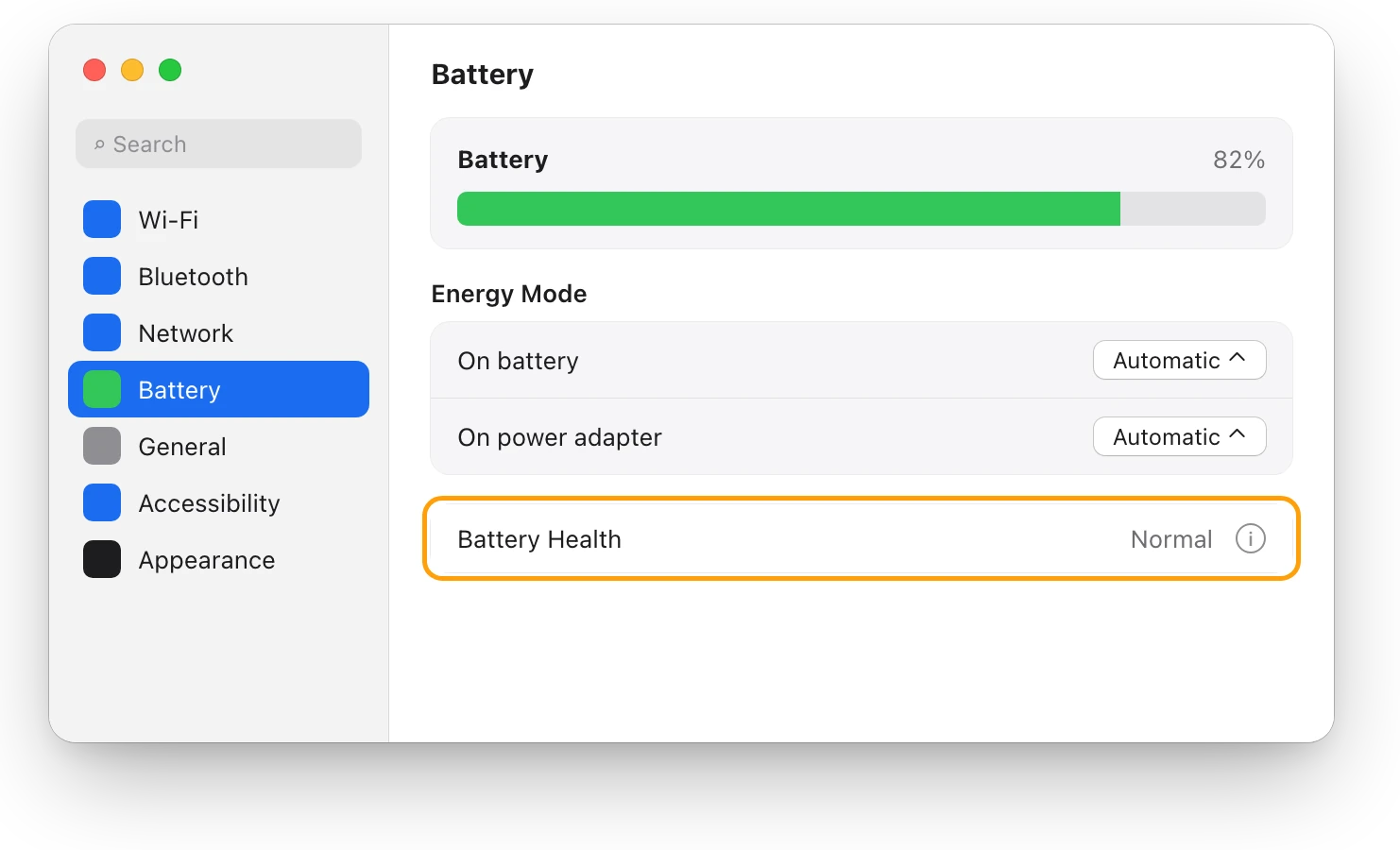
Battery Health in System Settings shows the battery’s condition.
- Choose Apple menu > System Settings, then click Battery in the sidebar. You may need to scroll down.
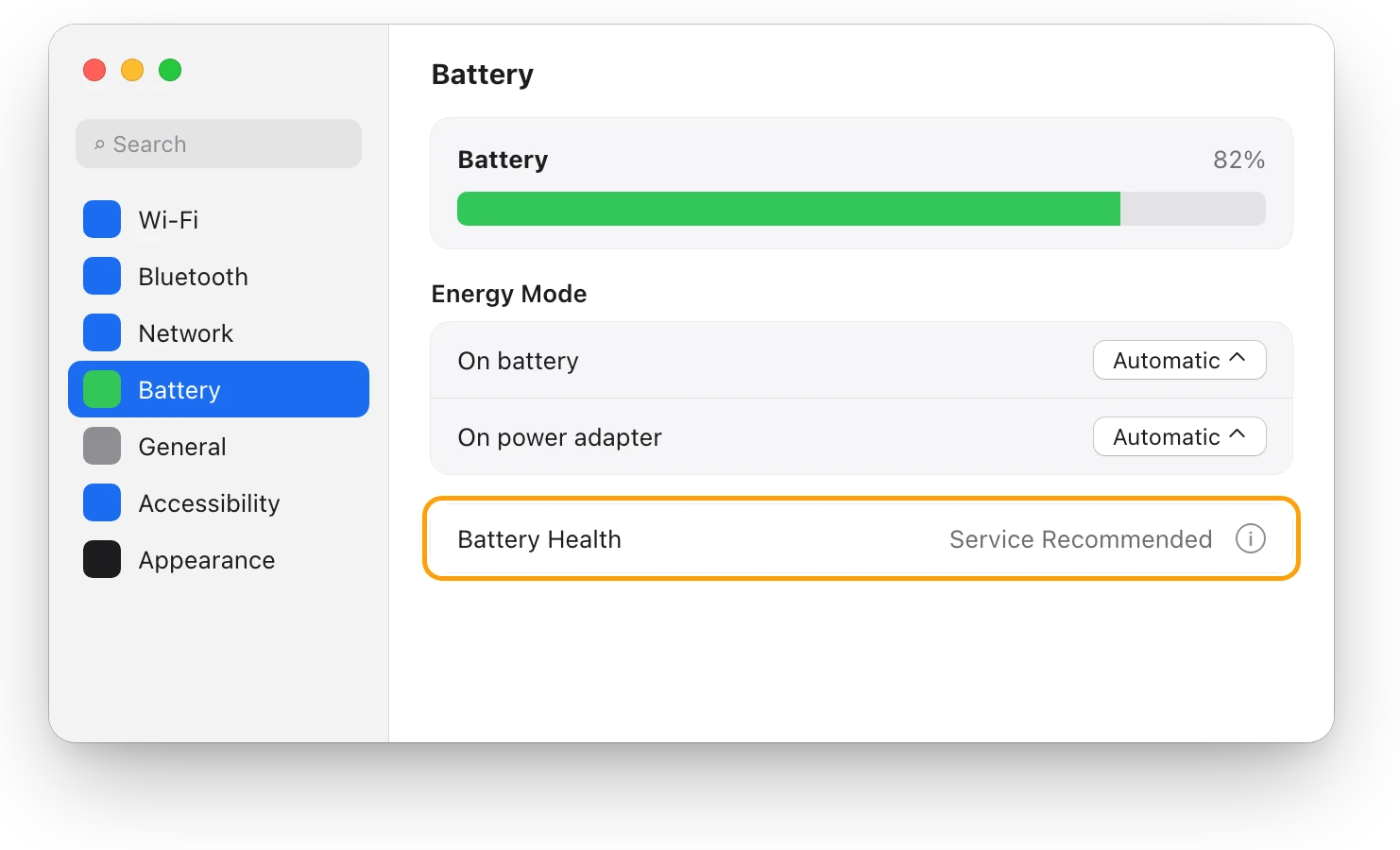
- Read Battery Health. Normal means the battery is working normally. Service Recommended means it holds less charge than when it was new, or isn’t working normally.
- Click the info button (ⓘ) next to it to see Maximum Capacity: how much charge the battery holds compared with when it was new.
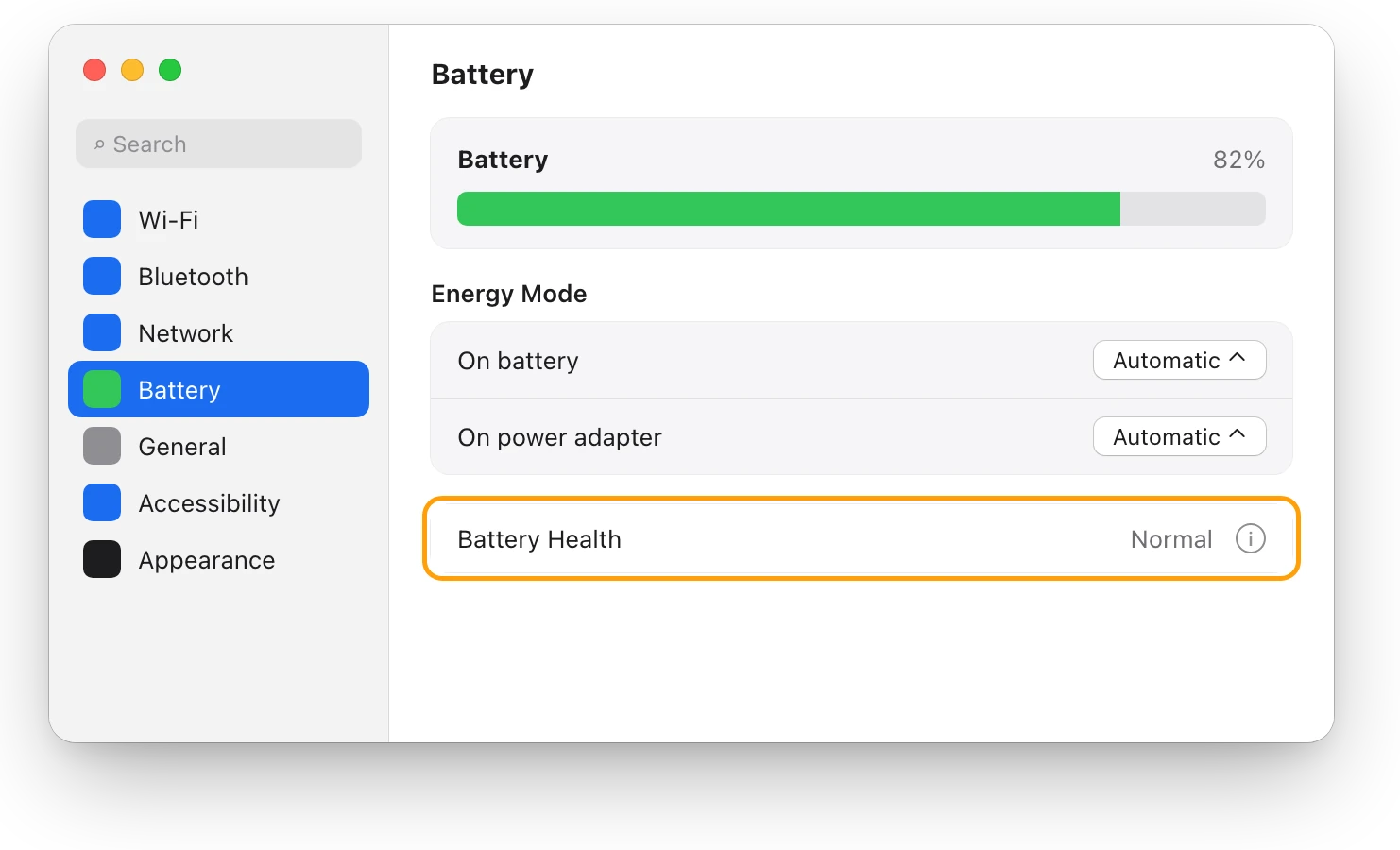
For the cycle count, hold the Option key, choose Apple menu > System Information, then click Power under Hardware. Recent MacBook Air and MacBook Pro batteries are designed to keep up to 80% of their original capacity at 1,000 cycles. MacBook battery health and cycle count, explained shows how to read both.
Why is my MacBook plugged in but not charging?
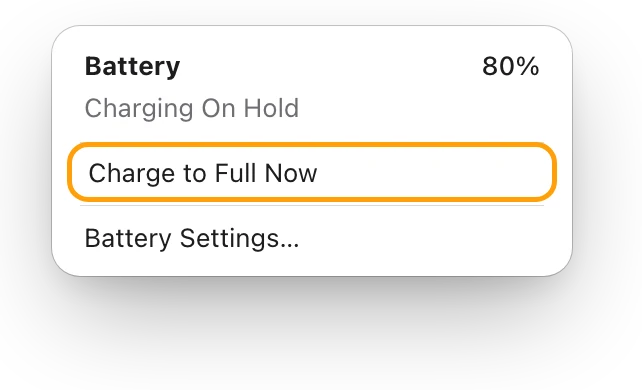
Often because macOS is protecting the battery. Click the battery icon in the menu bar and read the line under the charge.
- Charging On Hold: Optimized Battery Charging is delaying charging past 80%, because it predicts your Mac will stay plugged in for a long time. It aims to finish charging by the time you usually need it. Choose Charge to Full Now if you need 100% sooner.
- Not Charging: Apple gives three reasons. macOS paused charging to protect the battery, and may wait until it drops to 93% or lower. Or the charger gives enough power to run your Mac but not to charge it. Or your apps use more power than the charger provides.
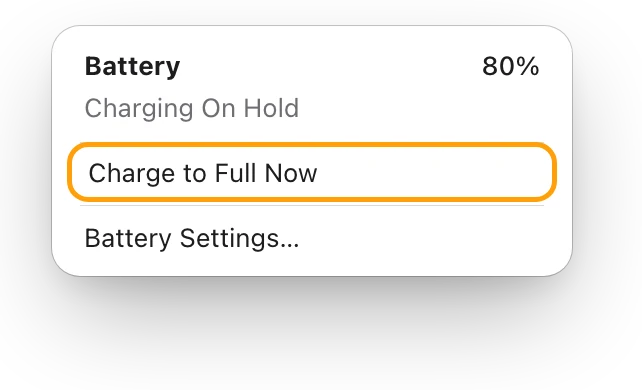
MacBook plugged in but not charging? covers the Charge Limit setting, and Apple’s checks for a Mac that won’t charge at all.
Is my charger too weak?
A charger below the wattage Apple recommends for your Mac charges slowly. During heavy work, it may not charge the battery at all.
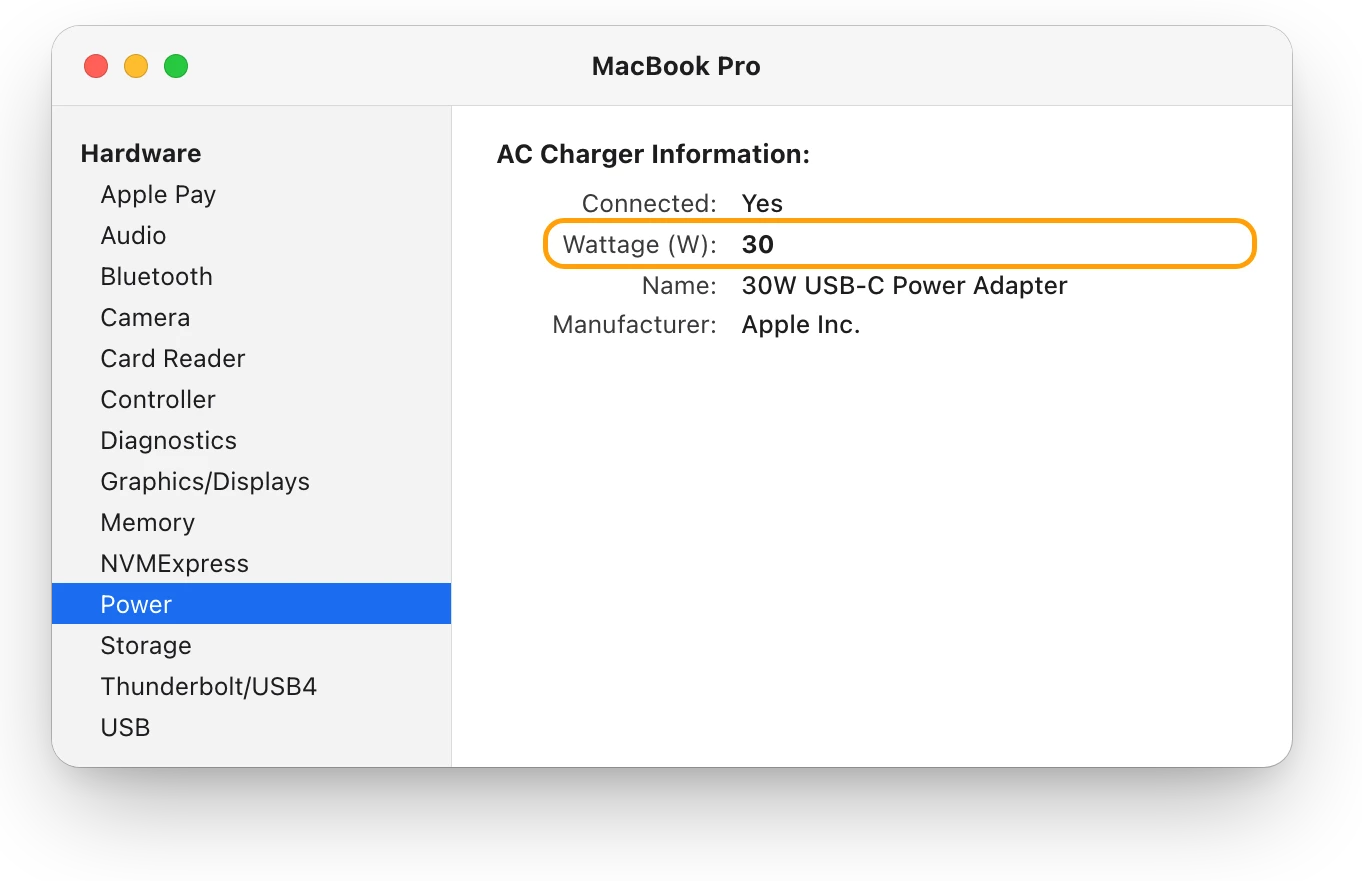
- Hold the Option key, choose Apple menu > System Information, then click Power in the sidebar.
- Read Wattage (W) under AC Charger Information.
- Compare it with Apple’s recommendation: 67 W, 70 W or 96 W for a 14-inch MacBook Pro introduced in 2021 or later, 140 W for a 16-inch one, and 30 W (13-inch only), 35 W, 67 W or 70 W for a MacBook Air introduced in 2022 or later.
On macOS Tahoe 26.4 or later, Slow Charger appears in the battery menu and in Battery settings when the charger gives too little for your Mac. Your Mac charges over only one port at a time, so a second charger doesn’t speed it up. Is your charger fast enough for your MacBook? lists every model.
How do I make my MacBook battery last longer?
Apple’s tips for each charge:
- Dim the display to the lowest comfortable level.
- Quit apps you aren’t using. Even an app you aren’t using may be working in the background.
- Turn off Wi-Fi and Bluetooth when you don’t need them.
- Choose Low Power Mode on battery, below.
For the battery’s lifespan, leave Optimized Battery Charging on: Apple designed it to reduce wear by cutting the time your Mac spends fully charged. Keep your Mac between 10 °C and 35 °C (50 °F and 95 °F); Apple says heat above 35 °C can permanently damage battery capacity. How to make your MacBook battery last longer has every setting, and the myths.
What does Low Power Mode do?
Low Power Mode reduces energy use to increase battery life.
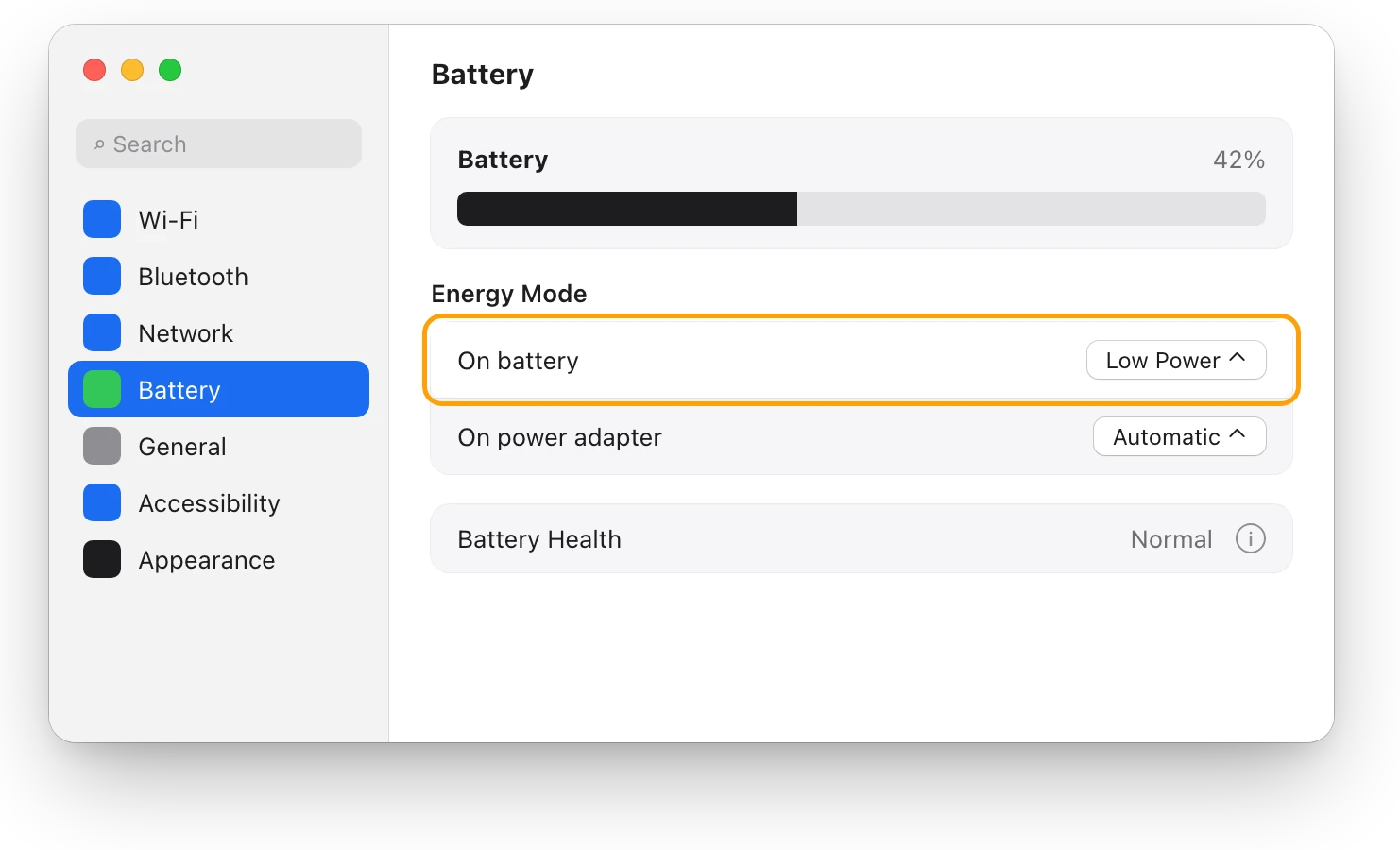
- Choose Apple menu > System Settings, then click Battery.
- Under Energy Mode, open the On battery pop-up menu and choose Low Power.
In macOS Sequoia 15.1 or later, you can also choose an Energy Mode from Control Center, and on recent Macs with fans, Low Power Mode also helps reduce fan noise. To see whether it’s on, click the battery icon in the menu bar. Low Power Mode on a Mac: what it changes explains the trade-off, and High Power Mode.
What does Service Recommended mean, and when should I replace the battery?
Service Recommended means the battery’s ability to hold a charge is less than when it was new, or the battery isn’t working normally. Apple says you can safely keep using your Mac, and get service if the shorter battery life affects you.
Think about a new battery when:
- Battery Health says Service Recommended, and the charge no longer lasts as long as you need.
- The cycle count has reached the maximum, 1,000 for recent models. Apple recommends replacing the battery then for best performance, though you can keep using it.
Apple says a built-in battery should be replaced only by an Apple Store, an Apple Authorized Service Provider, or an Independent Repair Provider using genuine Apple parts. Apple’s One Year Limited Warranty covers a defective battery. With an AppleCare Protection Plan, Apple replaces a battery that keeps less than 80% of its original capacity at no charge; otherwise there’s a fee.
Questions people also ask
Is it bad to keep my MacBook plugged in all the time?
No. Optimized Battery Charging is made for that: when it predicts your Mac will stay plugged in for a long time, it delays charging past 80%, which reduces wear on the battery.
How long does a MacBook battery last?
Apple designs recent MacBook batteries to keep up to 80% of their original capacity at 1,000 charge cycles. A cycle is all of the battery’s power used, but not necessarily at once: half one day and half the next add up to one.
Why did my battery drop while it was plugged in?
Either macOS paused charging to protect the battery, which may drain to 93% or lower before charging starts again, or your apps are using more power than the charger provides.
Scope for Mac · Free, coming to the Mac App Store
How Scope helps
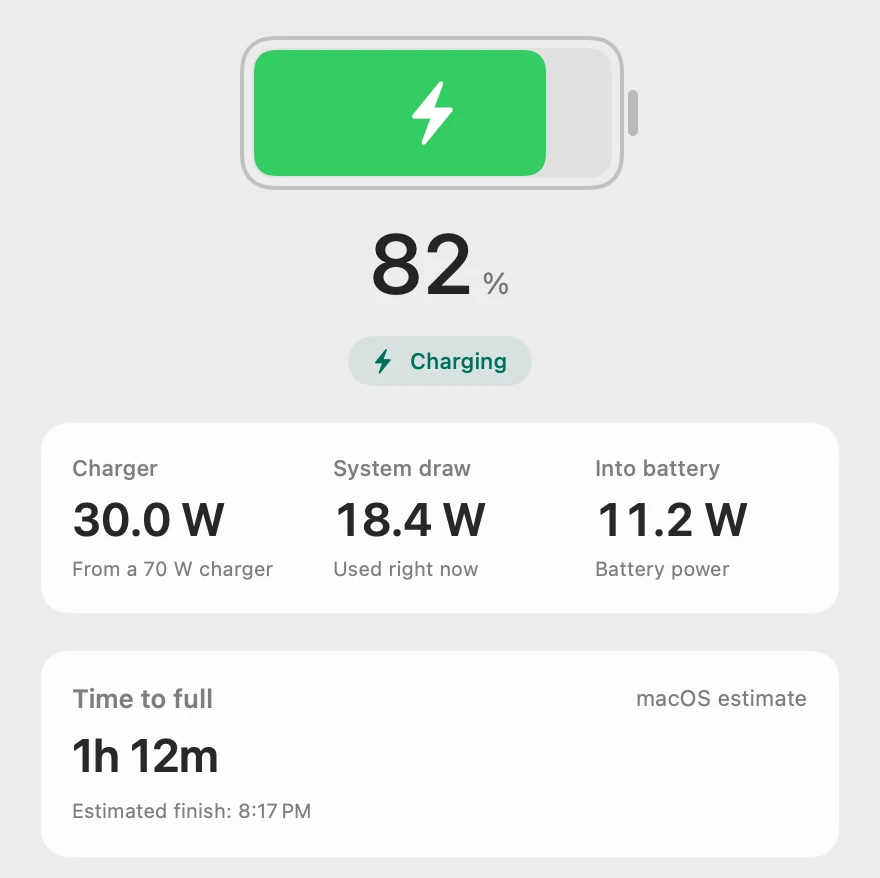
Scope is a free Mac menu bar app that shows where your MacBook’s power goes, in watts: what the charger gives, what your Mac uses, and whether the battery is filling, resting or covering the difference. It also shows macOS’s time estimate, and the battery’s health, cycle count and temperature in one card.
In your menu bar
Scope Free keeps one whole menu bar item of your choice. Battery can also show the charger’s power and what your Mac is drawing beside the percentage.

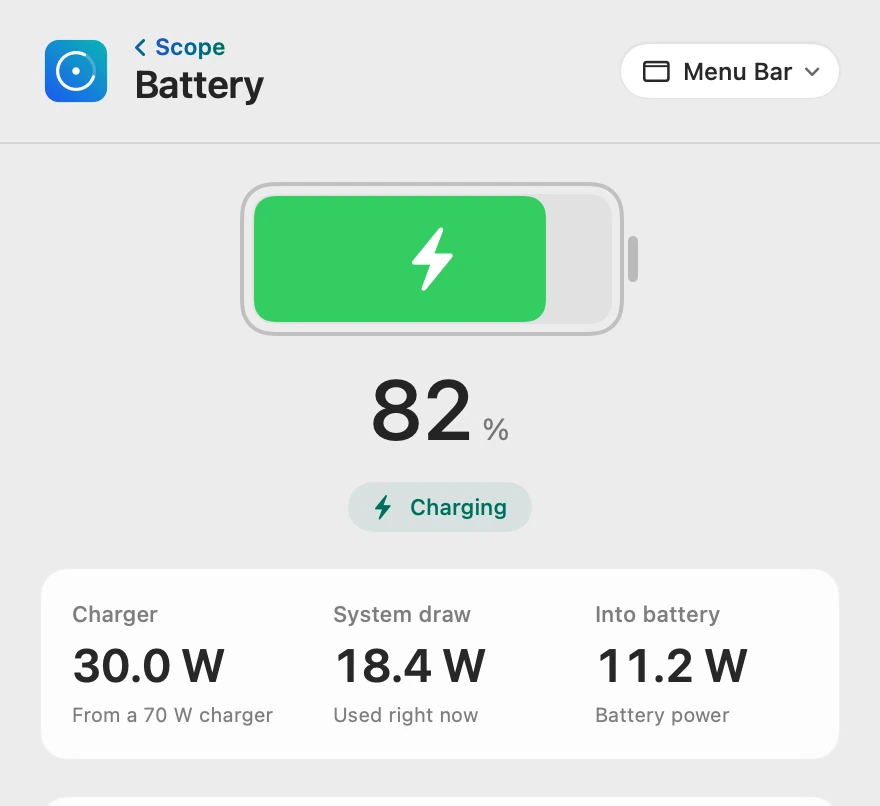
Charging, holding or draining
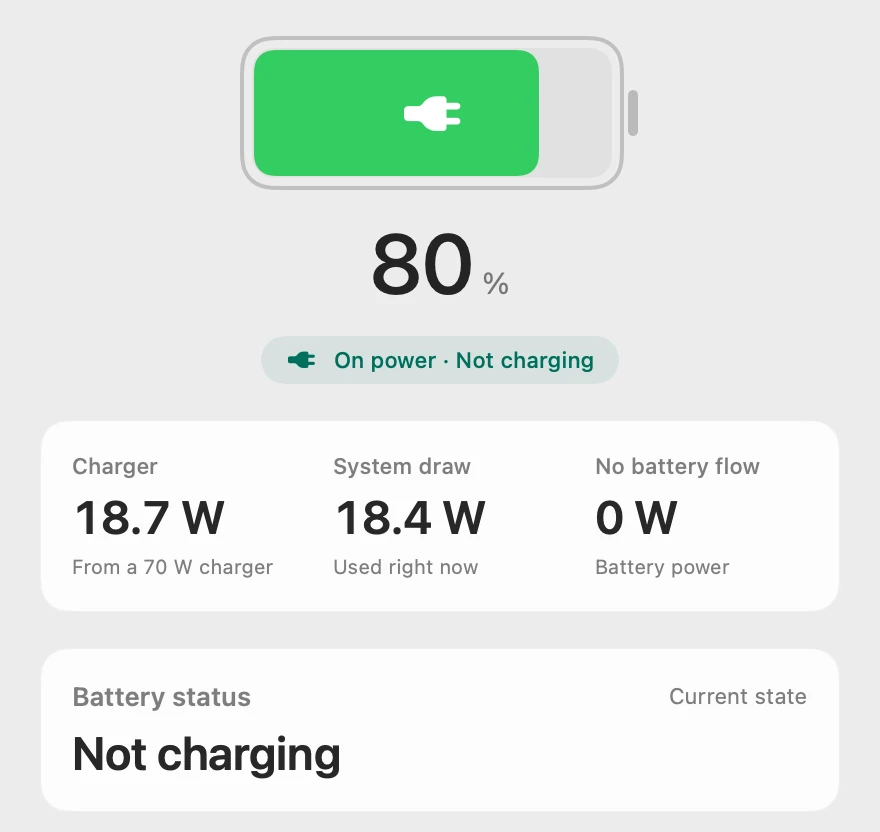
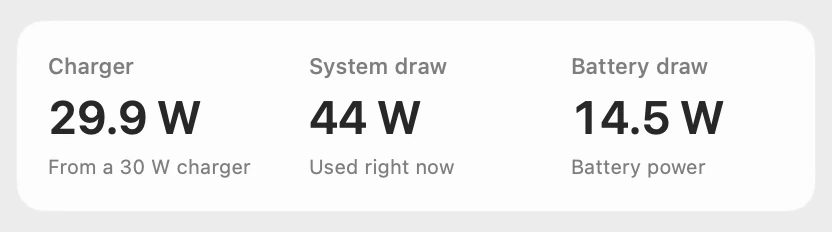
Charger is the power coming in now, not the charger’s rating, so a 30 W charger giving all it can shows 29.9 W, short of the Mac’s 44 W. Scope reads the battery’s own power, so its label names the direction: Into battery, No battery flow or Battery draw.
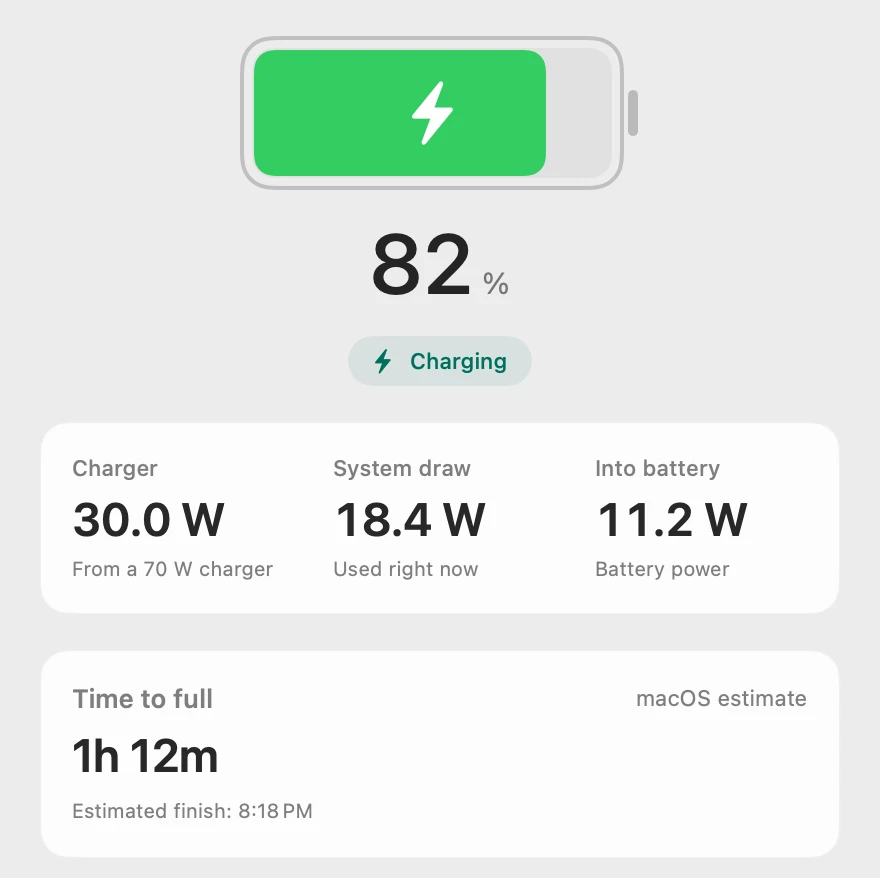
On battery, in watts
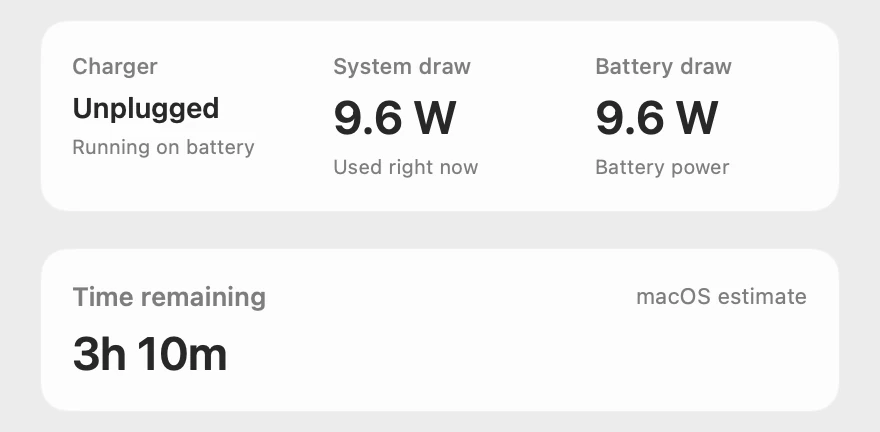
System draw is what your Mac is using right now; on battery, the battery supplies all of it. Scope doesn’t measure battery use per app, so it shows how much power your Mac draws now, not which app drained it earlier.
Health in one card
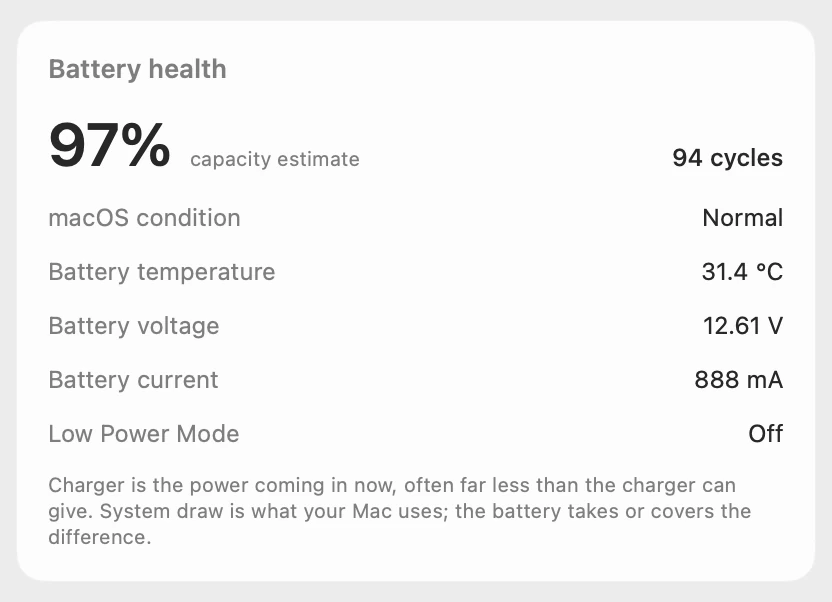
Scope’s capacity estimate is the maximum capacity macOS reports, so it matches Battery Health, and the cycle count matches System Information. If macOS reports that the battery needs service, Scope says so on its overview, in Scope Free too; Scope Pro adds a red + on its menu bar icon and a notification.
Scope shows and explains. It doesn’t change how your Mac charges, or any setting.
Try it here
The real Scope, working, right in this page.
Click any item in the menu bar, or a card inside, as you would on your Mac.
Scope Pro Every menu bar item is shown here. Scope Free keeps one whole item of your choice, with every reading inside.
See what your own battery is doing.
Answers in this guide
Battery
MacBook battery draining fast? See what’s busy
A MacBook battery drains fast when an app keeps it busy. The battery menu and Activity Monitor’s Energy tab show which one; here’s what to do.
Battery
MacBook battery health and cycle count, explained
Battery Health in System Settings shows if your MacBook’s battery is Normal; System Information shows its cycle count. Here’s how to read both.
Battery
MacBook plugged in but not charging?
A MacBook plugged in but not charging is often holding at 80% to protect its battery. Here’s how to see why, and what to try if it won’t charge at all.
Battery
Is your charger fast enough for your MacBook?
A MacBook charges slowly on a charger below Apple’s recommended wattage. Check the watts in System Information, then compare them with your model.
Battery
How to make your MacBook battery last longer
Make each MacBook charge last longer: quit energy-heavy apps, dim the screen, use Low Power Mode. Plus Apple’s tips for battery lifespan, and the myths.
Battery
Low Power Mode on a Mac: what it changes
Low Power Mode on a Mac reduces energy use so the battery lasts longer. Here’s how to turn it on, what Apple says it changes, and when to use High Power.
Battery
MacBook battery Service Recommended: what it means
Service Recommended means your MacBook’s battery holds less charge than when new, or isn’t working normally. You can keep using it. Here’s what to do next.
Battery
Should I keep my MacBook plugged in all the time?
You can keep a MacBook plugged in: Optimized Battery Charging and Charge Limit cut its time at full charge. Heat matters more. Here’s how to set them.
Battery
How to show battery percentage on a Mac
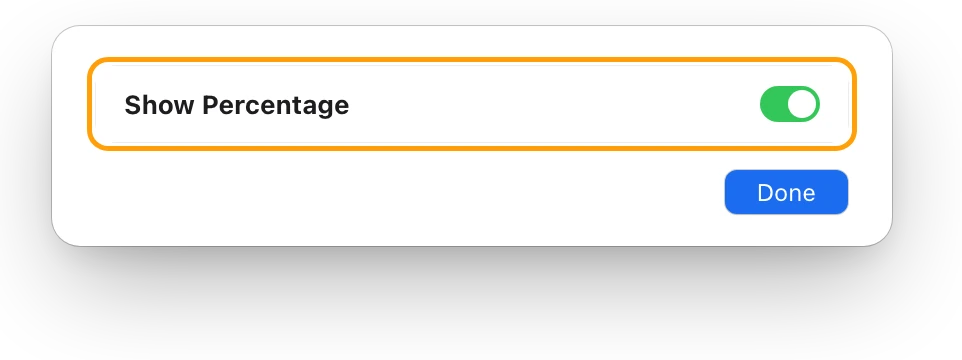
In macOS Tahoe, open System Settings > Menu Bar, select Battery, click Battery Options and turn on Show Percentage. Older macOS uses Control Center.
Battery
Mac battery monitor: health, watts and time left
Scope shows your MacBook’s charge, the watts coming in and going out, macOS’s time left and battery health, from the menu bar. Free on the Mac App Store.
Keep reading
Guide · Heat
Mac overheating? Every cause and what to do
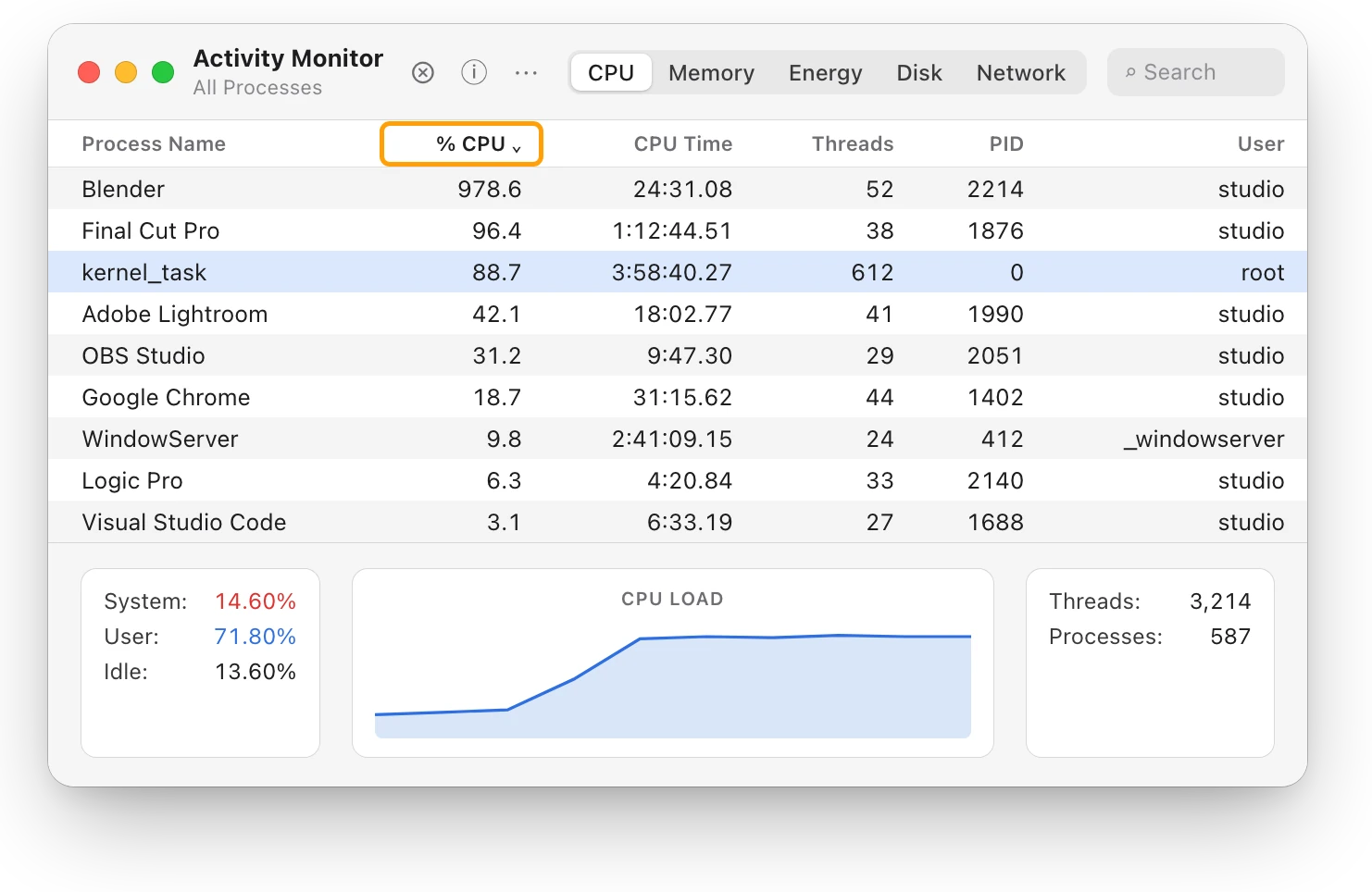
A Mac overheats when an app keeps the processor busy, the vents can’t move air or the room is too warm. Here’s how to find the cause and cool it down.
Guide · Slow Mac
Why is my Mac slow? How to find the cause
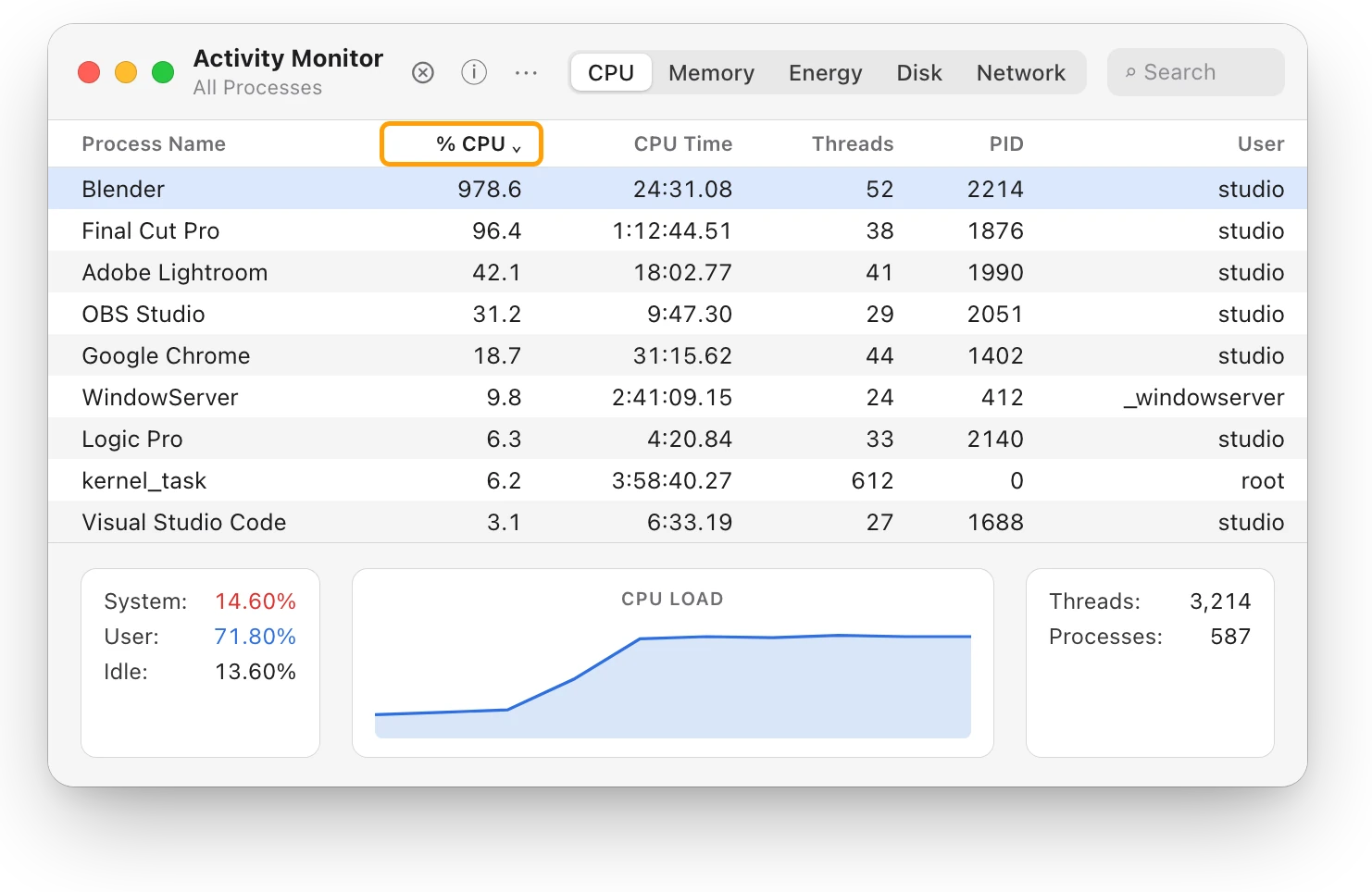
A slow Mac is usually a busy app, too little memory, a nearly full disk or heat. Here’s how to see which one with macOS’s own tools.
Sources
- Apple Support: What is the Battery Status menu on Mac?
- Apple Support: View energy usage in Activity Monitor on Mac
- Apple Support: Check the condition of your Mac laptop’s battery
- Apple Support: Change Battery settings on a Mac laptop
- Apple Support: Determine battery cycle count for Mac laptops
- Apple Support: If you see battery “Service Recommended” on your Mac laptop
- Apple Support: If your Mac battery status is “Not Charging”
- Apple Support: About Optimized Battery Charging and Charge Limit on Mac
- Apple Support: Use a power adapter with your Mac
- Apple Support: Charge your Mac laptop computer
- Apple Support: Save energy on your Mac
- Apple Support: About Power Modes on your Mac
- Apple: Maximizing Battery Life and Lifespan
Last checked October 19, 2026. Readings, apps and files in the pictures are from a made-up Mac.