MacBook battery Service Recommended: what it means
A MacBook battery that shows Service Recommended holds less charge than when it was new, or isn’t working normally. Apple says you can safely keep using your Mac. If the shorter battery life affects you, back up your Mac and have the battery replaced by an Apple Store or an Apple Authorized Service Provider.
What does Service Recommended mean on a MacBook?
Service Recommended is one of two battery conditions macOS shows in Battery settings. Apple says it means the battery’s ability to hold a charge is less than when it was new, or the battery isn’t functioning normally.
| Battery Condition | What Apple says | What to do |
|---|---|---|
| Normal | The battery is functioning normally | Nothing |
| Service Recommended | It holds less charge than when new, or isn’t functioning normally | Keep using it; get service if the shorter battery life affects you |
Apple adds that a battery can have a problem without any change you’d notice. So even if the battery seems fine, Apple suggests contacting Apple or an Apple Authorized Service Provider to have it checked.
On an older Mac or version of macOS without Battery Health, hold the Option key and click the battery status menu in the menu bar instead. It may report Replace Soon, Replace Now or Service Battery.
How do I check my MacBook’s battery condition?
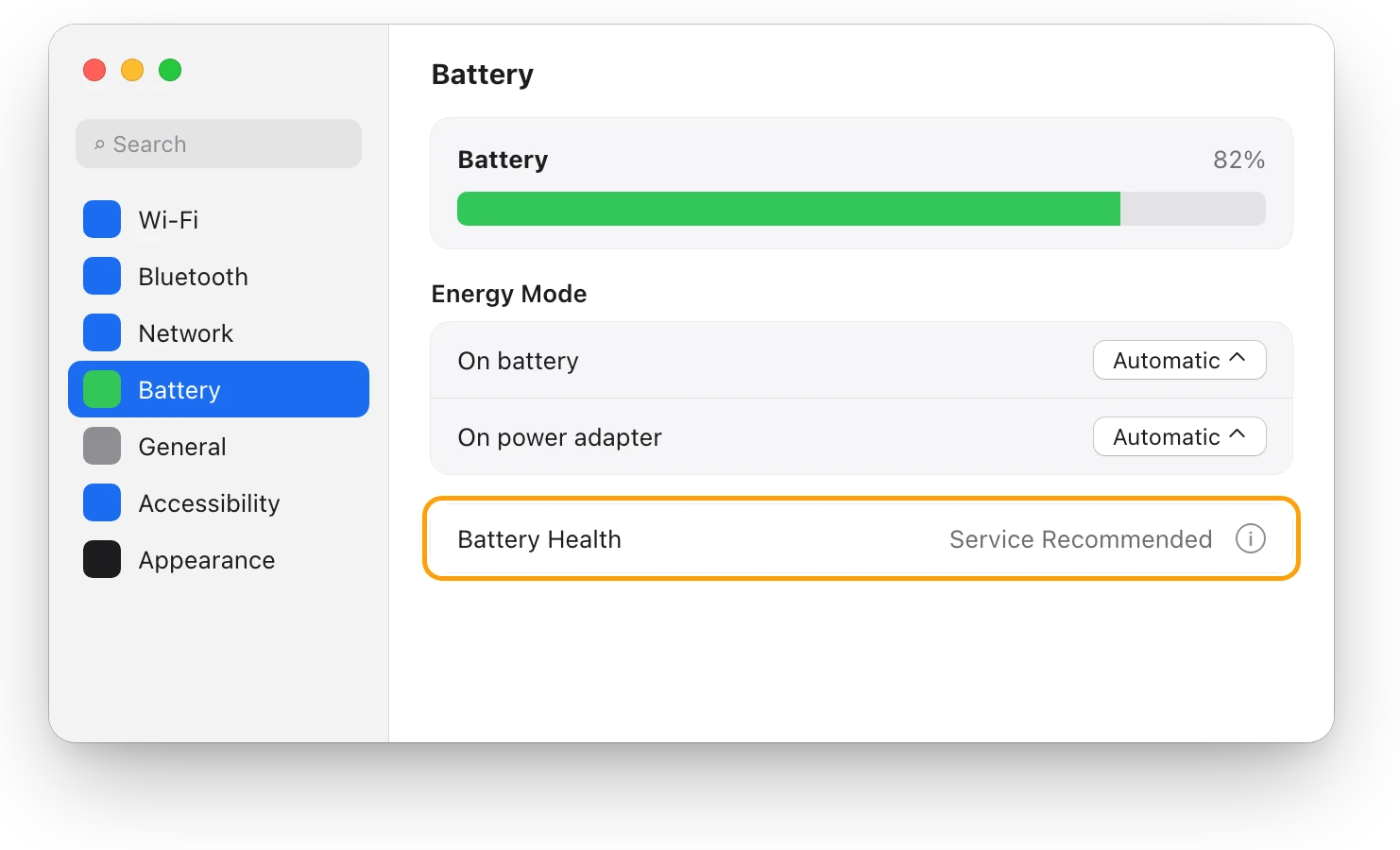
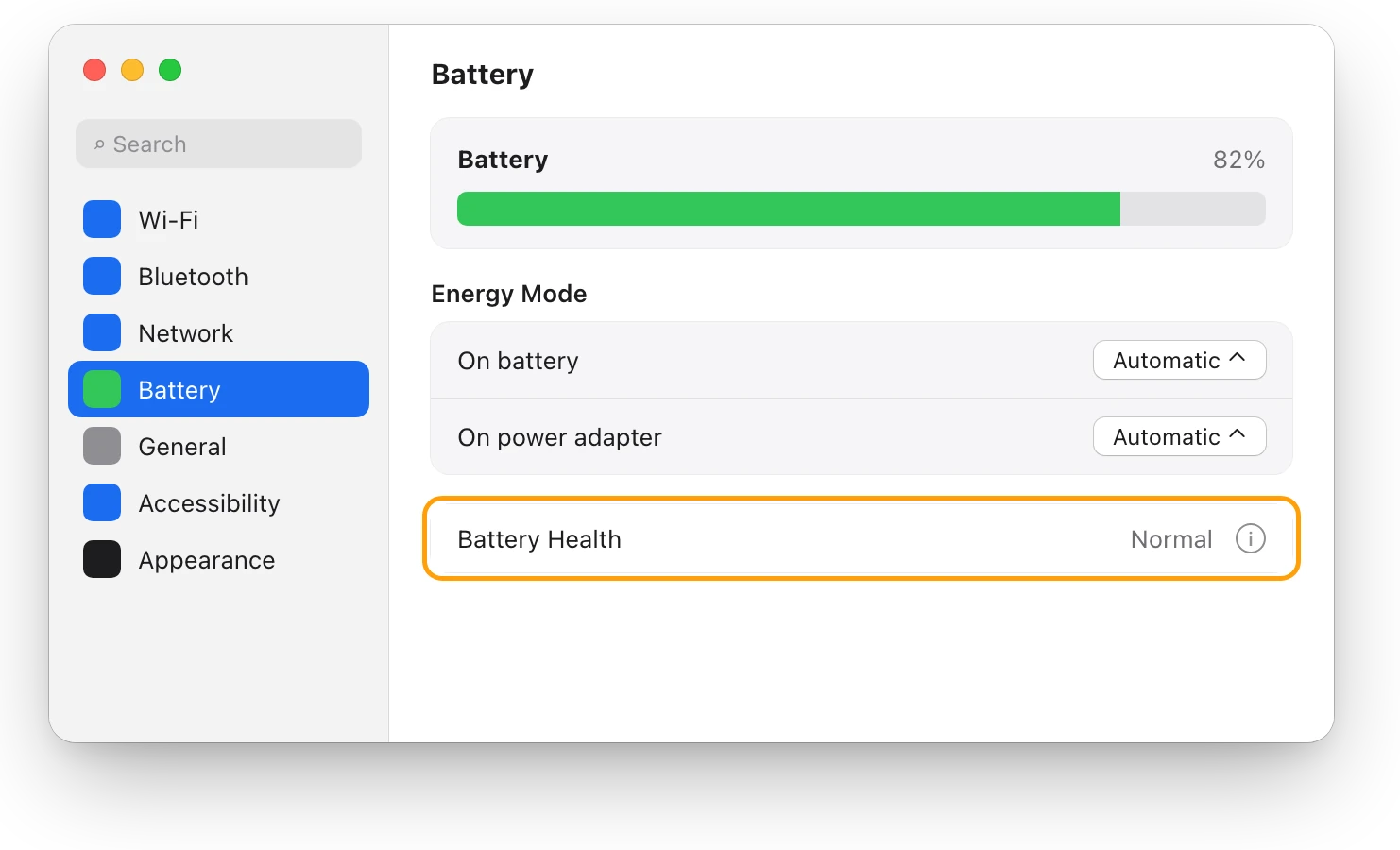
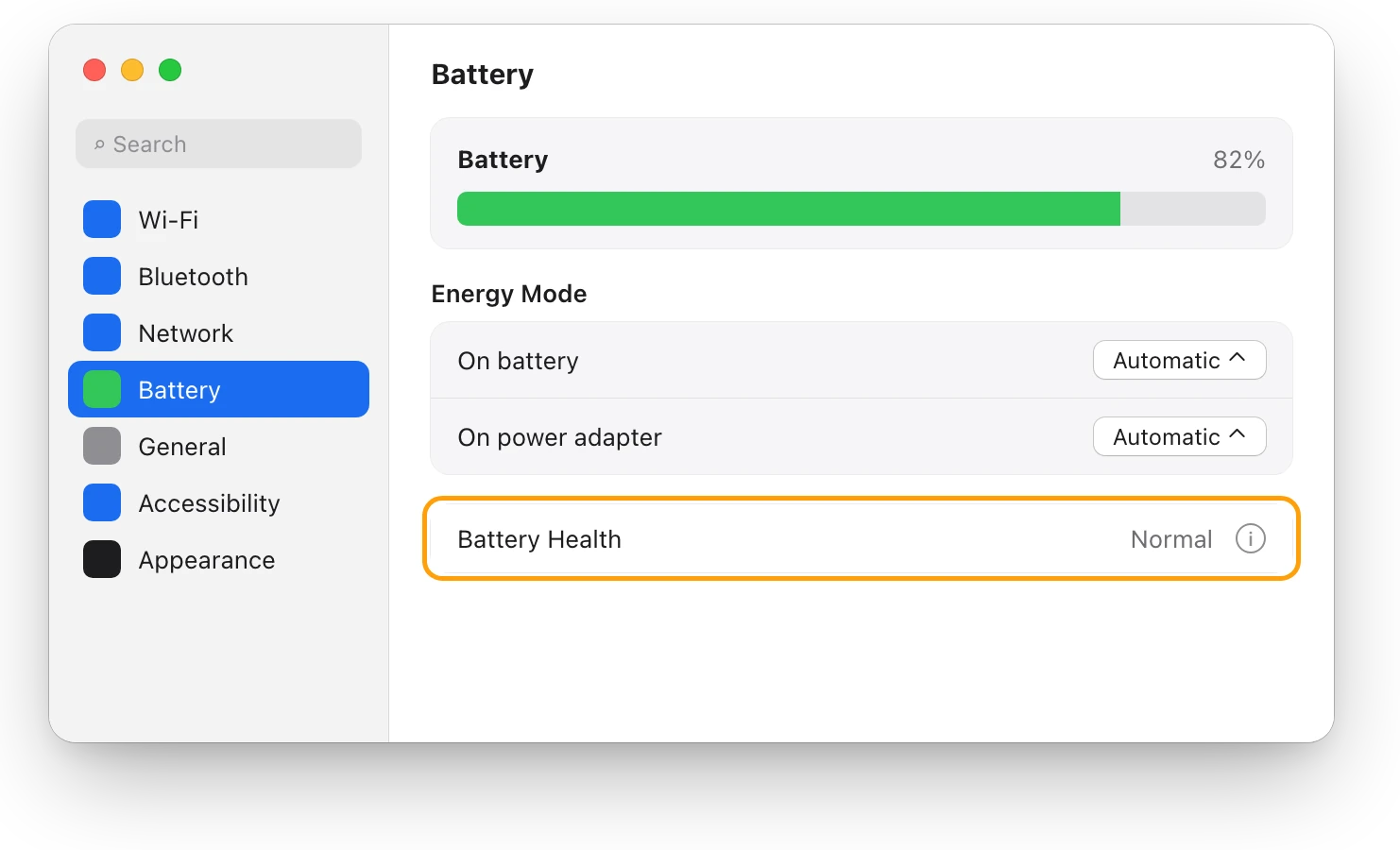
- Choose Apple menu > System Settings, then click Battery in the sidebar. You may need to scroll down.
- Read Battery Health: Normal or Service Recommended.
- Click the info button (ⓘ) next to it. Battery Condition and Maximum Capacity appear.
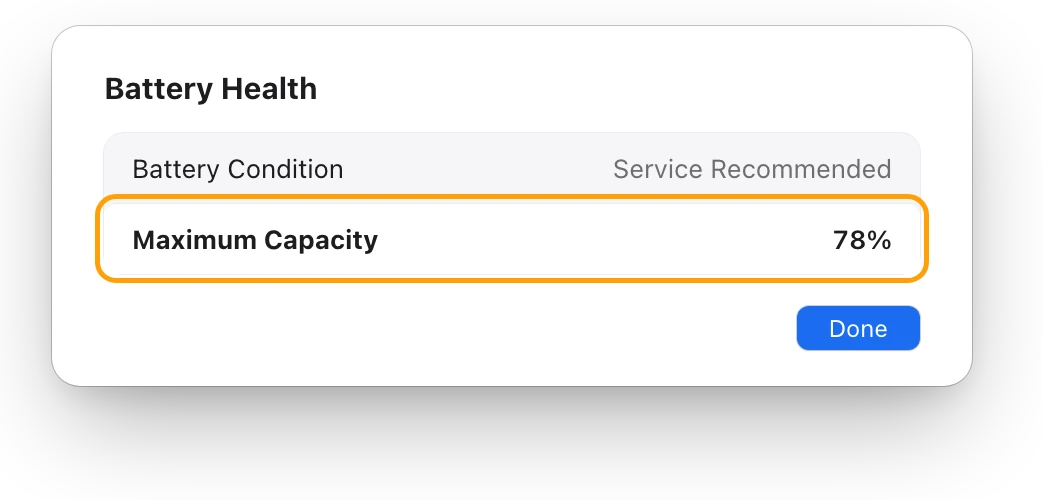
Maximum Capacity is how much charge the battery holds now, compared with when it was new. Lower means less time between charges. Apple says it’s best to rely on the battery health that macOS reports, because third-party apps that report battery health might not be accurate.
How many cycles does my battery have?
The cycle count is in System Information.
- Hold the Option key, click the Apple menu, then choose System Information.
- Under Hardware, select Power.
- Under Battery Information, read Cycle Count.
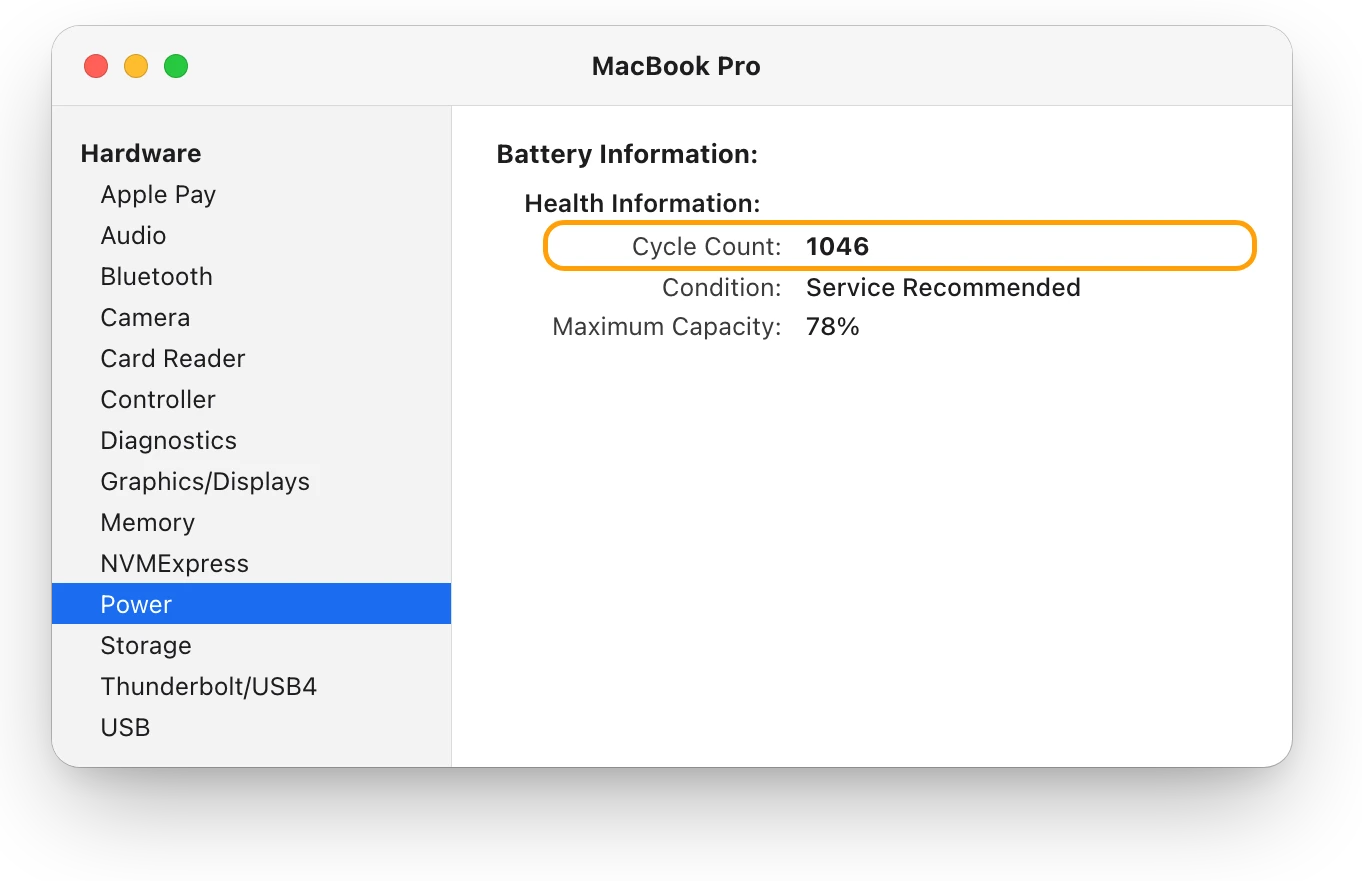
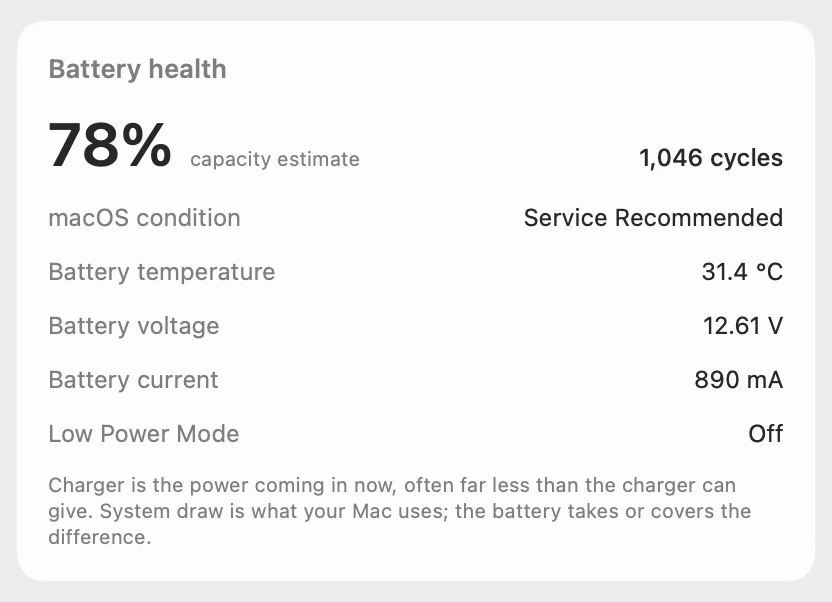
A charge cycle is all of the battery’s power used, though not necessarily in one go. Apple designs the batteries in MacBook Air and MacBook Pro models with Apple silicon for a maximum of 1,000 cycles, and to keep up to 80% of their original capacity at that count. This battery is past both, at 1,046 cycles and 78%. Apple says you can keep using a battery after its maximum cycle count, and recommends replacing it then for the best performance.
Can I keep using my MacBook with Service Recommended?
Yes. Apple says you can safely continue to use your Mac, and that using the battery before it’s checked won’t harm your computer. Expect each charge to last less than it did:
- Keep the charger nearby for long days.
- Use Low Power Mode on battery, in System Settings > Battery, to make each charge go further. Low Power Mode on a Mac explains it.
- Check what’s busy if the charge falls faster than usual: MacBook battery draining fast? walks through it.
What should I do when my battery says Service Recommended?
- Back up your Mac. Apple says a backup matters in case the startup disk has to be erased or replaced during service. Time Machine and an external drive do it.
- Check your coverage. Apple’s One Year Limited Warranty covers a defective battery, but not a battery that wears down from normal use. With AppleCare, Apple replaces a battery whose capacity drops below 80% at no extra charge. Otherwise there’s a fee: Apple inspects your Mac and gives you an estimate.
- Choose where to get service. Make a reservation at an Apple Store, go to an Apple Authorized Service Provider, or use Apple’s mail-in service, which sends you a prepaid box.
- Get your Mac ready. On macOS Tahoe 26 or earlier, turn off Find My Mac. Know your macOS user account’s name and password, and bring the power cable. Apple’s checklist, Get your Mac ready for service, has every step.
| Where | What Apple says |
|---|---|
| Apple Store | Make a reservation; Apple inspects your Mac and gives an estimate |
| Apple Authorized Service Provider | Sets its own fees and gives its own estimate |
| Mail-in service | A prepaid box to send your Mac to Apple, without an appointment |
| Independent Repair Provider | For built-in batteries, only with genuine Apple parts |
| Self Service Repair | Genuine parts for eligible models and countries, out of warranty |
Apple says a built-in battery should be replaced only by an Apple Store, an Apple Authorized Service Provider, or an Independent Repair Provider using genuine Apple parts. Repairs by untrained people or with parts that aren’t genuine can cause damage the warranty doesn’t cover.
Does calibrating the battery fix Service Recommended?
No. Apple’s page on Service Recommended doesn’t suggest a calibration: its answer is service, when the shorter battery life affects you. These are the common myths:
| Myth | What Apple says |
|---|---|
| Drain it to 0%, then charge to 100%, to recalibrate | There’s no need to let it discharge fully: charge whenever you want. Your Mac might recalibrate its maximum capacity itself after an Apple software update |
| Service Recommended means it’s unsafe | You can safely continue to use your Mac |
| It only appears after 1,000 cycles | It also appears when a battery isn’t functioning normally |
| A battery app knows better than macOS | Third-party apps that report battery health might not be accurate; rely on what macOS reports |
During that recalibration after an update, Apple says your Mac might briefly run on battery power, even while it’s plugged in.
Questions people also ask
Is Service Recommended covered by warranty?
Apple’s One Year Limited Warranty covers a defective battery, not one worn down by normal use. With AppleCare, Apple replaces a battery that holds less than 80% of its original capacity at no extra charge.
How much does it cost to replace a MacBook battery?
It depends on your Mac and where you go. Apple inspects your Mac and gives a personalized estimate, and Apple Authorized Service Providers set their own fees.
Why does it say Service Recommended when Maximum Capacity is still above 80%?
Service Recommended doesn’t only mean low capacity. Apple says it also appears when the battery isn’t functioning normally.
Will keeping my MacBook plugged in make it worse?
Apple builds features for a Mac that stays plugged in, such as Optimized Battery Charging. Should I keep my MacBook plugged in all the time? explains what they do.
Scope for Mac · Free, coming to the Mac App Store
How Scope helps
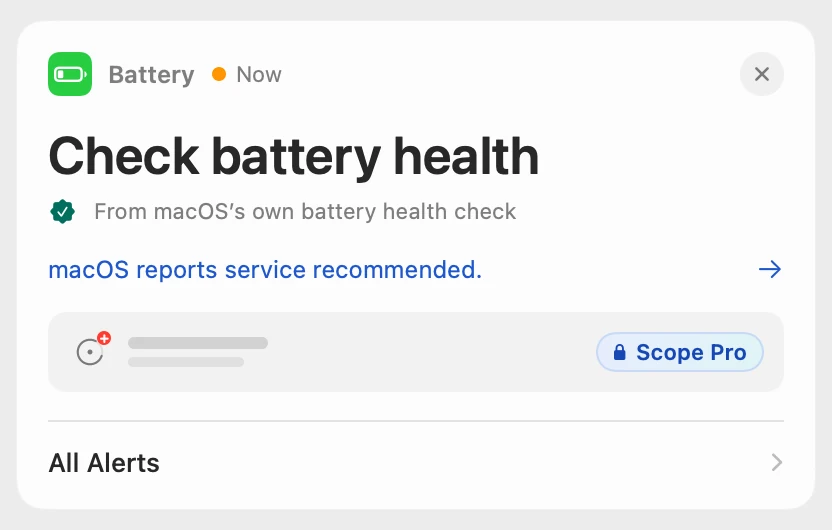
Scope is a free Mac menu bar app that shows macOS’s own battery condition, maximum capacity and cycle count in one card, and says “Check battery health” on its overview when macOS recommends service. It saves opening System Settings and System Information to see whether anything has changed.
In your menu bar
Scope Free keeps one whole menu bar item of your choice.

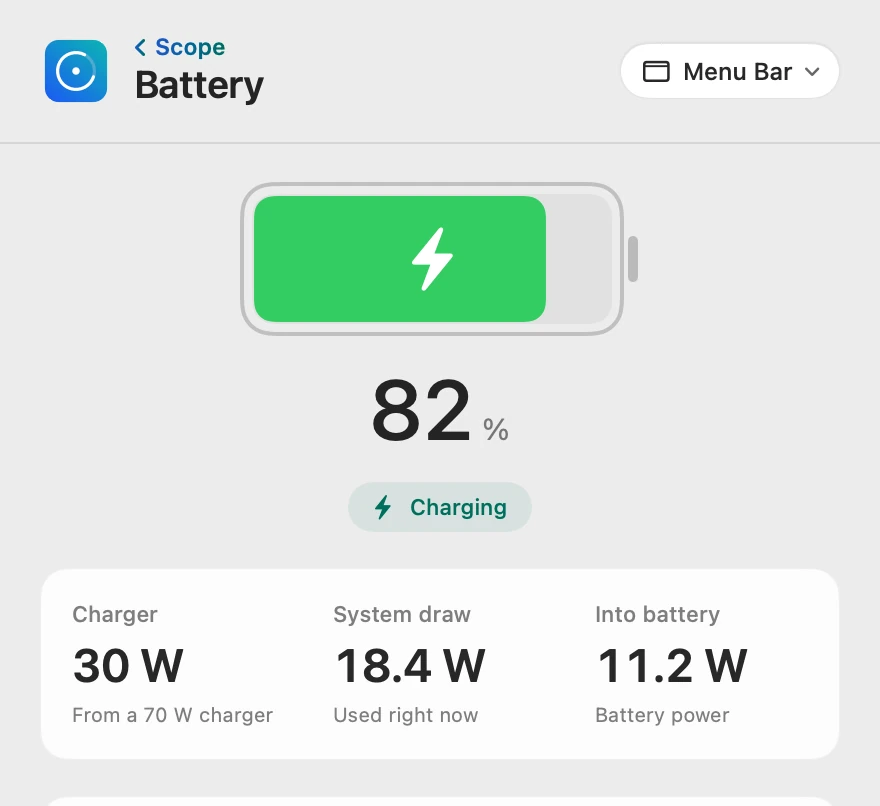
Said when you open Scope
The alert comes straight from macOS’s own battery health check, and it isn’t a low-charge warning. Scope Free shows it on the overview when you open Scope; Scope Pro adds a red + on the menu bar icon and a notification. A battery’s condition doesn’t change overnight, so a night of sleeps and wakes stays one alert.
Health in one card
Scope’s capacity estimate is the maximum capacity macOS reports, and the cycle count and condition are macOS’s own readings. Scope doesn’t test the battery itself.
Scope shows and explains. It doesn’t test, repair or replace your battery.
Try it here
The real Scope, working, right in this page.
Click any item in the menu bar, or a card inside, as you would on your Mac.
Scope Pro Every menu bar item is shown here. Scope Free keeps one whole item of your choice, with every reading inside.
See your own battery’s condition.
Keep reading
Guide · Battery
Mac battery problems: drain, health and charging
Most MacBook battery problems are a busy app, a worn battery, charging paused on purpose or a weak charger. Here’s how to tell which, with macOS’s tools.
Battery
MacBook battery health and cycle count, explained
Battery Health in System Settings shows if your MacBook’s battery is Normal; System Information shows its cycle count. Here’s how to read both.
Battery
MacBook battery draining fast? See what’s busy
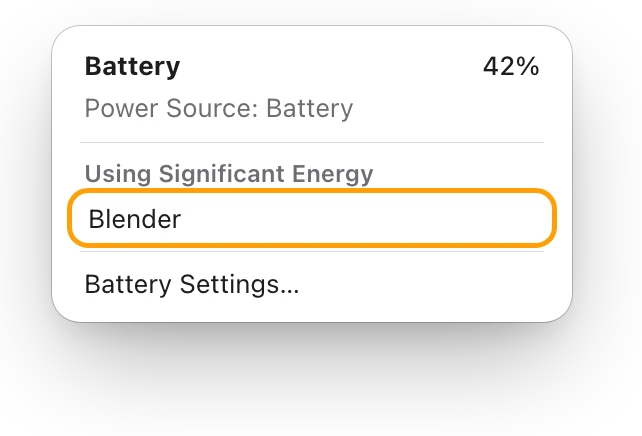
A MacBook battery drains fast when an app keeps it busy. The battery menu and Activity Monitor’s Energy tab show which one; here’s what to do.
Battery
Low Power Mode on a Mac: what it changes
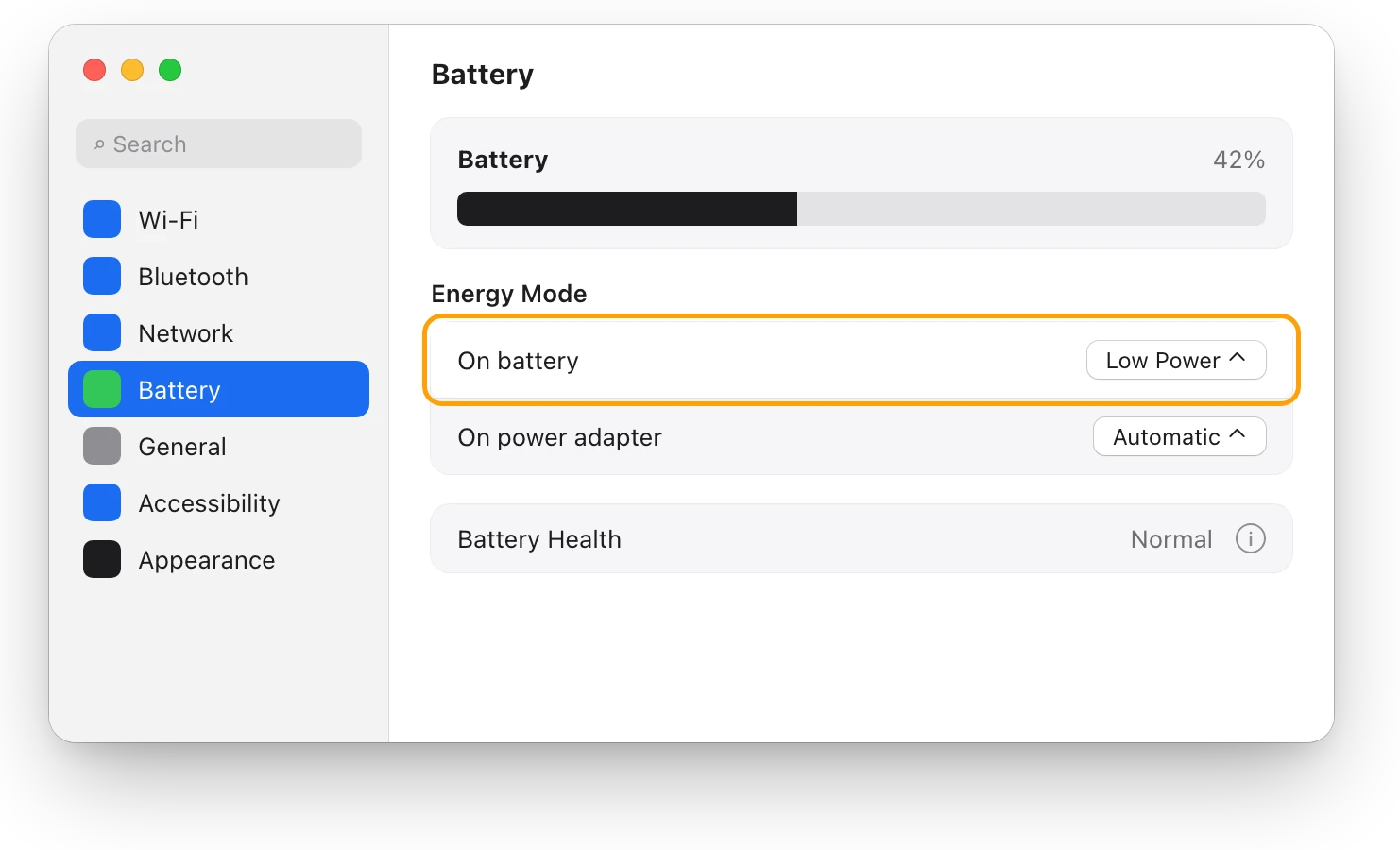
Low Power Mode on a Mac reduces energy use so the battery lasts longer. Here’s how to turn it on, what Apple says it changes, and when to use High Power.
Battery
Should I keep my MacBook plugged in all the time?
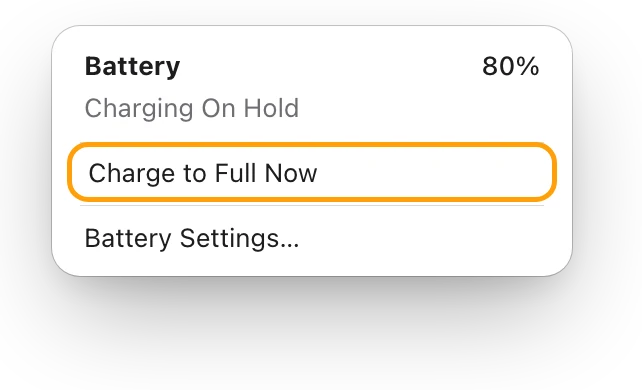
You can keep a MacBook plugged in: Optimized Battery Charging and Charge Limit cut its time at full charge. Heat matters more. Here’s how to set them.
Sources
- Apple Support: If you see battery “Service Recommended” on your Mac laptop
- Apple Support: Check the condition of your Mac laptop’s battery
- Apple Support: Change Battery settings on a Mac laptop
- Apple Support: Determine battery cycle count for Mac laptops
- Apple Support: About battery health management in Mac laptops with Apple silicon
- Apple Support: Get your Mac ready for service
- Apple Support: Mac laptop service and repair
- Apple Support: How to back up your Mac
- Apple: Why Lithium-ion?
Last checked October 19, 2026. Readings, apps and files in the pictures are from a made-up Mac.