Scope for Mac
Mac alerts for overheating, memory, disk and battery
Scope is a free Mac menu bar app that tells you when something on your Mac needs attention: heat that lasts, memory running short, a drive filling up, or a battery that needs service. Every alert waits until a problem has lasted, so a passing spike never raises one. Each alert says the check Scope made before raising it.
Free, coming to the Mac App Store. Scope Pro is a one-time purchase.
In your menu bar
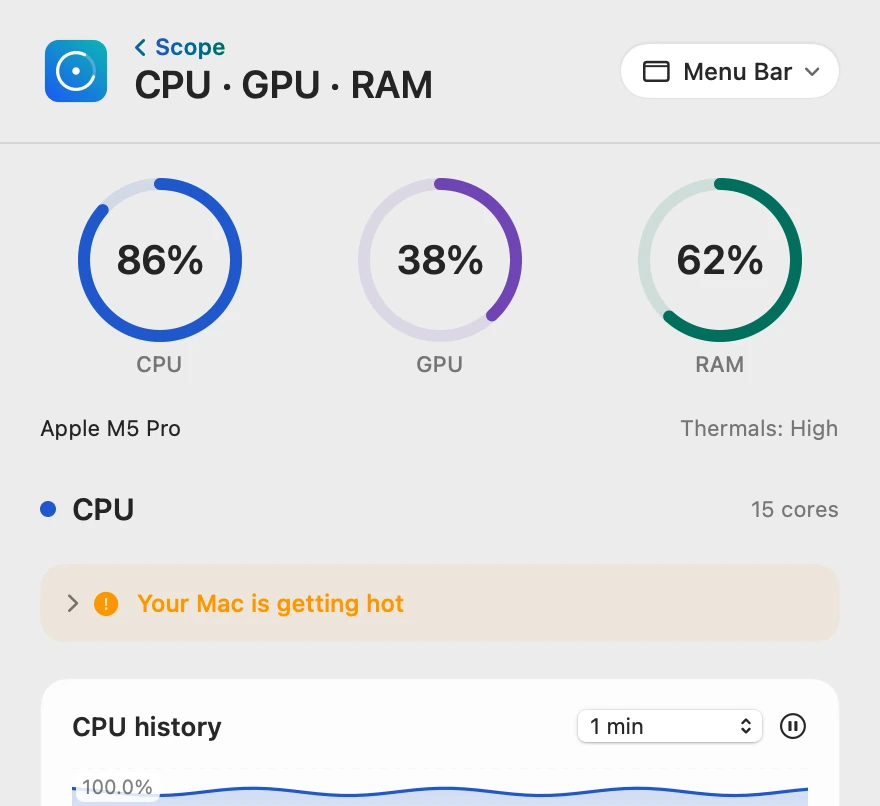
Here macOS reports high heat, and the panel shows Thermals: High with the tip “Your Mac is getting hot”. Scope Free keeps one whole menu bar item of your choice, and shows a lasting problem at the top of Scope’s overview when you open it.

Heat that lasts
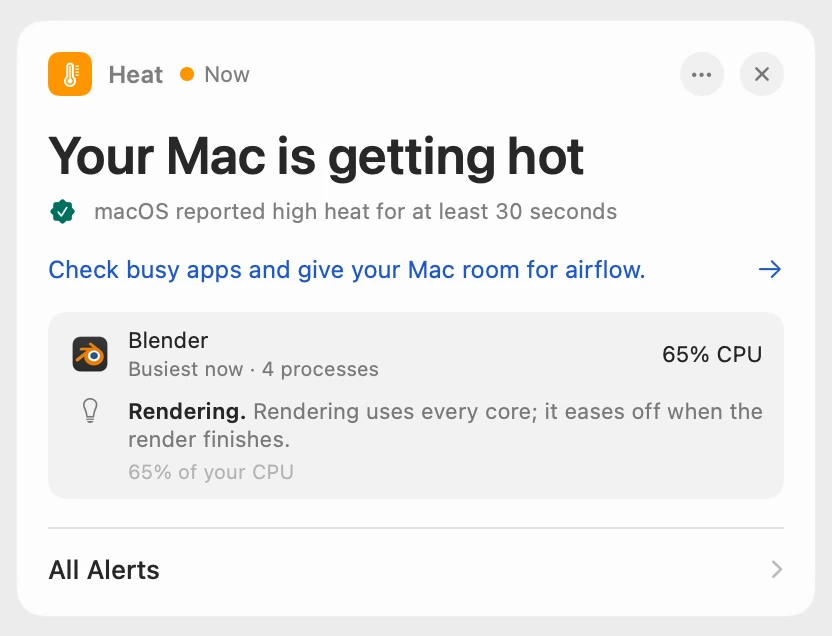
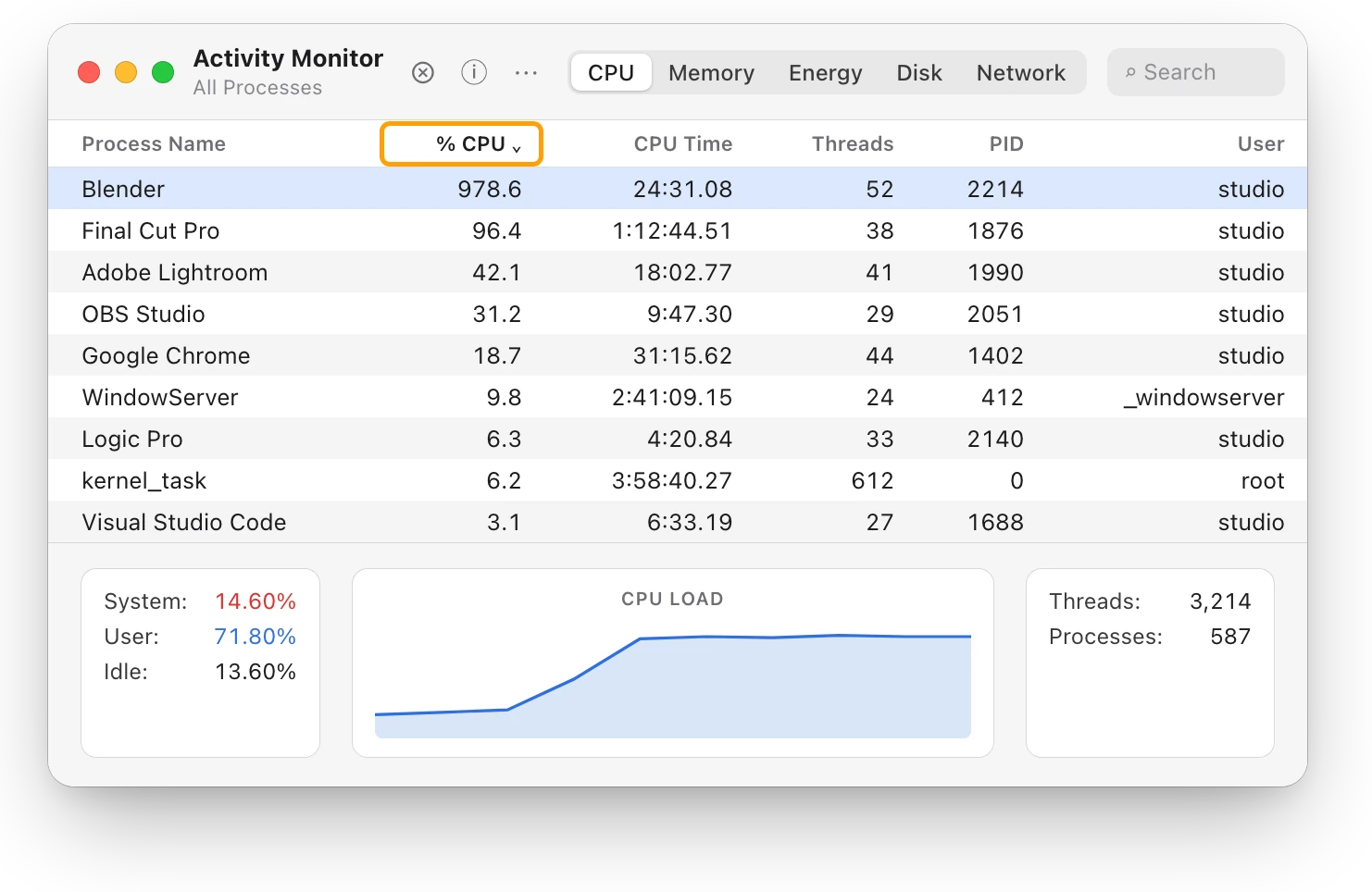
Scope shows the heat level macOS reports: Thermals: Normal, Warm, High or Critical. When macOS reports High or Critical for at least 30 seconds, Scope says “Your Mac is getting hot” and suggests checking busy apps and giving your Mac room for airflow. Scope Pro names the busiest app, here Blender at 65% of the CPU, with a tip about rendering.
RAM running short
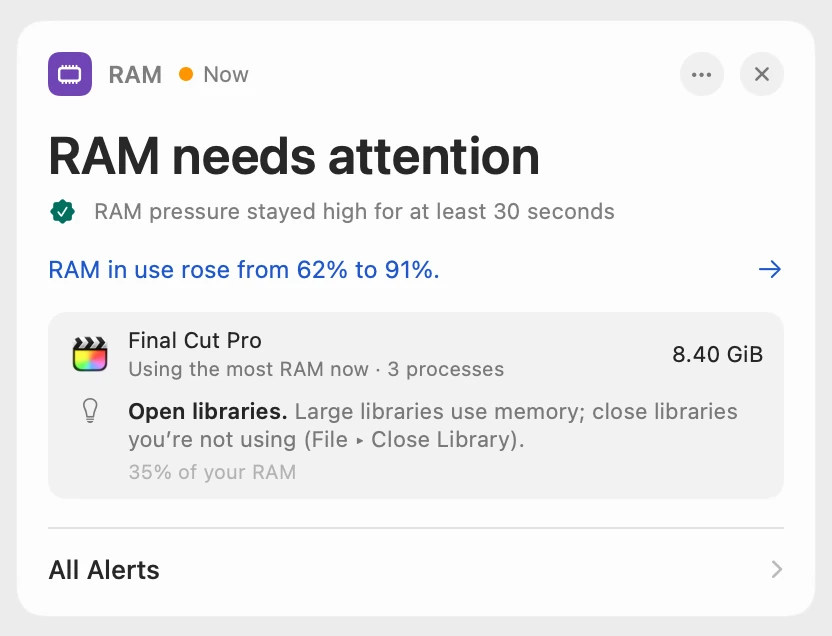
Memory pressure is macOS’s measure of whether your Mac is really running short of RAM, not just how much is in use. When it stays high for at least 30 seconds, Scope says “RAM needs attention”, with how much RAM in use rose: here from 62% to 91%. Scope Pro names the app using the most, Final Cut Pro at 8.40 GiB.
RAM in use over 80%
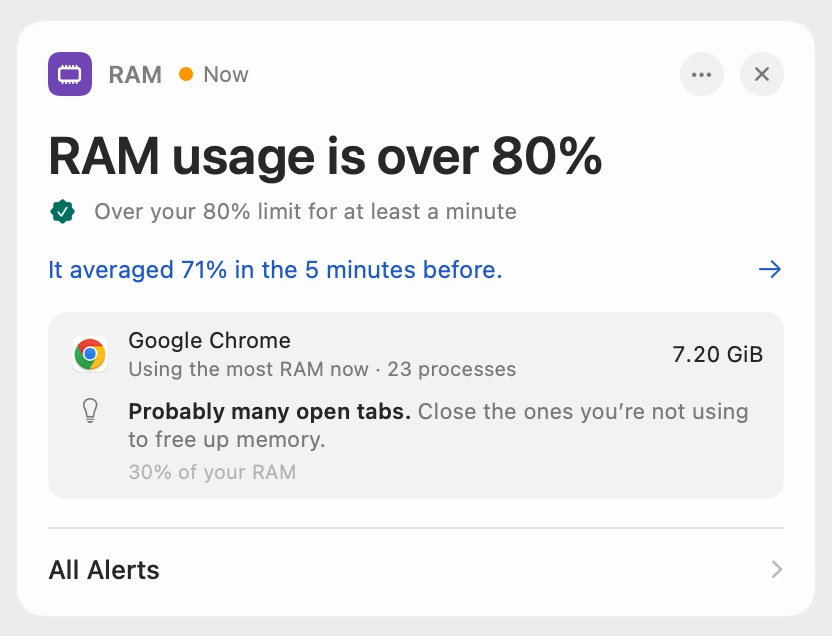
A second RAM alert watches RAM in use: over 80% for at least a minute, in Scope Free and Scope Pro alike. It says what RAM in use averaged before, here 71%. Scope Pro names the app with its helper processes counted together, Google Chrome at 7.20 GiB, and suggests closing the tabs you’re not using. While RAM pressure already has an alert, this one doesn’t add a second.
A drive filling up
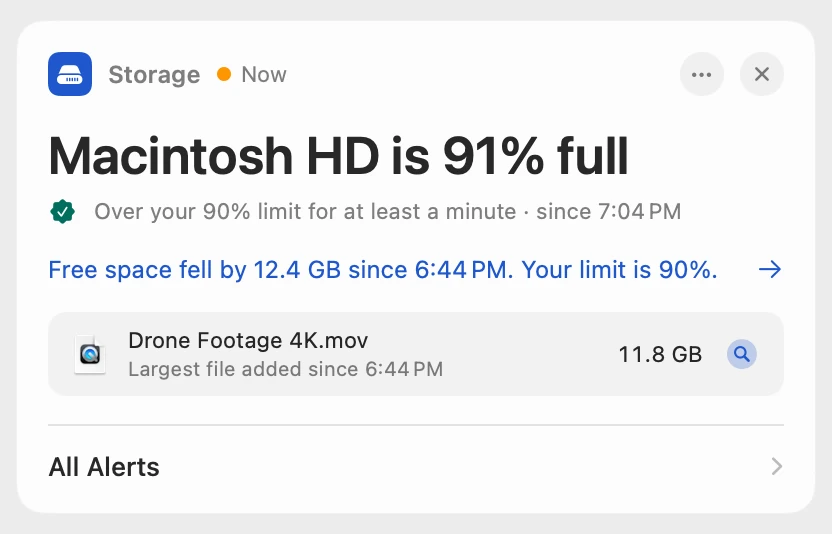
When a drive stays over its limit, 90% to start, for at least a minute, Scope says “Macintosh HD is 91% full”, with how much free space fell and since when: here 12.4 GB. Scope Pro names the largest file added since then, with Show in Finder. A Time Machine backup drive never raises this alert, and neither does a drive while Scope’s own speed test fills it.
Battery service
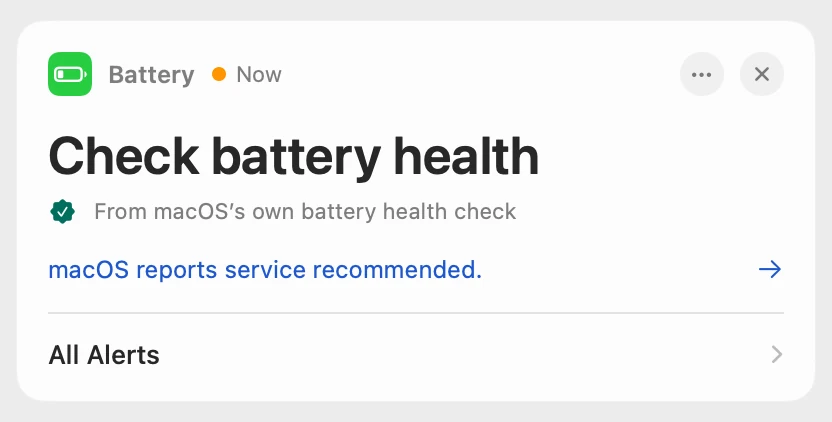
The battery alert comes straight from macOS’s battery health check: “Check battery health” appears when macOS recommends service. It isn’t a low-charge warning. A battery’s condition doesn’t change overnight, so a night of sleeps and wakes keeps it one alert, not one for each wake.
The red + and a notification
With Scope Pro, a red + appears beside the Scope icon once an alert has lasted, and the same alert comes once as a macOS notification, with what’s behind it in one line, such as “Busiest app: Blender · 65% CPU”. A click on the notification opens Scope. Opening Scope clears the +, and the notification leaves Notification Center with it.

The week of alerts
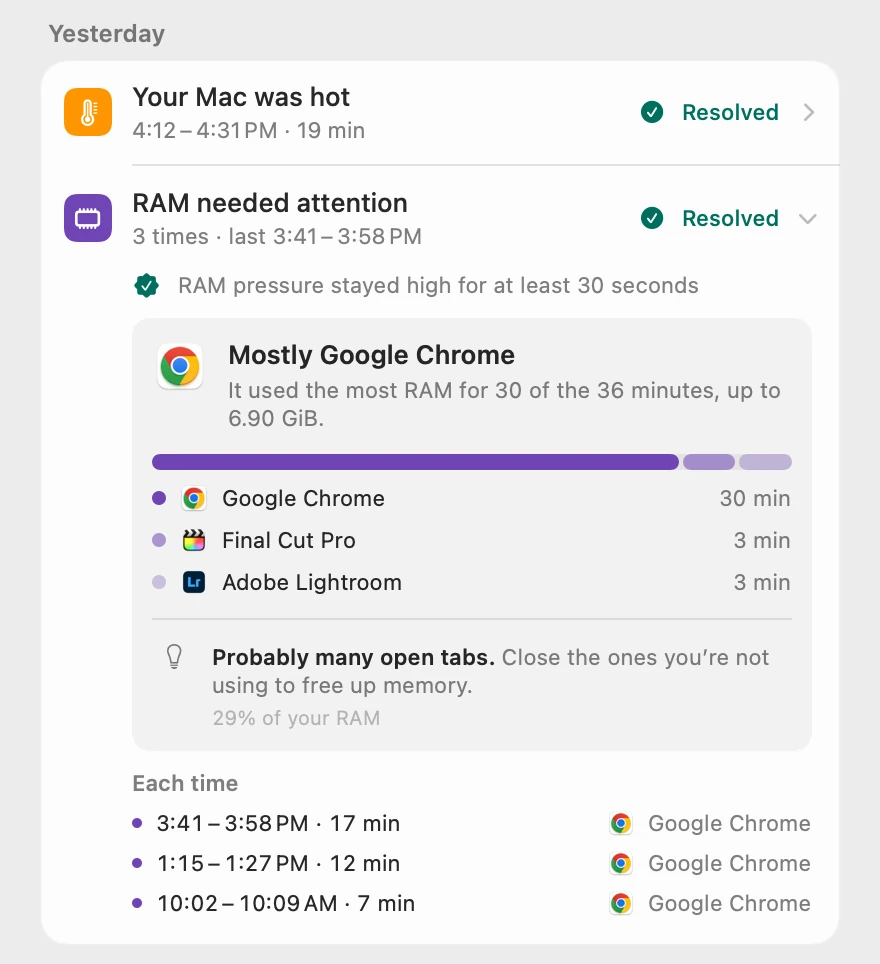
All Alerts lists every alert happening now, in both tiers. With Scope Pro you also see the week, kept on your Mac: each alert that cleared, when and for how long, and under Kept it going, the apps behind it and for how many minutes. The ⋯ beside an alert quiets one app for today or until you turn it back on, with Undo.
Scope Free and Scope Pro
| Scope Free | Scope Pro adds |
|---|---|
| Heat, RAM, storage and battery alerts at the top of the overview when you open Scope | The red + beside the Scope icon when an alert has lasted |
| The check Scope made and what changed, such as how much free space fell | The app or file behind each alert, with a tip for the app |
| No notifications | Each alert once as a macOS notification; a click opens Scope |
| All Alerts: every alert happening now, with Show Again for ones you dismissed | The week of alerts, with what kept each one going |
| Standard limits: 80% for RAM in use, 90% for drives | Your own limits, which kinds of alert you get, and CPU and GPU usage alerts |
| Dismiss an alert with × | Quiet an app with ⋯, today or until you turn it back on |
Questions people also ask
Does Scope show my Mac’s CPU temperature?
No. Scope shows the heat level macOS reports, Thermals: Normal, Warm, High or Critical, and the battery’s own temperature. The heat alert comes when macOS reports High or Critical for at least 30 seconds.
Will Scope alert me every time my CPU spikes?
No. CPU and GPU usage alerts start off, since a busy processor is usually work you chose; with Scope Pro, turn on Usage under Alert types in Preferences → Alerts, and Scope alerts after a whole minute over your limit, 80% to start. Every alert waits like this, and an alert that clears and comes back within ten minutes is still the same alert.
Does Scope warn me when my battery is low?
No. Scope’s battery alert is macOS’s own service recommendation, “Check battery health”. The Battery panel shows the charge and, when macOS gives one, the time remaining.
Does Scope send notifications?
With Scope Pro, yes: each alert comes once as a macOS notification, with what’s behind it in one line. Scope asks macOS for permission the first time it has an alert to show. Scope Free never sends notifications.
Does Scope fix the problem?
No. Scope says what it saw and what’s behind it, and Scope Pro adds a tip. It never quits apps, deletes files or changes settings; what to do is your call.
Is it free?
Yes. Scope Free shows every lasting heat, RAM, storage and battery problem when you open Scope, for as long as you like. Scope Pro, a one-time purchase, adds the red +, notifications, the cause of each alert and the week of alerts.
Try it here
The real Scope, working, right in this page.
Click any item in the menu bar, or a card inside, as you would on your Mac.
Scope Pro Every menu bar item is shown here. Scope Free keeps one whole item of your choice, with every reading inside.
See Scope’s alerts on your own Mac.
Guides for this
Heat
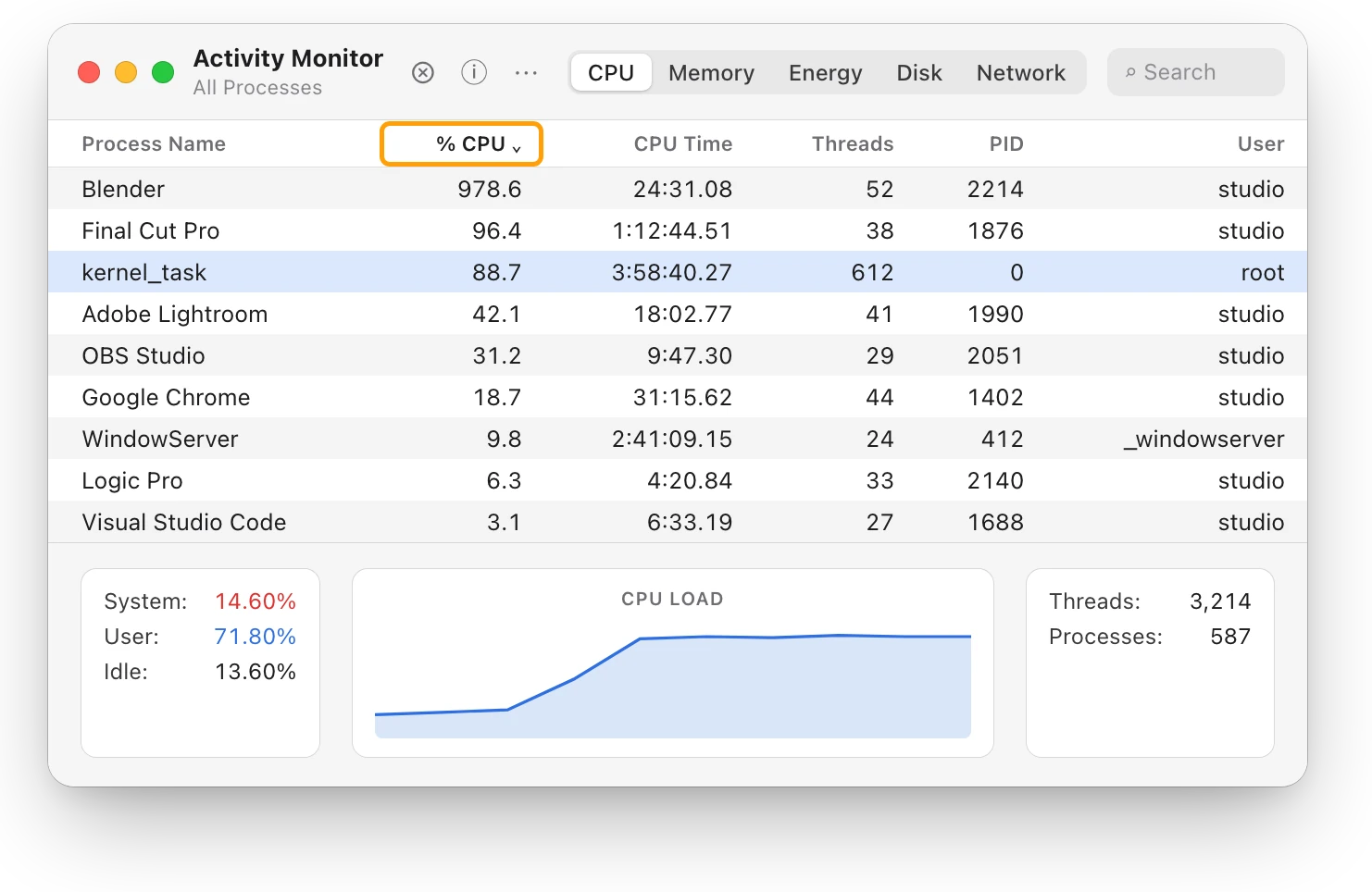
Why is my MacBook getting hot?
A MacBook gets hot when its processor works hard or its vents can’t move air. Here’s how to find the busy app and cool it down, with macOS’s tools.
Heat
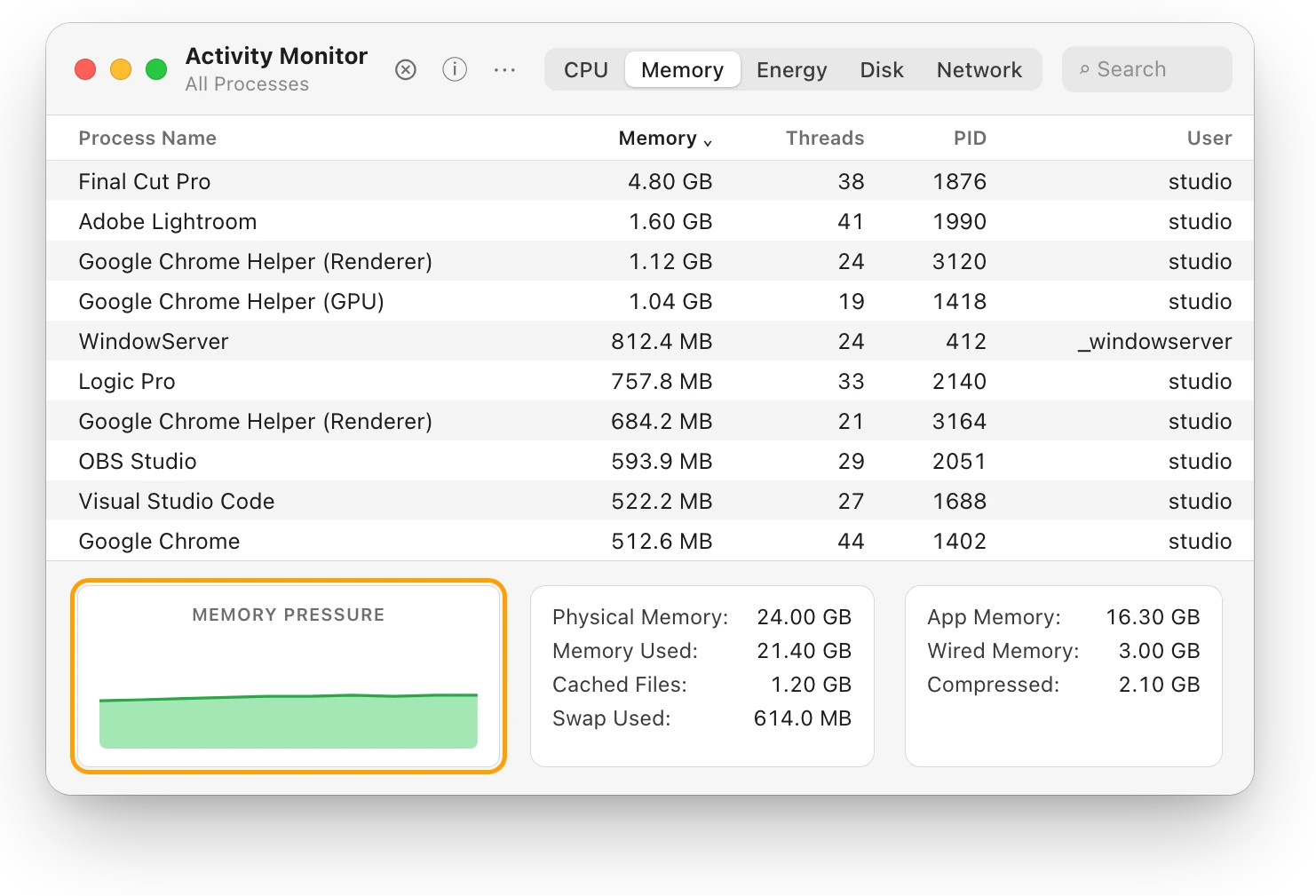
Mac thermal throttling: what the heat level means
Thermal throttling is macOS slowing a hot Mac so it can cool. Here’s what its four heat levels mean, how to check for it, and how to keep your Mac cooler.
Slow Mac
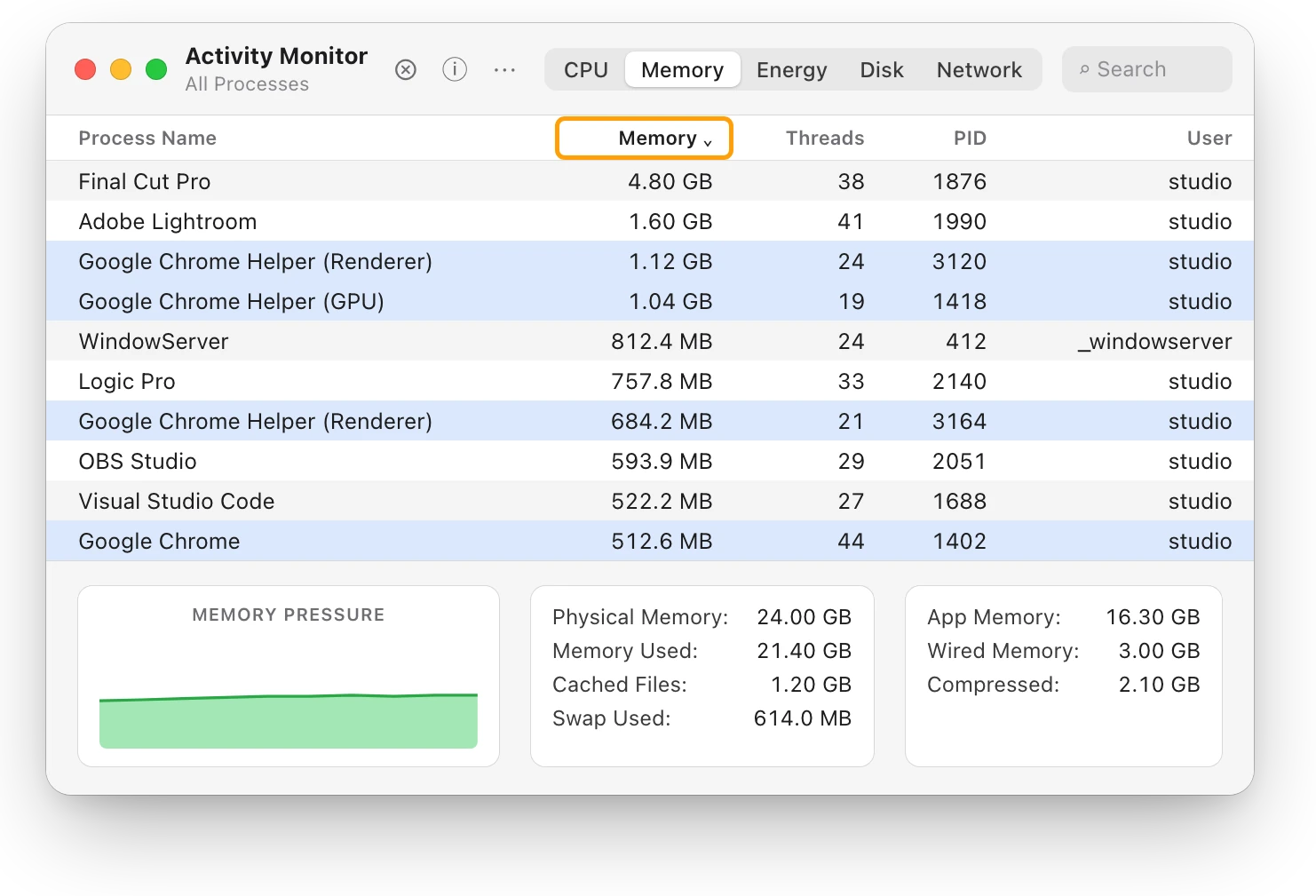
Mac memory pressure: why high RAM use is often fine
Memory pressure, not RAM in use, shows if your Mac has enough memory. Green is fine even when RAM is nearly full; yellow or red means it’s running short.
Slow Mac
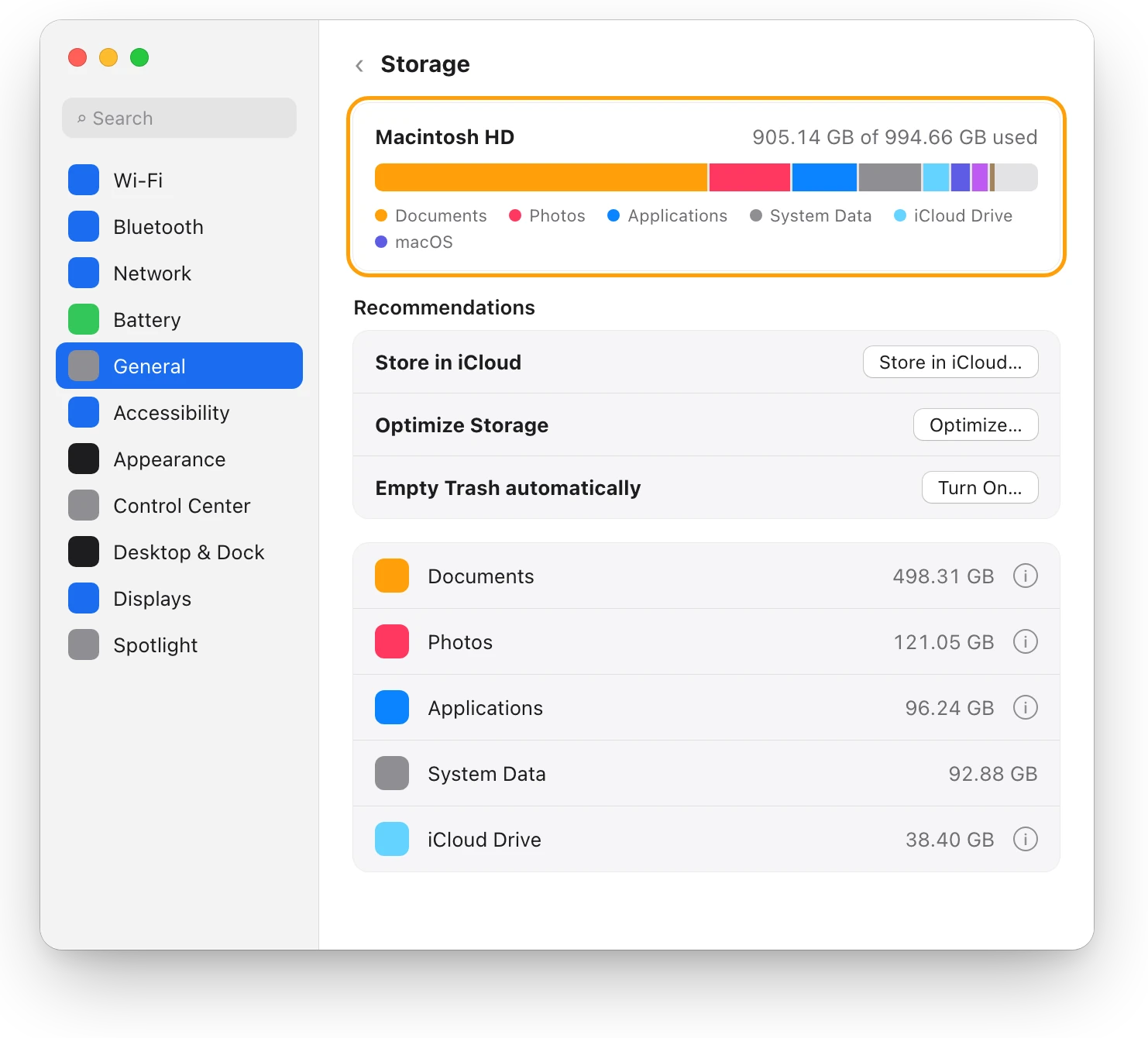
Why is Chrome using so much memory on a Mac?
Chrome runs tabs and parts of the browser as separate processes, so its memory adds up. Here’s how to see it on a Mac, and when it matters.
Storage
“Your disk is almost full”: what to do first
When your Mac’s disk is almost full, check Storage in System Settings, empty the Trash, then delete or move large files. Here’s what to do first.
Battery
MacBook battery health and cycle count, explained
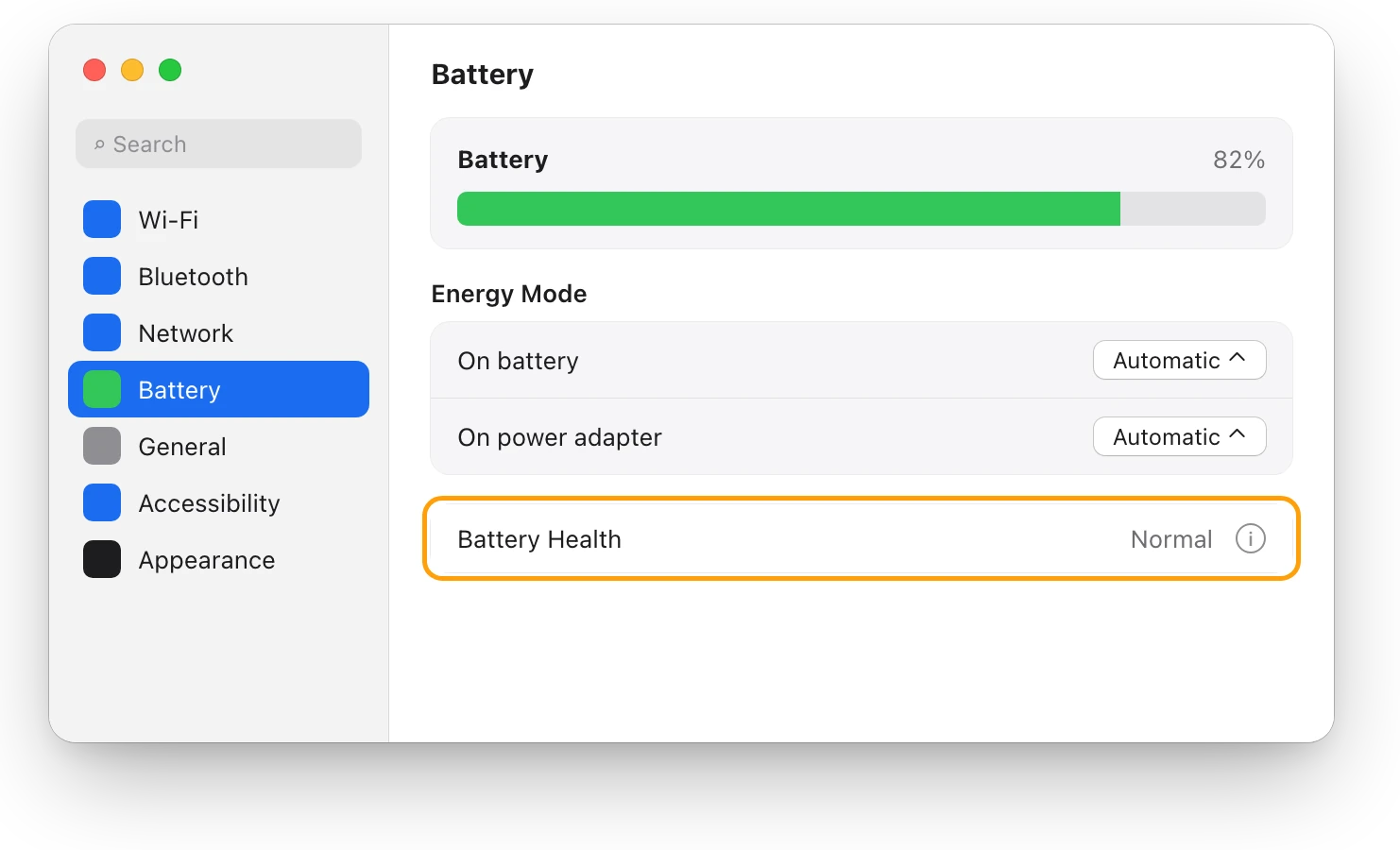
Battery Health in System Settings shows if your MacBook’s battery is Normal; System Information shows its cycle count. Here’s how to read both.
Readings, apps and files in the pictures are from a made-up Mac.