Mac thermal throttling: what the heat level means
Mac thermal throttling is macOS slowing the processor to bring its temperature down. macOS tracks a heat level in four steps, nominal, fair, serious and critical, and Apple’s developer documentation says performance is reduced at serious and significantly affected at critical. In Activity Monitor, kernel_task using a large share of the CPU is the sign Apple points to.
What do the Mac’s heat levels mean?
macOS reports one of four heat levels, which Apple calls thermal states. Apps can read the level, and macOS acts on it. Here’s what Apple’s developer documentation says about each:
| Heat level | What Apple’s documentation says | What you might notice |
|---|---|---|
| Nominal | Within normal limits | Nothing |
| Fair | Slightly elevated; macOS runs the fans and stops background services that aren’t doing work you need right away | Fans start; background tasks wait |
| Serious | High; macOS takes moderate steps that reduce performance, and the fans run at maximum speed | Loud fans; heavy work takes longer |
| Critical | Significantly affecting performance; the Mac needs to cool down | A clearly slower Mac until it cools |
So a Mac at nominal or fair isn’t throttling in any way you’d feel. Serious and critical are the levels where heat costs you speed.
Is my Mac throttling? How to check
Activity Monitor doesn’t show the heat level itself, but macOS leaves signs.
- Open Activity Monitor. It’s in Applications > Utilities, or search for it with Spotlight.
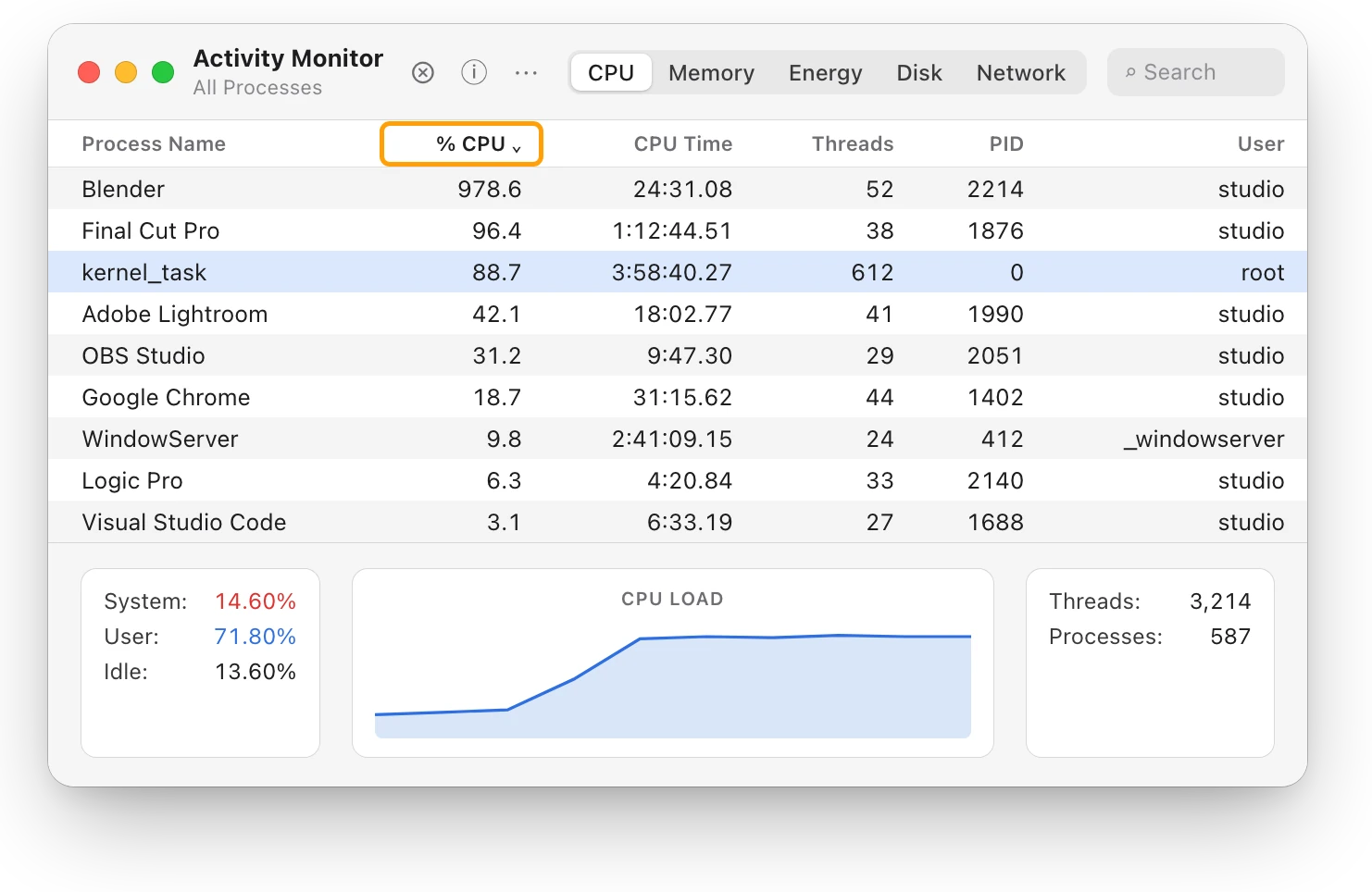
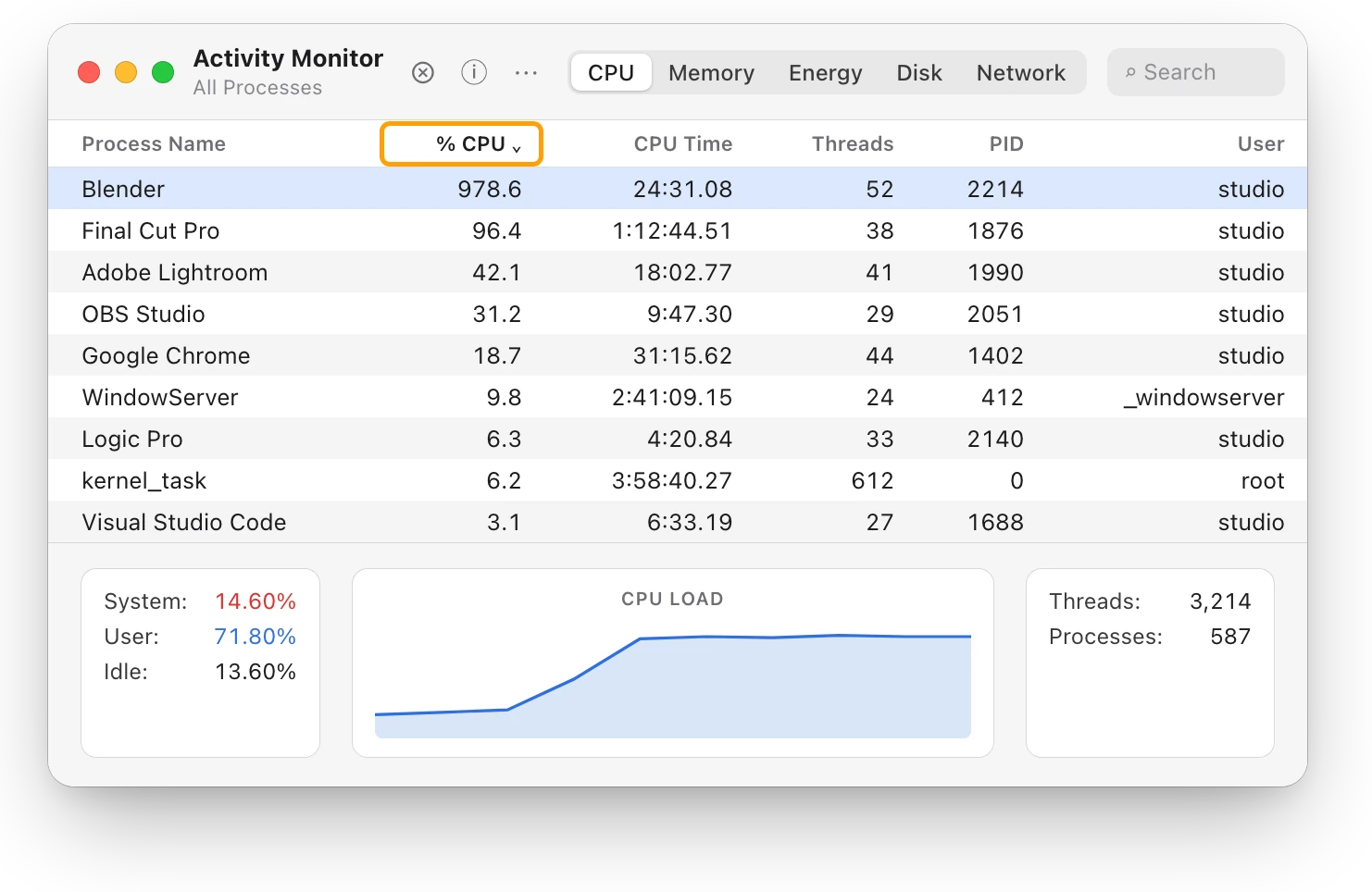
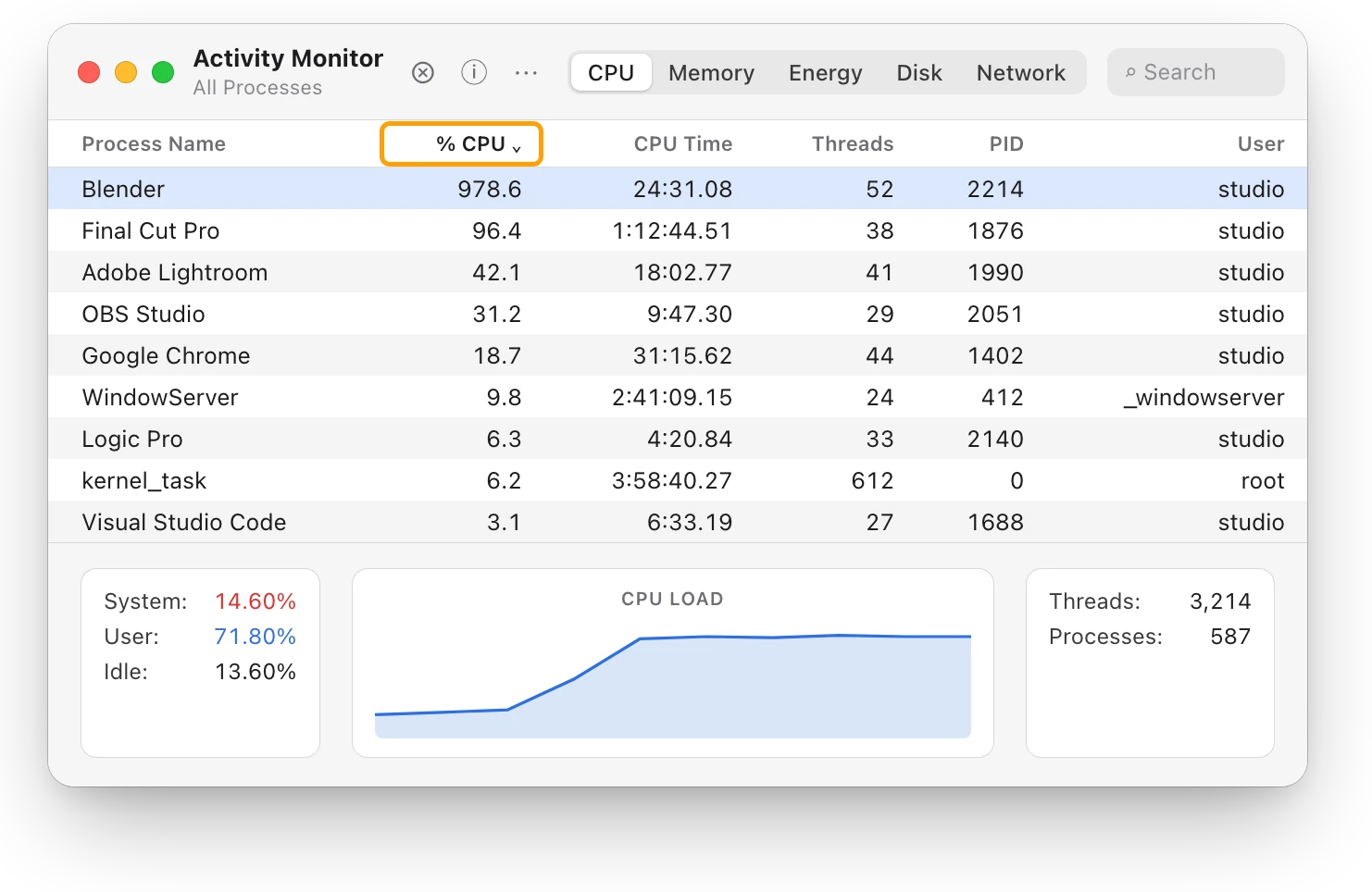
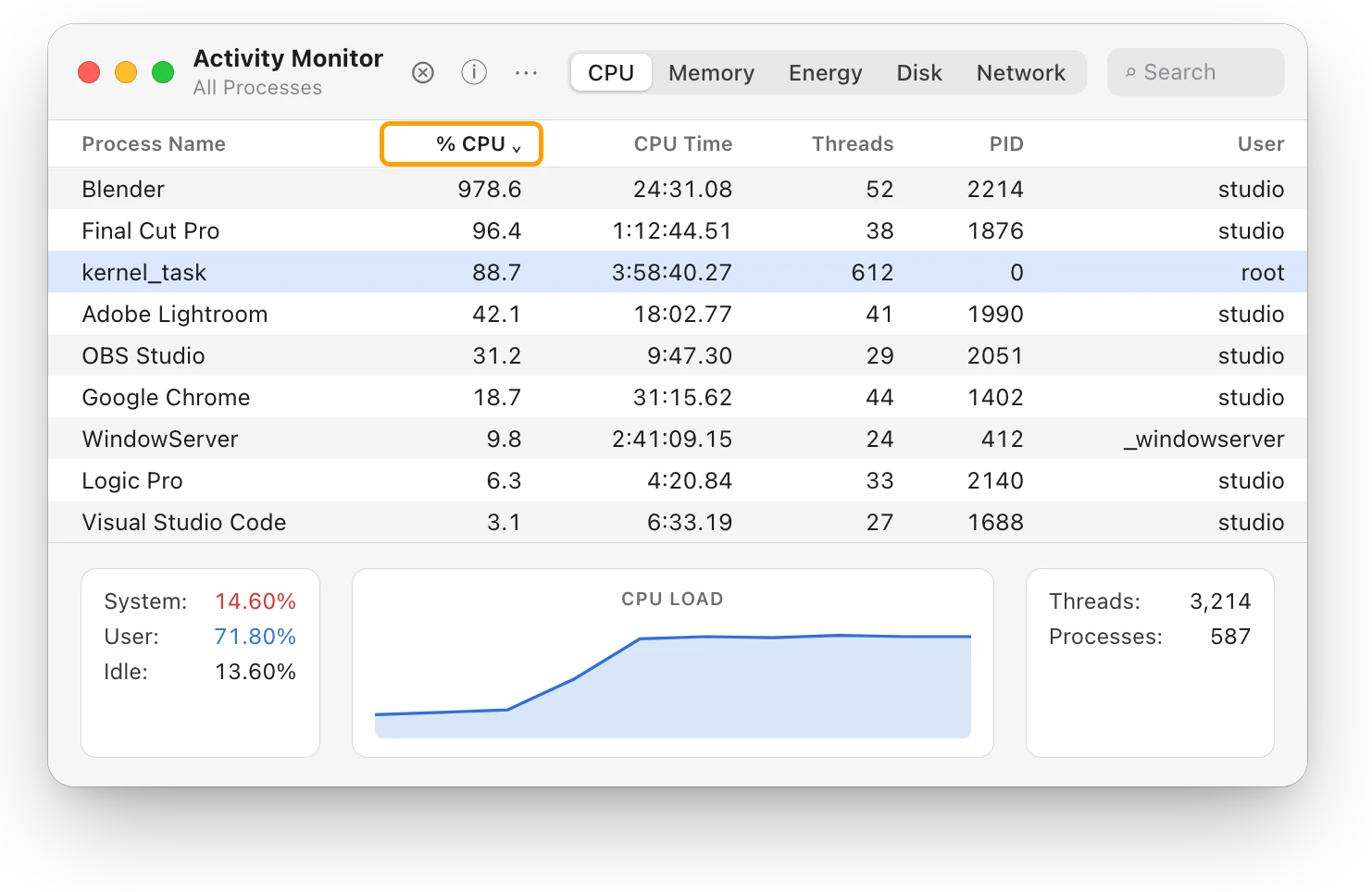
- Click CPU, then click the % CPU column heading to sort the list, busiest first.
- Look for kernel_task. Apple says one of its jobs is to help manage the processor’s temperature, by making the CPU less available to processes using it intensely. When kernel_task shows a large percentage while your Mac works hard, macOS is holding back the heat.
- Look at the app above it. That’s the work making the heat.
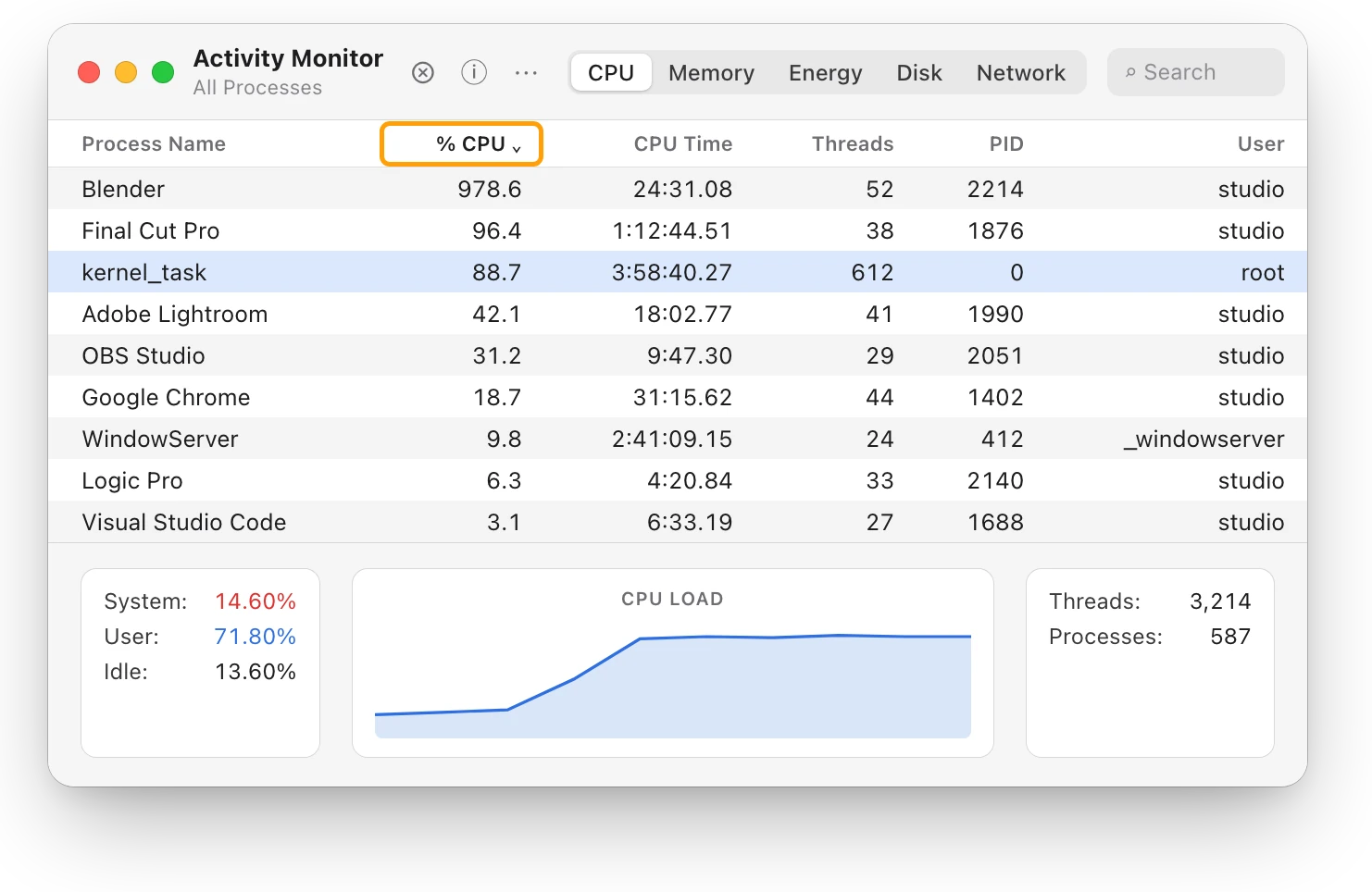
Activity Monitor counts each processor core as 100%, so a busy app can show far more than 100%. kernel_task high CPU? Your Mac is cooling itself explains kernel_task in more detail.
You can also ask macOS directly. Open Terminal (in Applications > Utilities) and type:
pmset -g thermIts manual page (man pmset) says this shows thermal conditions that affect CPU speed. It isn’t available on every Mac.
Your ears are a clue too. Apple says the fans run faster to provide more airflow, and in a warm room they turn on sooner and run faster. MacBook fan loud? What’s making it spin up covers that sound.
Why does a Mac throttle?
A Mac reaches the higher heat levels when it can’t shed heat as fast as it makes it:
- Long, heavy work: renders, exports, games and big builds keep every core busy for minutes.
- Blocked air: beds, pillows and laps cover the vents, and the fans can’t move enough air.
- A warm room: Apple designs Mac laptops for rooms between 10 °C and 35 °C (50 °F and 95 °F), and warns against leaving one in a parked car.
Why is my MacBook getting hot? walks through each cause.
How do I stop my Mac from throttling?
- Let the heavy job finish, or quit the app. Save your work first. If you don’t need it right now, quit it from its own menu.
- Give it air. Use your Mac on a hard, flat surface, and keep the keyboard and vents uncovered.
- Keep the room within range, 10 °C to 35 °C.
- Install macOS updates. Apple lists this among its steps for a Mac laptop that runs warm.
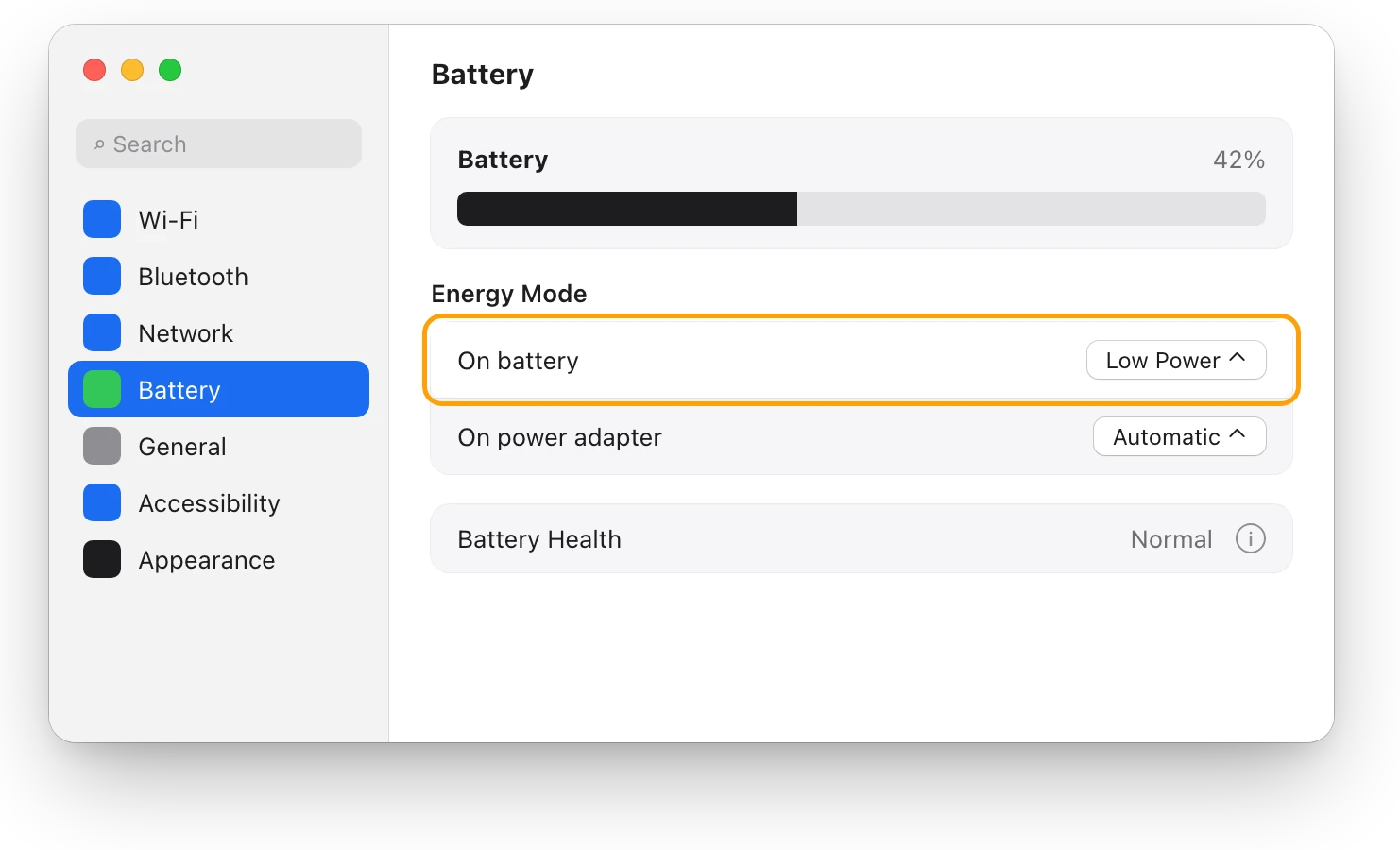
- On some Macs, choose High Power Mode for heavy work. Choose Apple menu > System Settings, click Battery, and under Energy Mode choose High Power from the On power adapter pop-up menu.
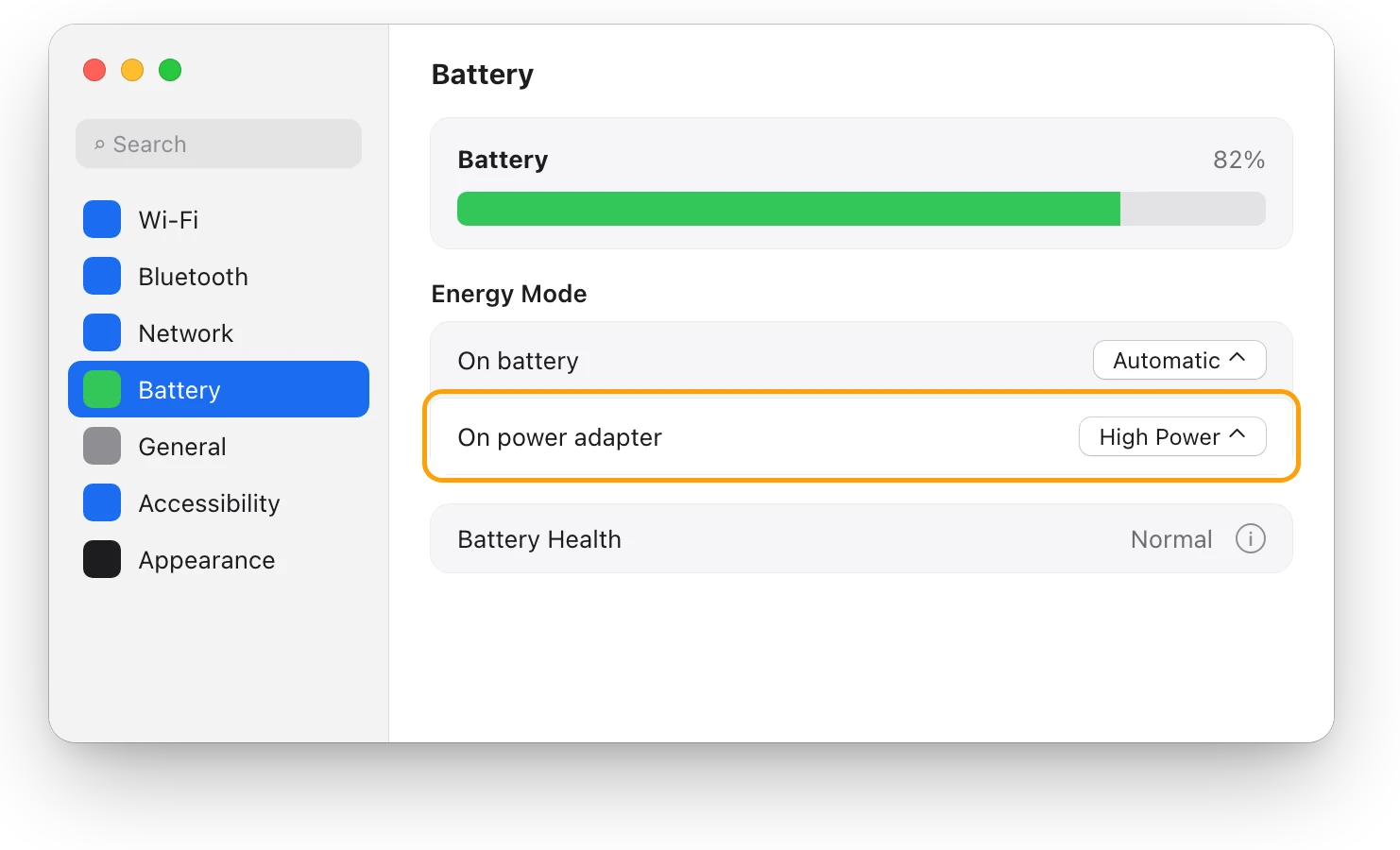
Apple says High Power Mode lets the fans run at higher speeds, and the extra cooling may let the Mac perform better in very intensive work. You’ll hear more fan noise. It’s offered on MacBook Pro introduced in 2024 or later with a Pro or Max chip, MacBook Pro models from 2021 through 2023 with a Max chip, Mac mini introduced in 2024 or later with a Pro chip, and Mac Studio introduced in 2026. For the 14-inch MacBook Pro with M4 Pro or M5 Pro, Apple recommends its 96W USB-C Power Adapter for High Power Mode while charging.
If your Mac gets hot during light work, restart it. On a Mac laptop with Apple silicon, Apple also suggests closing and opening the lid. If it keeps happening, contact Apple or an Apple Authorized Service Provider.
Questions people also ask
Does thermal throttling damage a Mac?
Throttling itself is a protection, not a fault: Apple’s documentation describes the higher heat levels as steps macOS takes to bring the temperature down. Keeping your Mac in a room between 10 °C and 35 °C, with its vents clear, keeps it in the lower levels more often.
Do MacBook Pros throttle?
Any Mac can reach the higher heat levels during long, heavy work, especially in a warm room or on a soft surface. Some MacBook Pro models offer High Power Mode, which lets the fans run faster for very intensive work.
Can I see my Mac’s CPU temperature?
macOS doesn’t show chip temperatures. Apple says third-party apps that show temperatures don’t measure the case, which is much cooler, and that you should never use them to diagnose possible hardware issues.
Is Low Power Mode the same as throttling?
No. Low Power Mode is a setting you choose to reduce energy use, while the heat level is macOS responding to temperature. Low Power Mode on a Mac: what it changes explains the setting.
Scope for Mac · Free, coming to the Mac App Store
How Scope helps
Scope is a free Mac menu bar app that shows the heat level macOS reports, as Normal, Warm, High or Critical, beside how busy the processor is and which apps are using it. It shows macOS’s own heat level, not temperatures in degrees or fan speeds, so you can see when heat may be costing you speed without opening Terminal.
In your menu bar

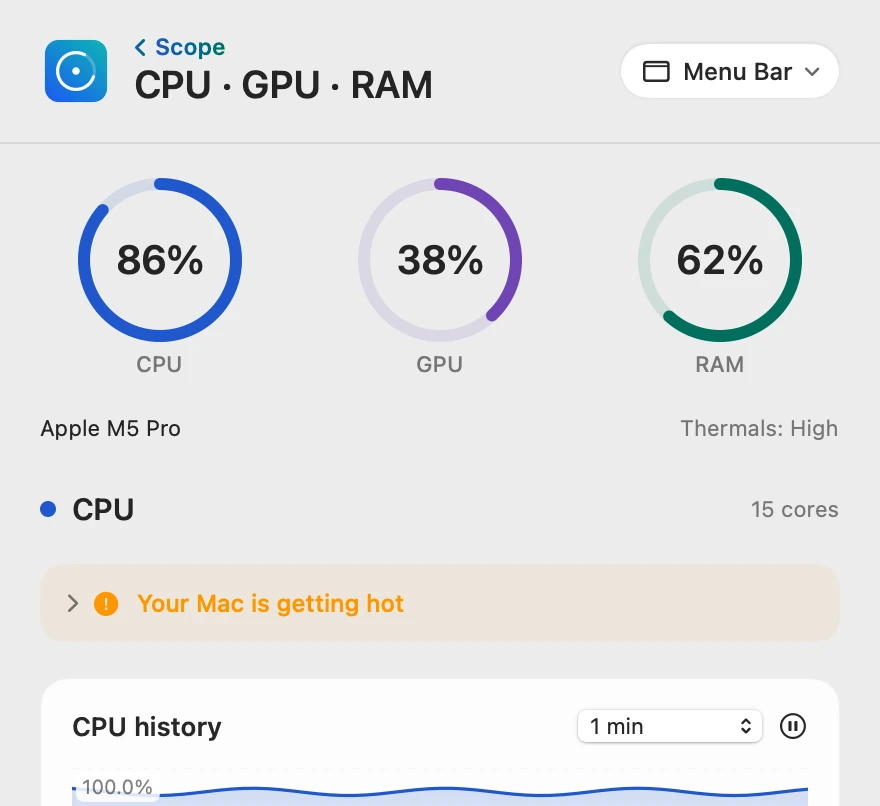
The heat level, in plain words
Thermals sits beside the chip’s name, in macOS’s four levels: Normal is nominal, Warm is fair, High is serious and Critical is critical. At High or Critical, the levels where performance is reduced, Scope’s tip says your Mac is getting hot.
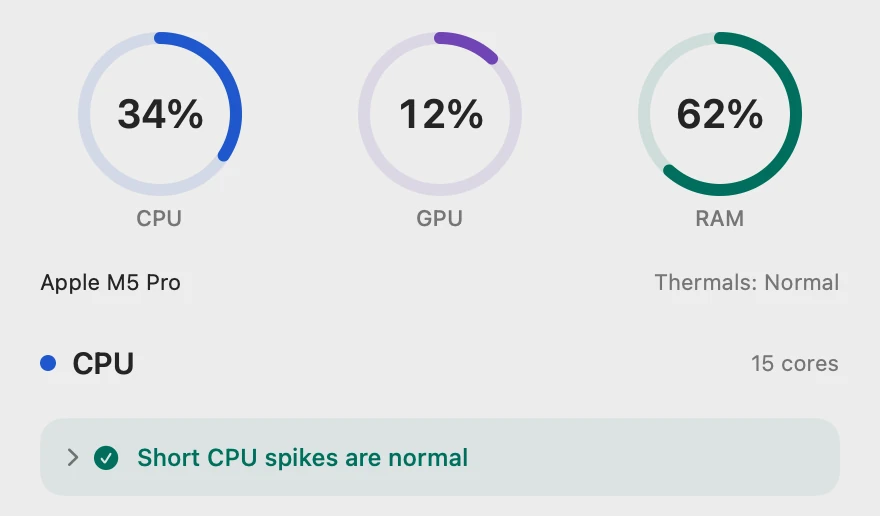
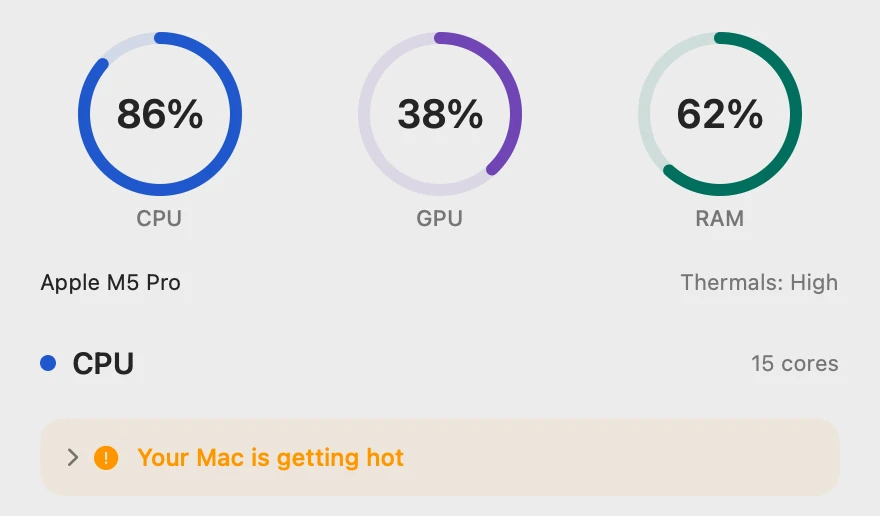
How long it’s been working
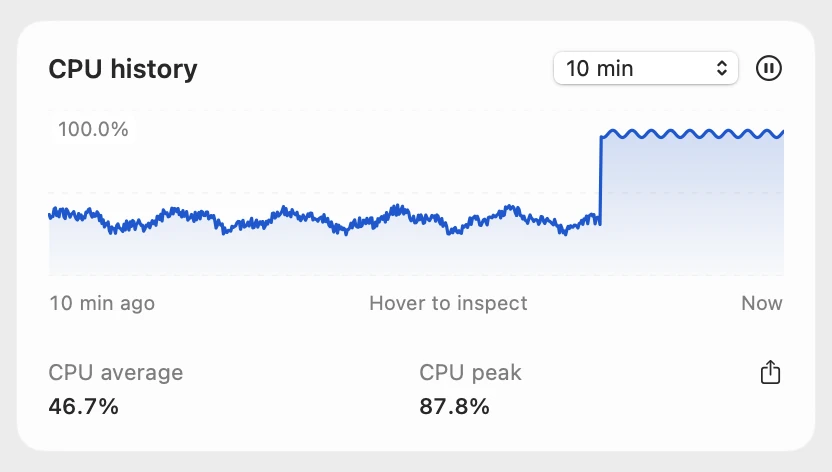
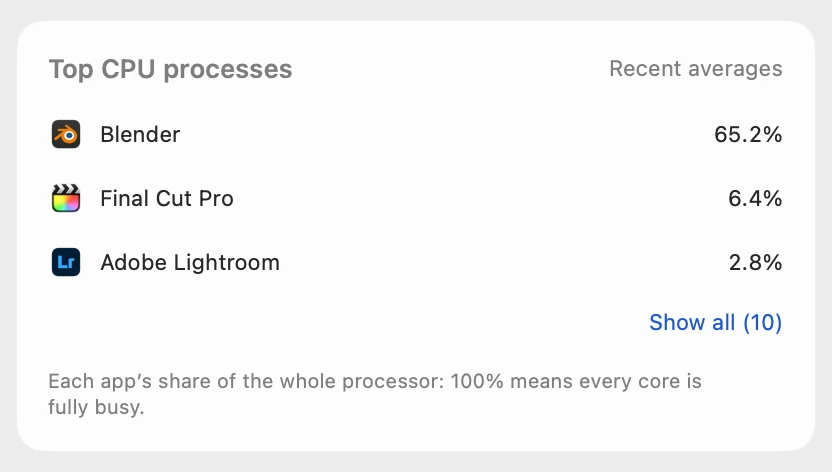
CPU history keeps the last 10 minutes, so you can tell minutes of heavy work from a passing spike. Scope shows each app’s share of the whole processor: this Mac has 15 cores, so Blender’s 978.6% in Activity Monitor is 978.6 ÷ 15 = 65.2% here. Scope lists your own apps, not macOS processes such as kernel_task.
Told when heat lasts
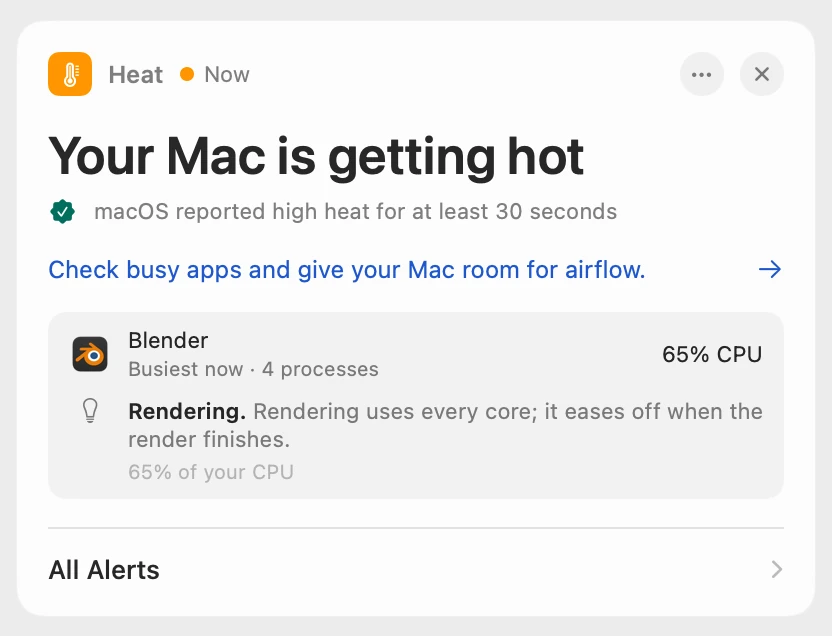
Scope waits until macOS has reported high heat for at least 30 seconds, so a passing spike never raises an alert. Scope Free shows the alert when you open Scope. Scope Pro adds a red + on its menu bar icon and names the busiest app, with its helper processes counted together, and a tip about what it’s doing.
Scope shows and explains. It doesn’t quit apps, change Energy Mode or control the fans.
Try it here
The real Scope, working, right in this page.
Click any item in the menu bar, or a card inside, as you would on your Mac.
Scope Pro Every menu bar item is shown here. Scope Free keeps one whole item of your choice, with every reading inside.
See your own Mac’s heat level.
Keep reading
Guide · Heat
Mac overheating? Every cause and what to do
A Mac overheats when an app keeps the processor busy, the vents can’t move air or the room is too warm. Here’s how to find the cause and cool it down.
Heat
Why is my MacBook getting hot?
A MacBook gets hot when its processor works hard or its vents can’t move air. Here’s how to find the busy app and cool it down, with macOS’s tools.
Heat
MacBook fan loud? What’s making it spin up
A MacBook fan gets loud when the Mac works hard for minutes, the room is warm or the vents are blocked. Find the busy app, then give your Mac air.
Heat
kernel_task high CPU? Your Mac is cooling itself
High kernel_task CPU means your Mac is too hot: macOS holds the processor back while it cools. Find the app making the heat, and give your Mac air.
Battery
Low Power Mode on a Mac: what it changes
Low Power Mode on a Mac reduces energy use so the battery lasts longer. Here’s how to turn it on, what Apple says it changes, and when to use High Power.
Sources
- Apple Developer: ProcessInfo.ThermalState
- Apple Support: If kernel_task is using a large percentage of your Mac CPU
- Apple Support: Keep your Mac laptop within acceptable operating temperatures
- Apple Support: About fans and fan noise in your Apple product
- Apple Support: About Power Modes on your Mac
- Apple Support: Change Battery settings on a Mac laptop
Last checked October 18, 2026. Readings, apps and files in the pictures are from a made-up Mac.