Why is my MacBook getting hot?
A MacBook gets hot when its processor works hard for a while, or when its vents can’t move air. Exports, renders, games and Spotlight indexing after you move your data are common causes. Activity Monitor’s CPU list shows the app doing the work, and a hard, flat surface lets the fans cool the Mac. macOS doesn’t show chip temperatures, but at its highest heat levels it can slow the Mac down while it cools.
Is it normal for a MacBook to get warm?
Yes, within limits. A MacBook’s sensors watch its internal temperature, and the fans speed up to cool it during demanding work. MacBook Air models with Apple silicon have no fan, so they stay silent while they cool. Apple names examples such as compressing HD video, playing a graphics-heavy game, or indexing with Spotlight after you migrate data. In a warm room, the fans turn on sooner and run faster. The rushing-air sound is a normal part of cooling.
How do I find what’s making it hot?
A busy processor makes heat, so start with the app working hardest.
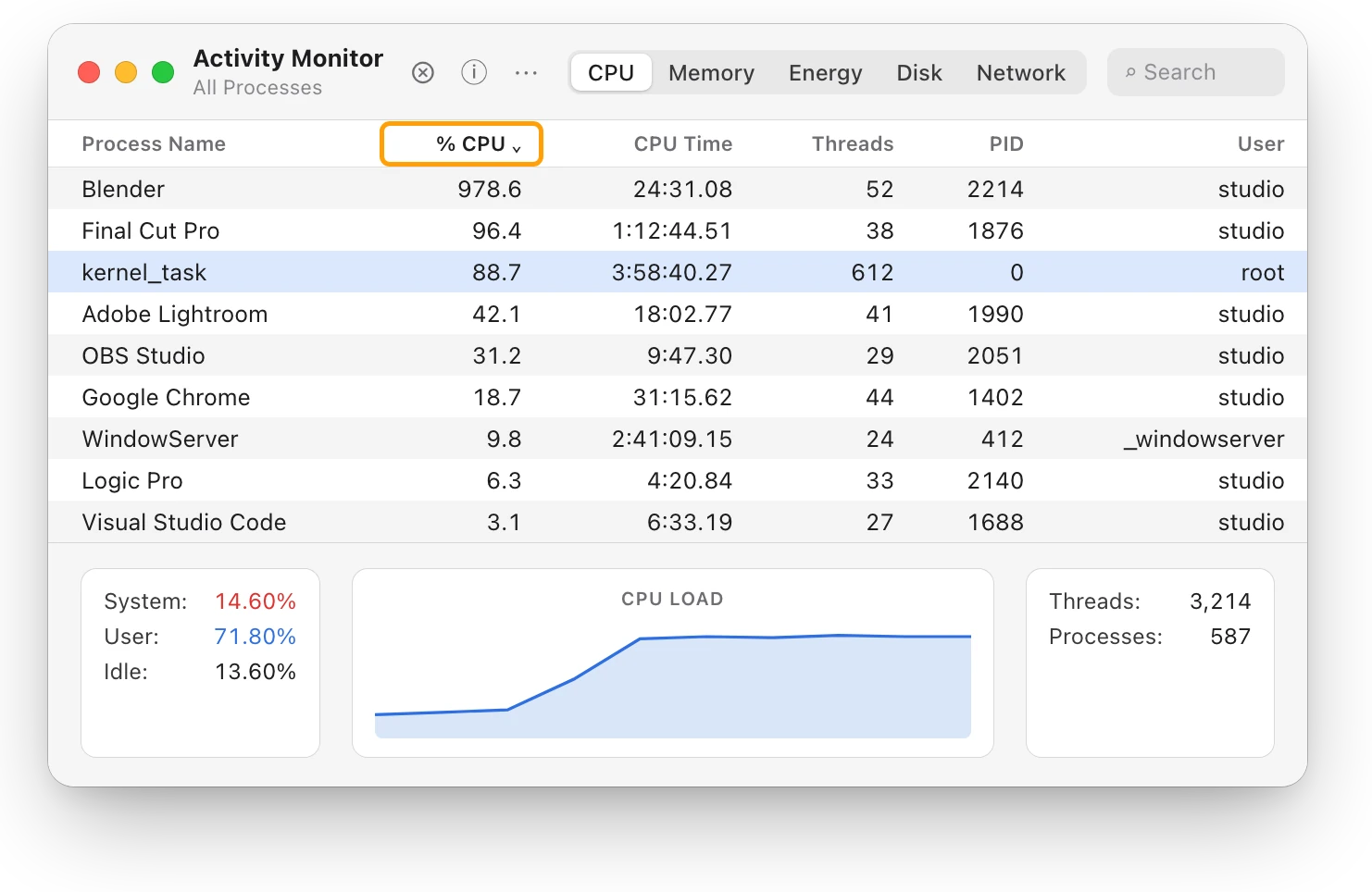
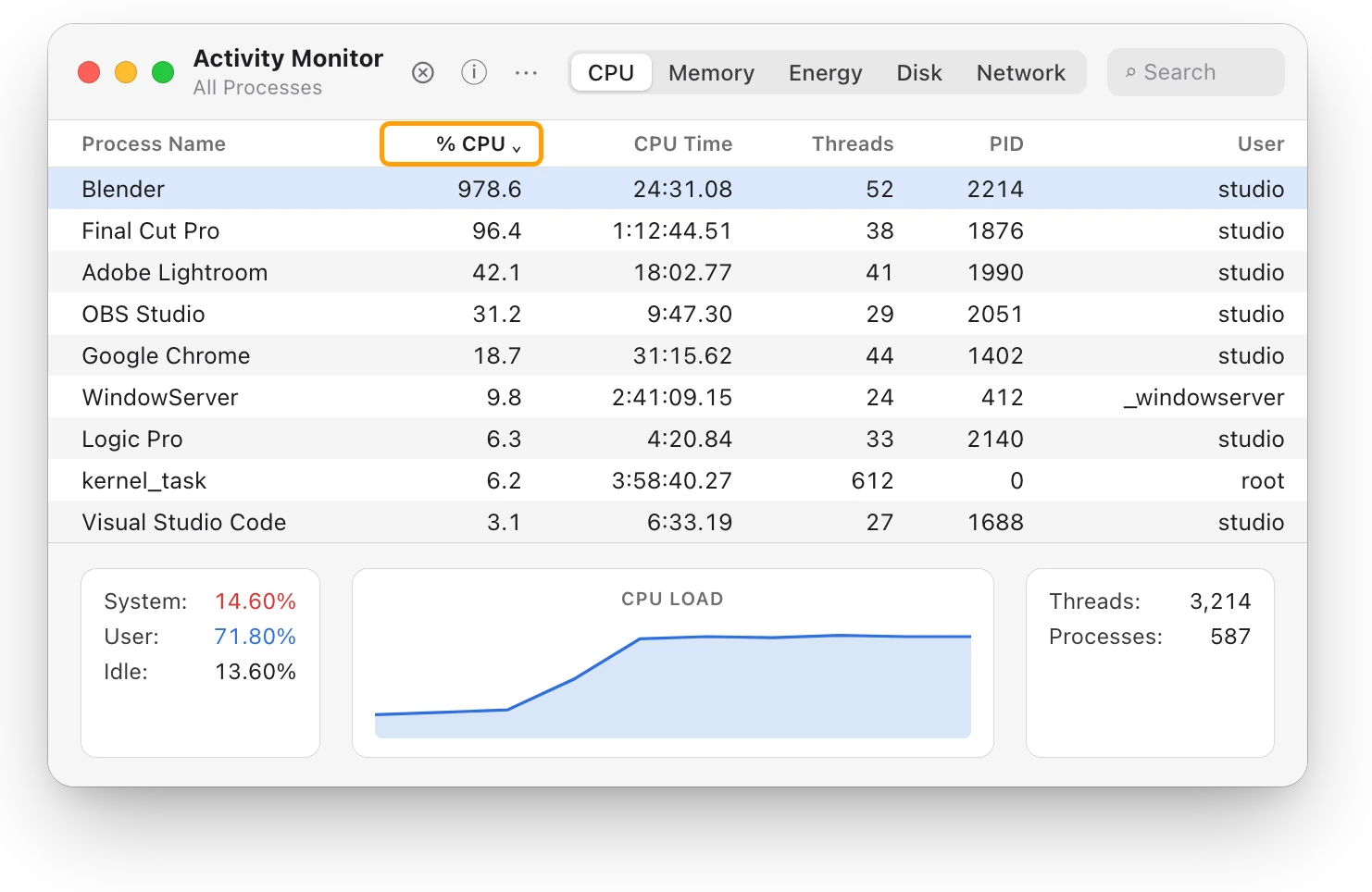
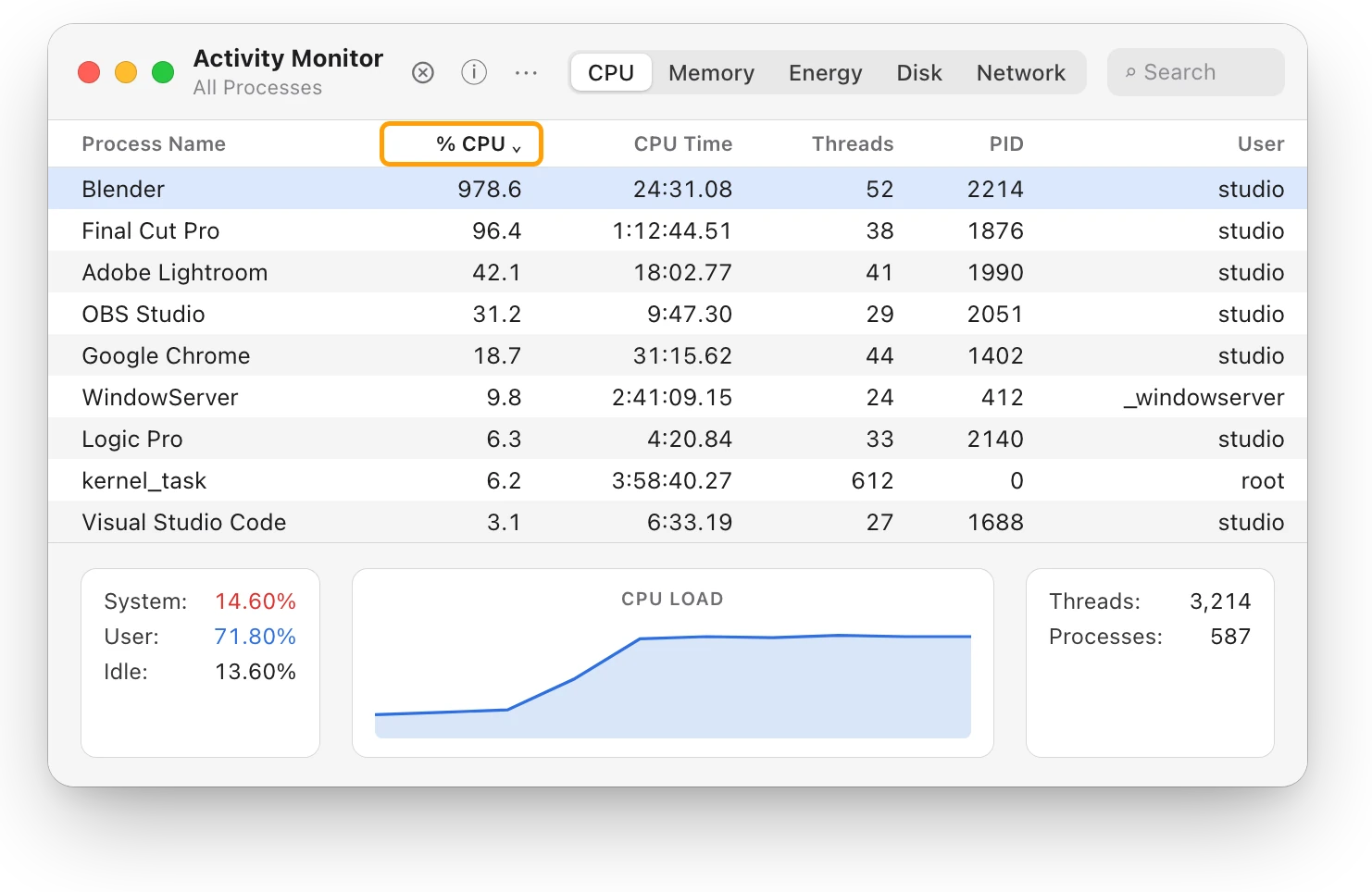
- Open Activity Monitor. It’s in Applications > Utilities, or search for it with Spotlight.
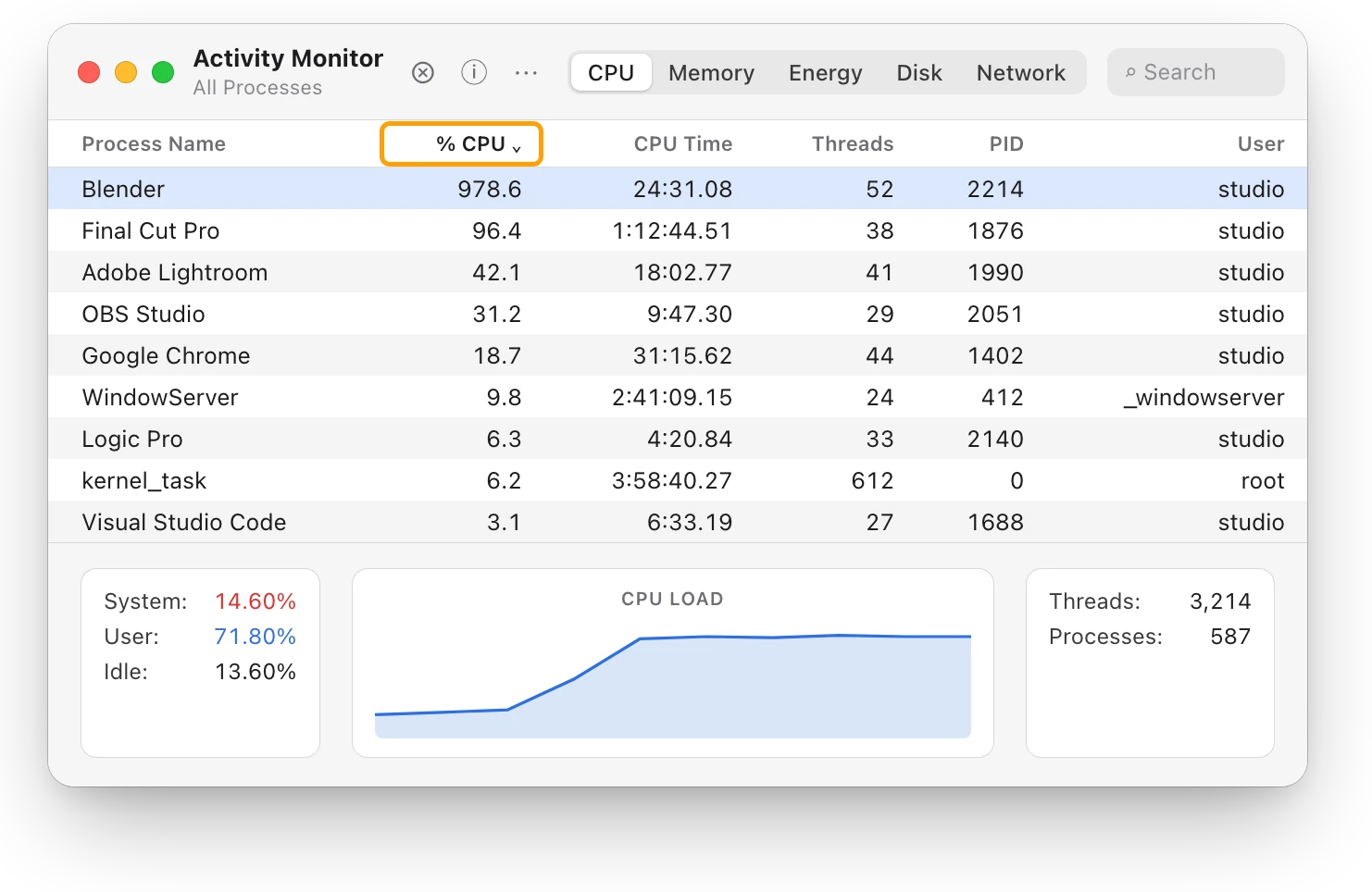
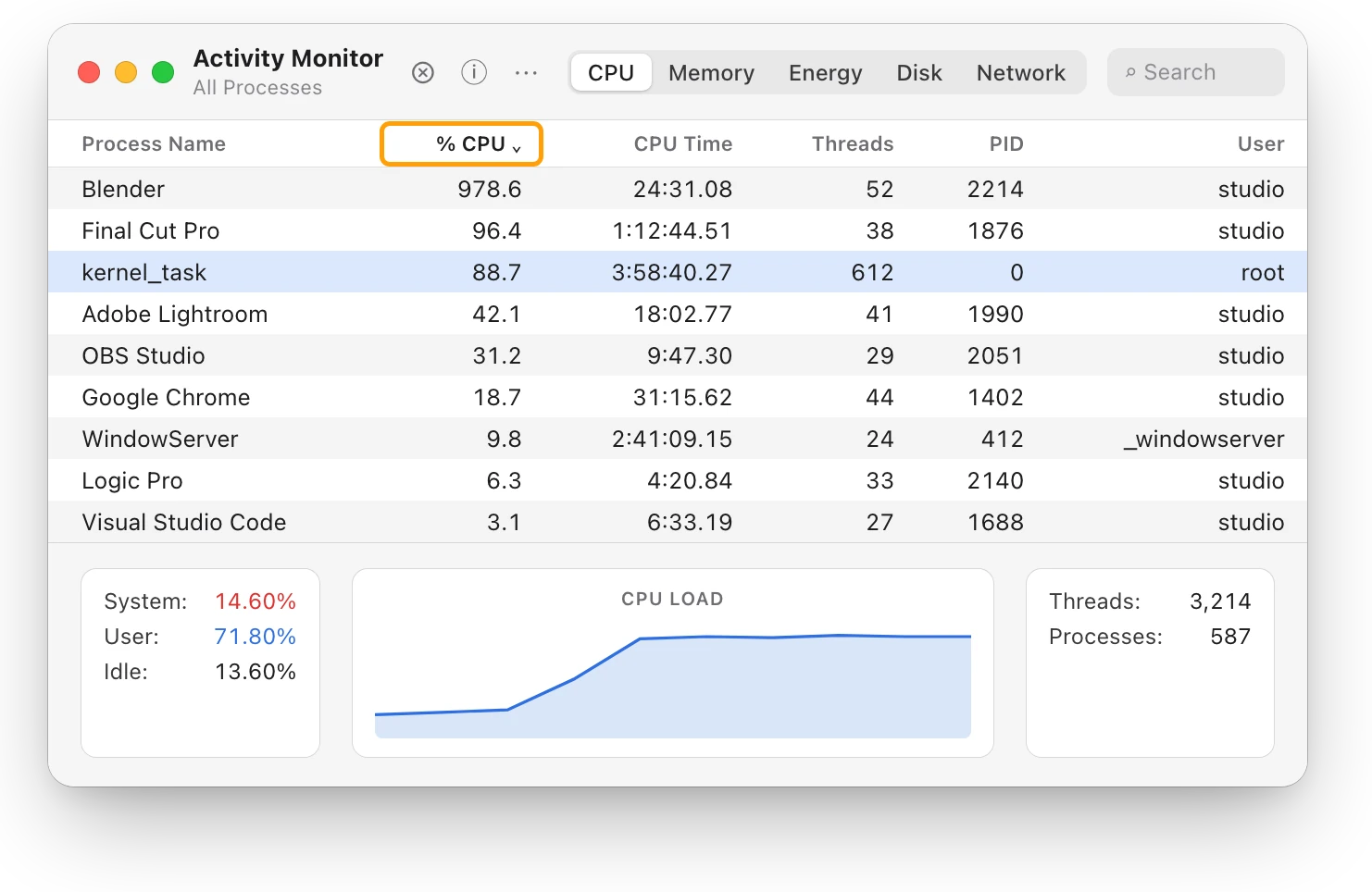
- Click CPU, then click the % CPU column heading to sort the list, busiest first.
- Look at the top. An app that stays there for minutes is the likely cause.
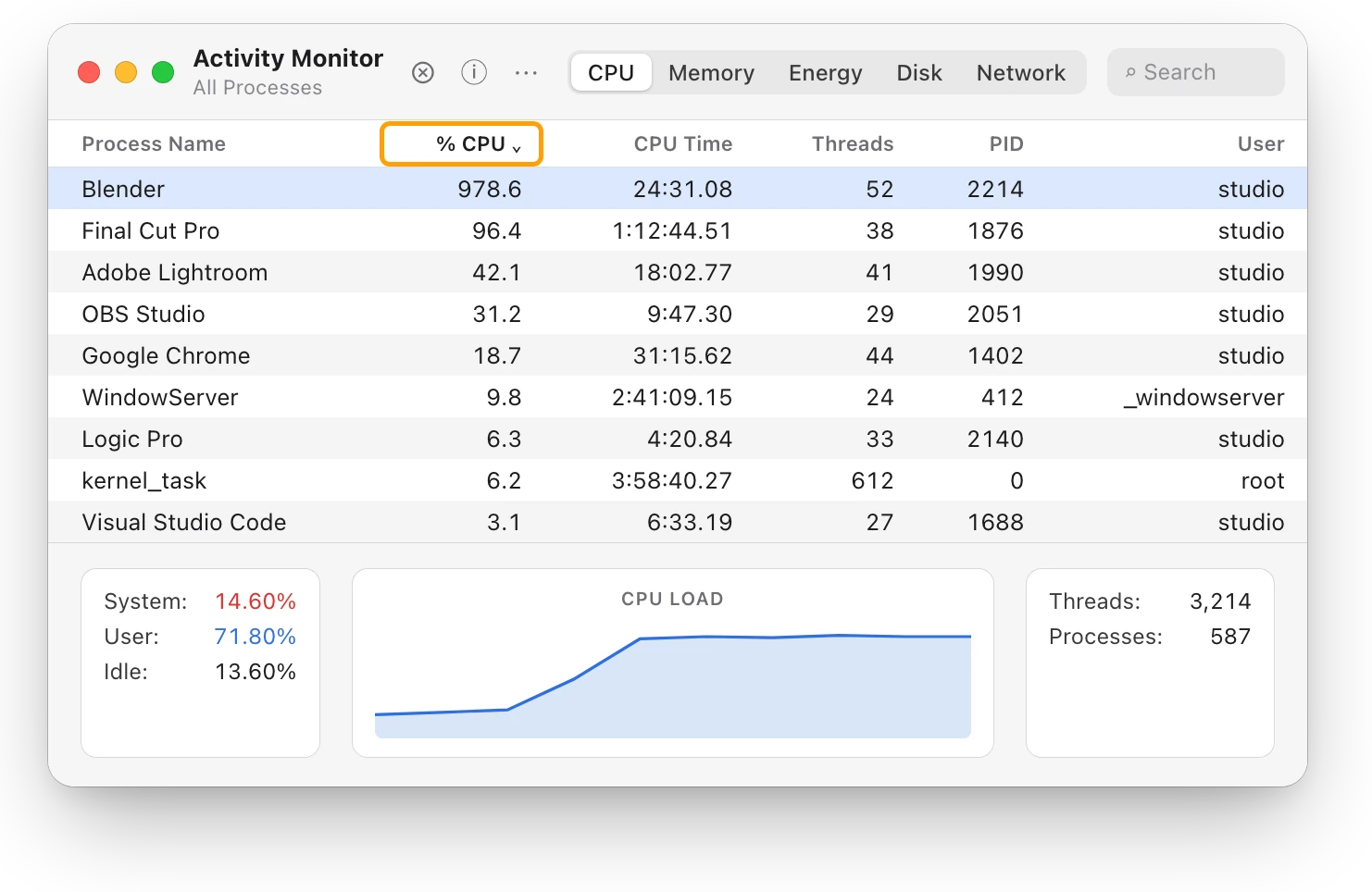
If you don’t need that app right now, quit it, saving your work first. If it’s doing work you asked for, let it finish, ideally on a desk with room for air. Which app is slowing down my Mac? explains Activity Monitor’s lists in more detail.
How do I cool my MacBook down?
- Use it on a hard, flat surface, such as a table or desk. Beds, couches, pillows and laps block the airflow and make the fans work harder.
- Keep the vents clear. Don’t cover the keyboard or put anything in the vent openings.
- Keep the room within range. Apple recommends using a Mac laptop where it’s between 10 °C and 35 °C (50 °F and 95 °F), and not leaving it in a parked car.
- Quit apps you aren’t using, especially ones that keep the processor busy.
Why is it hot when I’m not doing much?
Check Activity Monitor for something working in the background, such as indexing, syncing or an app that opens at login. If the fans keep running fast without heavy work, restart your Mac. On a Mac with Apple silicon, Apple also suggests closing and opening the lid. On an Intel-based Mac, it suggests resetting the SMC, the chip that manages power and fans. If the problem continues, contact Apple or an Apple Authorized Service Provider.
Does heat slow my Mac down?
It can. macOS reports a heat level to apps, and Apple’s developer documentation says that at its two highest levels, performance may be affected, and significantly at the highest.
Questions people also ask
How hot is too hot for a MacBook?
Apple gives the room temperature a Mac laptop is designed for, 10 °C to 35 °C (50 °F to 95 °F), not a chip temperature. Third-party apps that show temperatures read internal sensors, which run much hotter than the case, so Apple doesn’t recommend using them to diagnose hardware.
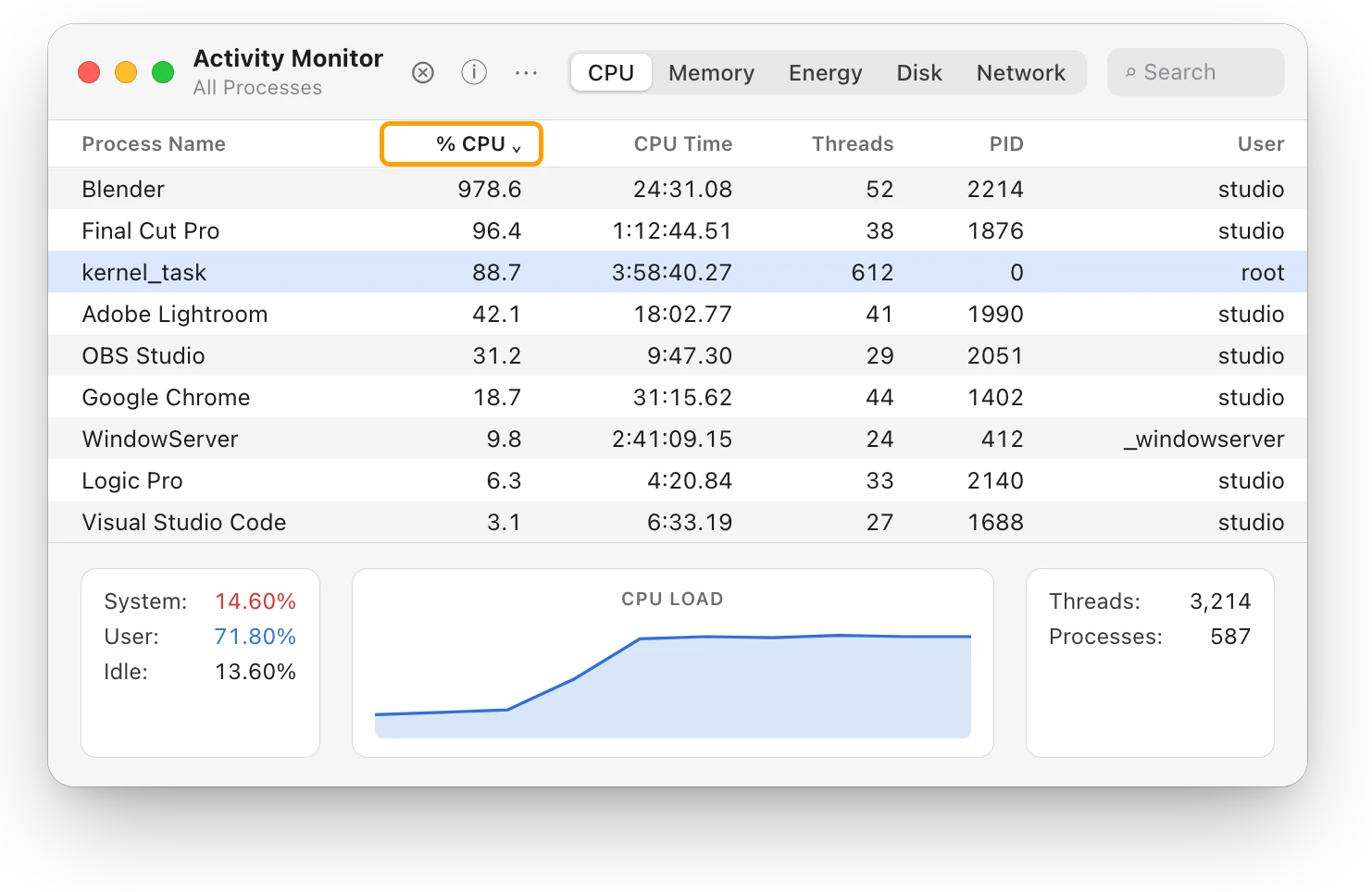
Why is kernel_task using so much CPU when my Mac is hot?
kernel_task is part of macOS, and one of its jobs is to manage the processor’s temperature by making it less available to processes using it heavily. It’s a response to heat, not the cause.
Why are my MacBook’s fans so loud?
The fans speed up to cool the Mac during demanding work or in a warm room. The rushing-air sound is normal; find the busy app if it happens during light work.
Scope for Mac · Free, coming to the Mac App Store
How Scope helps
Scope is a free Mac menu bar app that shows the heat level macOS reports, Normal, Warm, High or Critical, beside the apps using the processor, so you can see when your Mac is running hot and which app is busy at the time. It doesn’t show temperatures in degrees or fan speeds; it shows what macOS itself reports.
In your menu bar

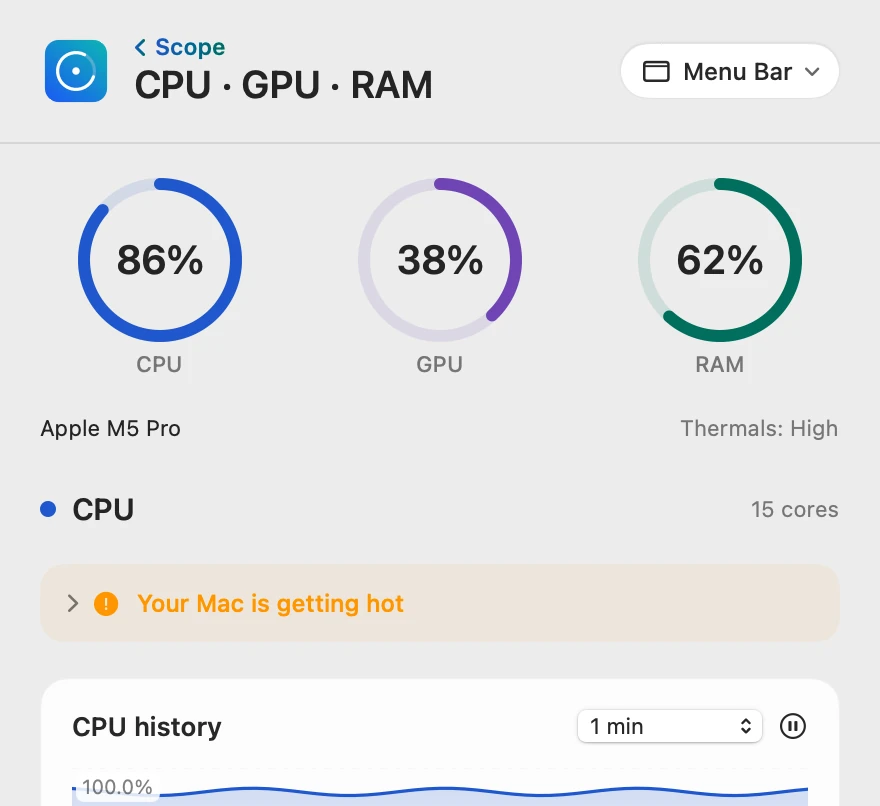
The heat level, beside the work
Thermals sits beside the chip’s name. High and Critical are macOS’s two highest heat levels, the ones where performance may be affected, and Scope’s tip then says your Mac is getting hot.
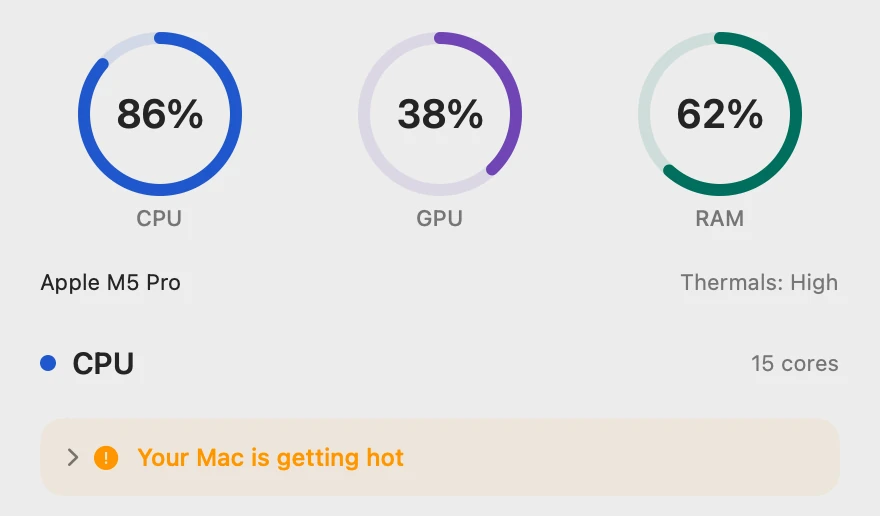
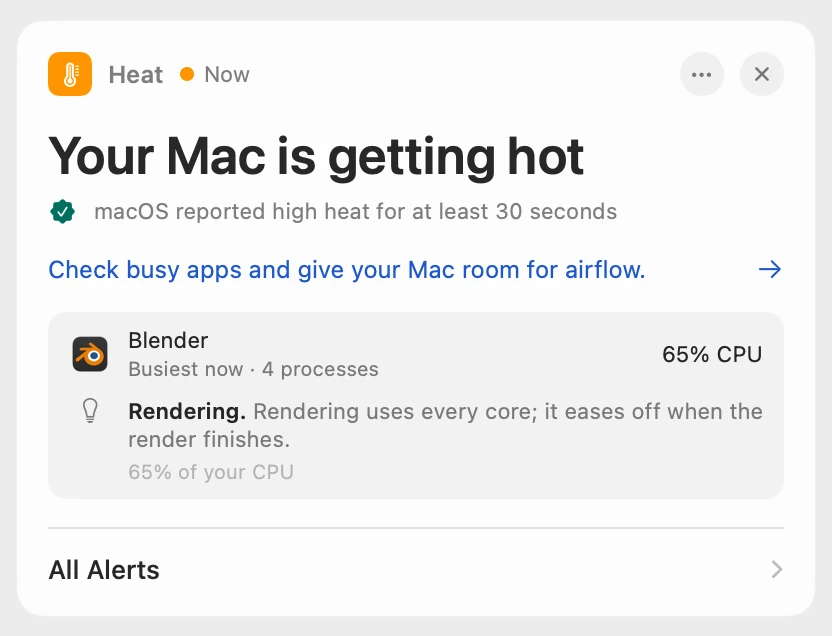
Told when it lasts, with the app behind it
Scope waits until macOS has reported high heat for at least 30 seconds, so a passing spike never raises an alert. Scope Free shows the alert when you open Scope. Scope Pro adds a red + on its menu bar icon, names the busiest app with its helper processes, and adds a tip about what it’s doing.
Scope shows and explains. It doesn’t quit apps or change how your Mac cools itself.
Try it here
The real Scope, working, right in this page.
Click any item in the menu bar, or a card inside, as you would on your Mac.
Scope Pro Every menu bar item is shown here. Scope Free keeps one whole item of your choice, with every reading inside.
See what’s warming up your own Mac.
Keep reading
Guide · Heat
Mac overheating? Every cause and what to do
A Mac overheats when an app keeps the processor busy, the vents can’t move air or the room is too warm. Here’s how to find the cause and cool it down.
Heat
MacBook fan loud? What’s making it spin up
A MacBook fan gets loud when the Mac works hard for minutes, the room is warm or the vents are blocked. Find the busy app, then give your Mac air.
Heat
kernel_task high CPU? Your Mac is cooling itself
High kernel_task CPU means your Mac is too hot: macOS holds the processor back while it cools. Find the app making the heat, and give your Mac air.
Heat
Mac thermal throttling: what the heat level means
Thermal throttling is macOS slowing a hot Mac so it can cool. Here’s what its four heat levels mean, how to check for it, and how to keep your Mac cooler.
Slow Mac
Which app is slowing down my Mac? How to find it
Activity Monitor shows which app is slowing your Mac: sort by % CPU, then by Memory. Here’s how to read the lists, and what to do next.
Guide · Slow Mac
Why is my Mac slow? How to find the cause
A slow Mac is usually a busy app, too little memory, a nearly full disk or heat. Here’s how to see which one with macOS’s own tools.
Sources
- Apple Support: Keep your Mac laptop within acceptable operating temperatures
- Apple Support: About fans and fan noise in your Apple product
- Apple Support: If kernel_task is using a large percentage of your Mac CPU
- Apple: MacBook Air tech specs
- Apple Developer: ProcessInfo.ThermalState
- Apple Support: View information about Mac processes in Activity Monitor
Last checked October 17, 2026. Readings, apps and files in the pictures are from a made-up Mac.