How to speed up a Mac: what actually helps
To speed up a Mac, fix whatever is slowing it down: quit an app that keeps the processor busy, close apps and browser tabs when memory pressure is yellow or red, free space on a nearly full startup disk, and let a hot Mac cool down. Activity Monitor and Storage settings, both built into macOS, show which fix your Mac needs. Cleaner apps rarely help.
Which fixes speed up a Mac the most?
The fixes below are ranked by how much each one helps when it matches the cause. The first one that matches your Mac is the one to do. If you don’t know the cause yet, Why is my Mac slow? shows how to find it.
| Fix | Helps when | How much it helps | What it costs you |
|---|---|---|---|
| Quit the busy app | One app stays at the top of % CPU | A lot, at once | That app stops its work |
| Free memory | Memory Pressure is yellow or red | A lot | Closing apps and tabs |
| Free disk space | The startup disk is nearly full | A lot, once there’s room | Moving or deleting files |
| Let it cool | The case is hot and the fans run fast | A lot, as it cools | Nothing |
| Trim login items | Your Mac is slow after every login | Some | Opening those apps yourself |
| Restart | Your Mac has been on for days | Some, for a while | A few minutes |
| Update macOS and apps | An update is waiting | Depends on the update | Time to install |
1. Quit the app that keeps the processor busy
An app that’s exporting, rendering, syncing or stuck can take most of the processor, and everything else waits behind it.
- Open Activity Monitor. It’s in Applications > Utilities, or search for it with Spotlight.
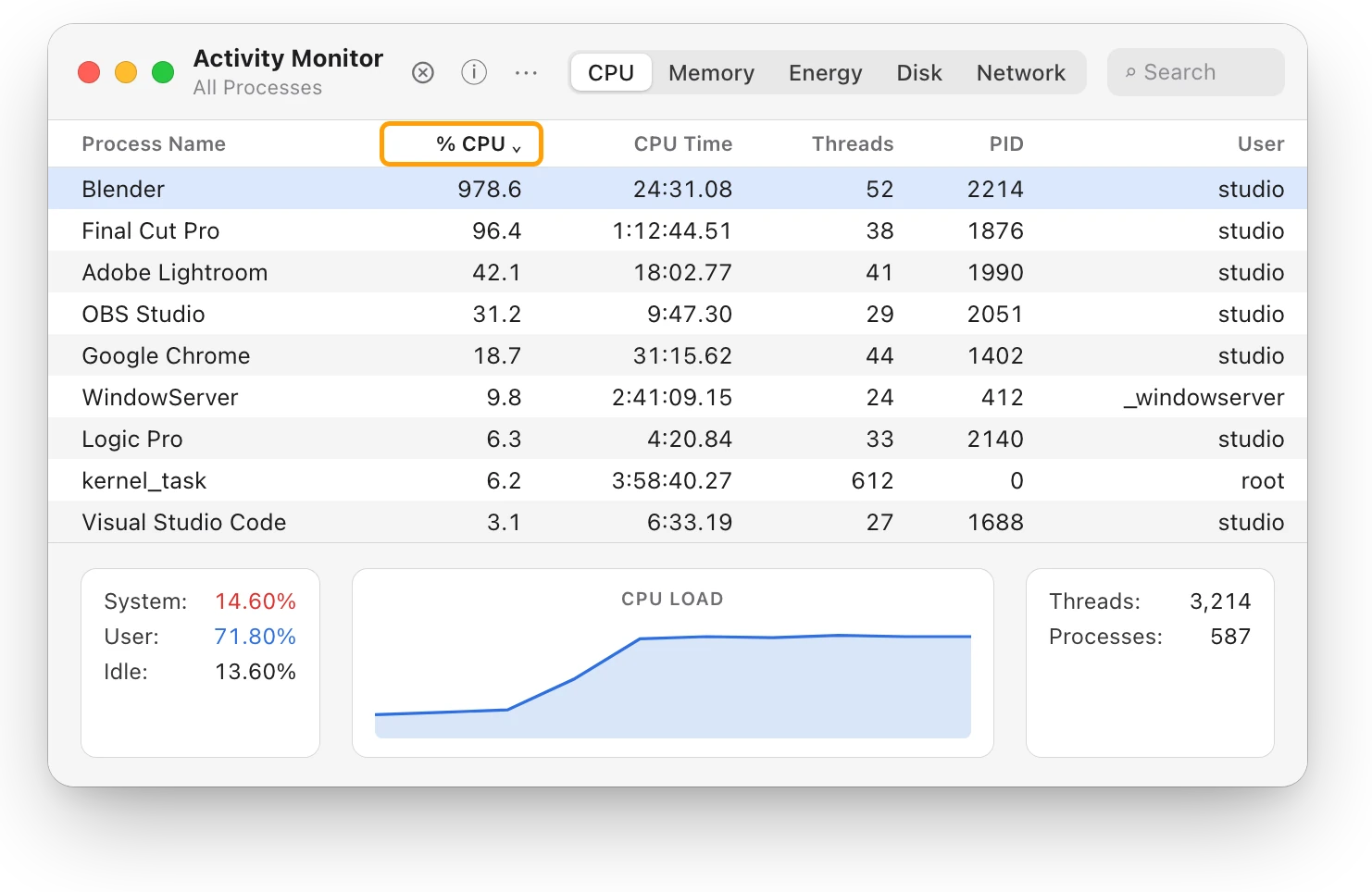
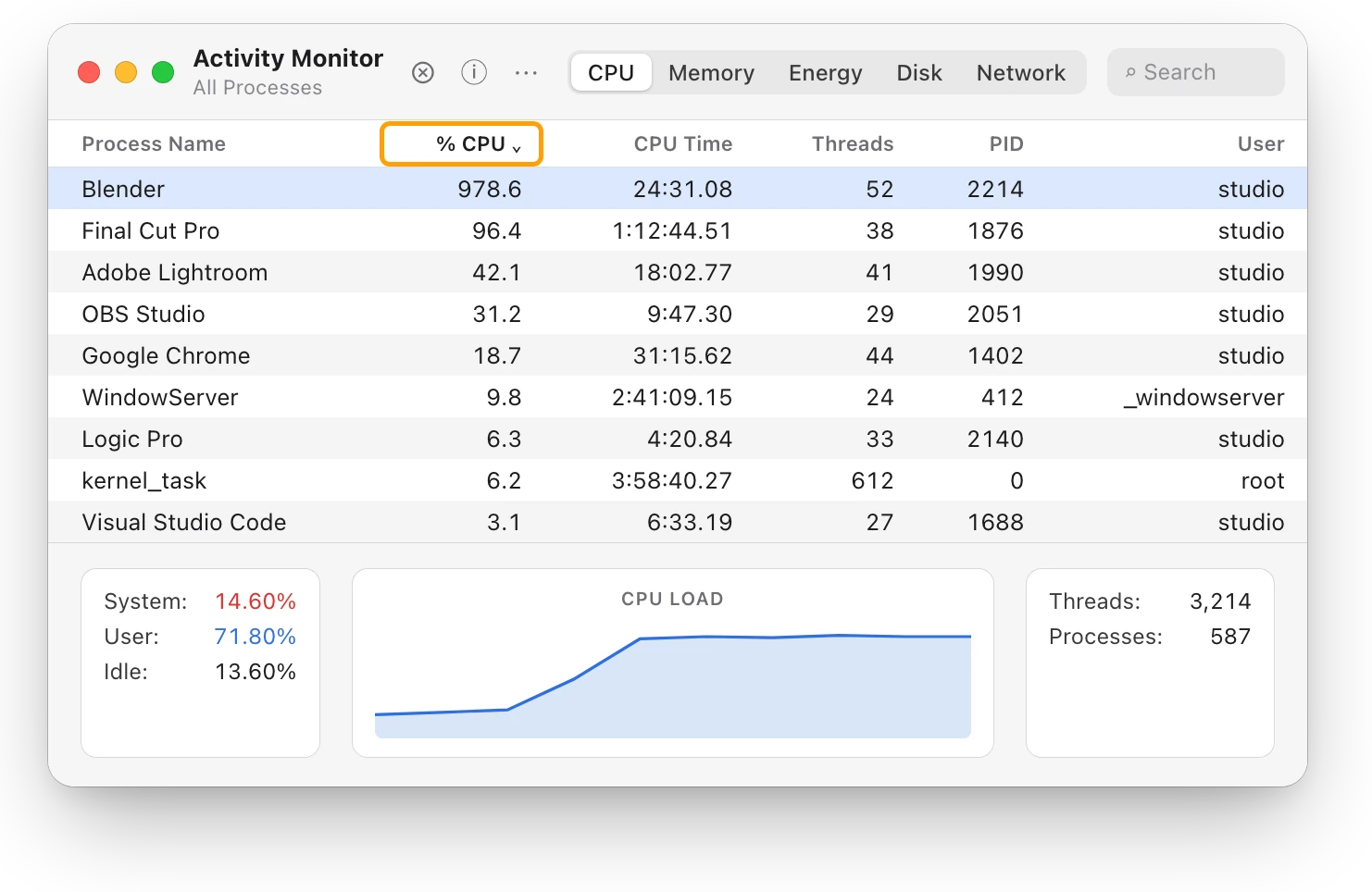
- Click CPU, then click the % CPU column heading to sort the list, busiest first.
- Watch the top for a minute. An app that stays there for minutes, not seconds, is the one slowing your Mac.
- If it’s doing work you asked for, such as an export, let it finish. If you don’t need it now, save your work and quit it from its own menu.
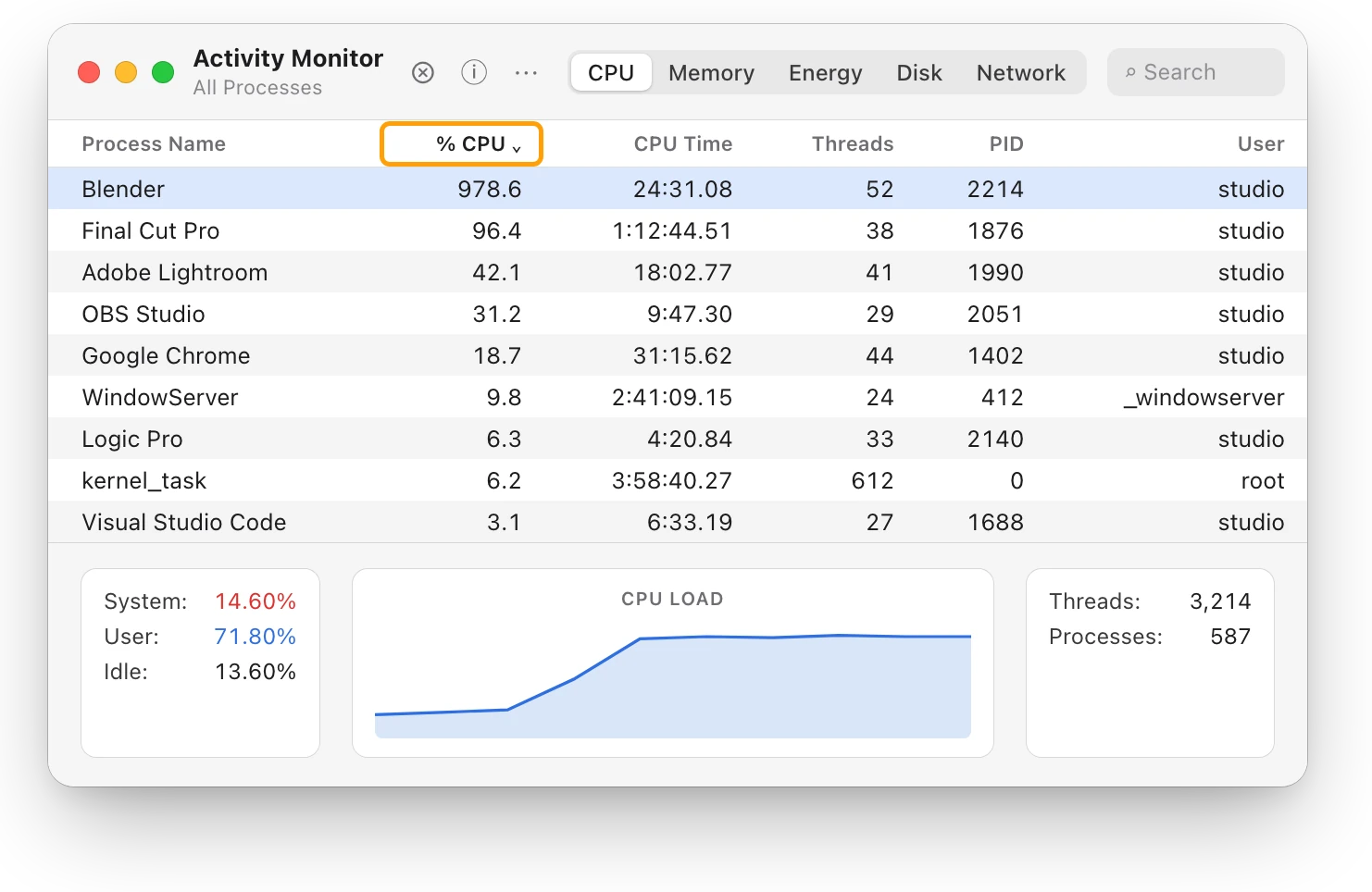
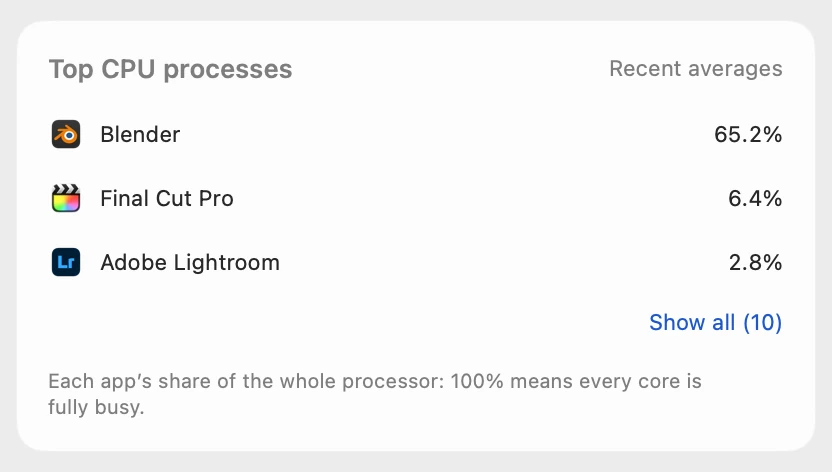
Activity Monitor counts each processor core as 100%. This Mac has 15 cores, so Blender’s 978.6% keeps about 10 of them busy. Which app is slowing down my Mac? explains the lists in detail.
2. Free memory, but only when pressure is high
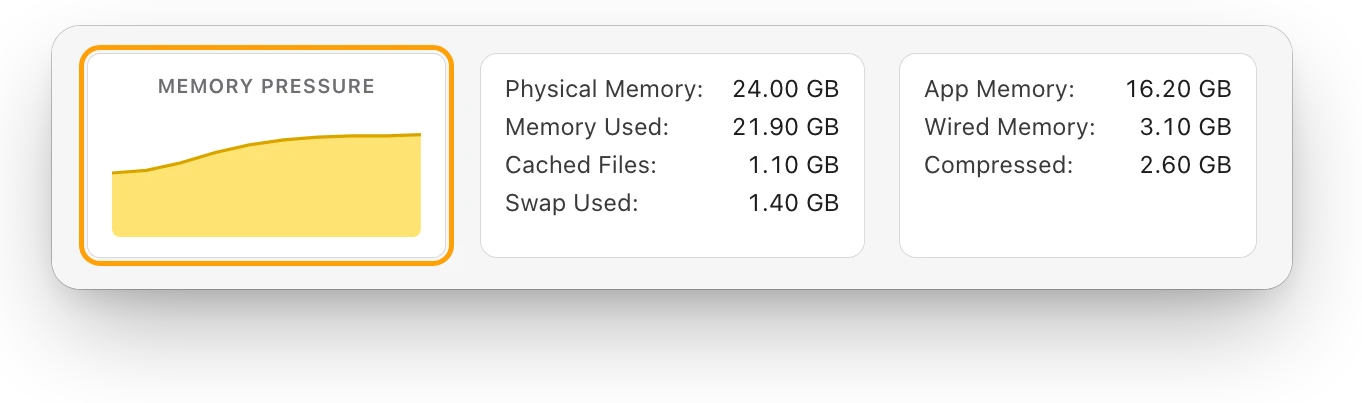
Freeing memory speeds up a Mac only when it’s short of memory, and the Memory Pressure graph shows when that is.
- In Activity Monitor, click Memory.
- Look at the Memory Pressure graph at the bottom of the window. Green means your Mac is using its memory efficiently, even if most of it is in use.
- If it’s yellow or red, click the Memory column heading, then quit the apps at the top that you don’t need. Save your work first.
- Close browser tabs you’re done with. Each open tab holds memory.
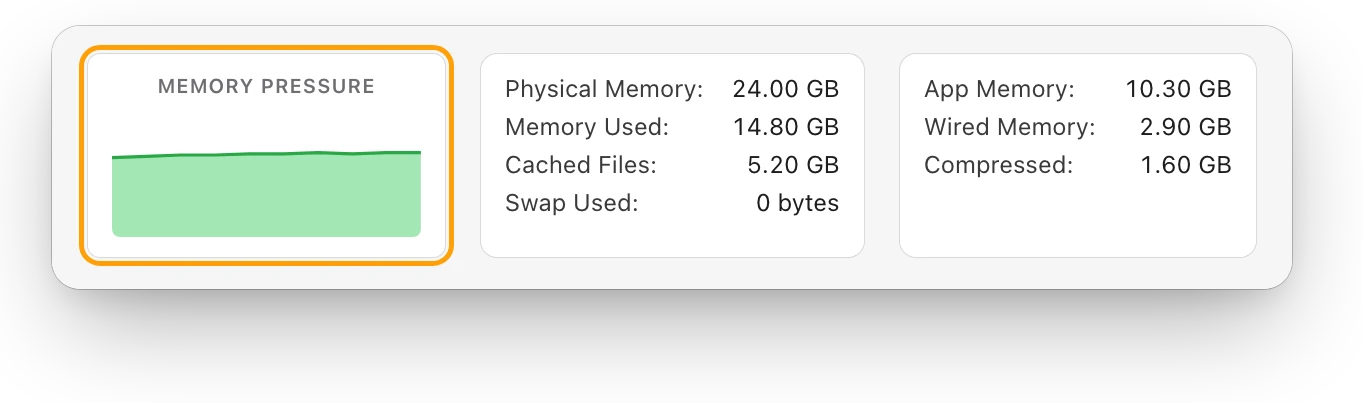
Apple says free or unused memory doesn’t necessarily improve performance. How to free up RAM on a Mac covers what to close, and when not to bother.
3. Free space on a nearly full startup disk
Apple lists a startup disk without enough free space among the causes of a slow Mac.
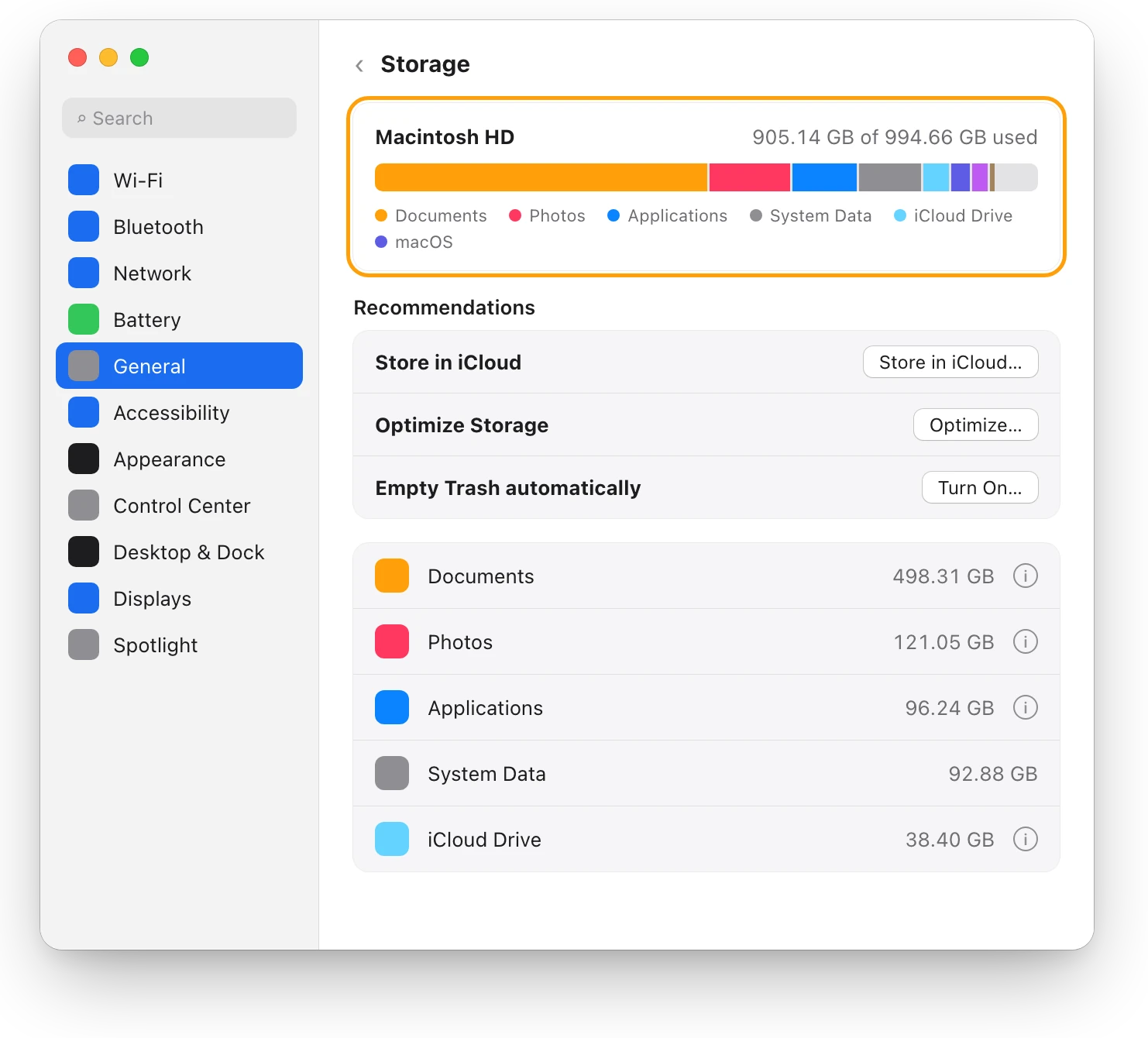
- Choose Apple menu > System Settings, click General in the sidebar, then click Storage.
- Try the recommendations: Store in iCloud, Optimize Storage and Empty Trash automatically.
- Click the info button next to a category for more information and options.
- Move files you want to keep to an external drive, and delete files you don’t need.
- Empty the Trash. Files in the Trash still take up space until you do.
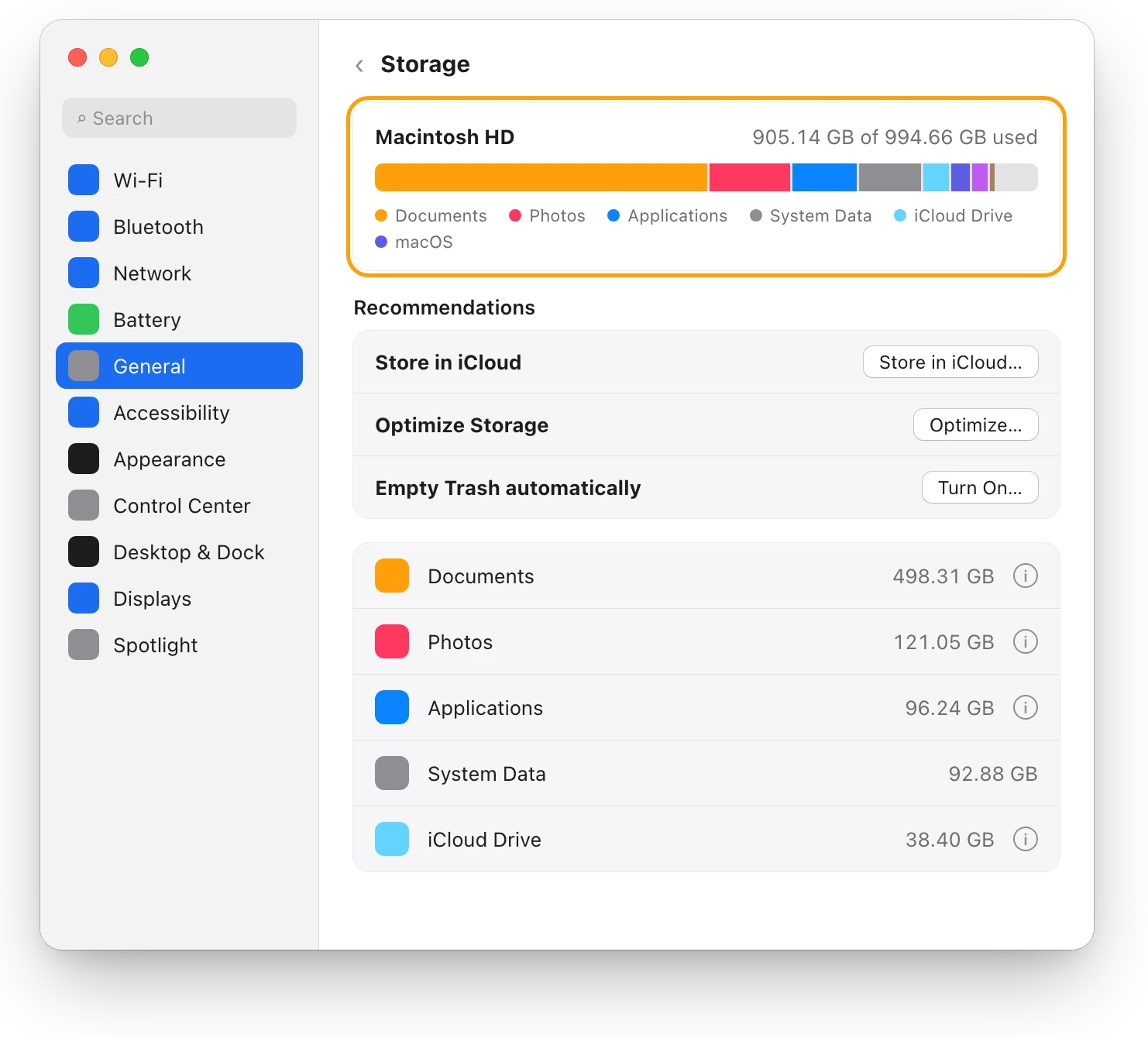
Apple doesn’t give one number of gigabytes to keep free. How much free space should a Mac have? helps you choose yours.
4. Let a hot Mac cool down
A Mac that gets very hot can slow down while it cools. Apple’s developer documentation says that at macOS’s two highest heat levels, performance may be affected. macOS doesn’t show a temperature, so go by touch and sound: the case feels hot, and the fans run fast.
- Use your Mac on a stable surface with room for air, never on a bed, a pillow or under bedding.
- Keep the room between 10 °C and 35 °C (50 °F and 95 °F).
- Check the CPU list in Activity Monitor for an app working hard. A busy processor makes the heat.
Why is my MacBook getting hot? has more.
5. Stop apps opening at login
Apps that open at login start every time you log in, and some keep working in the background all day.
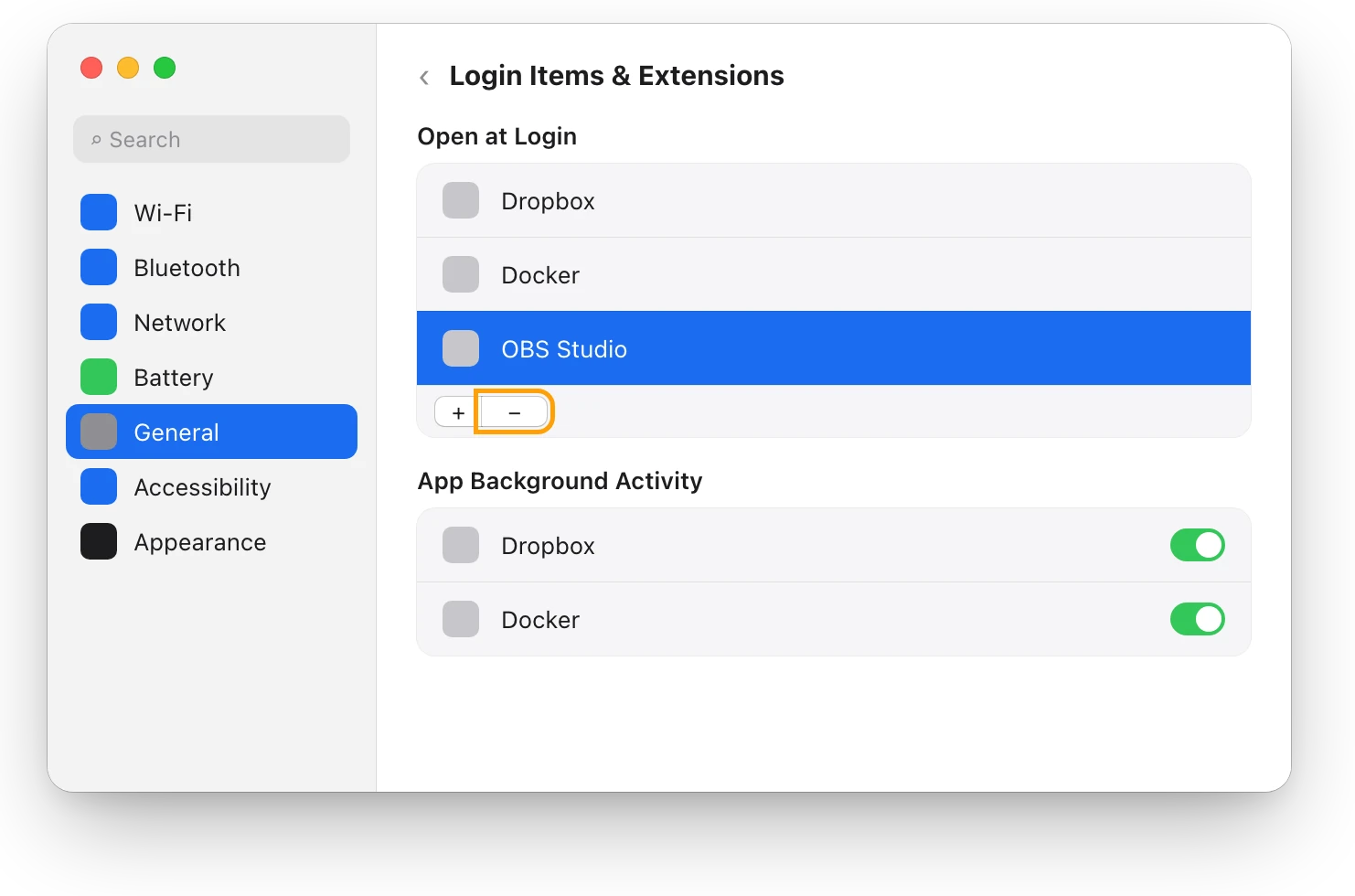
- Choose Apple menu > System Settings, click General, then click Login Items & Extensions.
- Under Open at Login, select an app you don’t need at login, then click the Remove button (−).
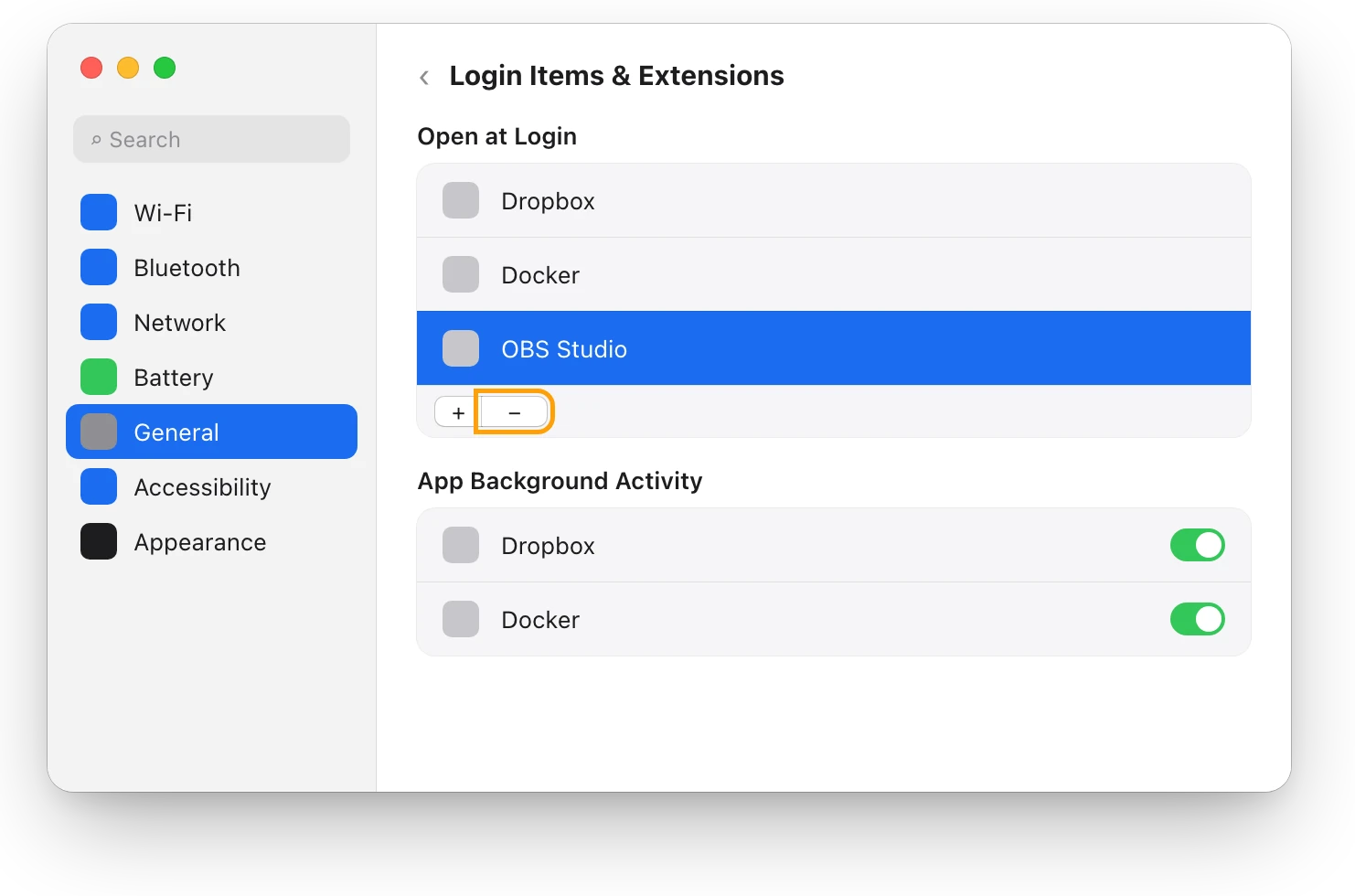
Removing an app here doesn’t delete it. How to stop apps opening at startup on a Mac covers background items too.
6. Restart your Mac
Restarting closes every app and starts fresh. Choose Apple menu > Restart. To start with only your login items, deselect “Reopen windows when logging back in” in the dialog that appears.
7. Update macOS and your apps
Apple’s updates bring the latest features and security updates, and improvements to built-in apps such as Safari and Mail. To check, choose Apple menu > System Settings, click General, then click Software Update. Apple doesn’t say an update makes a Mac faster. It does suggest quitting any app that isn’t compatible with your Mac, such as one that needs a different processor or graphics card.
What doesn’t speed up a Mac?
- ”RAM cleaner” apps. macOS keeps memory busy on purpose. Apple says it compresses the memory of inactive apps to make room for active ones, and that free memory doesn’t necessarily mean better performance. Forcing memory empty only throws away files macOS may need again.
- Deleting caches by hand. Apple says macOS clears caches and logs that are safe to delete when space is needed. Deleting them yourself frees little lasting space, because caches are created again as needed.
- Cleaner apps. macOS already manages memory, caches and temporary files on its own. The causes that do slow a Mac show in Activity Monitor and Storage settings, and you can fix each one there yourself.
- Closing apps while memory pressure is green. It frees memory your Mac wasn’t short of.
Questions people also ask
How do I make my MacBook faster for free?
Every fix on this page is free: quit the busy app, close apps and tabs when memory pressure is high, free disk space, keep it cool and trim login items. Activity Monitor and Storage settings come with macOS.
Does restarting a Mac make it faster?
For a while, if apps have piled up over days. Restarting closes them all. If the slowdown comes back, one of the causes above is behind it.
Do I need more RAM to speed up my Mac?
Only if memory pressure stays yellow or red with just the apps you need. Is 8 GB or 16 GB of RAM enough for your Mac? helps you decide.
Does closing apps speed up a Mac?
Closing apps you’re not using helps when one of them is busy or memory pressure is high, and Apple suggests quitting apps you’re not using. With a quiet processor and green memory pressure, it makes little difference.
Scope for Mac · Free, coming to the Mac App Store
How Scope helps
Scope is a free Mac menu bar app that shows which of these fixes your Mac needs: how busy the processor is and which apps are busiest, memory pressure in plain words, and how full your disk is. It saves opening Activity Monitor and Storage settings to find out.
In your menu bar
Scope Free keeps one whole menu bar item of your choice, so a busy processor is in view before your Mac feels slow.

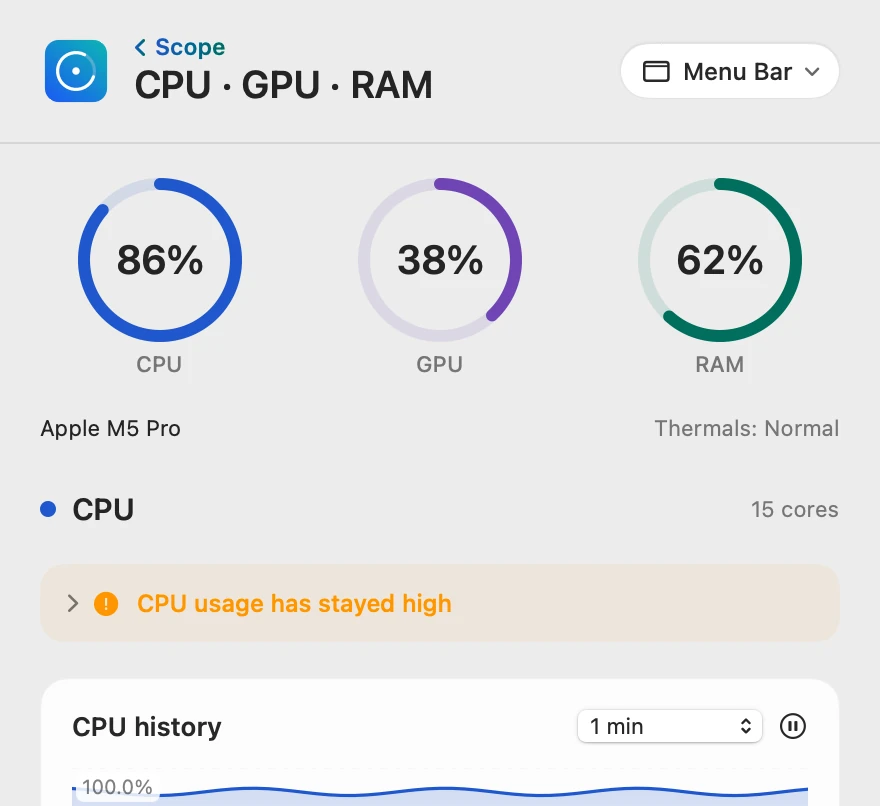
The busy app, in one click
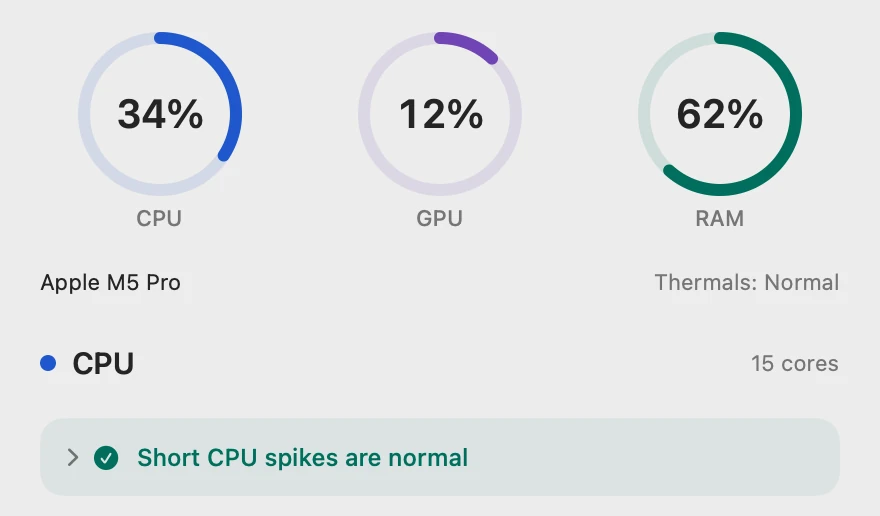
Scope shows each app’s share of the whole processor, so 100% means every core is busy. On this 15-core Mac, Activity Monitor’s 978.6% for Blender is 978.6 ÷ 15 = 65.2% here.
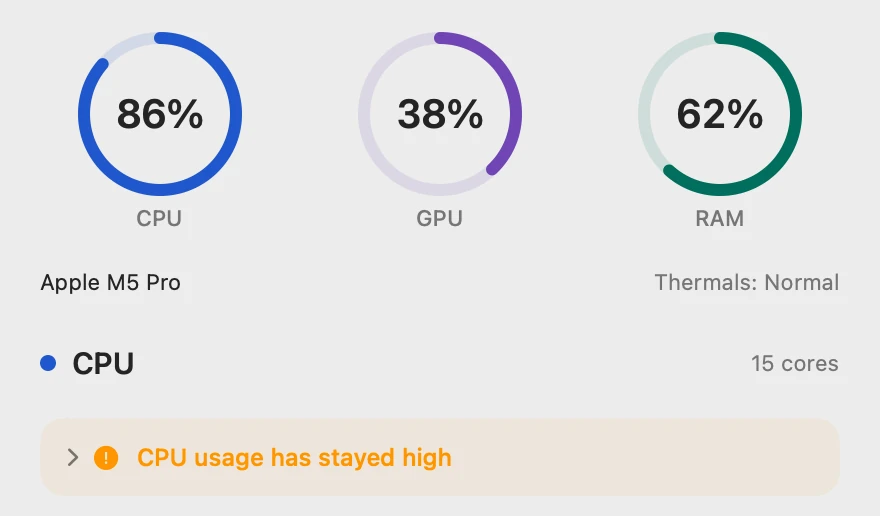
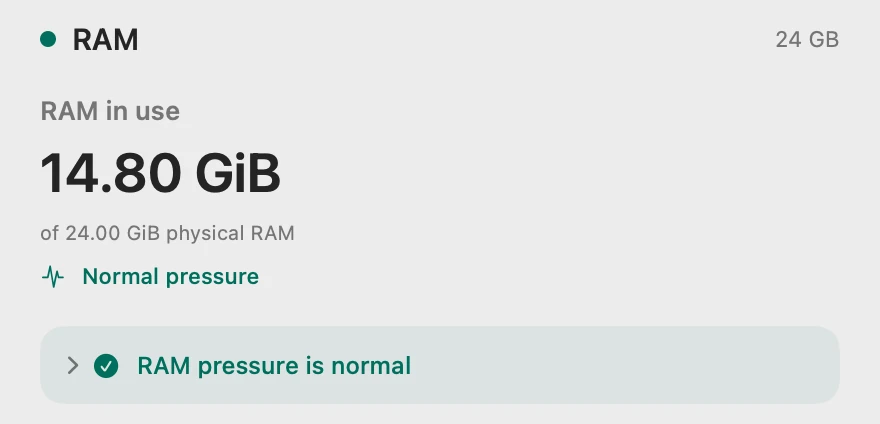
Memory and disk, ruled in or out
Scope’s RAM pressure is macOS’s memory pressure in words: Normal, Warning or Critical. Here memory isn’t the problem, and the disk is: fixes 1 and 3 are the ones to do.
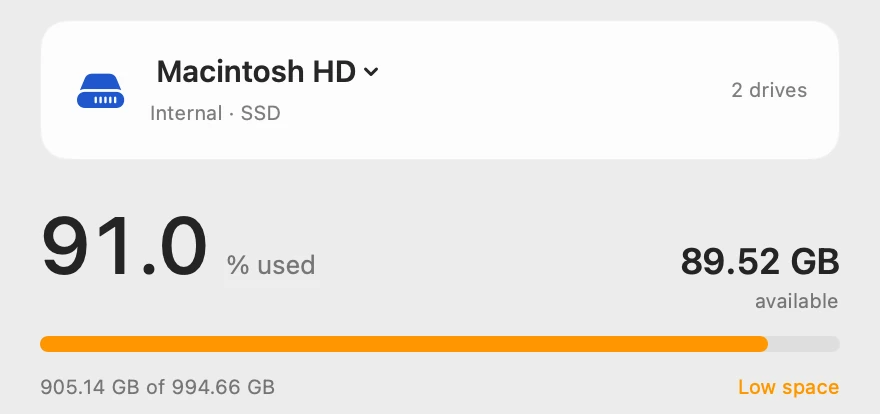
Calm again
Once the busy app finishes, the same panel shows whether your fix worked.
Scope shows and explains. It never quits apps, cleans, deletes files or changes settings, so every fix stays your call.
Try it here
The real Scope, working, right in this page.
Click any item in the menu bar, or a card inside, as you would on your Mac.
Scope Pro Every menu bar item is shown here. Scope Free keeps one whole item of your choice, with every reading inside.
See what’s slowing your own Mac.
Keep reading
Guide · Slow Mac
Why is my Mac slow? How to find the cause
A slow Mac is usually a busy app, too little memory, a nearly full disk or heat. Here’s how to see which one with macOS’s own tools.
Slow Mac
Which app is slowing down my Mac? How to find it
Activity Monitor shows which app is slowing your Mac: sort by % CPU, then by Memory. Here’s how to read the lists, and what to do next.
Slow Mac
How to free up RAM on a Mac, and when not to
Check memory pressure first. If it’s yellow or red, quit the app using the most memory, close tabs or restart. If it’s green, there’s nothing to free.
Storage
How much free space should a Mac have?
Apple gives no single number. A Mac needs room for macOS updates and swap, and a nearly full disk can slow it down. Here’s how much to keep free.
Slow Mac
How to stop apps opening at startup on a Mac
Stop apps opening at startup in System Settings > General > Login Items & Extensions: select the app and click Remove. Background items and windows too.
Heat
Why is my MacBook getting hot?
A MacBook gets hot when its processor works hard or its vents can’t move air. Here’s how to find the busy app and cool it down, with macOS’s tools.
Sources
- Apple Support: If your Mac runs slowly
- Apple Support: View information about Mac processes in Activity Monitor
- Apple Support: Check if your Mac needs more RAM in Activity Monitor
- Apple Support: View memory usage in Activity Monitor on Mac
- Apple Support: Optimize storage space on your Mac
- Apple Support: Free up storage space on Mac
- Apple Support: Keep your Mac laptop within acceptable operating temperatures
- Apple Developer: ProcessInfo.ThermalState
- Apple Support: Open items automatically when you log in on Mac
- Apple Support: Shut down or restart your Mac
- Apple Support: Update macOS on Mac
Last checked October 18, 2026. Readings, apps and files in the pictures are from a made-up Mac.