Is 8 GB or 16 GB of RAM enough for your Mac?
Whether 8 GB or 16 GB of RAM is enough for a Mac depends on the apps you run, and memory pressure in Activity Monitor answers it for your own work. If memory pressure stays green on your busiest normal day, your Mac has enough memory. If it often turns yellow or red, it doesn’t. Since October 2024, Apple’s new MacBook Air and MacBook Pro models start with 16 GB.
How much memory does my Mac have?
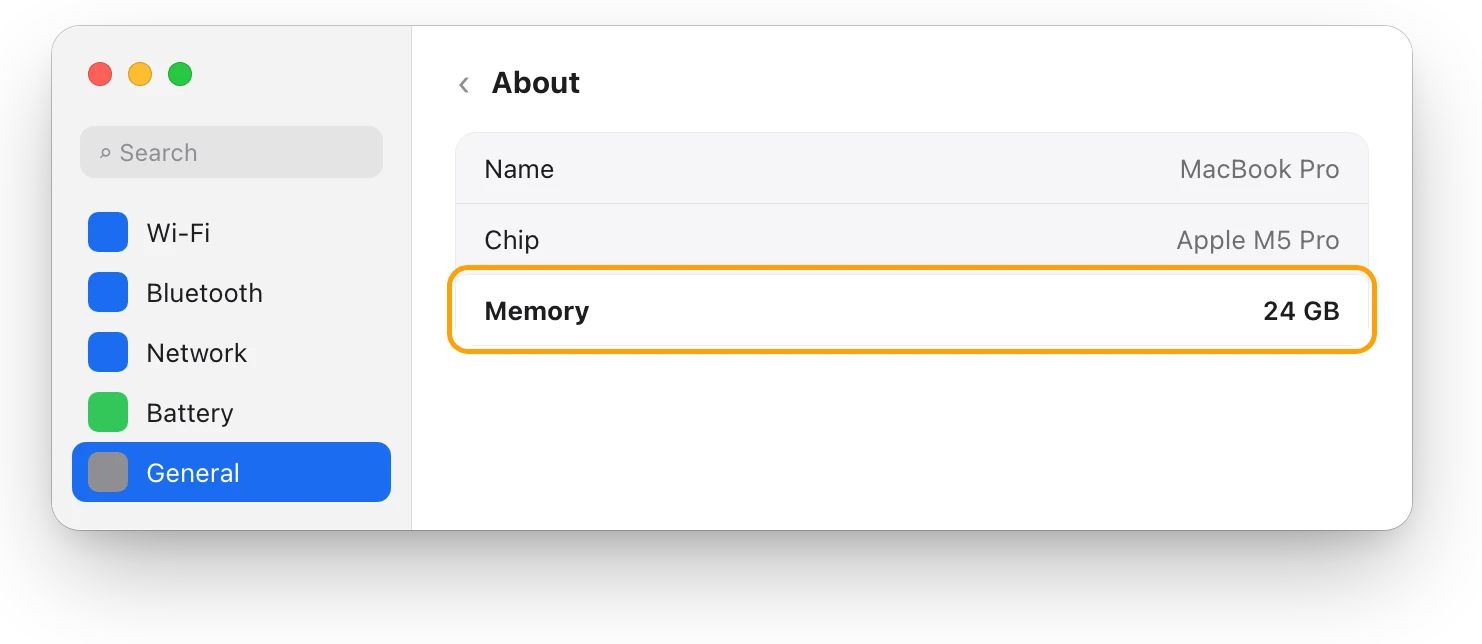
Choose Apple menu > System Settings, click General in the sidebar, then click About. The Memory row shows how much memory your Mac has in total.
How do I know if it’s enough?
Watch memory pressure while you do your heaviest normal work: the most apps, tabs and projects you usually have open at once.
- Open Activity Monitor. It’s in Applications > Utilities, or search for it with Spotlight.
- Click Memory at the top of the window.
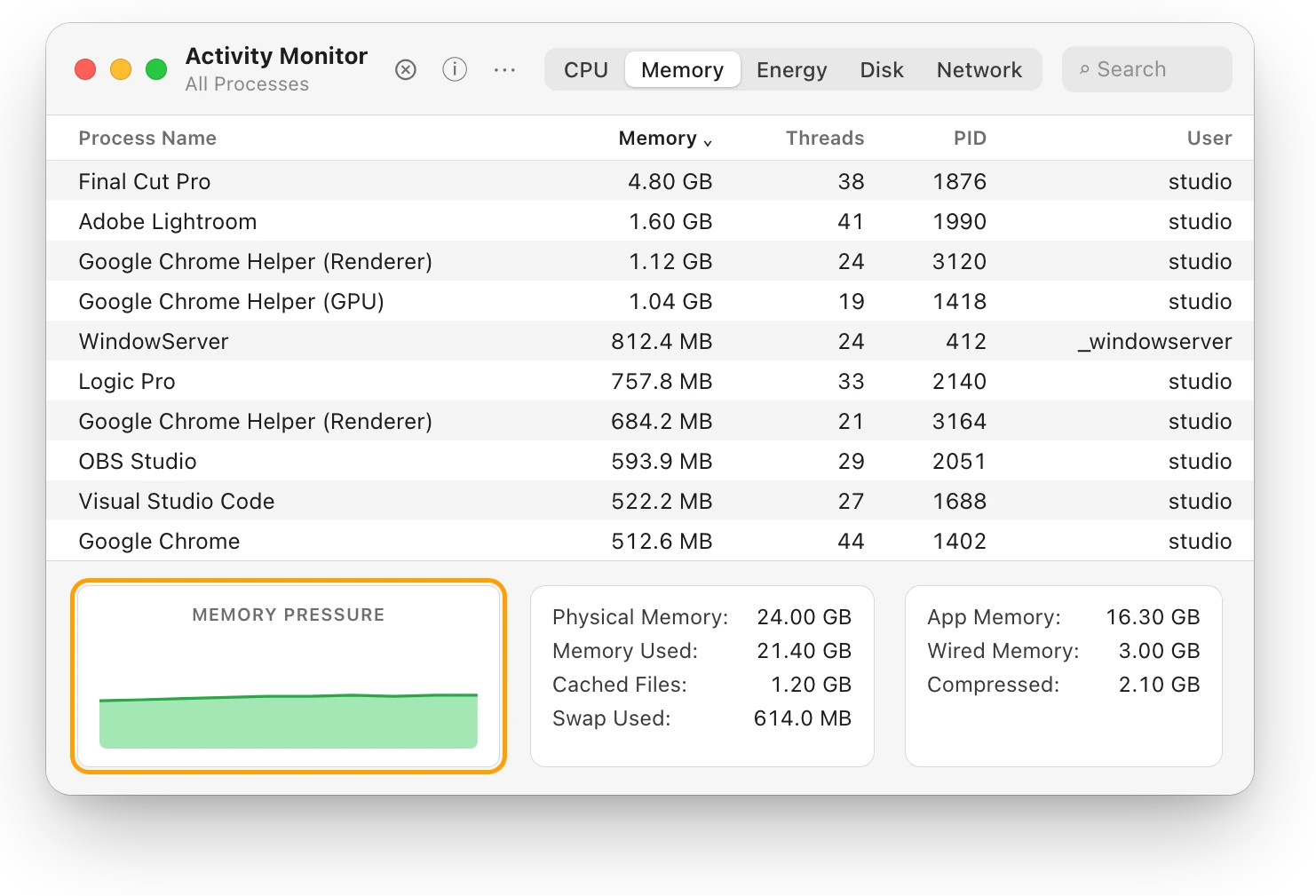
- Look at the Memory Pressure graph at the bottom:
- Green: your Mac is using its memory efficiently.
- Yellow: your Mac might eventually need more memory.
- Red: your Mac needs more memory.
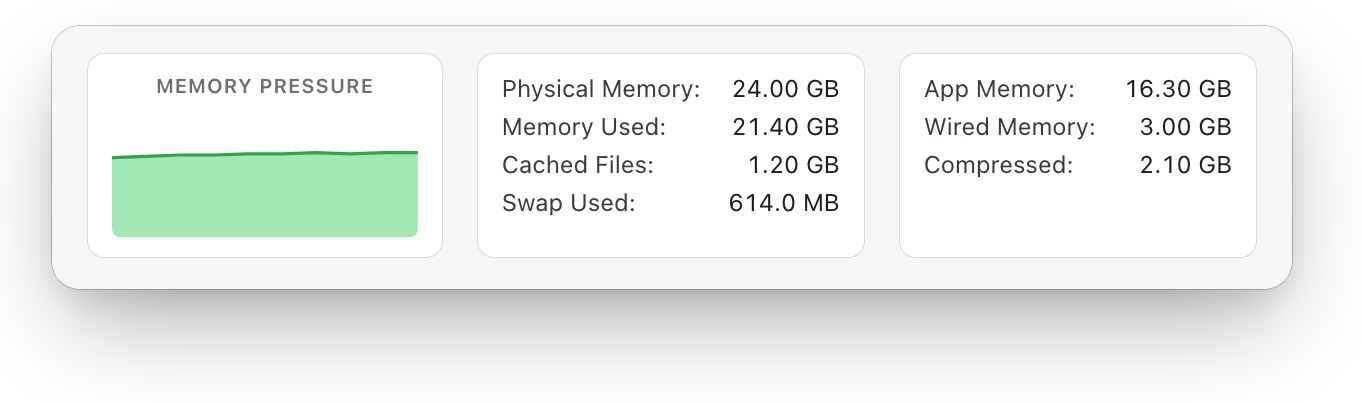
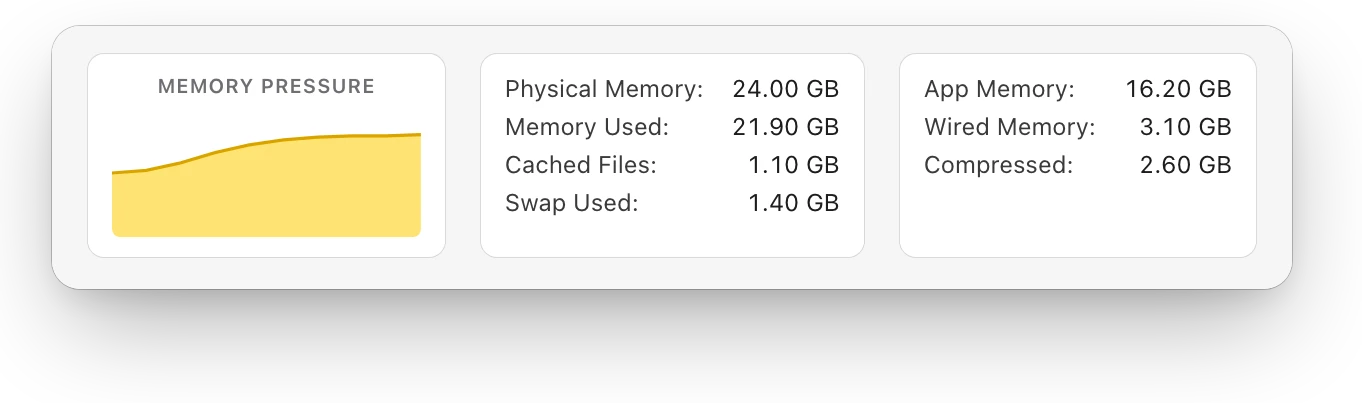
Don’t go by how much memory is used. macOS works best when it uses all of its memory, and Apple says free memory doesn’t necessarily make a Mac faster. Memory pressure already takes into account how much is free, how much is cached and how often macOS swaps.
Memory Used adds up App Memory (what apps use), Wired Memory (what macOS must keep in RAM) and Compressed (memory macOS has squeezed to make room). Cached Files is memory macOS can free at once.
What is swap, and does it matter?
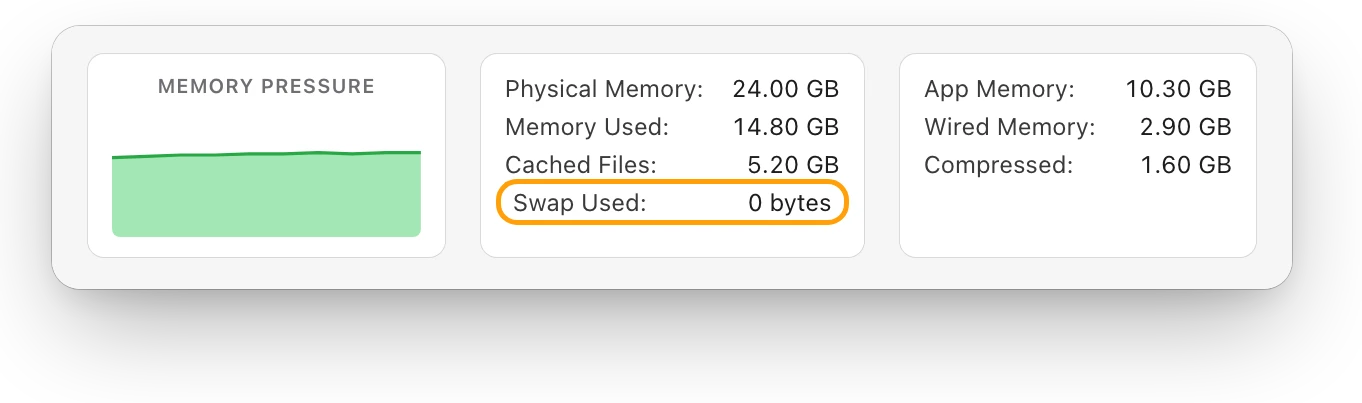
Swap is space on your startup disk where macOS moves what it isn’t using right now, to make room in RAM. Activity Monitor shows it as Swap Used, at the bottom of the Memory tab.
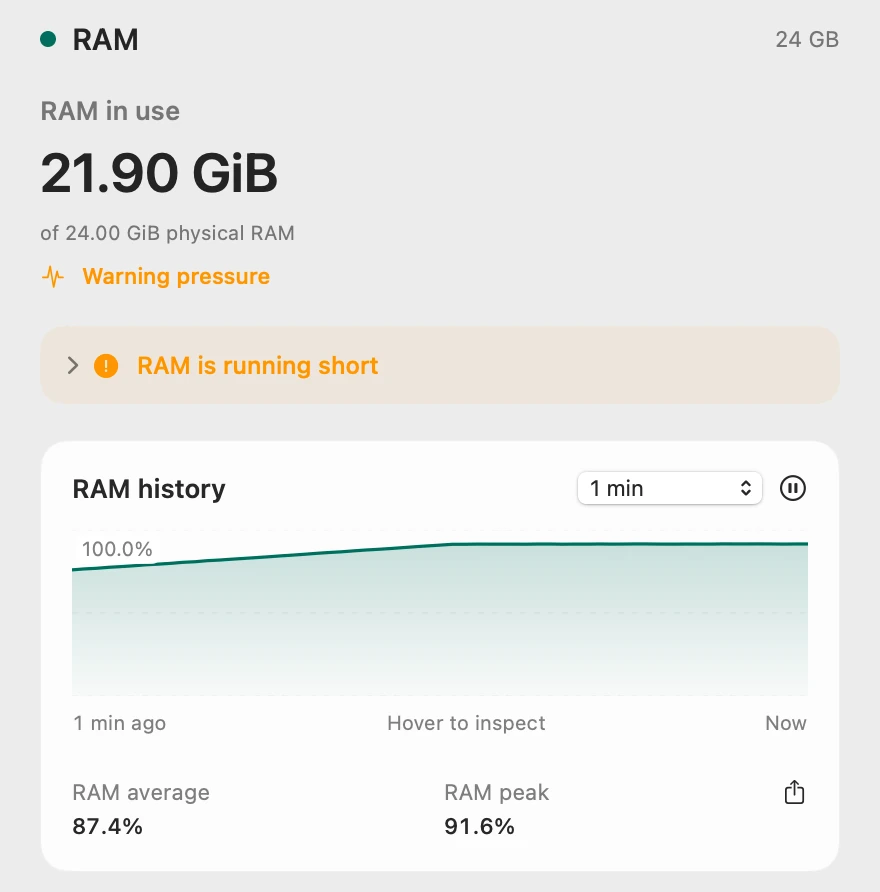
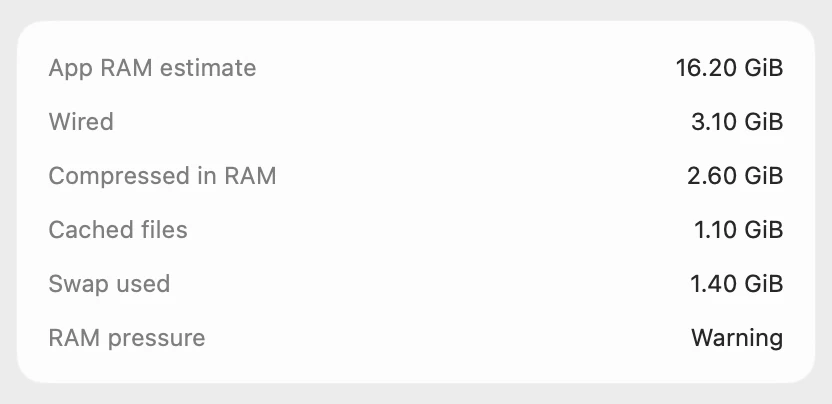
A little swap on its own isn’t a problem: memory pressure is the sign to watch. Swap that keeps growing while memory pressure is yellow or red means your Mac is short of memory for what’s open. In the yellow moment above, Swap Used is 1.40 GB.
What can I do if memory pressure is high?
- Find what uses the most. In Activity Monitor’s Memory list, click the Memory column heading to sort by it.
- Quit apps you aren’t using. Save your work first.
- Close browser tabs you’re done with. Each one can hold memory.
If memory pressure is still yellow or red with only the apps you need, your Mac needs more memory for that work.
Can I add more RAM to my Mac?
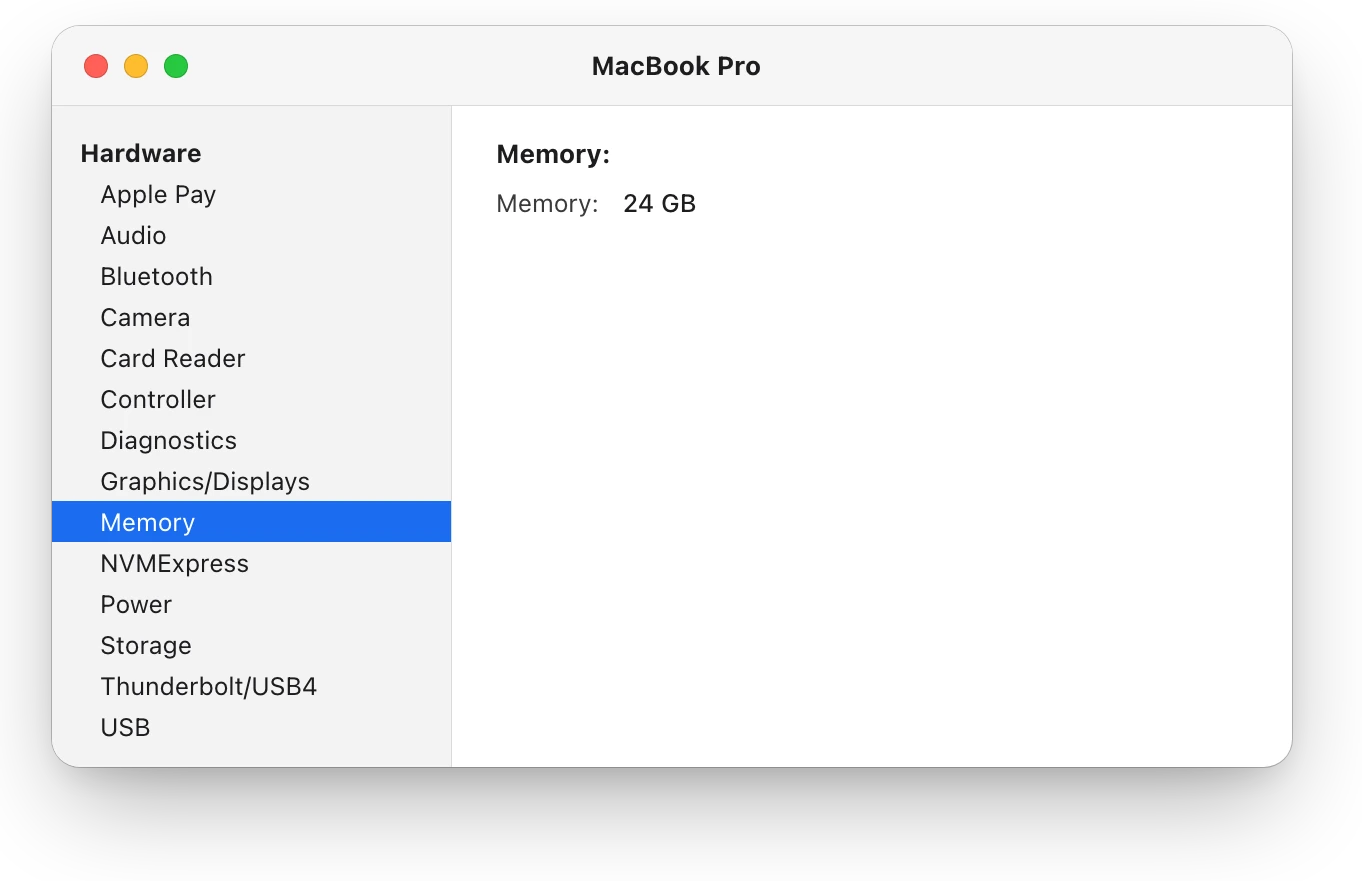
On Macs with Apple silicon, usually not. For example, Apple says the memory in Mac mini models with Apple silicon is integrated into the chip and can’t be upgraded. To check your own Mac, hold Option, choose Apple menu > System Information, and click Memory. If you don’t see a Memory Slots section, your Mac’s memory can’t be upgraded.
That’s why the choice matters when you buy. If memory pressure on your current Mac turns yellow or red on busy days, choose more memory for the next one.
Questions people also ask
Does more RAM make a Mac faster?
Only when your Mac is short of memory. Apple says free or unused memory doesn’t necessarily improve performance. If memory pressure is green, more RAM won’t make your current work faster.
Is 8 GB of RAM enough for a MacBook Air?
It depends on what you run: check memory pressure during your busiest day. Since October 2024, new MacBook Air models start with 16 GB.
Why is my Mac using almost all of its RAM?
macOS keeps memory busy on purpose, for apps and for files it may need again. High memory use is fine while memory pressure stays green.
Scope for Mac · Free, coming to the Mac App Store
How Scope helps
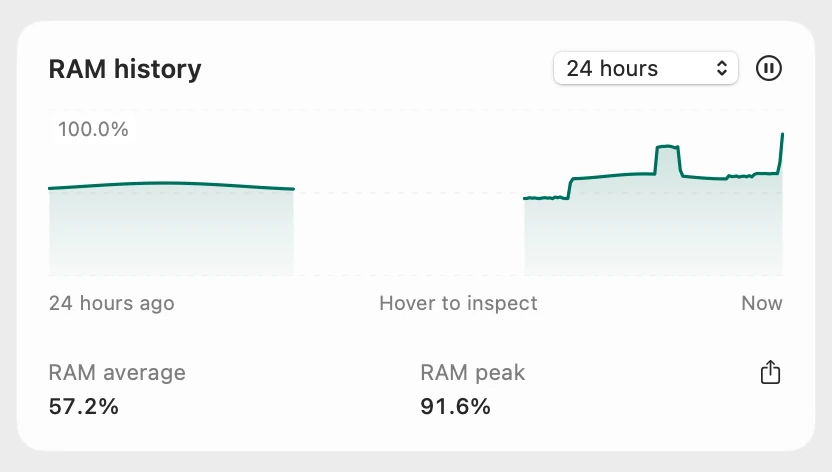
Scope is a free Mac menu bar app that shows how much memory is in use, macOS’s memory pressure in plain words, and the apps using the most. With Scope Pro it keeps a whole day of memory history, so you can see your busiest hour before you choose how much RAM to buy.
In your menu bar

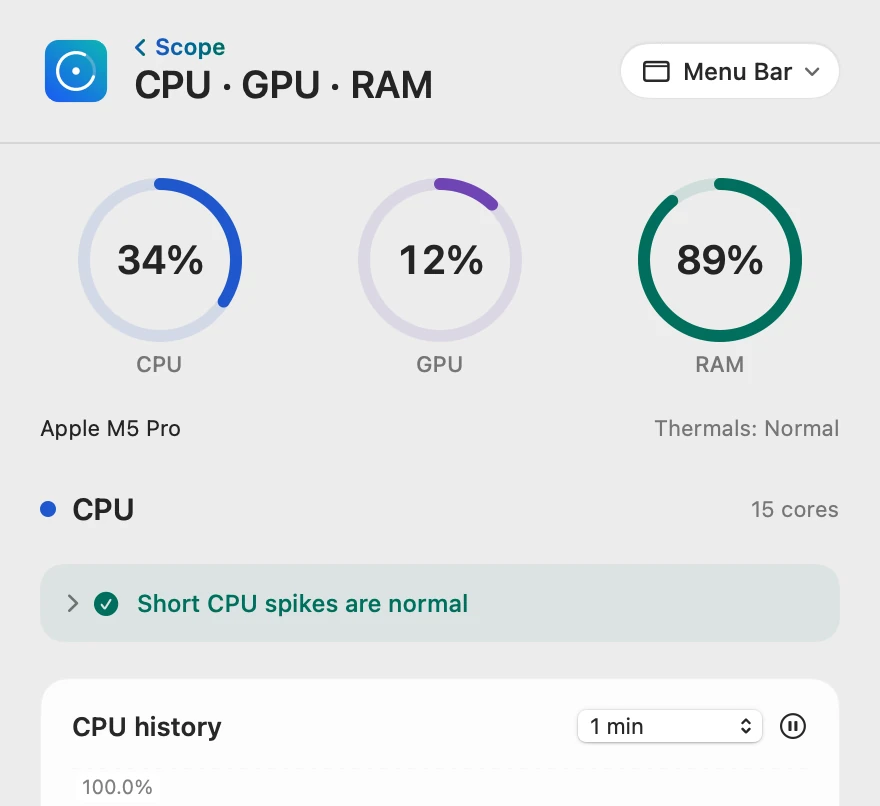
Memory pressure, in words
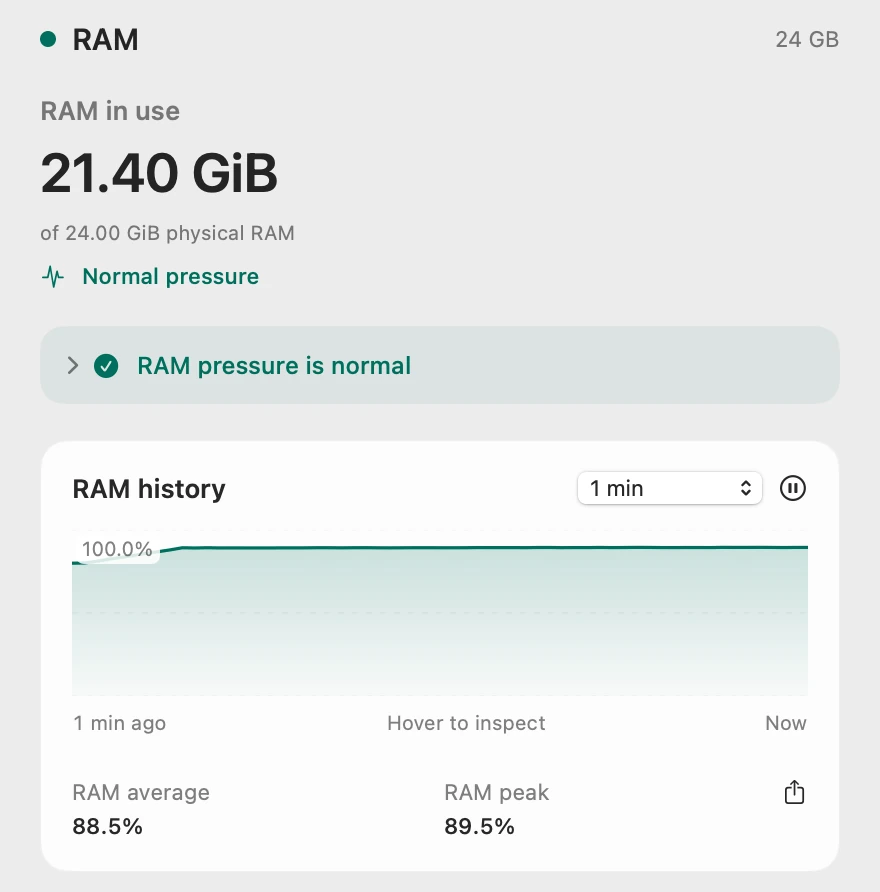
Scope’s RAM pressure is macOS’s own memory pressure level in words: Normal, Warning or Critical, which Activity Monitor shows as green, yellow and red. Scope writes GiB where Activity Monitor writes GB; for memory they’re the same measure, so the numbers match.
Where the memory went
Scope lists what macOS reports, including compressed memory, cached files and swap. Here compressed memory (2.60 GiB) and swap (1.40 GiB) have grown, as in Activity Monitor.
Your busiest hour
Scope Pro keeps 24 hours of history on your Mac, so your busiest hour is there to look back on. The gap is the night the Mac was asleep.
Scope shows and explains. It doesn’t free memory or change anything on your Mac.
Try it here
The real Scope, working, right in this page.
Click any item in the menu bar, or a card inside, as you would on your Mac.
Scope Pro Every menu bar item is shown here. Scope Free keeps one whole item of your choice, with every reading inside.
See how much memory your own Mac uses.
Keep reading
Guide · Slow Mac
Why is my Mac slow? How to find the cause
A slow Mac is usually a busy app, too little memory, a nearly full disk or heat. Here’s how to see which one with macOS’s own tools.
Slow Mac
Mac memory pressure: why high RAM use is often fine
Memory pressure, not RAM in use, shows if your Mac has enough memory. Green is fine even when RAM is nearly full; yellow or red means it’s running short.
Slow Mac
What is swap on a Mac, and when should you worry?
Swap is startup-disk space macOS uses to make room in RAM. Some is normal; it matters when memory pressure is yellow or red and Swap Used keeps growing.
Slow Mac
Which app is slowing down my Mac? How to find it
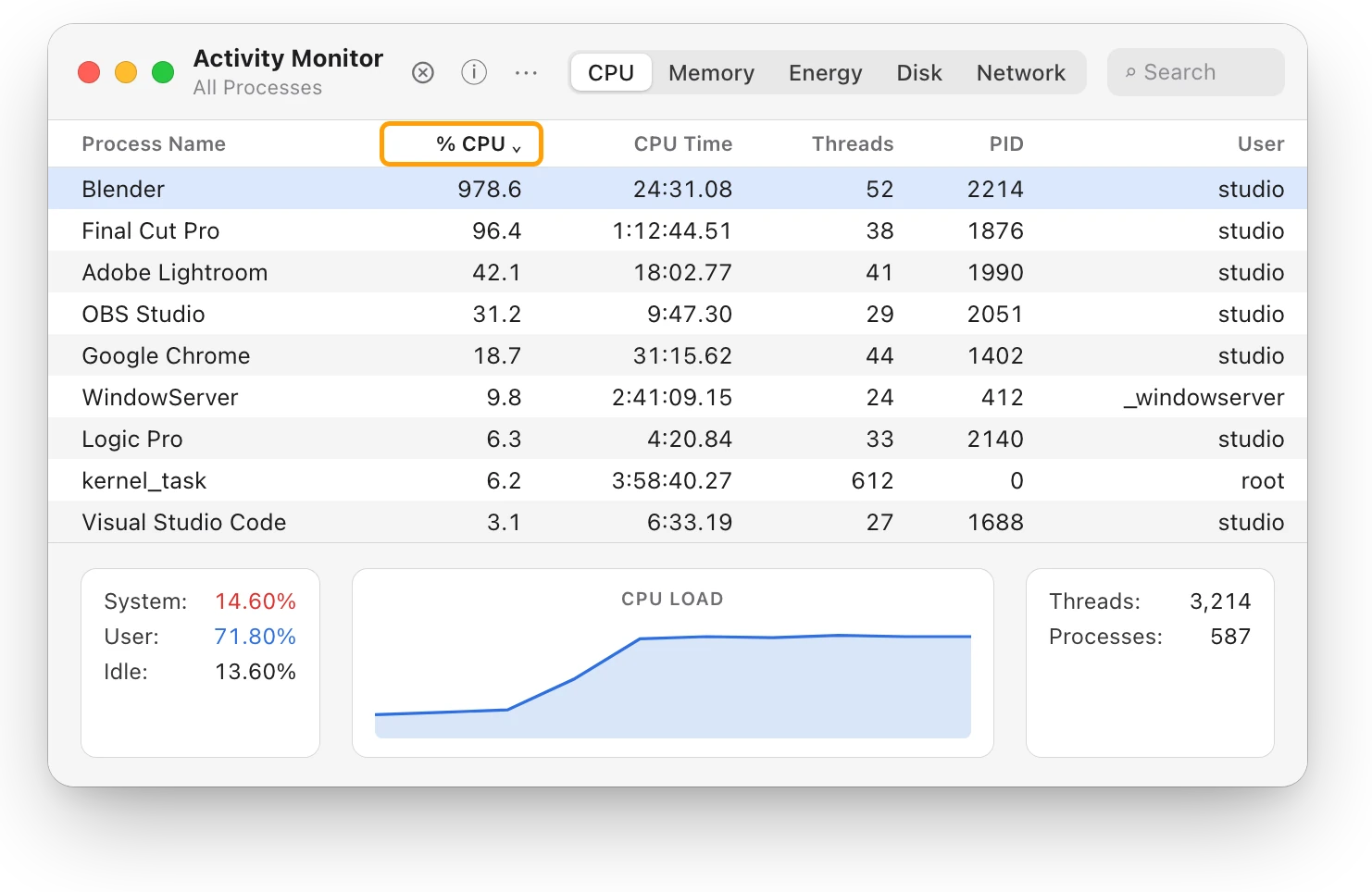
Activity Monitor shows which app is slowing your Mac: sort by % CPU, then by Memory. Here’s how to read the lists, and what to do next.
Slow Mac
Why is Chrome using so much memory on a Mac?
Chrome runs tabs and parts of the browser as separate processes, so its memory adds up. Here’s how to see it on a Mac, and when it matters.
Sources
- Apple Support: Check if your Mac needs more RAM in Activity Monitor
- Apple Support: View memory usage in Activity Monitor on Mac
- Apple Support: View About settings on Mac
- Apple Support: Upgrade or install memory in your Mac mini
- Apple Newsroom: New MacBook Pro features M4 family of chips and Apple Intelligence (October 2024)
Last checked October 17, 2026. Readings, apps and files in the pictures are from a made-up Mac.