Scope for Mac
Mac network monitor: live speed and data per app
Scope is a free Mac menu bar app that shows how fast data is moving on your Mac’s connection right now, download and upload, and how much it has used. One click shows the Wi-Fi signal, the connection’s details and the apps using the network. Traffic by app is counted on your Mac and stays there.
Free, coming to the Mac App Store. Scope Pro is a one-time purchase.
In your menu bar
Network shows live download above upload, in bytes or bits per second, in a fixed width so nothing beside it moves. Scope Free keeps one whole menu bar item of your choice.

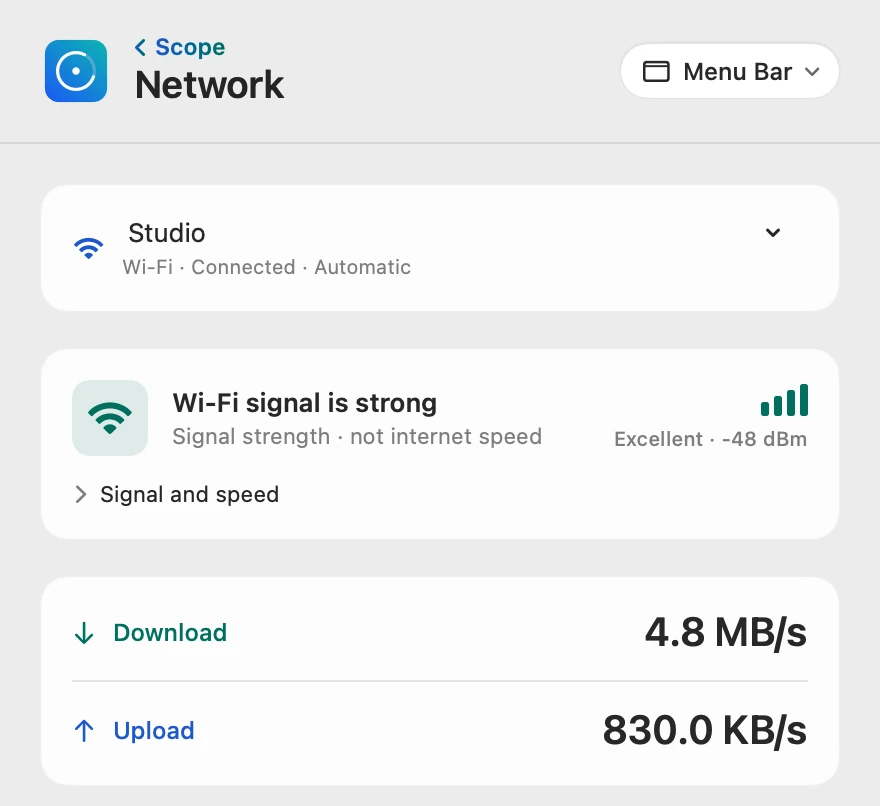
Live download and upload
Download and Upload are the traffic on your connection right now, updated every second. They include transfers to nearby devices on your network, so they show what your Mac is moving, not how fast your internet can go.
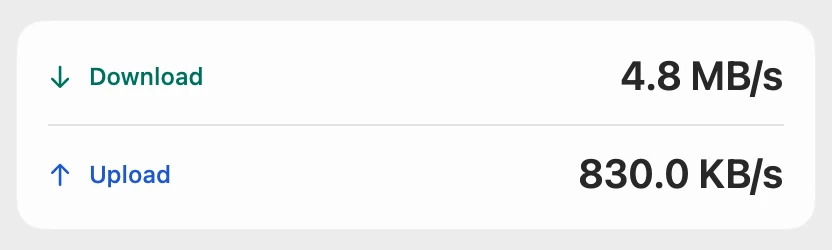
Wi-Fi signal, not speed
On Wi-Fi, the signal card lights its bars with the live reading and names it, with the value in dBm (decibel-milliwatts; closer to 0 is stronger). −55 dBm or better is Excellent, down to −65 Good, down to −70 Fair, and below that Weak. It’s labeled “Signal strength · not internet speed”, because a strong signal can sit beside a slow line.
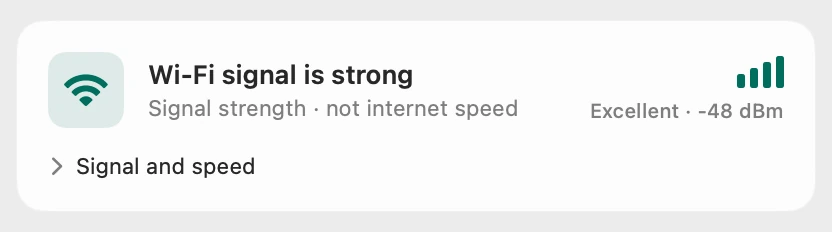
Connection details
Details show whether the link is active, the network’s name, the interface, your Mac’s local IP address, and on Wi-Fi the signal, link rate and channel. Wi-Fi link rate is the speed of the radio link to your router, not your internet speed. Scope follows your main connection automatically, or you can pin one, such as Ethernet or a VPN.
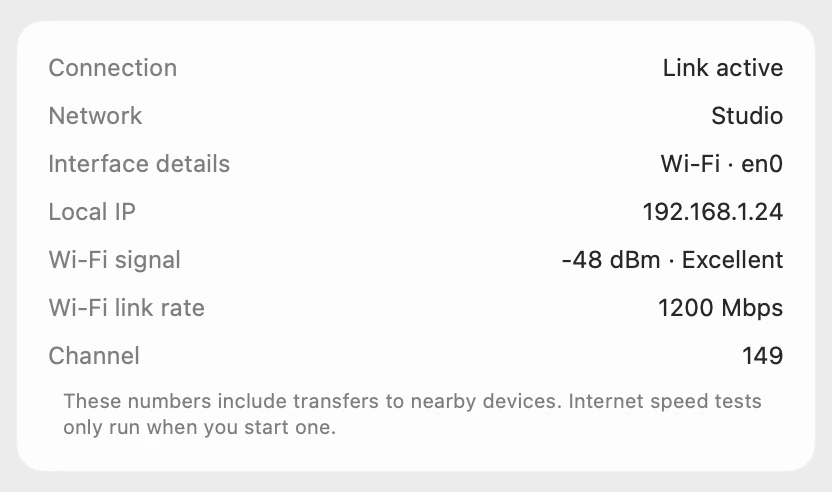
Traffic history
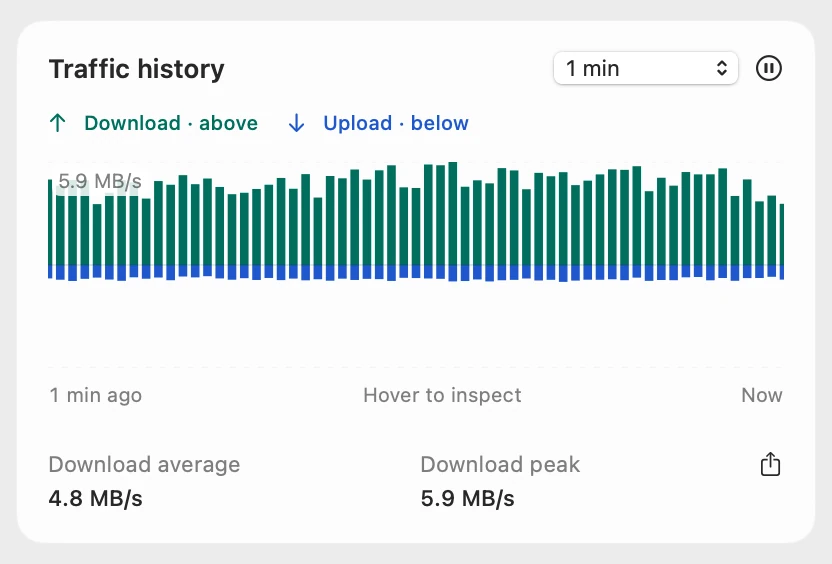
Traffic history draws download above and upload below one zero line, on the same scale. Scope Free shows the last 1, 5 or 10 minutes; Scope Pro shows 1, 6 or 24 hours and exports the chart as a CSV file.
Data used
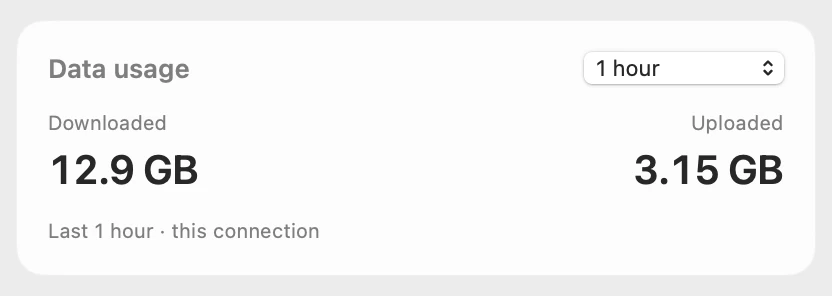
Data usage adds up what this connection downloaded and uploaded over the last 1, 5, 10, 15 or 30 minutes or hour. Only time when Scope was running counts, and the totals are kept on your Mac across restarts.
Apps using the network
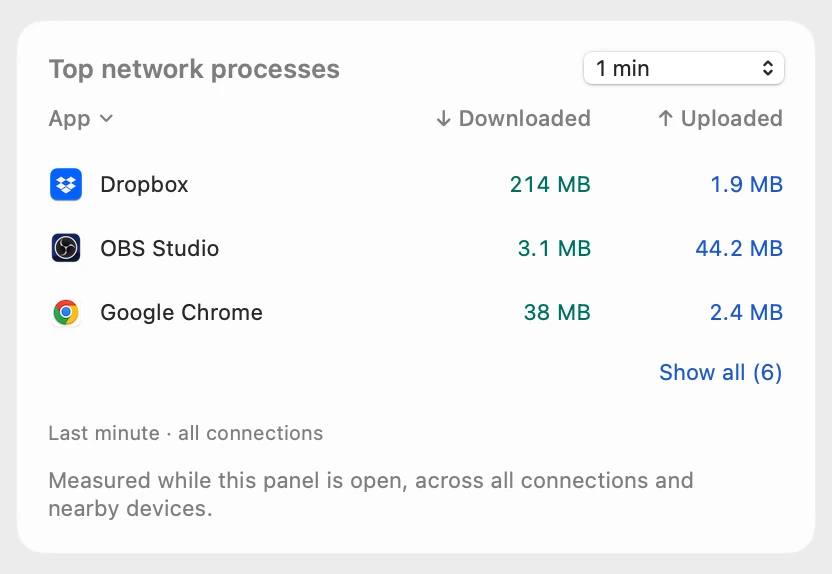
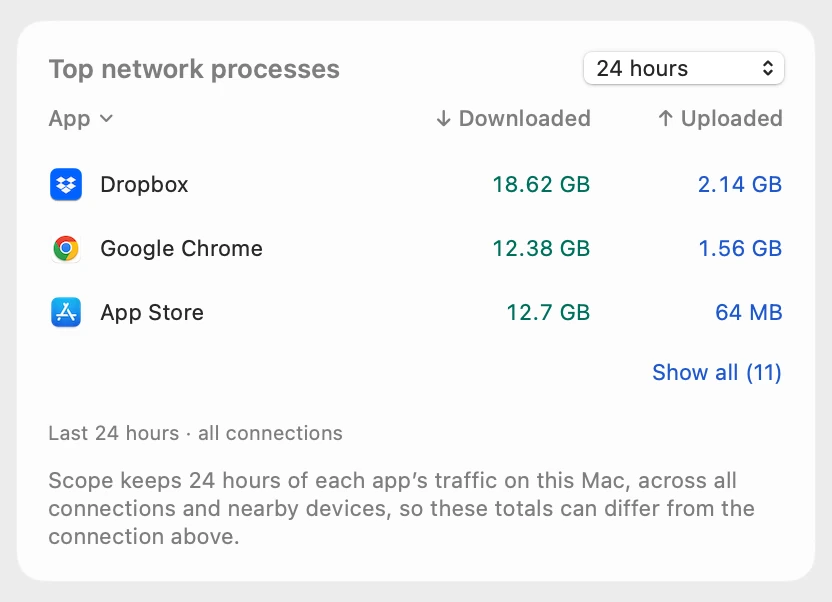
Top network processes lists the apps that moved the most data over the last minute, with what each downloaded and uploaded; an app’s helper processes count toward the app. Click a column title to sort. Scope counts this on your Mac as app names and byte counts, never the places the data went.
A day of data
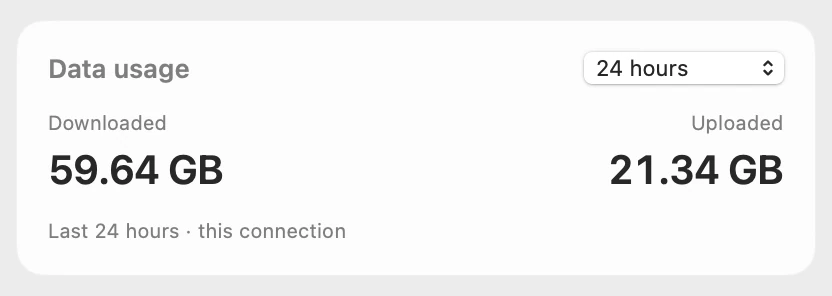
Scope Pro adds 5, 10 and 24 hours and All to Data usage, and shows apps over any range up to 24 hours, recorded in the background. A big download from this morning still shows tonight.
Internet speed test
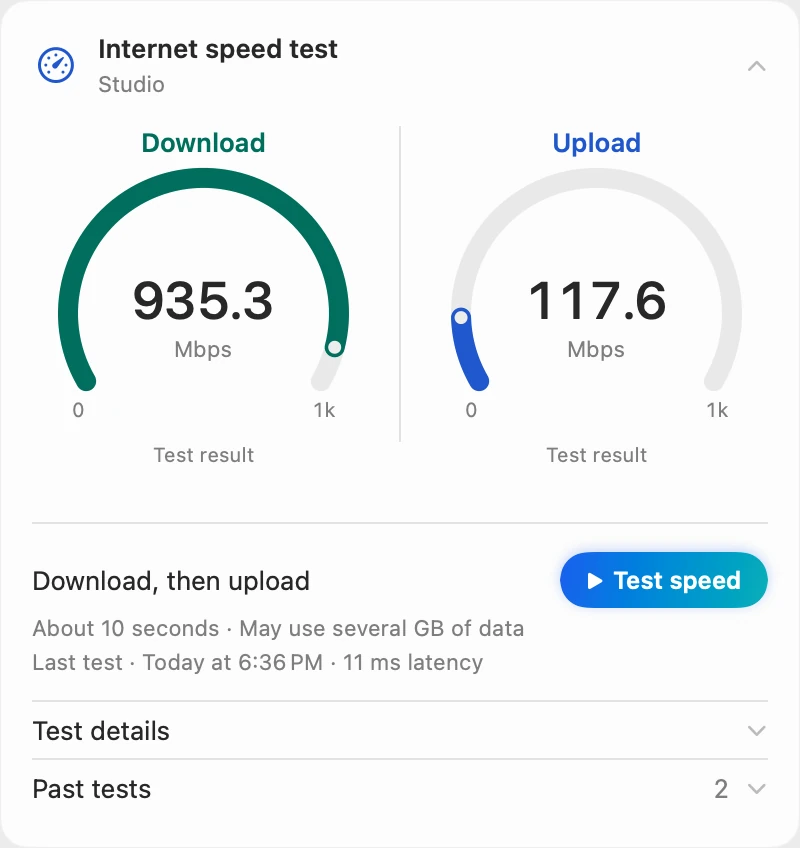
When you want a measurement, Internet speed test runs Apple’s own networkQuality test, right under the live speeds. It contacts Apple’s test service only when you start it, and it can use several GB of data. More about Scope’s speed tests.
Scope Free and Scope Pro
| Scope Free shows | Scope Pro adds |
|---|---|
| Live download and upload, Wi-Fi signal, connection details and the internet speed test | The same readings and test: nothing is held back |
| Network as your one menu bar item, in bytes or bits per second | Every Scope item at once |
| Traffic history for the last 1, 5 and 10 minutes | 1, 6 and 24 hours, with CSV export |
| Data usage over 1, 5, 10, 15 or 30 minutes or 1 hour | 5, 10 and 24 hours, and All |
| Apps using the network over the last minute, while the panel is open | Any range up to 24 hours, recorded in the background |
| Speed test results you can copy | Test reports saved as files |
Questions people also ask
Can Scope show which app is using my internet?
Yes. Top network processes lists the apps that moved the most data, with what each downloaded and uploaded: over the last minute in Scope Free, and over up to 24 hours with Scope Pro.
Is Wi-Fi signal the same as internet speed?
No. Signal is how clearly your Mac hears the router, and internet speed depends on the whole path to the internet. Scope labels its signal card “Signal strength · not internet speed”, and its speed test measures the connection itself.
Does Scope upload my network data?
No. Your monitoring data, traffic by app included, stays on your Mac: Scope doesn’t upload it or sell it, and it has no analytics or advertising trackers. The internet speed test contacts Apple’s test service when you start it.
Why does Scope ask for Location to show my Wi-Fi name?
macOS asks for Location permission before an app can read the Wi-Fi network’s name. Without it, Scope shows “Wi-Fi” and everything else works, and Scope doesn’t request your location coordinates.
Can Scope block apps or limit my data?
No. Scope shows and explains; it never stops apps, blocks traffic or changes your settings.
Is Scope free?
Yes. Scope Free shows every reading on this page and runs the speed test, with one whole menu bar item of your choice. Scope Pro is a one-time purchase that adds more menu bar items, longer ranges and exports.
Try it here
The real Scope, working, right in this page.
Click any item in the menu bar, or a card inside, as you would on your Mac.
Scope Pro Every menu bar item is shown here. Scope Free keeps one whole item of your choice, with every reading inside.
See the network on your own Mac.
Guides for this
Internet and Wi-Fi
How much data does my Mac use? How to check
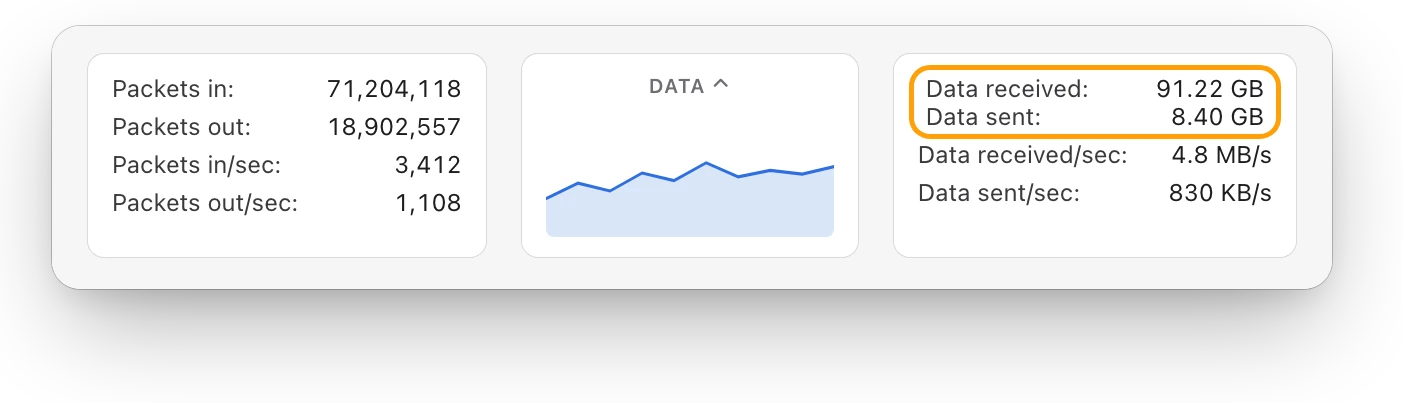
Activity Monitor’s Network tab shows how much data your Mac has sent and received, and which processes used it. Here’s how to read it and use less.
Internet and Wi-Fi
How to test internet speed on a Mac
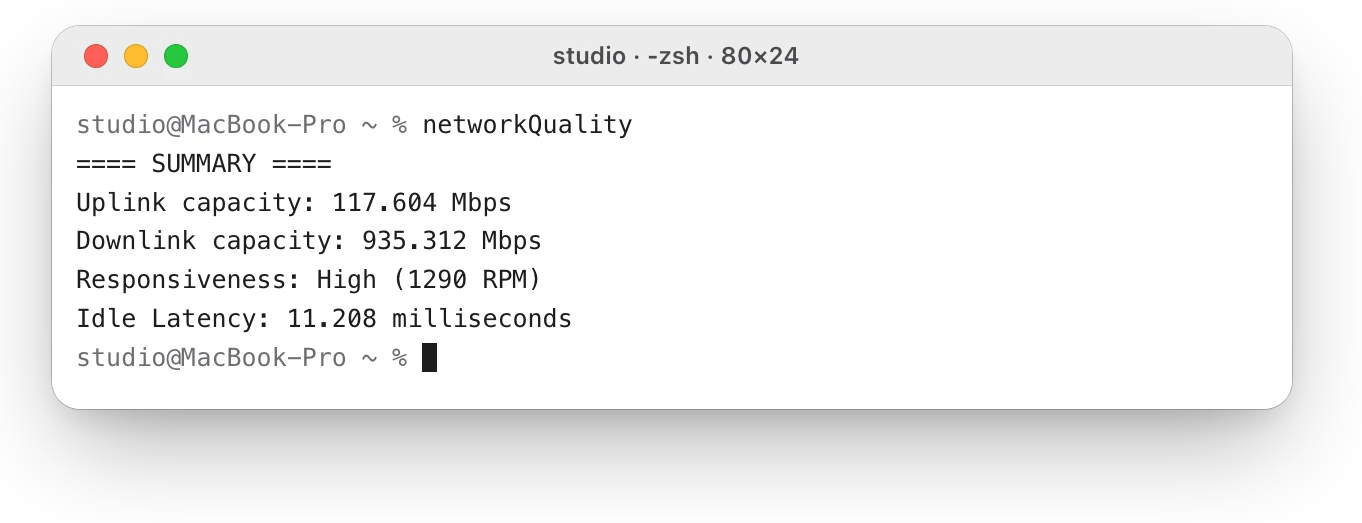
Every Mac has a built-in internet speed test: type networkQuality in Terminal. Here’s how to run it and read its capacity and responsiveness.
Internet and Wi-Fi
What’s a good Wi-Fi signal? dBm explained
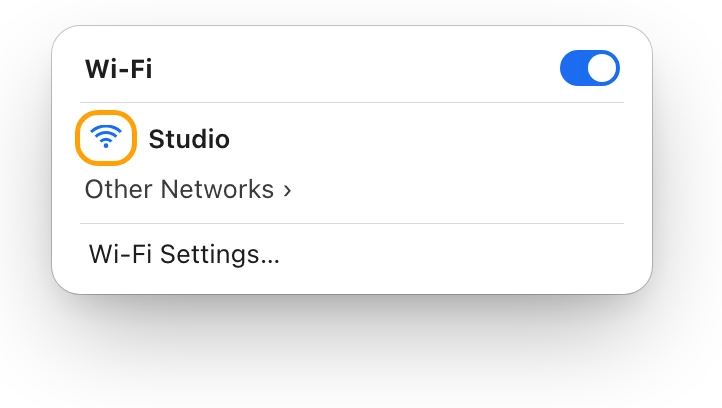
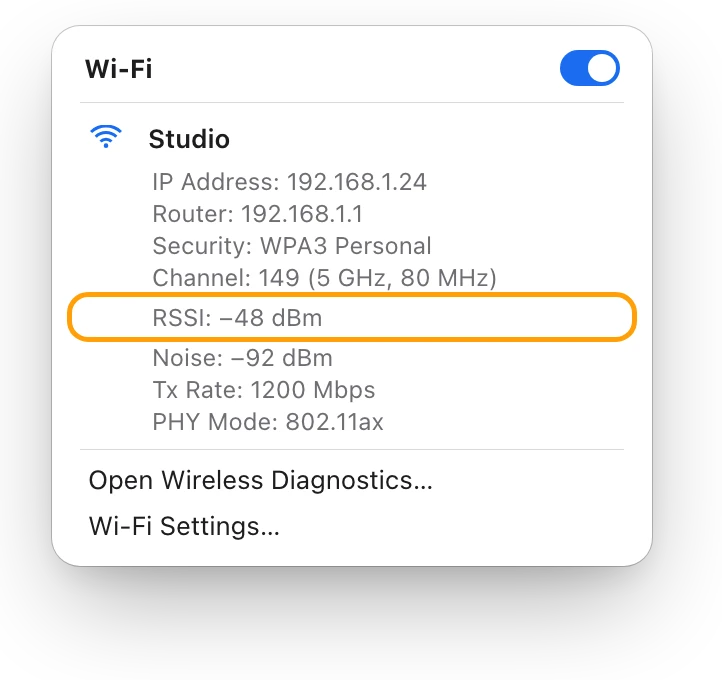
Wi-Fi signal is measured in dBm: closer to zero is stronger. Here’s how to see your Mac’s signal, what RSSI and noise mean, and why signal isn’t speed.
Internet and Wi-Fi
Why is my Mac’s Wi-Fi so slow? How to find out
Slow Wi-Fi on a Mac is a weak link to the router or a slow line behind it. Option-click the Wi-Fi menu, run networkQuality, then check Activity Monitor.
Internet and Wi-Fi
Mac Wi-Fi keeps disconnecting? How to find the cause
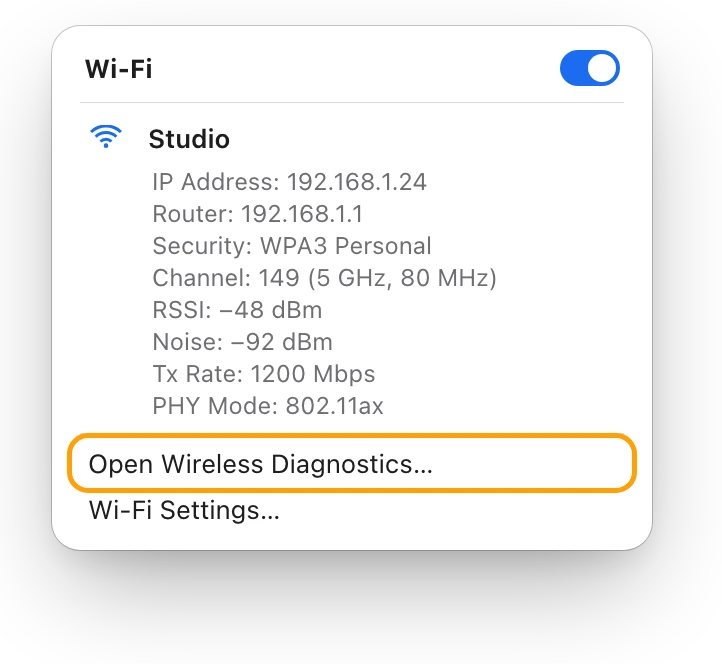
When a Mac’s Wi-Fi keeps disconnecting, Wireless Diagnostics can watch the connection and name the problem. Here’s what to check, step by step.
Internet and Wi-Fi
Mac connected to Wi-Fi but no internet? What to do
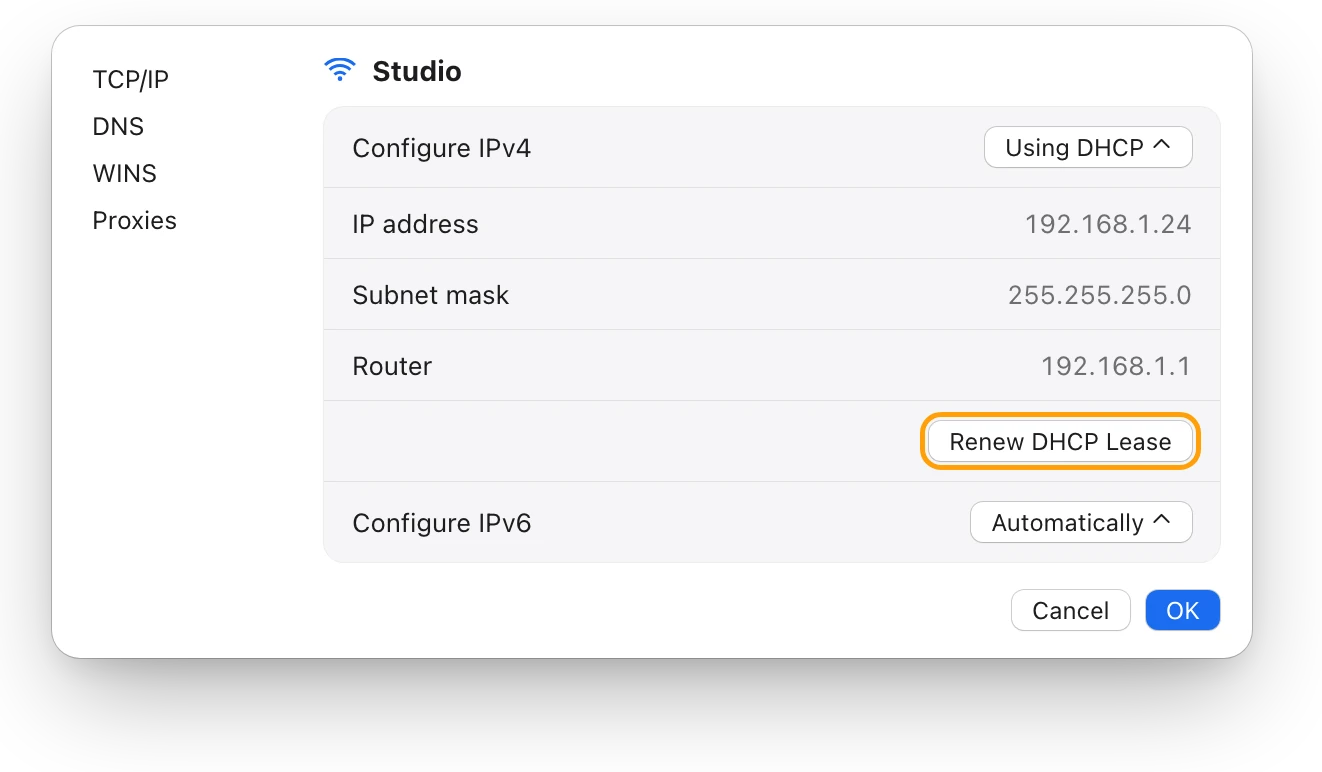
Wi-Fi but no internet means the router link works and the way out doesn’t. Check other devices, restart the router, then renew your Mac’s address.
Readings, apps and files in the pictures are from a made-up Mac.