Why is my Mac’s Wi-Fi so slow? How to find out
When your Mac’s Wi-Fi is slow, first find out which part is slow: the Wi-Fi link between your Mac and the router, or the internet connection behind the router. Option-click the Wi-Fi icon in the menu bar to see the signal, type networkQuality in Terminal to measure the internet speed, and open Activity Monitor’s Network tab to see which apps are using the connection.
Is it my Wi-Fi signal or my internet?
They’re two different things. The signal is how well your Mac hears the router. The internet speed is how fast data moves between the router and the rest of the world. A strong signal can sit in front of a slow line, and a fast line can sit behind a weak signal.
To see the signal:
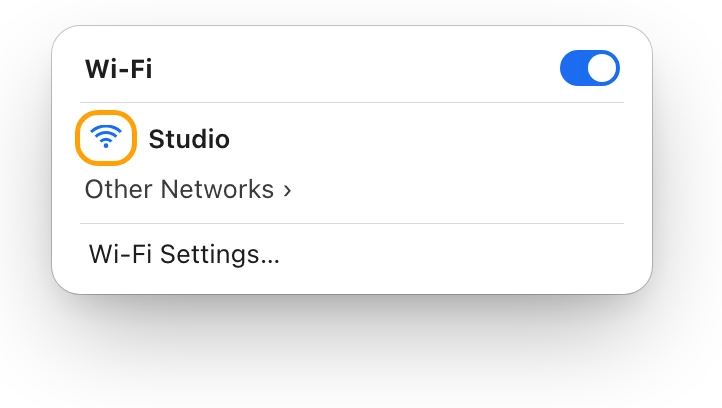
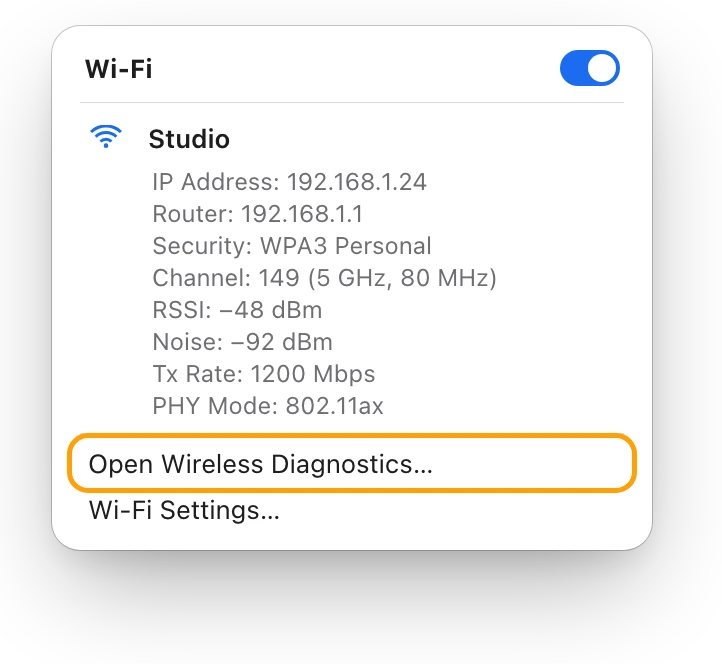
- Hold down the Option key and click the Wi-Fi icon in the menu bar.
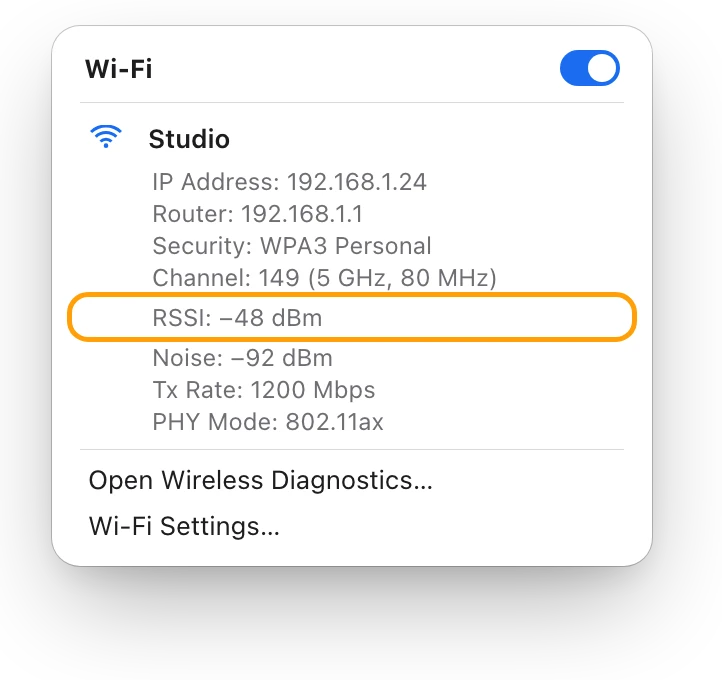
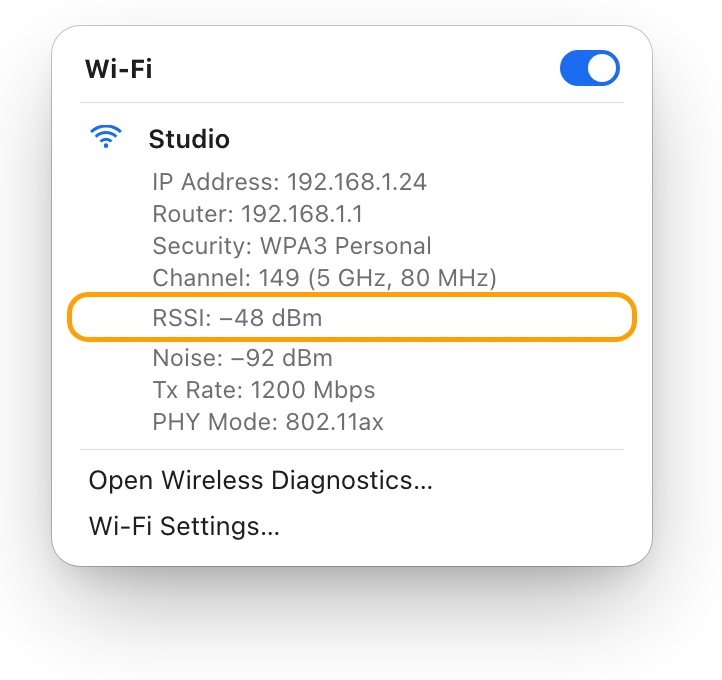
- Look at the details under the network you’re connected to. macOS shows the IP address, the router’s address, the security, the channel and band, and the signal strength (RSSI) in dBm.
- Note the RSSI and the channel. What’s a good Wi-Fi signal? dBm explained shows how to read the number.
To measure the internet speed:
- Close apps that are downloading or backing up, so they don’t share the line during the test.
- Open Terminal. It’s in Applications > Utilities, or search for it with Spotlight.
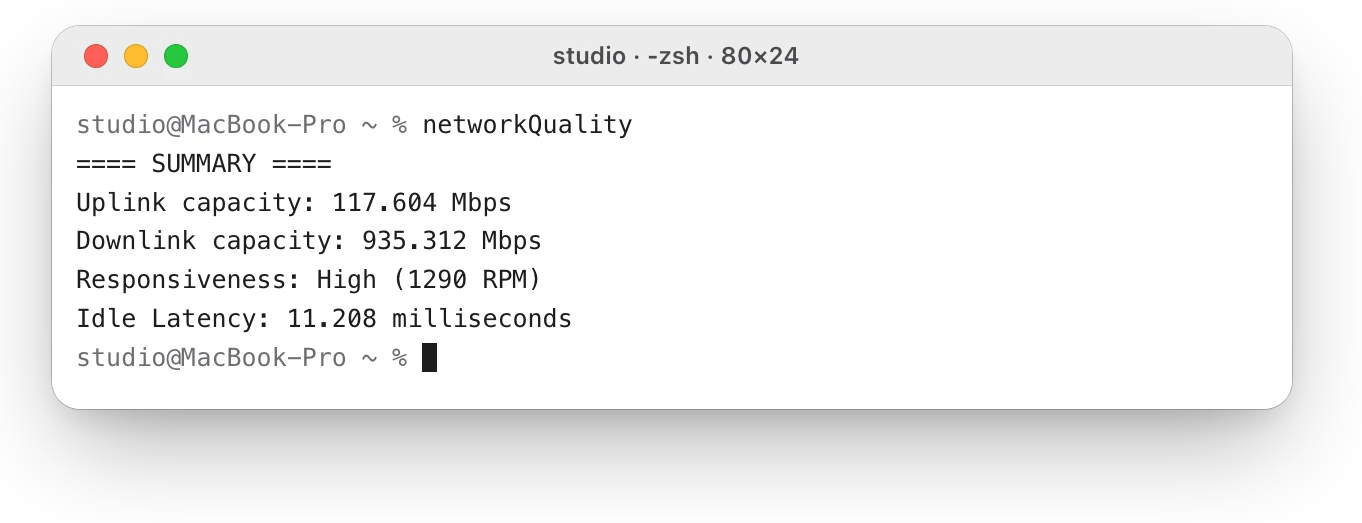
- Type
networkQualityand press Return. - Compare Downlink capacity, your download speed in megabits per second (Mbps), with the speed your internet plan promises.
studio@MacBook-Pro ~ % networkQuality==== SUMMARY ====Uplink capacity: 117.604 MbpsDownlink capacity: 935.312 MbpsResponsiveness: High (1290 RPM)Idle Latency: 11.208 millisecondsstudio@MacBook-Pro ~ %
The test uses data, more on a faster line. How to test internet speed on a Mac explains every number it reports.
Put the two results together:
| Signal | Speed test | Where to look |
|---|---|---|
| Strong | Slow | The router, the internet line or your plan, or other devices on the network |
| Weak | Slow | The Wi-Fi link: distance, walls and interference |
| Strong | Fast | Not the connection: an app using it, a VPN, or the site you’re visiting |
How do I get a better Wi-Fi signal on a Mac?
Apple’s advice for a cleaner, stronger signal:
- Move closer to the router. Walls and floors weaken the signal. Metal blocks it the most, then plaster and concrete, then brick and water. Wood and glass block very little.
- Keep away from interference. Microwave ovens, cordless phones, wireless video cameras, fluorescent lights and power cables can all interfere.
- Use the 5 GHz band if your router has one. Bluetooth and many Wi-Fi devices share the 2.4 GHz band, so 5 GHz is often less crowded.
- Mind USB 3 and Thunderbolt 3 devices. Don’t put drives or hubs on top of your Mac, use good shielded cables, and turn off USB 3 devices you aren’t using.
- Check the router’s settings, in its own app or webpage. Apple recommends Channel set to Auto, the same network name for every band, a 20 MHz channel width on 2.4 GHz, and the latest firmware.
- Restart the router. Most routers also look for the least crowded channel when they start up.
Why is Wi-Fi slow on my Mac but not on other devices?
If your phone is fast in the same spot on the same network, the network is working, so look at the Mac:
- Restart your Mac, and install any macOS update.
- Check VPN and security software. VPN, firewall, antivirus and content-blocking apps can affect your connection. Turn off the app’s features, then test again. In System Settings, search for VPN, profile, firewall and filter to find related settings.
- Forget the network and join it again. Choose Apple menu > System Settings, click Wi-Fi, click Details next to the network, click Forget This Network, then click Remove. Join it again from the Wi-Fi menu with its password.
- Turn on Location Services for networking. Apple says this helps a Mac perform well on Wi-Fi, because each country allows different channels and signal strengths. Go to System Settings > Privacy & Security > Location Services, click Details next to System Services, and turn on “Networking and wireless”.
- Let macOS check. Click the Wi-Fi icon and look for Wi-Fi Recommendations: it appears when your Mac has detected an issue. For a full check, Option-click the Wi-Fi icon and choose Open Wireless Diagnostics, then follow the instructions. It doesn’t change your settings.
Is another app using my connection?
A backup, a cloud sync or a big download shares the line with everything else. Activity Monitor shows which apps are moving data:
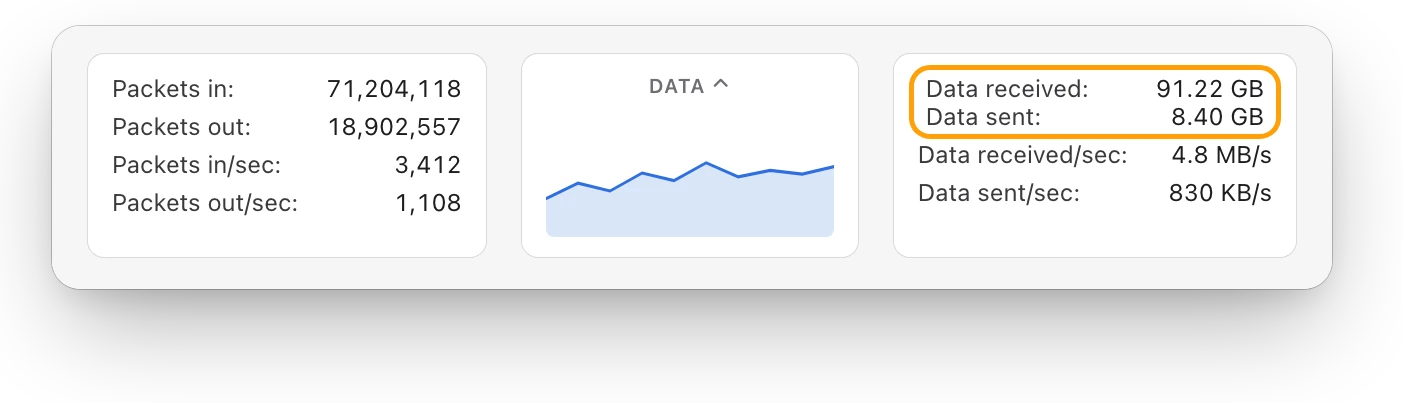
- Open Activity Monitor and click Network.
- Click a column heading to sort the list, for example by the data each process has received.
- At the bottom, Data received/sec and Data sent/sec show how much is moving right now.
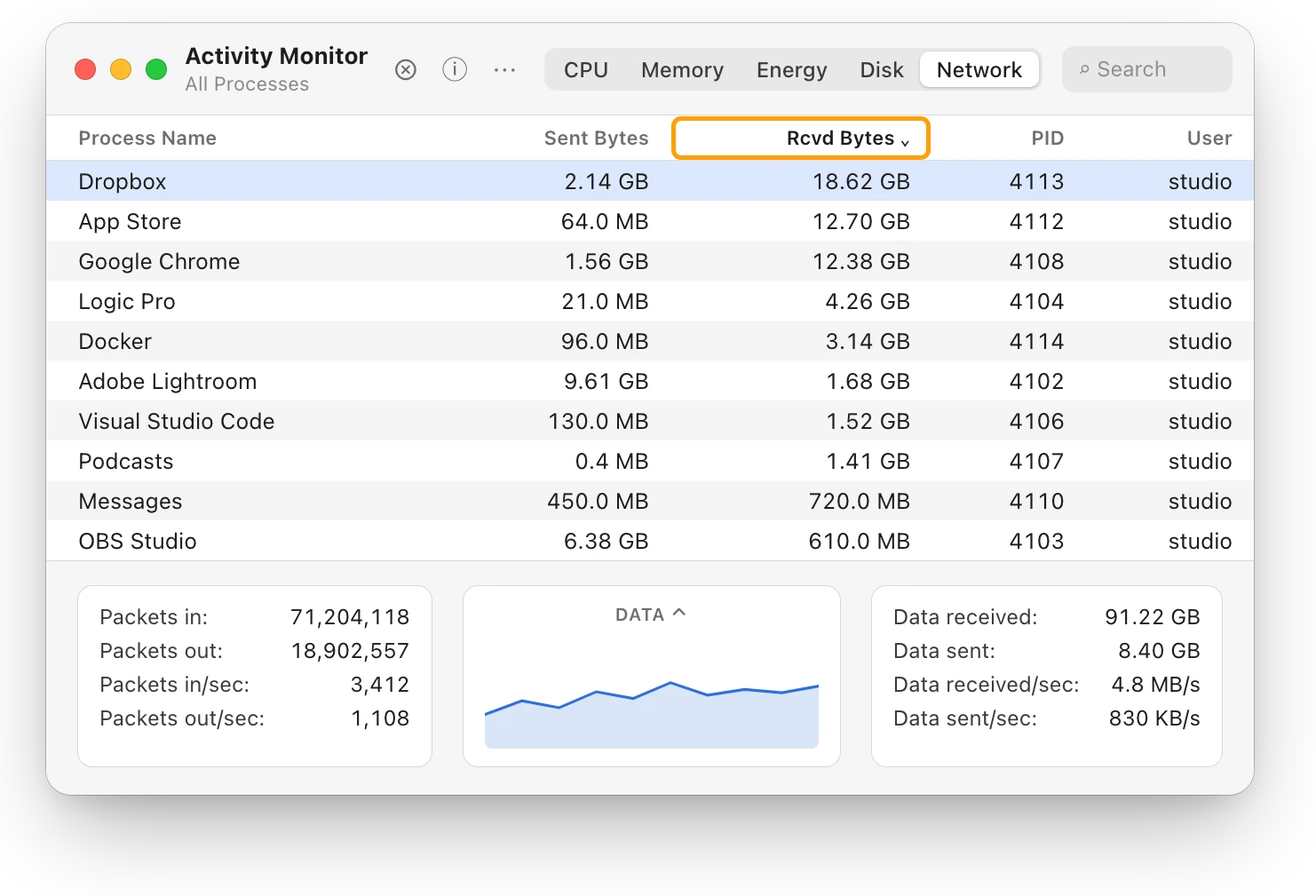
Activity Monitor counts in bytes and speed tests in bits, and one byte is eight bits. So 4.8 MB a second is about 38 Mbps. If an app is using a large share of your speed, pause it or let it finish, then test again. How much data does my Mac use? How to check shows how much each app has used.
Questions people also ask
Does a VPN slow down Wi-Fi on a Mac?
It can. Apple lists VPN and security software among the things that can affect a Mac’s connection. Turn its features off, run networkQuality again and compare.
Is 5 GHz faster than 2.4 GHz?
Often, yes. Apple notes that Bluetooth and many Wi-Fi devices share the 2.4 GHz band, and that interference is less of a concern on the 5 GHz and 6 GHz bands.
How do I reset network settings on a Mac?
Apple suggests switching to a new network location in Network settings. Try the simpler steps above first.
Why does my Mac’s Wi-Fi keep dropping, not just slowing?
That’s a different problem with its own checks. See Mac Wi-Fi keeps disconnecting? How to find the cause
Scope for Mac · Free, coming to the Mac App Store
How Scope helps
Scope is a free Mac menu bar app that shows your Wi-Fi signal and your internet speed side by side, so you can see whether a slow connection is the Wi-Fi or the line, and which apps are using the network right now. It saves switching between the Wi-Fi menu, Terminal and Activity Monitor.
In your menu bar
Scope Free keeps one whole menu bar item of your choice: Network shows what’s coming in and going out right now.

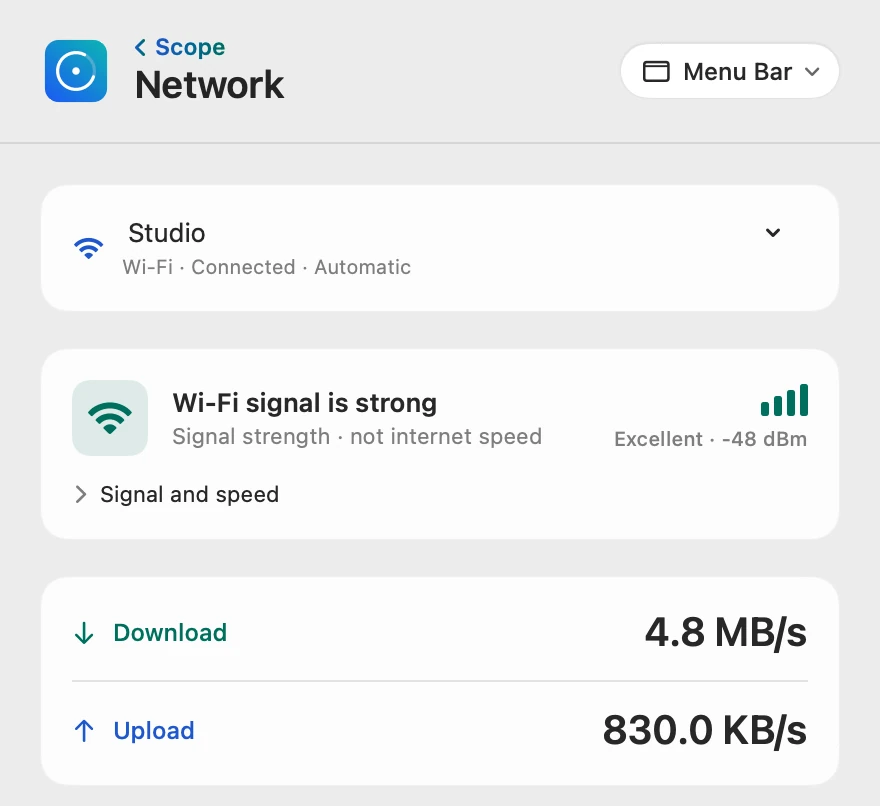
Signal, not speed
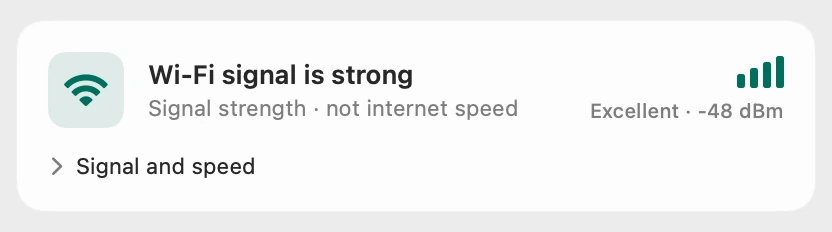
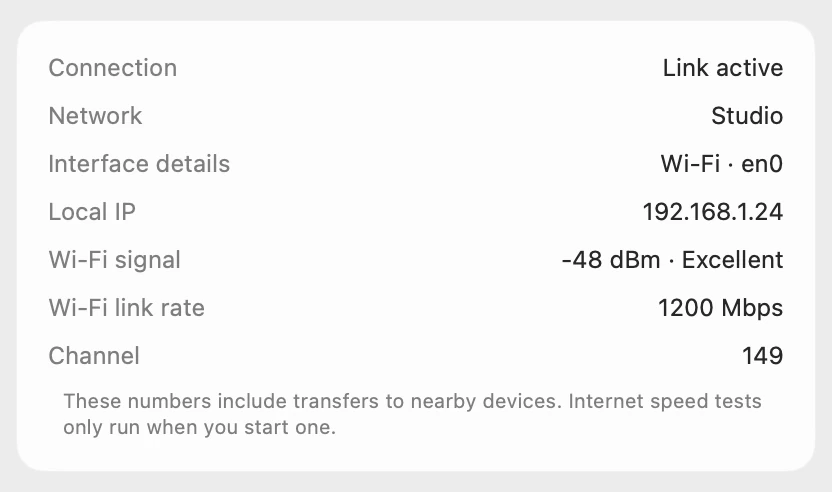
Scope lights the Wi-Fi bars from the live reading, says Excellent, Good, Fair or Weak, and labels it “Signal strength · not internet speed”.
The link and the channel
Wi-Fi link rate is how fast your Mac and the router talk over Wi-Fi, not how fast your internet is.
How fast, really
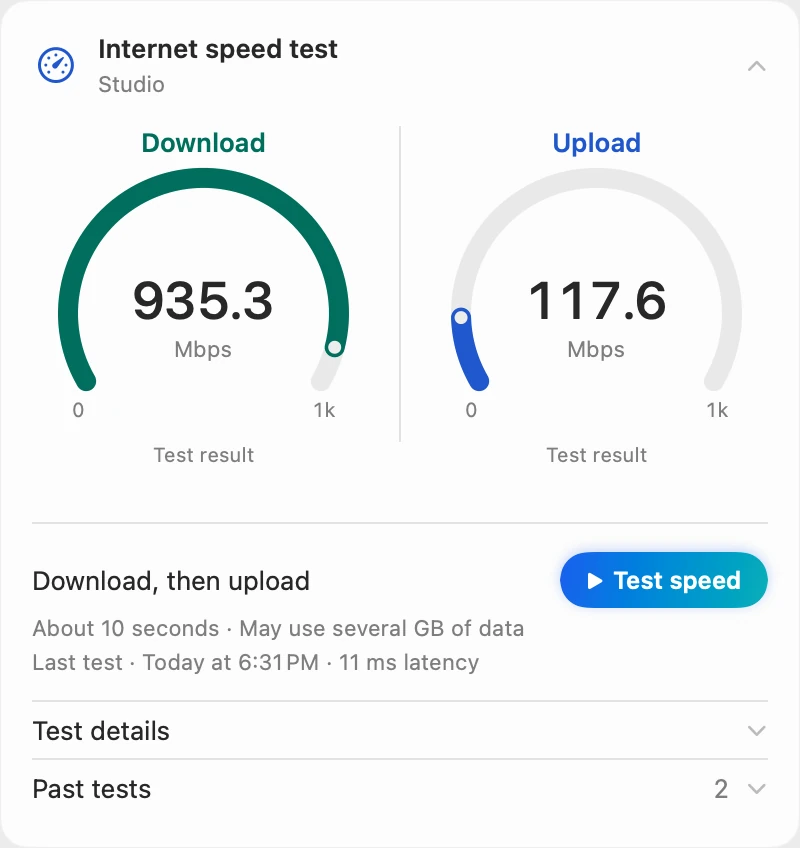
Scope runs macOS’s networkQuality test in one click, download then upload, and says first that it uses data. Your last 10 results stay on your Mac.
What’s using it
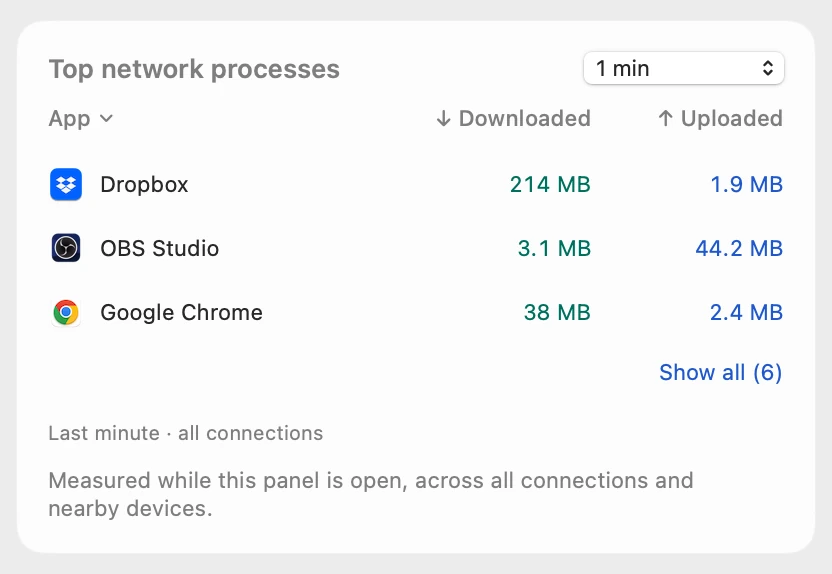
Each app’s helper processes count toward the app. Scope Free shows the last minute; Scope Pro shows any range up to 24 hours.
Scope shows and explains. It never changes your Wi-Fi, your router or your settings.
Try it here
The real Scope, working, right in this page.
Click any item in the menu bar, or a card inside, as you would on your Mac.
Scope Pro Every menu bar item is shown here. Scope Free keeps one whole item of your choice, with every reading inside.
See where your own connection slows down.
Keep reading
Guide · Internet and Wi-Fi
Mac Wi-Fi problems: slow, dropping or no internet
Mac Wi-Fi problems start in the Wi-Fi link or the internet behind the router. Two checks tell them apart; then fix it when it’s slow, drops or won’t load.
Internet and Wi-Fi
How to test internet speed on a Mac
Every Mac has a built-in internet speed test: type networkQuality in Terminal. Here’s how to run it and read its capacity and responsiveness.
Internet and Wi-Fi
What’s a good Wi-Fi signal? dBm explained
Wi-Fi signal is measured in dBm: closer to zero is stronger. Here’s how to see your Mac’s signal, what RSSI and noise mean, and why signal isn’t speed.
Internet and Wi-Fi
Mac Wi-Fi keeps disconnecting? How to find the cause
When a Mac’s Wi-Fi keeps disconnecting, Wireless Diagnostics can watch the connection and name the problem. Here’s what to check, step by step.
Internet and Wi-Fi
How much data does my Mac use? How to check
Activity Monitor’s Network tab shows how much data your Mac has sent and received, and which processes used it. Here’s how to read it and use less.
Sources
- Apple Support: Use the Wi-Fi status menu on Mac
- Apple Support: Use network tools to test connections
- Apple Support: Test Wi-Fi networks with Apple Network Responsiveness
- Apple Support: Resolve Wi-Fi and Bluetooth issues caused by wireless interference
- Apple Support: Recommended settings for Wi-Fi routers and access points
- Apple Support: If your device has network connectivity issues, check for VPN and other third-party security software
- Apple Support: If your Mac isn’t connecting to the internet over Wi-Fi
- Apple Support: Use Wireless Diagnostics on your Mac
- Apple Support: View network activity in Activity Monitor on Mac
- Apple Support: View information about Mac processes in Activity Monitor
Last checked October 18, 2026. Readings, apps and files in the pictures are from a made-up Mac.