Mac Wi-Fi keeps disconnecting? How to find the cause
When a Mac’s Wi-Fi keeps disconnecting, the cause is usually the signal (distance, walls or interference), the router’s settings, or the network’s saved settings on the Mac. To find out which, hold Option, click Wi-Fi in the menu bar and choose Open Wireless Diagnostics. It can monitor the connection while you work, then lists the problems it found and what to try.
How do I find out why my Mac’s Wi-Fi drops?
macOS has two built-in tools for this: Wi-Fi Recommendations and Wireless Diagnostics.
- Click Wi-Fi in the menu bar or in Control Center. If you see Wi-Fi Recommendations in the menu, choose it: your Mac has detected an issue and has suggestions. It isn’t available for personal hotspots or some enterprise networks.
- Quit your open apps, and join the Wi-Fi network that keeps dropping.
- Hold down the Option key, click Wi-Fi in the menu bar, then choose Open Wireless Diagnostics.
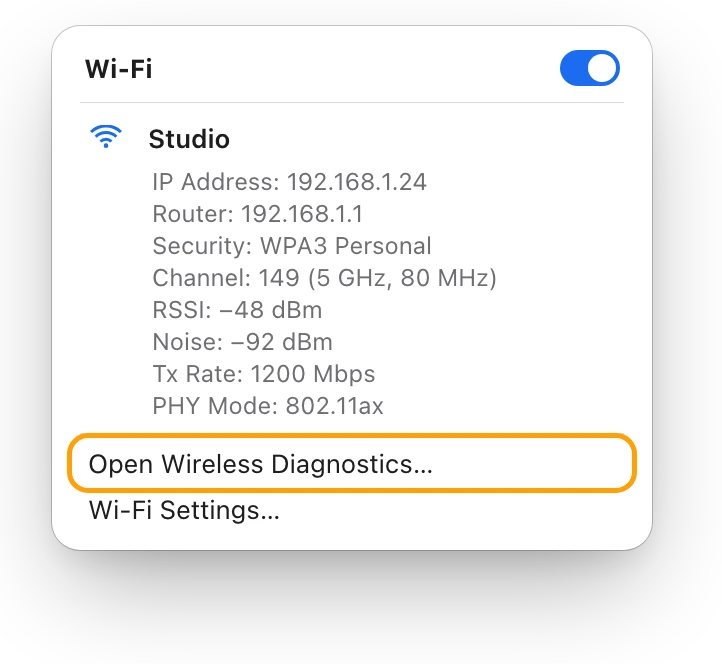
- Follow the onscreen instructions. For a connection that drops now and then, choose to monitor it. Monitoring continues as long as the Monitor pane stays open and you don’t change Wi-Fi networks. When it finds an issue, it describes it.
- In the Summary, click the Info buttons to read about each item.
Wireless Diagnostics doesn’t change your network settings. It also saves a report in /var/tmp, with a name starting WirelessDiagnostics, that you can send to your internet provider or IT support.
Is the signal too weak where I sit?
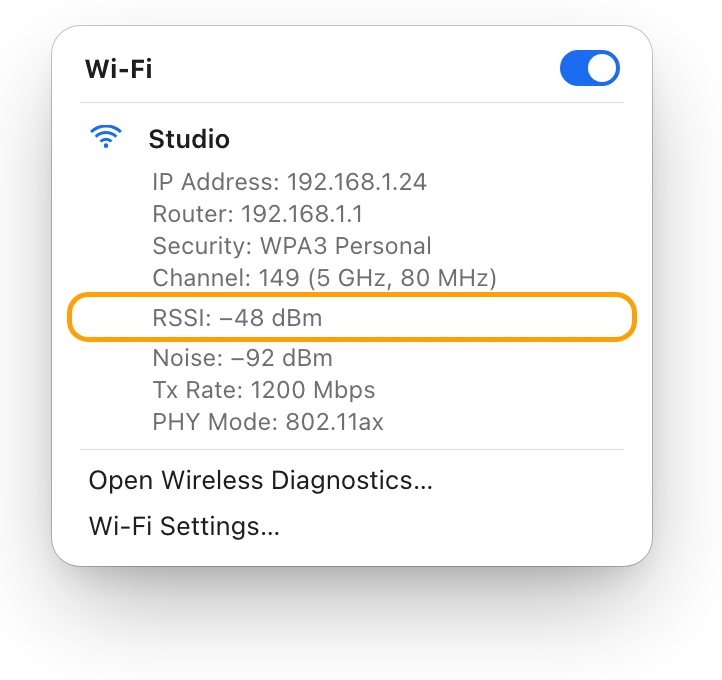
Distance, walls and other radio sources weaken Wi-Fi, and Apple lists dropped connections among the symptoms. To see how strong your signal is, hold Option and click Wi-Fi: RSSI is the signal strength in dBm, where numbers closer to zero are stronger. Apple says a Mac starts looking for a stronger access point when the signal falls to −75 dBm. What’s a good Wi-Fi signal? dBm explained explains the numbers.
To get a cleaner signal, Apple suggests:
- Bring your Mac closer to the router.
- Keep away from power cables, microwave ovens, fluorescent lights, wireless video cameras and cordless phones.
- Move USB 3 or Thunderbolt 3 devices and hubs farther from your Mac, and don’t put them on top of it.
- Connect to the 5 GHz band where you can: Bluetooth and Wi-Fi share the 2.4 GHz band.
What sits between your Mac and the router matters too. Apple rates materials like this:
| Material | Interference potential |
|---|---|
| Wood, glass, many synthetic materials | Low |
| Water, bricks, marble | Medium |
| Plaster, concrete, bulletproof glass | High |
| Metal | Very high |
Does forgetting the network help?
Forgetting a network and joining it again gives your Mac a fresh start with it. Apple suggests it after a router’s settings change.
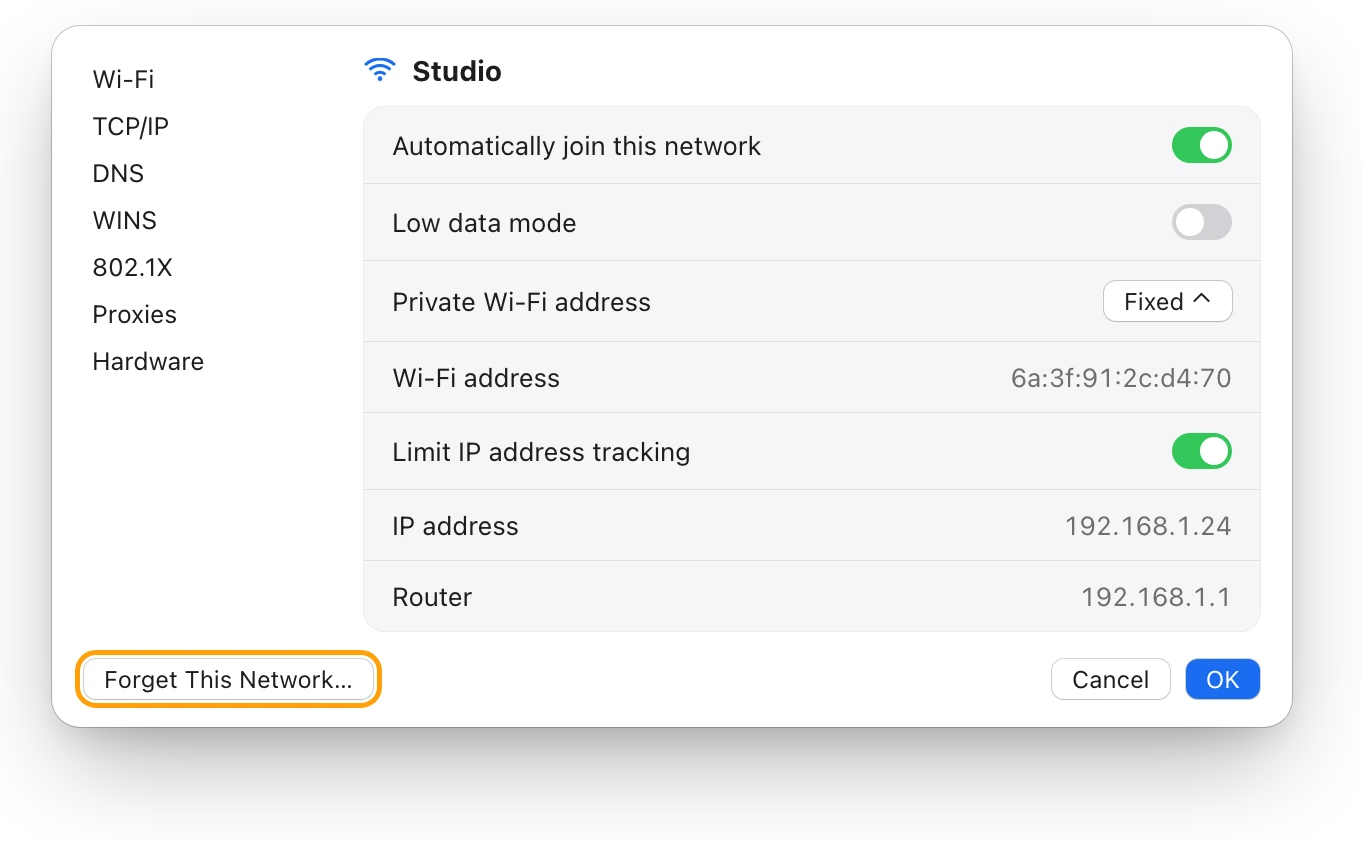
- Choose Apple menu > System Settings, then click Wi-Fi in the sidebar.
- Click Details next to the network you’re connected to.
- Click Forget This Network, then click Remove to confirm.
- Join the network again from the Wi-Fi menu, and enter its password.
Could the private Wi-Fi address cause it?
Sometimes. Your Mac uses a private Wi-Fi address for each network to reduce tracking. Apple notes that when a Mac can’t connect or loses access to network resources, a private address may be interfering with a network that identifies devices by their address, such as at work or school.
In the same Details sheet, the Private Wi-Fi address pop-up menu offers Off, Fixed and Rotating. A Rotating address changes every two weeks. If the drops started on a network that identifies devices, ask its administrator which setting to use.
Why does my Mac’s Wi-Fi drop when it sleeps?
Sleep settings decide what your Mac does on the network while it sleeps. On a Mac laptop:
- Choose Apple menu > System Settings, then click Battery.
- Click Options.
- Wake for network access wakes your Mac to provide shared resources, such as shared printers or Music playlists. Choose always, on power adapter only, or never.
- To keep a plugged-in Mac awake while its display is off, turn on “Prevent automatic sleeping on power adapter when the display is off”.
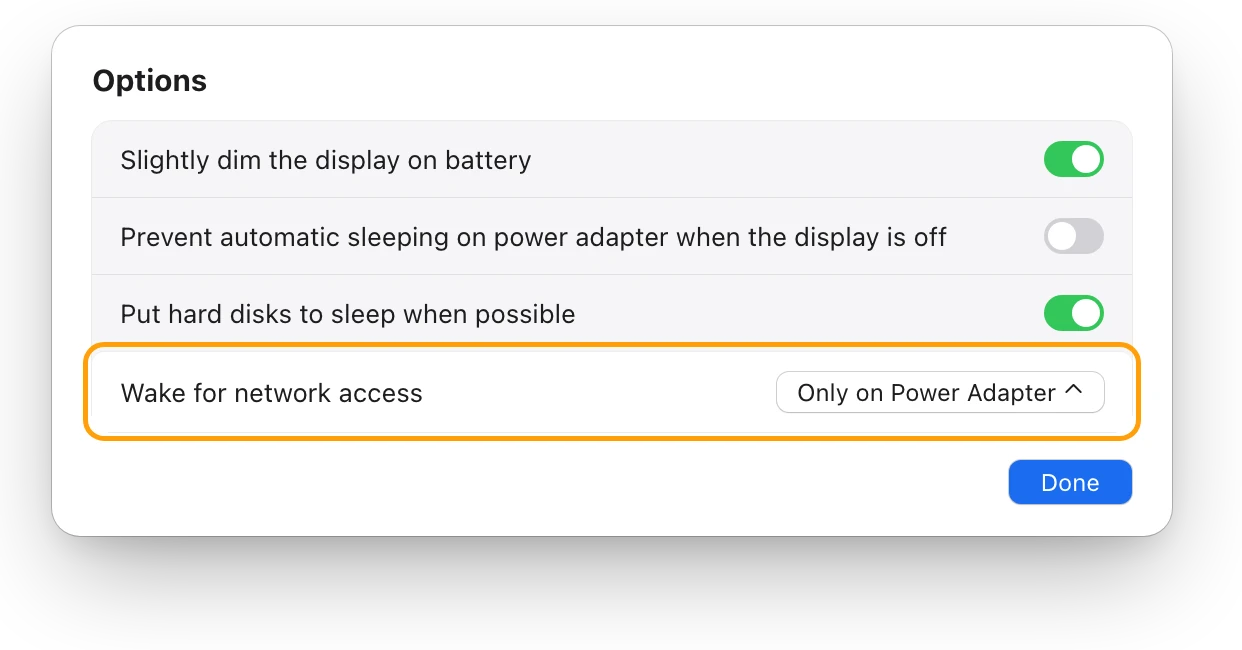
On a Mac desktop, both settings are in System Settings > Energy. Apple notes that keeping a Mac awake uses more power.
Does my Mac keep switching networks?
It might be. A Mac decides when to move to another access point from the signal strength, and from other networks it has joined before that are set to auto-join. If it keeps hopping to a weaker network, such as a neighbor’s or a café’s, stop that network from joining by itself:
- In System Settings > Wi-Fi, click the More button next to that network under Known Networks.
- Choose Auto-Join to turn it off.
What else should I check?
- The router. Restart it, install its latest firmware, and use Apple’s recommended settings, such as one network name for every band.
- macOS. Update it, from another network if you have to.
- VPN or security software. Software that monitors your network can affect the connection.
- Location Services. In System Settings > Privacy & Security > Location Services, click Details next to System Services and turn on Networking and wireless. Apple says it helps Wi-Fi work well.
- Another network. If your Mac stays connected elsewhere, the problem is with the first network, not the Mac.
Questions people also ask
Why does my MacBook drop Wi-Fi when my phone doesn’t?
Each device hears the router differently: Apple notes that antennas vary from model to model. Run Wireless Diagnostics on the Mac, and compare its signal where you sit.
Does Wireless Diagnostics change my settings?
No. It analyzes the connection and suggests changes, and you decide what to change.
Is it my Wi-Fi or my internet?
If your Mac stays on the Wi-Fi network but websites stop loading, the internet connection is the likely cause. How to test internet speed on a Mac shows how to check it.
Scope for Mac · Free, coming to the Mac App Store
How Scope helps
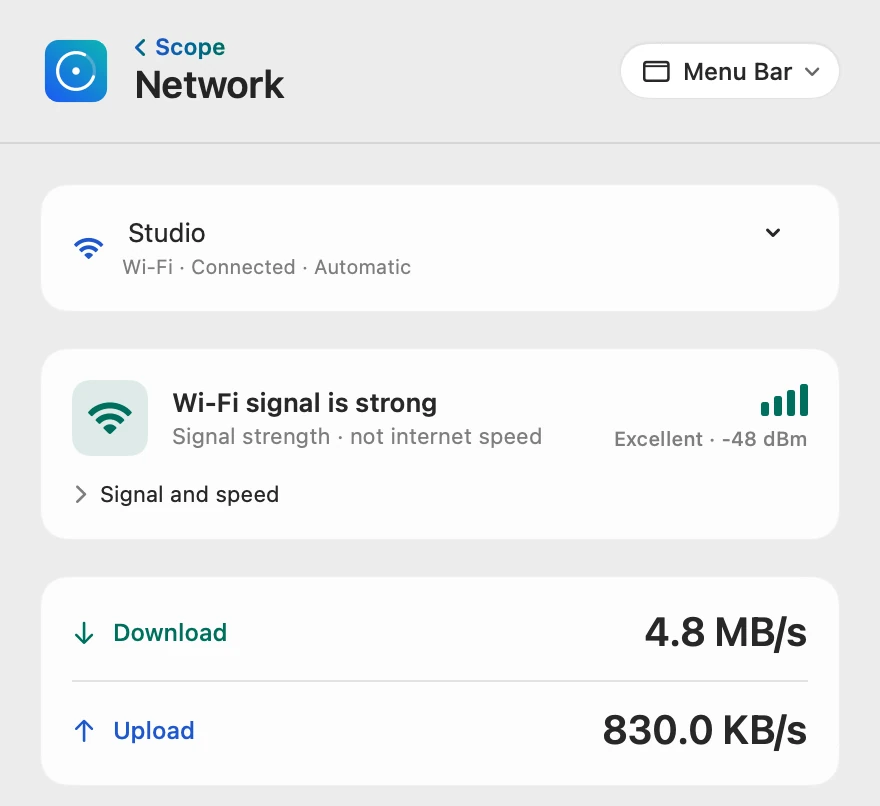
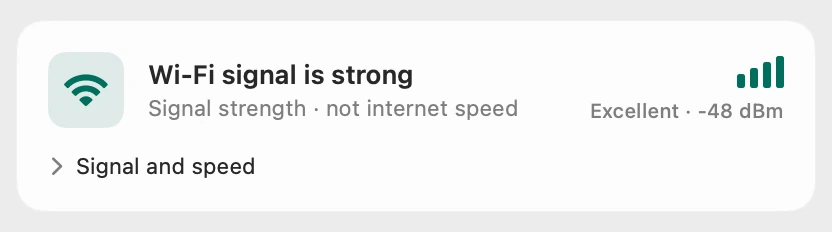
Scope is a free Mac menu bar app that shows your Wi-Fi signal live, in dBm and in plain words, beside the connection’s status, its link rate and channel, and your download and upload speeds. It saves holding Option over the Wi-Fi menu again and again while you wait for the next drop.
In your menu bar
Scope Free keeps one whole menu bar item of your choice, and Network shows your download and upload speeds.

The signal, kept in view
With the Network panel open, the signal bars update every two seconds. If the connection drops while you watch, you see whether the signal fell first or stayed strong.
The connection’s details
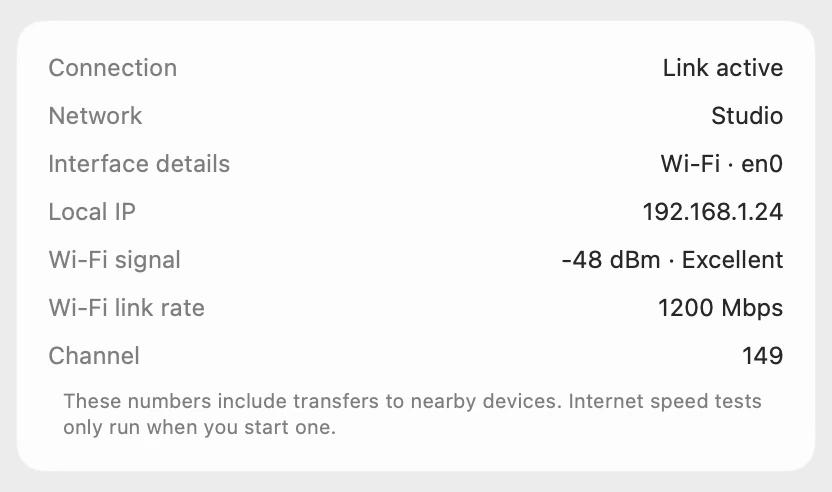
Connection says Link active while your Mac is on the network, and Disconnected when it isn’t. The channel helps when you compare with your router’s settings.
Live speeds
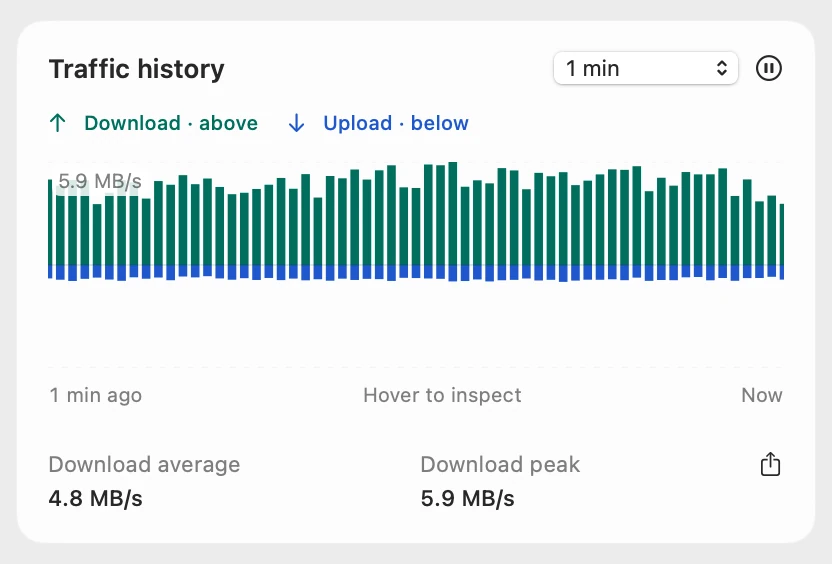
Traffic history keeps the last minutes of download and upload, so a pause in traffic stays visible after it’s over.
Scope shows and explains. It never changes your network settings or reconnects for you.

Try it here
The real Scope, working, right in this page.
Click any item in the menu bar, or a card inside, as you would on your Mac.
Scope Pro Every menu bar item is shown here. Scope Free keeps one whole item of your choice, with every reading inside.
See your own Mac’s Wi-Fi signal.
Keep reading
Guide · Internet and Wi-Fi
Mac Wi-Fi problems: slow, dropping or no internet
Mac Wi-Fi problems start in the Wi-Fi link or the internet behind the router. Two checks tell them apart; then fix it when it’s slow, drops or won’t load.
Internet and Wi-Fi
What’s a good Wi-Fi signal? dBm explained
Wi-Fi signal is measured in dBm: closer to zero is stronger. Here’s how to see your Mac’s signal, what RSSI and noise mean, and why signal isn’t speed.
Internet and Wi-Fi
How to test internet speed on a Mac
Every Mac has a built-in internet speed test: type networkQuality in Terminal. Here’s how to run it and read its capacity and responsiveness.
Internet and Wi-Fi
How much data does my Mac use? How to check
Activity Monitor’s Network tab shows how much data your Mac has sent and received, and which processes used it. Here’s how to read it and use less.
Sources
- Apple Support: If your Mac isn’t connecting to the internet over Wi-Fi
- Apple Support: Use Wireless Diagnostics on your Mac
- Apple Platform Support: Use network tools to test connections
- Apple Support: Resolve Wi-Fi and Bluetooth issues caused by wireless interference
- Apple Support: Wi-Fi roaming support in Apple devices
- Apple Support: Wi-Fi settings on Mac
- Apple Support: Use a private Wi-Fi address on Mac
- Apple Platform Support: Adjust private Wi-Fi settings on Mac
- Apple Support: Set sleep and wake settings for your Mac
- Apple Support: Change Battery settings on a Mac laptop
- Apple Support: Recommended settings for Wi-Fi routers and access points
Last checked October 18, 2026. Readings, apps and files in the pictures are from a made-up Mac.