What’s a good Wi-Fi signal? dBm explained
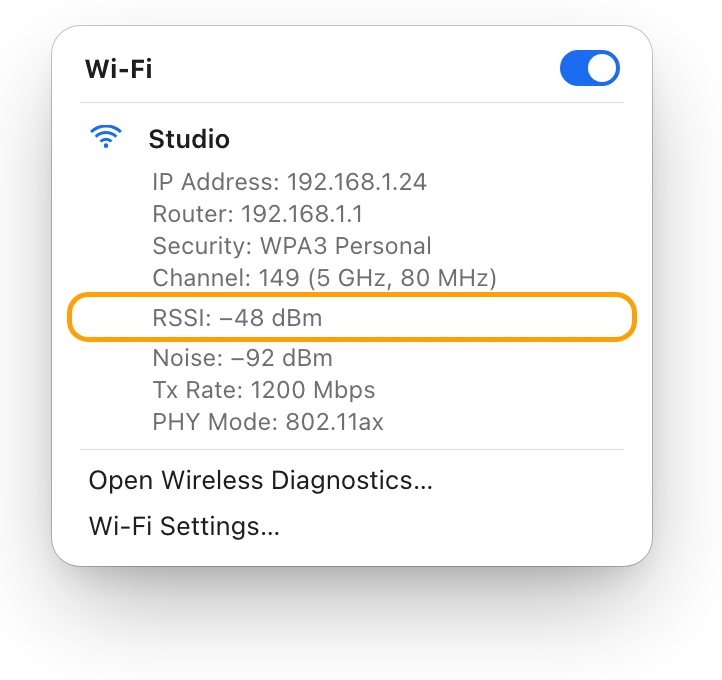
A good Wi-Fi signal is a dBm number close to zero: −48 dBm is strong, and the signal gets weaker as the number falls. Apple says a Mac starts looking for a stronger access point when its signal drops to −75 dBm. To see your Mac’s signal, hold Option and click Wi-Fi in the menu bar, then read RSSI under your network.
How do I check Wi-Fi signal strength on a Mac?
The quick look is the Wi-Fi menu. The exact number takes one key.
- Click Wi-Fi in the menu bar. The bars on a network’s Wi-Fi icon show the strength of its signal: more bars, stronger signal.
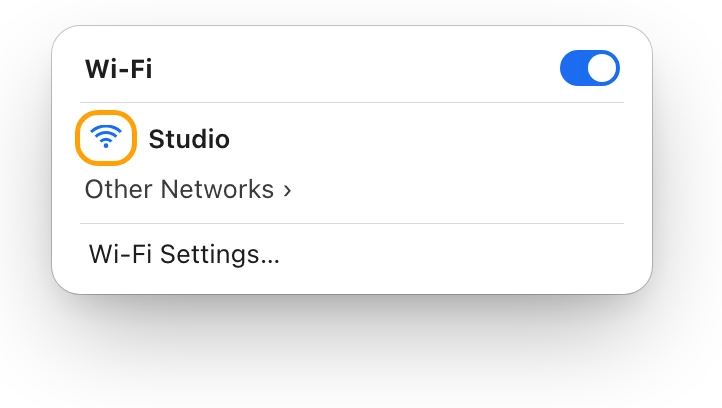
- Close the menu. Then hold down the Option key and click Wi-Fi again.
- Under the network you’re connected to, read RSSI. That’s the signal strength, in dBm.
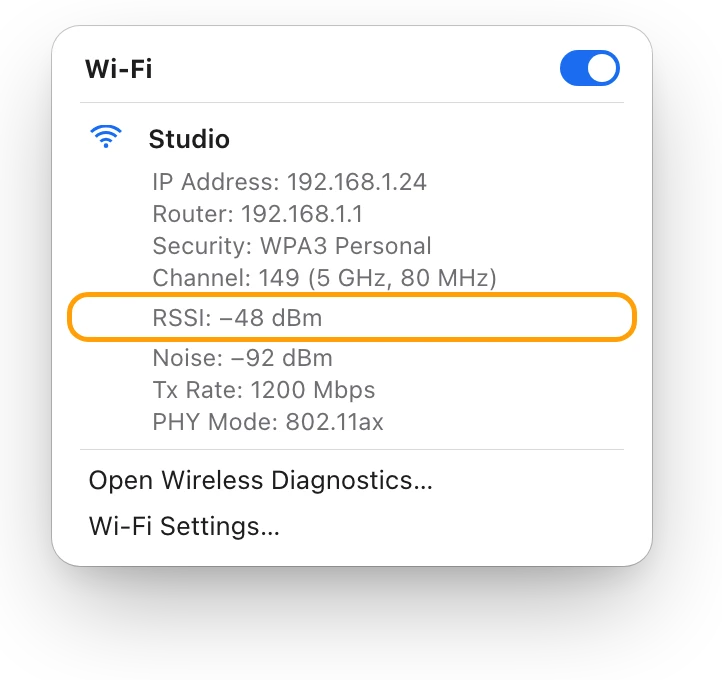
The same details show the network’s IP address, router address, channel, band, security and 802.11 protocol. To check another spot, close the menu, move, and Option-click Wi-Fi again.
What does dBm mean?
dBm is a unit of radio power: decibels compared with one milliwatt. A Wi-Fi signal reaches your Mac as a tiny fraction of a milliwatt, so its dBm number is negative.
- Closer to zero is stronger. −48 dBm is stronger than −70 dBm.
- Every 10 dB is ten times the power. −50 dBm is ten times as strong as −60 dBm, and a hundred times as strong as −70 dBm.
That’s why a few numbers can matter: a drop from −50 to −70 dBm means the signal is a hundredth as strong.
What is a good RSSI?
RSSI, the received signal strength indicator, is your Mac’s measurement of the router’s signal, in dBm. Apple publishes the points where its devices start looking for a stronger access point on the same network:
| Device | Starts looking for a stronger access point at |
|---|---|
| Mac | −75 dBm |
| iPhone and iPad | −70 dBm |
Above that point, your Mac stays with its access point; below it, it looks for a better one. So a Mac that sits near −75 dBm where you work is at the edge of what its router covers. A reading in the −40s or −50s is 20 dB or more above that point: at least a hundred times stronger.
What do Noise and Tx Rate mean?
The Option-click details show two more numbers beside RSSI.
| Reading | What it measures | Unit | Better is |
|---|---|---|---|
| RSSI | How strongly your Mac receives the router’s signal | dBm | Closer to zero |
| Noise | Background radio noise your Mac measures | dBm | Lower (more negative) |
| Tx Rate | The rate your Mac is sending to the router at | Mbps | Higher |
The gap between RSSI and Noise shows how far the signal stands above the background. Here it’s −48 against −92 dBm: 44 dB above the noise. Tx Rate is the speed of the wireless link between your Mac and the router, not of your internet.
Is a strong signal the same as fast internet?
No. Signal strength is how clearly your Mac hears the router. Internet speed depends on everything after the router: your internet plan, other devices sharing it, and the provider’s network.
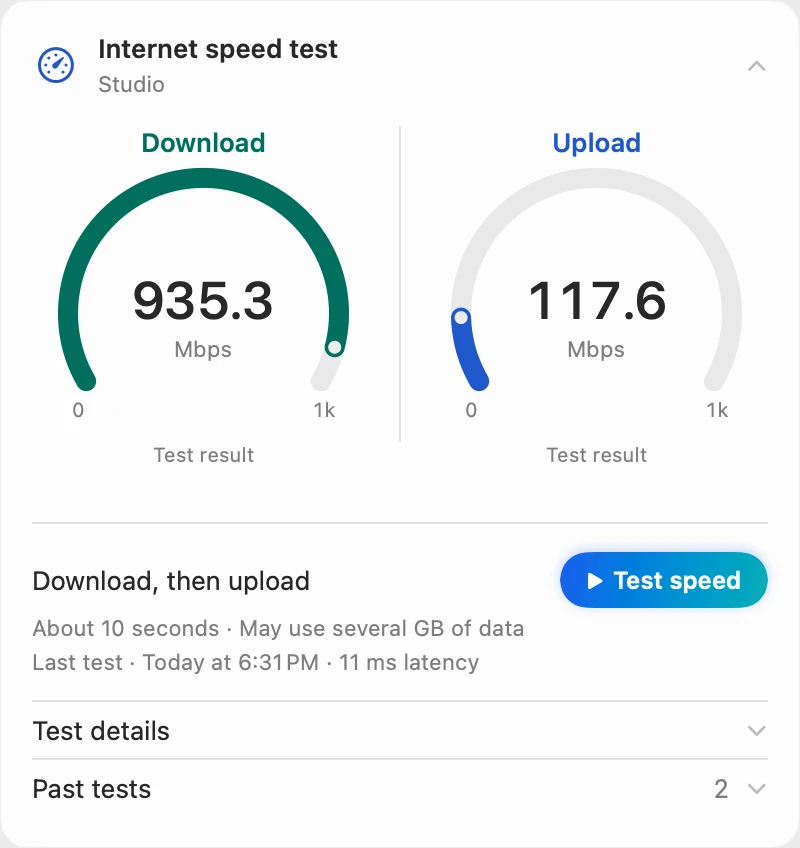
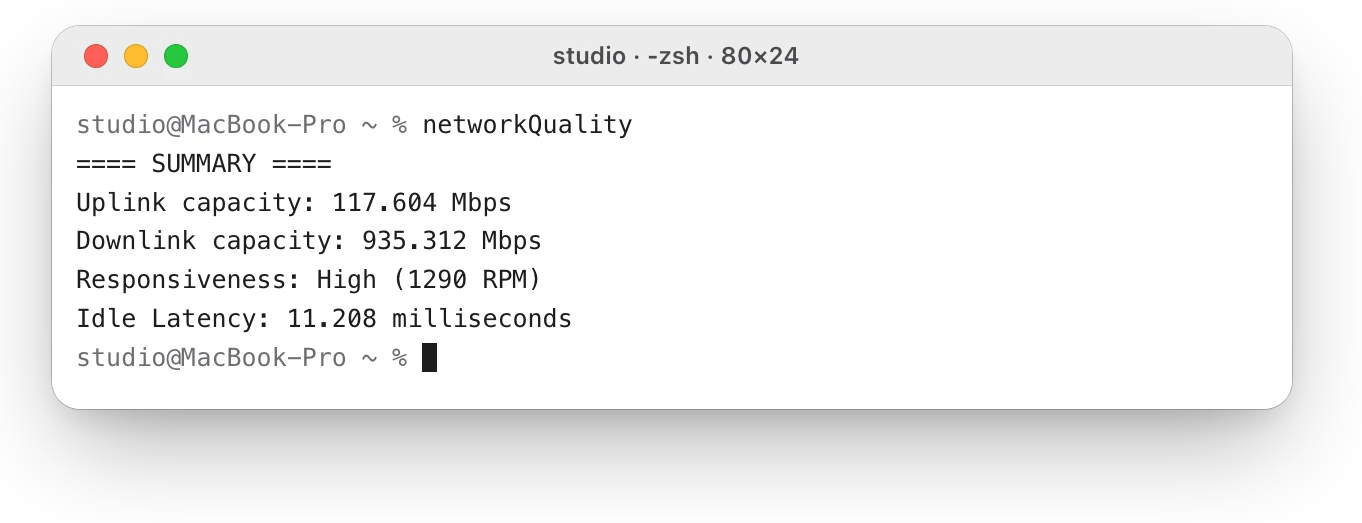
This Mac links to its router at 1200 Mbps, while macOS’s own speed test measures about 935 Mbps down from the internet. To test yours, type networkQuality in Terminal. How to test internet speed on a Mac explains the results.
How do I get a stronger signal?
Apple’s steps for a cleaner signal:
- Bring your Mac closer to the router.
- Keep away from power cables, microwave ovens, fluorescent lights, wireless video cameras and cordless phones.
- Clear what’s in between: metal and concrete block Wi-Fi more than wood or glass.
- Use the 5 GHz band where you can, because Bluetooth and Wi-Fi share 2.4 GHz.
- Let the router choose its channel automatically, or pick the one with the least interference.
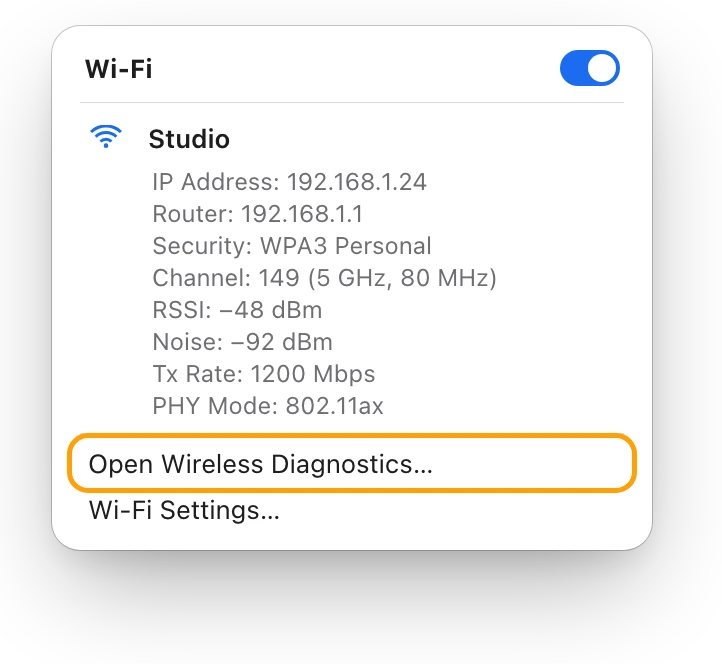
If the connection keeps dropping, Mac Wi-Fi keeps disconnecting? How to find the cause walks through Wireless Diagnostics.
Questions people also ask
Is −60 dBm a good Wi-Fi signal?
Yes. It’s well above −75 dBm, where Apple says a Mac starts looking for a stronger access point, so the Mac stays with its router.
Why is my Mac’s signal different from my iPhone’s?
Each device hears the router differently. Apple notes that antennas vary from model to model, and the two may sit in different spots.
Are the Wi-Fi bars the same as RSSI?
The bars sum up the signal at a glance. RSSI is the exact number behind them, in dBm.
Scope for Mac · Free, coming to the Mac App Store
How Scope helps
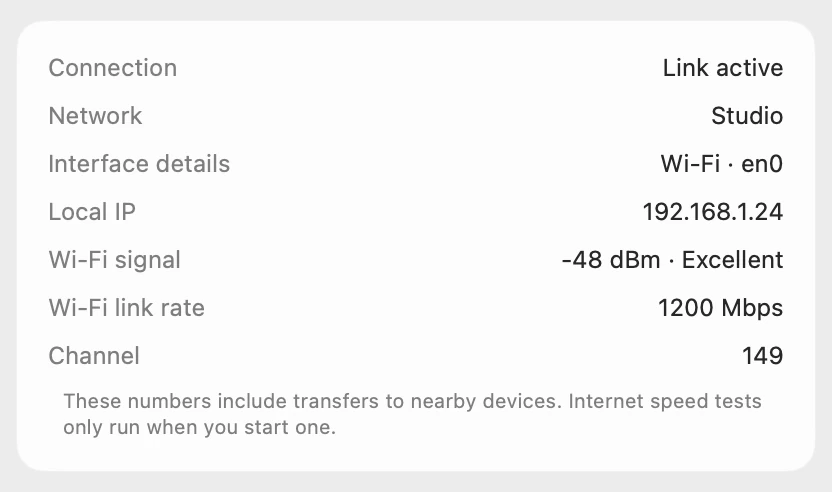
Scope is a free Mac menu bar app that shows your Wi-Fi signal in dBm and in plain words, Excellent, Good, Fair or Weak, with signal bars that move with the live reading. It labels the signal “Signal strength · not internet speed” and runs macOS’s own speed test separately, so the two never get mixed up.
In your menu bar
Scope Free keeps one whole menu bar item of your choice, and Network shows your download and upload speeds.

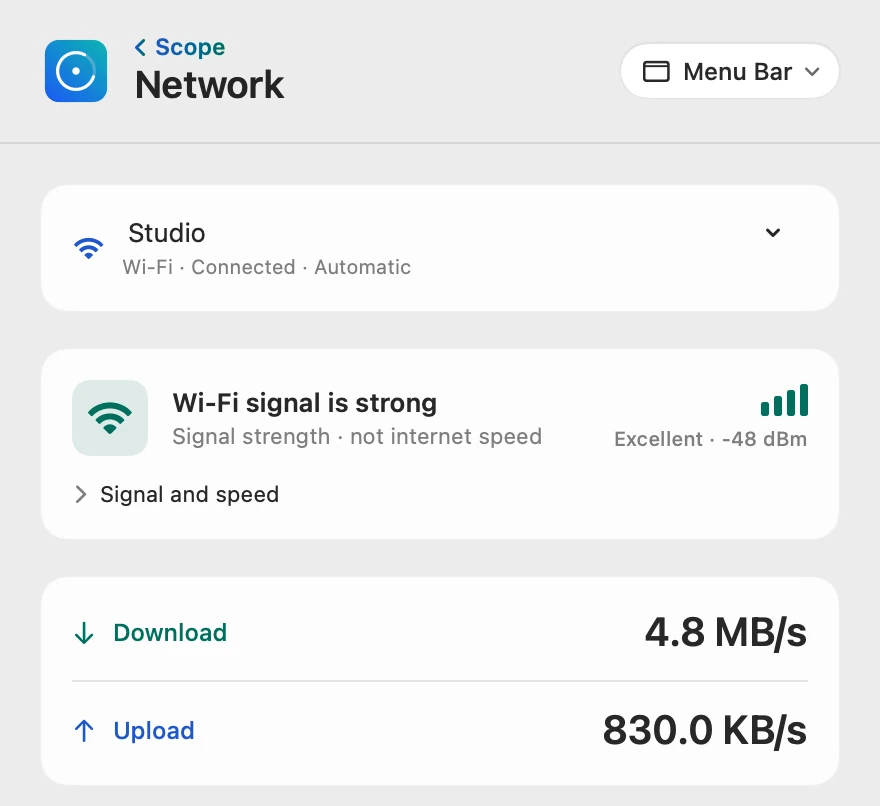
The signal in words
Scope turns the dBm number into one of four words, with the bars to match:
| Scope says | Signal | Bars |
|---|---|---|
| Excellent | −55 dBm or stronger | 4 |
| Good | −56 to −65 dBm | 3 |
| Fair | −66 to −70 dBm | 2 |
| Weak | −71 dBm or weaker | 1 |
These are Scope’s own labels. With the Network panel open, the bars update every two seconds.
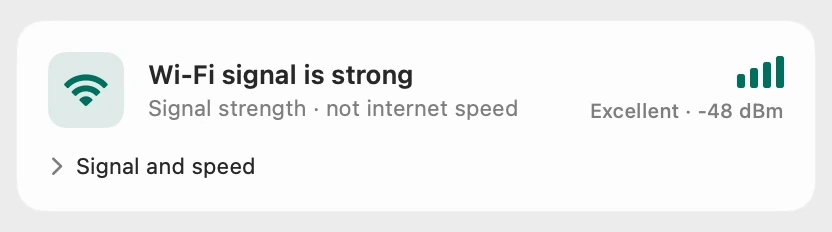
Signal beside the link
Wi-Fi link rate is the same 1200 Mbps as Tx Rate in the Wi-Fi menu. Scope doesn’t show noise; the Option-click menu does.
Speed, measured separately
Scope’s speed test uses macOS’s own networkQuality engine and tells you before it starts that it uses data.
Scope shows and explains. It never changes your Wi-Fi or router settings.
Try it here
The real Scope, working, right in this page.
Click any item in the menu bar, or a card inside, as you would on your Mac.
Scope Pro Every menu bar item is shown here. Scope Free keeps one whole item of your choice, with every reading inside.
See your own Mac’s Wi-Fi signal.
Keep reading
Guide · Internet and Wi-Fi
Mac Wi-Fi problems: slow, dropping or no internet
Mac Wi-Fi problems start in the Wi-Fi link or the internet behind the router. Two checks tell them apart; then fix it when it’s slow, drops or won’t load.
Internet and Wi-Fi
Mac Wi-Fi keeps disconnecting? How to find the cause
When a Mac’s Wi-Fi keeps disconnecting, Wireless Diagnostics can watch the connection and name the problem. Here’s what to check, step by step.
Internet and Wi-Fi
How to test internet speed on a Mac
Every Mac has a built-in internet speed test: type networkQuality in Terminal. Here’s how to run it and read its capacity and responsiveness.
Internet and Wi-Fi
How much data does my Mac use? How to check
Activity Monitor’s Network tab shows how much data your Mac has sent and received, and which processes used it. Here’s how to read it and use less.
Sources
- Apple Support: Use the Wi-Fi status menu on Mac
- Apple Support: Wi-Fi menu icons on Mac
- Apple Platform Support: Use network tools to test connections
- Apple Support: Wi-Fi roaming support in Apple devices
- Apple Developer: rssiValue()
- Apple Support: Resolve Wi-Fi and Bluetooth issues caused by wireless interference
- Apple Support: Recommended settings for Wi-Fi routers and access points
- Apple Support: Test Wi-Fi networks with Apple Network Responsiveness
Last checked October 18, 2026. Readings, apps and files in the pictures are from a made-up Mac.