How much data does my Mac use? How to check
To check data usage on a Mac, open Activity Monitor and click Network. The bottom of the window shows Data received and Data sent, the total amount of data your Mac has moved, and the list shows how much each process has sent and received. On a plan with a data cap, your provider’s count is the one that decides the bill.
How do I see how much data my Mac has used?
Activity Monitor keeps running totals for the whole Mac.
- Open Activity Monitor. It’s in Applications > Utilities, or search for it with Spotlight.
- Click Network at the top of the window.
- Look at the bottom of the window. Data received and Data sent are the total amount of information moved. Packets in and Packets out count the packets, the small pieces data travels in.
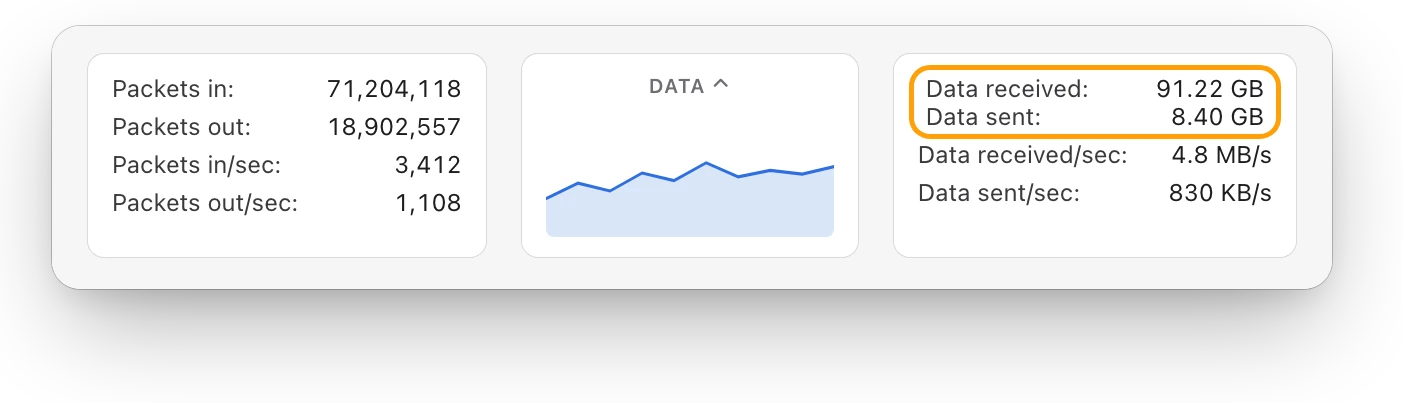
Data received/sec and Data sent/sec show how fast data is moving right now. To graph data instead of packets, click the pop-up menu above the graph and choose Data. To watch it from the Dock, choose View > Dock Icon > Show Network Usage.
Which apps used the most data?
The list above shows each process with the data it has sent and received.
- In Activity Monitor’s Network tab, click the column heading for received data to sort the list, largest first. Click it again to reverse the order.
- Click the column heading for sent data to see what uploads the most, such as backups, photo uploads or video calls.
- To add or remove columns, choose View > Columns.
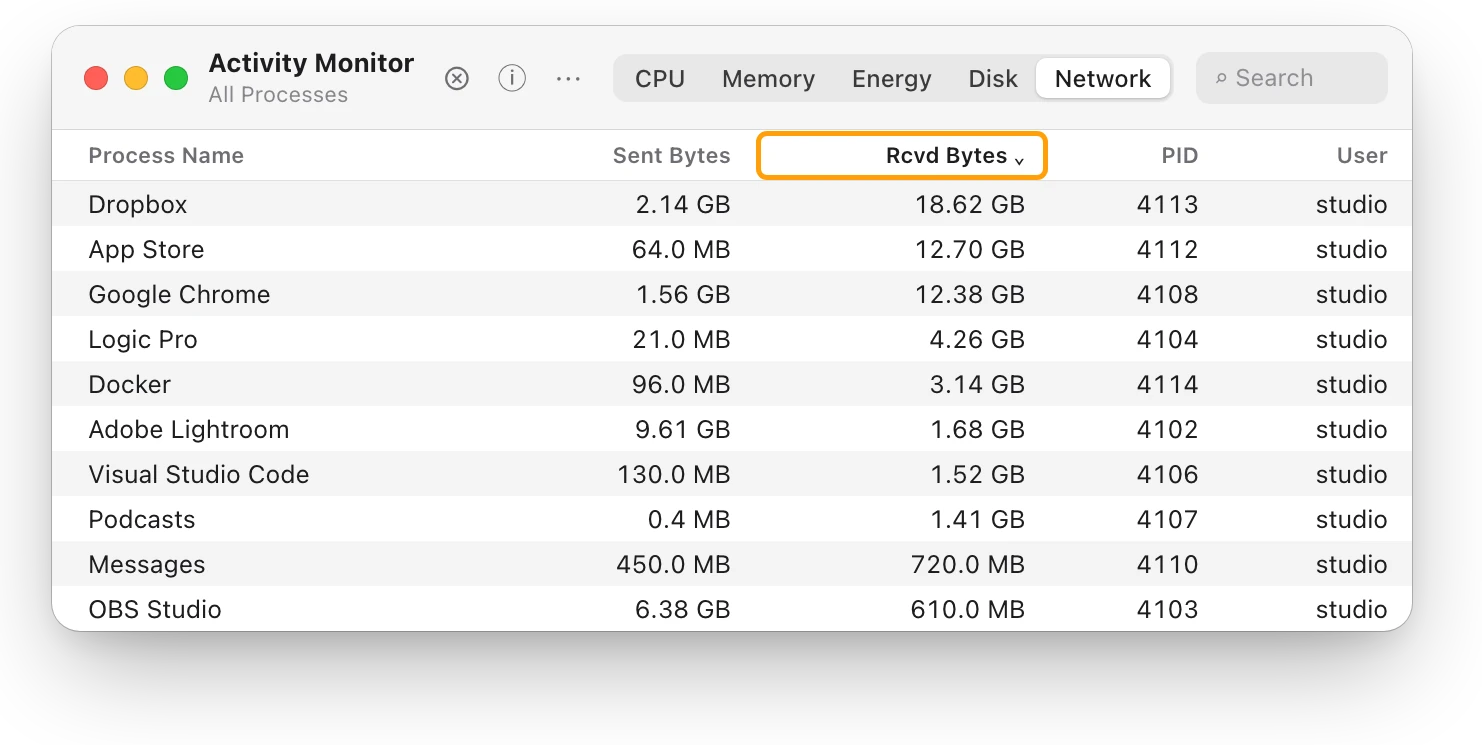
With View > All Processes chosen, the list includes processes owned by macOS, not just your apps.
Where can I check data use?
| Where | What it shows |
|---|---|
| Activity Monitor > Network | Data received and sent by the whole Mac, and by each process |
| System Settings > Wi-Fi > Details | Low data mode, to use less data on that network |
| iPhone: Settings > Cellular | Cellular data used by each app and system service on the iPhone |
| Your provider’s account or app | What counts toward your plan, for the billing period |
How do I use less data on a capped network?
Turn on Low data mode for that network. It reduces your data usage over the Wi-Fi network.
- Choose Apple menu > System Settings, then click Wi-Fi in the sidebar.
- Click Details next to the network you’re connected to.
- Turn on Low data mode, then click OK.
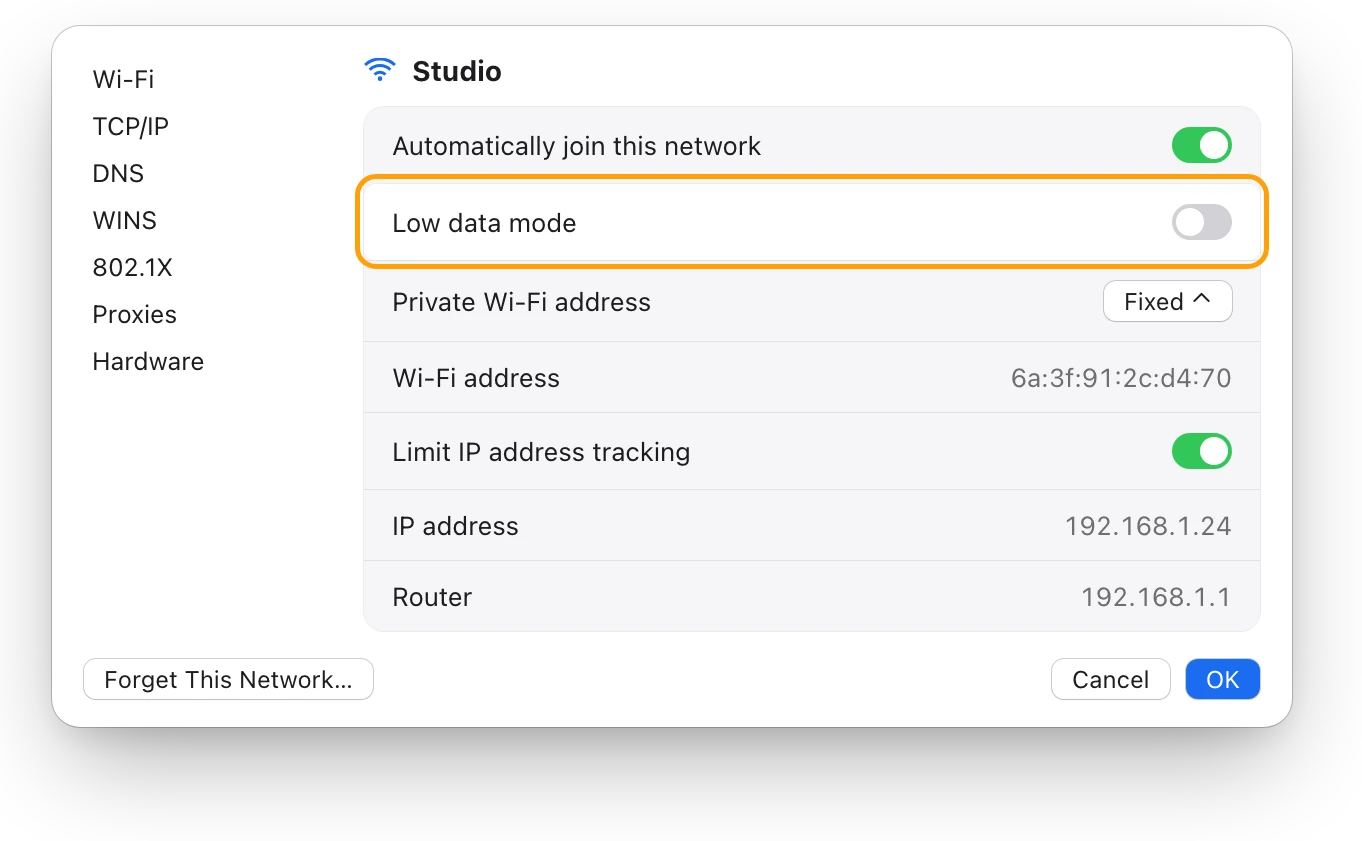
To change it for a network you aren’t connected to, click the More button next to it in Wi-Fi settings, then choose Network Settings. Pausing big transfers helps most: check the top of Activity Monitor’s list for a sync or download you can let wait.
How much data does my Mac use on a hotspot?
A Mac on your iPhone’s Personal Hotspot uses the iPhone’s cellular data, so the iPhone is the place to check.
- On the iPhone, open Settings and tap Cellular.
- Scroll down to see how much cellular data each app and system service has used.
- To start a fresh count before a trip, tap Reset Statistics at the bottom.
On the Mac, note Activity Monitor’s Data received before you connect, and check it again afterward: the difference is what this Mac used. Apple says your carrier has the most accurate count for your current period.
Questions people also ask
Why is my Mac using data when I’m not doing anything?
Something is working in the background, such as a cloud sync, a backup or an update. Sort Activity Monitor’s Network list by received data to see which process it is.
Why doesn’t my Mac’s total match my provider’s?
They count different things. Activity Monitor counts this Mac only, while your provider counts every device on your connection over its billing period.
Does an internet speed test use a lot of data?
It can. The faster your connection, the more data one test moves. How to test internet speed on a Mac explains the test.
Scope for Mac · Free, coming to the Mac App Store
How Scope helps
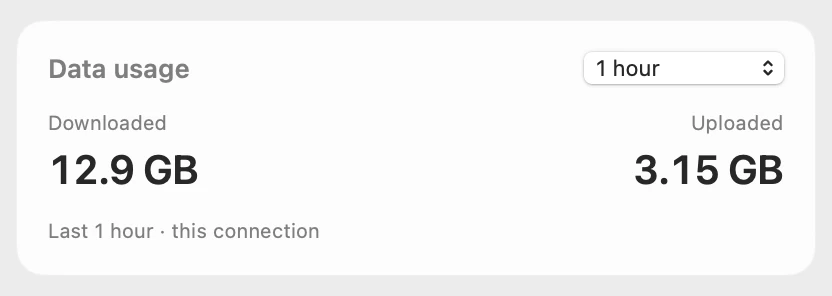
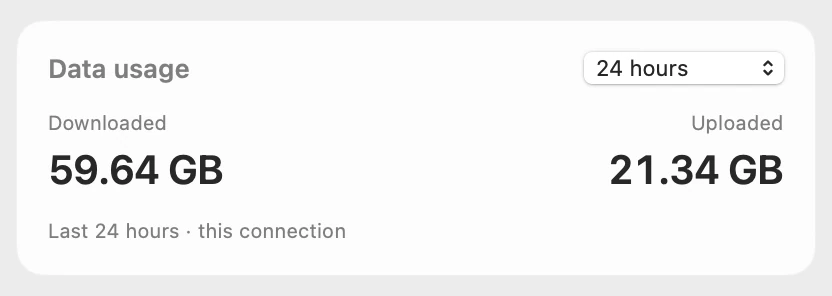
Scope is a free Mac menu bar app that shows how much data your Mac’s connection downloaded and uploaded over the last minutes or hour, which apps used the network, and how fast data is moving right now. Scope Pro keeps 24 hours, so you can see what used your data today.
In your menu bar
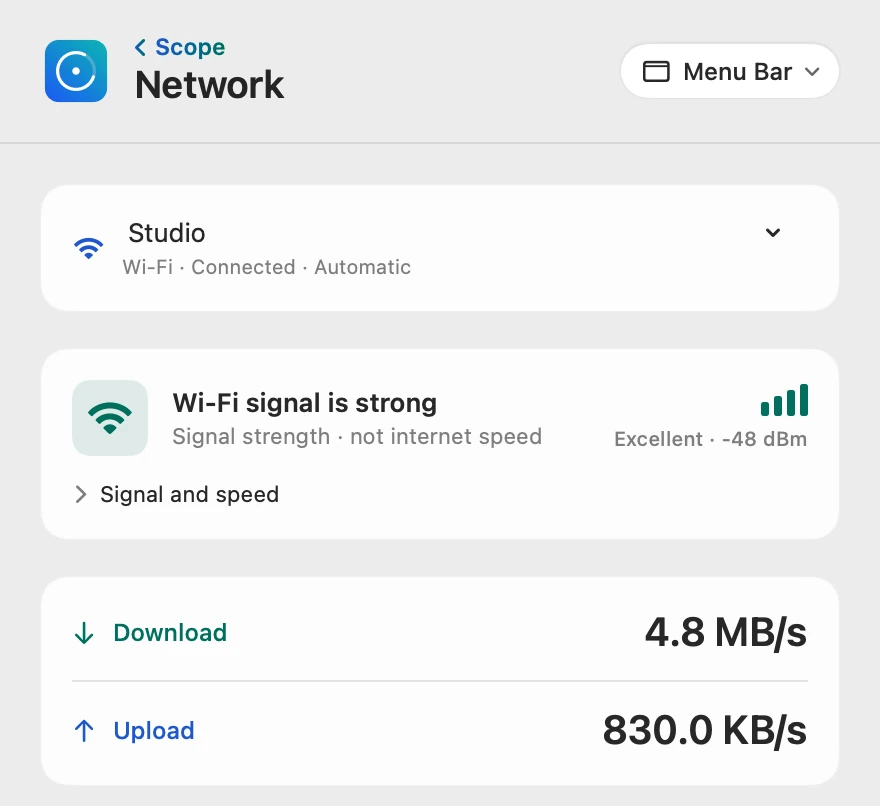
Scope Free keeps one whole menu bar item of your choice, and Network shows your download and upload speeds.

Data used, by range
Pick 1, 5, 10, 15 or 30 minutes or 1 hour; Scope Pro adds 5, 10 and 24 hours and all recorded time. Only time when Scope was running is counted.
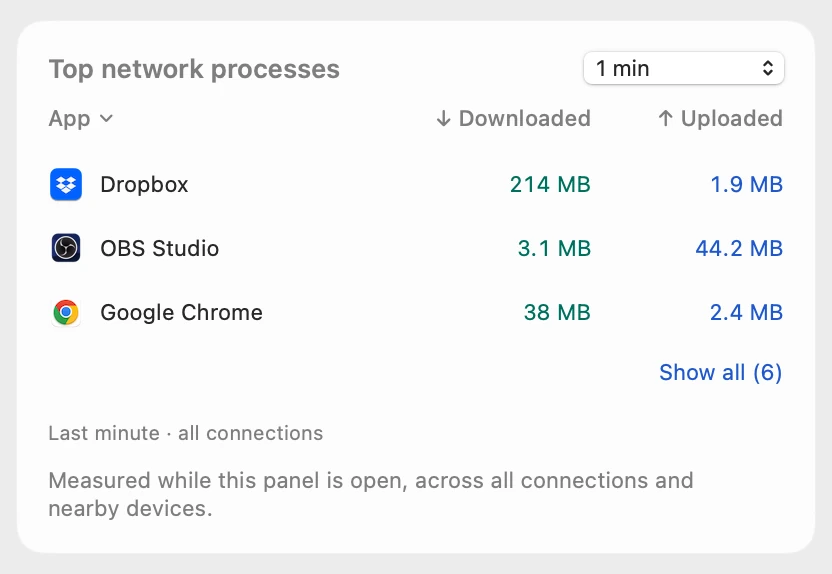
Apps using the network
Each app shows what it downloaded and uploaded over the last minute, measured while the panel is open. Click a column title to sort by download or upload.
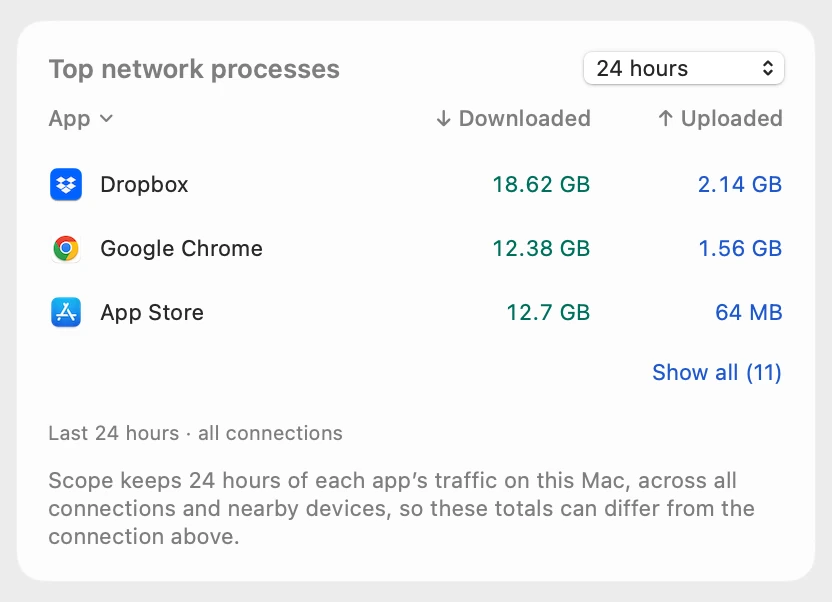
A whole day, with Scope Pro
Scope Pro keeps 24 hours of each app’s traffic on your Mac, so a big download from this morning still shows tonight.
Scope shows and explains. It never stops apps, blocks traffic or changes your settings.
Try it here
The real Scope, working, right in this page.
Click any item in the menu bar, or a card inside, as you would on your Mac.
Scope Pro Every menu bar item is shown here. Scope Free keeps one whole item of your choice, with every reading inside.
See where your own Mac’s data goes.
Keep reading
Guide · Internet and Wi-Fi
Mac Wi-Fi problems: slow, dropping or no internet
Mac Wi-Fi problems start in the Wi-Fi link or the internet behind the router. Two checks tell them apart; then fix it when it’s slow, drops or won’t load.
Internet and Wi-Fi
Mac Wi-Fi keeps disconnecting? How to find the cause
When a Mac’s Wi-Fi keeps disconnecting, Wireless Diagnostics can watch the connection and name the problem. Here’s what to check, step by step.
Internet and Wi-Fi
How to test internet speed on a Mac
Every Mac has a built-in internet speed test: type networkQuality in Terminal. Here’s how to run it and read its capacity and responsiveness.
Internet and Wi-Fi
What’s a good Wi-Fi signal? dBm explained
Wi-Fi signal is measured in dBm: closer to zero is stronger. Here’s how to see your Mac’s signal, what RSSI and noise mean, and why signal isn’t speed.
Sources
- Apple Support: View network activity in Activity Monitor on Mac
- Apple Support: View information about Mac processes in Activity Monitor
- Apple Support: Wi-Fi settings on Mac
- Apple Support: Share the internet connection from your iPhone or iPad with your Mac
- Apple Support: View or change cellular data settings on iPhone
Last checked October 18, 2026. Readings, apps and files in the pictures are from a made-up Mac.