Mac Wi-Fi problems: slow, dropping or no internet
Mac Wi-Fi problems start in one of two places: the Wi-Fi link between your Mac and the router, or the internet connection behind the router. Two built-in checks tell them apart. Option-click the Wi-Fi icon in the menu bar to read the signal, and type networkQuality in Terminal to measure the internet speed. Then fix the part that’s weak.
Is it your Wi-Fi or your internet?
They’re two different things. The Wi-Fi signal is how clearly your Mac hears the router. The internet speed is how fast data moves between the router and the rest of the world. A strong signal can sit in front of a slow line, so check both, then read them together:
| Wi-Fi signal | Speed test | Where to look | Guide |
|---|---|---|---|
| Strong | Fast | Not the connection: an app using it, a VPN, or the site itself | Data use |
| Strong | Slow | The router, the internet line, your plan, or other devices sharing it | Wi-Fi slow |
| Weak, near −75 dBm | Slow, or the connection drops | The Wi-Fi link: distance, walls and interference | Keeps dropping |
| Connected | Fails: nothing loads | The router, the modem or your internet provider | No internet |
| Not joined | Can’t run | Wi-Fi turned off, the wrong network or password, or the router | Won’t connect |
How strong is my Wi-Fi signal?
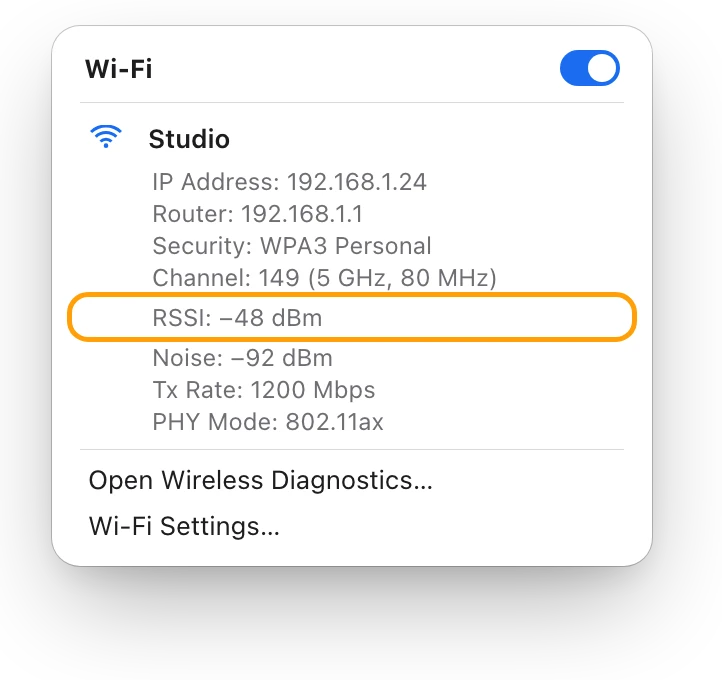
- Hold down the Option key and click the Wi-Fi icon in the menu bar.
- Under the network you’re connected to, read RSSI: the signal strength in dBm (decibels compared with a milliwatt). Numbers closer to zero are stronger, so −48 dBm is stronger than −70 dBm.
- Note the channel and band too. They’re in the same list.
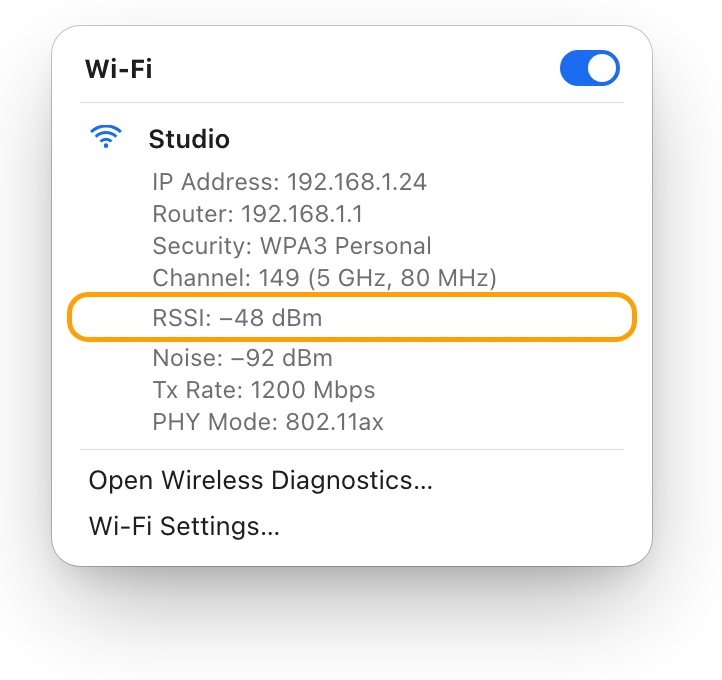
Apple says a Mac starts looking for a stronger access point when the signal falls to −75 dBm, so a reading near that where you work is weak for a Mac. What’s a good Wi-Fi signal? dBm explained explains the numbers.
How fast is my internet, really?
Every Mac with macOS Monterey or later has a built-in speed test.
- Close apps that are downloading or backing up, so they don’t share the line during the test.
- Open Terminal. It’s in Applications > Utilities, or search for it with Spotlight.
- Type
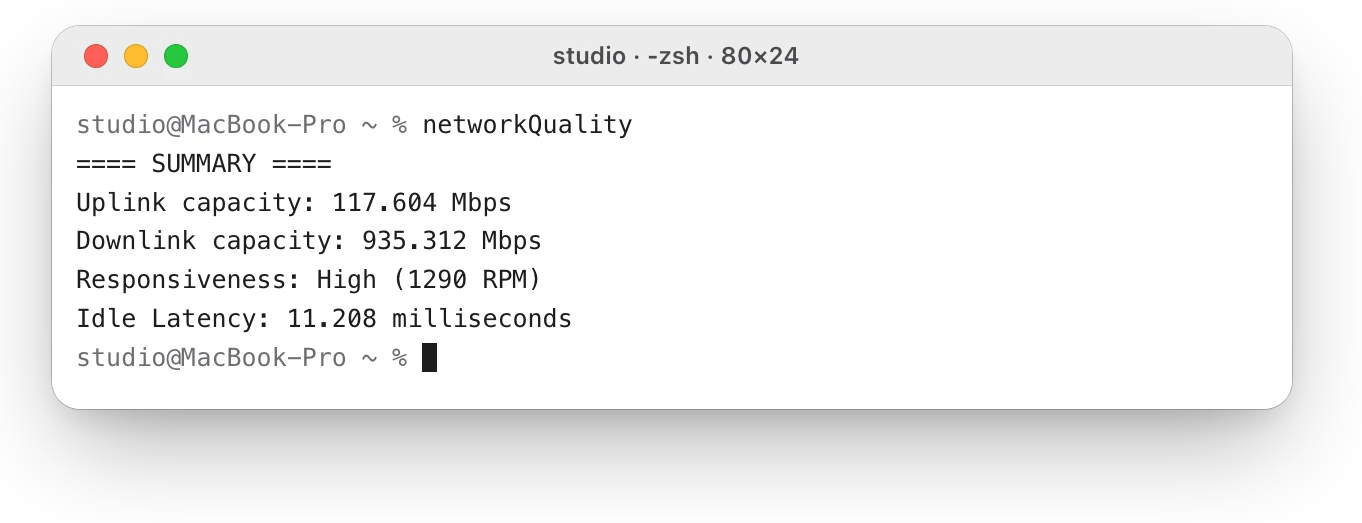
networkQualityand press Return. - Compare Downlink capacity, your download speed in megabits per second (Mbps), with the speed your plan promises. Uplink capacity is your upload speed.
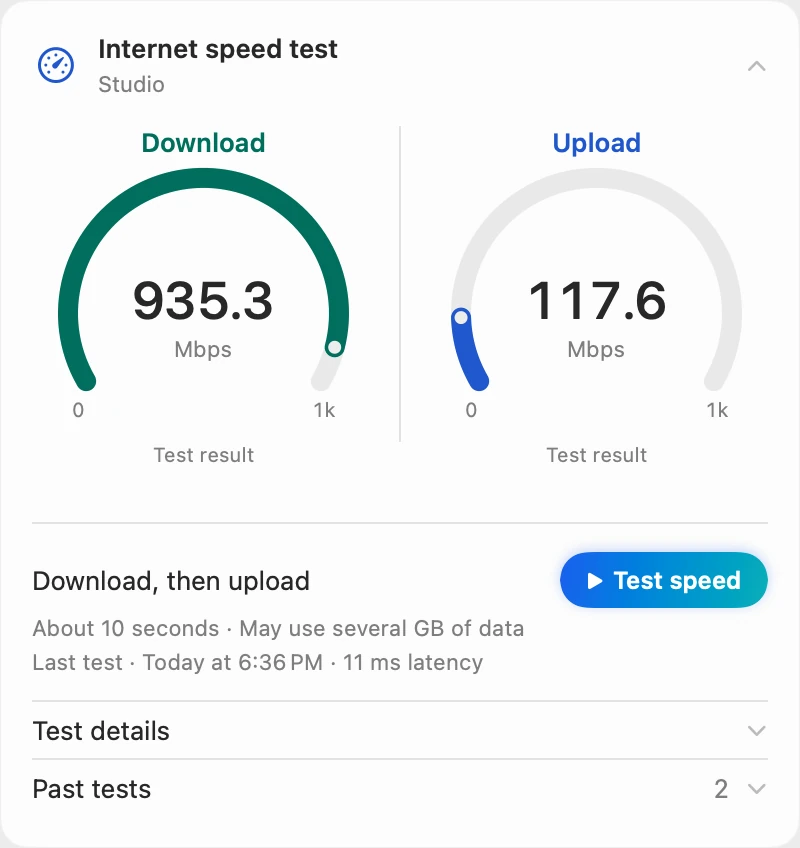
studio@MacBook-Pro ~ % networkQuality==== SUMMARY ====Uplink capacity: 117.604 MbpsDownlink capacity: 935.312 MbpsResponsiveness: High (1290 RPM)Idle Latency: 11.208 millisecondsstudio@MacBook-Pro ~ %
Responsiveness is how many round trips the connection completes in a minute under normal working conditions, in round trips per minute (RPM); higher is better. The test uses data on your plan. How to test internet speed on a Mac explains every number.
Why is my Mac’s Wi-Fi slow?
If the signal is weak, improve the link. Apple’s advice for a cleaner, stronger signal:
- Move closer to the router. Metal blocks Wi-Fi the most, then plaster and concrete, then brick and water; wood and glass block very little.
- Keep away from interference, such as microwave ovens, cordless phones, wireless video cameras, fluorescent lights and power cables.
- Use the 5 GHz band if your router has one. Bluetooth and Wi-Fi both use the 2.4 GHz band.
- Restart the router. Most routers look for the least crowded channel when they start up.
If the signal is strong but the test is slow, look at the router, your plan and other devices on the network. If only your Mac is slow, check VPN or security software, which can affect your connection. Why is my Mac’s Wi-Fi so slow? How to find out covers each case.
Why does my Mac’s Wi-Fi keep dropping?
Wireless Diagnostics, built into macOS, analyzes the connection and lists the problems it finds.
- Quit your open apps, and join the Wi-Fi network that keeps dropping.
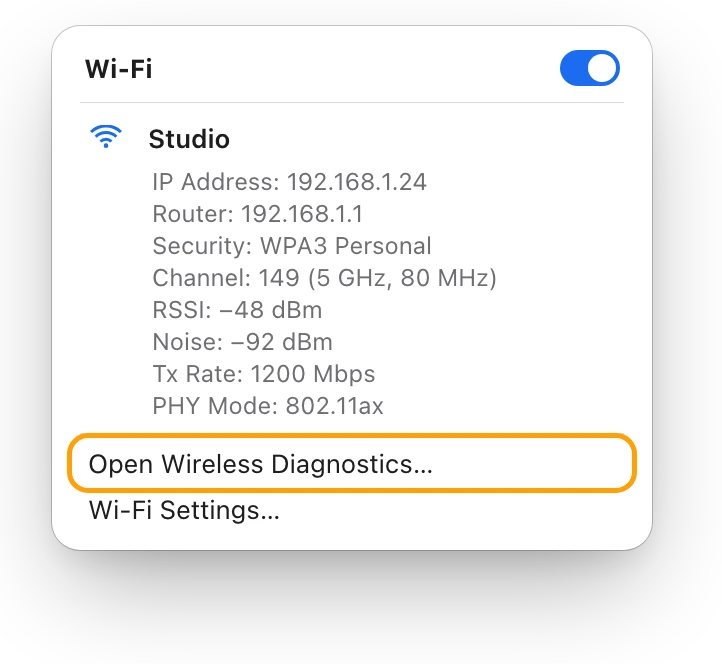
- Hold down the Option key, click the Wi-Fi icon in the menu bar, then choose Open Wireless Diagnostics.
- Follow the onscreen instructions. When the analysis is done, click the Info buttons in the Summary to read about each item.
Wireless Diagnostics doesn’t change your network settings. Also click the Wi-Fi icon and look for Wi-Fi Recommendations: it appears when your Mac has detected an issue. Mac Wi-Fi keeps disconnecting? How to find the cause goes through the signal, the router and sleep settings.
Connected to Wi-Fi but no internet?
Then the link to the router works, but the way out doesn’t. First, try another device on the same Wi-Fi. If nothing gets online, restart the router and ask your internet provider whether there’s an outage. If only your Mac is stuck, follow Apple’s steps:
- Restart your Mac. It renews the IP address, its address on the network, that it was given when it joined.
- Make sure the date and time are set correctly.
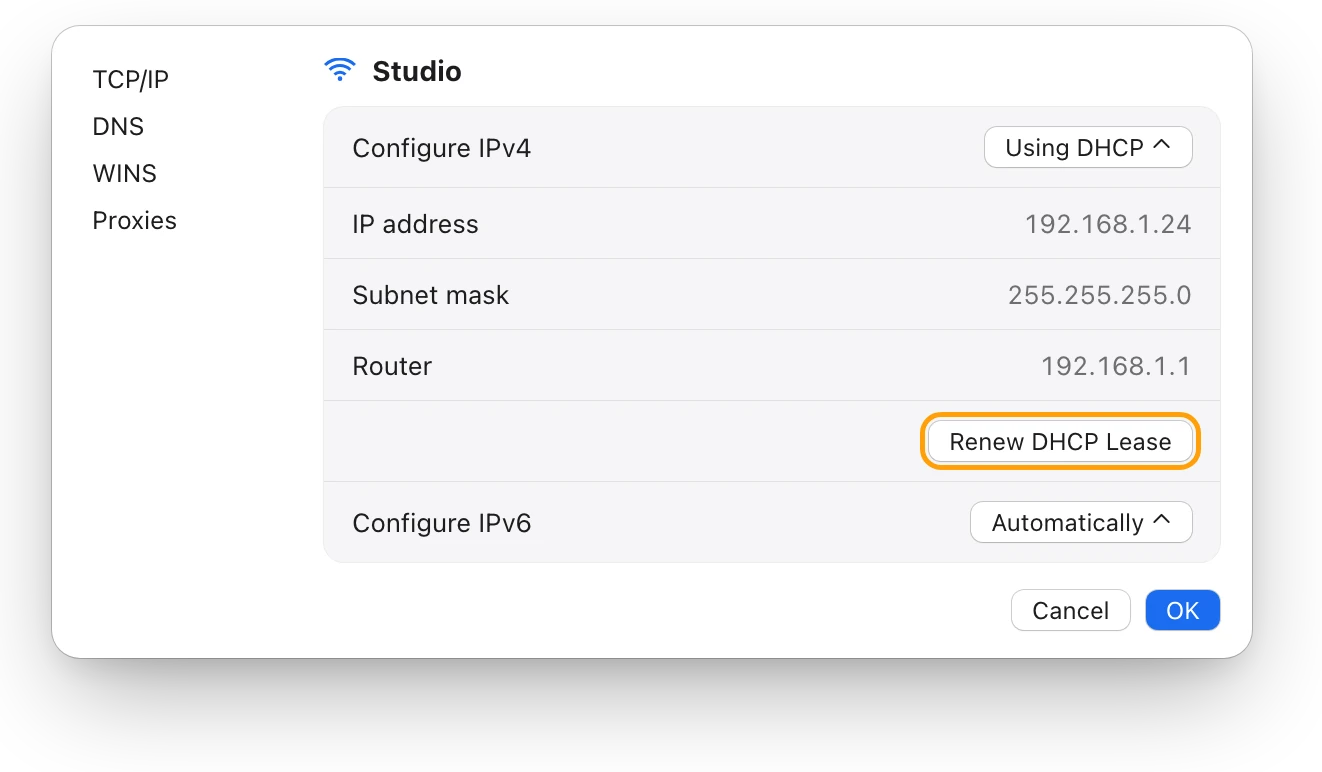
- Renew the DHCP lease: choose Apple menu > System Settings, click Network, click Wi-Fi, then click Details. Click TCP/IP, click Renew DHCP Lease, then click OK.
- Check VPN or other security software, which can affect access to the internet.
Mac connected to Wi-Fi but no internet? What to do has the rest of Apple’s checks, including DNS and the router’s settings.
How do I check ping and latency?
Ping measures how long a small message takes to reach another device and come back, in milliseconds (ms).
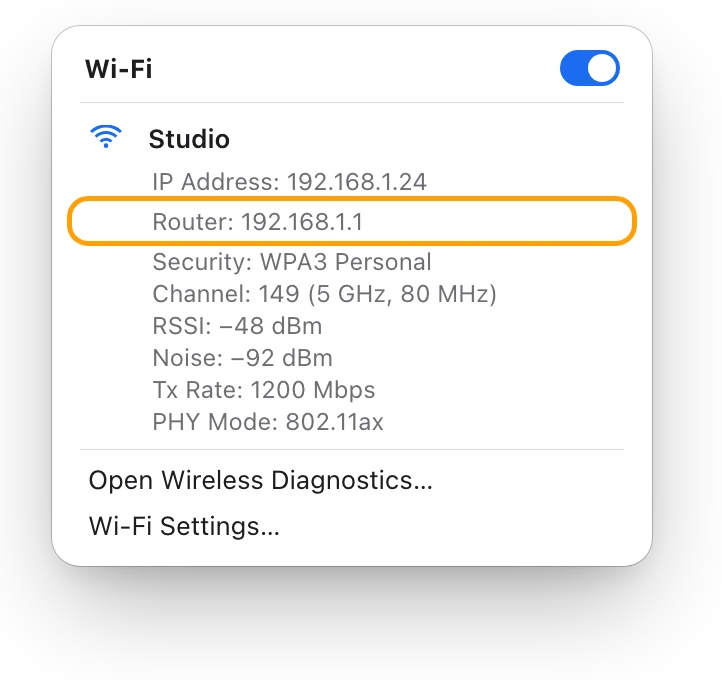
- Option-click the Wi-Fi icon and note the Router address.
- Open Terminal, type
ping -c 10followed by a space and that address, then press Return.-c 10sends 10 pings, then stops. - Do the same with a website, such as
ping -c 10 apple.com.
If the router replies but the website doesn’t, the problem is past the router. In the summary, 0.0% packet loss means every ping came back. How to run a ping test on a Mac explains each line.
Is something using my connection?
A backup, a sync or a big download shares the line with everything else.
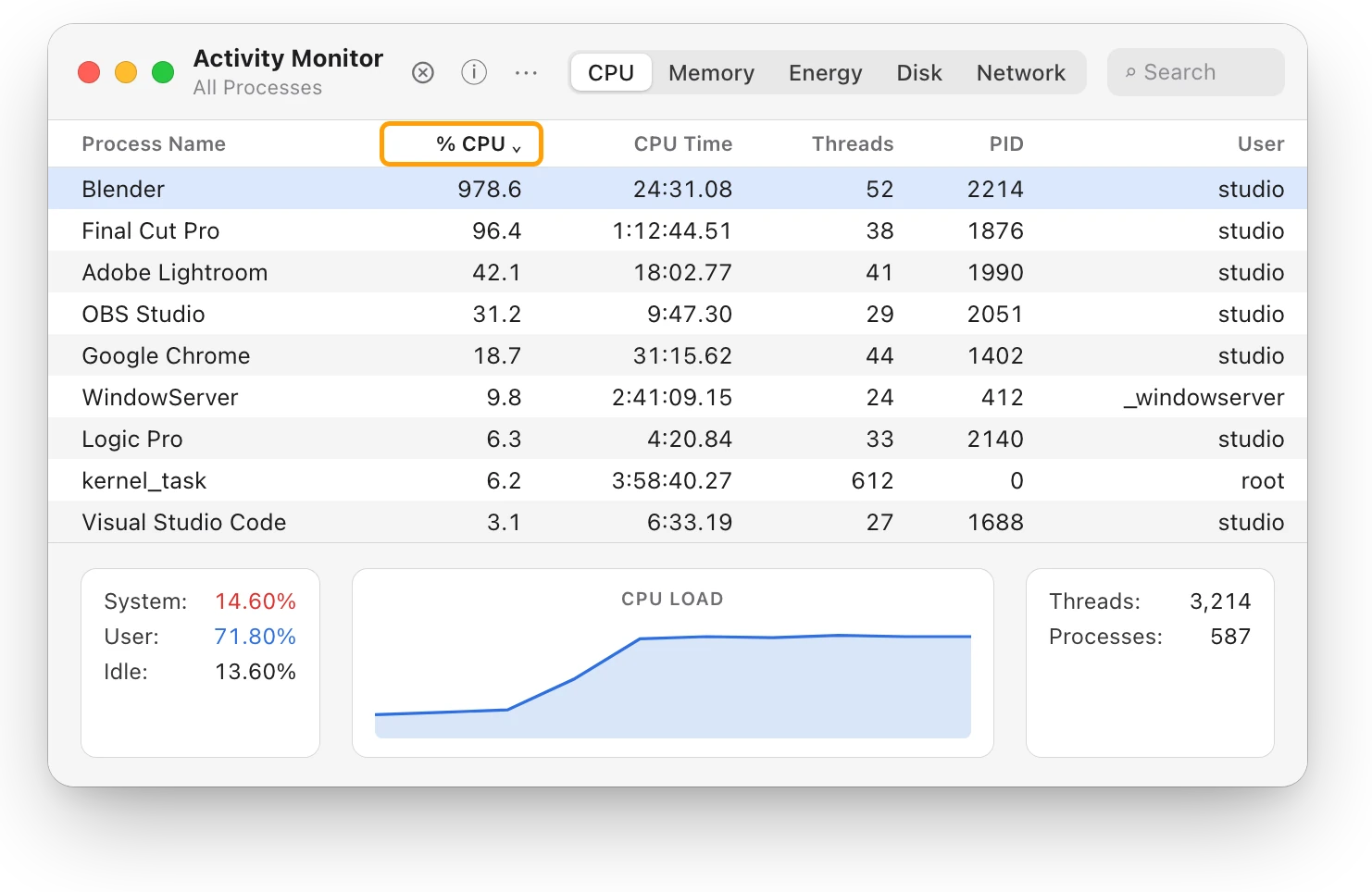
- Open Activity Monitor and click Network.
- Click the column heading for received data to sort the list, largest first.
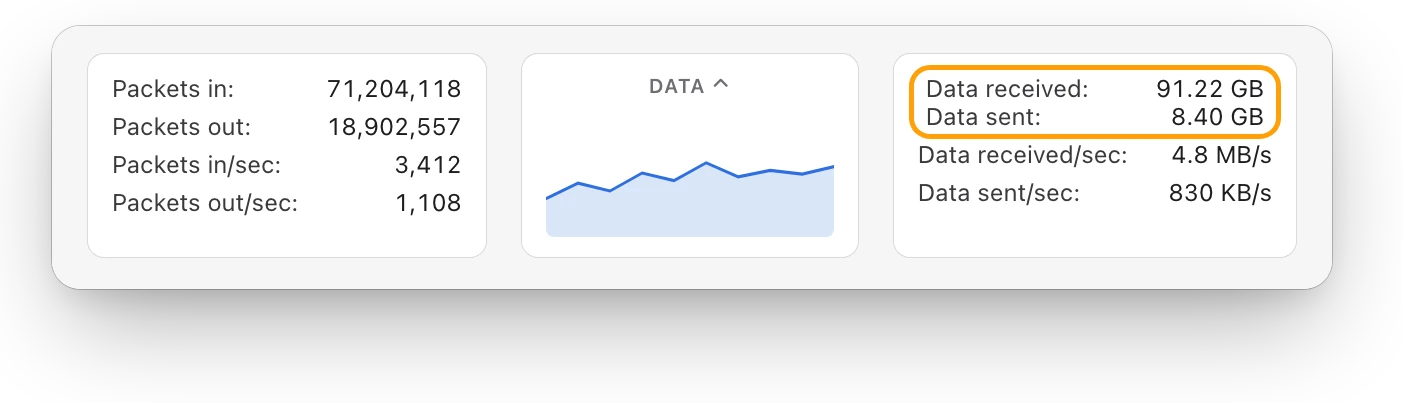
- At the bottom, Data received/sec and Data sent/sec show how much is moving right now; Data received and Data sent are the totals.
On a capped network, turn on Low data mode: choose Apple menu > System Settings, click Wi-Fi, click Details next to the network, and turn on Low data mode. How much data does my Mac use? How to check shows which apps used the most.
Questions people also ask
Why is Wi-Fi fine on my phone but not on my Mac?
Each device hears the router differently: Apple notes that antennas vary from model to model. Compare the signal where you sit, restart your Mac, and check VPN or security software.
Does a VPN slow down Wi-Fi on a Mac?
It can. Apple says VPN and other software that monitors your network connections can affect access to the internet. Turn its features off, run networkQuality again and compare.
Is 5 GHz better than 2.4 GHz?
Often. Bluetooth and many Wi-Fi devices share the 2.4 GHz band, so Apple suggests connecting more devices to 5 GHz if your router supports both.
Scope for Mac · Free, coming to the Mac App Store
How Scope helps
Scope is a free Mac menu bar app that shows your Wi-Fi signal and your internet speed apart, so you can see whether a problem is the Wi-Fi link or the line behind the router. It also shows the connection’s details and what’s moving right now, without the Wi-Fi menu, Terminal or Activity Monitor.
In your menu bar
Scope Free keeps one whole menu bar item of your choice: Network shows what’s coming in and going out right now.

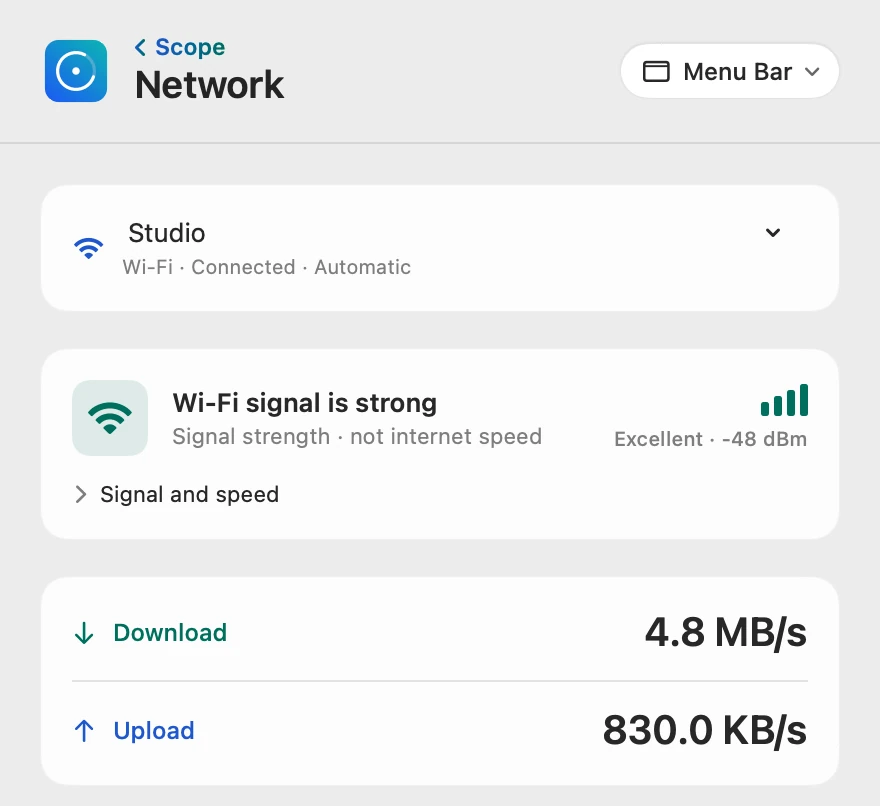
Signal isn’t speed
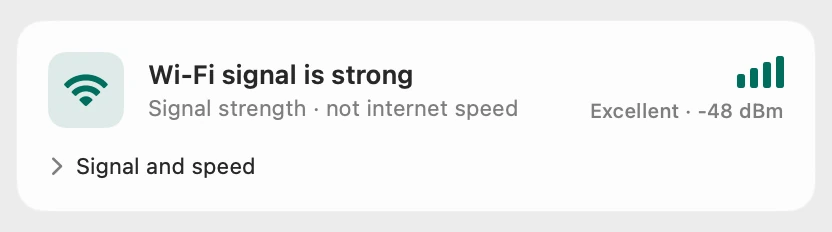
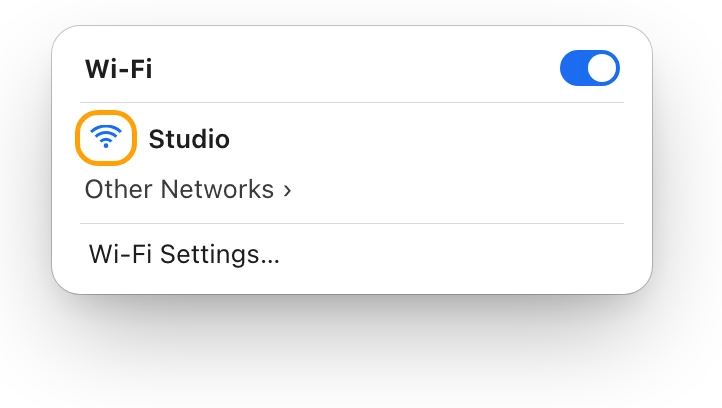
Scope lights the Wi-Fi bars from the live reading, says Excellent, Good, Fair or Weak, and labels the card “Signal strength · not internet speed”. Its speed test runs macOS’s networkQuality in one click; before it starts, it says how long the test takes and that it may use several GB of data.
The connection, in detail
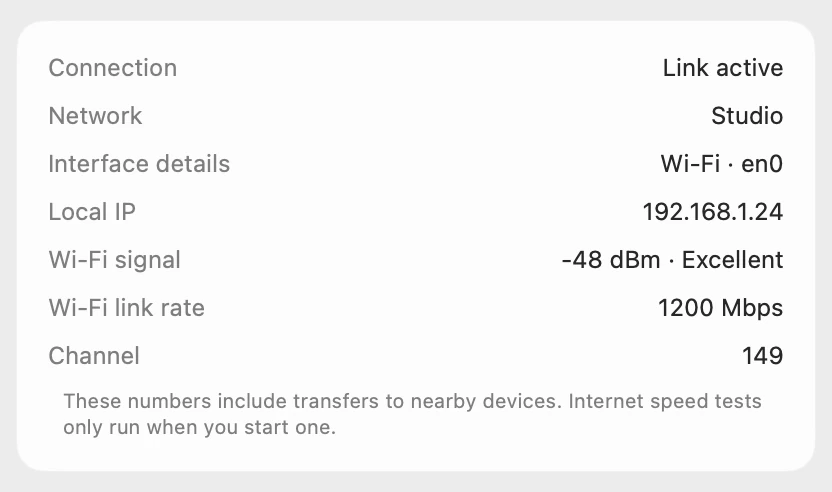
Link active and a local IP address show your Mac has joined the network. Wi-Fi link rate is how fast your Mac and the router talk over Wi-Fi, not how fast your internet is.
What’s moving now
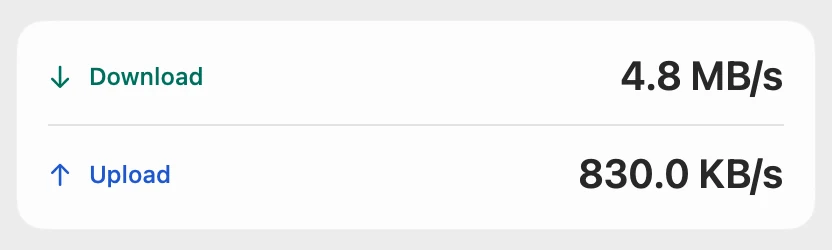
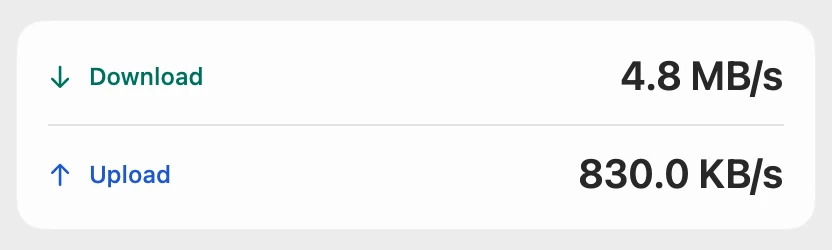
Scope counts in bytes, as Activity Monitor does, and one byte is eight bits, so 4.8 MB/s is about 38 Mbps. Top network processes shows which apps moved data over the last minute; Scope Pro shows any range up to 24 hours.
Scope shows and explains. It never changes your Wi-Fi, your router or your settings.
Try it here
The real Scope, working, right in this page.
Click any item in the menu bar, or a card inside, as you would on your Mac.
Scope Pro Every menu bar item is shown here. Scope Free keeps one whole item of your choice, with every reading inside.
See where your own connection slows down.
Answers in this guide
Internet and Wi-Fi
How to test internet speed on a Mac
Every Mac has a built-in internet speed test: type networkQuality in Terminal. Here’s how to run it and read its capacity and responsiveness.
Internet and Wi-Fi
What’s a good Wi-Fi signal? dBm explained
Wi-Fi signal is measured in dBm: closer to zero is stronger. Here’s how to see your Mac’s signal, what RSSI and noise mean, and why signal isn’t speed.
Internet and Wi-Fi
Why is my Mac’s Wi-Fi so slow? How to find out
Slow Wi-Fi on a Mac is a weak link to the router or a slow line behind it. Option-click the Wi-Fi menu, run networkQuality, then check Activity Monitor.
Internet and Wi-Fi
Mac Wi-Fi keeps disconnecting? How to find the cause
When a Mac’s Wi-Fi keeps disconnecting, Wireless Diagnostics can watch the connection and name the problem. Here’s what to check, step by step.
Internet and Wi-Fi
Mac connected to Wi-Fi but no internet? What to do
Wi-Fi but no internet means the router link works and the way out doesn’t. Check other devices, restart the router, then renew your Mac’s address.
Internet and Wi-Fi
How to run a ping test on a Mac
Run a ping test on a Mac in Terminal: type ping -c 10 and an address. Here’s how to read the times, packet loss and summary, and what to ping first.
Internet and Wi-Fi
How much data does my Mac use? How to check
Activity Monitor’s Network tab shows how much data your Mac has sent and received, and which processes used it. Here’s how to read it and use less.
Internet and Wi-Fi
Mac won’t connect to Wi-Fi? How to fix it
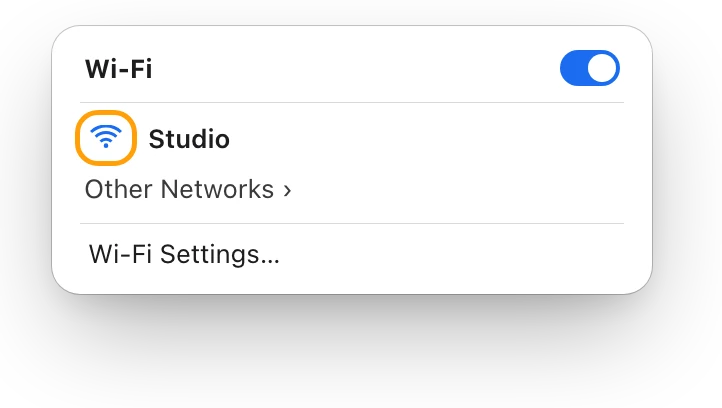
If your Mac won’t join Wi-Fi, check Wi-Fi is on, the network and the case-sensitive password, then forget the network, rejoin and restart the router.
Internet and Wi-Fi
Mac network monitor: live speed and data per app
Scope shows your Mac’s live download and upload, Wi-Fi signal, data used and the apps using the network, from the menu bar. Free on the Mac App Store.
Keep reading
Sources
- Apple Support: Use the Wi-Fi status menu on Mac
- Apple Platform Support: Use network tools to test connections
- Apple Support: Wi-Fi roaming support in Apple devices
- Apple Support: Test Wi-Fi networks with Apple Network Responsiveness
- Apple Support: Resolve Wi-Fi and Bluetooth issues caused by wireless interference
- Apple Support: If your Mac isn’t connecting to the internet over Wi-Fi
- Apple Support: Use Wireless Diagnostics on your Mac
- Apple Support: Renew your IP address from the DHCP server on Mac
- Apple Support: View network activity in Activity Monitor on Mac
- Apple Support: Wi-Fi settings on Mac
Last checked October 19, 2026. Readings, apps and files in the pictures are from a made-up Mac.