Mac won’t connect to Wi-Fi? How to fix it
When a Mac won’t connect to Wi-Fi, check that Wi-Fi is turned on, that you chose the right network and are in range, and that the password is right: Wi-Fi passwords are case-sensitive. If it still won’t join, forget the network in System Settings > Wi-Fi and join it again, restart your Mac and the router, then run Wireless Diagnostics.
This page is about a Mac that can’t join the network at all. If your Mac joins but websites won’t load, see Mac connected to Wi-Fi but no internet? What to do.
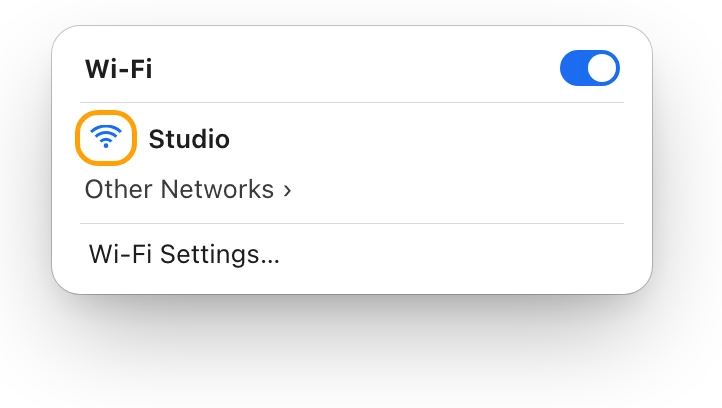
What does the Wi-Fi icon in the menu bar tell me?
The Wi-Fi icon changes with the connection, so look at it first. Apple describes its states like this:
| What Apple says the icon means | What it tells you | Start with |
|---|---|---|
| “Wi-Fi is off or not available.” | Wi-Fi isn’t on | Turning Wi-Fi on |
| “Wi-Fi is on, but not associated with a network.” | Your Mac hasn’t joined a network | Choosing the network and checking the password |
| “Wi-Fi is on.” | Your Mac has joined a network | If pages won’t load, the no-internet guide |
| “No internet.” | A router and IP address can’t be assigned to your Mac’s Wi-Fi | Restarting the router, then the no-internet guide |
Is Wi-Fi turned on?
- Click the Wi-Fi status menu in the menu bar. If it isn’t there, click Control Center in the menu bar, move the pointer over Wi-Fi, then click the arrow next to it.
- Turn on the Wi-Fi switch at the top of the menu.
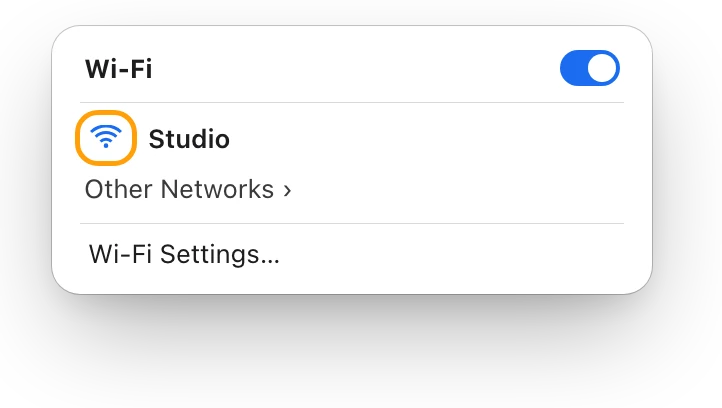
If Wi-Fi doesn’t appear in Network settings at all, add it back: choose Apple menu > System Settings, click Network, open the Action pop-up menu and choose Add Service. Choose Wi-Fi from the Interface pop-up menu, type a name in the Service Name field, then click Create.
Am I joining the right network?
- In the Wi-Fi status menu, choose the network. If it isn’t listed, click Other Networks to show the networks nearby.
- If you’re asked, enter the network’s password, then click Join. A public network may ask you to agree to its terms and conditions.
- For a hidden network, which doesn’t show its name, click Other Networks, then click Other at the bottom of the list. Type its name in the Network Name field, choose its type from the Security pop-up menu, enter the password, then click Join.
Stay in range: Apple puts the typical range of a wireless network at 150 feet (about 45 metres), and says it varies with the surroundings. Move closer to the router and try again. What’s a good Wi-Fi signal? dBm explained shows how to read the signal once you’ve joined.
What if my Mac says the Wi-Fi password is incorrect?
Apple’s first point: Wi-Fi passwords are case-sensitive, so type each capital and lowercase letter exactly. Apple also says to know the network’s type of wireless security, which a hidden network asks for.
If you don’t know the password, there are three places to find it:
- Another Mac that has joined the network. Choose Apple menu > System Settings, click Wi-Fi, then click Advanced. Under Known Networks, click the More button next to the network, then choose Copy Password. Apple notes this option may not be available for some networks.
- The router. If you manage it, its app or webpage shows the password. A label on the router, or its documentation, may show a default password that’s still in use.
- The person who set it up, such as your internet provider, your workplace, or the staff of a café or hotel.
Then forget the network and join it again, so your Mac asks for the current password.
How do I forget a Wi-Fi network and join it again?
Forgetting a network removes it and its password from your Mac, so you set it up fresh when you join again.
- Choose Apple menu > System Settings, then click Wi-Fi in the sidebar.
- Scroll down and click Advanced.
- Under Known Networks, click the More button next to the network, choose Remove From List, then click Forget.
- Join the network again from the Wi-Fi status menu, and enter its current password.
For the network you’re connected to, there’s a shortcut: click Details next to it, then click Forget This Network.
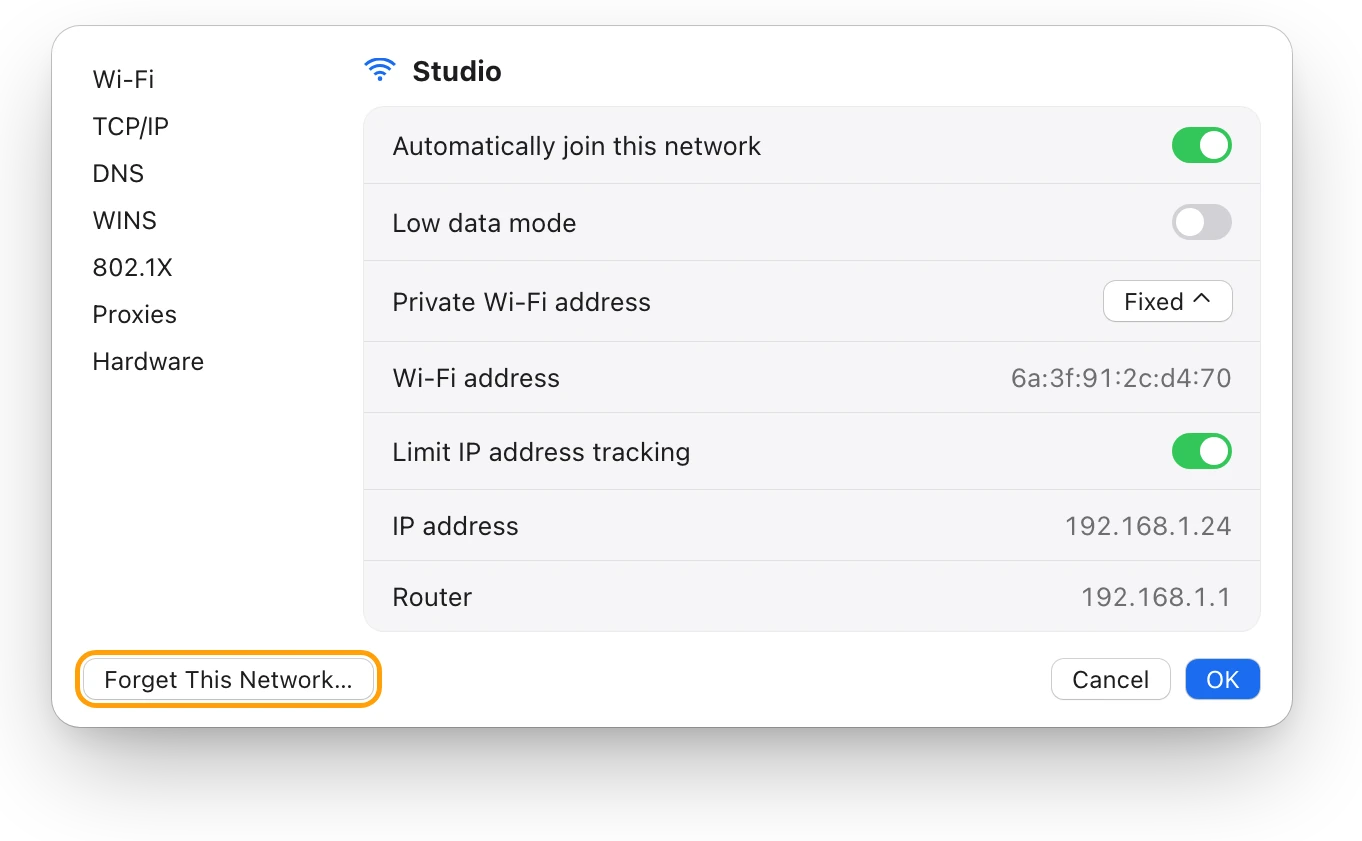
If iCloud Keychain is on, Apple notes that forgetting a network on one device also removes it from your other devices that use the same Apple Account.
Does restarting the Mac and the router help?
Apple’s steps include restarting both.
- On your Mac, choose Apple menu > Restart.
- Restart the Wi-Fi router. If you manage it, Apple also suggests installing its latest firmware and using Apple’s recommended router settings.
- Try to join the network again.
How do I use Wi-Fi Recommendations and Wireless Diagnostics?
macOS has two built-in tools for Wi-Fi problems.
- Click the Wi-Fi status menu, or Wi-Fi in Control Center. If you see Wi-Fi Recommendations, choose it to see what your Mac suggests. It isn’t available for personal hotspots or for WPA Enterprise and WPA2 Enterprise networks.
- For Wireless Diagnostics, quit your open apps and try to join the network.
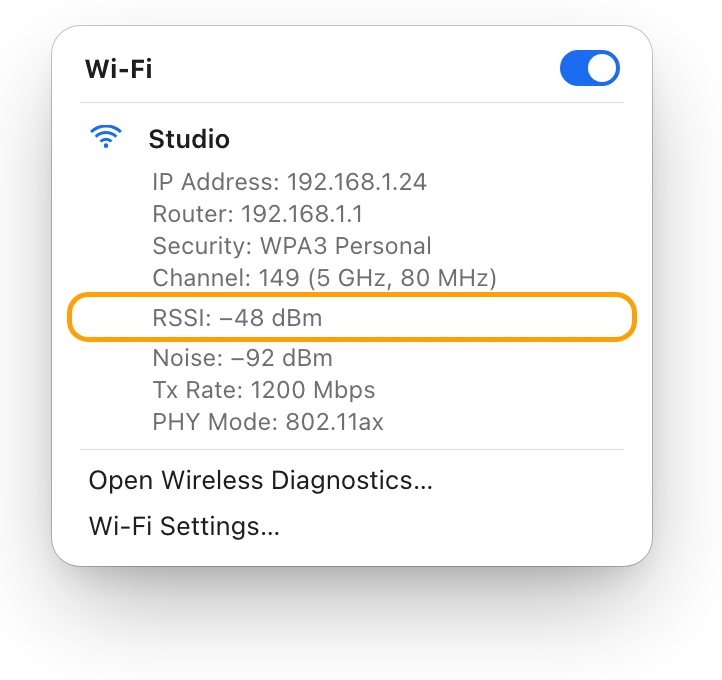
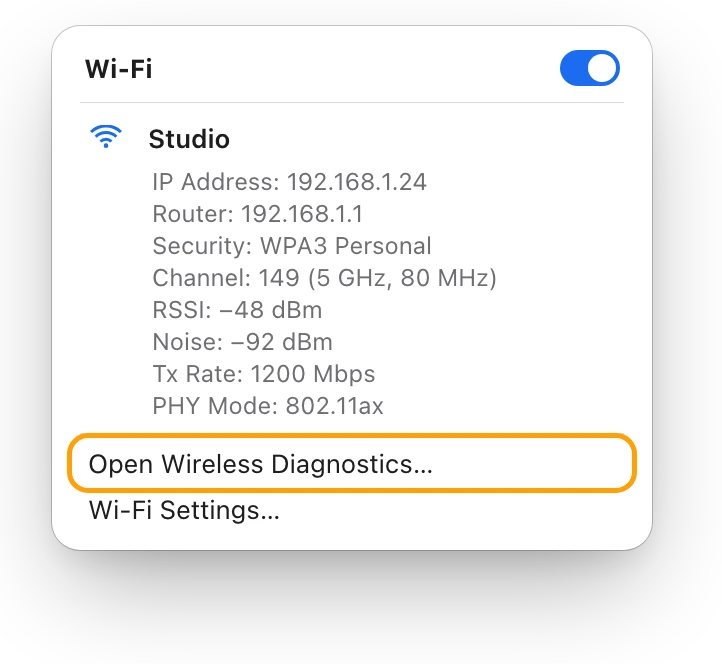
- Hold down Option, click the Wi-Fi status menu, then choose Open Wireless Diagnostics.
- Follow the onscreen instructions. When it’s done, click the Info buttons in the Summary to read about each item it found.
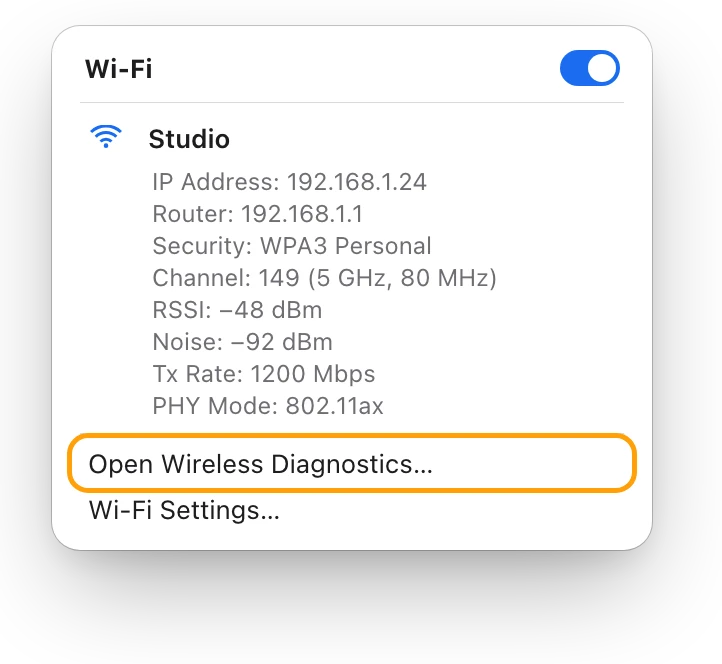
Wireless Diagnostics doesn’t change your network settings. It saves a report in /var/tmp, with a name starting WirelessDiagnostics, that you can send to your internet provider or IT support.
Could the network be blocking my Mac?
Some networks only let in devices they recognize by their MAC address, the hardware address a network uses to tell devices apart.
- Access control. If the network uses access control, Apple says to make sure your Mac’s MAC address is registered with the network administrator.
- Private Wi-Fi address. To reduce tracking, your Mac can use a private Wi-Fi address on each network. Apple says that if a device can’t join a network with a private address, install the latest software updates and try again before deciding whether to turn the feature off. The setting is in the network’s Details, in the Private Wi-Fi address pop-up menu: Off, Fixed or Rotating. At work or school, ask the administrator which to use.
- Your own router. Apple recommends setting MAC address filtering to Disabled, partly because some Apple devices use a different MAC address for each Wi-Fi network.
What else should I check?
- Date and time. Choose Apple menu > System Settings, click General, then Date & Time, and turn on “Set time and date automatically”.
- VPN and security software. Apple says security software can block some connections. Use the app to turn off its features, then try again.
- macOS. If your Mac gets online on another network, join that one and update macOS.
- Another network. If your Mac joins other Wi-Fi networks but not this one, the problem is with this network: ask your internet provider or network administrator.
Questions people also ask
Why won’t my Mac connect to Wi-Fi when my phone will?
The network is working, so start with the Mac: forget the network and join again, type the password with the right capitals, and check whether the network uses access control or doesn’t work with private Wi-Fi addresses.
Why doesn’t my Wi-Fi network show up on my Mac?
Click Other Networks in the Wi-Fi status menu to see more. A hidden network never shows its name, so join it with Other. If it still isn’t there, move closer to the router and restart it.
Why does my Mac join a different network instead of mine?
Your Mac joins known networks set to auto-join. In Wi-Fi settings, click Advanced, click the More button next to the other network under Known Networks, and turn off Auto-Join. Your Mac keeps its password but stops joining it on its own.
Scope for Mac · Free, coming to the Mac App Store
How Scope helps
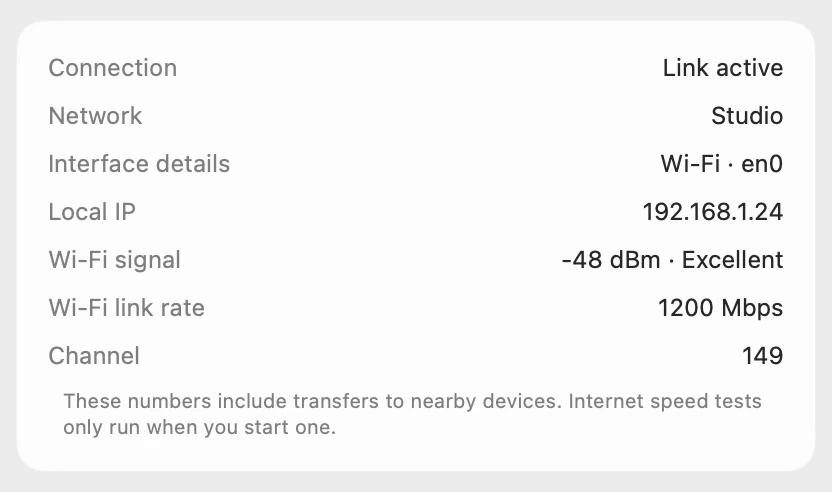
Scope is a free Mac menu bar app that shows whether your Mac has joined a network: the connection’s status, the network’s name, your Mac’s local IP address and the Wi-Fi signal, in one panel. It saves Option-clicking the Wi-Fi menu to see whether the link is up and how strong the signal is.
In your menu bar
Scope Free keeps one whole menu bar item of your choice, and Network shows your download and upload speeds.

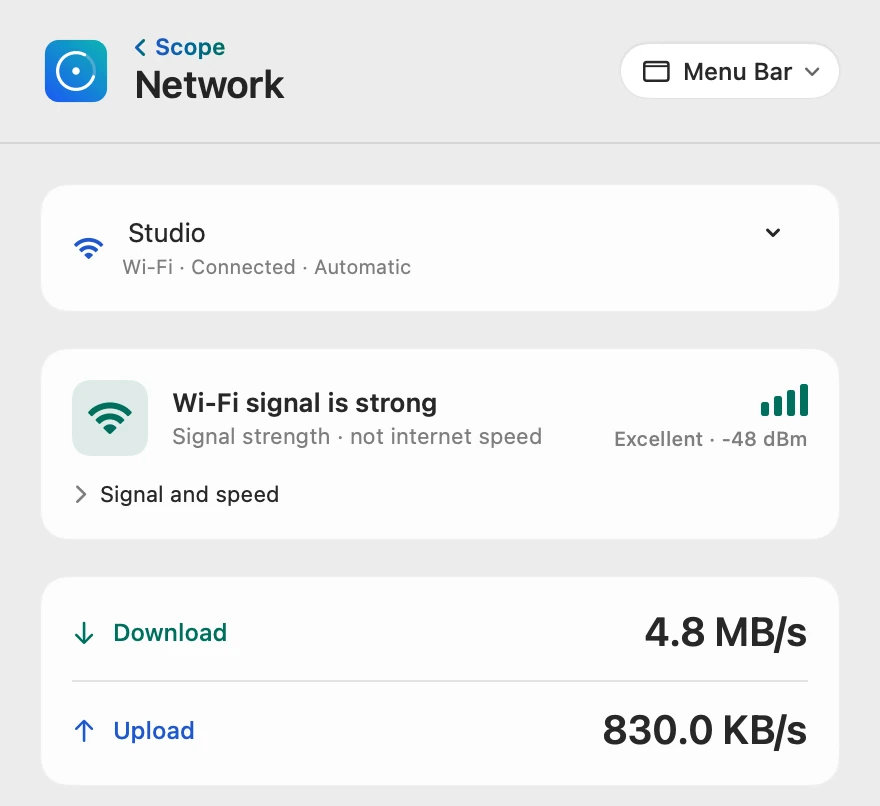
Joined, or not
The Mac in these pictures is connected, so Connection reads Link active and Local IP shows its address. On a Mac that hasn’t joined a network, Connection reads Disconnected and Local IP reads Not available.
Close enough to the router
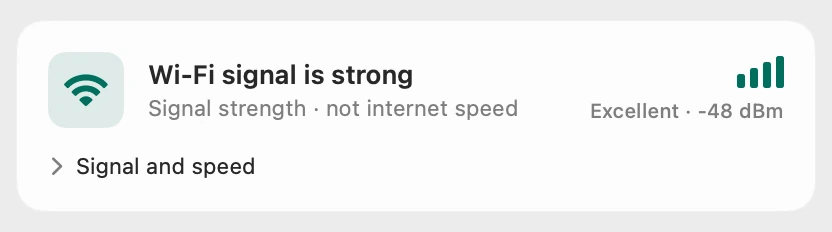
Once joined, Scope rates the signal Excellent, Good, Fair or Weak, with the value in dBm. A weak signal where you sit points to distance or walls, so moving closer is the first thing to try.
Scope shows and explains. It never joins networks, changes your Wi-Fi settings or touches your router.
Try it here
The real Scope, working, right in this page.
Click any item in the menu bar, or a card inside, as you would on your Mac.
Scope Pro Every menu bar item is shown here. Scope Free keeps one whole item of your choice, with every reading inside.
See your own Mac’s connection at a glance.
Keep reading
Guide · Internet and Wi-Fi
Mac Wi-Fi problems: slow, dropping or no internet
Mac Wi-Fi problems start in the Wi-Fi link or the internet behind the router. Two checks tell them apart; then fix it when it’s slow, drops or won’t load.
Internet and Wi-Fi
Mac connected to Wi-Fi but no internet? What to do
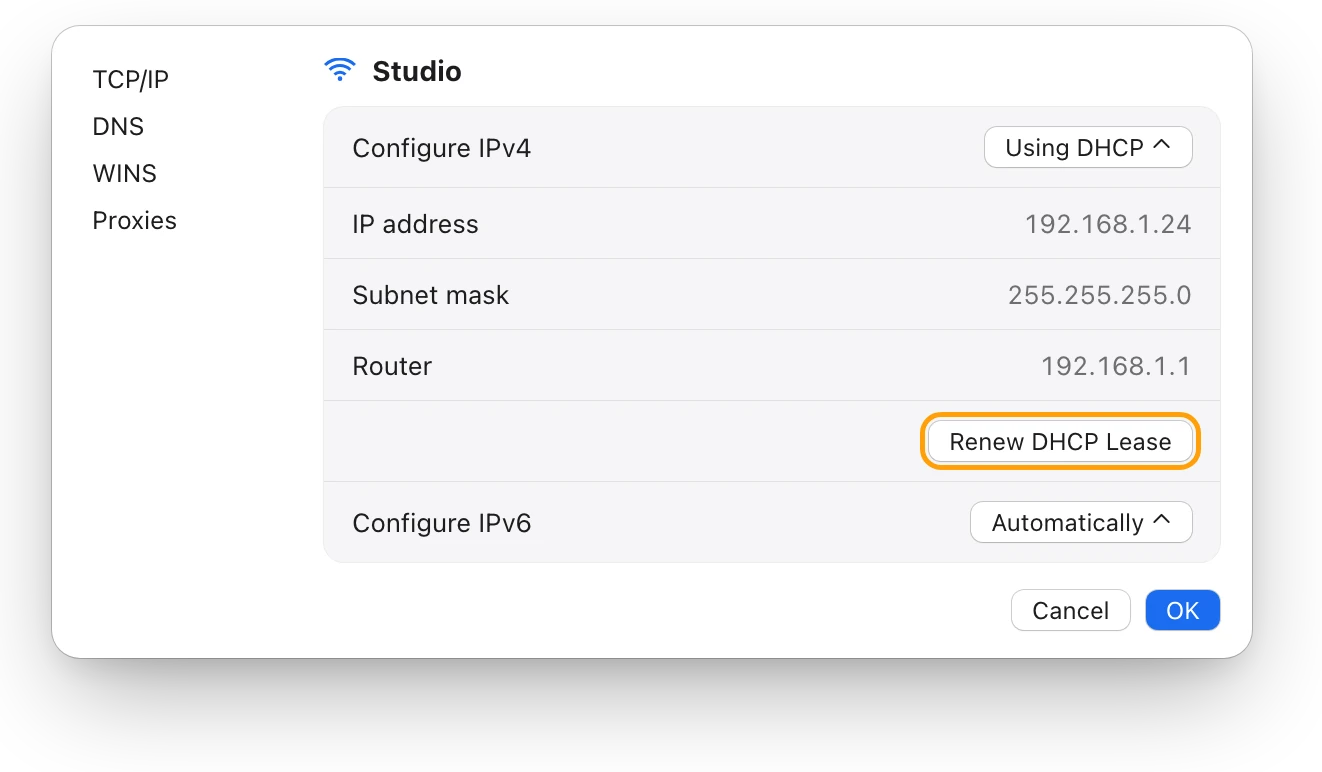
Wi-Fi but no internet means the router link works and the way out doesn’t. Check other devices, restart the router, then renew your Mac’s address.
Internet and Wi-Fi
Mac Wi-Fi keeps disconnecting? How to find the cause
When a Mac’s Wi-Fi keeps disconnecting, Wireless Diagnostics can watch the connection and name the problem. Here’s what to check, step by step.
Internet and Wi-Fi
What’s a good Wi-Fi signal? dBm explained
Wi-Fi signal is measured in dBm: closer to zero is stronger. Here’s how to see your Mac’s signal, what RSSI and noise mean, and why signal isn’t speed.
Sources
- Apple Support: If you can’t connect to a Wi-Fi network on Mac
- Apple Support: Troubleshoot joining a Wi-Fi network on Mac
- Apple Support: If your Mac isn’t connecting to the internet over Wi-Fi
- Apple Support: Connect to the internet with your Mac
- Apple Support: Connect your Mac to the internet using Wi-Fi
- Apple Support: Use the Wi-Fi status menu on Mac
- Apple Support: Wi-Fi menu icons on Mac
- Apple Support: If you don’t see Wi-Fi in Network settings on Mac
- Apple Support: If you need help with your Wi-Fi password
- Apple Support: Wi-Fi settings on Mac
- Apple Support: Reset or remove Wi-Fi network settings on Mac
- Apple Support: Forget a Wi-Fi network or prevent your device from automatically joining it
- Apple Support: Use Wireless Diagnostics on your Mac
- Apple Support: Use private Wi-Fi addresses on Apple devices
- Apple Support: Use a private Wi-Fi address on Mac
- Apple Support: Recommended settings for Wi-Fi routers and access points
- Apple Support: Set the date and time automatically on your Mac
- Apple Support: If your device has network connectivity issues, check for VPN and other third-party security software
Last checked October 19, 2026. Readings, apps and files in the pictures are from a made-up Mac.