Mac connected to Wi-Fi but no internet? What to do
When a Mac is connected to Wi-Fi but has no internet, the link to the router works but the way from the router to the internet doesn’t. First check whether other devices on the same network can get online. Then restart the modem, the router and your Mac, renew the Mac’s address in System Settings > Network, and run Wireless Diagnostics. If nothing on the network can get online, contact your internet provider.
Is it just my Mac, or the whole network?
Try another device on the same Wi-Fi, such as your phone with mobile data turned off. Its answer tells you where to look:
| Other devices online? | Where the problem is | What to try |
|---|---|---|
| No | The router, the modem or the internet provider | Restart the modem and router; check with your provider for an outage |
| Yes | Your Mac | Restart it, check the date and time, renew its address, check VPN and security software |
If nothing on the network gets online, start with the router:
- Restart the modem and the router: turn them off, wait a moment, and turn them on again.
- If you manage the router, install its latest firmware, as its maker recommends.
- If it still doesn’t work, ask your internet provider whether there’s an outage.
What does the Wi-Fi icon tell me?
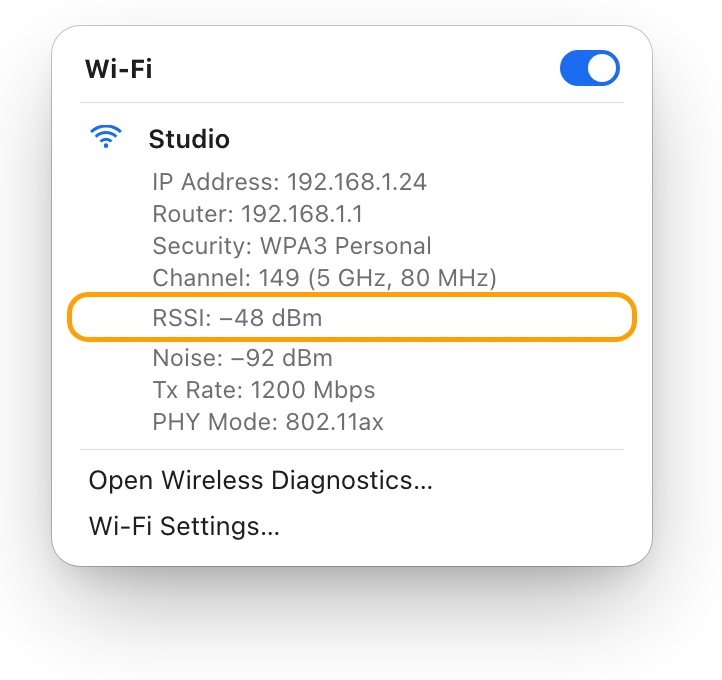
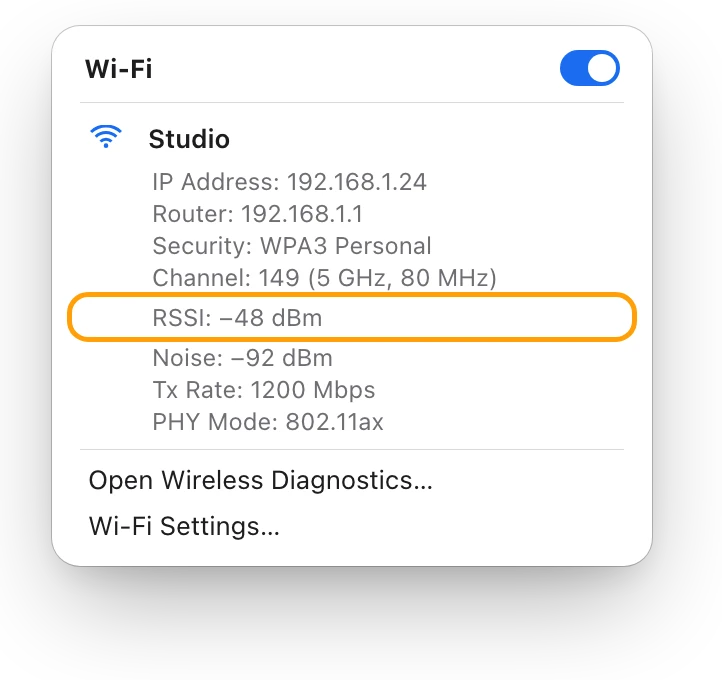
The Wi-Fi icon in the menu bar changes with the connection. Apple shows its No internet icon when a router and IP address can’t be assigned to your Mac’s Wi-Fi. An IP address is your Mac’s address on the network, and the router hands it out.
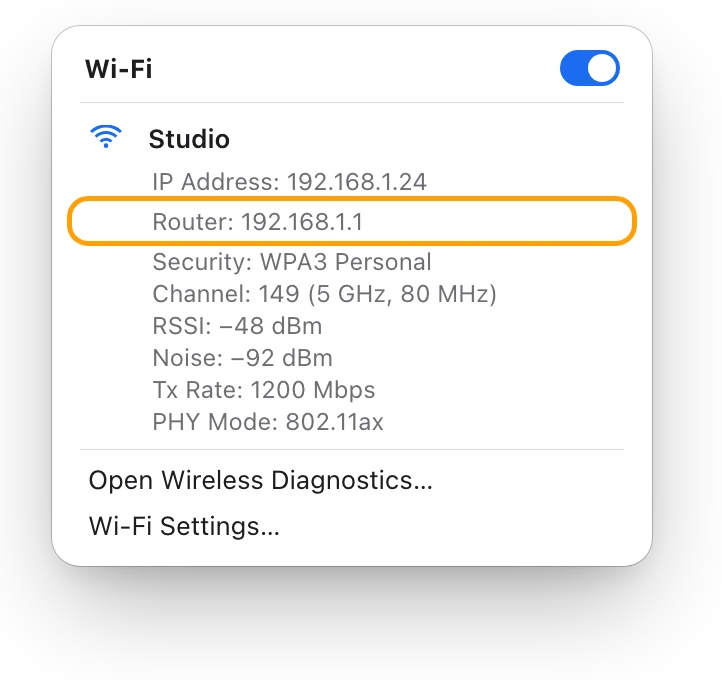
Click the Wi-Fi icon in the menu bar or in Control Center. If you see a menu item named Wi-Fi Recommendations, your Mac has detected an issue: choose it to see what macOS suggests.
How do I get my Mac back online?
Work through these in order, checking after each one. They’re Apple’s steps for a Mac that’s connected to Wi-Fi but can’t get online.
- Restart your Mac. When it starts again, it renews the IP address it was given when it joined the network.
- Check the date and time. Go to System Settings > General > Date & Time, and turn on “Set time and date automatically”.
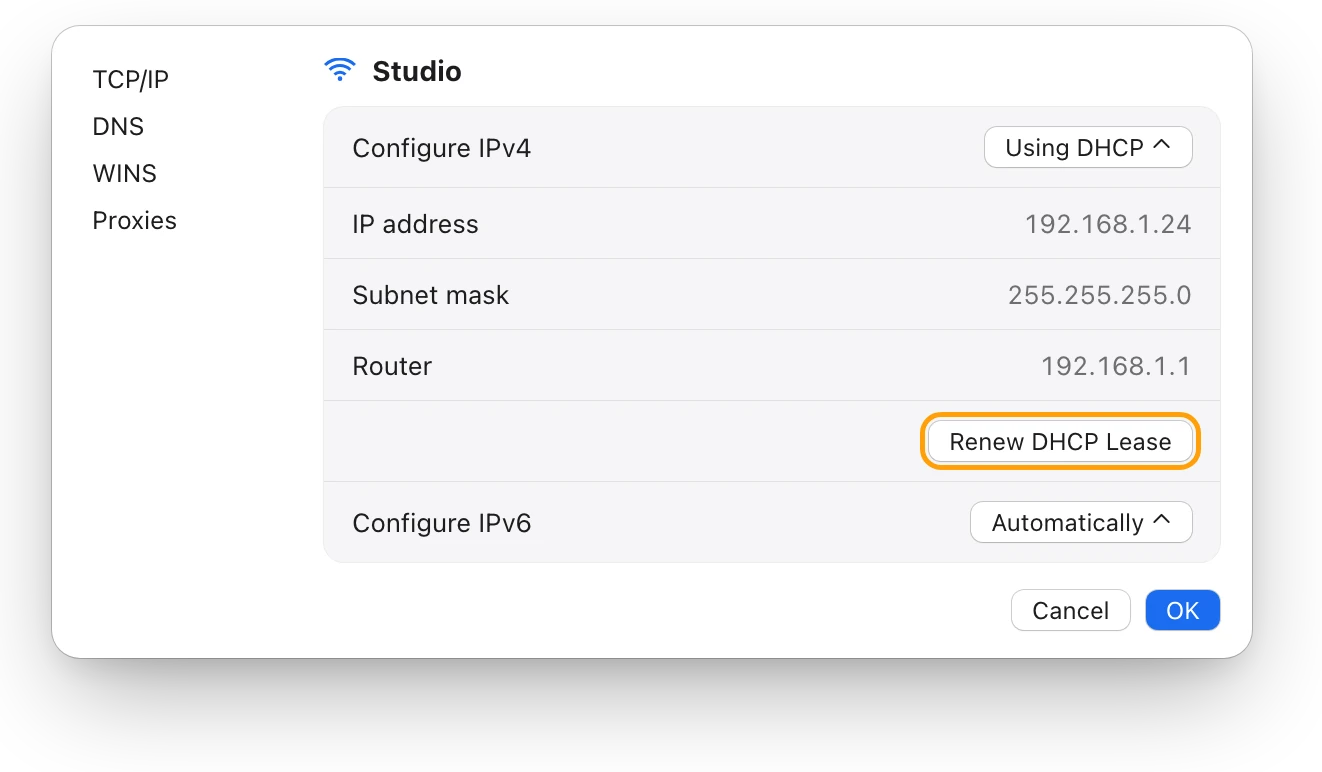
- Renew the DHCP lease. DHCP is how the router hands out addresses, and the lease is how long your Mac keeps one. Choose Apple menu > System Settings, click Network, click Wi-Fi, then click Details. Click TCP/IP, click Renew DHCP Lease, then click OK.
- Check VPN and security software. VPN, firewall, antivirus, parental-control and content-blocking apps can block the connection. Turn off the app’s features and try again. In System Settings, search for VPN, profile, firewall and filter to find related settings.
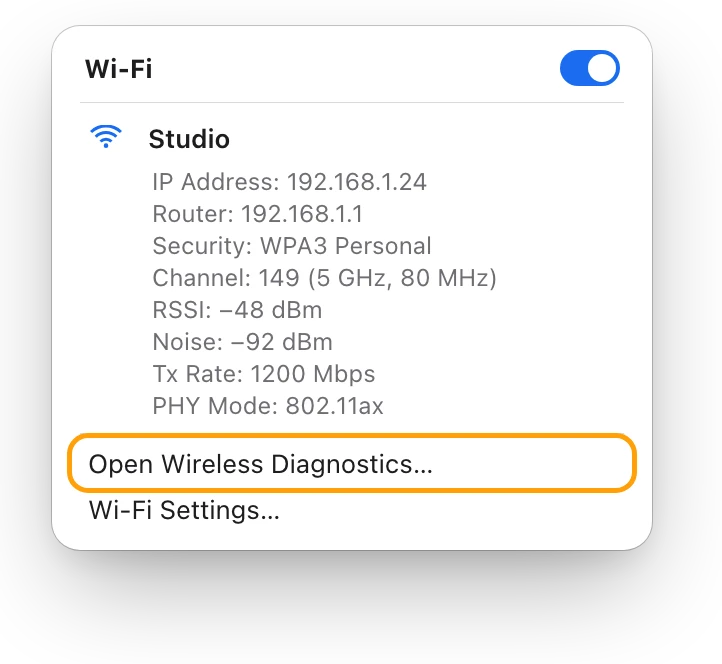
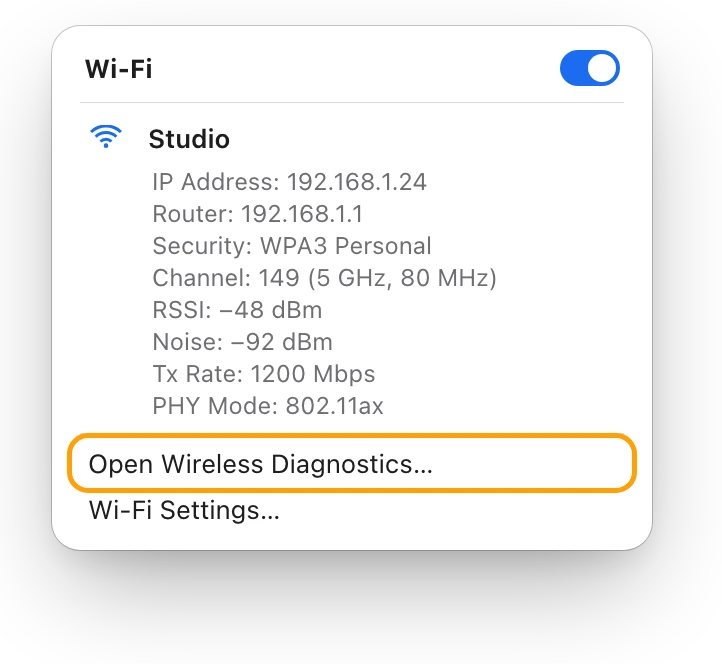
- Run Wireless Diagnostics. Quit your open apps. Hold down Option, click the Wi-Fi icon in the menu bar, and choose Open Wireless Diagnostics. Follow the instructions, then click the Info buttons in the Summary to read about each issue it found. It doesn’t change your network settings.
- Check DNS and proxies. DNS turns names like apple.com into addresses, and a wrong DNS server or proxy can stop websites loading. In the same Details window, click DNS, then Proxies, and look for servers you don’t recognize. If someone at work or school set them up, ask them before changing anything.
- Try another network. If your Mac gets online on another Wi-Fi network or your iPhone’s Personal Hotspot, the problem is your own network or provider. While you’re on it, update macOS.
Why can’t my router get anything online?
If every device has the same problem after a restart, it’s usually the router, the modem or the provider. Apple’s recommended router settings help with two common causes:
- Only one device should hand out addresses. If DHCP is on in both the modem and the router, address conflicts can stop devices getting online.
- Only one device should use NAT. NAT lets all your devices share one internet address. With NAT on in both the modem and the router, devices can lose access to some of the internet.
Change these in the router’s own app or webpage, and back up its settings first. If they look right, your internet provider can check the line.
Questions people also ask
Why does my Mac say there’s no internet when my phone works?
If your phone gets online on the same Wi-Fi, the network is fine and the problem is on your Mac. Restart it, check the date and time, renew the DHCP lease and check VPN or security software.
What does Renew DHCP Lease do?
It asks the router for your Mac’s address again. If the old lease expired and another device took that address, your Mac gets a new one.
Should I forget the Wi-Fi network?
Apple suggests it after a router’s settings change: forgetting the network makes your Mac use the router’s new settings when it joins again. Go to System Settings > Wi-Fi, click Details next to the network, then Forget This Network.
Can a VPN block the internet on a Mac?
Yes. Apple says VPN and other security software can block connections to the internet. Turn off its features to test.
Scope for Mac · Free, coming to the Mac App Store
How Scope helps
Scope is a free Mac menu bar app that shows your Wi-Fi connection and its signal separately from a one-click internet speed test, so you can see whether your Mac has reached the router and whether the internet behind it answers. Scope can’t fix a connection, but it shows where it stops.
In your menu bar

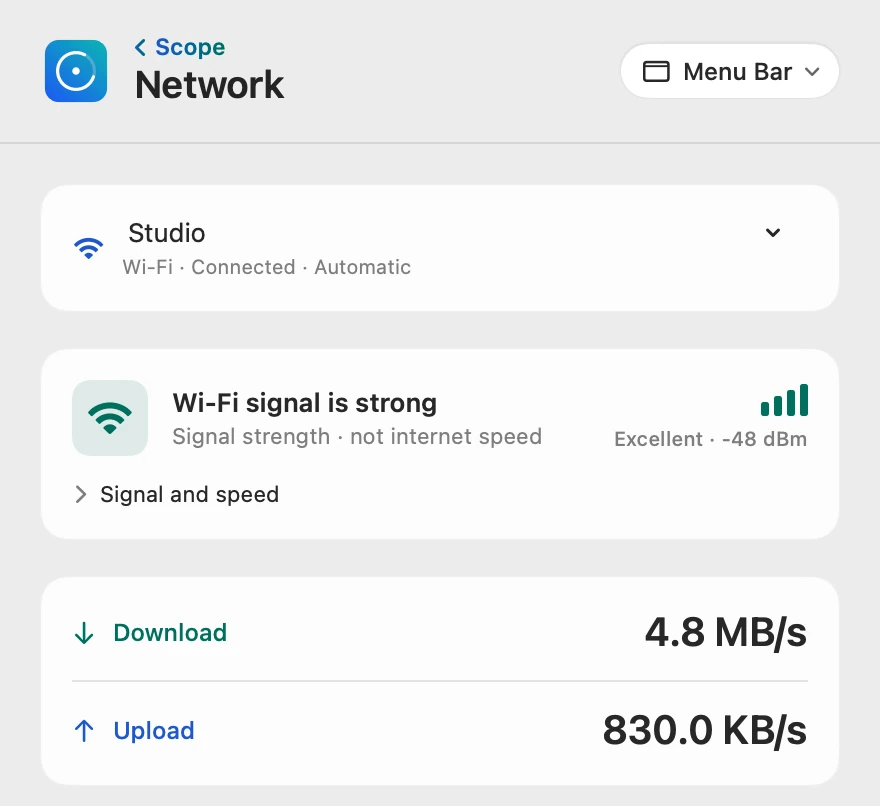
Connected to the router
Connection and Local IP show whether your Mac has joined the network and what address it has there. If Wi-Fi drops, Scope shows the connection as Disconnected.
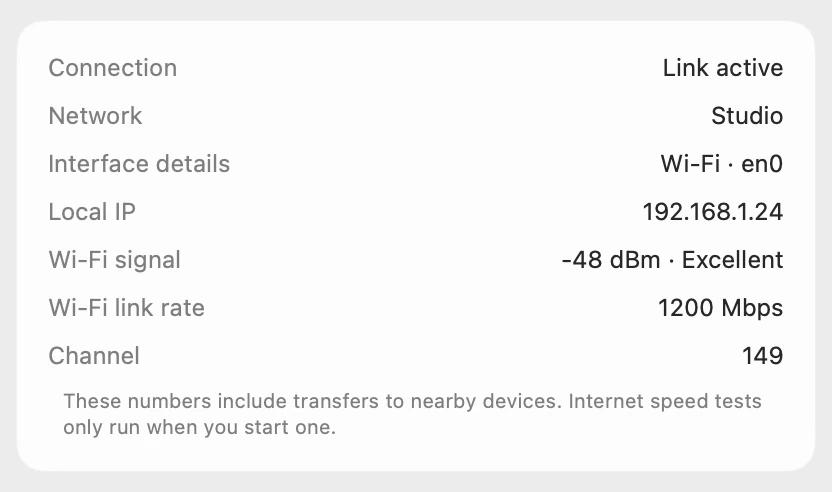
A strong signal
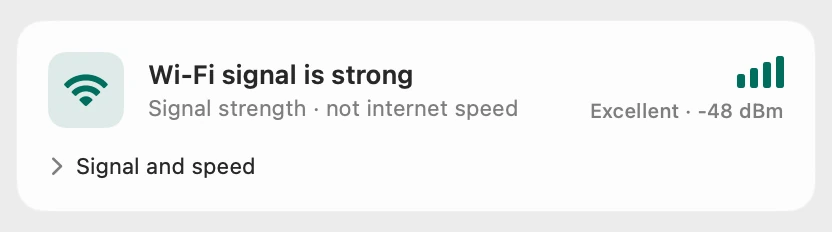
Scope labels the signal “Signal strength · not internet speed”: a strong signal shows the Wi-Fi link is good, not that the internet works.
The internet itself
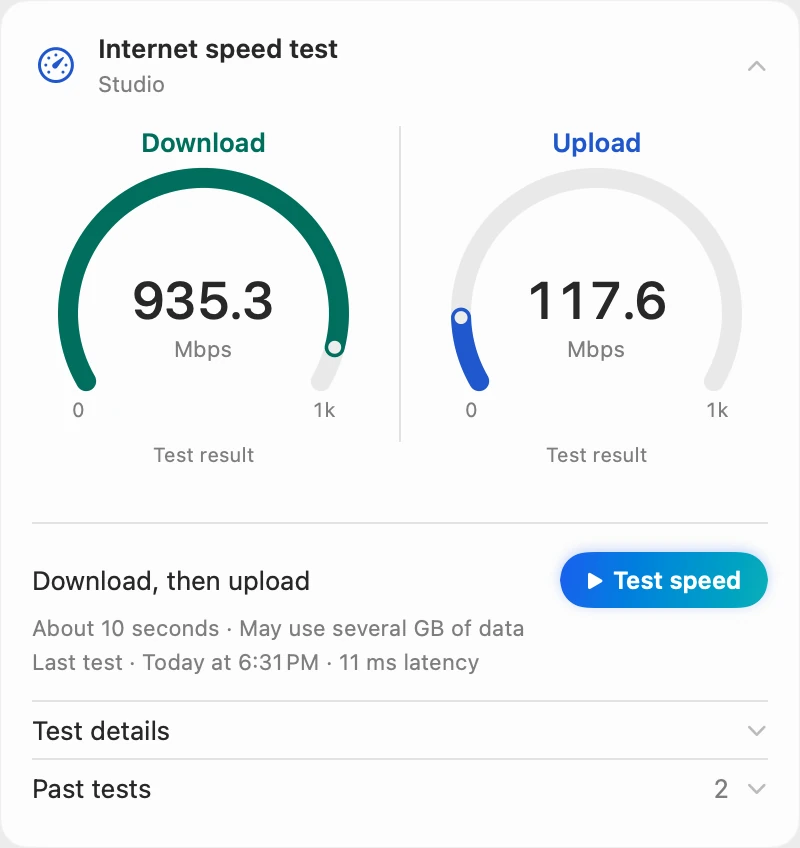
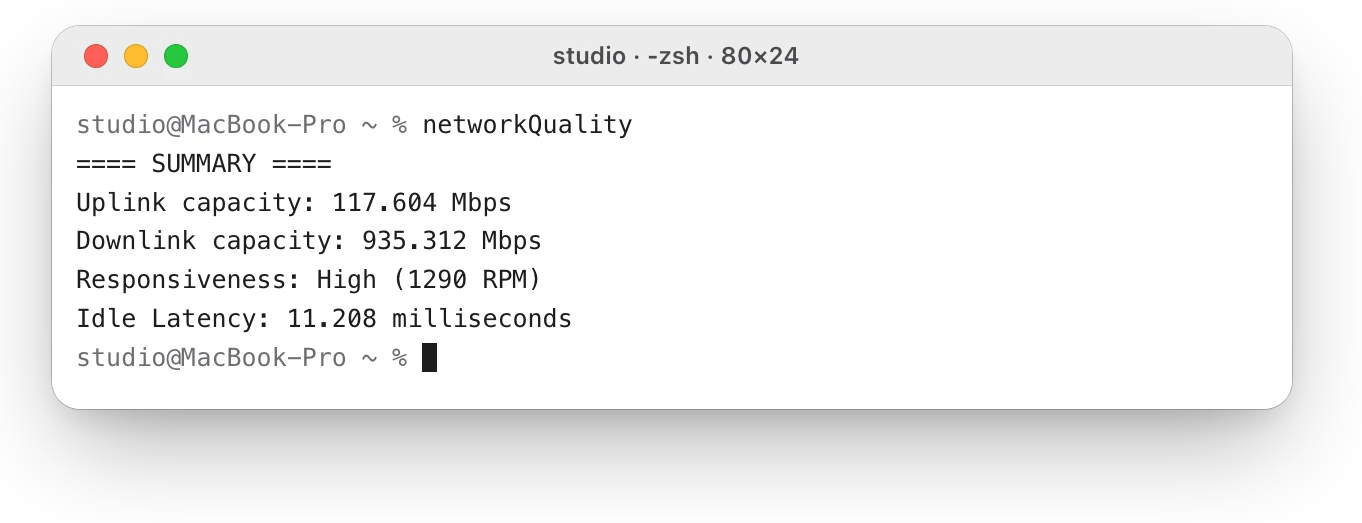
The speed test runs macOS’s own networkQuality test, which has to reach Apple’s test service over the internet. When it can’t, Scope says Test did not finish, with a note that the download test couldn’t be completed. With a strong signal beside it, that points past your Mac’s Wi-Fi: to the router, the modem or the provider.
Scope shows and explains. It never changes your network settings or your router.
Try it here
The real Scope, working, right in this page.
Click any item in the menu bar, or a card inside, as you would on your Mac.
Scope Pro Every menu bar item is shown here. Scope Free keeps one whole item of your choice, with every reading inside.
See where your own connection stops.
Keep reading
Guide · Internet and Wi-Fi
Mac Wi-Fi problems: slow, dropping or no internet
Mac Wi-Fi problems start in the Wi-Fi link or the internet behind the router. Two checks tell them apart; then fix it when it’s slow, drops or won’t load.
Internet and Wi-Fi
Why is my Mac’s Wi-Fi so slow? How to find out
Slow Wi-Fi on a Mac is a weak link to the router or a slow line behind it. Option-click the Wi-Fi menu, run networkQuality, then check Activity Monitor.
Internet and Wi-Fi
How to run a ping test on a Mac
Run a ping test on a Mac in Terminal: type ping -c 10 and an address. Here’s how to read the times, packet loss and summary, and what to ping first.
Internet and Wi-Fi
How to test internet speed on a Mac
Every Mac has a built-in internet speed test: type networkQuality in Terminal. Here’s how to run it and read its capacity and responsiveness.
Internet and Wi-Fi
Mac Wi-Fi keeps disconnecting? How to find the cause
When a Mac’s Wi-Fi keeps disconnecting, Wireless Diagnostics can watch the connection and name the problem. Here’s what to check, step by step.
Sources
- Apple Support: If your Mac isn’t connecting to the internet over Wi-Fi
- Apple Support: Wi-Fi menu icons on Mac
- Apple Support: Renew your IP address from the DHCP server on Mac
- Apple Support: Change TCP/IP settings on Mac
- Apple Support: Change DNS settings on Mac
- Apple Support: Enter proxy server settings on Mac
- Apple Support: Set the date and time automatically on your Mac
- Apple Support: Use Wireless Diagnostics on your Mac
- Apple Support: If your device has network connectivity issues, check for VPN and other third-party security software
- Apple Support: Recommended settings for Wi-Fi routers and access points
- Apple Support: Use network tools to test connections
Last checked October 18, 2026. Readings, apps and files in the pictures are from a made-up Mac.