MacBook battery health and cycle count, explained
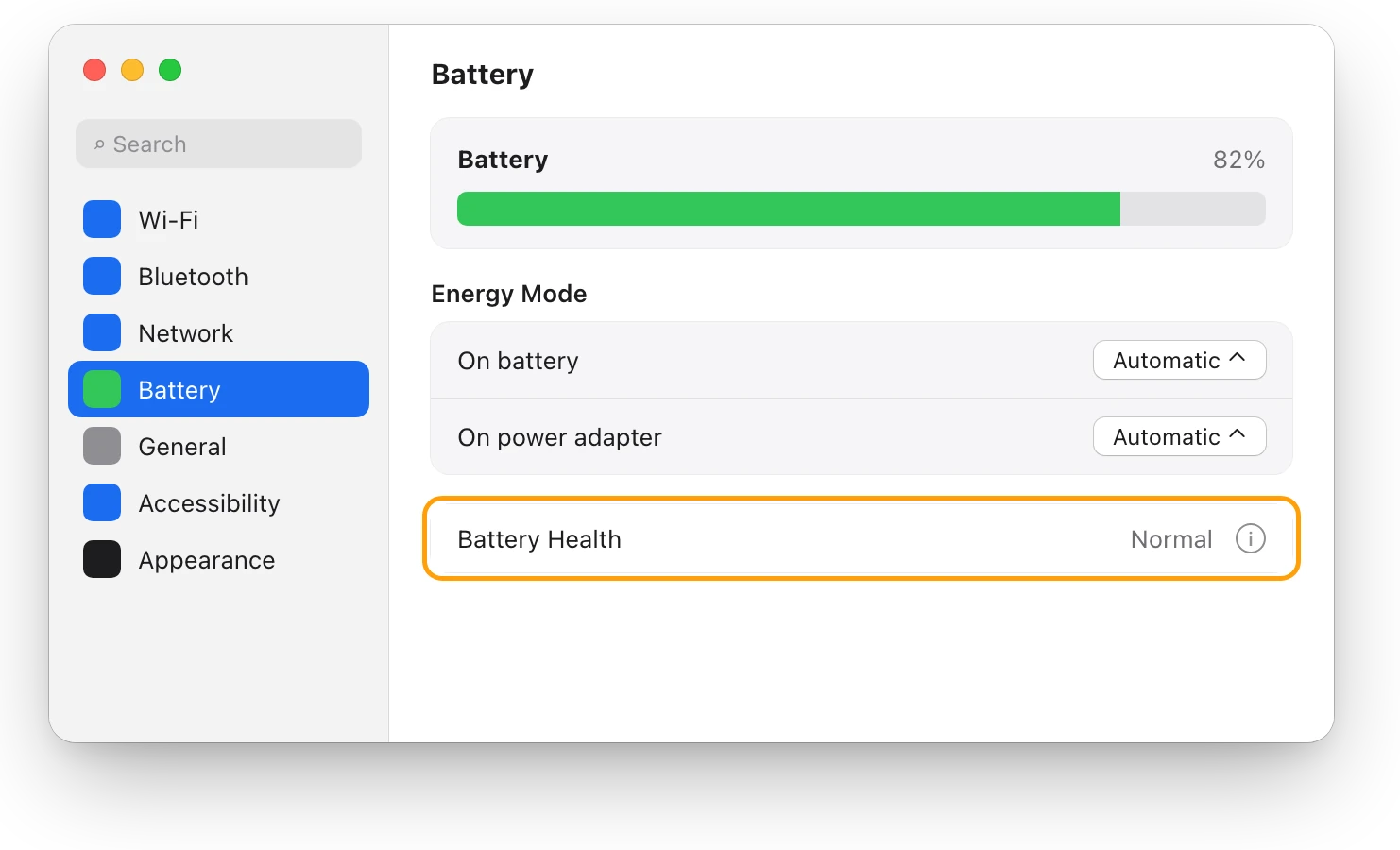
A MacBook’s battery health is in System Settings > Battery > Battery Health. It shows the battery’s condition, Normal or Service Recommended, and its maximum capacity: how much charge it holds compared with when it was new. The cycle count is in System Information, under Power. A battery is designed to keep up to 80% of its original capacity at its maximum cycle count, which is 1,000 for recent MacBook Air and MacBook Pro models.
How do I check my MacBook’s battery health?
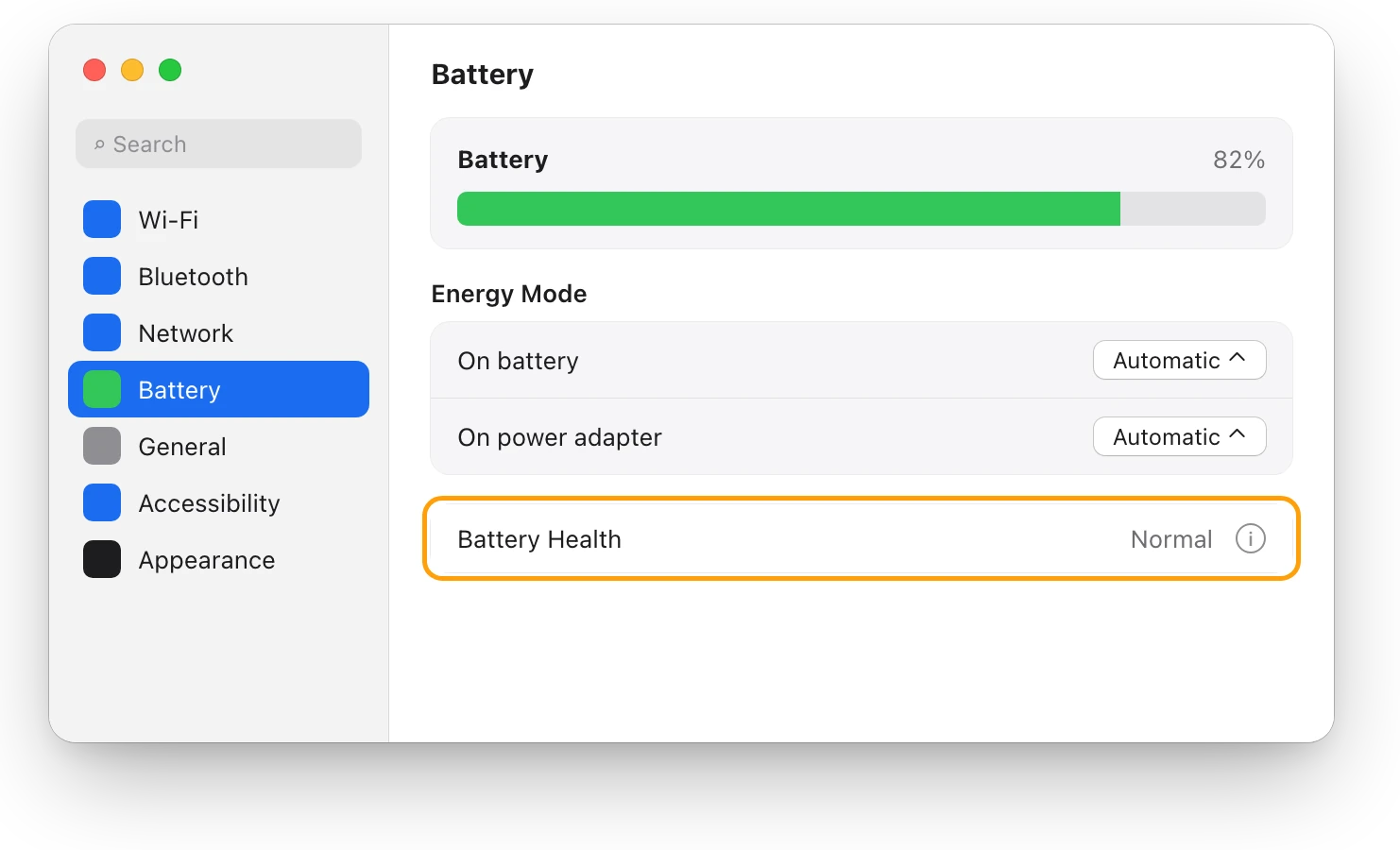
- Choose Apple menu > System Settings, then click Battery in the sidebar. Scroll down if you don’t see it.
- Look at Battery Health. It shows the battery’s condition.
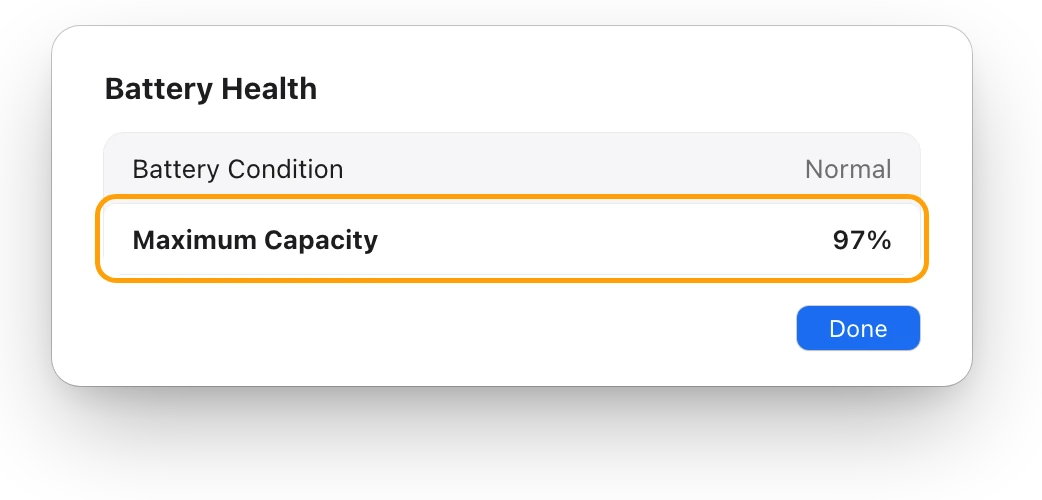
- Click the info button (ⓘ) next to it to see Maximum Capacity.
What do Normal and Service Recommended mean?
macOS shows one of two conditions:
- Normal: the battery is working normally.
- Service Recommended: the battery holds noticeably less charge than when it was new. You can keep using it. If the shorter battery life bothers you, Apple suggests having it checked by Apple or an Apple Authorized Service Provider.
Maximum Capacity is how much charge the battery can hold now, as a percentage of what it held when new. A lower number means less time between charges.
How do I find the battery’s cycle count?
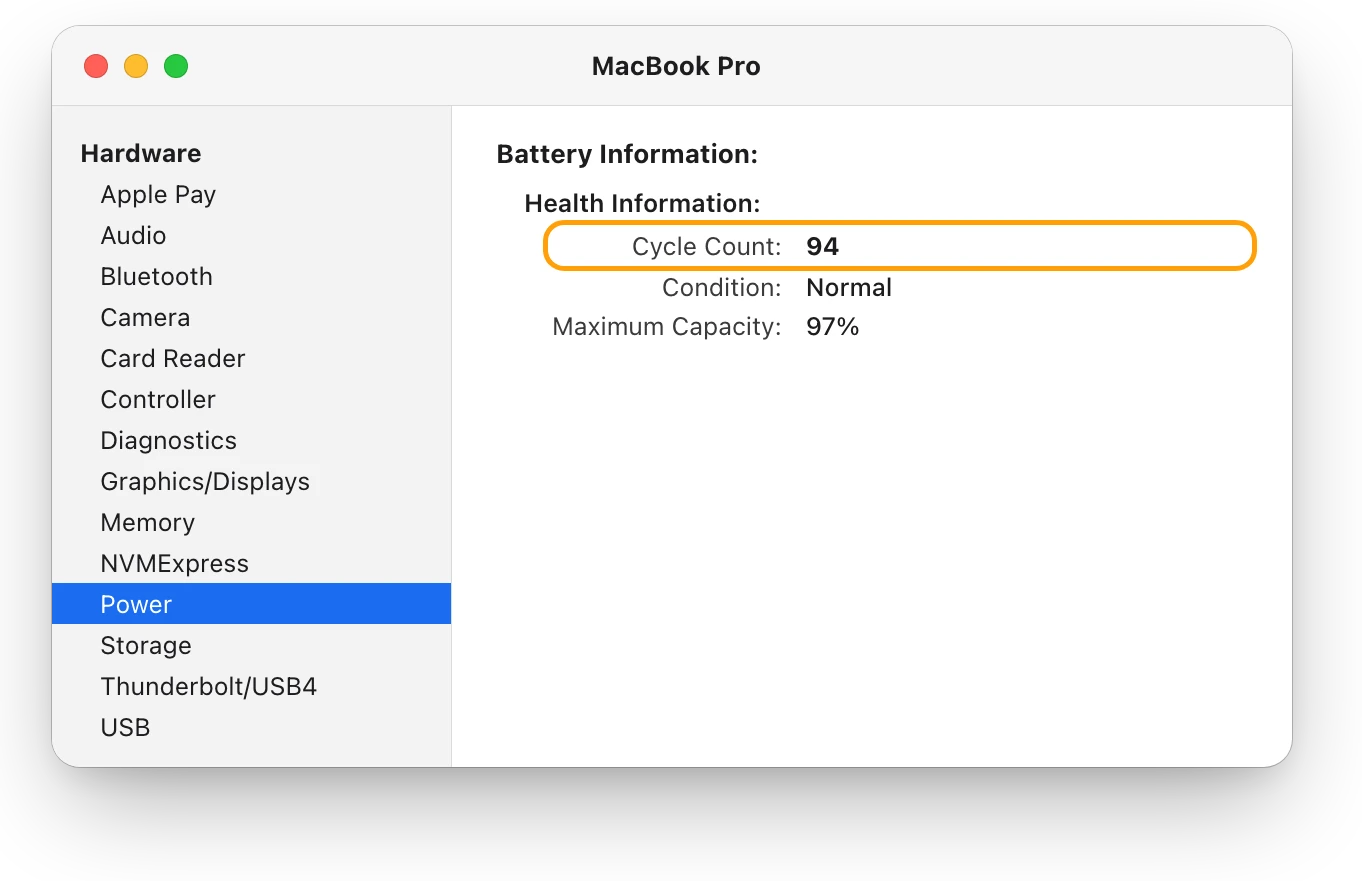
- Hold the Option key, click the Apple menu, then choose System Information.
- Under Hardware, select Power.
- Under Battery Information, find Cycle Count in the Health Information section.
What counts as a charge cycle?
A charge cycle is all of the battery’s power used up, but not necessarily in one go. Using half the battery one day, charging it, and using the other half the next day adds up to one cycle.
Apple designs each MacBook’s battery for a maximum cycle count: 1,000 for recent MacBook Air and MacBook Pro models, including every model with Apple silicon. At that count, the battery is designed to keep up to 80% of its original capacity. You can keep using it after that, though you may notice it lasts less.
How do I keep my battery healthy for longer?
- Leave Optimized Battery Charging on. On Mac laptops with Apple silicon, macOS can temporarily hold the battery below a full charge, to suit how you use your Mac. To find it, click the info button (ⓘ) next to Charging or Battery Health in Battery settings.
- Keep it at room temperature. Use your Mac between 10 °C and 35 °C (50 °F and 95 °F), and don’t leave it in a parked car.
- Check Battery Health now and then. If it changes to Service Recommended, see what Apple suggests before replacing anything.
Questions people also ask
What’s a good maximum capacity for a MacBook battery?
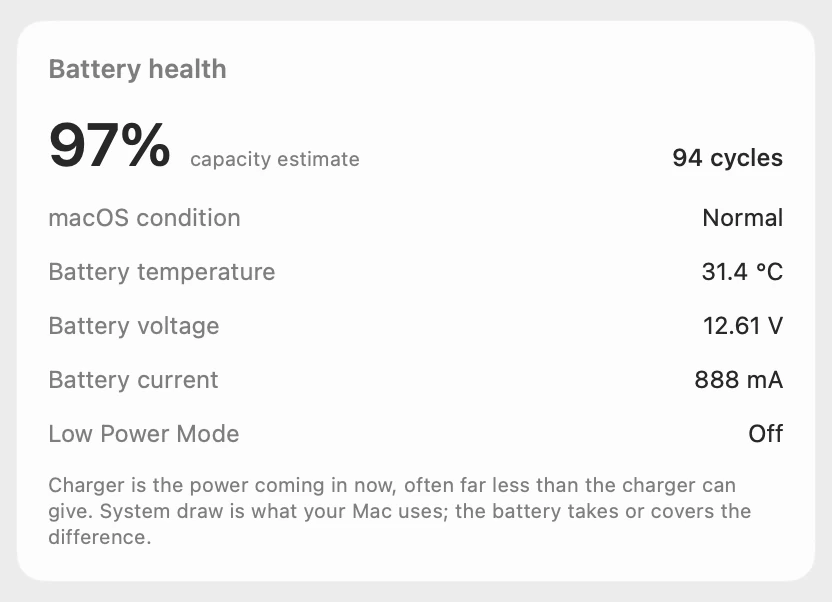
There’s no single cutoff. If Battery Health says Normal, the battery is fine. Apple designs it to keep up to 80% at its maximum cycle count, so 97% at 94 cycles is right on track.
Is 1,000 cycles the end of the battery?
No. Apple says you can keep using the battery after its maximum cycle count, though you may notice shorter battery life.
Why does my MacBook stop charging at 80%?
That’s usually battery health management: on Mac laptops with Apple silicon, macOS can temporarily hold the battery below a full charge, to suit how you use your Mac.
Scope for Mac · Free, coming to the Mac App Store
How Scope helps
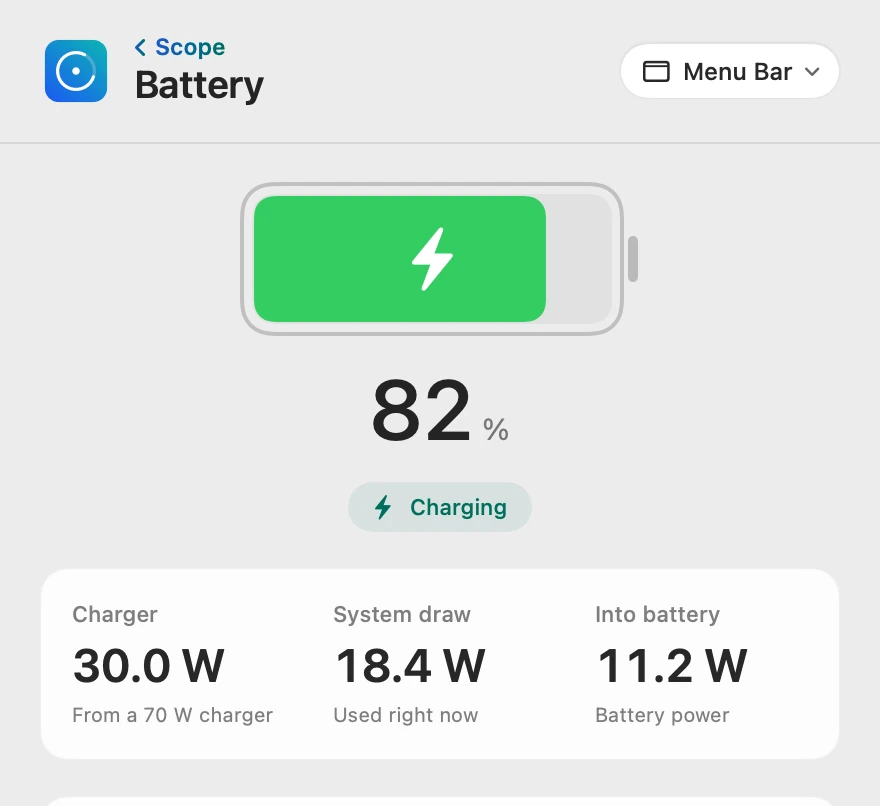
Scope is a free Mac menu bar app that shows your MacBook’s battery health in one card: macOS’s maximum capacity, the cycle count and the condition, together with the battery’s temperature, voltage and current. It saves opening System Settings and System Information to see them side by side.
In your menu bar
Scope Free keeps one whole menu bar item of your choice. Battery can also show the charger’s power and what your Mac is drawing beside the percentage.

Health in one card
Scope’s capacity estimate is the maximum capacity macOS reports, when macOS reports it, so it matches Battery Health, and the cycle count matches System Information. If macOS ever reports that the battery needs service, Scope says so on its overview, and Scope Pro adds a red + on its menu bar icon.
Scope shows and explains. It doesn’t change how your Mac charges.
Try it here
The real Scope, working, right in this page.
Click any item in the menu bar, or a card inside, as you would on your Mac.
Scope Pro Every menu bar item is shown here. Scope Free keeps one whole item of your choice, with every reading inside.
See your own battery’s health.
Keep reading
Guide · Battery
Mac battery problems: drain, health and charging
Most MacBook battery problems are a busy app, a worn battery, charging paused on purpose or a weak charger. Here’s how to tell which, with macOS’s tools.
Battery
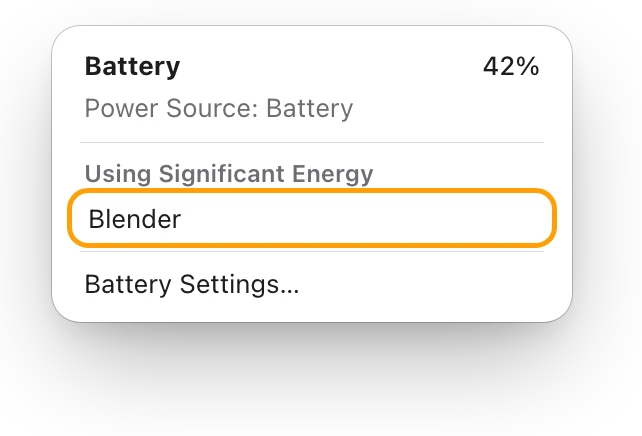
MacBook battery draining fast? See what’s busy
A MacBook battery drains fast when an app keeps it busy. The battery menu and Activity Monitor’s Energy tab show which one; here’s what to do.
Battery
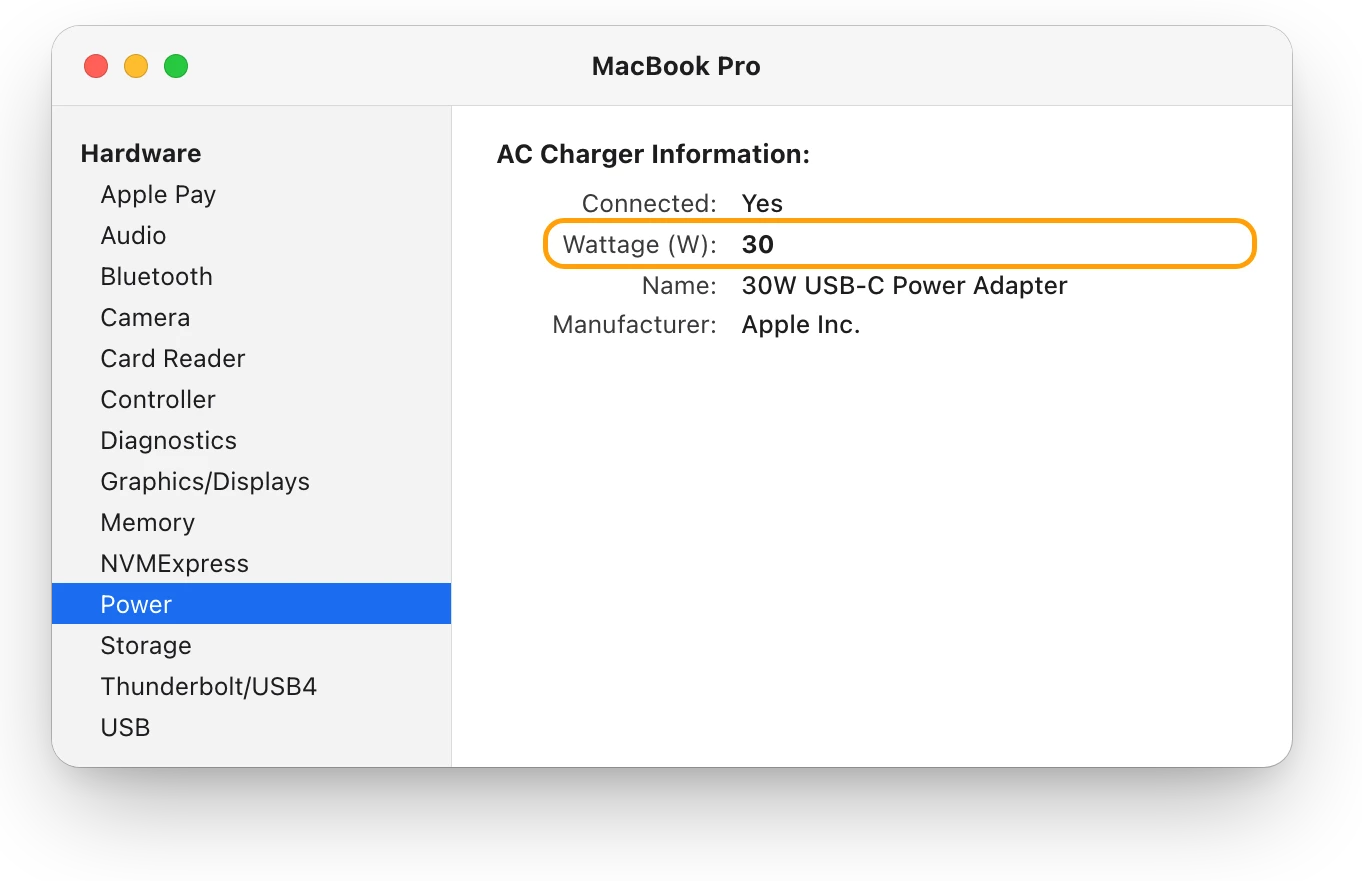
Is your charger fast enough for your MacBook?
A MacBook charges slowly on a charger below Apple’s recommended wattage. Check the watts in System Information, then compare them with your model.
Sources
- Apple Support: Check the condition of your Mac laptop’s battery
- Apple Support: Change Battery settings on a Mac laptop
- Apple Support: Determine battery cycle count for Mac laptops
- Apple Support: If you see battery “Service Recommended” on your Mac laptop
- Apple Support: About battery health management in Mac laptops with Apple silicon
- Apple Support: Keep your Mac laptop within acceptable operating temperatures
Last checked October 17, 2026. Readings, apps and files in the pictures are from a made-up Mac.