Is your charger fast enough for your MacBook?
A MacBook charges best from a charger that gives at least the wattage Apple recommends for that model, such as 67 W or more for a 14-inch MacBook Pro and 140 W for a 16-inch MacBook Pro. To see the connected charger’s wattage, hold Option, choose Apple menu > System Information, select Power and look under AC Charger Information. A lower-watt USB-C charger still works, but it charges more slowly, and during heavy work it may not charge the battery at all.
How do I check my charger’s wattage?
System Information shows the wattage of the charger that’s connected now.
- Hold the Option key, click the Apple menu, then choose System Information.
- Select Power in the sidebar.
- Scroll down on the right to AC Charger Information, and read Wattage (W).
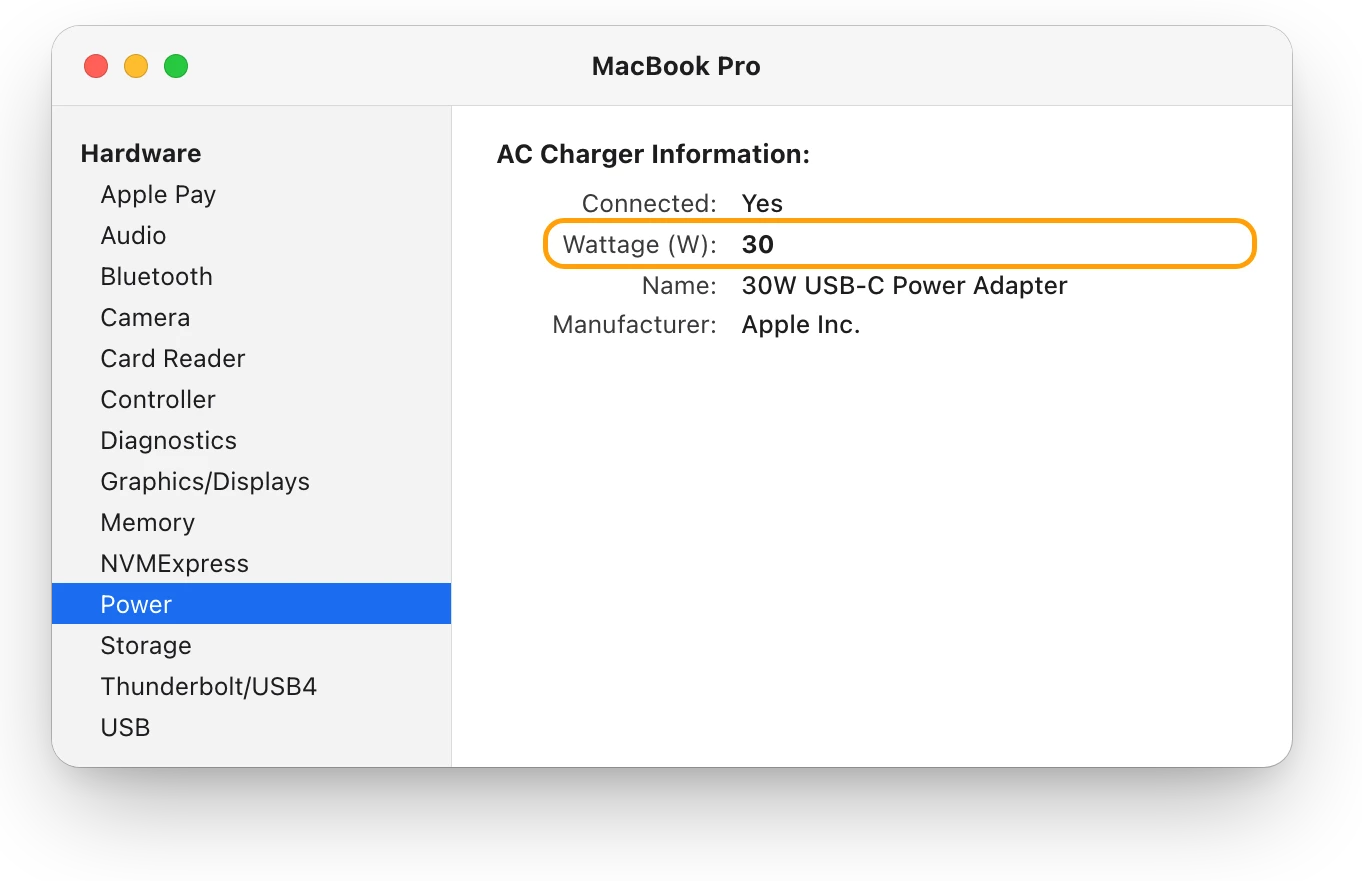
The wattage is also printed on the charger’s certification label, the small print on the adapter itself.
What charger does my MacBook need?
Apple lists these power adapters for each Mac laptop. Choose Apple menu > About This Mac to see which model you have.
| Mac laptop | Apple’s recommended power adapters |
|---|---|
| MacBook Neo | 20 W |
| MacBook Air introduced in 2018 through 2021 | 30 W, or the 40 W Dynamic Power Adapter with 60W Max |
| MacBook Air introduced in 2022 or later | 30 W (13-inch only), 35 W Dual USB-C Port, 67 W or 70 W |
| 13-inch MacBook Pro introduced in 2016 or later | 61 W |
| 15-inch MacBook Pro introduced in 2016 or later | 87 W |
| 16-inch MacBook Pro introduced in 2019 | 96 W |
| 14-inch MacBook Pro introduced in 2021 or later | 67 W, 70 W or 96 W |
| 16-inch MacBook Pro introduced in 2021 or later | 140 W |
For the best charging experience, Apple says to use a power adapter, or a display that charges your Mac, that provides at least the minimum wattage of the adapter recommended for your Mac. On a 14-inch MacBook Pro, that’s 67 W.
What happens with a lower-watt charger?
Any USB-C power adapter or display that supports USB Power Delivery (USB PD) can charge a Mac that charges over USB-C, even one with less wattage than Apple recommends. What changes is how much it can do:
- It charges more slowly. On macOS Tahoe 26.4 or later, “Slow Charger” appears in the battery status menu and above the Battery Level graph in Battery settings.
- It may only run the Mac. A low-wattage adapter can give your Mac enough power to run, but not enough to charge the battery. The battery status menu then says “Not Charging”.
- During heavy work, the battery can drain. Demanding apps, such as video editors and games, can use more power than the charger provides, so the battery covers the rest even while plugged in.
To see whether macOS thinks your charger is too slow:
- Choose Apple menu > System Settings, then click Battery in the sidebar.
- Look above the Battery Level graph, under Last 24 Hours.
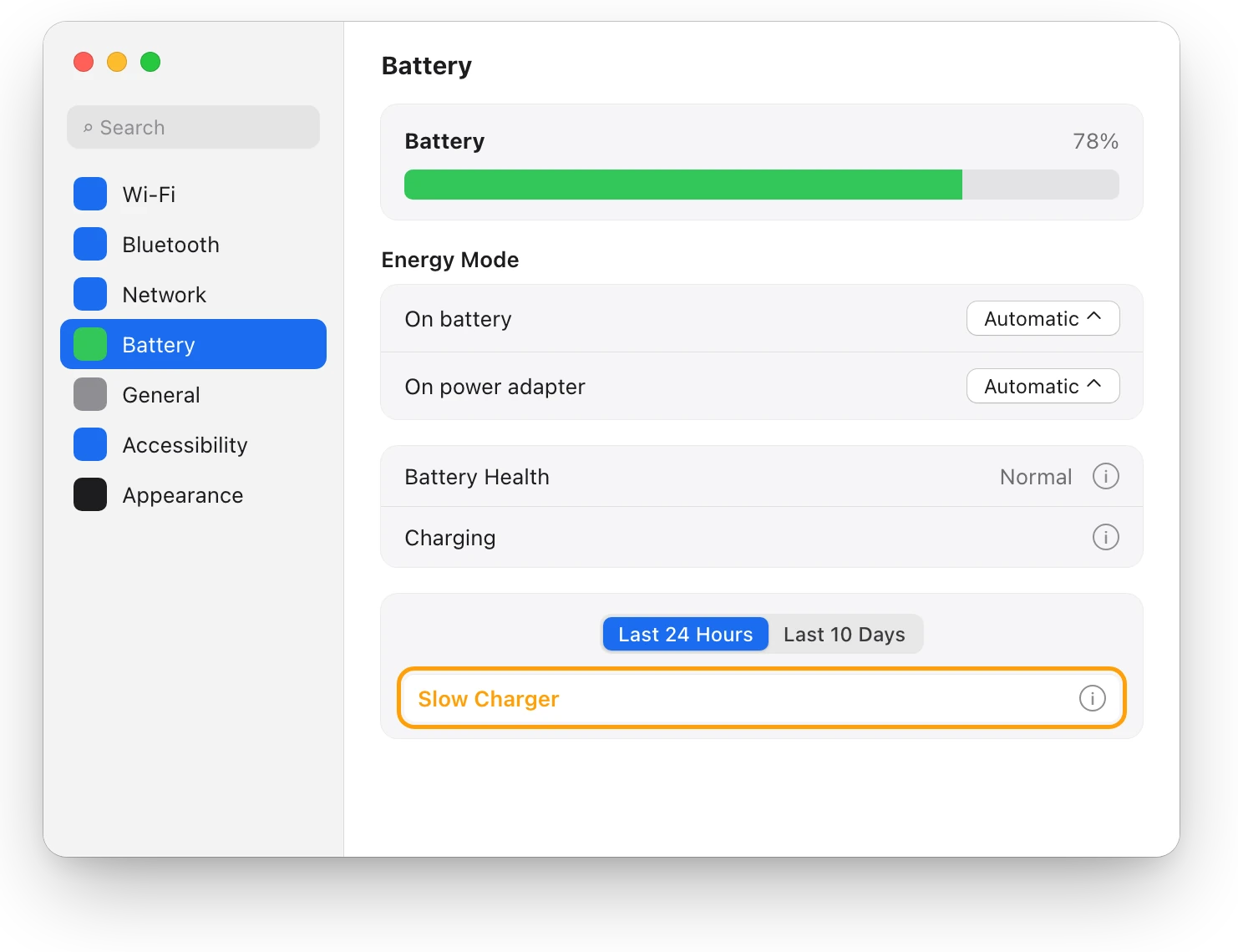
This 14-inch MacBook Pro’s 30 W charger gives less than half of the 67 W Apple recommends for it.
How do I charge my MacBook faster?
- Use a charger with at least Apple’s recommended wattage. Some Mac models can also fast charge with the right combination of power adapter and charge cable.
- Use a cable designed for charging. Not all cables can charge, and some USB-C cables only transfer data. The cable that came with your Mac works best.
- Don’t count on a second port. Your Mac charges over only one port at a time, from the source that provides the most power, so connecting a second charger doesn’t charge it faster.
- Lower the demand. Quit apps you aren’t using and turn the brightness down. Connected devices draw power too.
A USB-C or Thunderbolt display that provides power, such as Apple Studio Display, can charge your Mac instead of a separate charger.
Questions people also ask
Can I use a charger with more watts than my MacBook needs?
Yes. Apple says you can charge a Mac that charges over USB-C with any USB-C power adapter or display, even one with higher wattage than the adapter recommended for it.
Can I charge my MacBook with a phone charger?
If it’s a USB-C charger that supports USB Power Delivery, yes, but slowly. A small charger may keep the Mac running without charging the battery, especially while you work.
Are other brands of charger OK?
Apple says third-party power adapters should comply with applicable international and regional regulations and safety standards. Stop using any adapter or cable that’s damaged.
Scope for Mac · Free, coming to the Mac App Store
How Scope helps
Scope is a free Mac menu bar app that shows, in watts, how much power your charger is giving right now, how much your Mac is using, and whether the battery is filling or covering the difference. It saves guessing from the battery icon whether a charger keeps up.
In your menu bar
Scope Free keeps one whole menu bar item of your choice. Battery can also show the charger’s power and what your Mac is drawing beside the percentage.

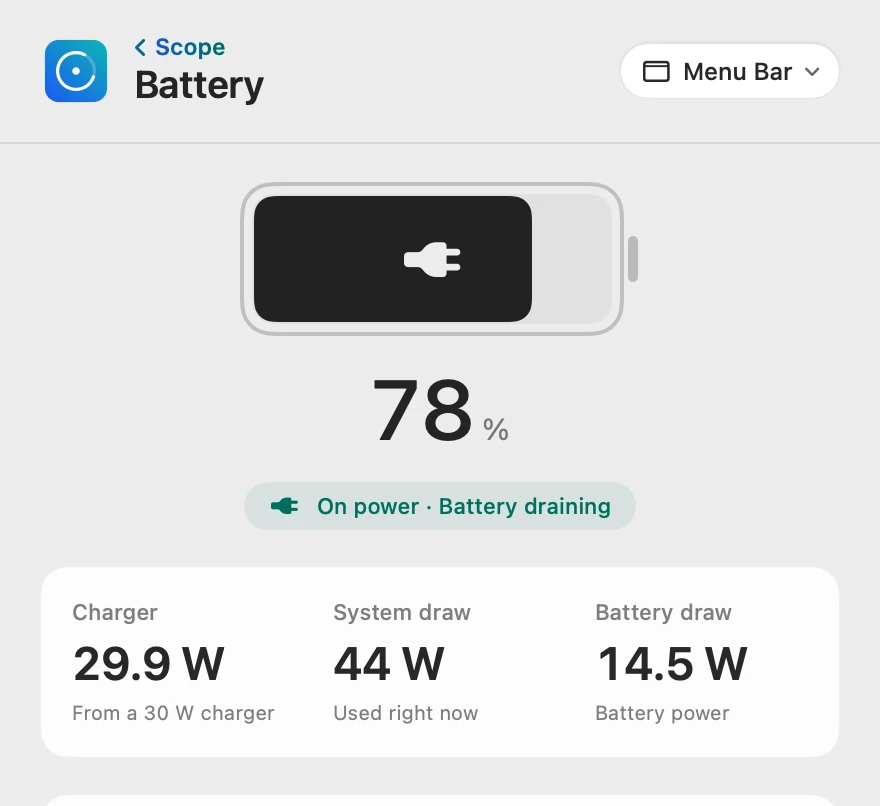
Watts in, watts used
Charger is the power coming in now, not the rating on the box, so a 30 W charger giving all it can shows 29.9 W. When System draw is higher, the battery makes up the difference, and Scope calls it Battery draw.
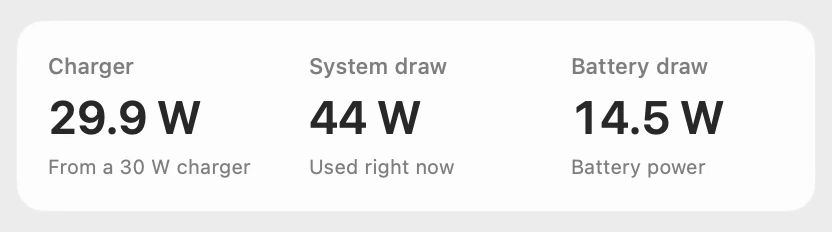
Plugged in, still draining
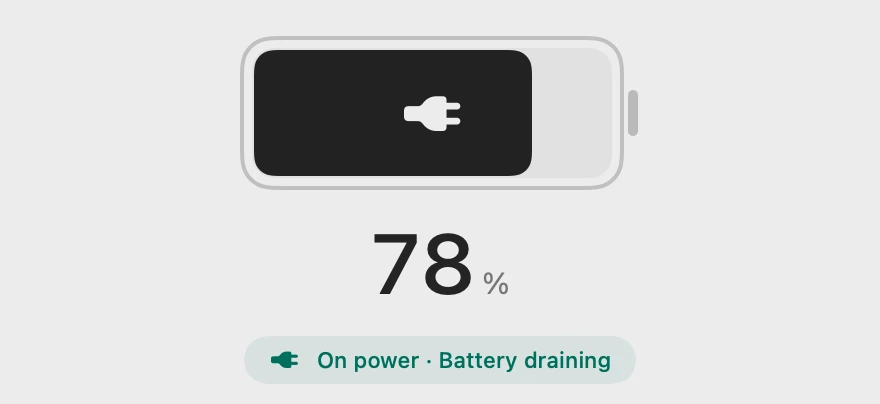
Scope reads the battery’s own power, so it says On power · Battery draining instead of counting down to a full charge. A 67 W or 70 W charger has room for the Mac’s 44 W and the battery too.
Scope shows and explains. It doesn’t change how your Mac charges.

Try it here
The real Scope, working, right in this page.
Click any item in the menu bar, or a card inside, as you would on your Mac.
Scope Pro Every menu bar item is shown here. Scope Free keeps one whole item of your choice, with every reading inside.
See what your own charger gives.
Keep reading
Guide · Battery
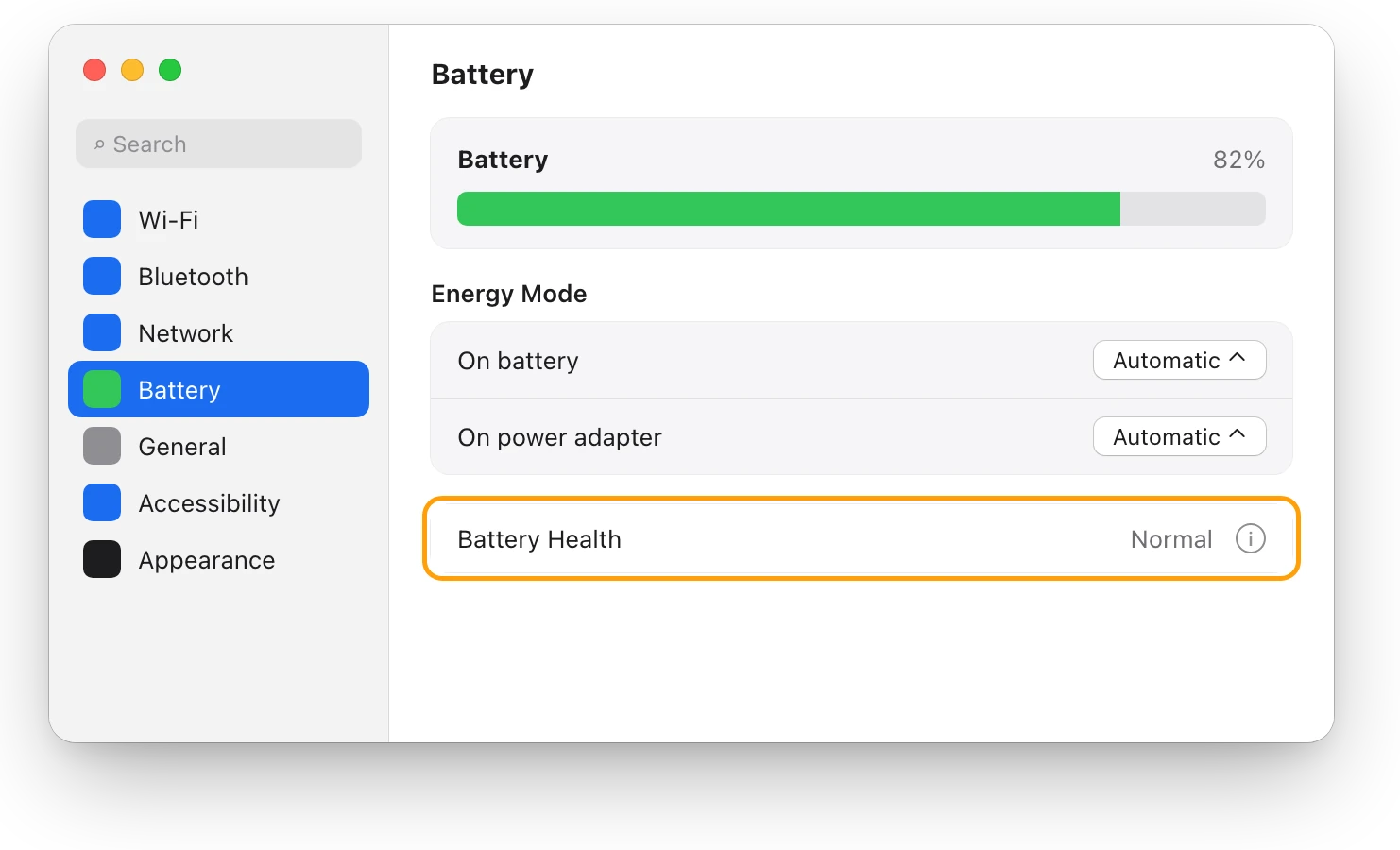
Mac battery problems: drain, health and charging
Most MacBook battery problems are a busy app, a worn battery, charging paused on purpose or a weak charger. Here’s how to tell which, with macOS’s tools.
Battery
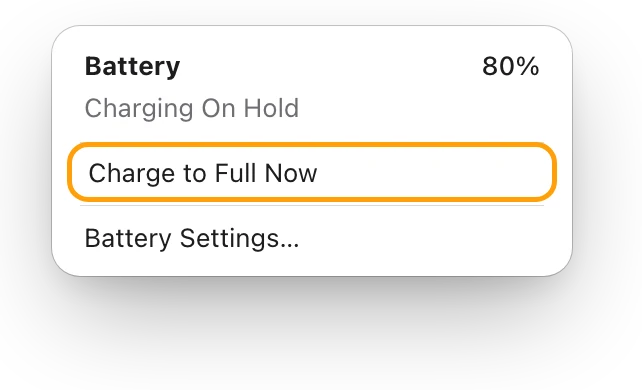
MacBook plugged in but not charging?
A MacBook plugged in but not charging is often holding at 80% to protect its battery. Here’s how to see why, and what to try if it won’t charge at all.
Battery
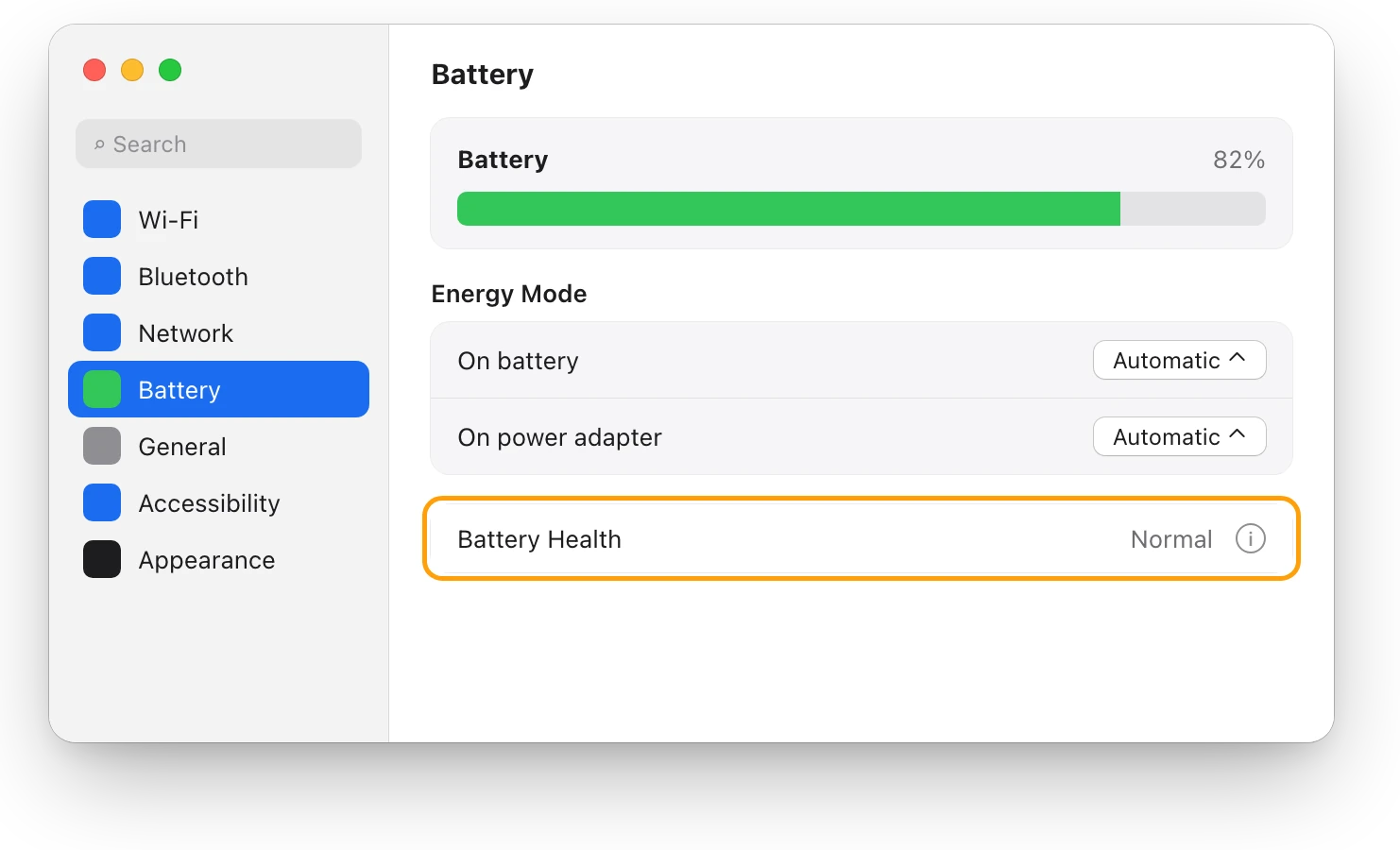
MacBook battery health and cycle count, explained
Battery Health in System Settings shows if your MacBook’s battery is Normal; System Information shows its cycle count. Here’s how to read both.
Battery
MacBook battery draining fast? See what’s busy
A MacBook battery drains fast when an app keeps it busy. The battery menu and Activity Monitor’s Energy tab show which one; here’s what to do.
Sources
- Apple Support: Use a power adapter with your Mac
- Apple Support: Charge your Mac laptop computer
- Apple Support: If your Mac battery status is “Not Charging”
- Apple Support: If your Mac battery won’t charge
- Apple Support: If your USB-C power adapter isn’t charging your Mac laptop
- Apple Support: Identify your MacBook Pro model
Last checked October 18, 2026. Readings, apps and files in the pictures are from a made-up Mac.