MacBook plugged in but not charging?
A MacBook that’s plugged in but not charging is often protecting its battery. Optimized Battery Charging can hold the charge at 80%, and a Charge Limit stops it at the limit you set; the battery status menu then says “Charging On Hold” or, for example, “Charged to 80% Limit”, and Charge to Full Now in that menu charges it fully. If the menu says “Not Charging”, the charger may give enough power to run the Mac but not to charge it, or a demanding app may be using more power than the charger provides.
Why is my MacBook not charging when it’s plugged in?
Apple gives three reasons for “Not Charging” in the battery status menu:
- macOS paused charging to protect the battery. Battery health management can pause charging, and the battery may drain to 93% or lower before charging starts again.
- The charger is too weak to charge. A low-wattage power adapter can give your Mac enough power to run, but not enough to charge the battery, even when the Mac is off or asleep.
- Your Mac is using more than the charger gives. Demanding apps, such as video editors and games, can use more power than the power source provides, so the battery drains even while plugged in.
Apple says it’s normal for a Mac laptop to stop charging before 100% to extend the battery’s lifespan.
How do I see why it stopped at 80%?
The battery status menu says which feature is holding the charge.
- Click the battery icon in the menu bar.
- Read the line under the charge:
- Charging On Hold: Optimized Battery Charging is delaying charging past 80%. It learns your daily charging routine and aims to have your Mac fully charged by the time you usually need it.
- Charged to 80% Limit (or another percentage): a Charge Limit is set.
- Not Charging: look at the charger and your apps, below.
- If you need a full charge now, click Charge to Full Now.
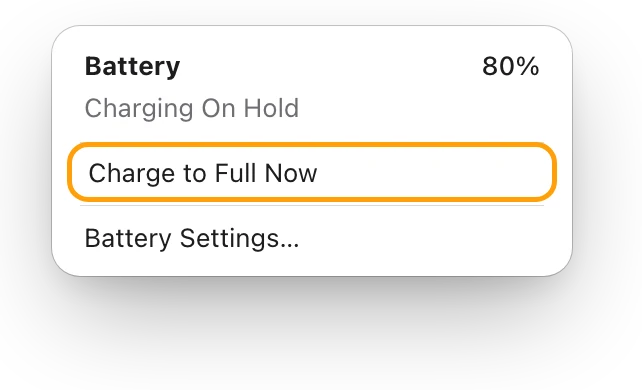
Whichever feature you use, your Mac charges to 100% now and then on its own, to keep its battery estimates accurate.
How do I change Optimized Battery Charging or the Charge Limit?
Both are in Battery settings.
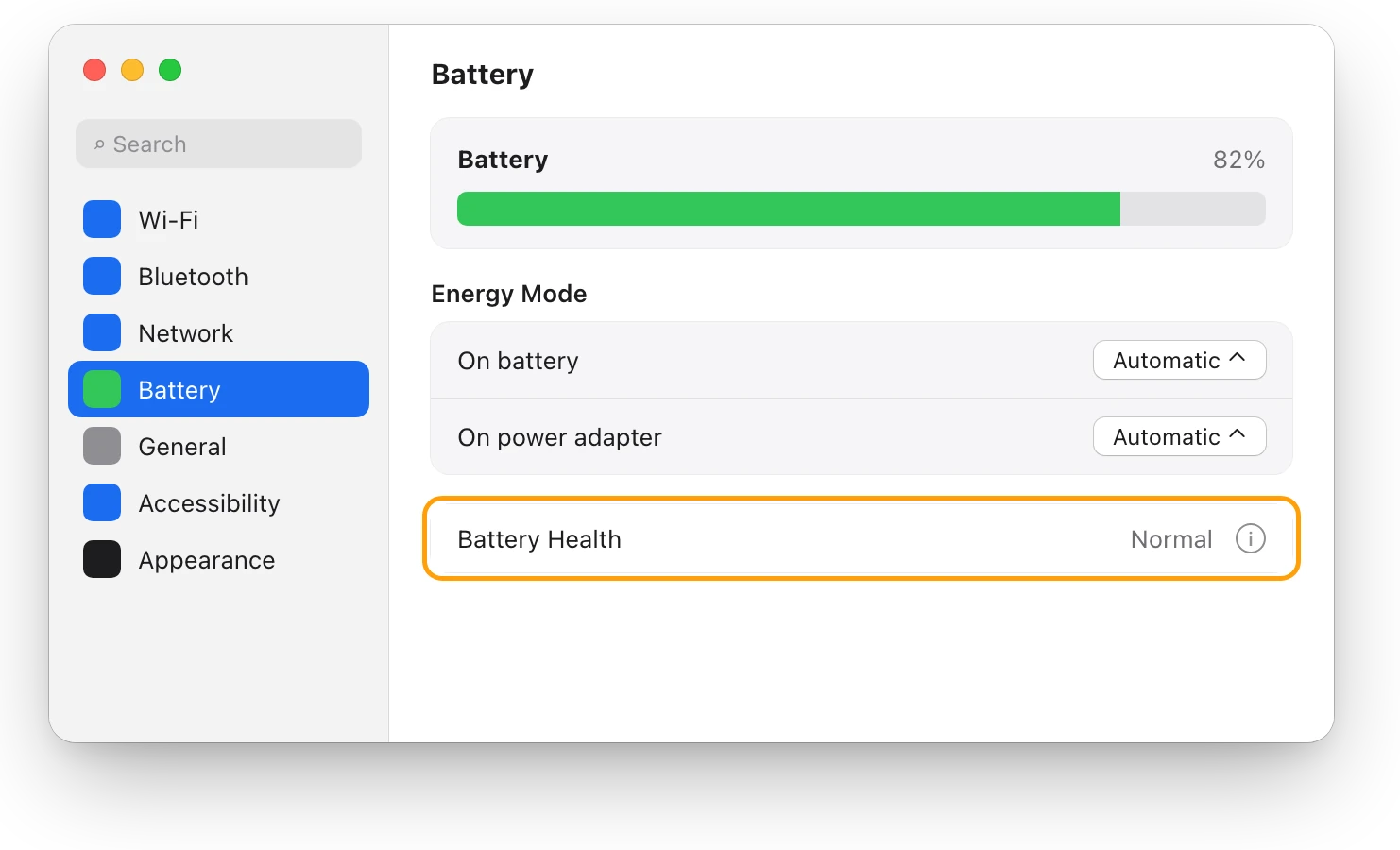
- Choose Apple menu > System Settings, then click Battery in the sidebar. You may need to scroll down.
- Click the info button (ⓘ) next to Charging.
- Turn Optimized Battery Charging off or on. When you turn it off, you can choose to turn it off only until tomorrow.
- To set a Charge Limit, choose a setting between 80% and 100%. Charge Limit needs macOS Tahoe 26.4 or later and a Mac with Apple silicon.
- Click Done.
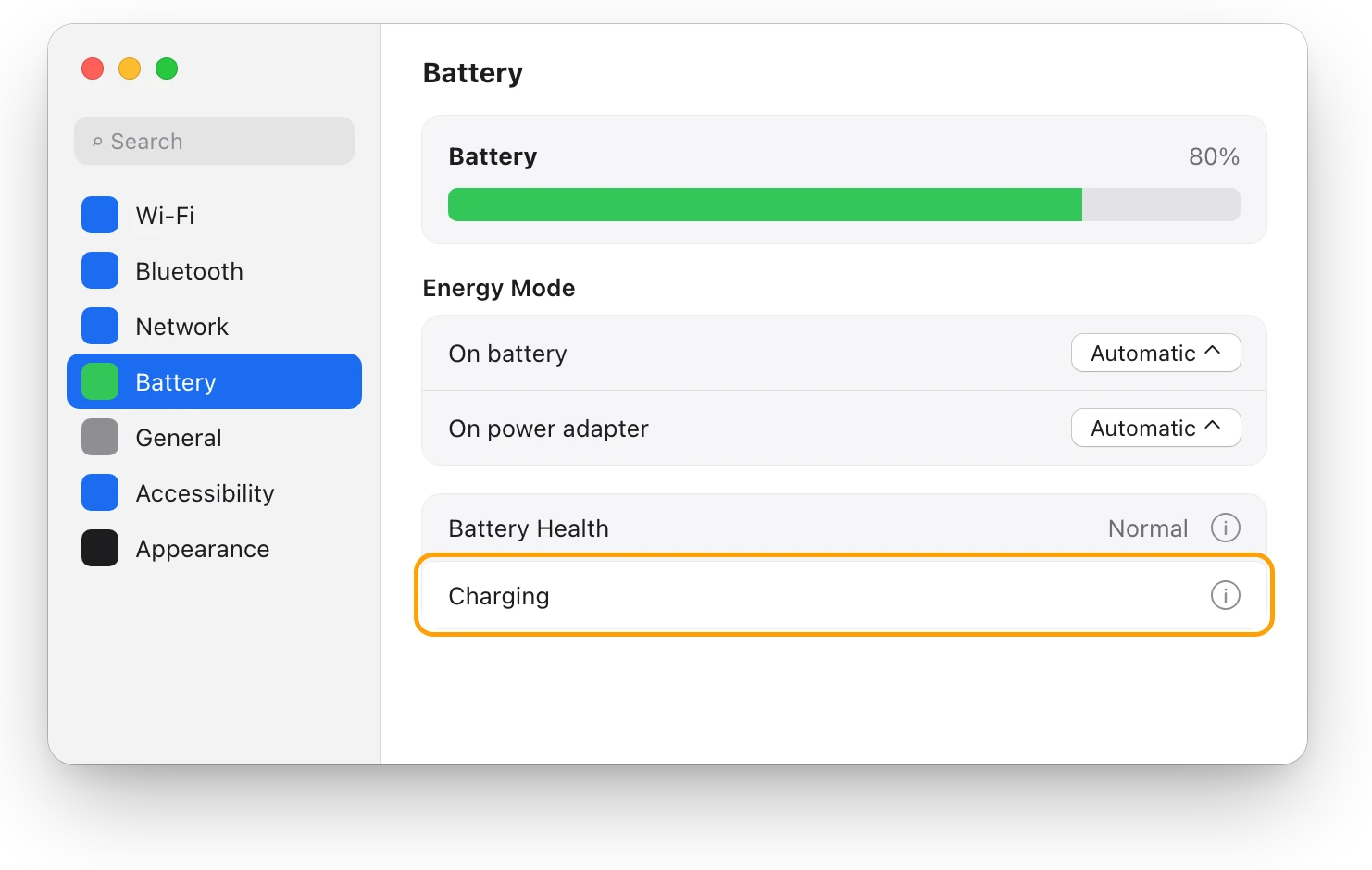
Apple designed Optimized Battery Charging to reduce wear on the battery by cutting the time your Mac spends fully charged, so leaving it on is kind to the battery. On a Mac laptop with an Intel processor, the setting is Manage battery longevity, under Battery Health.
Is my charger strong enough?
A charger below the wattage Apple recommends for your Mac may run it without charging the battery. To see the connected charger’s wattage:
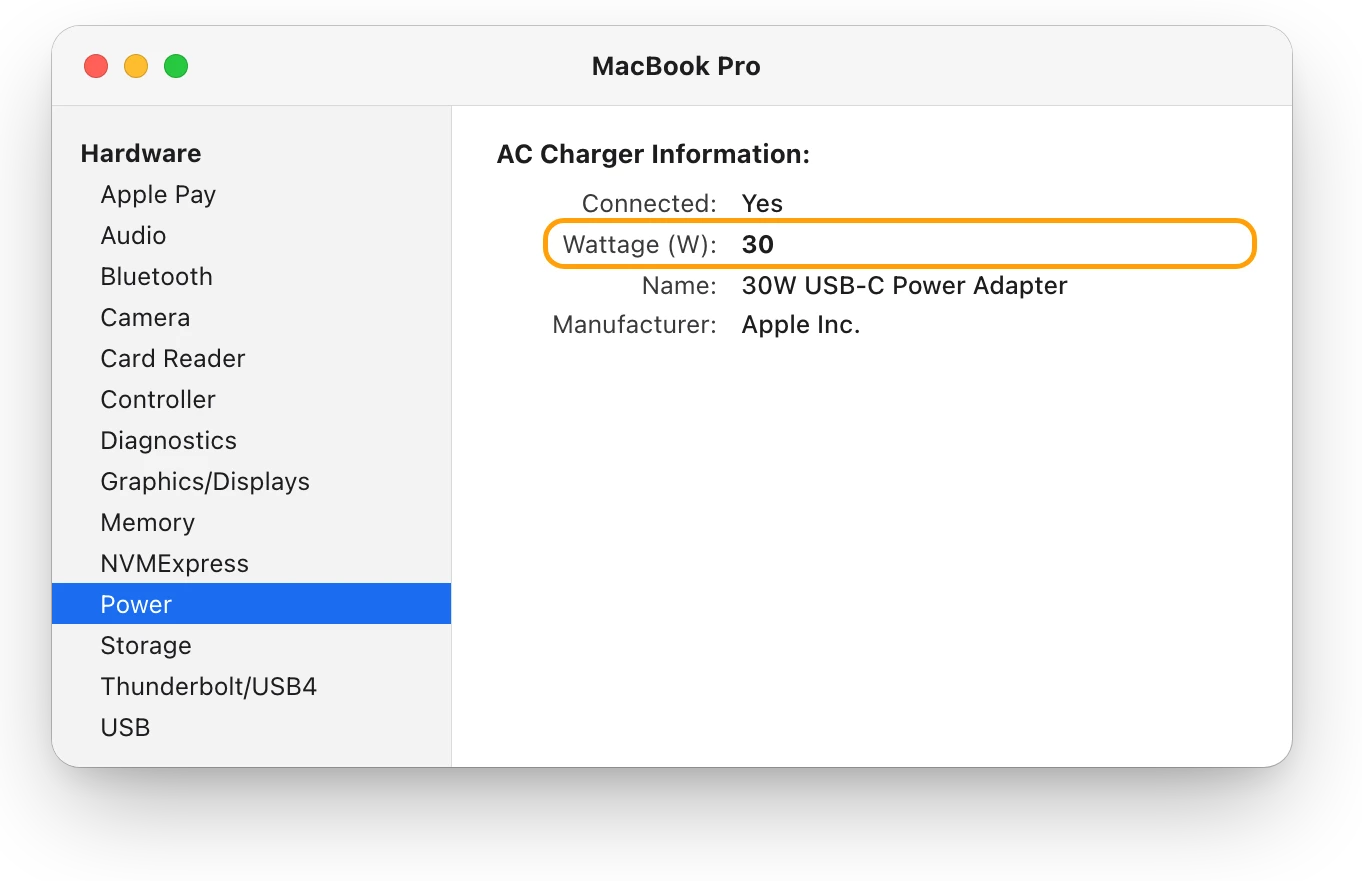
- Hold the Option key, click the Apple menu, then choose System Information.
- Select Power in the sidebar.
- Scroll down to AC Charger Information and read Wattage (W).
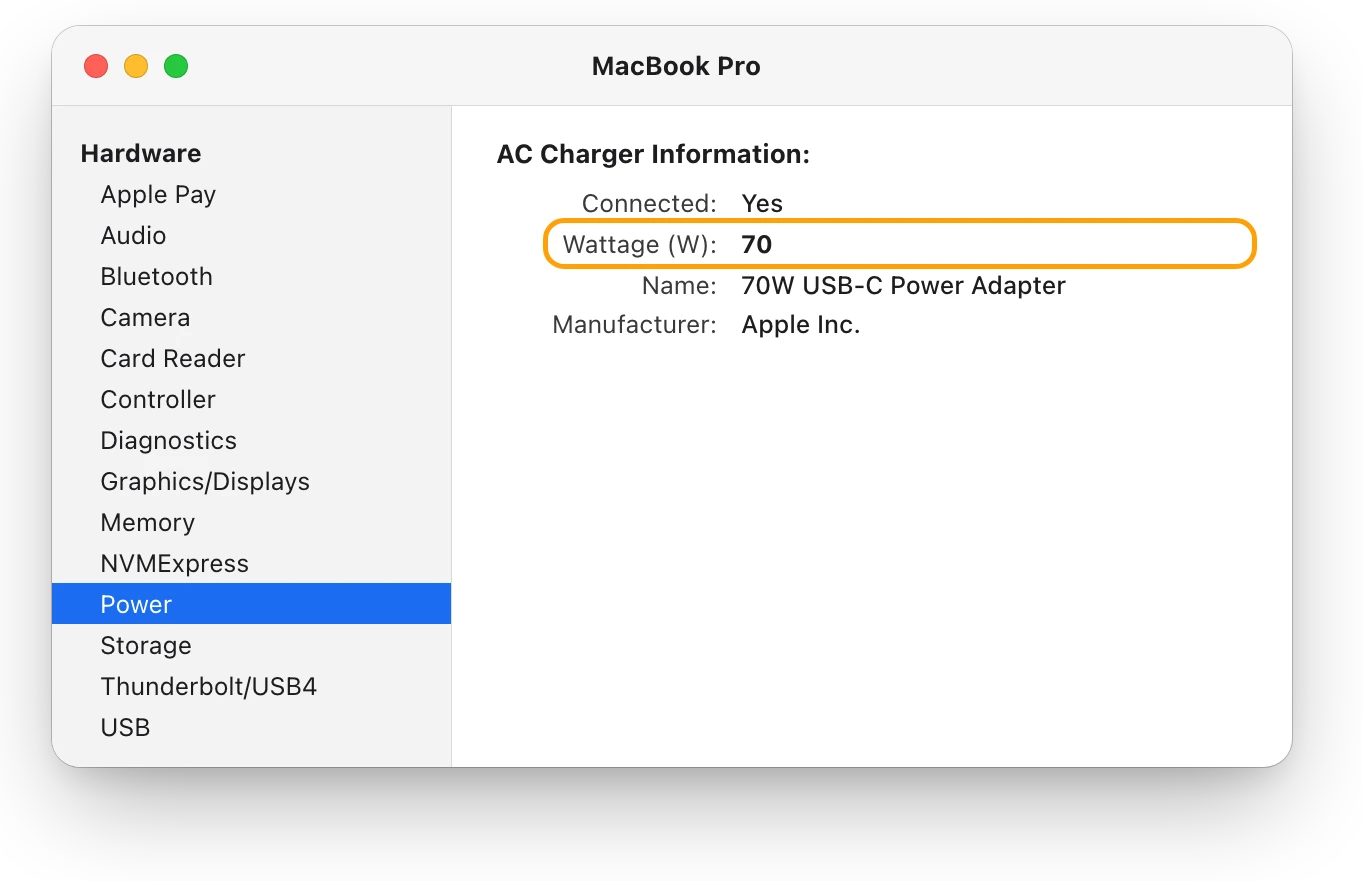
Apple recommends a 67 W, 70 W or 96 W adapter for a 14-inch MacBook Pro introduced in 2021 or later, and 140 W for a 16-inch one. On macOS Tahoe 26.4 or later, “Slow Charger” appears in the battery status menu and in Battery settings when the charger delivers too little for your model. Is your charger fast enough for your MacBook? lists every model.
Is an app using more power than the charger gives?
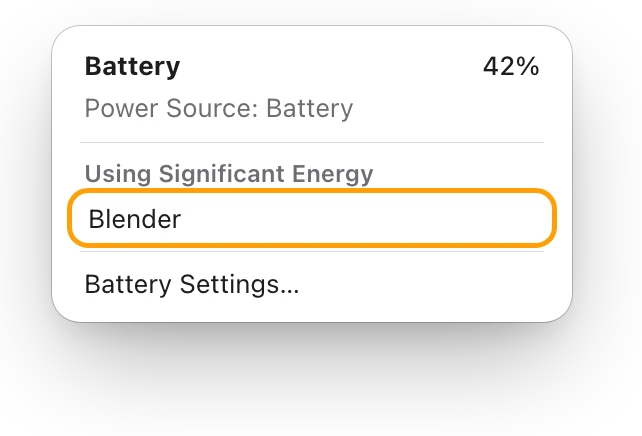
Click the battery icon in the menu bar and look under Using Significant Energy. A long export or a game can use more than a small charger provides, so the battery covers the rest. Let the work finish, quit apps you aren’t using, and turn the brightness down. Connected devices draw power too.
What if it won’t charge at all?
Work through Apple’s own checks, in order:
- Check every connection. Make sure everything is plugged in, and look at the port, the cable, the power adapter and the AC wall adapter for damage. Stop using anything that’s damaged. On MagSafe 3, the connector’s light glows amber while charging or on hold, and green when the battery is full.
- Clean the port. Disconnect the power adapter, then clean the port with a soft, dry, lint-free cloth.
- Try another cable. Not all cables can charge, so use one designed for charging, ideally the one that came with your Mac.
- Try another power adapter, AC wall adapter or outlet. Test the outlet with a lamp you know works.
- Unplug the adapter for 60 seconds. If it charges after that, line noise is the likely cause: lights with ballasts, or a refrigerator on the same circuit.
- Let it cool down. Mac laptops work best at 10 °C to 35 °C (50 °F to 95 °F). If the battery gets too warm, charging may stop at 80%.
- Restart and update. Apple suggests resetting the system management controller (SMC), which controls how your Mac manages power: on a Mac with Apple silicon, just restart it; on an Intel-based Mac, reset the SMC. A macOS update can also improve how your Mac communicates with its power adapter.
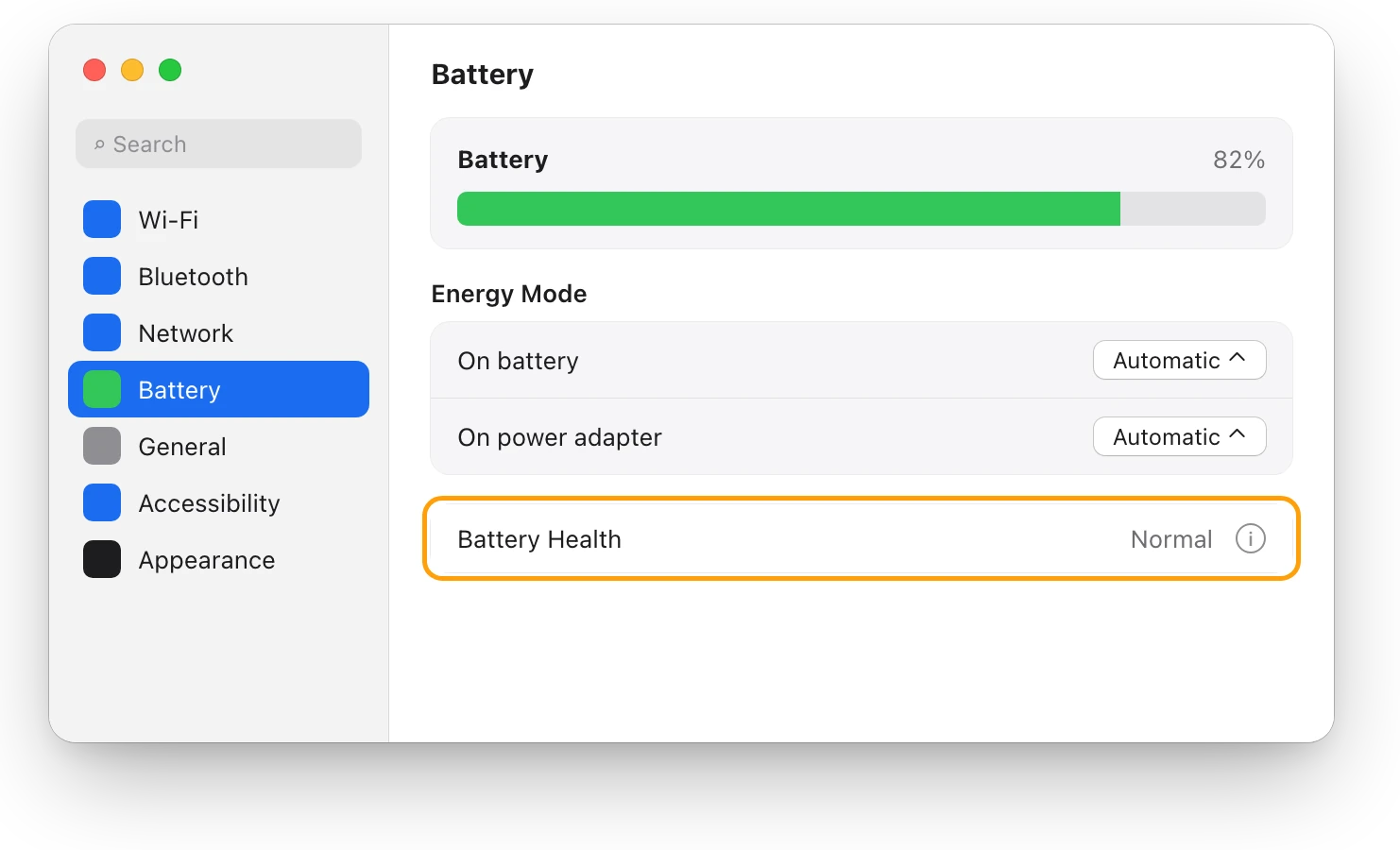
- Check the battery and the hardware. Look at Battery Health in System Settings > Battery, and run Apple Diagnostics. If it still won’t charge, contact Apple or an Apple Authorized Service Provider.
Questions people also ask
Is it bad to keep my MacBook plugged in all the time?
Optimized Battery Charging is made for that case. When your Mac predicts it’ll be plugged in for a long time, it delays charging past 80%, which reduces the time spent fully charged and the wear on the battery.
Why did my battery drop a little while plugged in?
Charging can pause to protect the battery, which may drain to 93% or lower before charging starts again. After a software update, your Mac may also run on battery briefly while it recalibrates its maximum capacity.
Why does my Mac sometimes charge to 100% anyway?
With Optimized Battery Charging or a Charge Limit on, your Mac occasionally charges to 100% to keep its battery charge estimates accurate.
Scope for Mac · Free, coming to the Mac App Store
How Scope helps
Scope is a free Mac menu bar app that shows whether power is actually going into your MacBook’s battery, in watts, beside the power your charger is giving and what your Mac is using. It saves guessing from the battery icon whether a plugged-in Mac is charging, holding or draining.
In your menu bar
On a charger, Scope’s battery shows a bolt while power goes into the battery and a plug while it doesn’t.

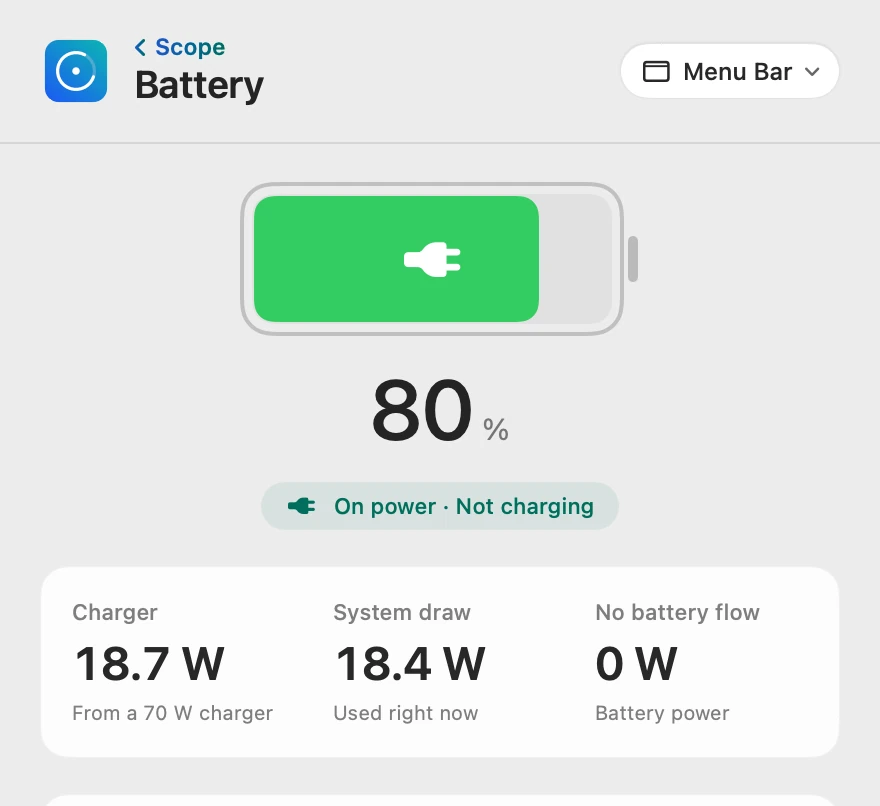
Plugged in, nothing going in
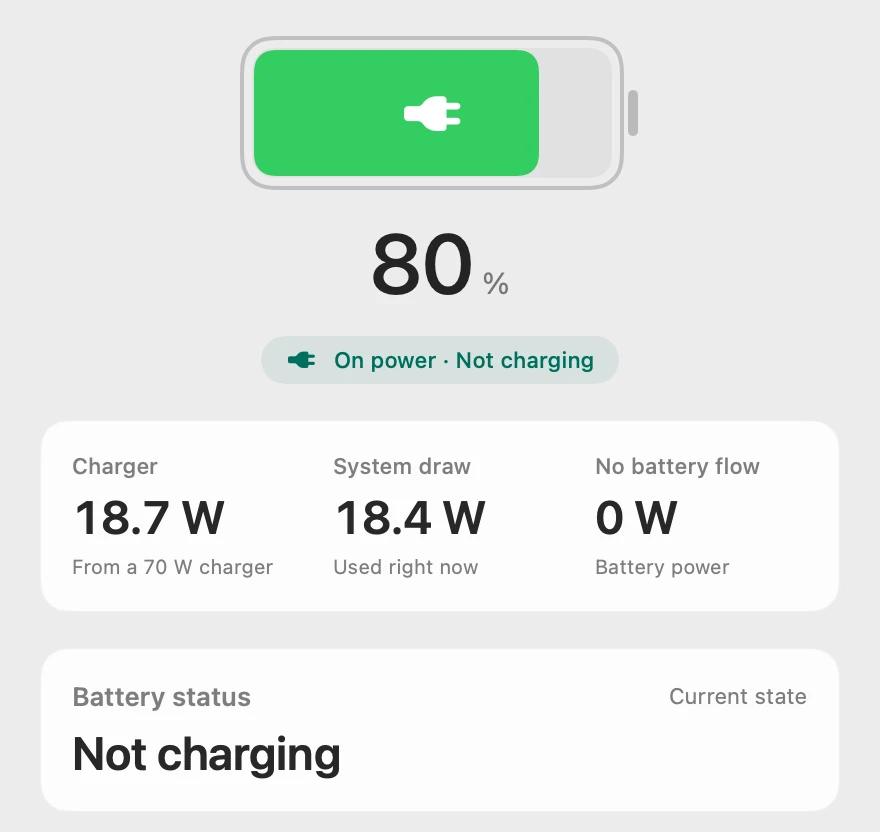
Charger is the power coming in now, not the charger’s rating, so the 70 W charger gives 18.7 W here: what the Mac uses, and almost nothing more. Scope reads the battery’s own power, so No battery flow means no charge is going in; the battery status menu says why.
The battery’s own readings
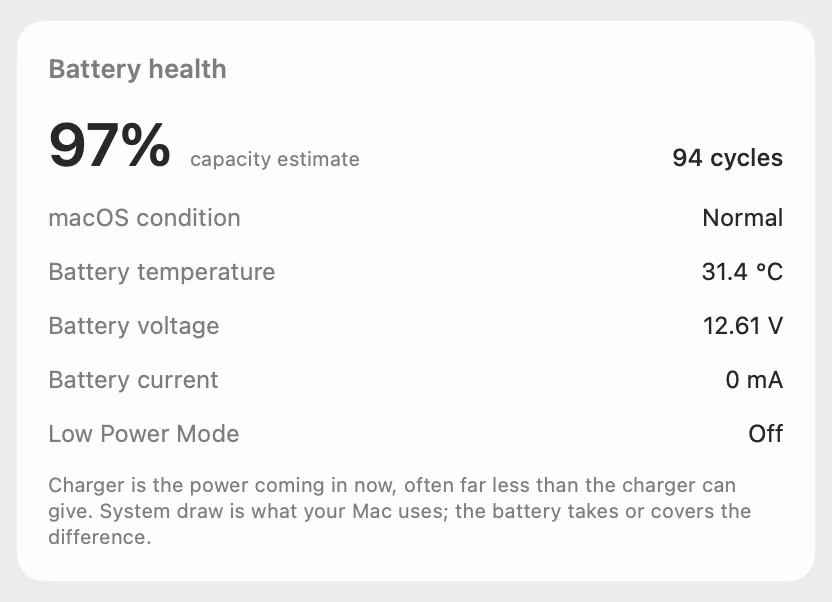
Battery current is positive while the battery charges and negative while it’s used, so 0 mA confirms the hold. The same card shows the battery’s temperature and macOS’s condition, Normal here.
Scope shows and explains. It doesn’t change how your Mac charges.
Try it here
The real Scope, working, right in this page.
Click any item in the menu bar, or a card inside, as you would on your Mac.
Scope Pro Every menu bar item is shown here. Scope Free keeps one whole item of your choice, with every reading inside.
See what your own battery is doing.
Keep reading
Guide · Battery
Mac battery problems: drain, health and charging
Most MacBook battery problems are a busy app, a worn battery, charging paused on purpose or a weak charger. Here’s how to tell which, with macOS’s tools.
Battery
Is your charger fast enough for your MacBook?
A MacBook charges slowly on a charger below Apple’s recommended wattage. Check the watts in System Information, then compare them with your model.
Battery
MacBook battery health and cycle count, explained
Battery Health in System Settings shows if your MacBook’s battery is Normal; System Information shows its cycle count. Here’s how to read both.
Battery
MacBook battery draining fast? See what’s busy
A MacBook battery drains fast when an app keeps it busy. The battery menu and Activity Monitor’s Energy tab show which one; here’s what to do.
Sources
- Apple Support: If your Mac battery status is “Not Charging”
- Apple Support: If your Mac battery won’t charge completely
- Apple Support: If your Mac battery won’t charge
- Apple Support: About Optimized Battery Charging and Charge Limit on Mac
- Apple Support: About battery health management in Mac laptops with Apple silicon
- Apple Support: About battery health management in Intel-based Mac laptops
- Apple Support: Change Battery settings on a Mac laptop
- Apple Support: Charge your Mac laptop computer
- Apple Support: Use a power adapter with your Mac
- Apple Support: What is the Battery Status menu on Mac?
Last checked October 18, 2026. Readings, apps and files in the pictures are from a made-up Mac.