MacBook battery draining fast? See what’s busy
A MacBook battery often drains fast because an app is keeping the processor busy. Click the battery in the menu bar to see apps Using Significant Energy, or open Activity Monitor’s Energy tab and sort by Energy Impact. Quitting an app you don’t need, or switching to Low Power Mode on battery, makes the charge last longer.
Which app is using the most energy?
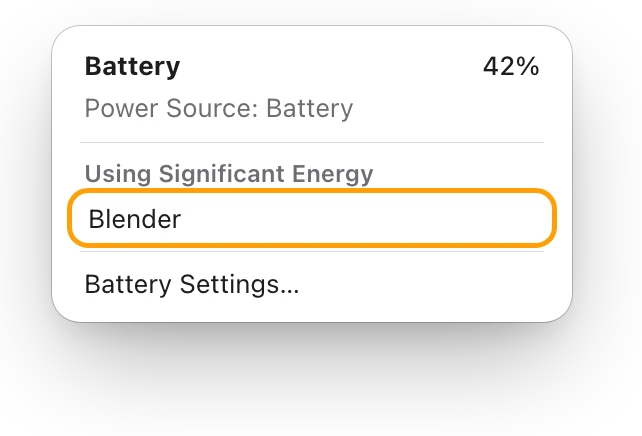
The quickest check is the battery menu.
- Click the battery icon in the menu bar.
- Look under Using Significant Energy. macOS lists the apps drawing a lot of power.
- If you aren’t using an app listed there, quit it, especially on battery.
For the full picture, use Activity Monitor:
- Open Activity Monitor. It’s in Applications > Utilities, or search for it with Spotlight.
- Click Energy, then click the Energy Impact column heading to sort the list, highest first. Energy Impact compares apps with each other: a higher number means more power right now.
- Look at 12 hr Power too: each app’s average energy impact over the last 12 hours, or since your Mac started, whichever is shorter.
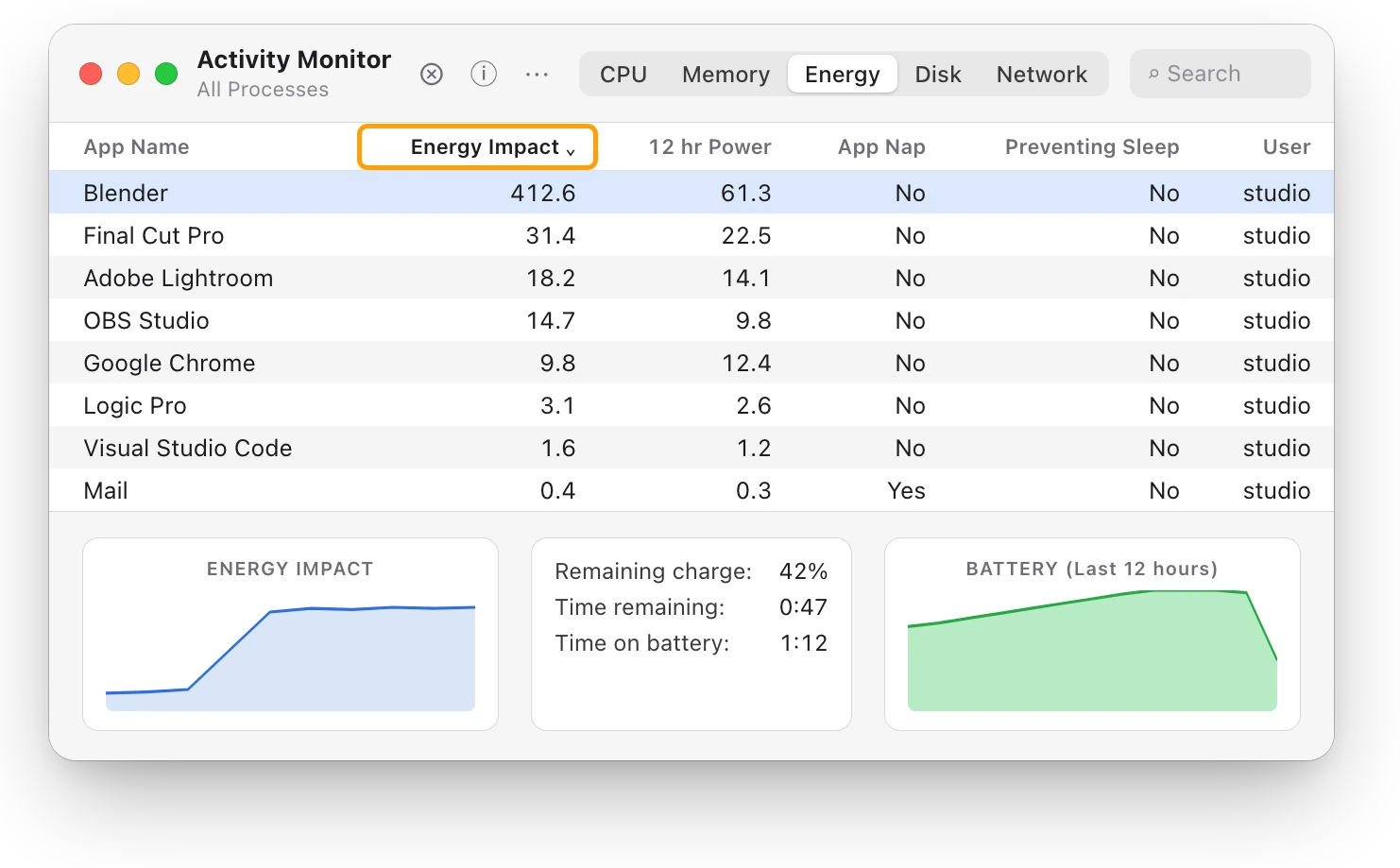
The bottom of the window shows the charge left, the time remaining and how long your Mac has been on battery.
What should I do about it?
- If the app is doing work you asked for, such as a render, an export or a large download, plug in until it finishes, or let it finish first.
- If you don’t need it right now, quit it from its own menu, saving your work first.
- If it isn’t responding, select it in Activity Monitor, click the Stop button, then choose Quit. Choose Force Quit only if Quit doesn’t work, because unsaved work in it is lost.
How do I make the battery last longer?
Turn on Low Power Mode for when you’re on battery:
- Choose Apple menu > System Settings, then click Battery.
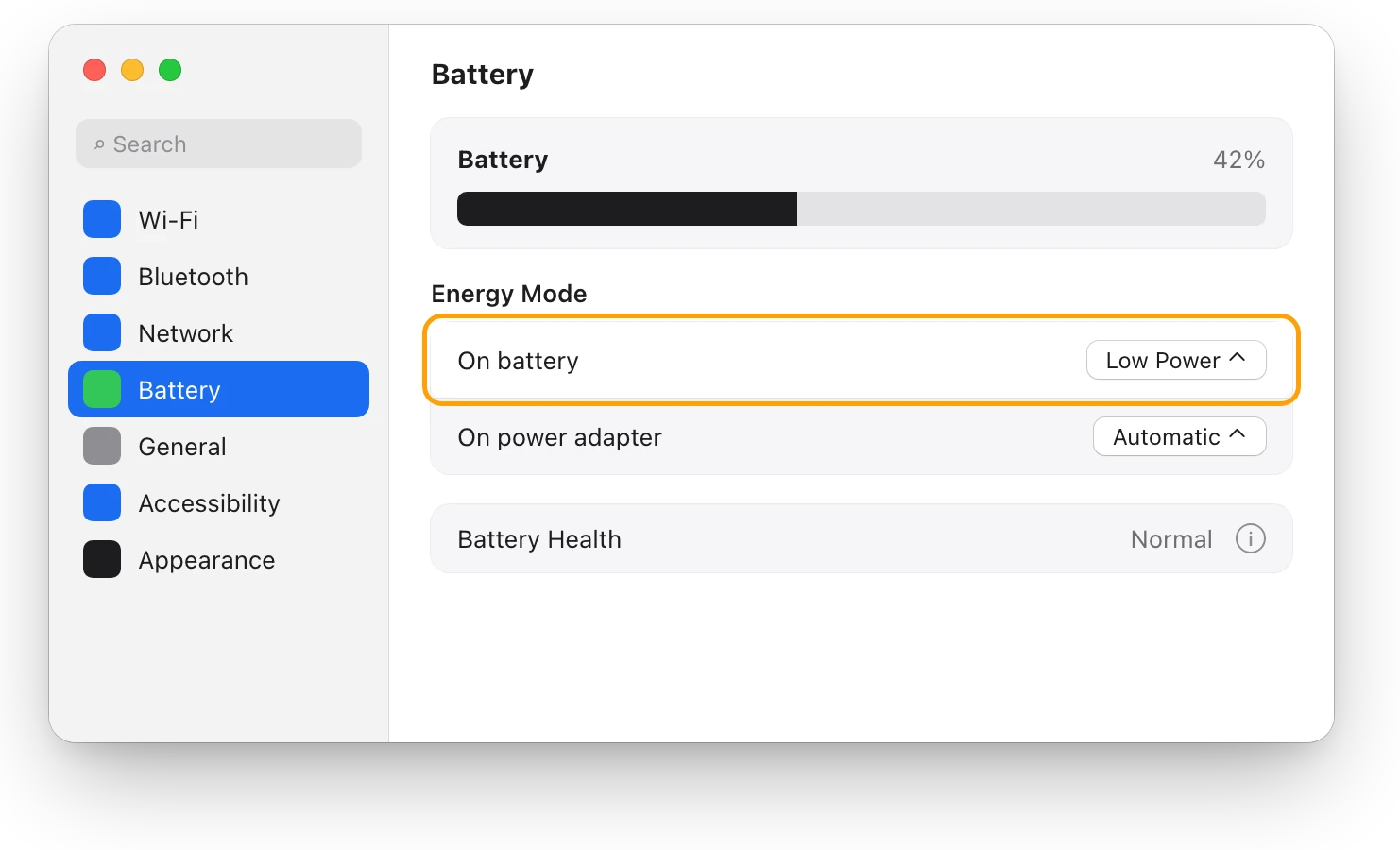
- On Macs with Energy Mode, open the On battery pop-up menu and choose Low Power. On other Macs, open the Low Power Mode pop-up menu and choose Only on Battery.
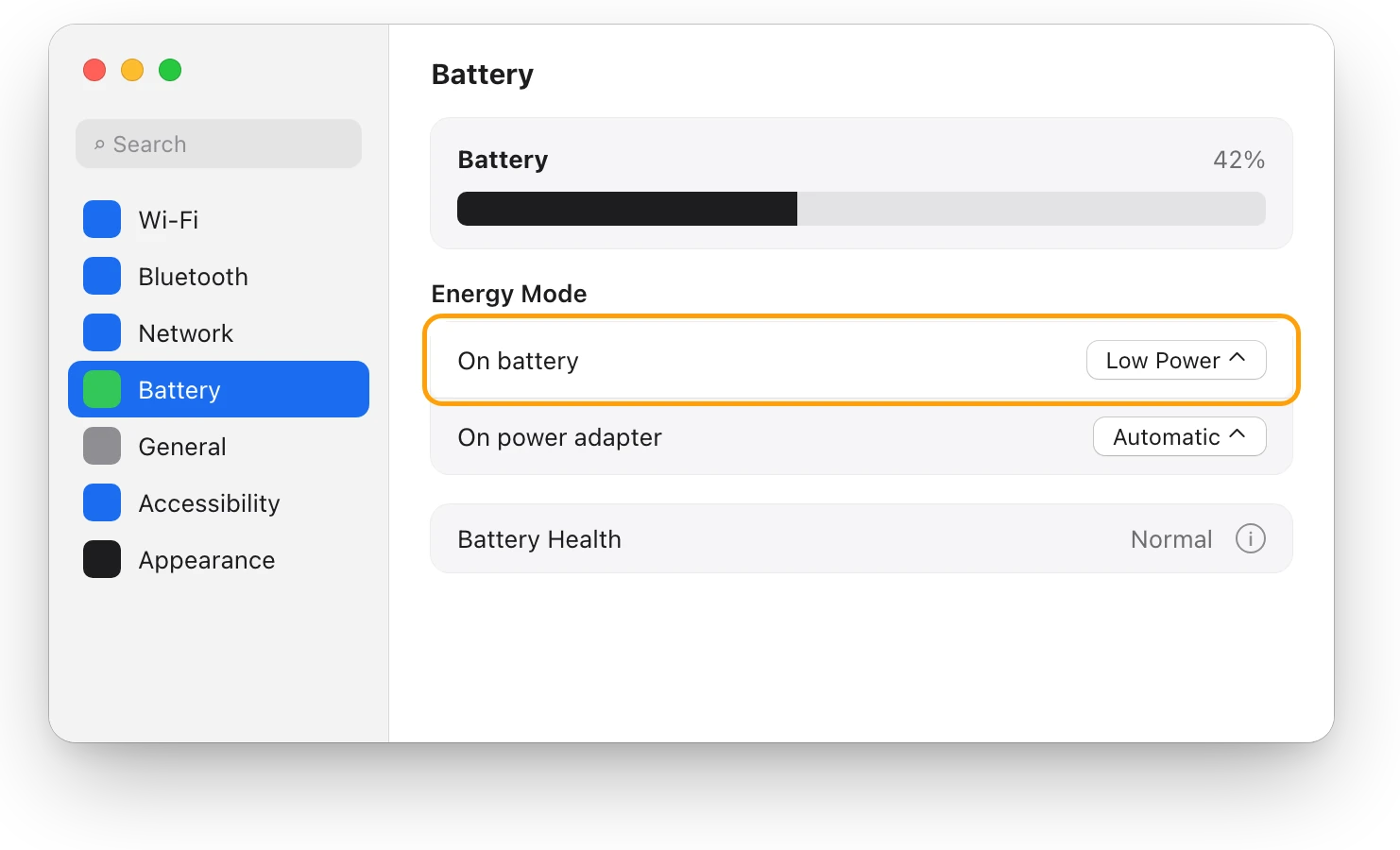
Low Power Mode reduces energy use to increase battery life. A bright screen uses more power too. On some MacBooks, the battery menu shows Display Brightness when the screen is bright enough to use significant energy; click it to turn the brightness down.
Is my battery worn out?
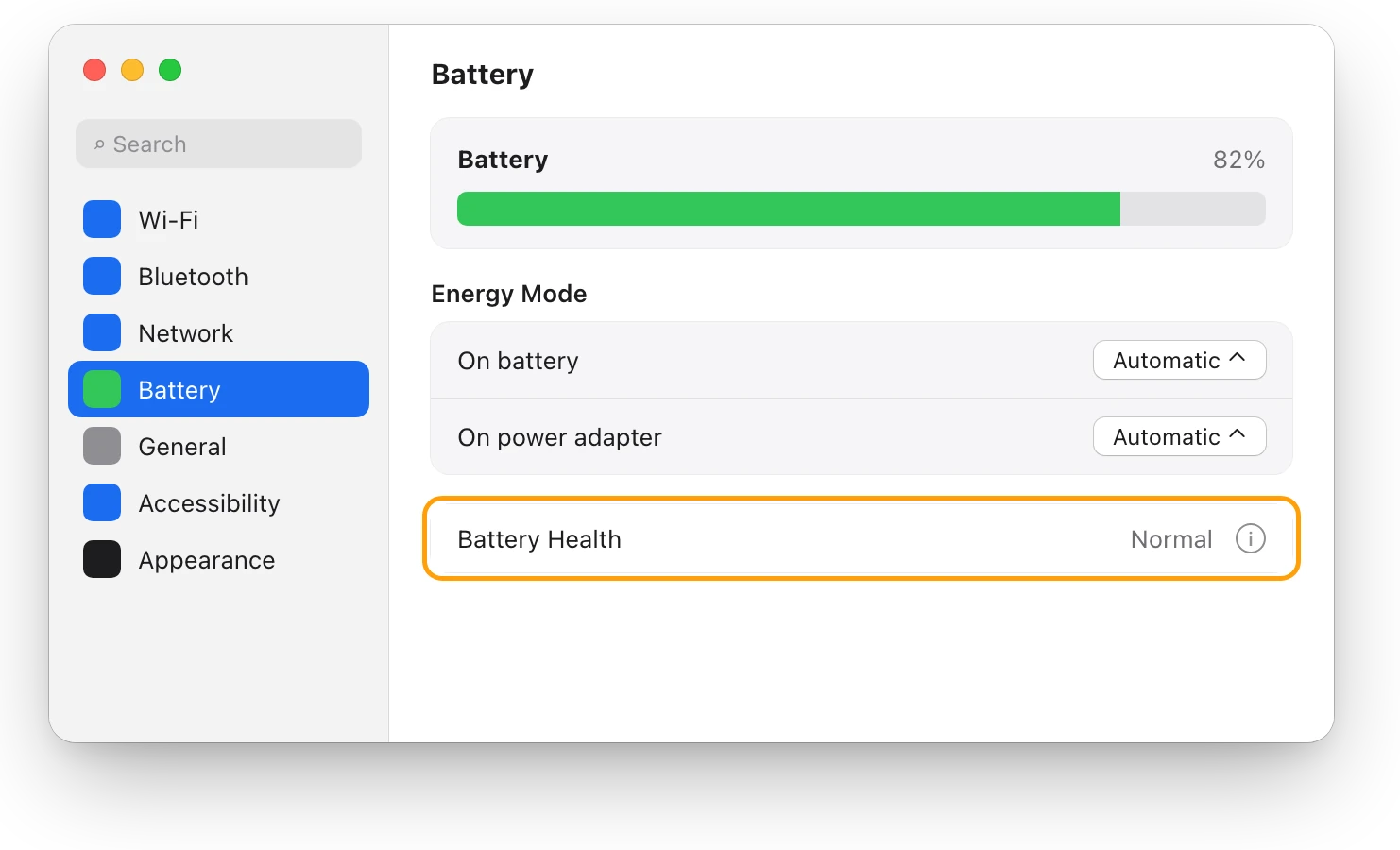
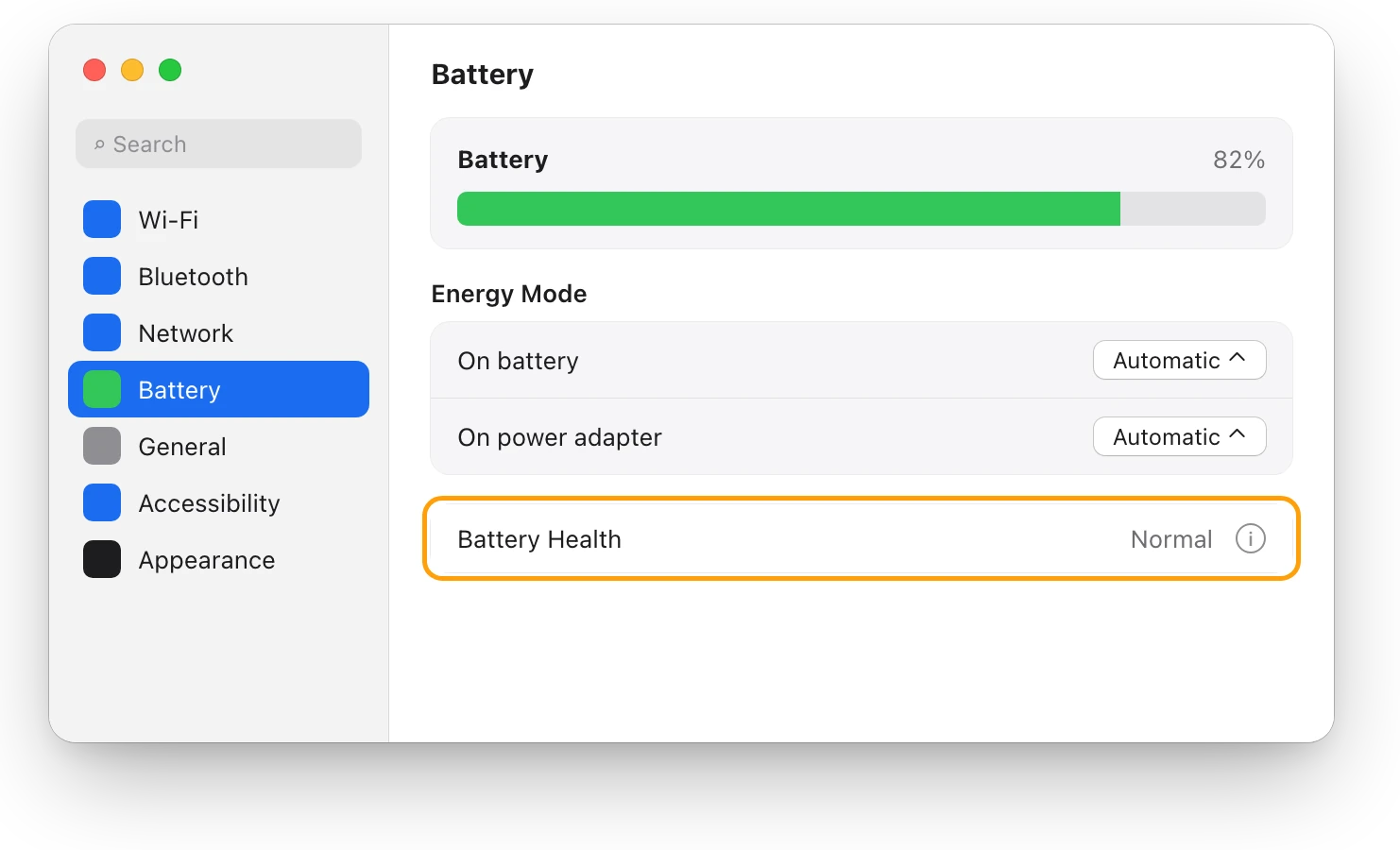
If nothing is busy and the battery still drains fast, check its health: Apple menu > System Settings > Battery > Battery Health. Service Recommended means the battery holds less charge than when it was new. MacBook battery health and cycle count, explained shows how to read it.
Questions people also ask
What does Preventing Sleep mean in Activity Monitor?
It shows whether an app is keeping your Mac awake. An app that keeps your Mac awake keeps it using power, so check that column when the battery drains while you’re away.
Does Energy Impact show which app used the battery?
Not exactly. Energy Impact is a relative measure of each app’s energy use right now, and 12 hr Power is its average over the last 12 hours. Neither says how much of the charge an app used.
Can I see my battery use over time?
Yes. In System Settings > Battery, Last 24 Hours shows the battery level and screen-on usage, and Last 10 Days shows energy usage and screen-on usage.
Scope for Mac · Free, coming to the Mac App Store
How Scope helps
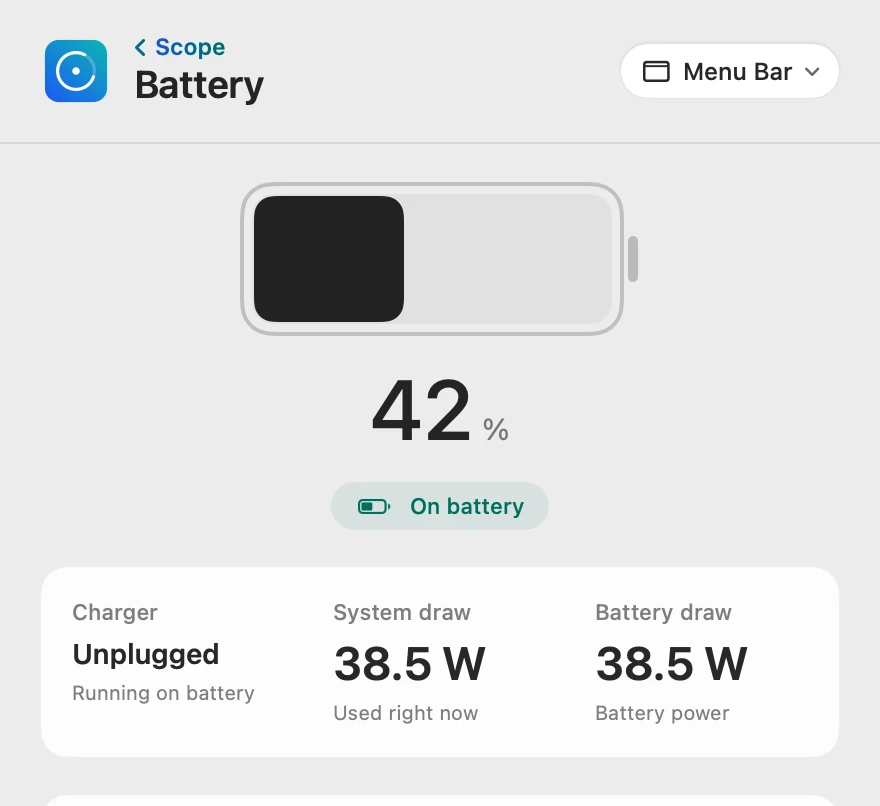
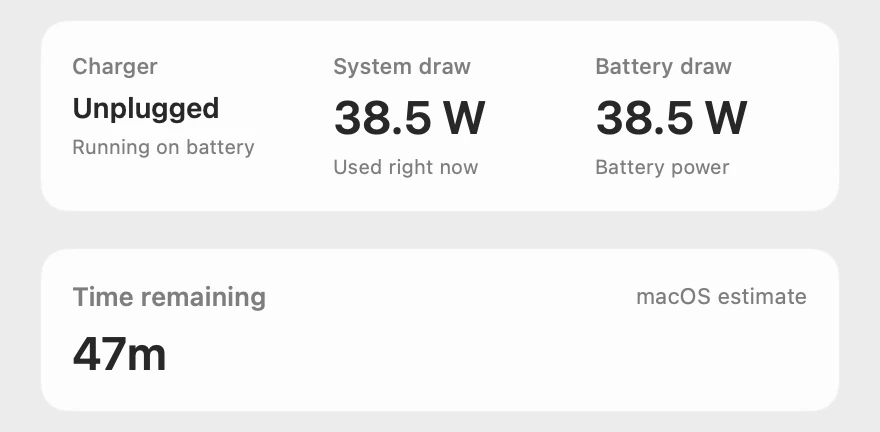
Scope is a free Mac menu bar app that shows how much power your MacBook is drawing, in watts, beside how long the battery has left and the apps busiest right now. It saves switching between the battery menu and Activity Monitor to see why the charge is falling.
In your menu bar
Scope Free keeps one whole menu bar item of your choice. Battery can also show what your Mac is drawing, in watts, beside the percentage.

Watts and busy apps
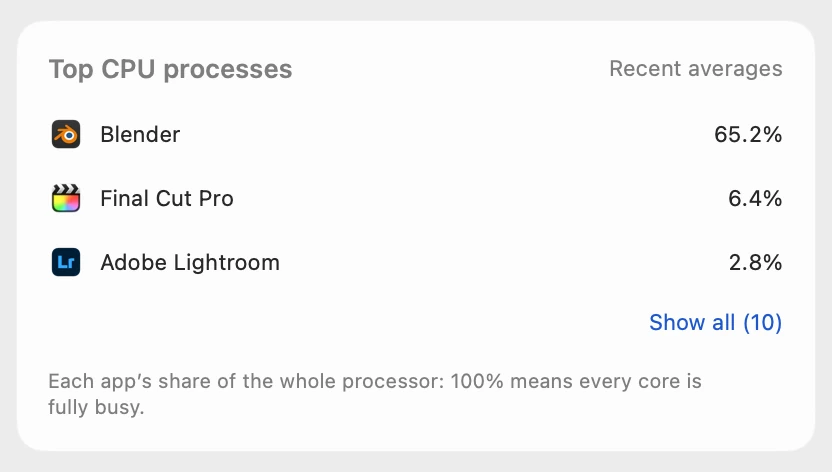
System draw is what your Mac is using right now; on battery, the battery supplies all of it. Scope doesn’t measure battery use per app, so Top CPU processes shows what’s busy now, not what drained the battery earlier.
The last hour
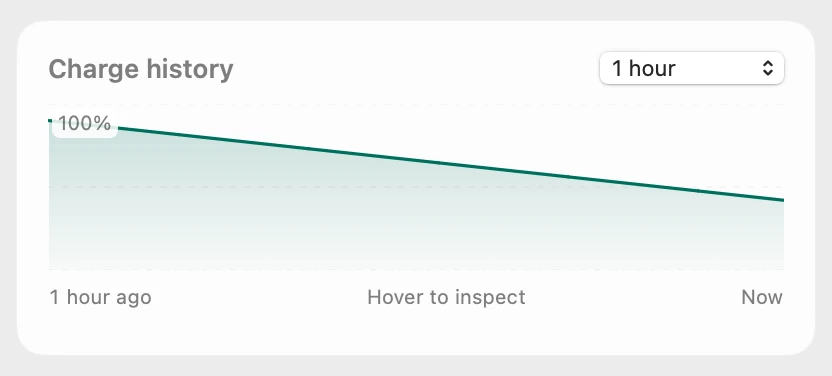
Scope keeps the battery’s last hour, so you can see how fast the charge is falling.
Scope shows and explains. It doesn’t quit apps or change your settings.
Try it here
The real Scope, working, right in this page.
Click any item in the menu bar, or a card inside, as you would on your Mac.
Scope Pro Every menu bar item is shown here. Scope Free keeps one whole item of your choice, with every reading inside.
See what’s using your own battery.
Keep reading
Guide · Battery
Mac battery problems: drain, health and charging
Most MacBook battery problems are a busy app, a worn battery, charging paused on purpose or a weak charger. Here’s how to tell which, with macOS’s tools.
Battery
MacBook battery health and cycle count, explained
Battery Health in System Settings shows if your MacBook’s battery is Normal; System Information shows its cycle count. Here’s how to read both.
Slow Mac
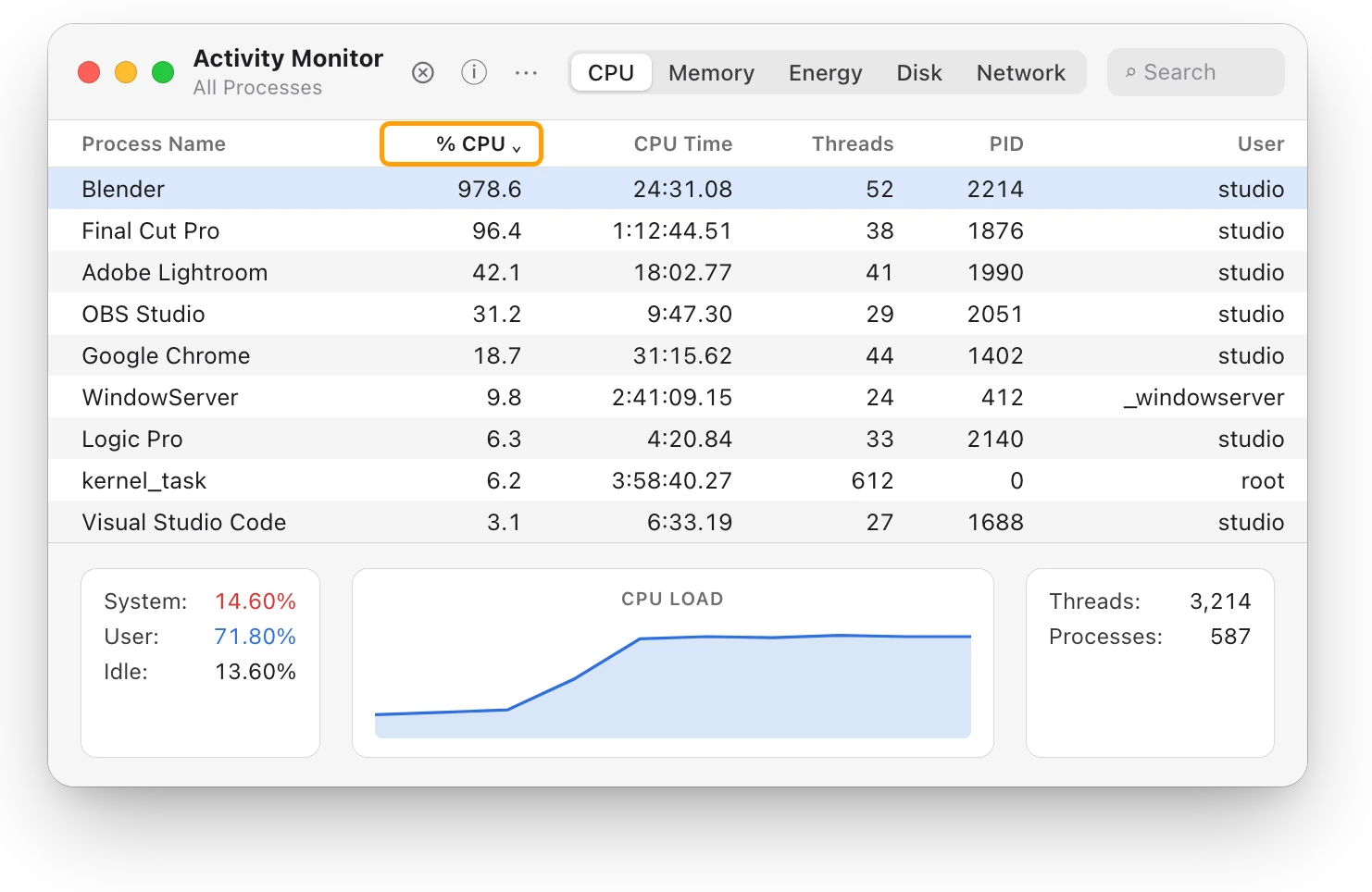
Which app is slowing down my Mac? How to find it
Activity Monitor shows which app is slowing your Mac: sort by % CPU, then by Memory. Here’s how to read the lists, and what to do next.
Battery
Low Power Mode on a Mac: what it changes
Low Power Mode on a Mac reduces energy use so the battery lasts longer. Here’s how to turn it on, what Apple says it changes, and when to use High Power.
Sources
- Apple Support: What is the Battery Status menu on Mac?
- Apple Support: View energy usage in Activity Monitor on Mac
- Apple Support: About Power Modes on your Mac
- Apple Support: Save energy on your Mac
- Apple Support: Quit a process in Activity Monitor on Mac
- Apple Support: Check the condition of your Mac laptop’s battery
Last checked October 17, 2026. Readings, apps and files in the pictures are from a made-up Mac.