How to test internet speed on a Mac
Every Mac with macOS Monterey or later has a built-in internet speed test: open Terminal and type networkQuality. It reports download and upload capacity, which most people call speed, in megabits per second (Mbps). It also reports responsiveness: how many round trips the connection completes in a minute (RPM) while it’s busy. The test uses data on your internet plan.
How do I run the test?
- Connect to the network you want to test, Wi-Fi or Ethernet. Close apps that use the internet heavily, such as cloud backups or big downloads, so they don’t share the line during the test.
- Open Terminal. It’s in Applications > Utilities, or search for it with Spotlight.
- Type this and press Return:
networkQuality- Wait for the summary.
studio@MacBook-Pro ~ % networkQuality==== SUMMARY ====Uplink capacity: 117.604 MbpsDownlink capacity: 935.312 MbpsResponsiveness: High (1290 RPM)Idle Latency: 11.208 millisecondsstudio@MacBook-Pro ~ %
What do the results mean?
- Downlink capacity: how fast data can come in, in megabits per second (Mbps). This is your download speed.
- Uplink capacity: how fast data can go out, such as during video calls or uploads. This is your upload speed.
- Responsiveness: how many round trips the connection completes in a minute while it’s busy, in RPM. A round trip is a small message going out and its reply coming back. Higher is better: it’s what keeps video calls and games smooth while something else downloads.
- Idle Latency: how long one round trip takes when the connection isn’t busy, in milliseconds (ms). Lower is better.
Why is my result slower than my plan?
- Wi-Fi. A weak signal, a crowded channel or the 2.4 GHz band can cap the speed below your plan. Test again close to the router, or over Ethernet, to compare.
- Other devices and apps. Everything else on your network shares the same connection during the test.
- The time of day. Many connections slow down in the evening, when more people are online.
- A VPN. Traffic through a VPN goes through another server, which can cut the speed.
Can I run more detailed tests?
Yes. networkQuality -s runs the download and upload tests one after the other instead of at the same time, and networkQuality -v shows more detail. Type man networkQuality in Terminal for every option.
Questions people also ask
How much data does the test use?
It depends on your connection: the faster it is, the more data the test moves. On a fast connection, one test can use a gigabyte or more, so on a metered or capped plan, run it sparingly.
Is networkQuality more accurate than a website speed test?
Neither is more accurate; they measure different paths. networkQuality measures your connection to Apple’s test servers, and a website test measures it to its own. Testing a few times gives a steadier picture.
What’s a good responsiveness score?
networkQuality rates it Low, Medium or High beside the RPM number. High, like 1290 RPM here, means calls and games stay smooth while something else downloads.
Scope for Mac · Free, coming to the Mac App Store
How Scope helps
Scope is a free Mac menu bar app that runs macOS’s own networkQuality test in one click and shows download and upload speed, latency and responsiveness, with your past results kept on your Mac. It also shows your Wi-Fi signal separately, so you can tell a weak signal from a slow connection.
In your menu bar

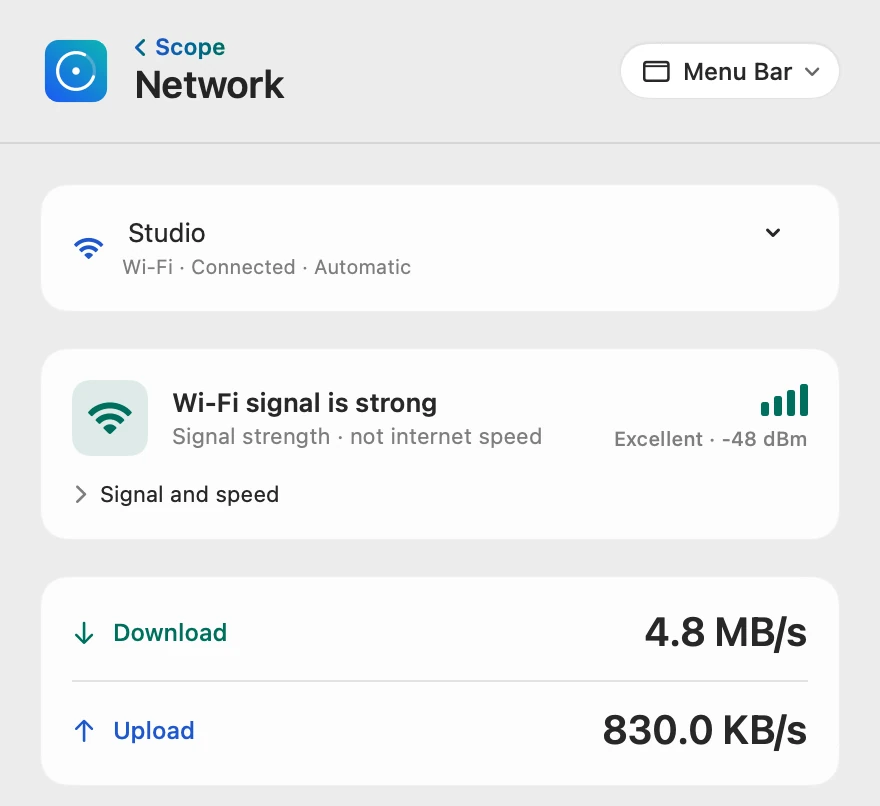
Speed and responsiveness
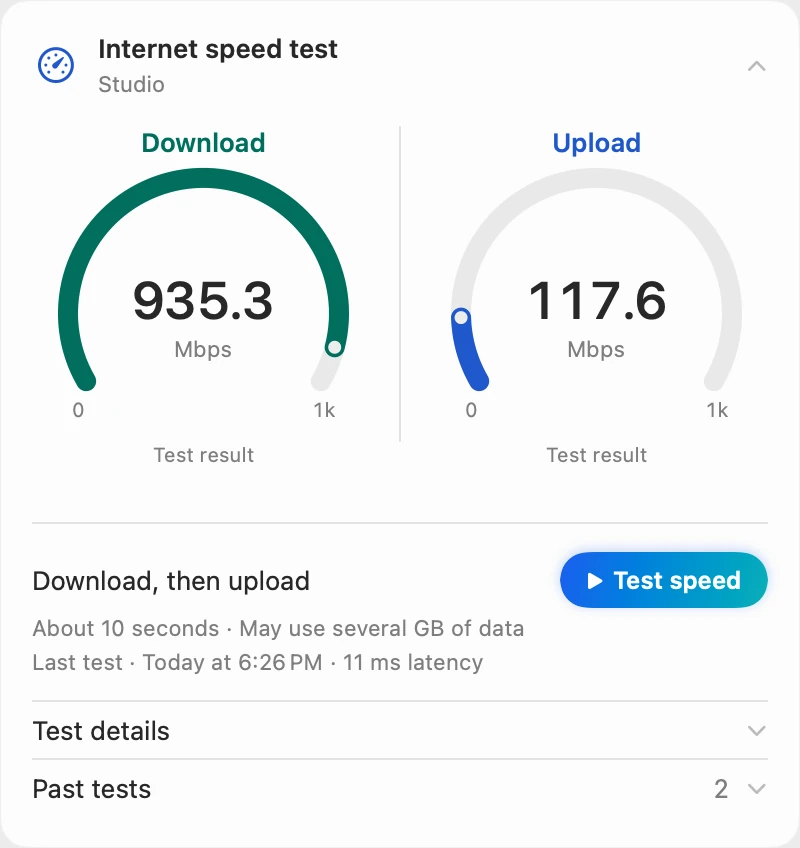
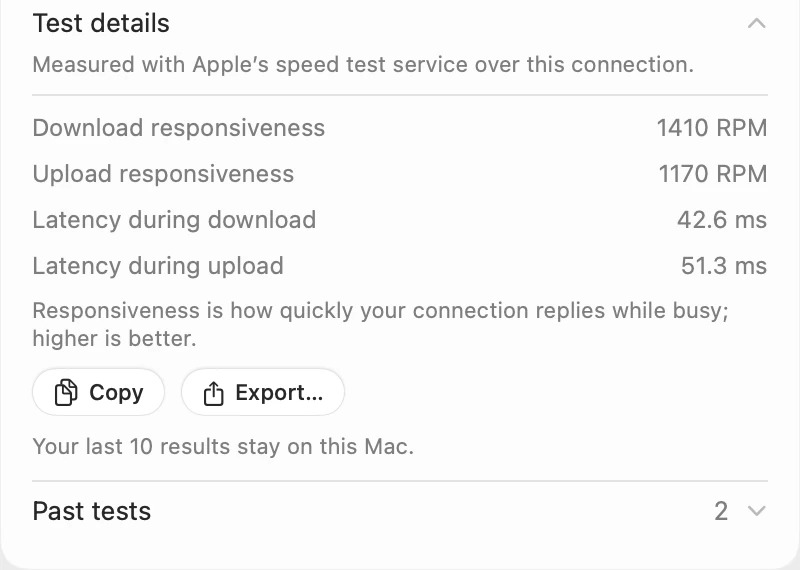
Scope tests download, then upload, one after the other, like networkQuality -s, so it gives a responsiveness for each direction. Before it starts, it says how long the test takes and that it uses data. Your last 10 results stay on your Mac.
Signal isn’t speed
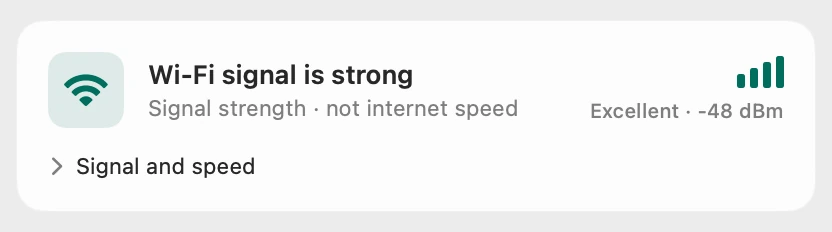
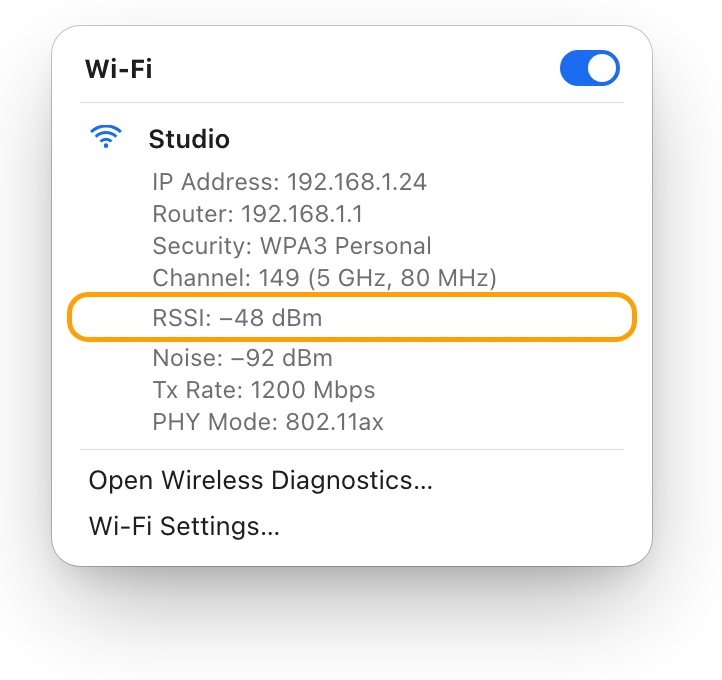
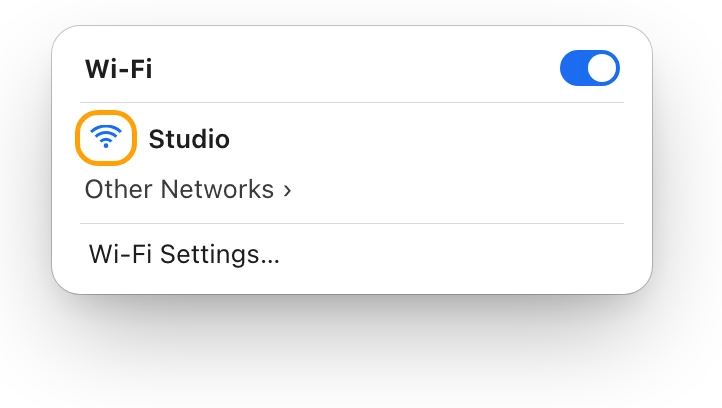
Scope shows the Wi-Fi signal in dBm and in words, and labels it signal strength, not internet speed. dBm measures Wi-Fi signal strength: closer to zero is stronger, so −48 dBm is strong. A strong signal with a slow test means the signal isn’t the problem; look at the router, other devices or your internet plan.
Try it here
The real Scope, working, right in this page.
Click any item in the menu bar, or a card inside, as you would on your Mac.
Scope Pro Every menu bar item is shown here. Scope Free keeps one whole item of your choice, with every reading inside.
See how fast your own connection is.
Keep reading
Guide · Internet and Wi-Fi
Mac Wi-Fi problems: slow, dropping or no internet
Mac Wi-Fi problems start in the Wi-Fi link or the internet behind the router. Two checks tell them apart; then fix it when it’s slow, drops or won’t load.
Internet and Wi-Fi
What’s a good Wi-Fi signal? dBm explained
Wi-Fi signal is measured in dBm: closer to zero is stronger. Here’s how to see your Mac’s signal, what RSSI and noise mean, and why signal isn’t speed.
Drives
How to test SSD speed on a Mac
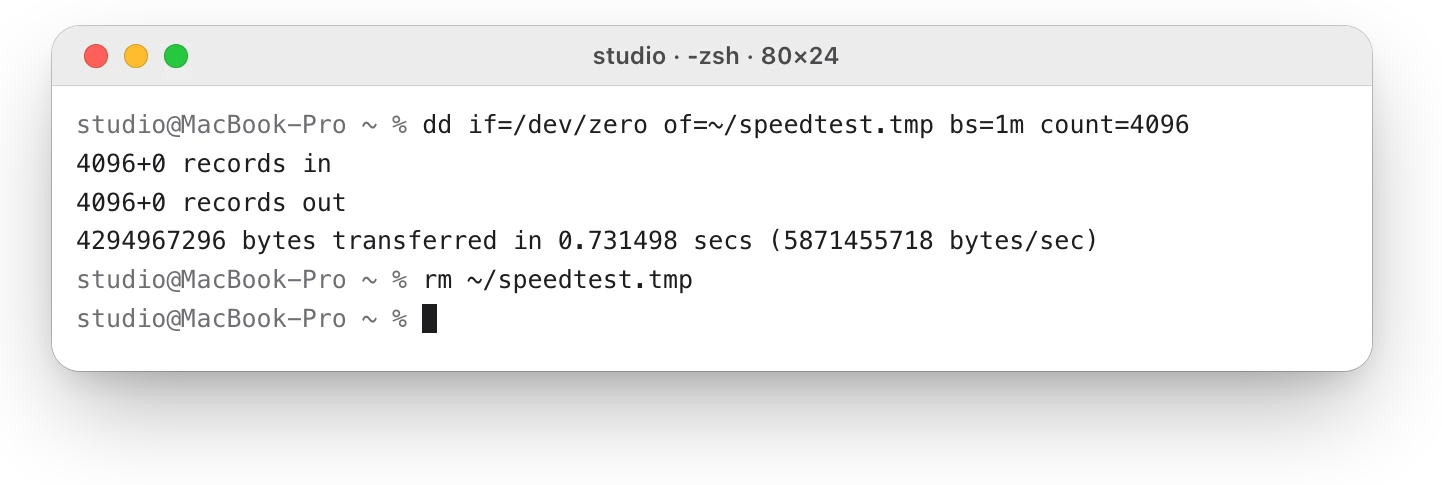
macOS has no SSD speed test, but Terminal’s dd gives a rough write speed. Here’s how to run it safely, and why caching can make the result look too fast.
Sources
- Apple Support: Test Wi-Fi networks with Apple Network Responsiveness
- Apple Support: Use the Wi-Fi status menu on Mac
Last checked October 17, 2026. Readings, apps and files in the pictures are from a made-up Mac.