How to test SSD speed on a Mac
macOS doesn’t include an SSD speed test, but Terminal’s dd command gives a rough write speed: it writes a large temporary file to the drive and prints how fast it went. Run it with a file of a few gigabytes, read the bytes per second, then delete the file. macOS can hold writes in memory before they reach the drive, so treat a quick result as a rough number, not the drive’s measured speed.
How do I test my SSD’s write speed with Terminal?
- Open Terminal. It’s in Applications > Utilities, or search for it with Spotlight.
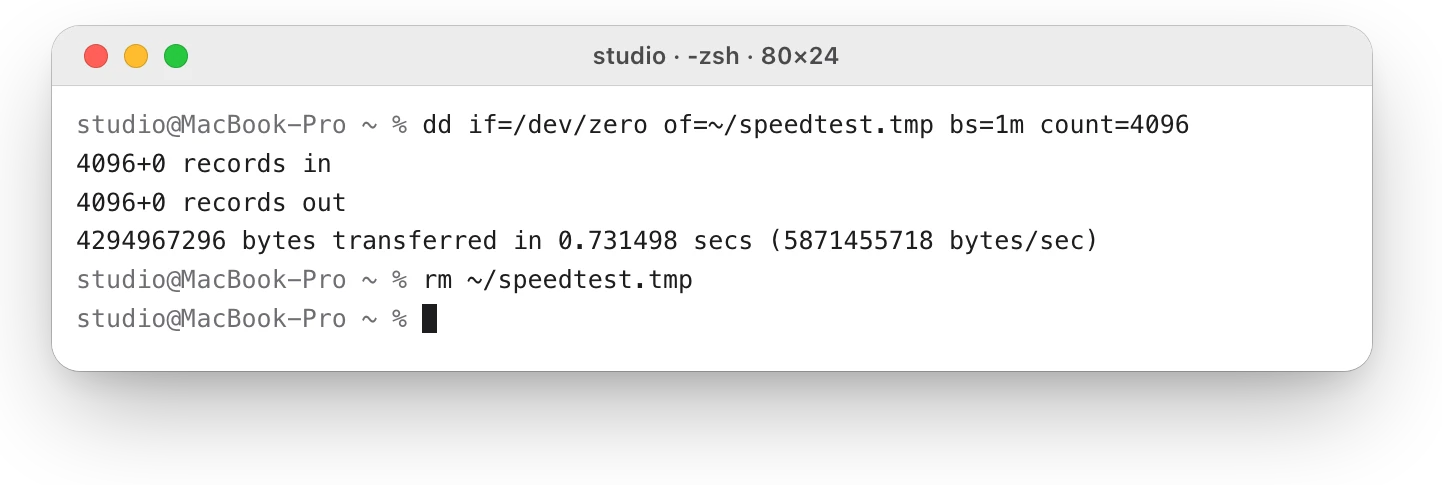
- Type this command and press Return. It writes a 4 GiB file of zeros called speedtest.tmp to your home folder:
dd if=/dev/zero of=~/speedtest.tmp bs=1m count=4096- Wait for it to finish. The last line says how many bytes it wrote, in how many seconds, and the speed in bytes per second.
- Delete the test file:
rm ~/speedtest.tmpstudio@MacBook-Pro ~ % dd if=/dev/zero of=~/speedtest.tmp bs=1m count=40964096+0 records in4096+0 records out4294967296 bytes transferred in 0.731498 secs (5871455718 bytes/sec)studio@MacBook-Pro ~ % rm ~/speedtest.tmpstudio@MacBook-Pro ~ %
To read the result in MB/s, divide the bytes per second by 1,000,000. Type man dd in Terminal for what each part of the command means. Make sure the drive has at least 8 GB free before you start, and type the commands exactly: dd writes wherever of= points.
Why is dd only a rough test?
- Caching. macOS can keep data it writes in memory for a moment before it reaches the drive, so a short test can report a speed faster than the drive itself. A bigger file, several gigabytes, is closer to the truth.
- Zeros. The test writes a file of zeros. Real files, and many small files, can be slower.
- What else is running. Other apps reading or writing at the same time slow the test down.
- Reading back. Reading the file right after writing it often comes from memory, not the drive, so
ddcan’t measure read speed reliably this way.
How do I test an external SSD?
Put the test file on the drive itself: use the drive’s path in of=, such as of=/Volumes/YourDrive/speedtest.tmp, and delete the file afterwards with rm /Volumes/YourDrive/speedtest.tmp. Drive names with spaces need quotes around the path, such as of="/Volumes/My Drive/speedtest.tmp". The cable and port matter as much as the drive: the same SSD can be much slower on a slower port.
Questions people also ask
Does testing an SSD wear it out?
Not noticeably. A test writes a few gigabytes, about as much as copying a large video, so an occasional test is like any other large copy.
Why is my SSD slower than the box says?
Advertised speeds are usually “up to” figures for the best case. Small files, other apps, the test’s file size and the connection all change what you see.
Is it safe to run dd?
Yes, if you type the command exactly. Point of= only at a new file name in a folder you own, never at a drive or an existing file, and delete the test file when you’re done.
Scope for Mac · Free, coming to the Mac App Store
How Scope helps
Scope is a free Mac menu bar app with a built-in drive speed test: it measures sequential read and write speed with macOS file caching turned off, on your Mac’s own disk or any drive you allow. It uses only a temporary file of its own, so your files stay untouched.
In your menu bar

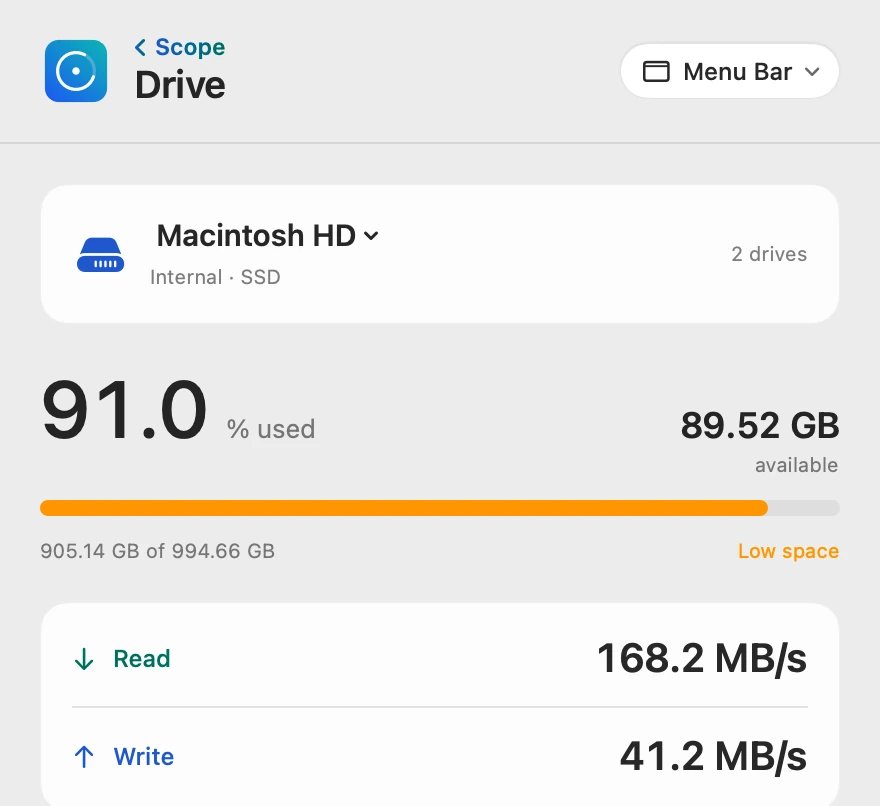
Write, then read, in one click
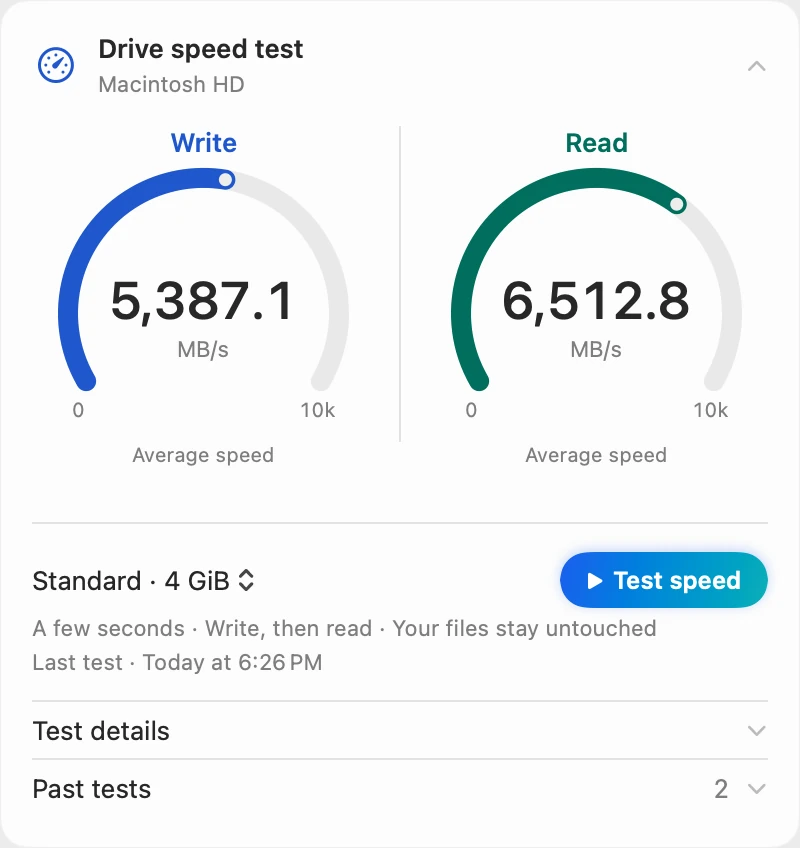
That’s slower than the dd result above: Scope turns macOS’s file caching off, so memory can’t make the drive look faster.
Choose Quick (1 GiB), Standard (4 GiB, three passes) or Extended (8 GiB, three passes), then Test speed. Scope tests the write, then the read, and says how long it will take before it starts.
How it measured
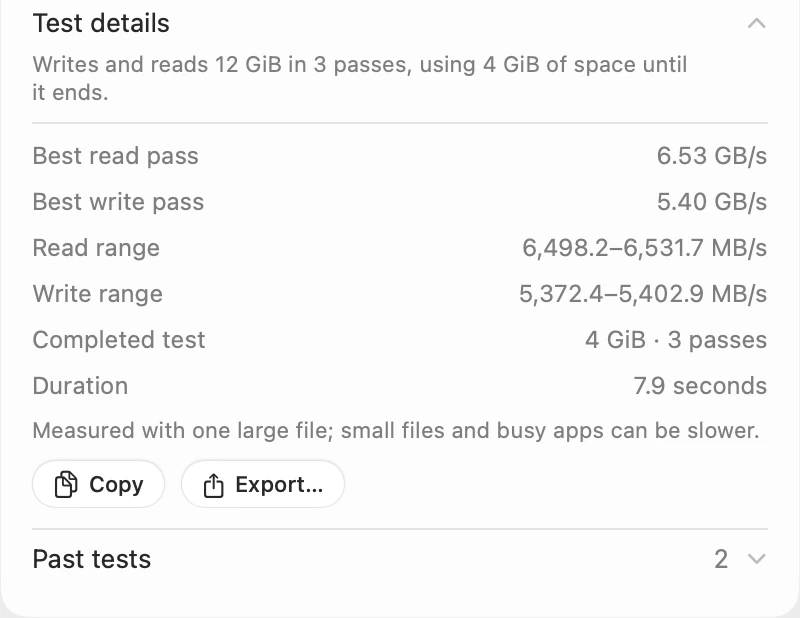
Test details shows the best pass, the range and that the test used one large file, measured on that drive at that moment. Scope keeps your past tests, so you can compare drives and cables.
Try it here
The real Scope, working, right in this page.
Click any item in the menu bar, or a card inside, as you would on your Mac.
Scope Pro Every menu bar item is shown here. Scope Free keeps one whole item of your choice, with every reading inside.
See how fast your own drive really is.
Keep reading
Guide · Drives
External hard drives and SSDs on a Mac: a guide
How to test an external drive’s speed on a Mac, fix one that won’t show up, eject it safely, pick a format and check its health, with macOS’s tools.
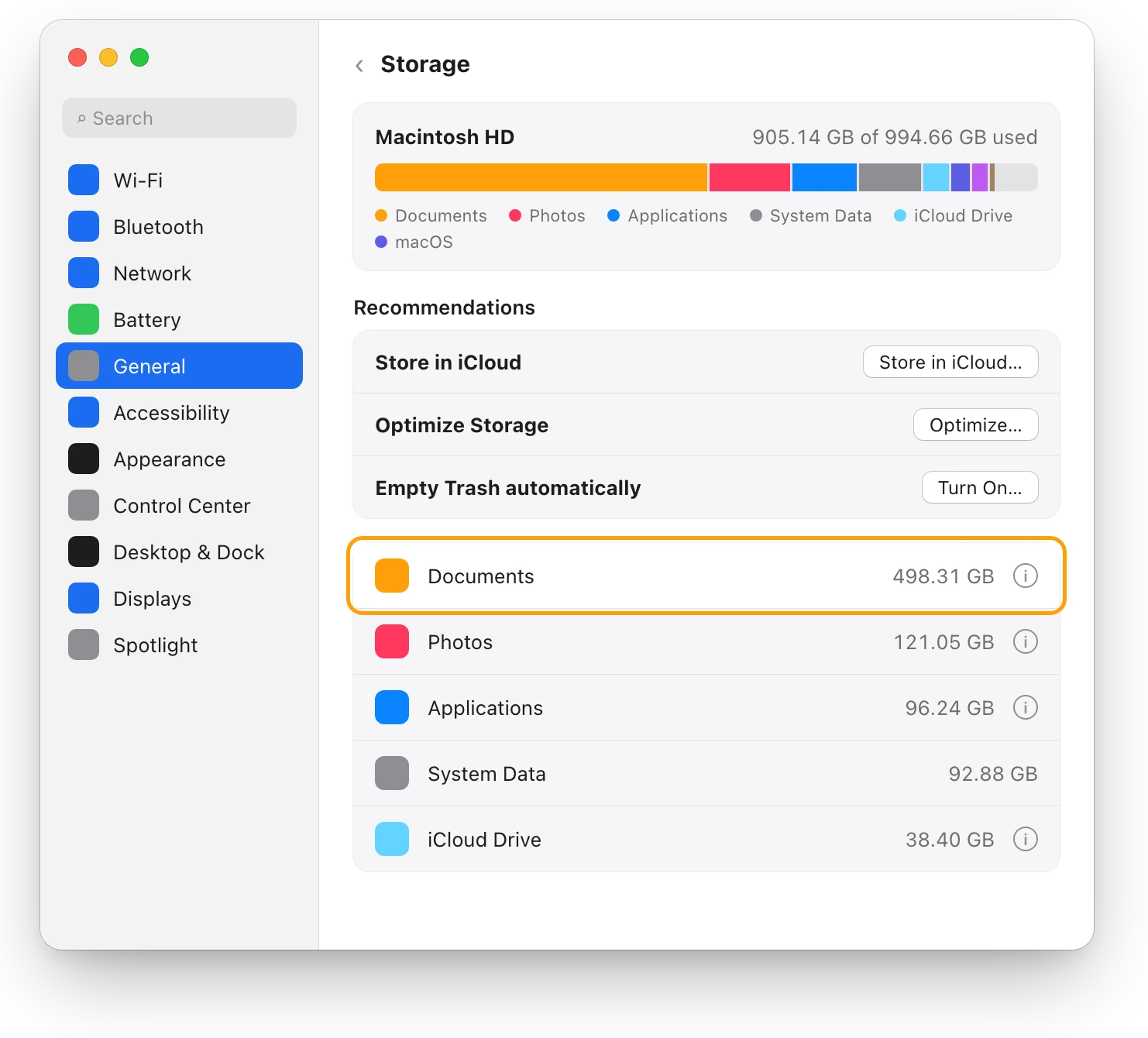
Storage
How to find large files on a Mac, safely
Storage in System Settings lists your Mac’s largest files, sorted by size, with Delete and Show in Finder. Here’s how to find them and free space safely.
Sources
Last checked October 17, 2026. Readings, apps and files in the pictures are from a made-up Mac.