External hard drives and SSDs on a Mac: a guide
An external hard drive or SSD connects to a Mac with a USB, USB-C or Thunderbolt cable, and appears below Locations in the Finder sidebar. Format it APFS if it stays with Macs, or ExFAT to share it with Windows, and eject it before you unplug it. Disk Utility mounts, checks and repairs a drive that acts up.
External drive problems at a glance
| What you see | Usual cause | What to do | More |
|---|---|---|---|
| Copies are slow | The cable, port or hub | Connect it directly with a data cable, then test its speed | Speed test |
| The drive doesn’t show up | A connection, an accessory not allowed, or a drive not mounted | Check cable and power, Finder settings, then Mount in Disk Utility | Not showing |
| “Disk Not Ejected Properly” | The drive disconnected before it was ejected | Eject first; check the cable, power and hub | Ejecting |
| Windows or Time Machine can’t use it | Its format | Copy your files off, then erase it in the format you need | Formats |
| Files open, but nothing saves to it | Its format (NTFS is read-only on a Mac) or its permissions | Check its format in Get Info; erase an NTFS drive as ExFAT or APFS, or select Ignore ownership on this volume | Read-only |
| An SD card to share with Windows or another device | Its format | Copy its files off, then erase it in Disk Utility: ExFAT over 32 GB, MS-DOS (FAT) at 32 GB or less | SD cards |
| Your Mac is full | Files that could live on the drive | Move them to the drive | Free up space |
How fast is my external drive?
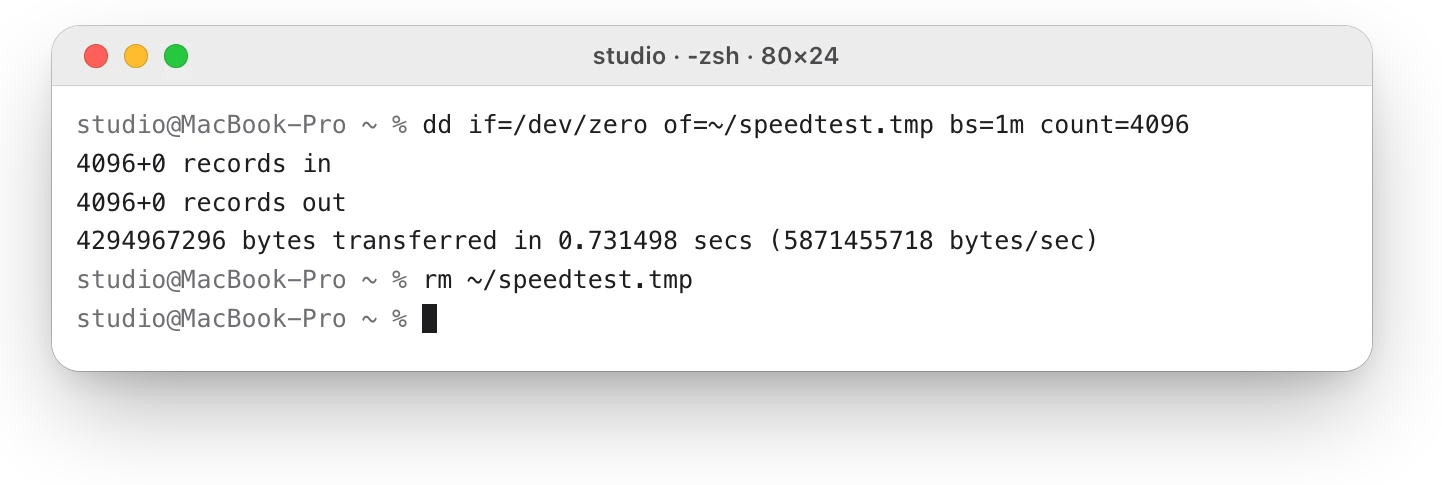
For a rough idea of a drive’s write speed, use Terminal’s dd command: it writes a large test file and prints how fast it went.
- Open Terminal. It’s in Applications > Utilities, or search for it with Spotlight.
- Type this command and press Return. It writes a 4 GiB file to your home folder:
dd if=/dev/zero of=~/speedtest.tmp bs=1m count=4096- Read the last line: the speed in bytes per second. Divide by 1,000,000 for MB/s.
- Delete the file:
rm ~/speedtest.tmp
studio@MacBook-Pro ~ % dd if=/dev/zero of=~/speedtest.tmp bs=1m count=40964096+0 records in4096+0 records out4294967296 bytes transferred in 0.731498 secs (5871455718 bytes/sec)studio@MacBook-Pro ~ % rm ~/speedtest.tmpstudio@MacBook-Pro ~ %
To test an external drive, put the file on it: of="/Volumes/Studio Archive/speedtest.tmp", using your drive’s name. The cable matters as much as the drive. Apple’s USB-C Charge Cable carries data at up to 480 Mbps (USB 2.0), at most 60 MB/s, while its Thunderbolt 3 (USB-C) Cable supports up to 40 Gbps. How to test SSD speed on a Mac explains why a dd result is only a rough number.
Why isn’t my external drive showing up?
Most missing drives are a connection or a setting. Work through these in order:
- Plug the drive straight into your Mac, without a hub or extension cable. Try another port, then another cable. If it has a power adapter, plug it in.
- On a Mac laptop with Apple silicon, allow the accessory when your Mac asks. If you click Don’t Allow, your Mac won’t recognize it, and asks again the next time you connect it.
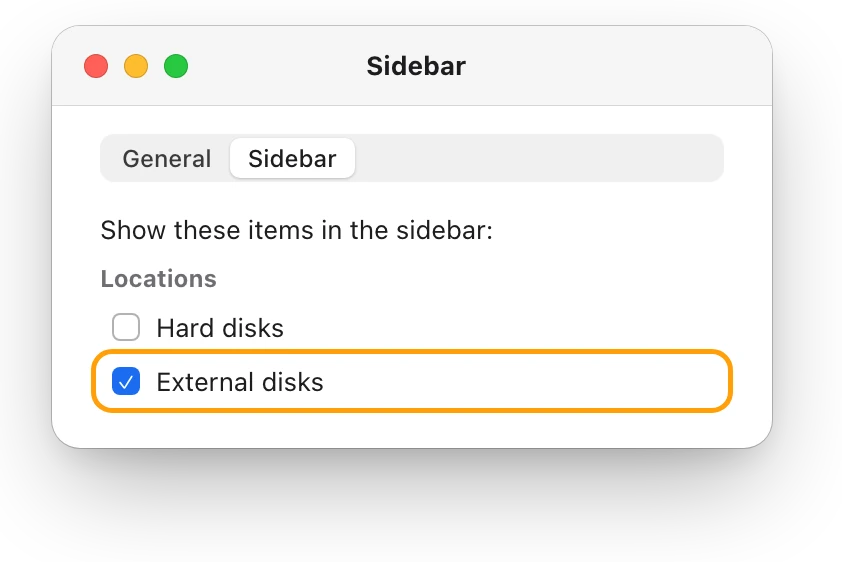
- In the Finder, choose Finder > Settings, click Sidebar, then select External disks.
- Open Disk Utility and choose View > Show All Devices. If the drive is there but grayed out, select it and click Mount.
If it won’t mount, run First Aid on it in Disk Utility, then try Mount again. External drive not showing up on a Mac? Fix it also covers drives your Mac doesn’t see at all.
What does “Disk Not Ejected Properly” mean?
“Disk Not Ejected Properly” means the drive left your Mac before it was ejected: it was unplugged, its cable came loose or it lost power. To disconnect a drive safely, eject it first, in any of these ways:
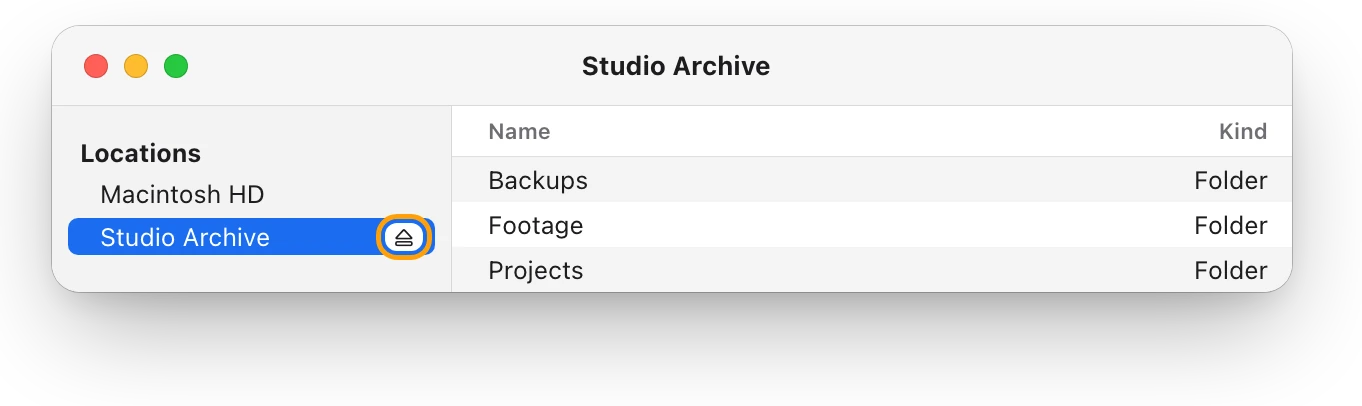
- Click the Eject button next to the drive’s name in the Finder sidebar.
- Select the drive, then choose File > Eject, or press Command-E.
- On the desktop, drag the drive’s icon to the Trash.
If it won’t eject, an app may still be using a file on it: quit the app or close the document, then try again. For a Time Machine backup disk, Apple says to eject it or shut down your Mac before you disconnect it. If the alert appears when you didn’t unplug anything, connect the drive directly, try another cable and port, and give it power. “Disk Not Ejected Properly” on a Mac: why it happens covers drives that keep dropping out.
Which format should an external drive use?
A format, or file system, is how a drive organizes its files. Apple describes these:
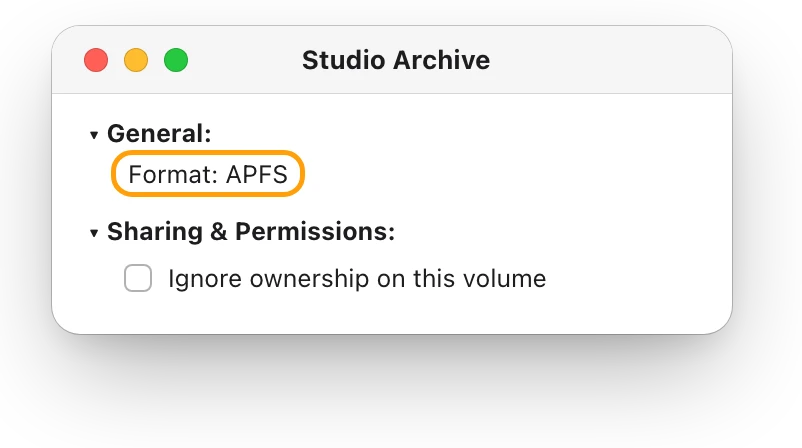
- APFS: the default for Macs with macOS 10.13 or later. It’s optimized for SSDs and can be used with hard drives too. Choose it for a drive that stays with Macs.
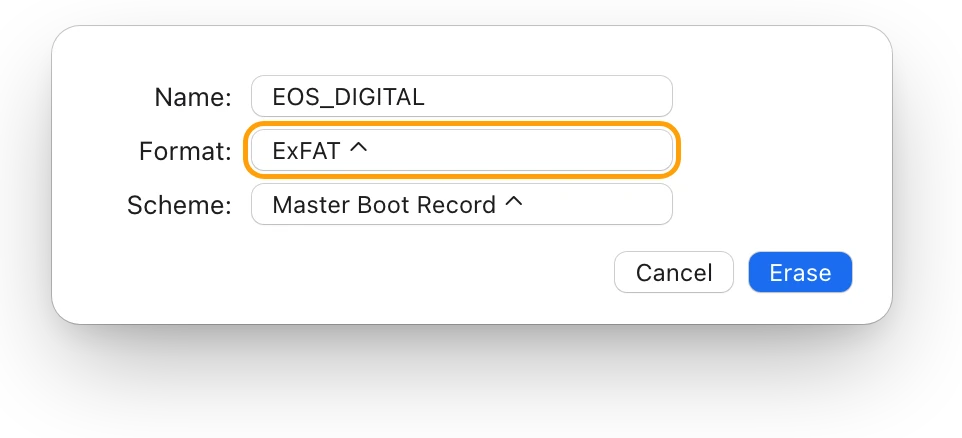
- ExFAT: compatible with Windows, for drives over 32 GB. MS-DOS (FAT) is for 32 GB or less.
- Mac OS Extended (Journaled): the file system of macOS 10.12 and earlier. Apple’s Disk Utility guide for macOS Tahoe no longer lists it, but Time Machine still supports backup disks that use it.
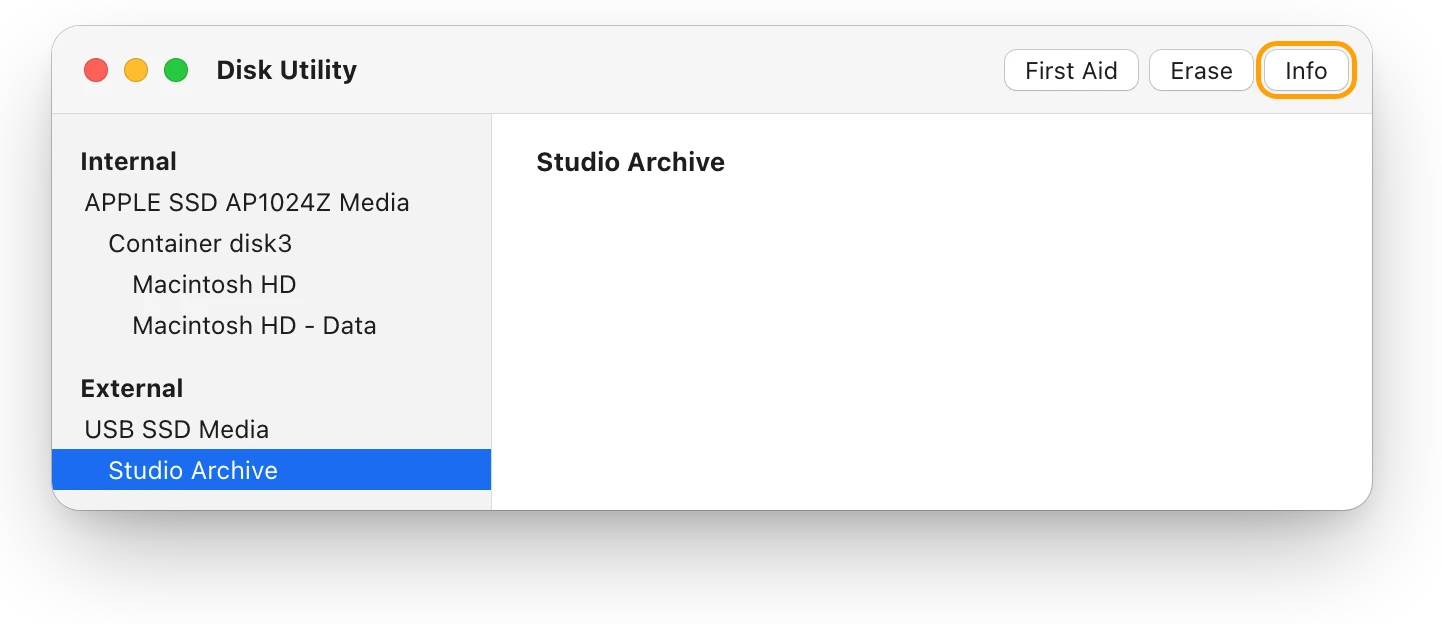
To see a drive’s format, open Disk Utility, choose View > Show All Devices, select the drive’s volume, then click Info.
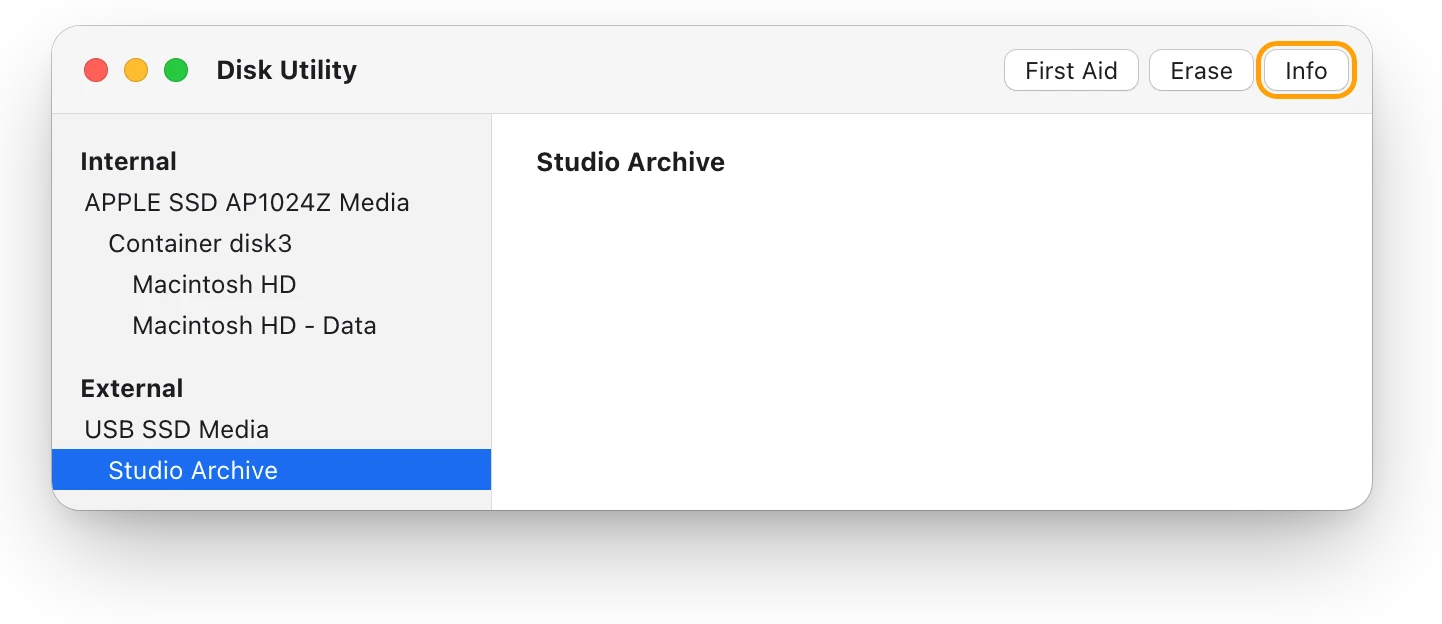
Time Machine can’t back up to a disk formatted for Windows. Changing a format erases the drive, so copy your files off first. APFS, exFAT or Mac OS Extended: which format to use walks through the choice and the Erase steps.
Can I move files to an external drive to free up space?
Yes. Apple suggests it when your Mac runs short of space: media such as a Photos library can use a lot of storage, and it can live on another drive.
- Connect the drive, then open a Finder window.
- Select the files you want to move and drag them to the drive, listed below Locations in the sidebar.
- Open one or two on the drive to check them. Then delete the originals from your Mac and empty the Trash: their space isn’t free until you do.
Keep a second copy of anything you can’t replace, such as in a Time Machine backup. How to free up space on a Mac: every way, ranked shows which files are worth moving first.
How do I check an external drive’s health?
Many disks include Self-Monitoring, Analysis and Reporting Technology (S.M.A.R.T.) hardware, which lets a disk test itself for potential problems. Disk Utility can show its status: the disk’s general working condition.
- Open Disk Utility and choose View > Show All Devices.
- Select the drive itself, at the top of its list in the sidebar, then click Info.
- If you see a message that the disk has a fatal hardware error, back up as much as you can and replace the drive: Disk Utility can’t repair that.
If there’s no hardware error but the drive still acts up, run First Aid on each volume, then each container, then the drive itself. If Disk Utility says the disk is about to fail, back up your data and replace it. Apple notes that Disk Utility can’t detect or repair every problem a disk may have.
Questions people also ask
Can a Mac use a drive formatted for Windows?
Yes. Disk Utility supports ExFAT and MS-DOS (FAT), the file systems compatible with Windows, so a Mac can use a drive formatted either way.
Can I use an external SSD for Time Machine?
Yes. Time Machine works with a USB or Thunderbolt drive connected directly to your Mac. APFS or APFS Encrypted is the preferred format, and a disk formatted for Windows can’t be used until it’s erased in a Mac format.
Why does my Mac ask me to allow a drive?
Mac laptops with Apple silicon ask before a new USB or Thunderbolt accessory can connect. To change when it asks, choose Apple menu > System Settings > Privacy & Security, click Accessories, then use the menu next to Allow accessories to connect.
Scope for Mac · Free, coming to the Mac App Store
How Scope helps
Scope is a free Mac menu bar app that shows every connected drive with how full it is, how it’s connected and its file system, and measures read and write speed with a built-in drive speed test. It saves opening Finder, Disk Utility and Terminal to see what your drives are doing.
In your menu bar
Scope Free’s one whole menu bar item can show several drives: here Macintosh HD as Mac, at 91%, and Studio Archive as Stu, at 39%.

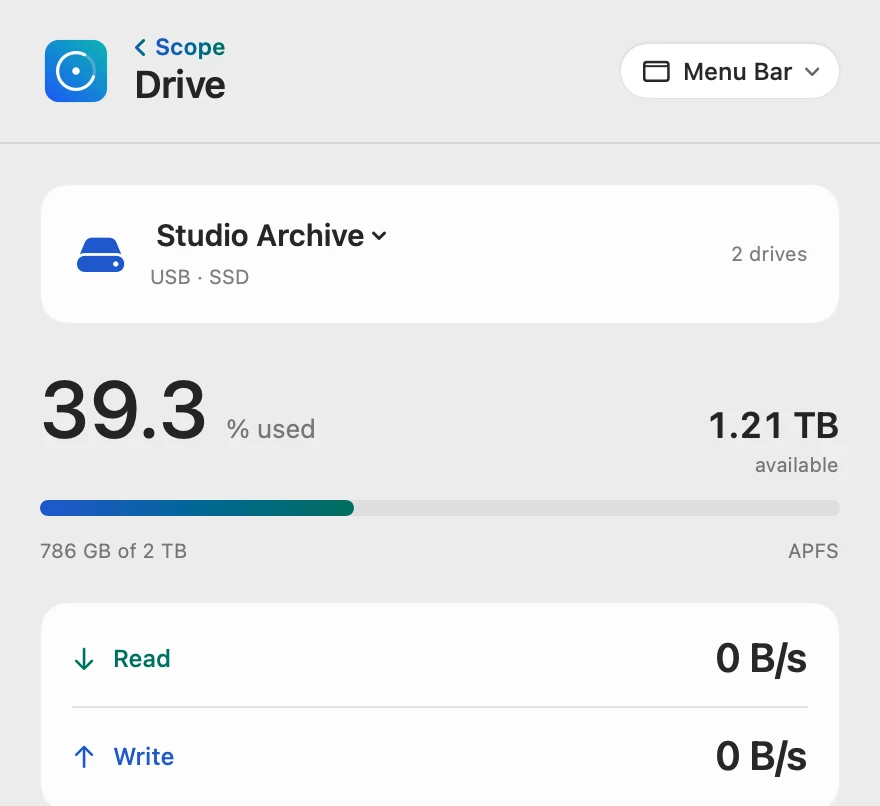
Every drive, how full
Click the drive’s name to switch between connected drives; “2 drives” means both are connected now. The format shows under the bar.
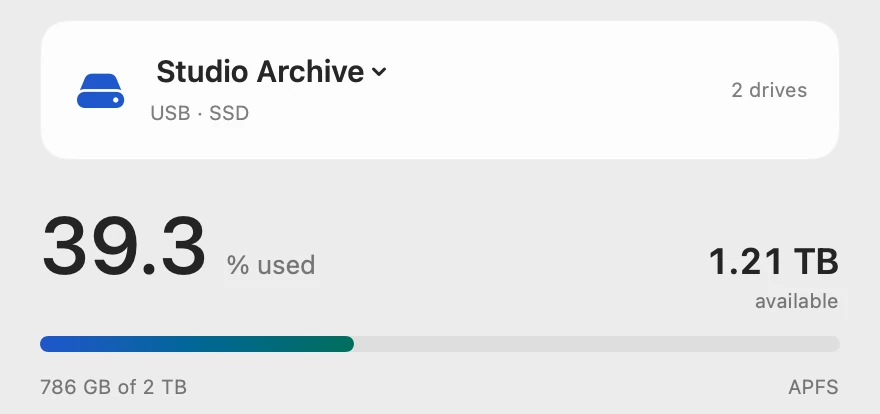
Connection and format
Drive details shows the connection, physical capacity, file system, encryption and where macOS mounted the drive, in one card.
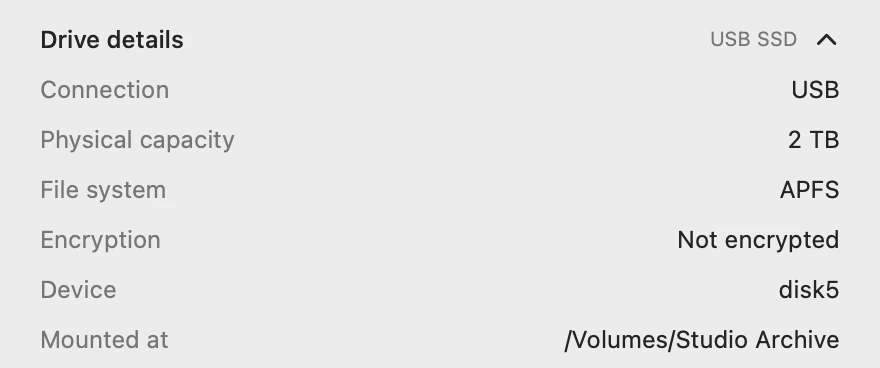
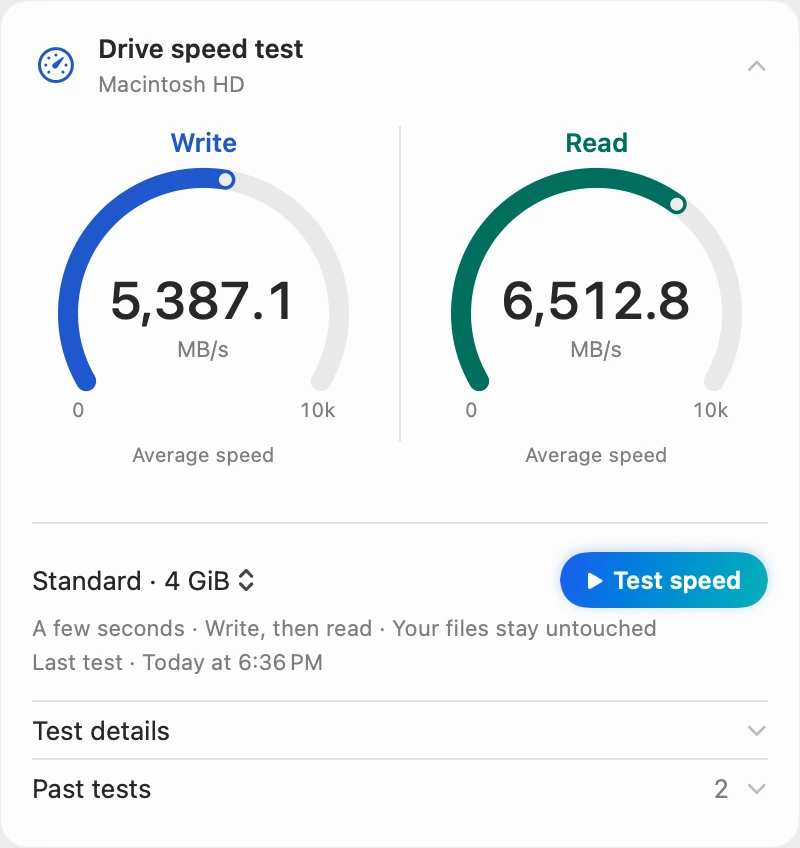
Speed, measured
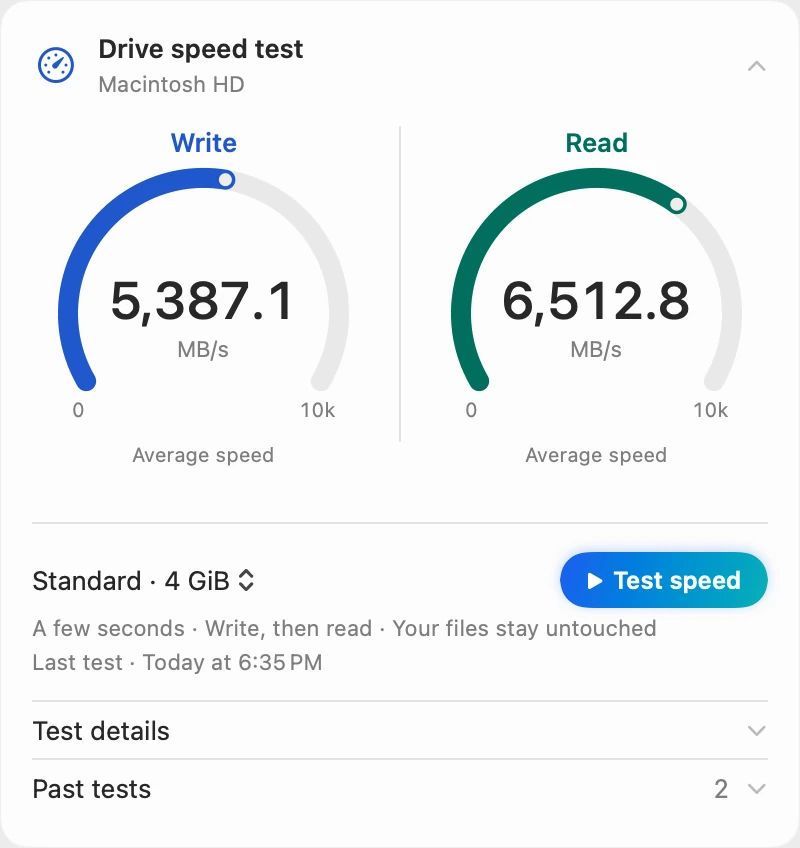
Drive speed test writes, then reads a temporary file of its own with macOS file caching turned off, on your Mac’s disk or any drive you allow, so your files stay untouched. That’s why its write speed is lower than the dd result above.
Scope shows and explains. It never mounts, ejects, formats or repairs drives, and it doesn’t show S.M.A.R.T. health: Disk Utility does that.
Try it here
The real Scope, working, right in this page.
Click any item in the menu bar, or a card inside, as you would on your Mac.
Scope Pro Every menu bar item is shown here. Scope Free keeps one whole item of your choice, with every reading inside.
See what your own drives are doing.
Answers in this guide
Drives
How to test SSD speed on a Mac
macOS has no SSD speed test, but Terminal’s dd gives a rough write speed. Here’s how to run it safely, and why caching can make the result look too fast.
Drives
External drive not showing up on a Mac? Fix it
An external drive that won’t show up on a Mac is usually the cable, Finder’s settings or a drive that isn’t mounted. Here’s how to check each, in order.
Drives
“Disk Not Ejected Properly” on a Mac: why it happens
“Disk Not Ejected Properly” means a drive left your Mac before it was ejected. Here’s how to eject safely, why drives drop out, and how to check yours.
Drives
APFS, exFAT or Mac OS Extended: which format to use
For a Mac-only external drive, choose APFS; for one shared with Windows, choose exFAT. Here’s how the formats compare, and how to check or change yours.
Drives
External hard drive read-only on a Mac? How to fix it
NTFS drives are read-only on a Mac. Check the format in Get Info, select Ignore ownership on this volume, or run First Aid. Every cause and fix.
Drives
How to format an SD card on a Mac, and which format
Format an SD card on a Mac in Disk Utility: select the card, click Erase, choose ExFAT for cards over 32 GB or MS-DOS (FAT) for smaller ones, then Erase.
Drives
Mac speed test app: SSD, external drive and internet
Scope tests how fast your Mac’s SSD, an external drive and your internet are: write and read, download, upload and latency. Free on the Mac App Store.
Keep reading
Storage
How to free up space on a Mac: every way, ranked
Every way to free up space on a Mac, biggest first: large files, external drives, Photos and iCloud Drive, Downloads, backups and the Trash, with risks.
Guide · Storage
Mac storage full? Where your space went
When Mac storage is full, Storage in System Settings shows what’s using it. Here’s where the space usually goes, and how to get it back safely.
Sources
- Apple Support: Connect and use other storage devices with Mac
- Apple Support: Allow USB and other accessories to connect to your Mac
- Apple Support: See the devices connected to your Mac
- Apple Support (Apple Platform Support): Use Disk Utility
- Apple Support: If a USB device doesn’t work with Mac (macOS Ventura guide)
- Apple Support: About the Apple Thunderbolt 3 (USB-C) Cable
- Apple Support: Terminal User Guide
- Apple Support: If you can’t eject a disk on Mac because an app is using it
- Apple Support: Mac keyboard shortcuts
- Apple Support: Back up your Mac with Time Machine
- Apple Support: File system formats available in Disk Utility on Mac
- Apple Support: File system formats available in Disk Utility on Mac (macOS Tahoe guide)
- Apple Support: File system formats available in Disk Utility on Mac (macOS Sequoia guide, for Mac OS Extended)
- Apple Support: Types of disks you can use with Time Machine on Mac
- Apple Support: Free up storage space on Mac
- Apple Support: Get detailed information about a disk in Disk Utility on Mac
- Apple Support: Check if a Mac disk is about to fail
- Apple Support: Repair a storage device in Disk Utility on Mac
Last checked October 19, 2026. Readings, apps and files in the pictures are from a made-up Mac.