External hard drive read-only on a Mac? How to fix it
When a Mac can read an external hard drive but not write to it, check the drive’s format first: select the drive in Finder and choose File > Get Info. NTFS drives are read-only on a Mac, so copy your files off and erase the drive as ExFAT or APFS. Otherwise, select Ignore ownership on this volume in the same window, or run First Aid in Disk Utility.
What does a read-only drive look like?
You can open the drive’s files, but copying, moving or changing files on it fails. Apple lists alerts like these:
- “The operation can’t be completed because the disk is read-only.”
- “You don’t have permission to write to this folder.”
- “This item can’t be moved because [device name] is read only.”
Why is my external drive read-only?
Apple’s checks for a drive your Mac can read but not write to:
| Cause | How to check | Fix |
|---|---|---|
| The drive is NTFS | File > Get Info: Format | Copy your files off, then erase it as ExFAT or APFS |
| Ownership and permissions | Get Info > Sharing & Permissions | Select Ignore ownership on this volume |
| It’s a Time Machine backup disk | You set it up for Time Machine | Keep it for backups; use another drive for other files |
| Errors on the drive | Disk Utility > First Aid | Run First Aid; reformat if it can’t repair the drive |
| A locked SD card | “Cannot be modified” appears | Move the card’s lock slider to unlocked |
| The drive is full | Your Mac tells you there isn’t room | Delete or compress files on the drive |
How do I check the drive’s format?
The format, or file system, is the way a drive organizes its files. It decides whether your Mac can write to the drive.
- Select the drive in Finder, on the desktop or under Locations in the sidebar.
- Choose File > Get Info, or press Command-I.
- Look at Format in the Info window.
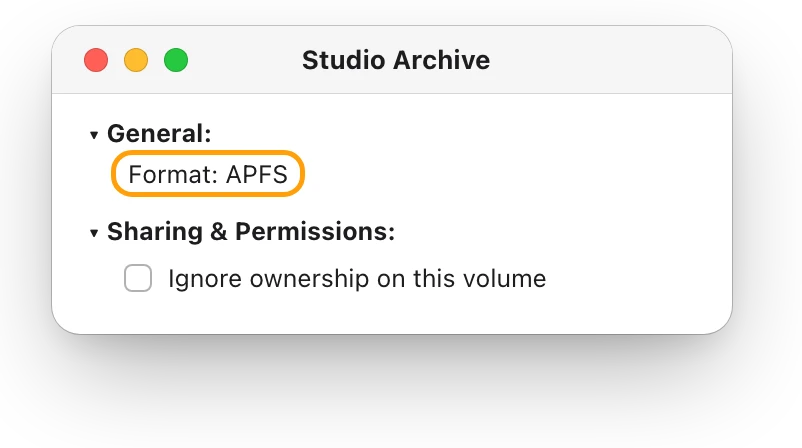
What the format means:
- APFS or Mac OS Extended: Mac formats. If you see one of these, check permissions next.
- ExFAT or MS-DOS (FAT): formats that also work with Windows. These are fine too: check permissions next.
- NTFS: Disk Utility doesn’t support it. Your Mac might be able to read from it, but not write to it.
How do I write to an NTFS drive on a Mac?
Apple’s fix is to erase the drive in a format your Mac supports. Erasing deletes everything on it, so save your files first.
- Copy everything you want to keep from the drive to your Mac or another drive, while your Mac can still read it.
- Open Disk Utility, choose View > Show All Devices, select the drive at the top of its list, then click Erase.
- Choose a Format: ExFAT to keep using the drive with Windows PCs (MS-DOS (FAT) if it’s 32 GB or less), or APFS if it only connects to Macs.
- Choose a Scheme: GUID Partition Map for Macs, or Master Boot Record, which Apple says works with all Windows-based computers.
- Click Erase, then Done, and copy your files back.
APFS, exFAT or Mac OS Extended: which format to use helps you choose, with pictures of each step.
How do I fix permissions on an external drive?
If the format is one your Mac supports, check the drive’s ownership setting.
- Select the drive in Finder and choose File > Get Info.
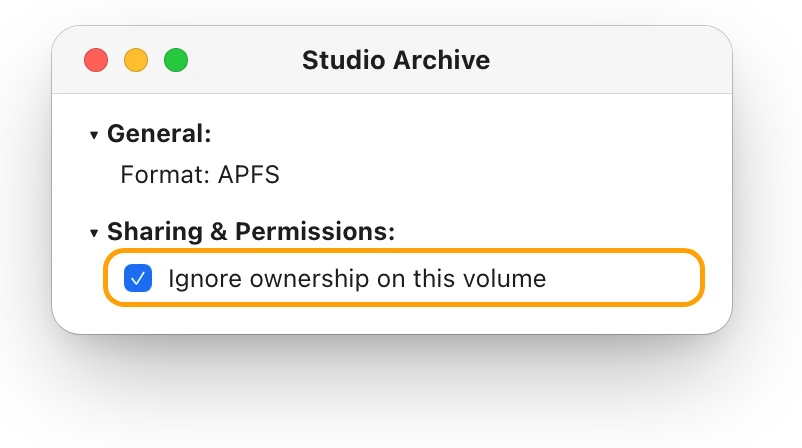
- Open Sharing & Permissions at the bottom of the window. Click its arrow if it’s closed.
- Select “Ignore ownership on this volume.” If you can’t change it, click the lock and enter an administrator’s password first.
What if the drive suddenly became read-only?
A drive that worked yesterday and is read-only today may have errors. Apple notes that a damaged file system can force macOS to mount a drive read-only. First Aid checks the drive and repairs what it can.
- Open Disk Utility and choose View > Show All Devices.
- Select the drive’s volume in the sidebar, then click First Aid.
- Click Run, follow the onscreen instructions, then click Done.
- Repeat for the drive’s container, if it has one, and then for the drive itself, at the top of its list.
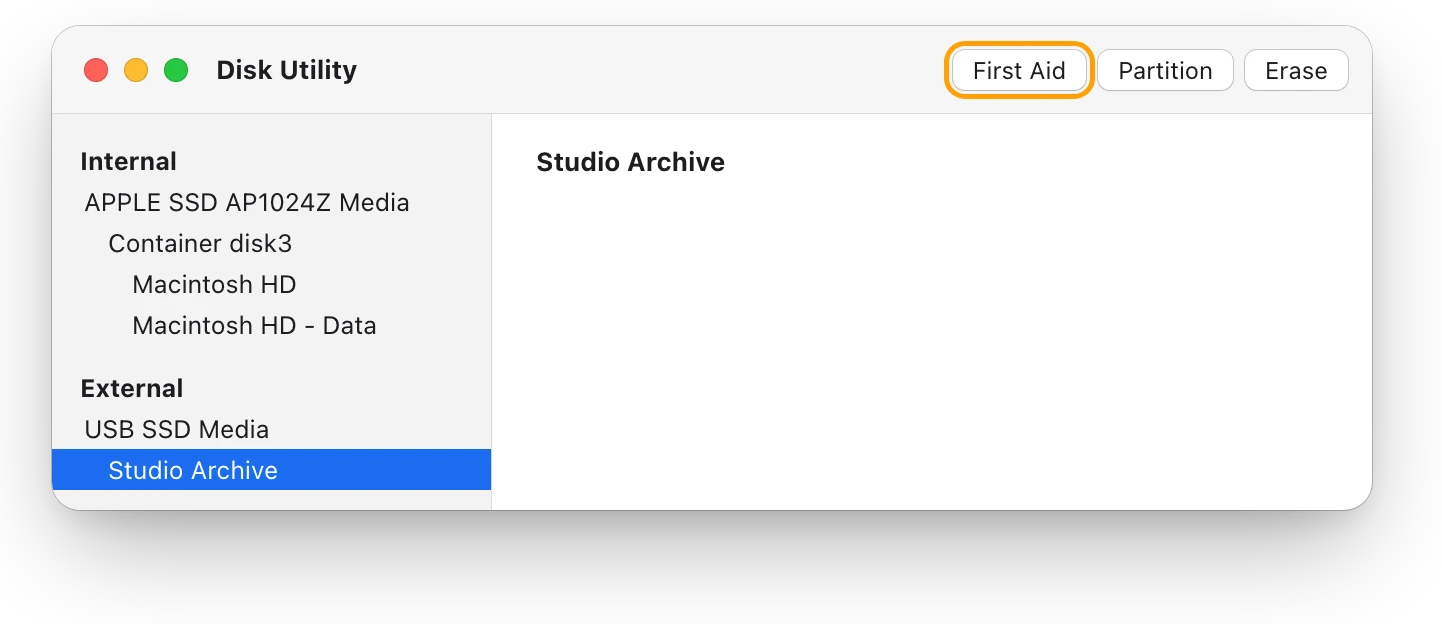
If First Aid repairs the drive, it may mount again with write access. Apple’s IT guide also suggests running First Aid from Disk Utility in macOS Recovery when a drive shows read-only errors. If First Aid can’t repair the drive, back up as much as you can, then reformat it. If Disk Utility says the disk is about to fail, back up your data and replace the drive.
Could it be a Time Machine disk or a locked card?
- Time Machine: a drive you set up for Time Machine backups can be used only for Time Machine backups, not for other files. Keep your other files on a second drive.
- An SD card: if “cannot be modified” appears, the card’s lock slider may be in the locked position. Eject the card, move the slider to unlocked, then insert it again. How to format an SD card on a Mac covers cards in full.
- A Mac from work or school: a configuration profile can control how external drives mount. Look in System Settings > General > Device Management for one that manages Media Restrictions, and ask whoever manages your Mac.
Questions people also ask
Can a Mac write to an NTFS drive?
No, not with macOS’s own tools. Apple says NTFS drives are read-only on a Mac and that Disk Utility doesn’t support NTFS. To write to the drive, copy your files off and erase it as ExFAT or APFS.
Why does my external drive say it’s locked on my Mac?
If single files show a lock, select one, choose File > Get Info and deselect Locked. For an SD card, check the lock slider on its side.
Which format works on both a Mac and a Windows PC?
ExFAT for drives over 32 GB, and MS-DOS (FAT) for 32 GB or less. Apple lists both as compatible with Windows.
Will erasing the drive fix it?
Erasing gives the drive a format your Mac can write to, but it deletes everything on it. Try the format, permissions and First Aid checks first, and copy your files off before you erase.
Scope for Mac · Free, coming to the Mac App Store
How Scope helps
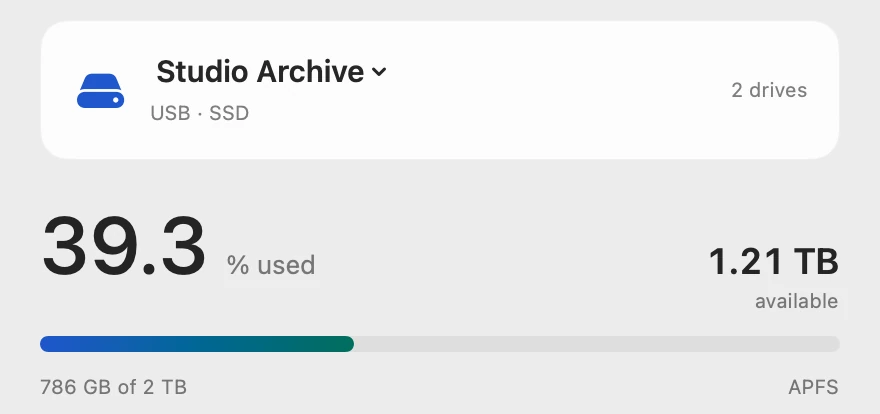
Scope is a free Mac menu bar app that shows each connected drive’s file system, free space, connection and encryption. You can see a drive’s format, and whether it has room, without opening Get Info or Disk Utility.
In your menu bar
Scope Free’s one whole menu bar item can show both drives: Mac at 91%, and Stu, Studio Archive, at 39%.

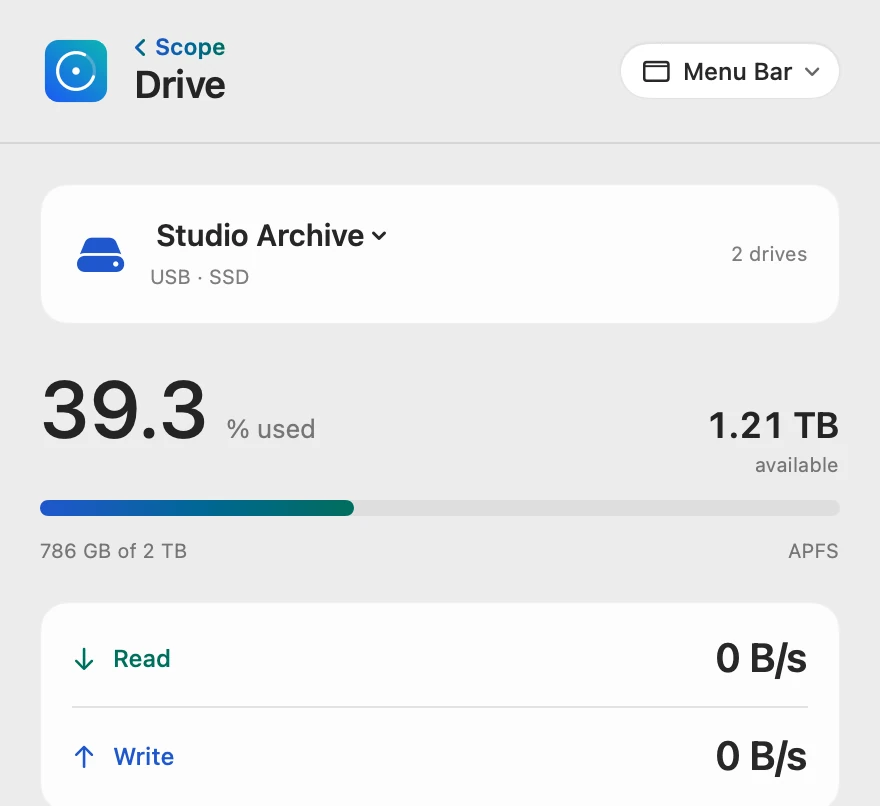
Format and free space
The format shows under each drive’s bar, beside how much is used, so two of the checks above take one click. A drive past its space limit shows Low space there instead.
Every drive detail
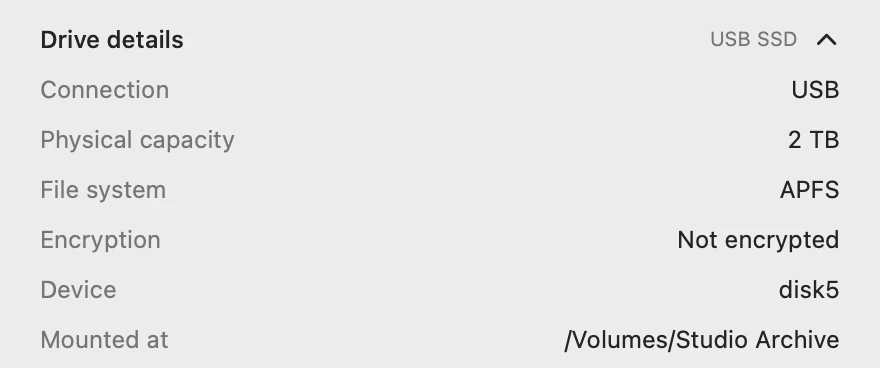
Drive details lists the drive’s model, connection, physical capacity, file system, encryption and where macOS mounted it.
Scope shows and explains. It never formats, repairs or erases a drive: that stays in Disk Utility.
Try it here
The real Scope, working, right in this page.
Click any item in the menu bar, or a card inside, as you would on your Mac.
Scope Pro Every menu bar item is shown here. Scope Free keeps one whole item of your choice, with every reading inside.
See how your own drives are set up.
Keep reading
Guide · Drives
External hard drives and SSDs on a Mac: a guide
How to test an external drive’s speed on a Mac, fix one that won’t show up, eject it safely, pick a format and check its health, with macOS’s tools.
Drives
APFS, exFAT or Mac OS Extended: which format to use
For a Mac-only external drive, choose APFS; for one shared with Windows, choose exFAT. Here’s how the formats compare, and how to check or change yours.
Drives
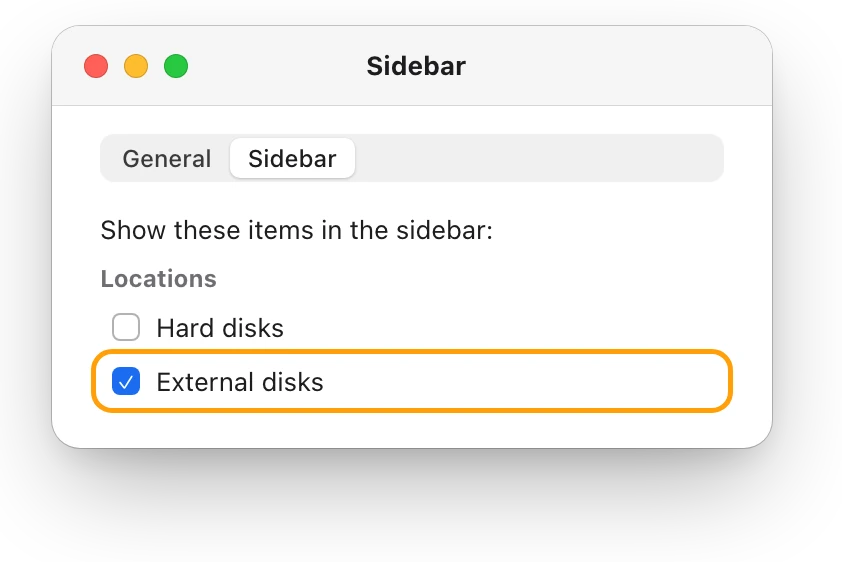
External drive not showing up on a Mac? Fix it
An external drive that won’t show up on a Mac is usually the cable, Finder’s settings or a drive that isn’t mounted. Here’s how to check each, in order.
Drives
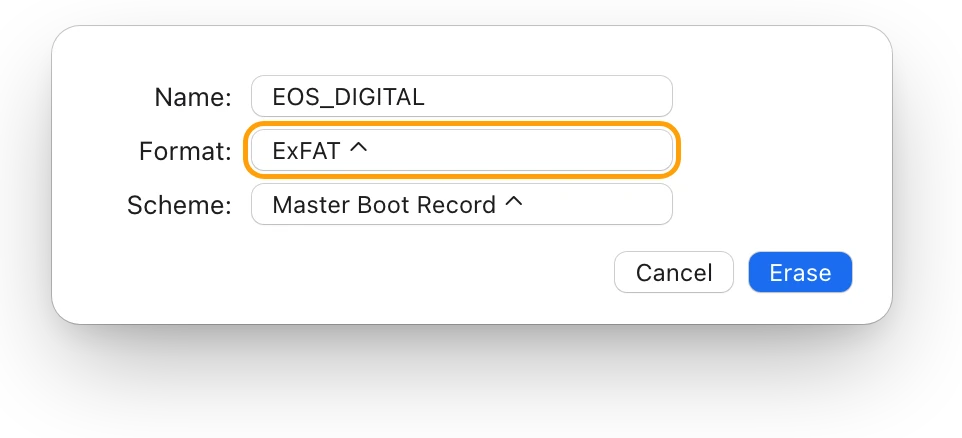
How to format an SD card on a Mac, and which format
Format an SD card on a Mac in Disk Utility: select the card, click Erase, choose ExFAT for cards over 32 GB or MS-DOS (FAT) for smaller ones, then Erase.
Drives
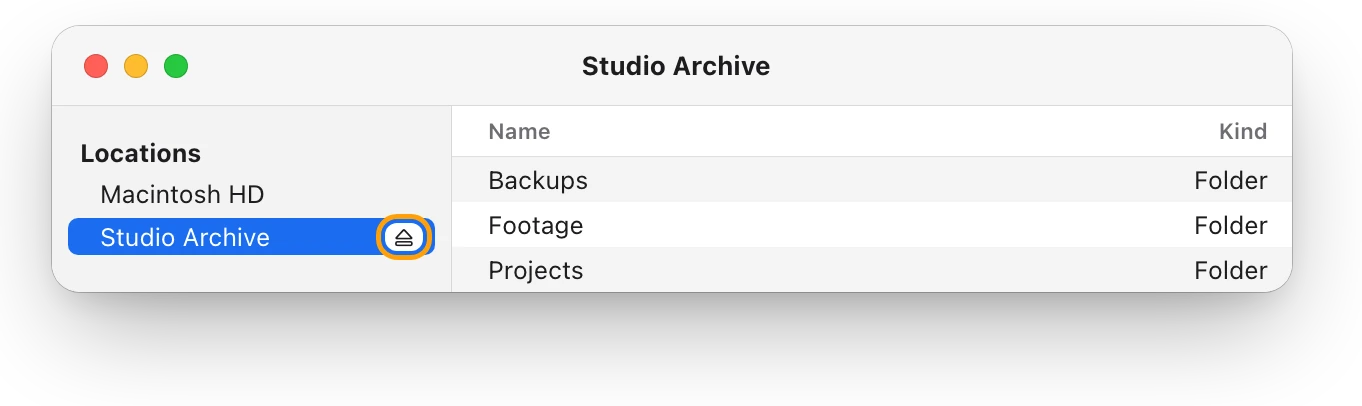
“Disk Not Ejected Properly” on a Mac: why it happens
“Disk Not Ejected Properly” means a drive left your Mac before it was ejected. Here’s how to eject safely, why drives drop out, and how to check yours.
Sources
- Apple Support: If your Mac can’t save files to an external drive
- Apple Support: If you can’t move or copy an item on Mac
- Apple Support (Apple Platform Support): Use Disk Utility
- Apple Support: Repair a storage device in Disk Utility on Mac
- Apple Support: File system formats available in Disk Utility on Mac
- Apple Support: Erase and reformat a storage device in Disk Utility on Mac
- Apple Support: Partition schemes available in Disk Utility on Mac
- Apple Support: Change permissions for files, folders, or disks on Mac
- Apple Support: Delete files and folders on Mac
- Apple Support: Use the SD and SDXC card slot on your Mac
Last checked October 19, 2026. Readings, apps and files in the pictures are from a made-up Mac.