How to format an SD card on a Mac, and which format
To format an SD card on a Mac, copy off anything you want to keep, open Disk Utility, choose View > Show All Devices, select the card and click Erase. Choose ExFAT for a card over 32 GB, or MS-DOS (FAT) for one of 32 GB or less: Apple lists both as compatible with Windows. Erasing the card deletes everything on it.
Before you start: save what’s on the card
Formatting, which Disk Utility calls erasing, deletes every file on the card. Copy what you want to keep first.
- Insert the card with its metal contacts facing down and pointing toward your Mac. Your Mac may ask you to allow a new card. Choose Allow: with Don’t Allow, no data is transmitted.
- Smaller cards such as microSD and miniSD need an adapter to fit the SD card slot. If your Mac has no slot, use a card reader.
- Copy the files: select the card under Locations in a Finder window, then drag its files to a folder on your Mac. A card formatted by a digital camera acts like the camera itself when you insert it, so you can import its photos the same way.
How do I format an SD card in Disk Utility?
Disk Utility erases the card and gives it a new format in one step.
- Open Disk Utility. It’s in Applications > Utilities, or search for it with Spotlight.
- Choose View > Show All Devices.
- In the sidebar, select the card itself, at the top of its list, not the volume under it. Then click Erase in the toolbar.
- Enter a name. For a Windows format, Apple says the name can be up to 11 characters.
- Click the Format pop-up menu and choose ExFAT for a card over 32 GB, or MS-DOS (FAT) for 32 GB or less.
- Click the Scheme pop-up menu. Apple says Master Boot Record works with all Windows-based computers, and GUID Partition Map is the one for Mac computers.
- Click Erase, then click Done.
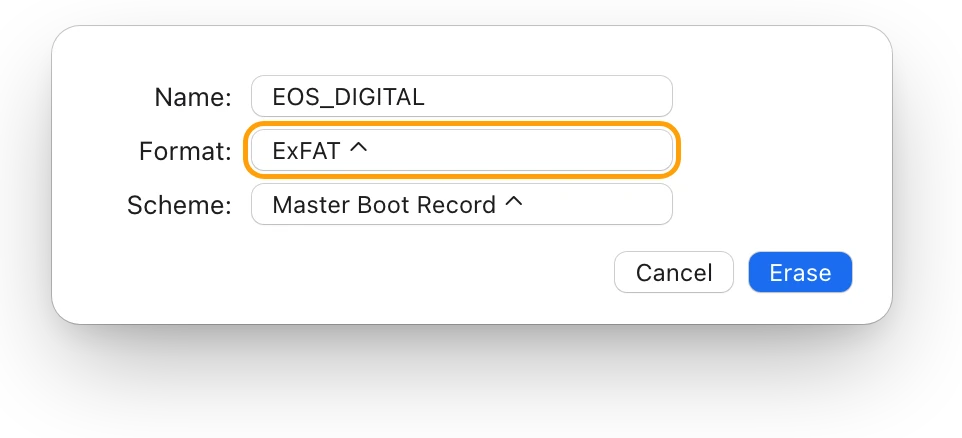
If there’s no Scheme pop-up menu, you’ve selected the card’s volume rather than the card. Select the item at the top of its list and click Erase again.
A shortcut in Finder: Control-click the card in the Finder sidebar, choose Erase Disk, enter a name, choose a format, then click Erase. Apple’s Finder steps have no Scheme choice, so use Disk Utility when the scheme matters.
Which format should an SD card use?
Pick the format by where the card goes next.
| The card is for | Format | Why |
|---|---|---|
| Macs and Windows PCs, over 32 GB | ExFAT | Apple’s Windows-compatible format for volumes over 32 GB |
| Macs and Windows PCs, 32 GB or less | MS-DOS (FAT) | Apple’s Windows-compatible format for volumes of 32 GB or less |
| Macs only | APFS | The Mac’s own file system, for macOS 10.13 or later |
| A camera, drone or other device | What its manual asks for | The device has to read the card too |
The card in these pictures, sold as 128 GB, is over 32 GB, so it gets ExFAT. APFS isn’t one of the formats Apple lists as compatible with Windows, so choose it only for a card that stays with Macs. APFS, exFAT or Mac OS Extended: which format to use compares the formats in more detail.
Why won’t my Mac erase the SD card?
Check these first.
- ”Cannot be modified”: the card is probably locked. Eject it, remove it, move the lock slider on the side of the card to the unlocked position, then insert it again. The card maker’s instructions show where the slider is.
- The card doesn’t mount: remove it and insert it again. Apple notes a card can fail to mount if it goes in too slowly or too quickly. If it still won’t mount, you might need to reformat it.
- The card doesn’t show up at all: check that it isn’t a Secure Digital Input Output (SDIO) card, which the slot doesn’t support. External drive not showing up on a Mac? covers Finder’s settings and Disk Utility’s Mount button.
If a drive or card mounts but your Mac can’t write to it, External hard drive read-only on a Mac? walks through every cause.
How do I eject the SD card safely?
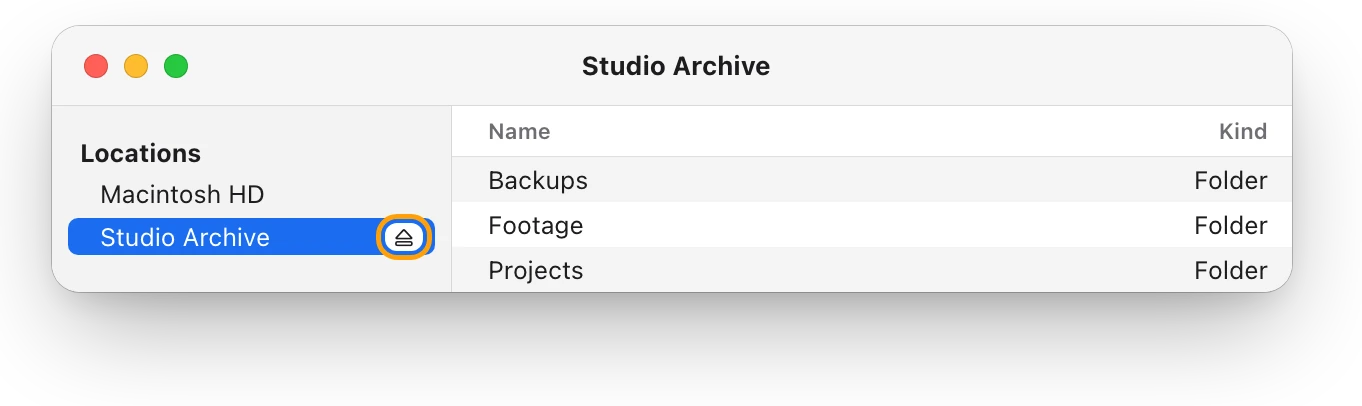
In the sidebar of a Finder window, select the card, then choose File > Eject. When the card’s icon disappears from the sidebar, remove it from the slot. Don’t remove a card while your Mac is asleep: wake it and eject the card first, because removing it during sleep can lose data. “Disk Not Ejected Properly” on a Mac explains the alert you see when a drive is removed before it’s ejected.
Questions people also ask
How do I format a microSD card on a Mac?
Put it in an SD adapter, insert the adapter into the SD card slot or a card reader, then follow the same Disk Utility steps.
Should an SD card be ExFAT or MS-DOS (FAT)?
ExFAT for a card over 32 GB and MS-DOS (FAT) for one of 32 GB or less, if the card also goes to Windows PCs. For a camera, follow its manual.
Does formatting an SD card delete everything?
Yes. Erasing a storage device deletes everything on it, so copy your files off first.
Which SD cards does a Mac’s slot take?
Apple lists MMC, Default Speed, High Speed and UHS-I cards, and UHS-II on some models, such as MacBook Pro introduced in 2021 or later and Mac Studio introduced in 2022 or later.
Scope for Mac · Free, coming to the Mac App Store
How Scope helps
Scope is a free Mac menu bar app that shows every connected drive’s capacity, free space and format, SD cards included, with the card’s slot and file system in Drive details. You can check how much is on a card, and how it’s formatted, before you erase it.
In your menu bar
Scope Free’s one whole menu bar item can show several drives. Here it keeps the Mac’s disk and Studio Archive in view, and the panel is open on the SD card.

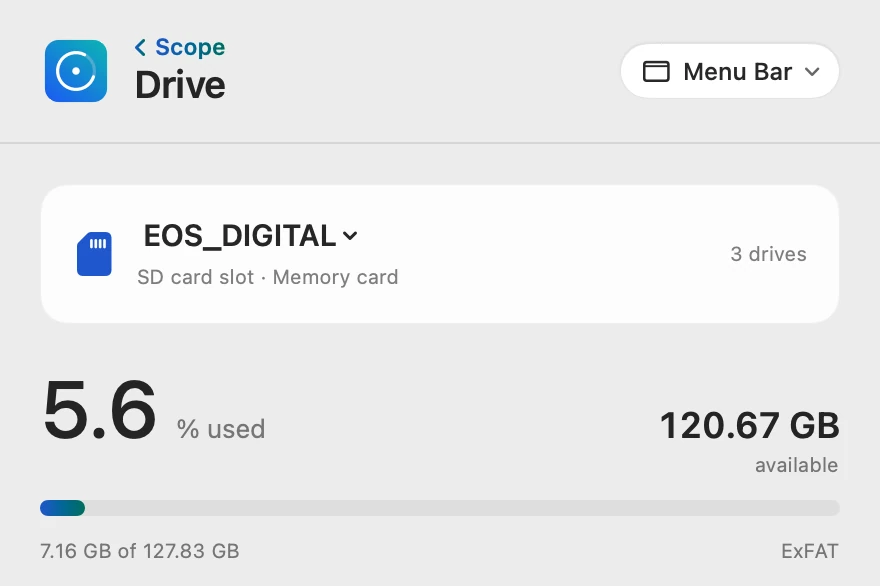
The card, before you erase it
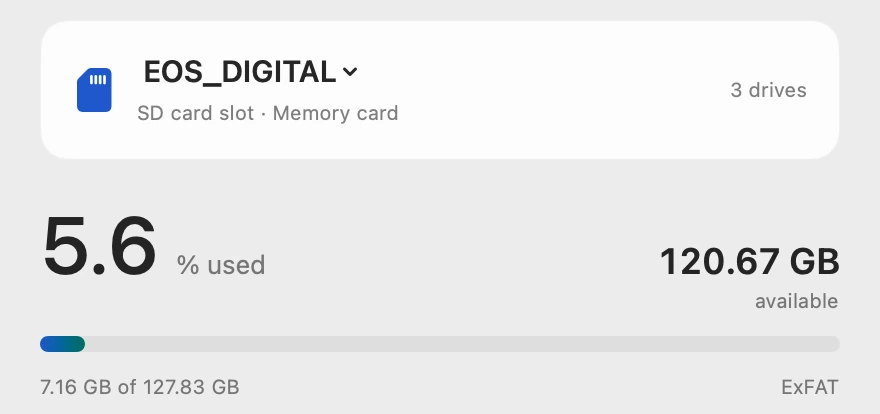
Drive shows the card in the SD card slot, how much is on it and its format under the bar. 7.16 GB of files is what Erase would delete, so copy what you need first.
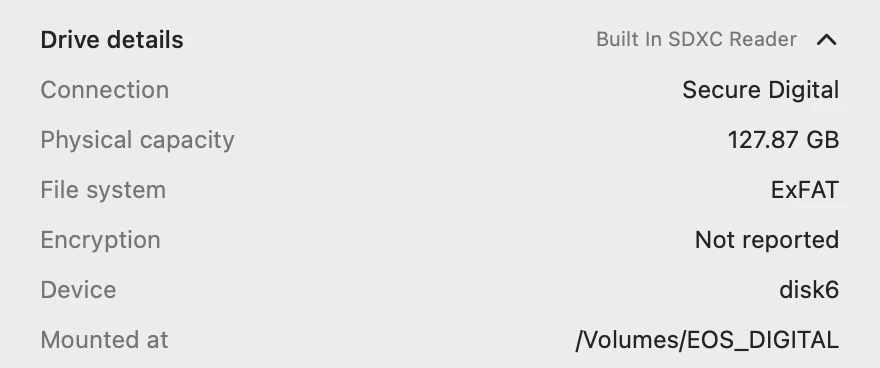
Every detail of the card
Physical capacity is the whole card. The 127.83 GB above is what its volume has to use.
A quick speed check
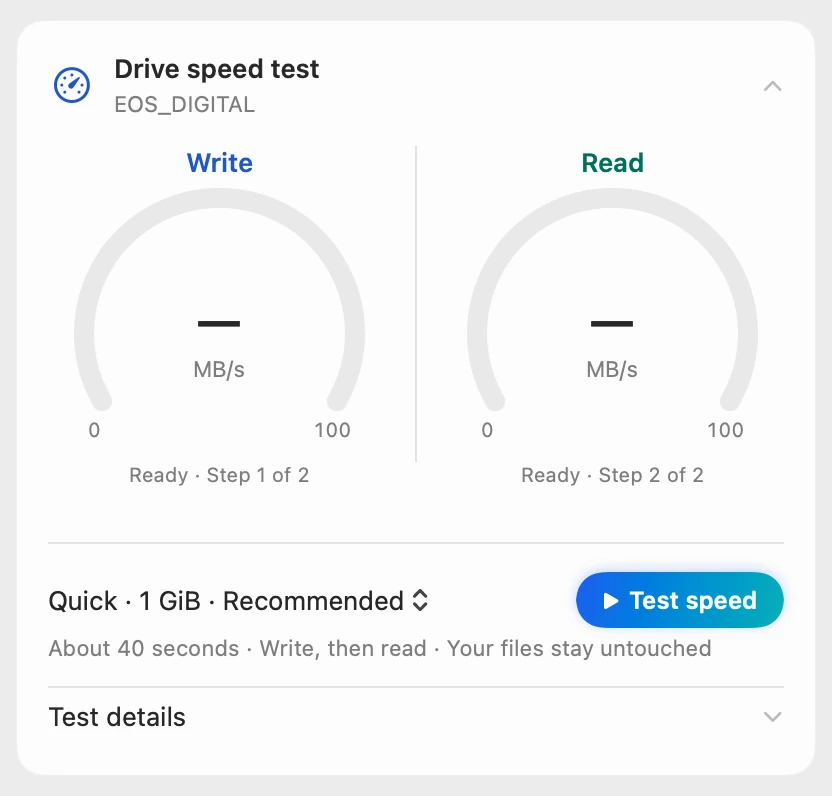
The drive speed test writes a test file and reads it back, leaving your files untouched. On a memory card, Scope marks the Quick test, 1 GiB, as Recommended.
Scope shows and explains. It never formats or erases a drive: that stays in Disk Utility.
Try it here
The real Scope, working, right in this page.
Click any item in the menu bar, or a card inside, as you would on your Mac.
Scope Pro Every menu bar item is shown here. Scope Free keeps one whole item of your choice, with every reading inside.
See every drive on your own Mac.
Keep reading
Guide · Drives
External hard drives and SSDs on a Mac: a guide
How to test an external drive’s speed on a Mac, fix one that won’t show up, eject it safely, pick a format and check its health, with macOS’s tools.
Drives
APFS, exFAT or Mac OS Extended: which format to use
For a Mac-only external drive, choose APFS; for one shared with Windows, choose exFAT. Here’s how the formats compare, and how to check or change yours.
Drives
External hard drive read-only on a Mac? How to fix it
NTFS drives are read-only on a Mac. Check the format in Get Info, select Ignore ownership on this volume, or run First Aid. Every cause and fix.
Drives
External drive not showing up on a Mac? Fix it
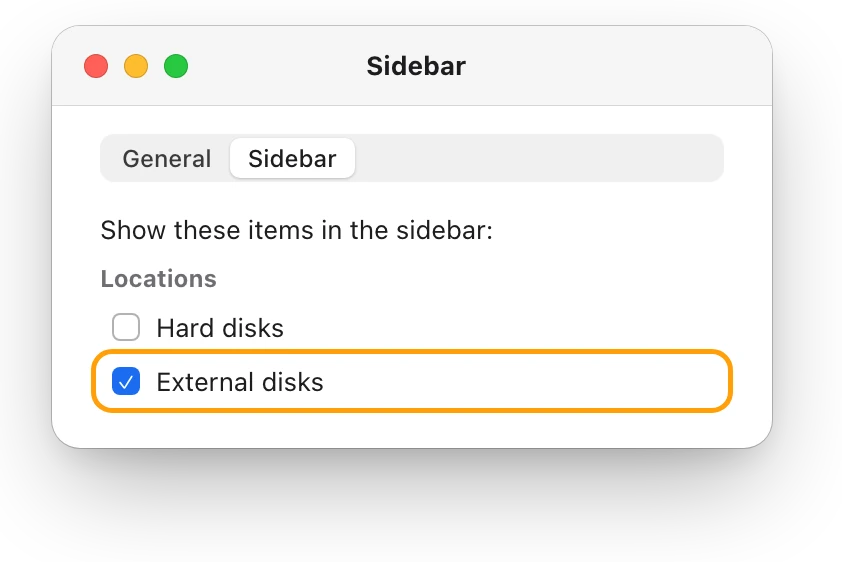
An external drive that won’t show up on a Mac is usually the cable, Finder’s settings or a drive that isn’t mounted. Here’s how to check each, in order.
Drives
“Disk Not Ejected Properly” on a Mac: why it happens
“Disk Not Ejected Properly” means a drive left your Mac before it was ejected. Here’s how to eject safely, why drives drop out, and how to check yours.
Sources
- Apple Support: Use the SD and SDXC card slot on your Mac
- Apple Support: Use an SD or SDXC card with Mac
- Apple Support: Erase and reformat a storage device in Disk Utility on Mac
- Apple Support: Format a disk for Windows computers in Disk Utility on Mac
- Apple Support: File system formats available in Disk Utility on Mac
- Apple Support: Partition schemes available in Disk Utility on Mac
- Apple Support: Connect and use other storage devices with Mac
- Apple Support: Use the ports on your Mac
Last checked October 19, 2026. Readings, apps and files in the pictures are from a made-up Mac.