“Disk Not Ejected Properly” on a Mac: why it happens
On a Mac, “Disk Not Ejected Properly” means an external drive disconnected before it was ejected: it was unplugged, its cable came loose or it lost power. To disconnect a drive safely, eject it first: click the Eject button next to it in the Finder sidebar, drag it to the Trash, or choose File > Eject. If the alert appears when you didn’t unplug anything, check the cable, port, hub and power.
How do I eject a drive on a Mac?
Use any of these, then wait until the drive disappears from the Finder sidebar before you unplug it:
- In the Finder sidebar, click the Eject button next to the drive’s name.
- Or select the drive, then choose File > Eject, or press Command-E.
- Or, on the desktop, drag the drive’s icon to the Trash.
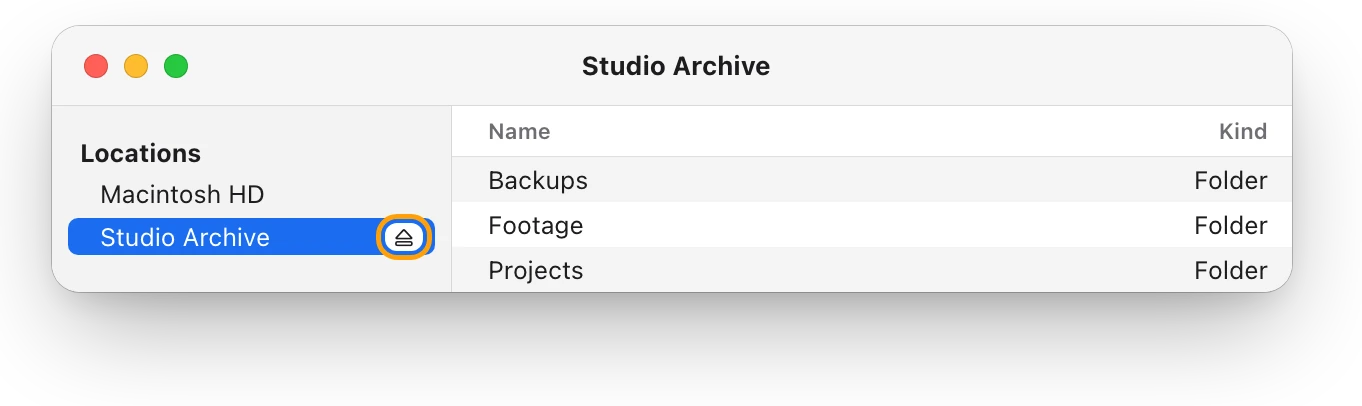
Shutting down works too. For a Time Machine backup disk, Apple’s advice is to eject the disk or shut down your Mac before you disconnect it.
Why won’t my Mac let me eject the drive?
If you can’t eject a drive, an app or another user is probably still using a file on it. Apple’s steps, in order:
- Quit the apps using files on the drive, or close the documents that are on it, then eject again. Press Command-Tab to see which apps are open.
- If it still won’t eject, choose Apple menu > Log Out, log in again, and eject the drive.
- As a last step, choose Apple menu > Shut Down. Disconnect the drive, then start up your Mac again.
Why does the alert appear when I didn’t unplug anything?
Then the drive dropped off by itself, and the connection is the place to look. These are Apple’s checks for drives and USB devices:
- Connect it directly. Plug the drive straight into your Mac, without a hub or extension cable.
- Check the cable, then swap it. Make sure it’s firmly connected at both ends, then try a different cable and a different port.
- Give it power. If the drive has a power adapter, use it. A drive without its own power cable shouldn’t be plugged into another device without one: connect it to your Mac, or to a device that has its own power cable.
- Match the hub. If you do use a hub, the drive and the hub should be the same speed.
- Unplug the rest. Disconnect other USB devices and see whether the drive stays connected, then add them back one at a time.
Notice when it happens: during a large copy, after your Mac wakes from sleep, or only when something else is plugged in. That tells you whether to look at the cable, the power or the hub first.
Did I lose any data?
Check, to be sure. Apple’s pages say to eject a drive, or shut down your Mac, before you disconnect it. Open the files you were copying or saving when the drive disconnected, and copy them again if any won’t open. Then check the drive itself with First Aid:
- Open Disk Utility. It’s in Applications > Utilities, or search for it with Spotlight.
- Choose View > Show All Devices.
- Select the drive’s volume, click First Aid, then click Run. Repeat for each container on the drive, then for the drive itself.
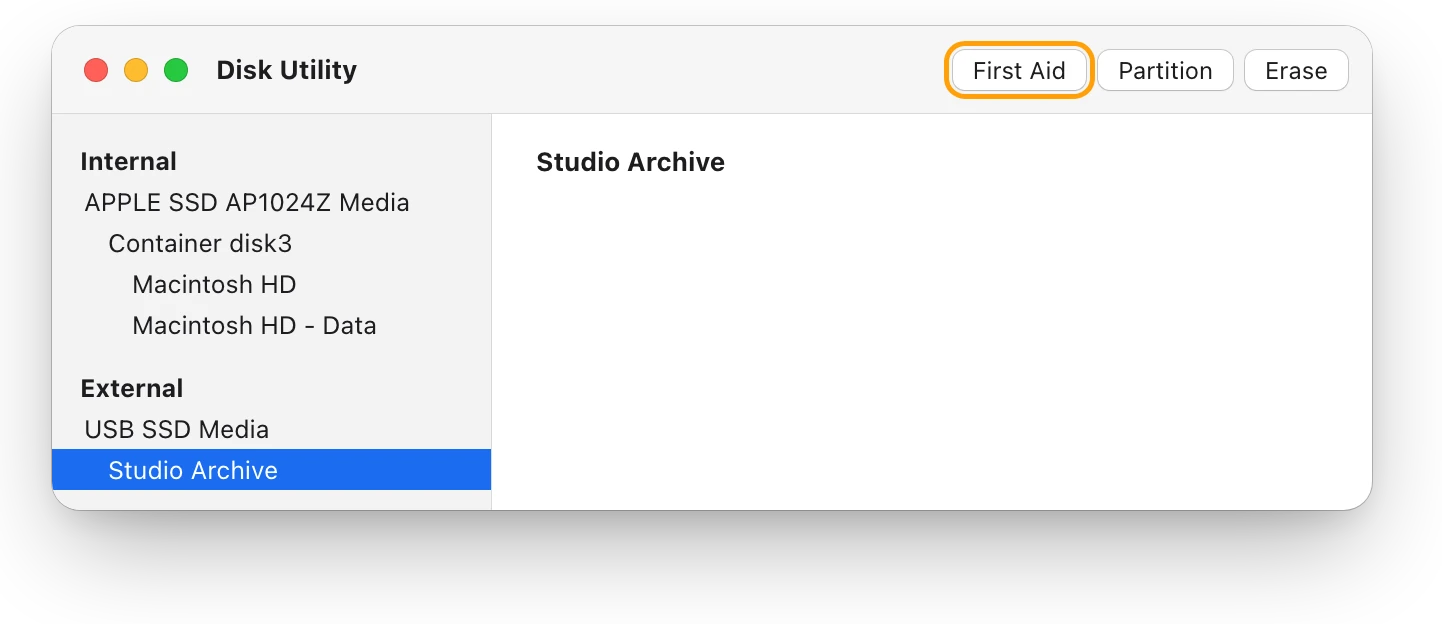
If First Aid says the disk appears to be OK or has been repaired, you’re done. Apple also notes that a damaged file system can make macOS mount a drive read-only, with an error such as “The operation can’t be completed because the disk is read-only”. First Aid is the first fix for that too. If First Aid says the disk is about to fail, copy your files off and replace the drive.
Questions people also ask
What’s the shortcut to eject a drive on a Mac?
Select the drive in the Finder and press Command-E.
Is it OK to shut down instead of ejecting?
Yes. Apple’s advice for a backup disk is to eject it or shut down your Mac before you disconnect it.
Why does my external drive keep disconnecting?
The drive keeps losing its connection. Try another cable and port, plug it straight into your Mac without a hub, and use its power adapter if it has one.
Why doesn’t my drive show up after I plug it back in?
It may not have mounted. External drive not showing up on a Mac? walks through Finder’s settings, Disk Utility’s Mount button and First Aid.
Scope for Mac · Free, coming to the Mac App Store
How Scope helps
Scope is a free Mac menu bar app that shows each connected drive in your menu bar, with what it’s reading and writing right now. You can see whether a drive is busy, and notice when one drops out, without opening Finder.
In your menu bar
With read and write speeds turned on, each drive shows what it’s moving beside how full it is. A drive that disconnects leaves the item, so you see it at once.

Busy or idle
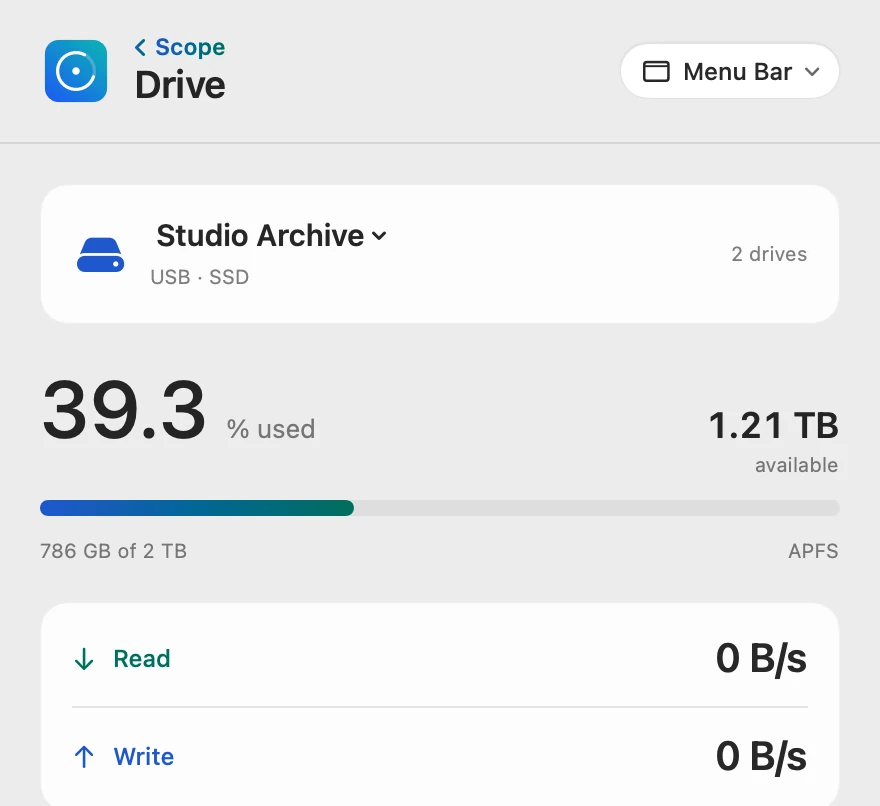
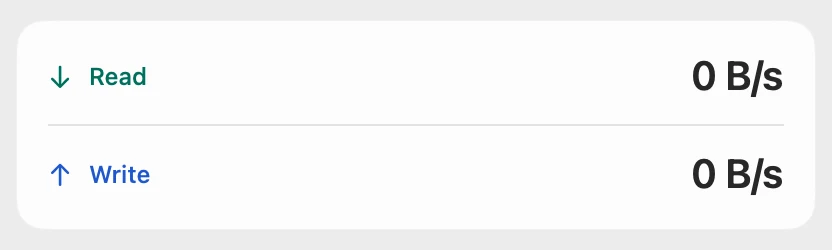
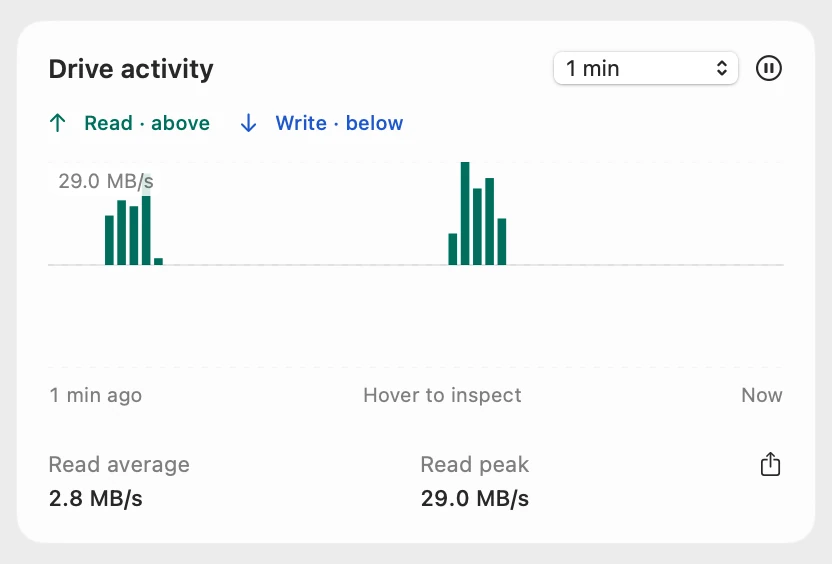
Read and Write show what the drive is moving this second, and Drive activity shows its recent reads and writes. Ejecting is still Finder’s job, and macOS decides when a drive is free to go.
Where it’s mounted
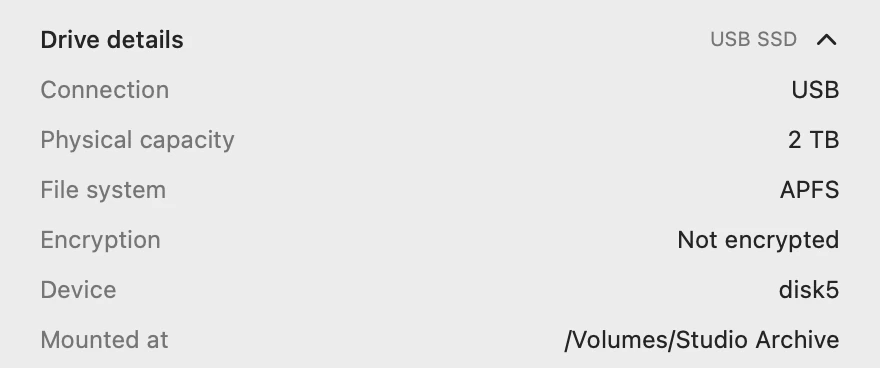
Drive details shows how the drive is connected and where macOS has mounted it, so you can tell which disk is which.
Scope shows and explains. It never ejects, mounts, formats or repairs drives.
Try it here
The real Scope, working, right in this page.
Click any item in the menu bar, or a card inside, as you would on your Mac.
Scope Pro Every menu bar item is shown here. Scope Free keeps one whole item of your choice, with every reading inside.
See what your own drives are doing.
Keep reading
Guide · Drives
External hard drives and SSDs on a Mac: a guide
How to test an external drive’s speed on a Mac, fix one that won’t show up, eject it safely, pick a format and check its health, with macOS’s tools.
Drives
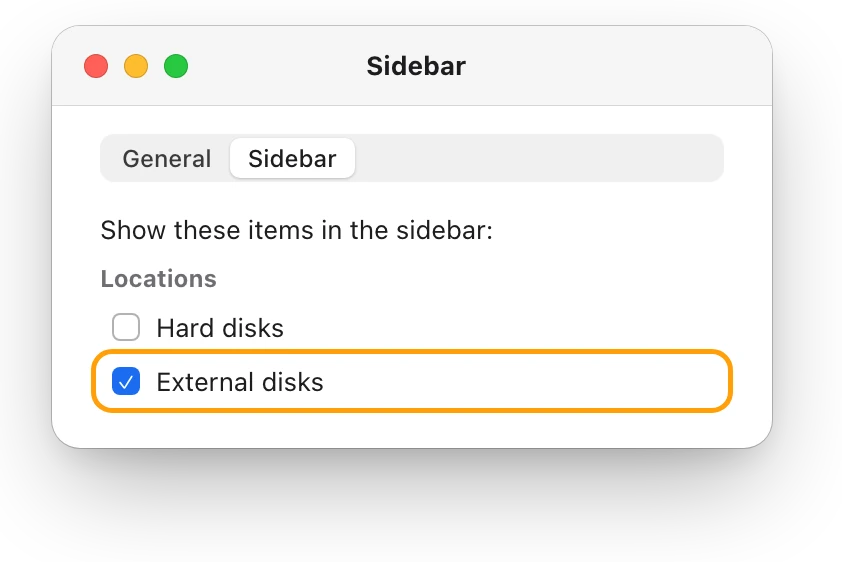
External drive not showing up on a Mac? Fix it
An external drive that won’t show up on a Mac is usually the cable, Finder’s settings or a drive that isn’t mounted. Here’s how to check each, in order.
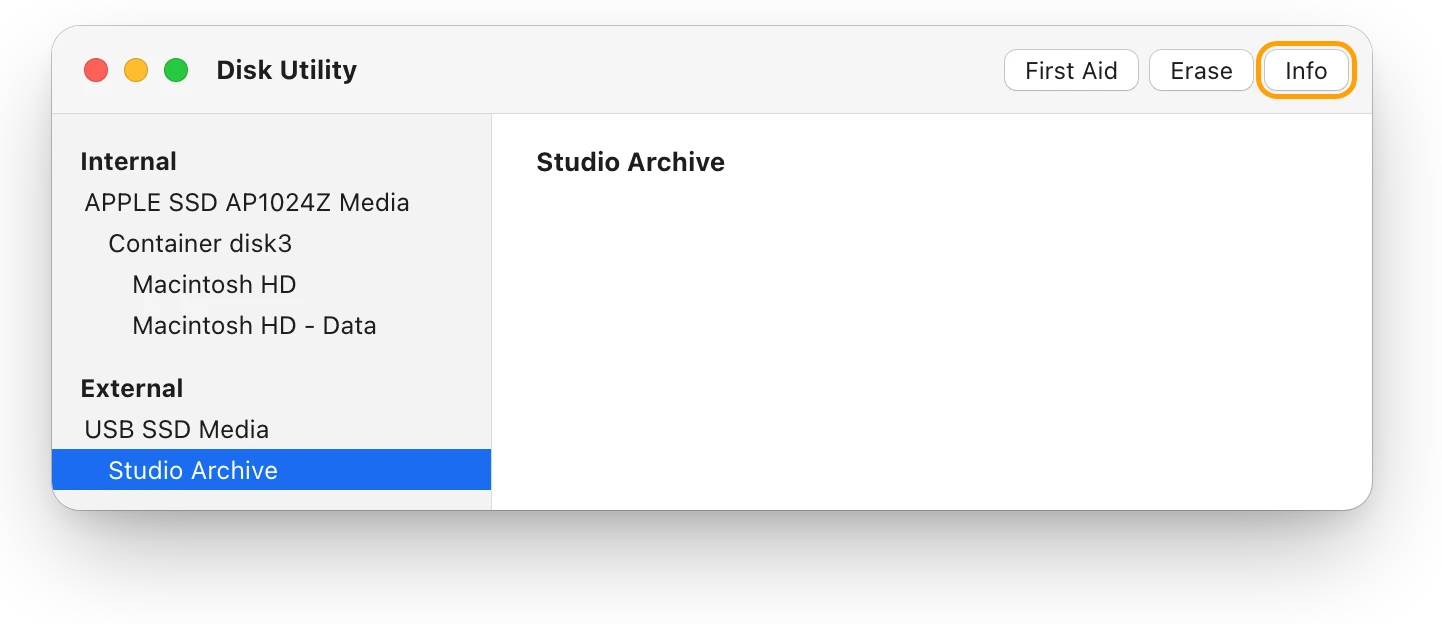
Drives
APFS, exFAT or Mac OS Extended: which format to use
For a Mac-only external drive, choose APFS; for one shared with Windows, choose exFAT. Here’s how the formats compare, and how to check or change yours.
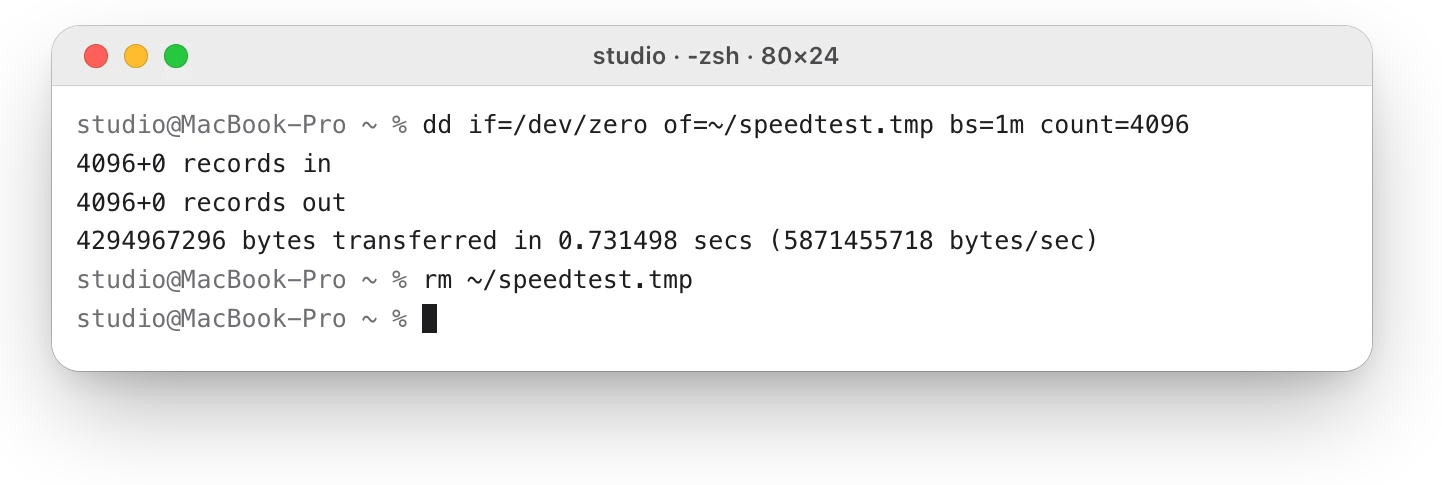
Drives
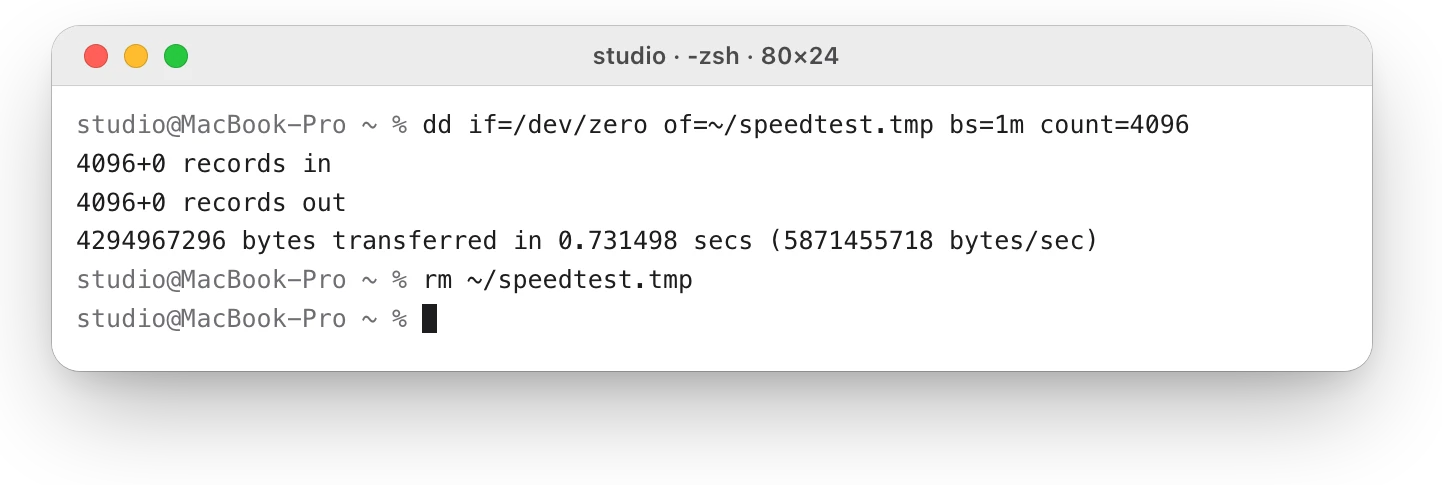
How to test SSD speed on a Mac
macOS has no SSD speed test, but Terminal’s dd gives a rough write speed. Here’s how to run it safely, and why caching can make the result look too fast.
Sources
- Apple Support: Connect and use other storage devices with Mac
- Apple Support: Mac keyboard shortcuts
- Apple Support: Back up your Mac with Time Machine
- Apple Support: If you can’t eject a disk on Mac because an app is using it
- Apple Support: If you can’t eject a disk on Mac, try these solutions
- Apple Support: If a USB device doesn’t work with Mac (macOS Ventura guide)
- Apple Support (Apple Platform Support): Use Disk Utility
- Apple Support: Repair a storage device in Disk Utility on Mac
Last checked October 18, 2026. Readings, apps and files in the pictures are from a made-up Mac.