APFS, exFAT or Mac OS Extended: which format to use
The best format for an external drive on a Mac is APFS, if the drive only connects to Macs with macOS 10.13 or later: it’s the Mac’s default file system, optimized for SSDs and usable on hard drives too. If the drive also goes to Windows PCs, choose exFAT. Mac OS Extended (Journaled) is for Macs with macOS 10.12 or earlier. Changing a drive’s format erases it.
Which format should I choose?
A format, or file system, is the way a drive organizes its files. Apple’s current Disk Utility guide lists APFS, ExFAT and MS-DOS (FAT); Mac OS Extended appears in its guides for macOS Sequoia and earlier:
| Format | Use it for | Works with Windows | Time Machine |
|---|---|---|---|
| APFS | Macs with macOS 10.13 or later; SSDs and hard drives | No | Yes, Apple’s preferred format |
| Mac OS Extended (Journaled) | Macs with macOS 10.12 or earlier (no longer in Apple’s current guide) | No | Yes, still supported |
| ExFAT | Drives shared with Windows, over 32 GB | Yes | No |
| MS-DOS (FAT) | Drives shared with Windows, 32 GB or less | Yes | No |
Apple lists only ExFAT and MS-DOS (FAT) as compatible with Windows. Time Machine can’t back up to a disk formatted for Windows.
Is APFS or exFAT better for an external SSD?
APFS, if the SSD only connects to Macs. Apple says APFS is optimized for the flash storage in SSDs, and brings strong encryption, space sharing, snapshots and fast directory sizing. Choose ExFAT only when the SSD also has to work with a Windows PC: it’s the Windows format Apple suggests for drives over 32 GB. An ExFAT drive can’t hold your Mac’s Time Machine backups.
APFS comes in four versions. Plain APFS is the one to choose unless you need the others:
- APFS (Encrypted) uses APFS and encrypts the volume.
- APFS (Case-sensitive) treats file and folder names that differ only in capital letters, such as “Homework” and “HOMEWORK”, as different.
- APFS (Case-sensitive, Encrypted) does both.
APFS or Mac OS Extended for a hard drive?
APFS works on hard drives too. Apple says it’s optimized for SSDs but can also be used with traditional hard disk drives and external, direct-attached storage. Mac OS Extended (Journaled) is the file system of macOS 10.12 and earlier. Apple’s current Disk Utility guide no longer lists it, so on a current Mac choose APFS, unless the drive must also work with a Mac that old and your Disk Utility still offers it.
A Time Machine disk that’s already Mac OS Extended can stay as it is. Time Machine still supports backups on Mac OS Extended (Journaled) disks, and it doesn’t ask you to erase one that already holds a backup. A new backup disk that isn’t APFS gets the option to erase and reformat it.
How do I check what format a drive uses?
- Open Disk Utility. It’s in Applications > Utilities, or search for it with Spotlight.
- Choose View > Show All Devices.
- Select the drive’s volume in the sidebar, then click Info in the toolbar.
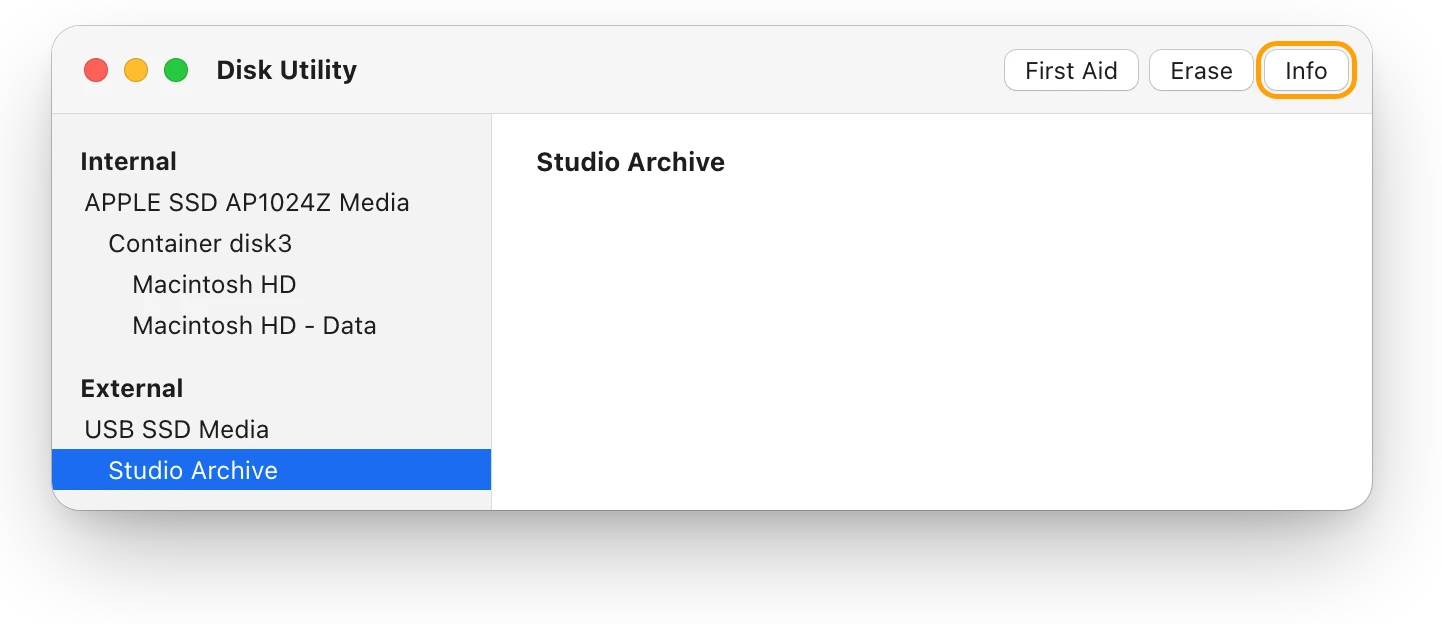
The Info window shows whether the drive is internal or external, the format in use, its total capacity, the space available and where it’s mounted.
How do I format an external drive on a Mac?
Erasing a drive deletes everything on it. Copy any files you want to keep to another drive first.
- Open Disk Utility and choose View > Show All Devices.
- In the sidebar, select the drive itself, at the top of its list, then click Erase.
- Click the Scheme pop-up menu and choose GUID Partition Map. If there’s no Scheme menu, you’ve selected a volume instead of the drive.
- Click the Format pop-up menu and choose a format: APFS for Macs, or ExFAT to share with Windows.
- Enter a name, click Erase, then click Done.
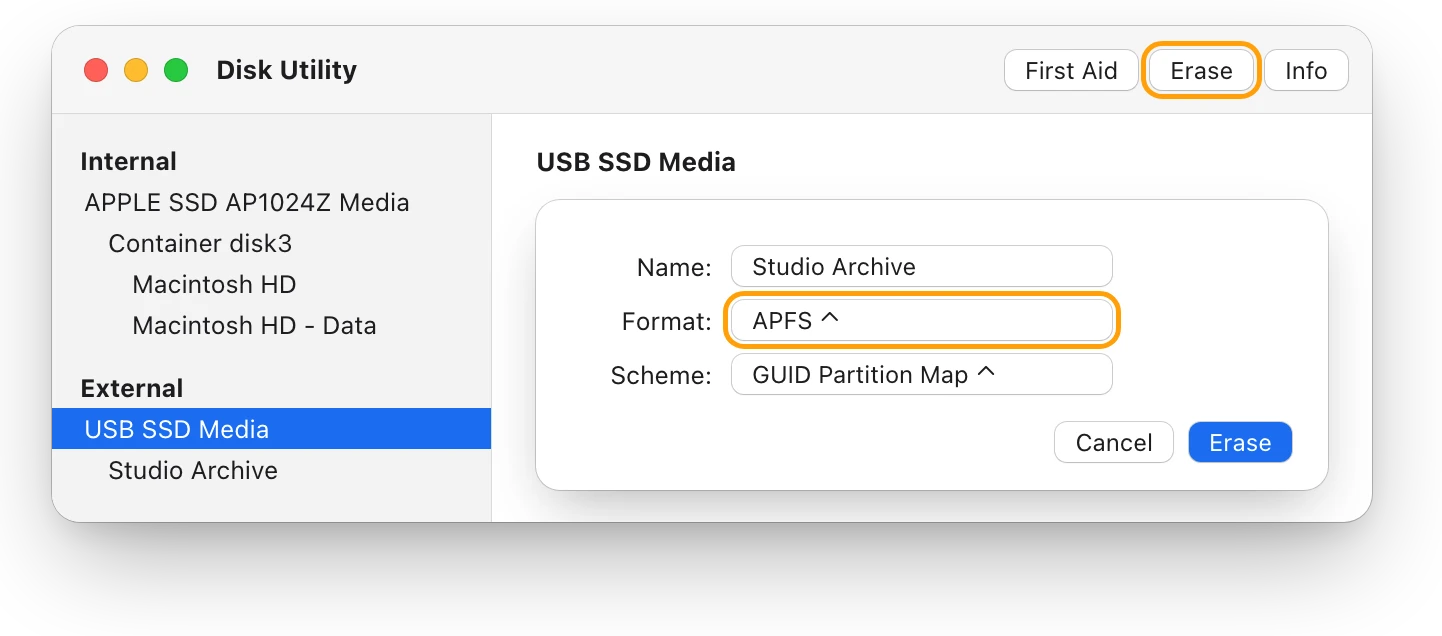
There’s a shortcut in the Finder too: Control-click the drive in the sidebar, choose Erase Disk, enter a name, choose a format and click Erase.
Questions people also ask
Can a Mac use an exFAT drive?
Yes. Disk Utility formats drives as ExFAT, and Apple suggests it for drives over 32 GB that you use with both a Windows computer and a Mac.
Can I change a drive’s format without erasing it?
Not in Disk Utility: you choose the format when you erase the drive, and erasing deletes everything on it. Copy your files off first, then copy them back.
Should I choose APFS (Encrypted)?
Choose it when the drive holds private files. It uses APFS and encrypts the volume.
Can Time Machine back up to an exFAT drive?
No. Time Machine can’t back up to a disk formatted for Windows. Apple’s preferred format for a backup disk is APFS or APFS (Encrypted).
Scope for Mac · Free, coming to the Mac App Store
How Scope helps
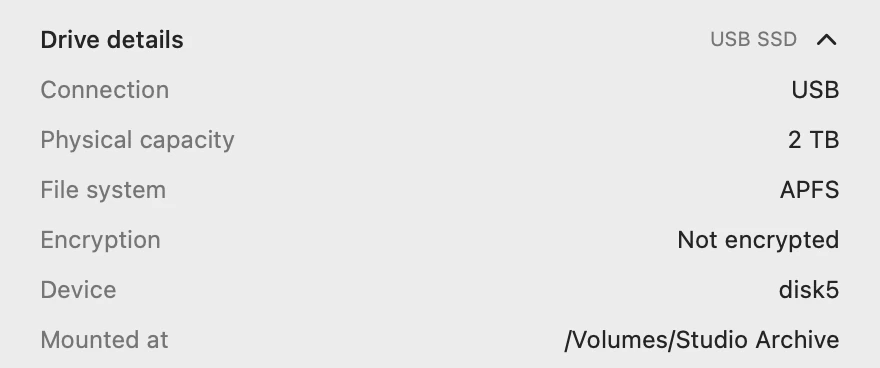
Scope is a free Mac menu bar app that shows each drive’s file system beside how full it is, with its connection and encryption in Drive details. You can see a drive’s format without opening Disk Utility.
In your menu bar
Scope Free’s one whole menu bar item can show both drives: Mac at 91%, and Stu, Studio Archive, at 39%.

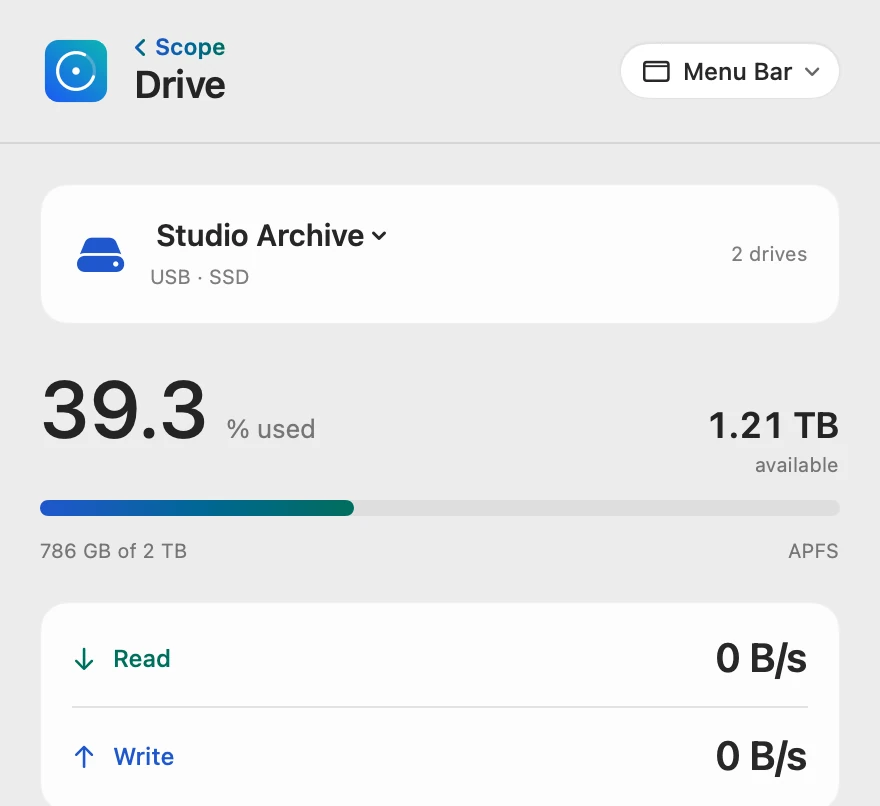
The format at a glance
The format shows under the bar. When a drive is past its space limit, Scope says Low space there instead.
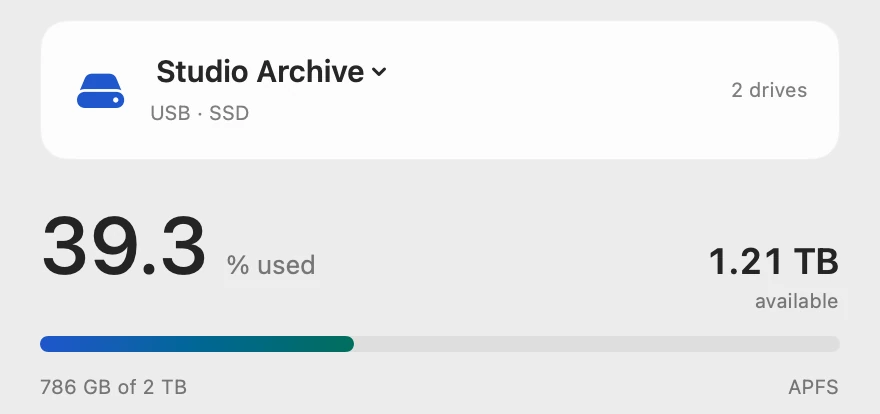
Every drive detail
Drive details lists the connection, capacity, file system and encryption. Copy drive details puts them on the clipboard for a note or a support request.
Scope shows and explains. It never formats, erases or repairs a drive: that stays in Disk Utility.
Try it here
The real Scope, working, right in this page.
Click any item in the menu bar, or a card inside, as you would on your Mac.
Scope Pro Every menu bar item is shown here. Scope Free keeps one whole item of your choice, with every reading inside.
See how your own drives are formatted.
Keep reading
Guide · Drives
External hard drives and SSDs on a Mac: a guide
How to test an external drive’s speed on a Mac, fix one that won’t show up, eject it safely, pick a format and check its health, with macOS’s tools.
Drives
External drive not showing up on a Mac? Fix it
An external drive that won’t show up on a Mac is usually the cable, Finder’s settings or a drive that isn’t mounted. Here’s how to check each, in order.
Drives
“Disk Not Ejected Properly” on a Mac: why it happens
“Disk Not Ejected Properly” means a drive left your Mac before it was ejected. Here’s how to eject safely, why drives drop out, and how to check yours.
Drives
How to test SSD speed on a Mac
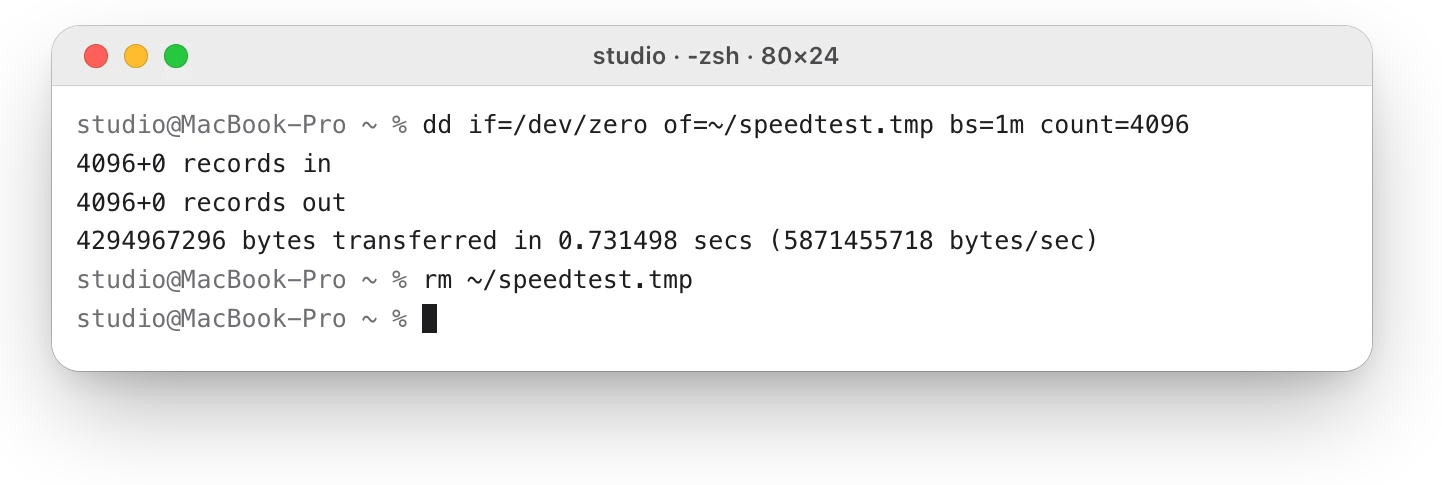
macOS has no SSD speed test, but Terminal’s dd gives a rough write speed. Here’s how to run it safely, and why caching can make the result look too fast.
Storage
“Your disk is almost full”: what to do first
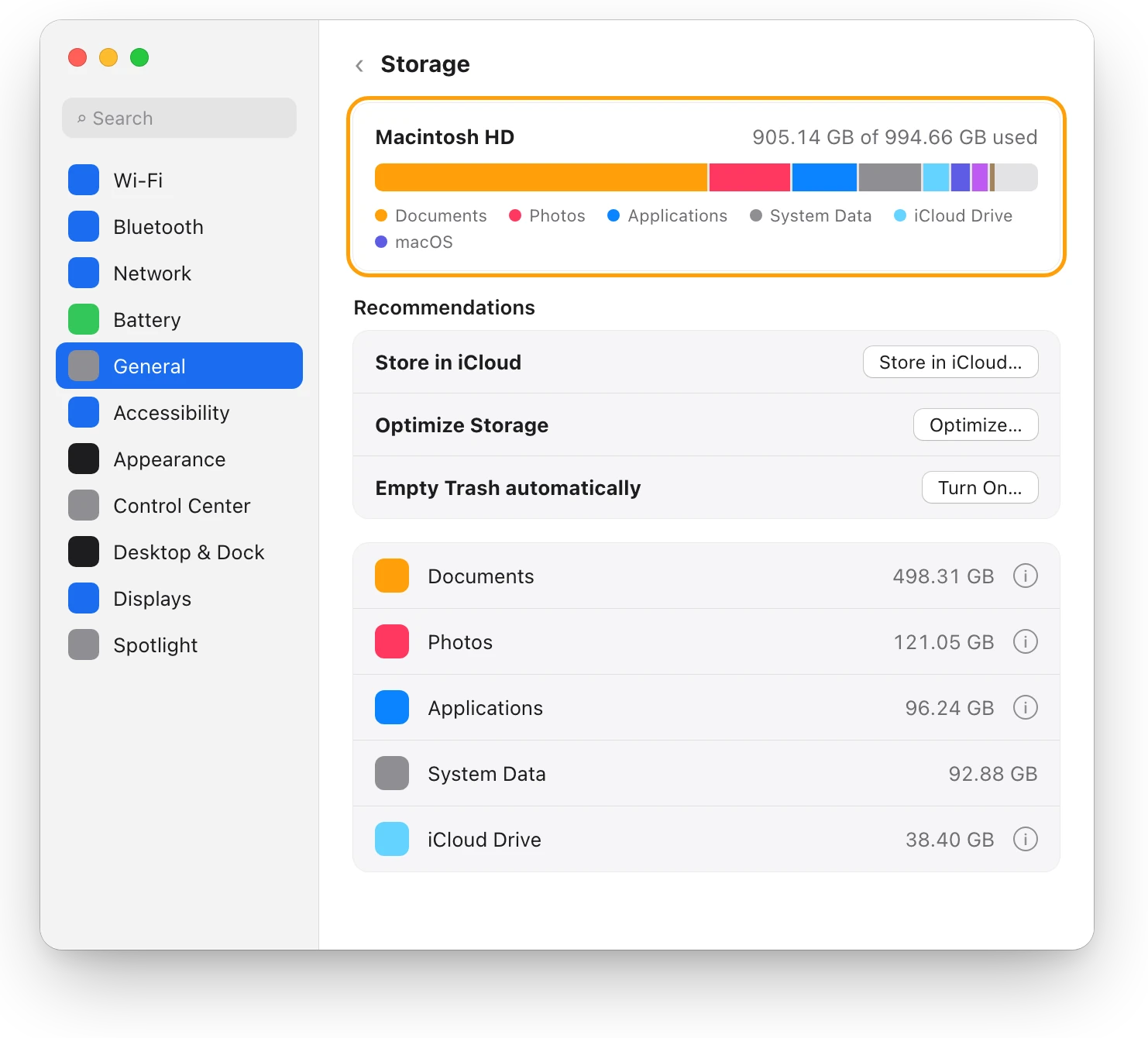
When your Mac’s disk is almost full, check Storage in System Settings, empty the Trash, then delete or move large files. Here’s what to do first.
Sources
- Apple Support: File system formats available in Disk Utility on Mac
- Apple Support: File system formats available in Disk Utility on Mac (macOS Sequoia guide, for Mac OS Extended)
- Apple Support: Types of disks you can use with Time Machine on Mac
- Apple Support: Get detailed information about a disk in Disk Utility on Mac
- Apple Support: Erase and reformat a storage device in Disk Utility on Mac
- Apple Support: Format a disk for Windows computers in Disk Utility on Mac
- Apple Support: Connect and use other storage devices with Mac
Last checked October 18, 2026. Readings, apps and files in the pictures are from a made-up Mac.