Mac storage full? Where your space went
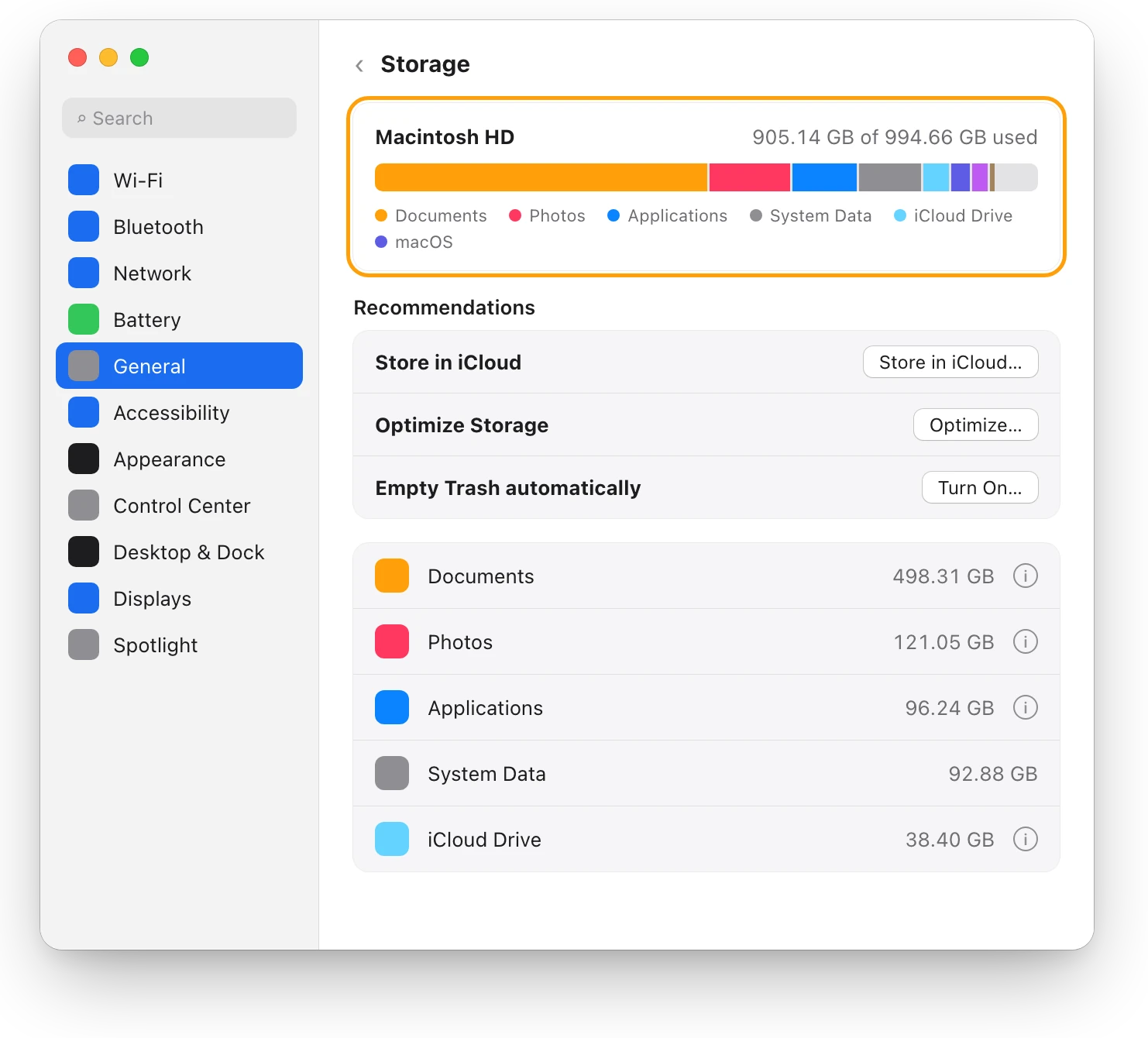
When your Mac storage is full, choose Apple menu > System Settings > General > Storage. It shows how much space is used and what’s using it, by category. Often most of it is your own files, such as videos and photo libraries. Empty the Trash, delete large files you don’t need, and move keepers to an external drive.
What’s using space on my Mac?
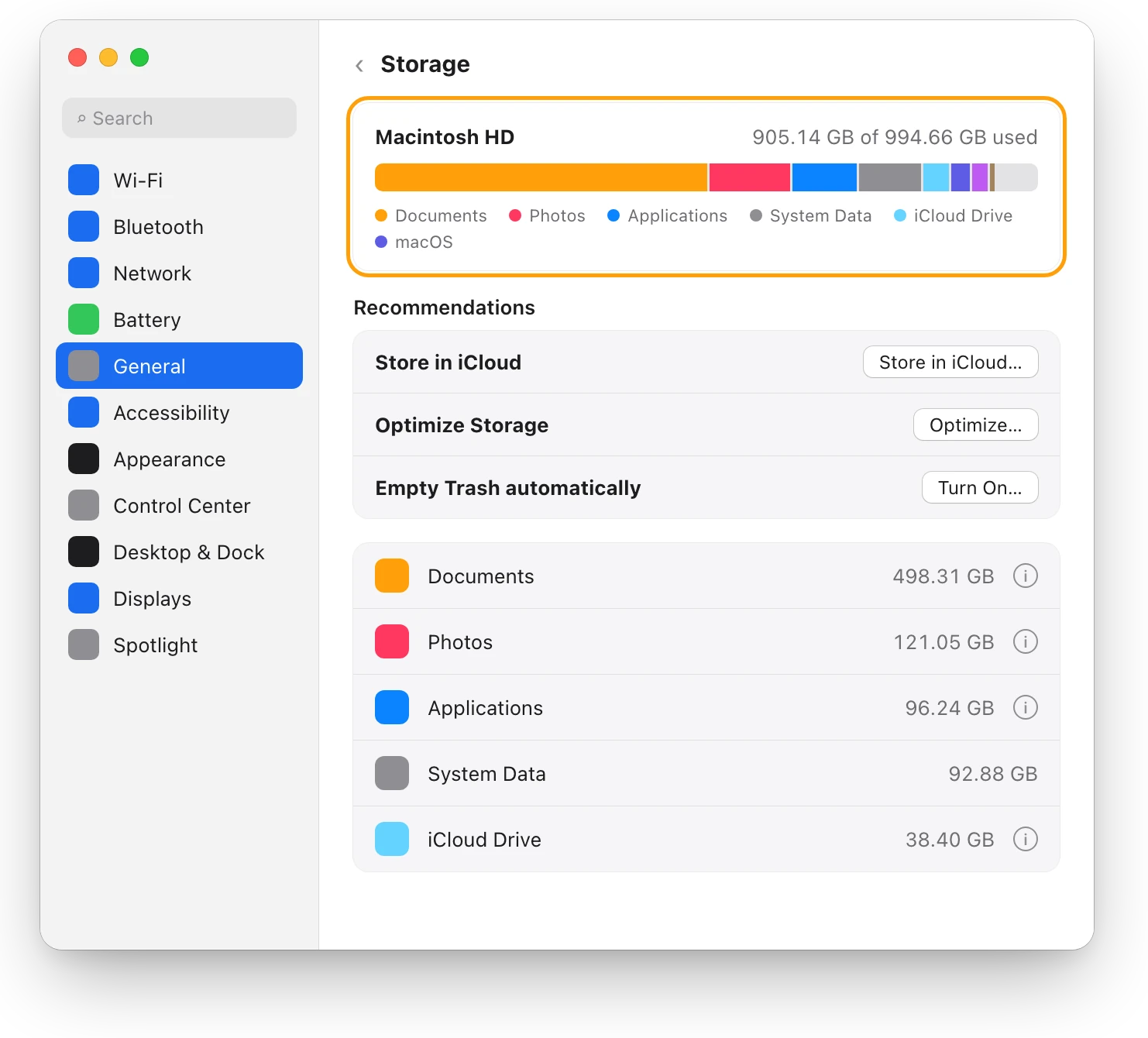
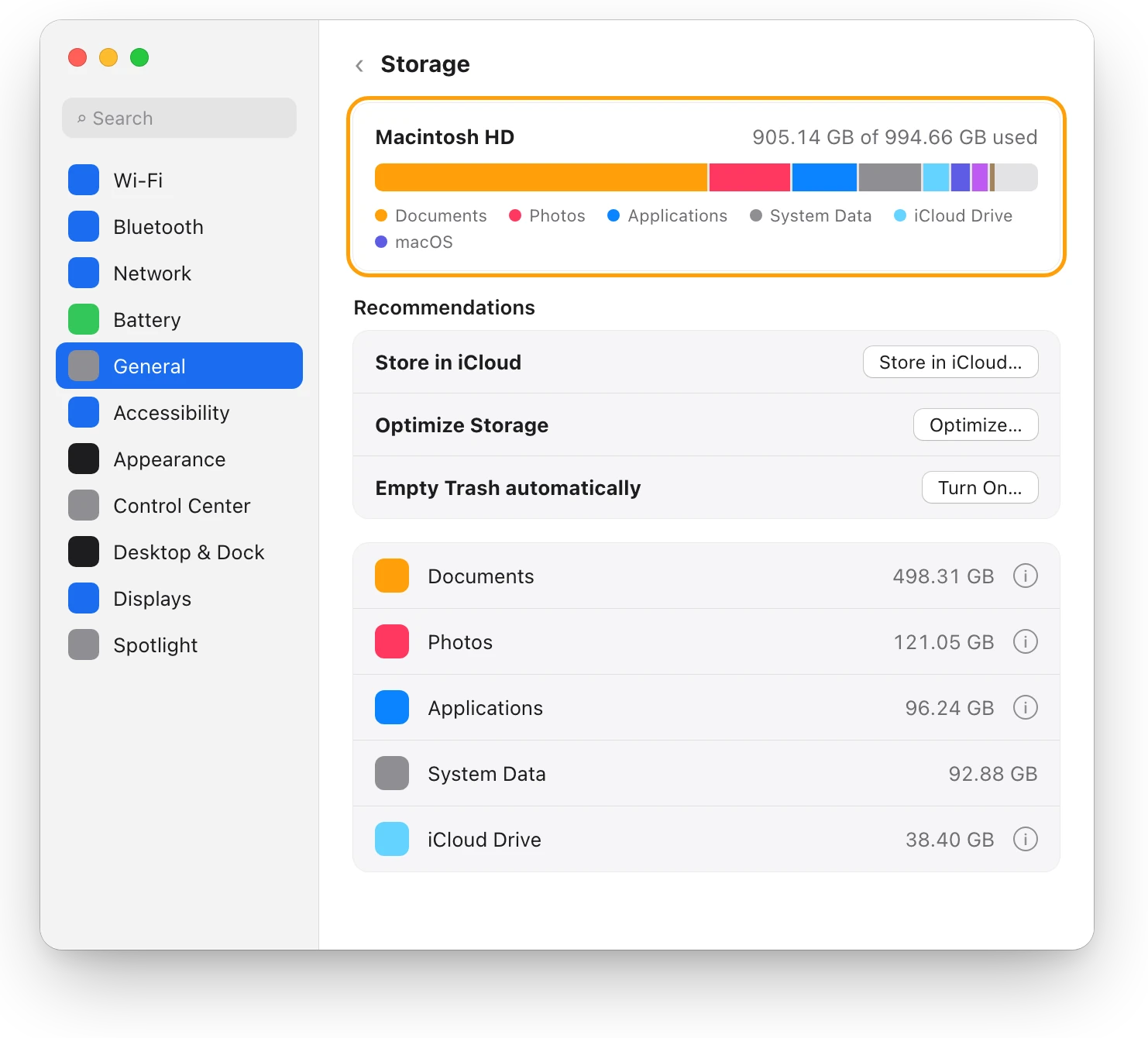
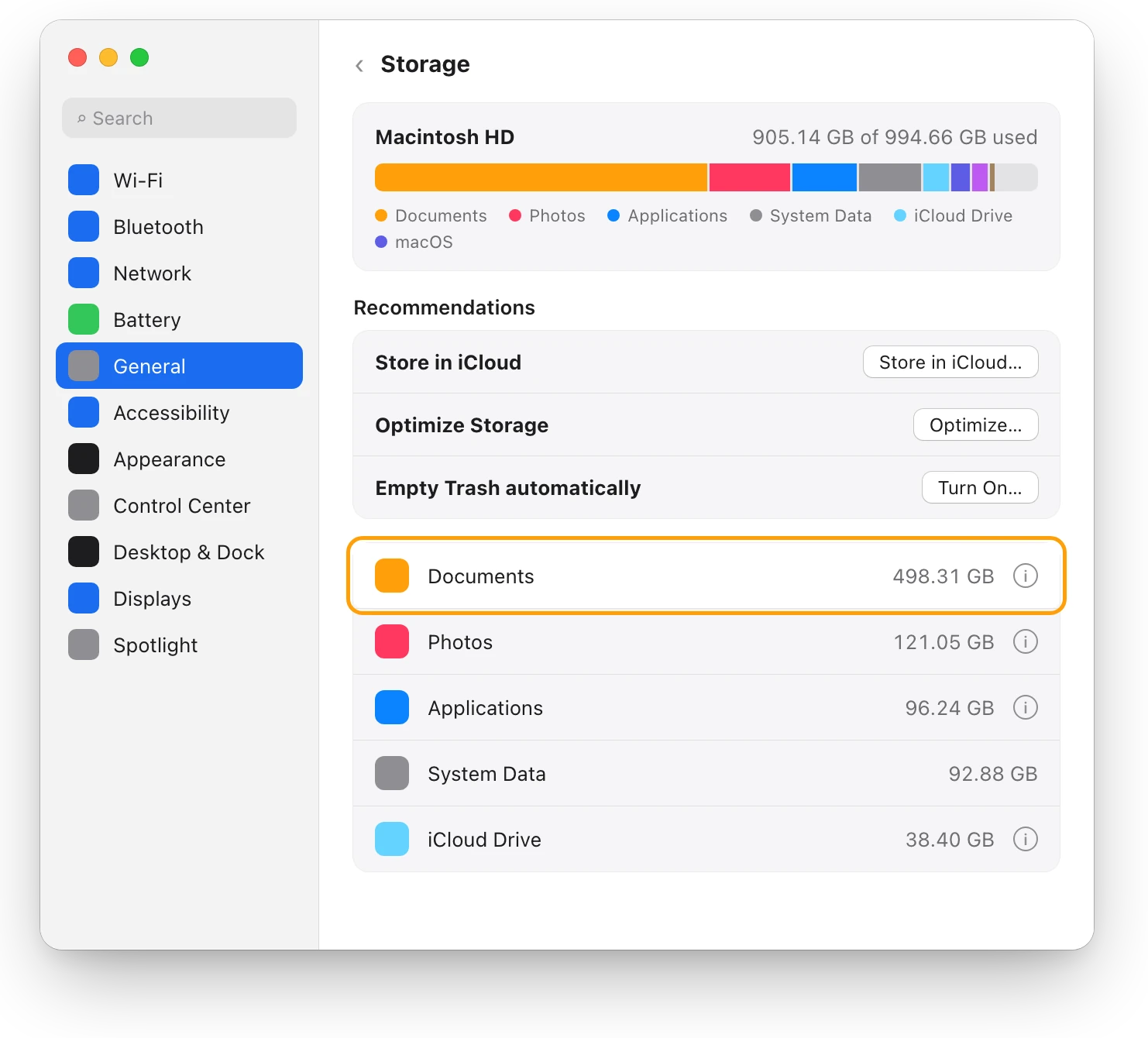
Storage in System Settings shows used and available space, and which kinds of files take it.
- Choose Apple menu > System Settings, then click General in the sidebar. You may need to scroll down.
- Click Storage, and wait while macOS adds up each category.
- Read the line at the top: how much of the disk is used. Move the pointer over a color in the bar to see what that category uses. Light gray is free space.
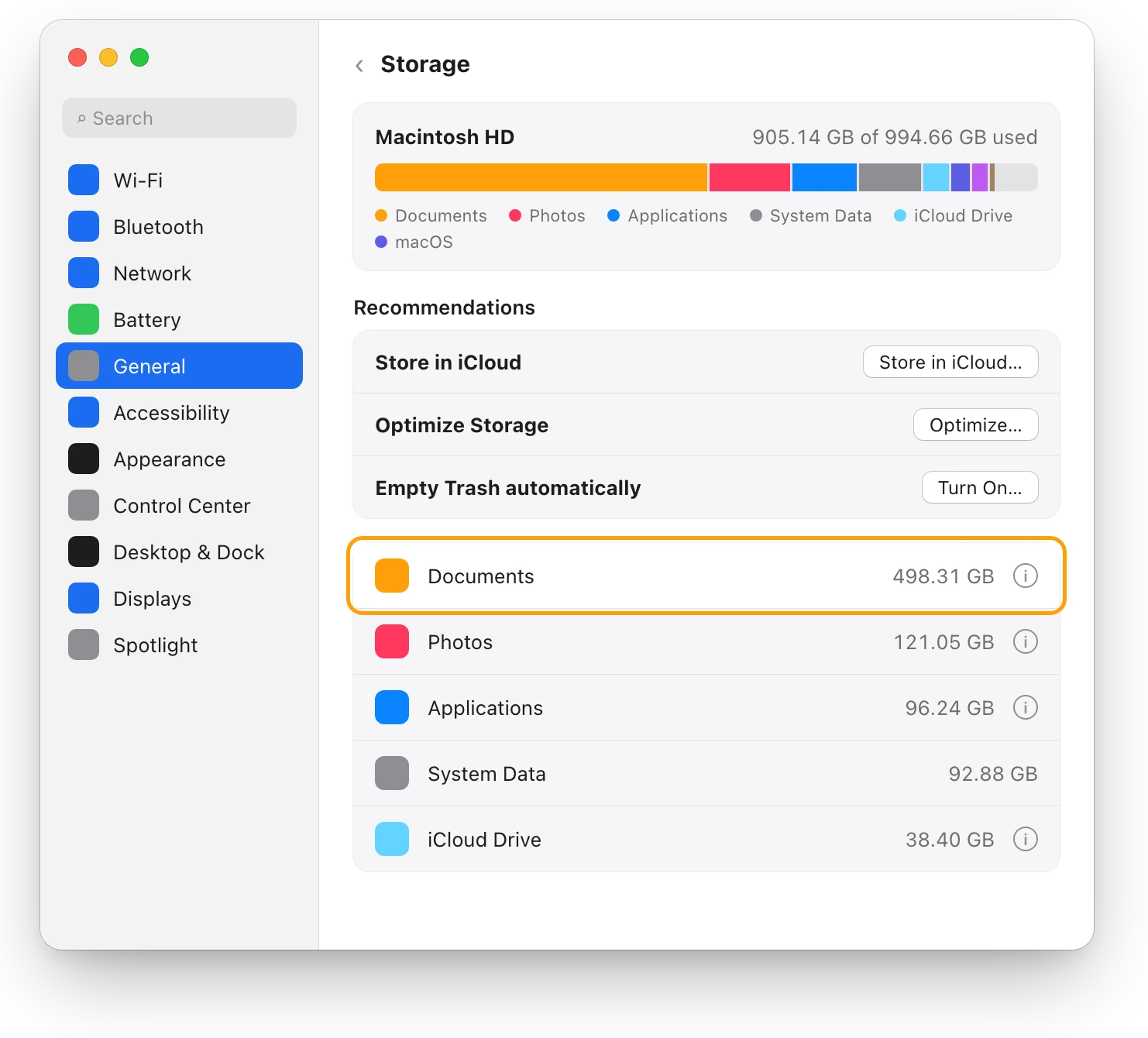
- Look at the biggest categories. Those with an info button (ⓘ) open, so you can select files and delete them.
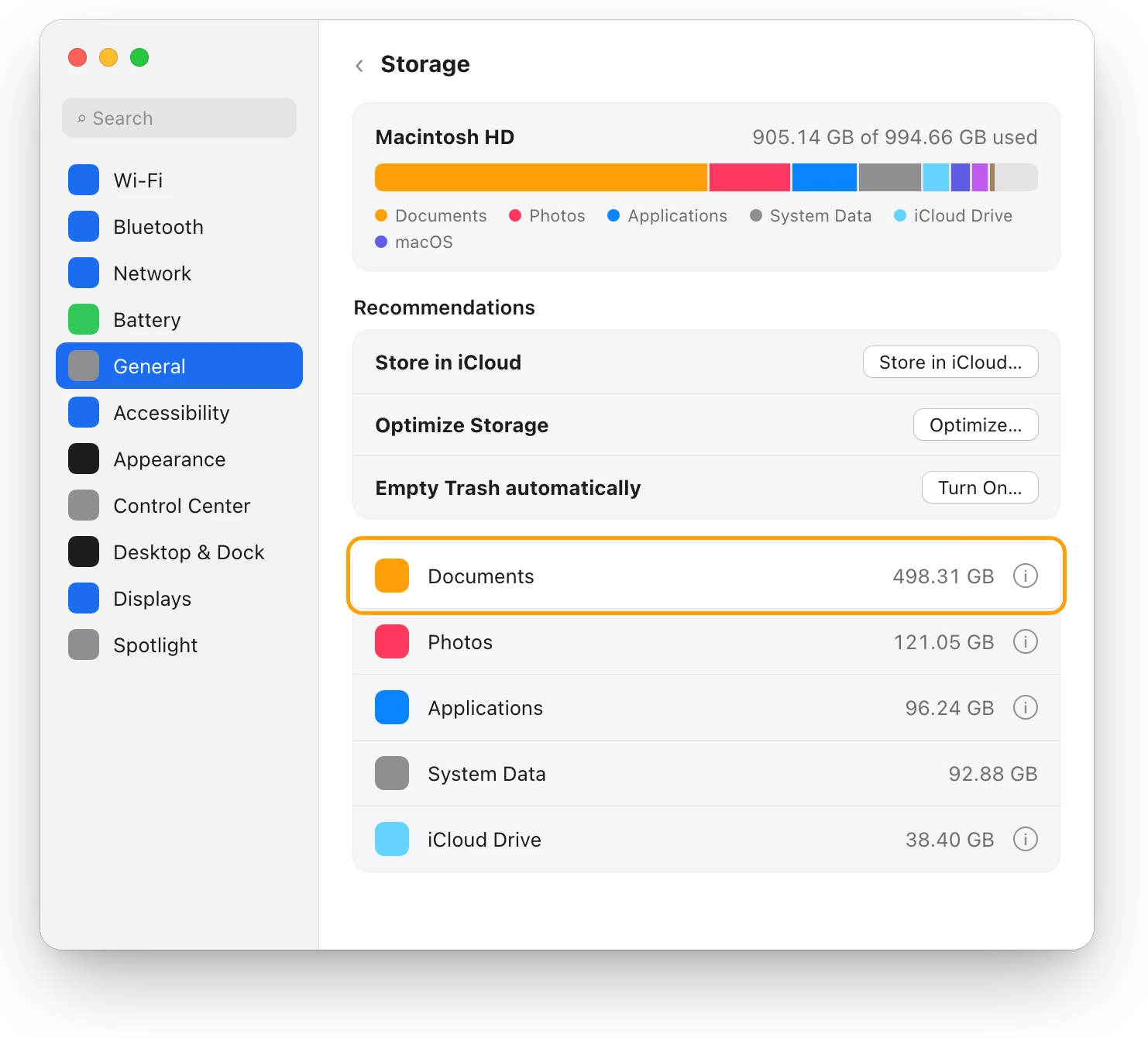
For an external drive, select it under Locations in the Finder sidebar and choose File > Get Info. How to check storage on a Mac: 4 ways compares every way to check.
What usually fills up a Mac?
| What’s using the space | Where you see it | What to do | More |
|---|---|---|---|
| Your own large files: videos, disk images, projects | Storage > Documents > Large Files | Delete what you don’t need; move keepers to an external drive | Large files |
| Your photo library | Storage > Photos | Move it to an external drive, or keep originals in iCloud | Free up space |
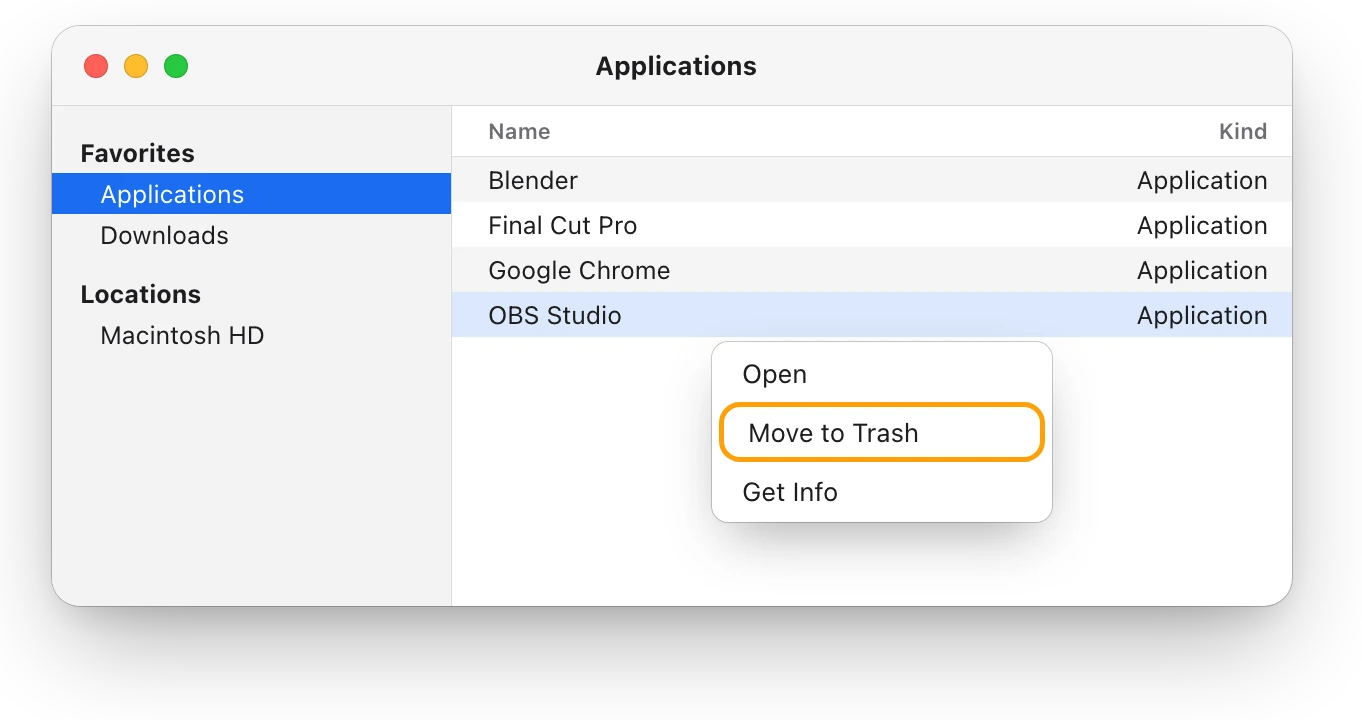
| Apps you no longer use | Storage > Applications | Delete them: drag them to the Trash, or use the app’s own uninstaller | Delete apps |
| The Trash | Storage > Trash | Empty it | Empty the Trash |
| System Data | Storage > System Data | Leave it: macOS manages it | System Data |
| Caches | Inside System Data | Leave them: macOS clears them when space is needed | Clear cache |
What should I do when my disk is almost full?
Start with the space that comes back fastest.
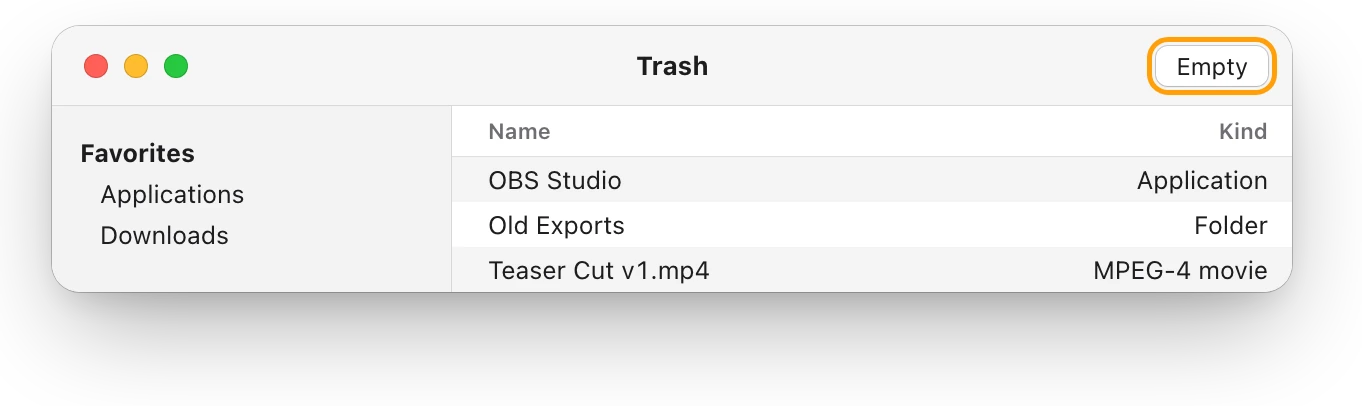
- Empty the Trash. Click the Trash in the Dock, look through it, then click Empty in the upper-right corner. Its files take up space until you do: 6.88 GB on this Mac.
- Delete large files and old downloads you no longer need.
- Move files you want to keep to an external drive: drag them to the drive, listed below Locations in the Finder sidebar. Check the copies, then delete the originals and empty the Trash.
- Turn on the recommendations at the top of Storage: Store in iCloud, Optimize Storage and Empty Trash automatically.
If a macOS update still won’t fit, starting up in safe mode clears some system caches, which macOS creates again as needed. “Your disk is almost full”: what to do first has each step.
How do I free up space fast?
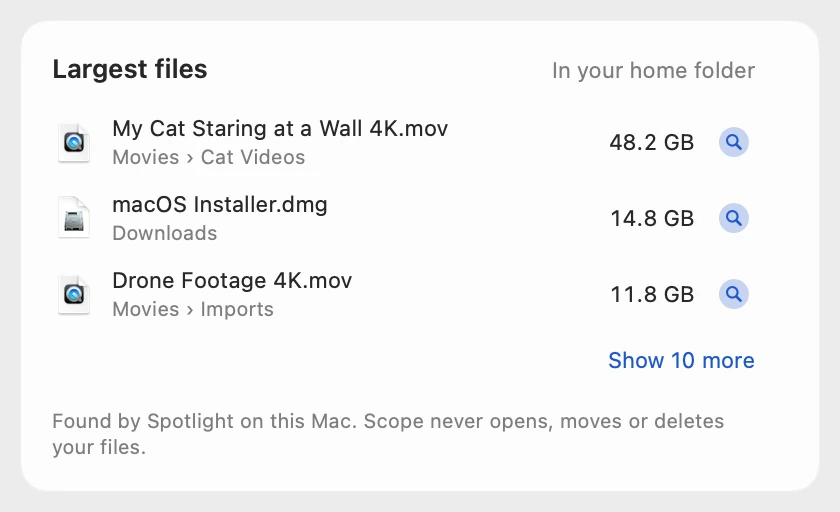
Begin with what’s biggest. On this Mac, deleting one 48.2 GB video takes available space from 89.52 GB to 137.72 GB: from 91% full to 86%.
- Large files you don’t need: Documents > Large Files in Storage.
- Libraries you want to keep: photos and videos use a lot of space, so Apple suggests moving your Photos library to another drive.
- Photos in iCloud: with iCloud Photos, Optimize Mac Storage (Photos > Settings > iCloud) keeps smaller versions on your Mac when space is limited, and the originals in iCloud, in your iCloud storage plan.
- Downloads and apps: delete installers you’ve used and apps you no longer need.
How to free up space on a Mac: every way, ranked ranks every method by how much it gives back, with its risk.
How do I find the largest files?
Storage lists your largest files, sorted by size.
- In Storage, click the info button (ⓘ) next to Documents.
- Click Large Files, then click Size to sort, biggest first.
- Select a file and click Show in Finder to look at it first, or click Delete.
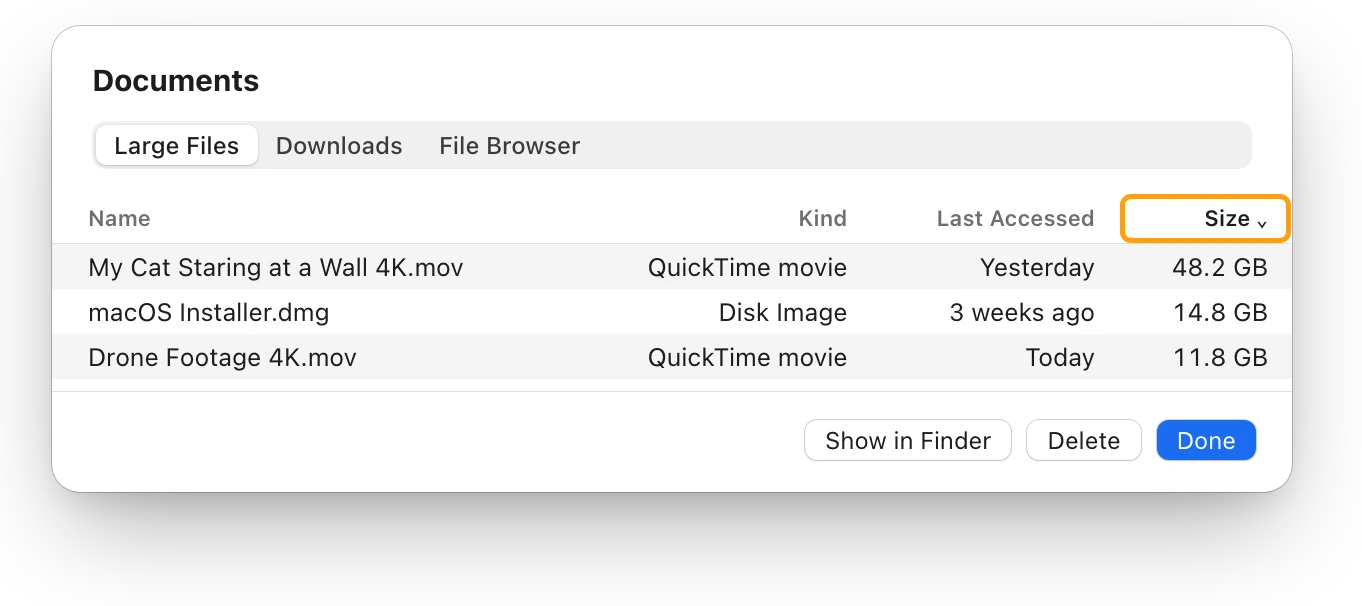
Click File Browser in the same view to see how much space each folder uses. Copy anything you want to keep before you delete it. How to find large files on a Mac, safely covers checking a file first.
Why is System Data so big?
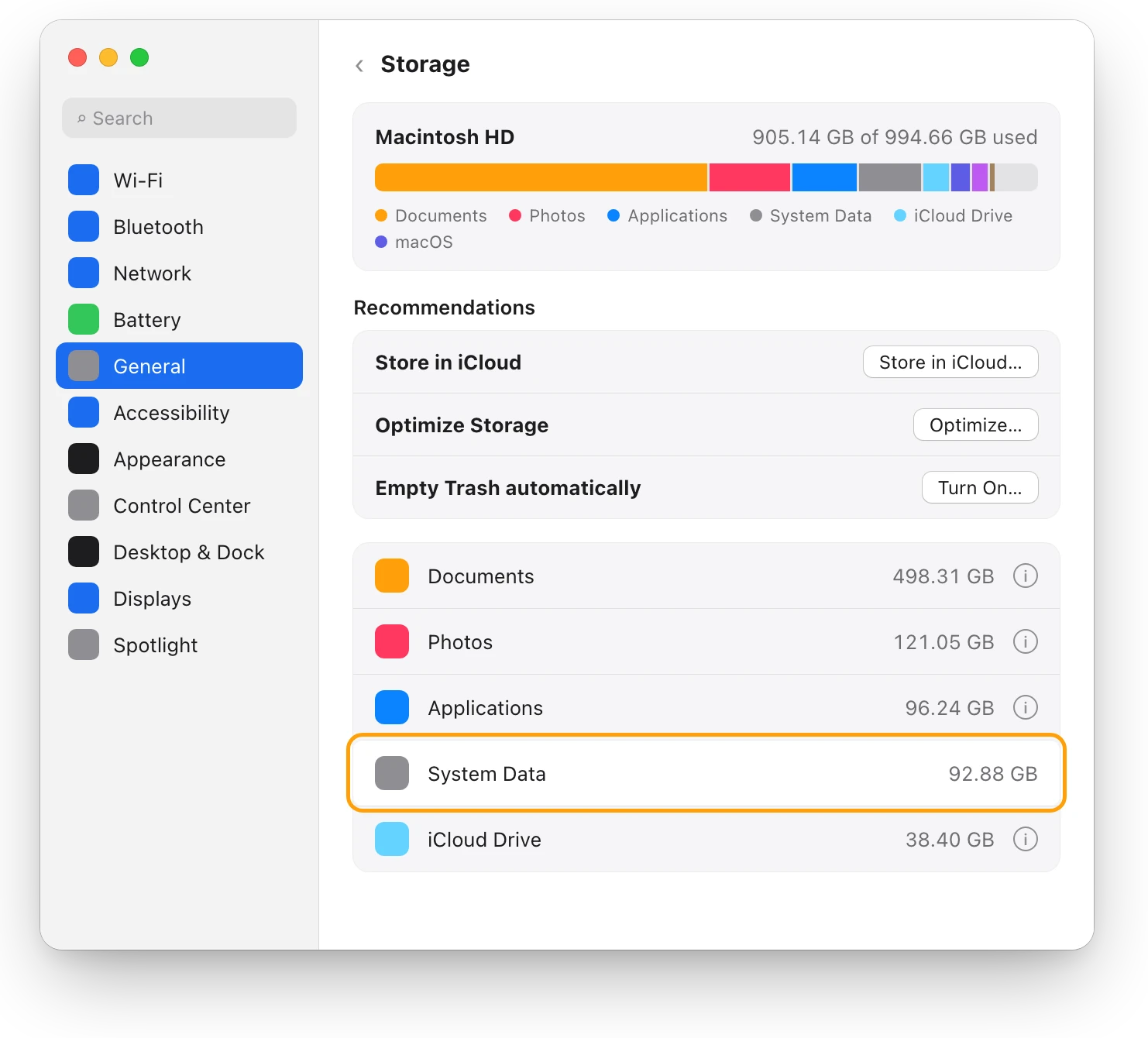
System Data is the Storage category for files that don’t fall into any other. Apple says it’s mostly files the system uses, such as log files, caches and virtual memory (VM) files, plus temporary files, fonts, app support files and plug-ins. Here it’s 92.88 GB.
You can’t manage the contents of System Data: macOS does, and its size changes with the current state of your Mac. What you can do is clear what’s around it: empty the Trash, delete large files of your own, and manage data in the apps that created it. What is System Data on a Mac, and why is it so big? explains why it grows and shrinks.
Should I clear caches to free space?
Usually not. When space is needed, macOS already clears caches and logs that are safe to delete, including temporary database files, interrupted downloads, staged macOS and app updates, and Safari website data. Apple’s guidance for developers is that an app’s Caches folder holds only files the app can re-create easily, so space you free by deleting caches by hand tends to fill up again.
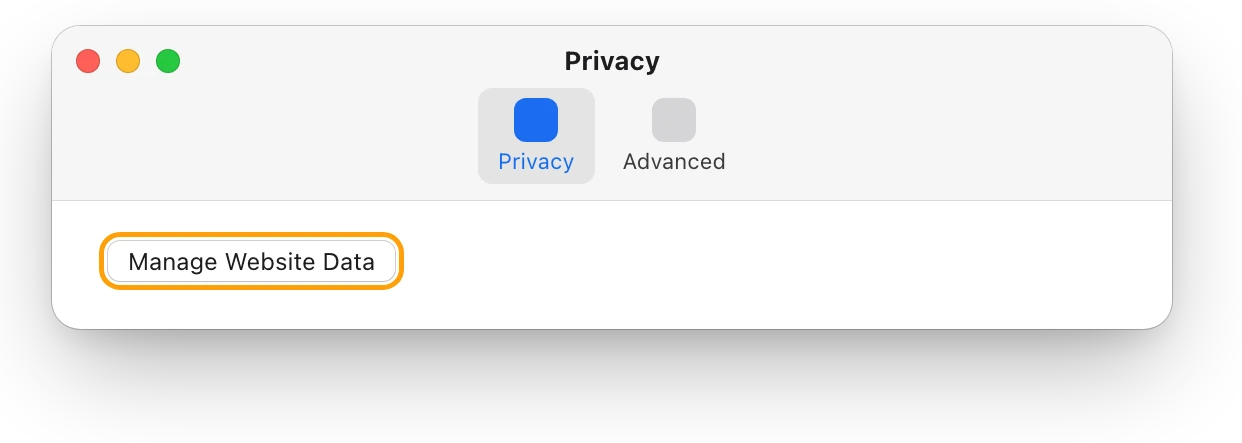
Clear a browser’s cache when a website misbehaves, not to free space: in Safari, choose Safari > Settings, click Privacy, then Manage Website Data. How to clear cache on a Mac, and when not to covers browsers and app caches.
What is purgeable space?
Purgeable space is space macOS can free up when it’s needed, by removing files it has marked as purgeable. You can’t remove those files yourself; macOS removes them as space is required. So a disk’s available space can include both free space and purgeable space, and two tools can show different numbers for the same disk.
- Open Disk Utility. It’s in Applications > Utilities, or search for it with Spotlight.
- Choose View > Show All Devices.
- Select the volume, such as Macintosh HD, then click Info in the toolbar to see its available space.
When numbers disagree, Storage in System Settings is the place to see what’s using the space.
Does a full disk slow down a Mac?
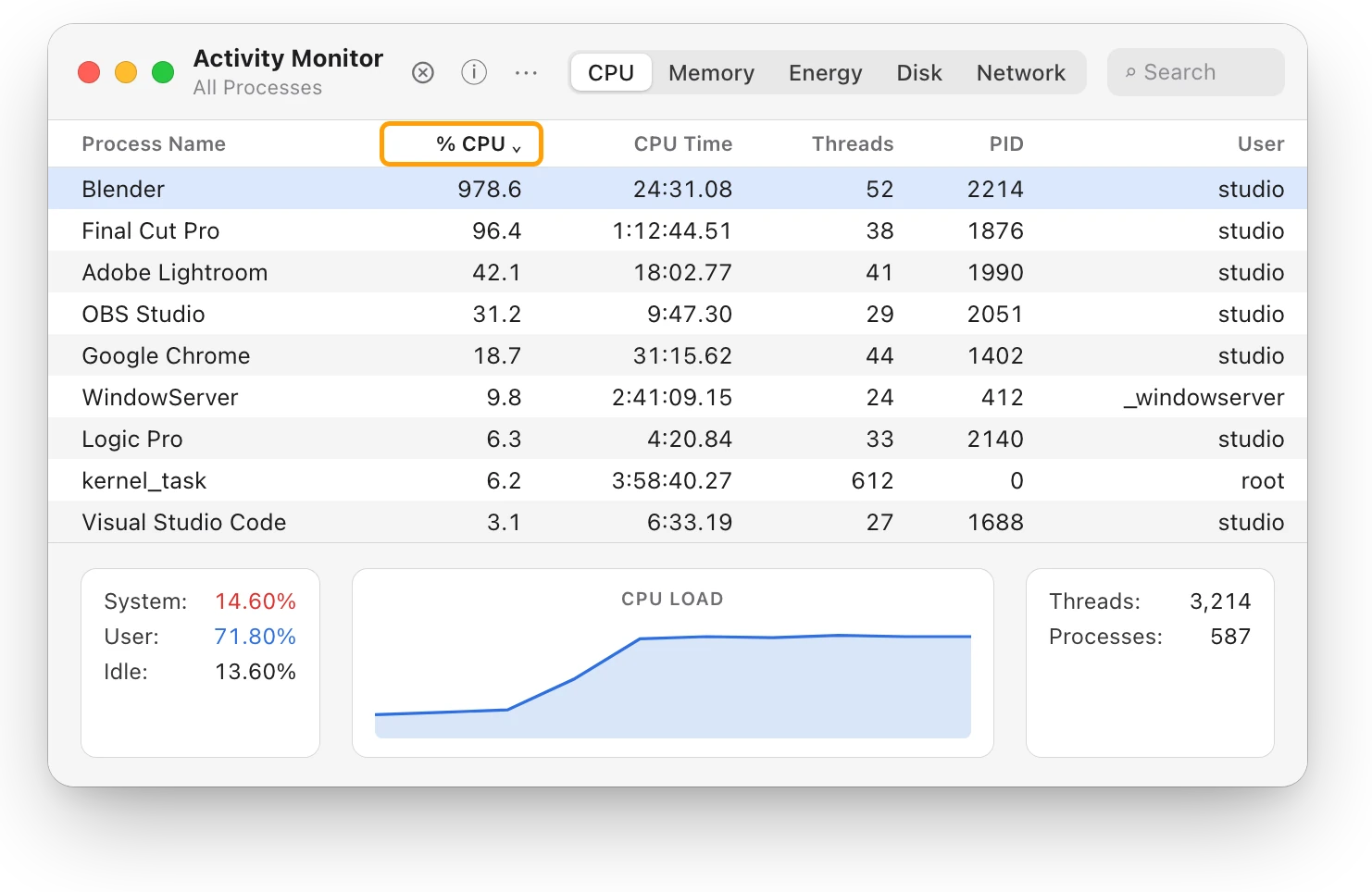
It can. In Apple’s guide to a Mac that runs slowly, the first cause listed is a startup disk without enough free disk space. macOS also uses the startup disk for memory: Activity Monitor’s Swap Used is the space on your startup disk used to move files in and out of RAM. To see it, open Activity Monitor, click Memory and look at the bottom of the window. Why is my Mac slow? How to find the cause walks through every cause.
Leave room for macOS to work
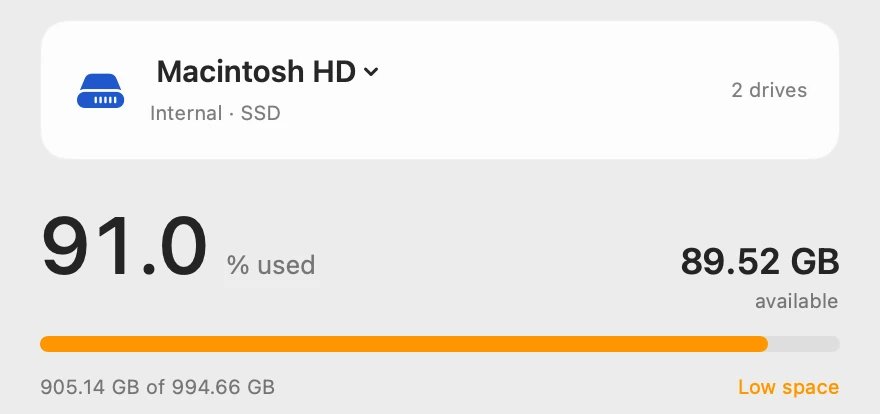
Apple doesn’t publish a percentage or a number of gigabytes. What Apple does say is that if the macOS installer reports that your Mac doesn’t have enough storage space, you need to free up space and try again. So keep enough free for the next macOS update and for your biggest regular job, such as a large video import. This Mac has 89.52 GB available of 994.66 GB, about 9%. How much free space should a Mac have? explains how to size it.
Questions people also ask
Why is my Mac still full after I deleted files?
Files you delete go to the Trash, and their space doesn’t become available until you empty it. Empty the Trash, then check Storage again.
Does buying more iCloud storage free up space on my Mac?
Not on its own. An iCloud plan is space in iCloud. Space comes back on your Mac only when files move there, for example with Store in iCloud or Optimize Mac Storage in Photos.
Can I add more storage to my Mac?
You can add room with an external drive and move files you want to keep onto it. External hard drives and SSDs on a Mac: a guide covers choosing, formatting and ejecting one.
Scope for Mac · Free, coming to the Mac App Store
How Scope helps
Scope is a free Mac menu bar app that shows how full each drive is, lists the largest files in your home folder, and alerts you when a drive stays past its limit. It saves waiting for Storage to add up its categories each time you want to know where the space went.
In your menu bar
Scope Free keeps one whole menu bar item of your choice. Drive shows how full each drive is: here, Mac at 91%.

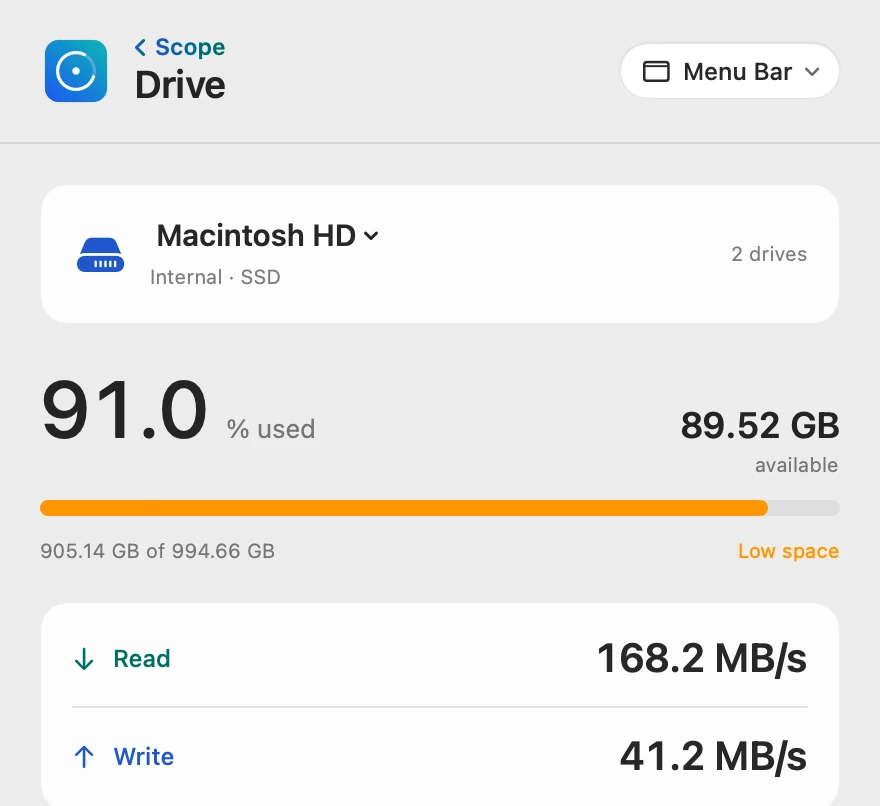
How full, in numbers
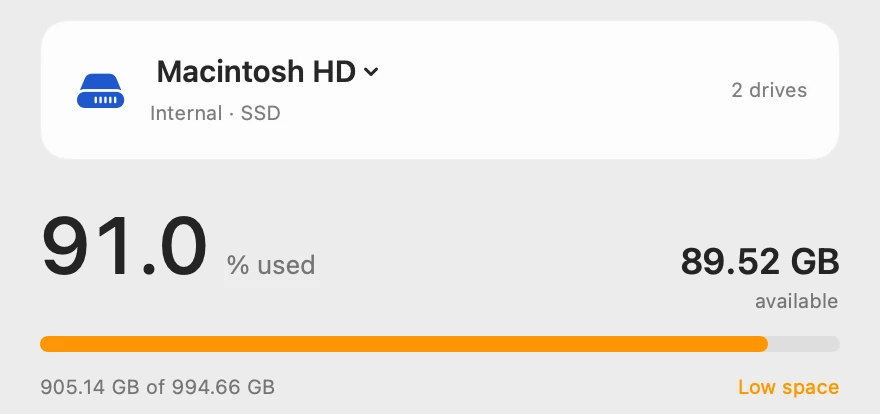
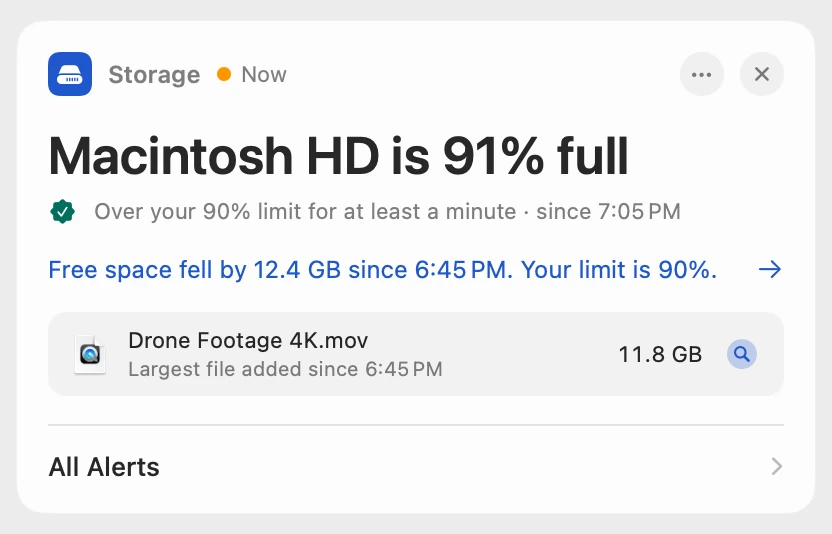
Once a drive passes its limit, 90% unless you change it with Scope Pro, the bar turns orange and Low space appears.
The biggest files, listed
Largest files shows three files at first, then ten more at a time, each with Show in Finder. It’s in Scope Free, once you allow Scope to read your home folder.
Told when it fills, and why
When a drive stays past its limit for a minute, Scope shows the alert on its overview, in Scope Free too. Scope Pro adds a red + on its menu bar icon and names the largest file added since free space began to fall.
Scope shows and explains. It never opens, moves or deletes your files, so what to remove stays your decision.
Try it here
The real Scope, working, right in this page.
Click any item in the menu bar, or a card inside, as you would on your Mac.
Scope Pro Every menu bar item is shown here. Scope Free keeps one whole item of your choice, with every reading inside.
See where your own Mac’s space went.
Answers in this guide
Storage
How to check storage on a Mac: 4 ways
Check storage in System Settings > General > Storage, in Finder with Get Info or the status bar, or in Disk Utility, and see why their numbers differ.
Storage
“Your disk is almost full”: what to do first
When your Mac’s disk is almost full, check Storage in System Settings, empty the Trash, then delete or move large files. Here’s what to do first.
Storage
How to free up space on a Mac: every way, ranked
Every way to free up space on a Mac, biggest first: large files, external drives, Photos and iCloud Drive, Downloads, backups and the Trash, with risks.
Storage
How to find large files on a Mac, safely
Storage in System Settings lists your Mac’s largest files, sorted by size, with Delete and Show in Finder. Here’s how to find them and free space safely.
Storage
What is System Data on a Mac, and why is it so big?
System Data holds files no other Storage category claims, such as caches, logs and temporary files. You can’t delete it directly; here’s what helps.
Storage
How to clear cache on a Mac, and when not to
Clear a browser’s cache when websites misbehave: Safari’s Manage Website Data or Empty Caches, Chrome’s Delete browsing data. macOS clears its own caches.
Storage
How much free space should a Mac have?
Apple gives no single number. A Mac needs room for macOS updates and swap, and a nearly full disk can slow it down. Here’s how much to keep free.
Storage
How to delete apps on a Mac, and what’s left behind
Delete a Mac app by dragging it from Applications to the Trash, or with its own uninstaller, then empty the Trash. Every way, and what stays behind.
Storage
How to empty the Trash on a Mac, and when it won’t
Empty the Trash on a Mac from the Dock, from Finder or with Shift-Command-Delete, let it empty itself after 30 days, and fix a Trash that won’t empty.
Storage
Mac storage monitor: disk space and largest files
Scope shows how full every drive on your Mac is, live read and write speeds, the largest files and each drive’s details. Free on the Mac App Store.
Keep reading
Guide · Slow Mac
Why is my Mac slow? How to find the cause
A slow Mac is usually a busy app, too little memory, a nearly full disk or heat. Here’s how to see which one with macOS’s own tools.
Guide · Drives
External hard drives and SSDs on a Mac: a guide
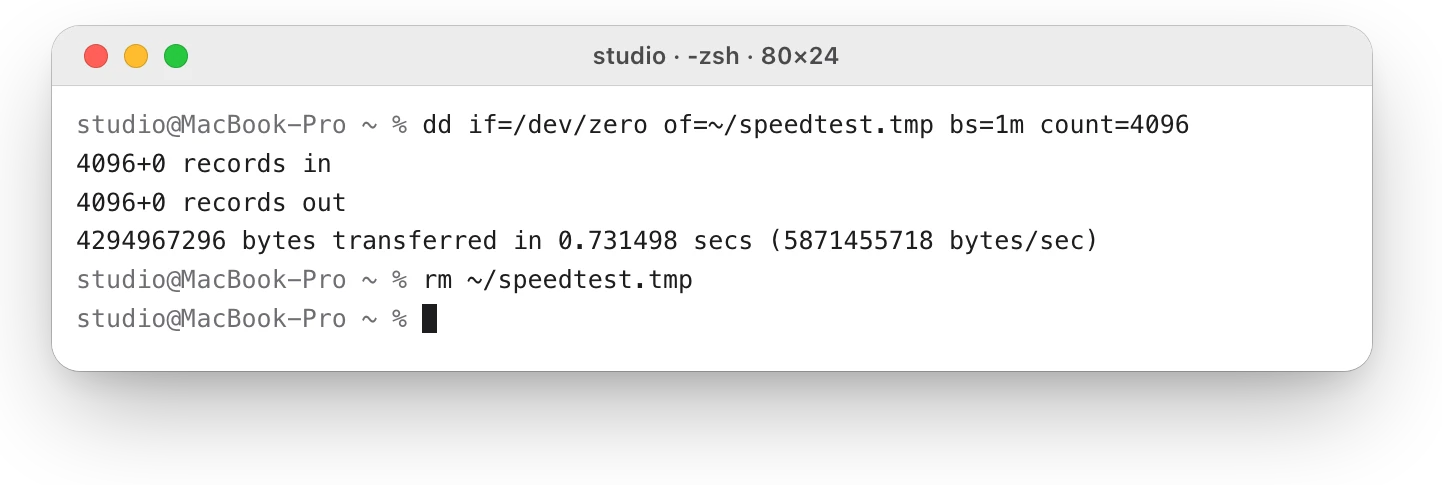
How to test an external drive’s speed on a Mac, fix one that won’t show up, eject it safely, pick a format and check its health, with macOS’s tools.
Sources
- Apple Support: Change Storage settings on Mac
- Apple Support: See used and available storage space on your Mac
- Apple Support: Find and delete files on your Mac
- Apple Support: Optimize storage space on your Mac
- Apple Support: Free up storage space on Mac
- Apple Support: Delete files and folders on Mac
- Apple Support: Connect and use other storage devices with Mac
- Apple Support: Learn about your Mac computer’s internal disk
- Apple Support: Optimize storage in Photos on Mac
- Apple Support: Clear your cache and cookies in Safari on Mac
- Apple Developer: File System Programming Guide, The Library directory stores app-specific files
- Apple Support: Get detailed information about a disk in Disk Utility on Mac
- Apple Support: If your Mac runs slowly
- Apple Support: View memory usage in Activity Monitor on Mac
- Apple Support: If an error occurred while updating or installing macOS
Last checked October 19, 2026. Readings, apps and files in the pictures are from a made-up Mac.