How to clear cache on a Mac, and when not to
To clear cache on a Mac, clear your browser’s: in Safari, choose Safari > Settings, click Privacy, click Manage Website Data and remove the data, or choose Develop > Empty Caches. In Chrome, choose More > Delete browsing data. Leave macOS’s own caches alone: macOS clears caches that are safe to delete whenever it needs the space.
What is cache on a Mac?
A cache is a copy an app keeps so it can do something faster next time. Google’s help page puts it simply: the cache remembers parts of pages, like images, so they open faster on your next visit. A Mac has three kinds:
| Cache | Where it lives | Who manages it | Clear it yourself? |
|---|---|---|---|
| Browser cache and website data | Inside Safari, Chrome and other browsers | The browser | Yes, from the browser, when a site misbehaves |
| App caches | The Caches folder in your Library folder | Each app | Only from the app’s own settings |
| System caches | Inside System Data in Storage | macOS | No: macOS clears them when space is needed |
There’s also a fourth thing with “cache” in its name: Cached Files in Activity Monitor. That’s memory, not disk space, and it’s covered below.
How do I clear Safari’s cache?
Apple’s page for clearing Safari’s cache and cookies uses Manage Website Data:
- Open Safari, then choose Safari > Settings.
- Click Privacy.
- Click Manage Website Data.
- Select one or more websites, then click Remove, or click Remove All.

Apple warns that removing this data may sign you out of websites or change how they behave, and may change or remove the same data in other apps. To clear one misbehaving site, select just that site instead of Remove All.
Empty only the cache, with the Develop menu
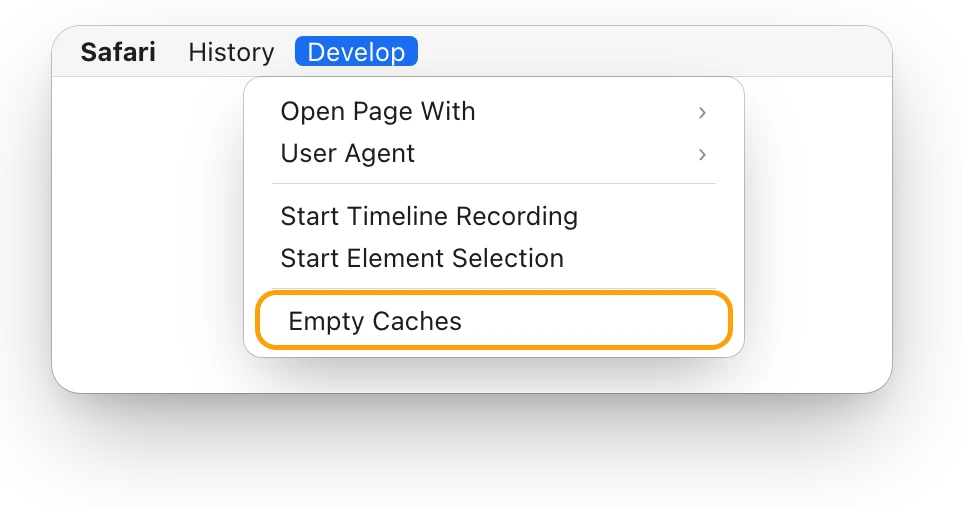
Safari’s Develop menu has Empty Caches, which Apple describes as deleting all caches stored by the browser. The Develop menu is hidden until you turn it on:
- In Safari, choose Safari > Settings, then click Advanced.
- Select “Show features for web developers”. The Develop menu appears in the menu bar.
- Choose Develop > Empty Caches.

Does Clear History clear the cache?
Not according to Apple’s list. History > Clear History removes the pages you visited, recent searches, webpage icons and snapshots, the list of downloads (not the files) and similar lists. Apple’s list doesn’t include the cache or cookies, so use Manage Website Data or Empty Caches for those.
How do I clear Chrome’s cache?
Google’s steps for Chrome on a computer:
- Open Chrome. At the top right, select More, then Delete browsing data.
- Choose a time range, such as Last hour or All time.
- Select the items to delete, then select Delete data.
Google says you’ll need to sign in to sites again if you clear cookies, and some sites can seem slower at first because their images need to load again. For other browsers, check the browser’s own help pages.
Should I delete the files in Library > Caches?
Usually not. Your Library folder has a Caches folder where apps keep files they can make again, such as database cache files and content they downloaded. Apple’s guidelines for developers say each app is responsible for managing its own Caches folder, and should keep there only files it can re-create easily.
So emptying it by hand gains little:
- The space comes back. Apps rebuild their caches as you use them, so the space you free fills up again.
- Apps can be slower for a while, as they fetch and rebuild what they’d saved.
- macOS already does it. When space is needed, macOS clears caches and logs that are safe to delete, including temporary database files, interrupted downloads, staged macOS and app updates, and Safari website data.
If one app keeps a large cache, use that app’s own setting to clear it, if it has one. If you just want to look, choose Go > Go to Folder in Finder and type ~/Library/Caches.
Does macOS clear cache by itself?
Yes. Besides clearing caches when space is needed, macOS counts some of them as available space. Apple explains that available storage includes free space and purgeable disk caches, so the same space can be both available and used at once. That’s why tools can show different numbers for the same disk.
If you need room for a macOS update, starting up in safe mode clears some system caches, which macOS creates again as needed. Apple says this can free enough space to install it. How to free up space on a Mac lists the bigger wins first: large files, libraries and backups.
What is Cached Files in Activity Monitor?
Cached Files in Activity Monitor is memory, not disk space. Apple describes it as files the system has cached into unused memory to improve performance.
- Open Activity Monitor. It’s in Applications > Utilities, or search for it with Spotlight.
- Click Memory.
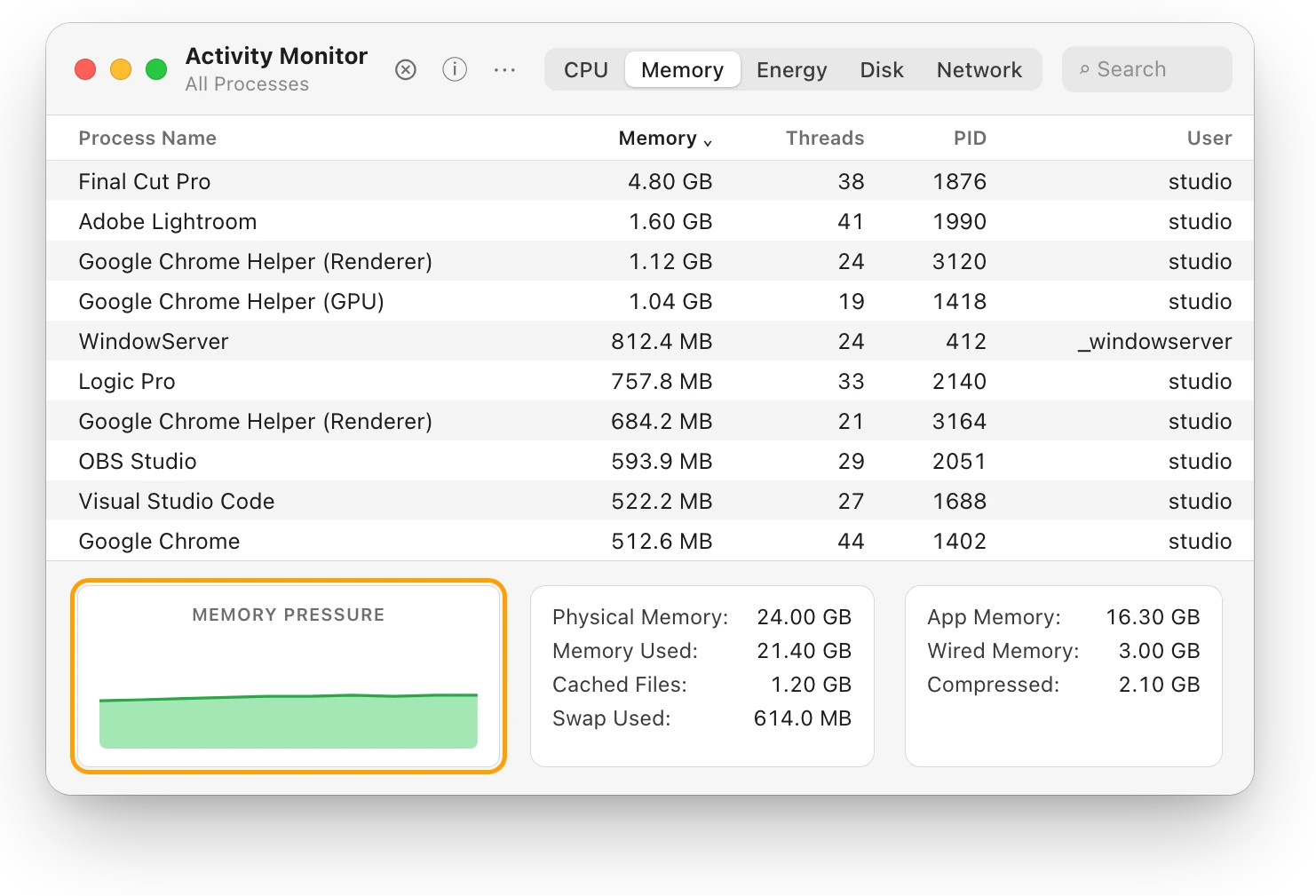
- Look at Cached Files at the bottom of the window, beside the Memory Pressure graph.
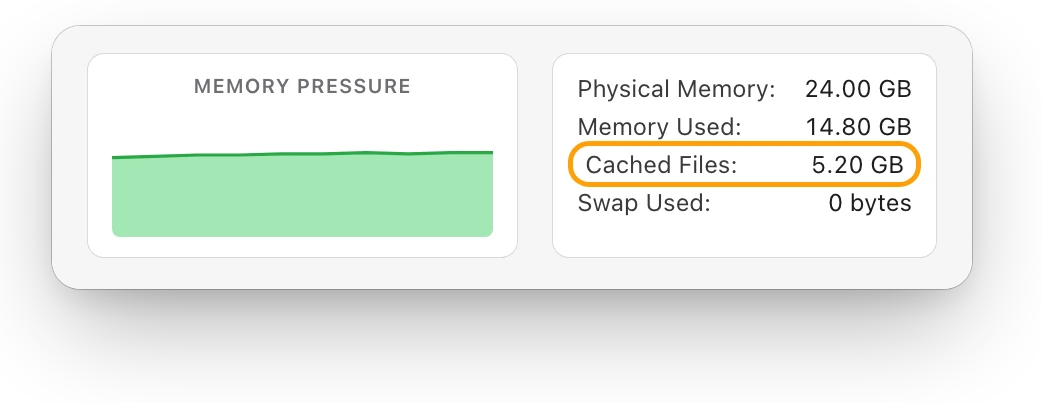
There’s nothing to clear here. Apple says free or unused memory doesn’t necessarily make a Mac faster, because macOS gets the best performance by using and managing all of its memory. Green memory pressure means your Mac is using its RAM efficiently. How to free up RAM on a Mac covers what to do when it’s yellow or red.
When does clearing cache help?
| What you see | Clear cache? | Why |
|---|---|---|
| A website looks broken or out of date | Yes, that site’s data, or the browser cache | Google says it can fix loading and formatting problems |
| Your disk is almost full | Rarely | Caches come back, and macOS clears them when space is needed; delete large files instead |
| Your Mac feels slow | No | Caches make things faster; check Activity Monitor for a busy app instead |
| One app misbehaves | Only from that app’s settings | The app manages its own cache |
Questions people also ask
Is it safe to clear cache on a Mac?
Clearing a browser’s cache from the browser is safe, though you may be signed out of sites if you also remove cookies. Deleting app or system caches by hand isn’t needed: apps rebuild them, and macOS clears caches that are safe to delete when space is needed.
Does clearing cache free up space?
A little, for a while. Caches fill up again as you use your apps. Deleting large files you don’t need frees far more, and keeps it free.
Why is Cached Files so big in Activity Monitor?
Because macOS puts unused memory to work. Apple describes Cached Files as files the system has cached into unused memory to improve performance, so a large number with green memory pressure is fine.
Does clearing cache speed up a Mac?
Usually not. A cache exists to make things faster, and a cleared cache has to be built again. If your Mac is slow, Why is my Mac slow? helps find the cause.
Scope for Mac · Free, coming to the Mac App Store
How Scope helps
Scope is a free Mac menu bar app that shows how much memory macOS is using for cached files beside RAM pressure in plain words, and how full each drive is. It saves opening Activity Monitor and Storage to check whether cache is really a problem.
In your menu bar
Scope Free keeps one whole menu bar item of your choice. CPU · GPU · RAM shows RAM in use at a glance: here, 62%.

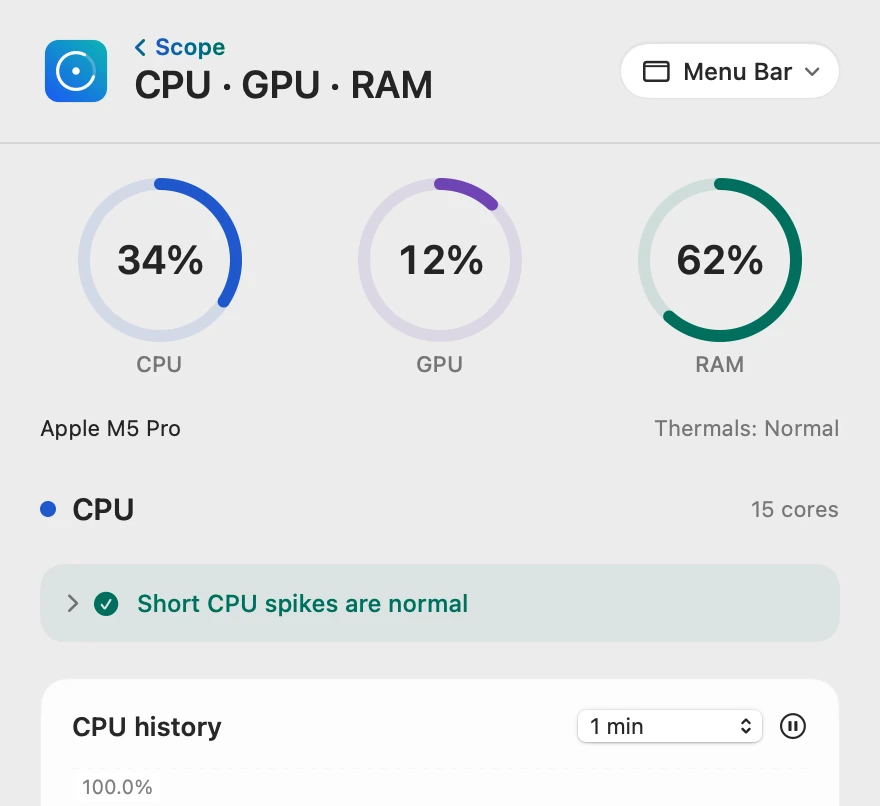
Memory macOS can reuse
Scope reads macOS’s memory pressure and says what it means in one plain sentence, so a full-looking RAM number doesn’t send you looking for a cleaner.

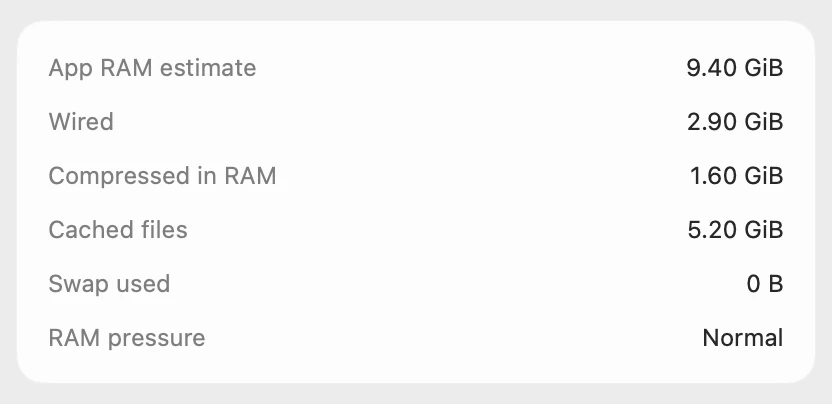
Cached files, counted
Cached files is memory holding files the system has cached, not a folder on your disk, so there’s nothing to delete.
How full the drive really is
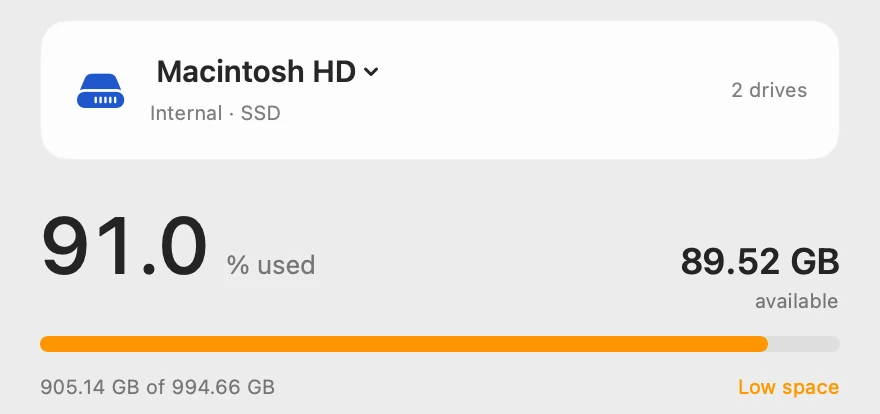
Drive shows each drive’s used space and what’s available, with Largest files below it for the files worth removing.
Scope shows and explains. It never clears caches, deletes files or frees memory, so nothing changes unless you change it.
Try it here
The real Scope, working, right in this page.
Click any item in the menu bar, or a card inside, as you would on your Mac.
Scope Pro Every menu bar item is shown here. Scope Free keeps one whole item of your choice, with every reading inside.
See what your own Mac is caching.
Keep reading
Guide · Storage
Mac storage full? Where your space went
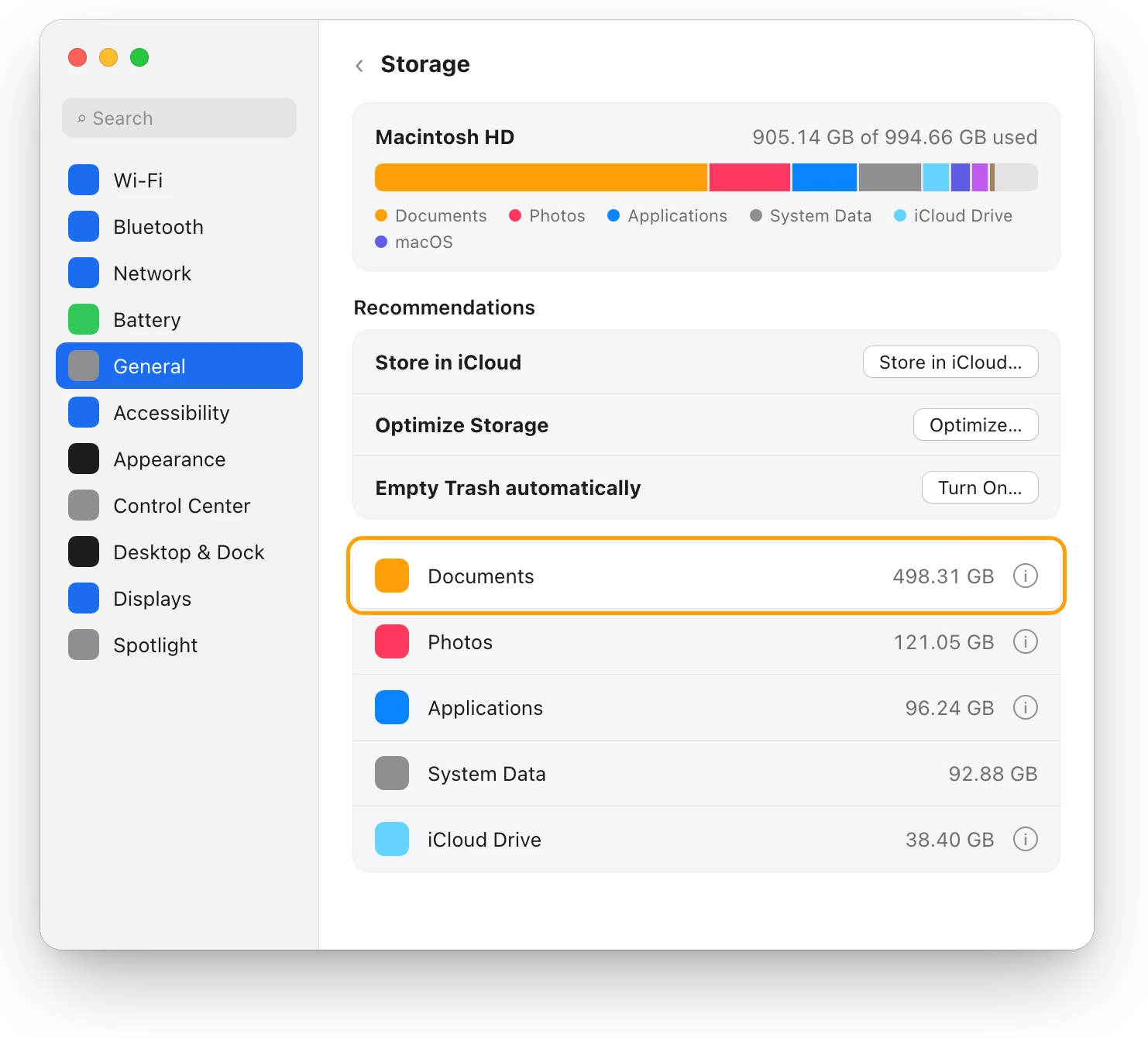
When Mac storage is full, Storage in System Settings shows what’s using it. Here’s where the space usually goes, and how to get it back safely.
Storage
How to free up space on a Mac: every way, ranked
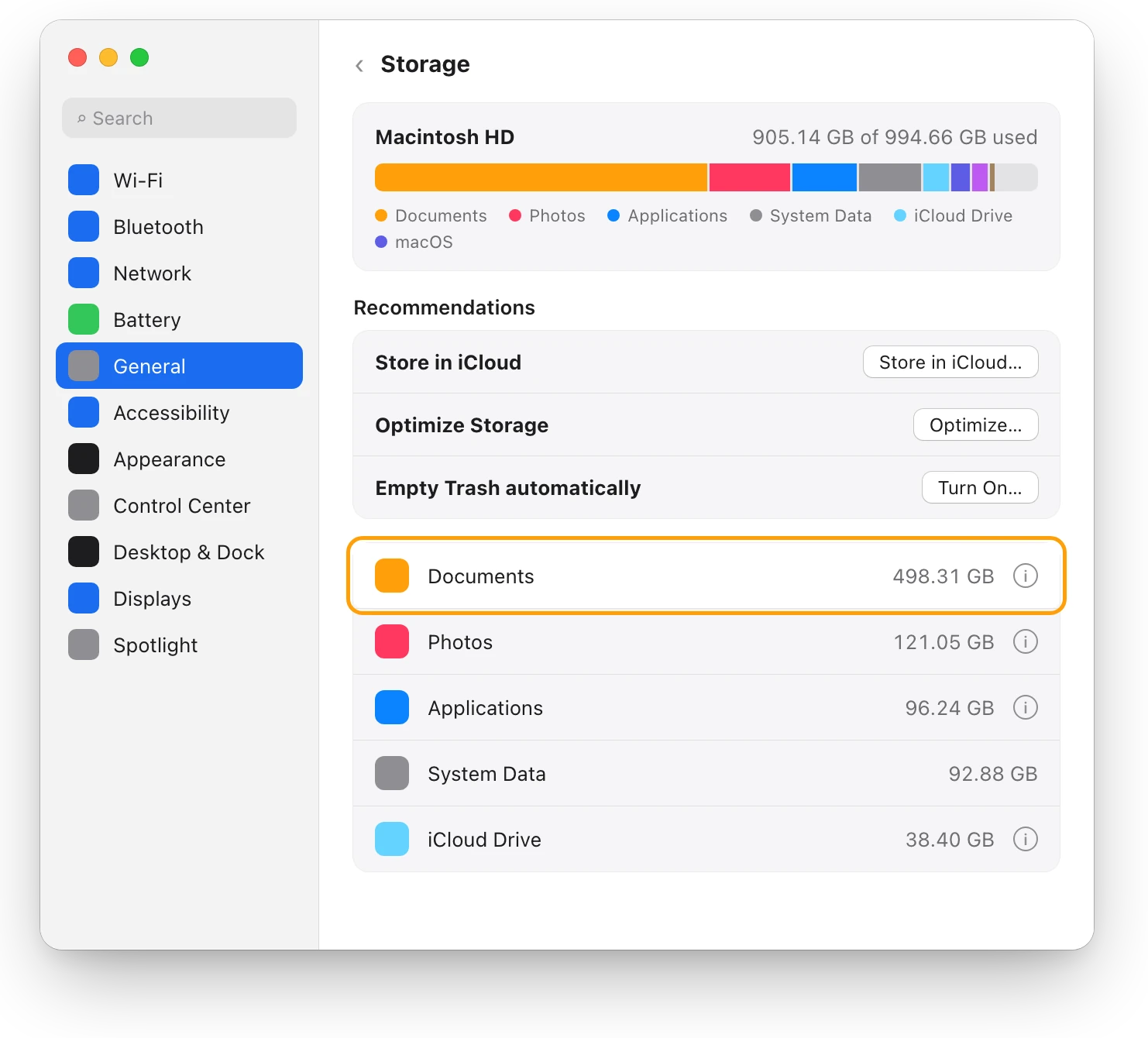
Every way to free up space on a Mac, biggest first: large files, external drives, Photos and iCloud Drive, Downloads, backups and the Trash, with risks.
Storage
What is System Data on a Mac, and why is it so big?
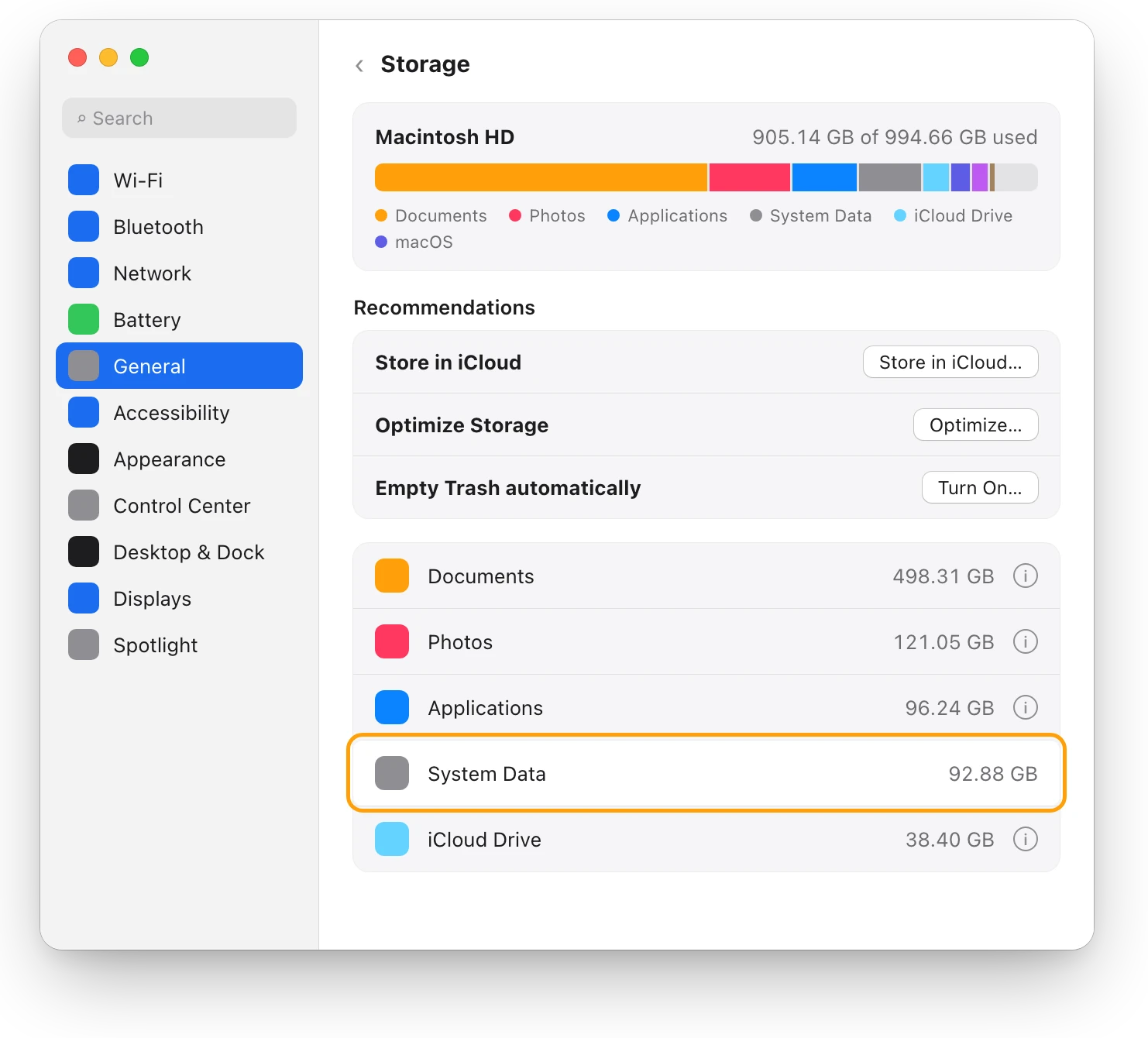
System Data holds files no other Storage category claims, such as caches, logs and temporary files. You can’t delete it directly; here’s what helps.
Slow Mac
How to free up RAM on a Mac, and when not to
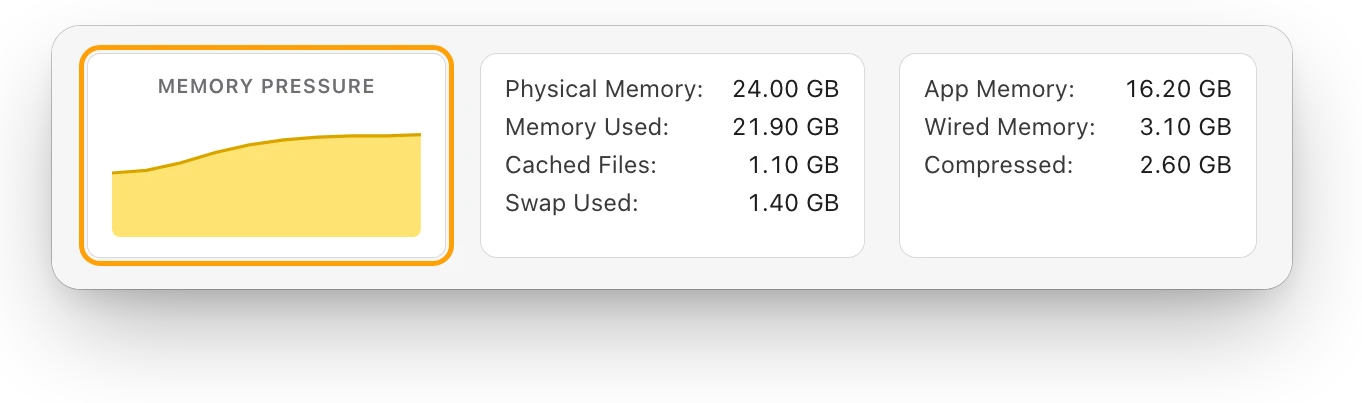
Check memory pressure first. If it’s yellow or red, quit the app using the most memory, close tabs or restart. If it’s green, there’s nothing to free.
Slow Mac
Mac memory pressure: why high RAM use is often fine
Memory pressure, not RAM in use, shows if your Mac has enough memory. Green is fine even when RAM is nearly full; yellow or red means it’s running short.
Sources
- Apple Support: Clear your cache and cookies in Safari on Mac
- Apple Developer: Develop menu (Safari Developer Features)
- Apple Developer: Enabling developer features in Safari
- Apple Support: Clear your browsing history in Safari on Mac
- Google Account Help: Clear cache & cookies
- Apple Developer: File System Programming Guide, The Library directory stores app-specific files
- Apple Support: Optimize storage space on your Mac
- Apple Support: Find and delete files on your Mac
- Apple Support: Free up storage space on Mac
- Apple Support: Go directly to a specific folder on Mac
- Apple Support: View memory usage in Activity Monitor on Mac
- Apple Support: Check if your Mac needs more RAM in Activity Monitor
Last checked October 18, 2026. Readings, apps and files in the pictures are from a made-up Mac.