How to free up RAM on a Mac, and when not to
To free up RAM on a Mac, first open Activity Monitor, click Memory and look at the Memory Pressure graph. If it’s green, there’s nothing to free: macOS is using its memory well. If it’s yellow or red, quit the app using the most memory, close browser tabs you don’t need, or restart your Mac.
Do I need to free up RAM?
Only when memory pressure is yellow or red. How much RAM is in use doesn’t tell you, because macOS fills spare memory on purpose.
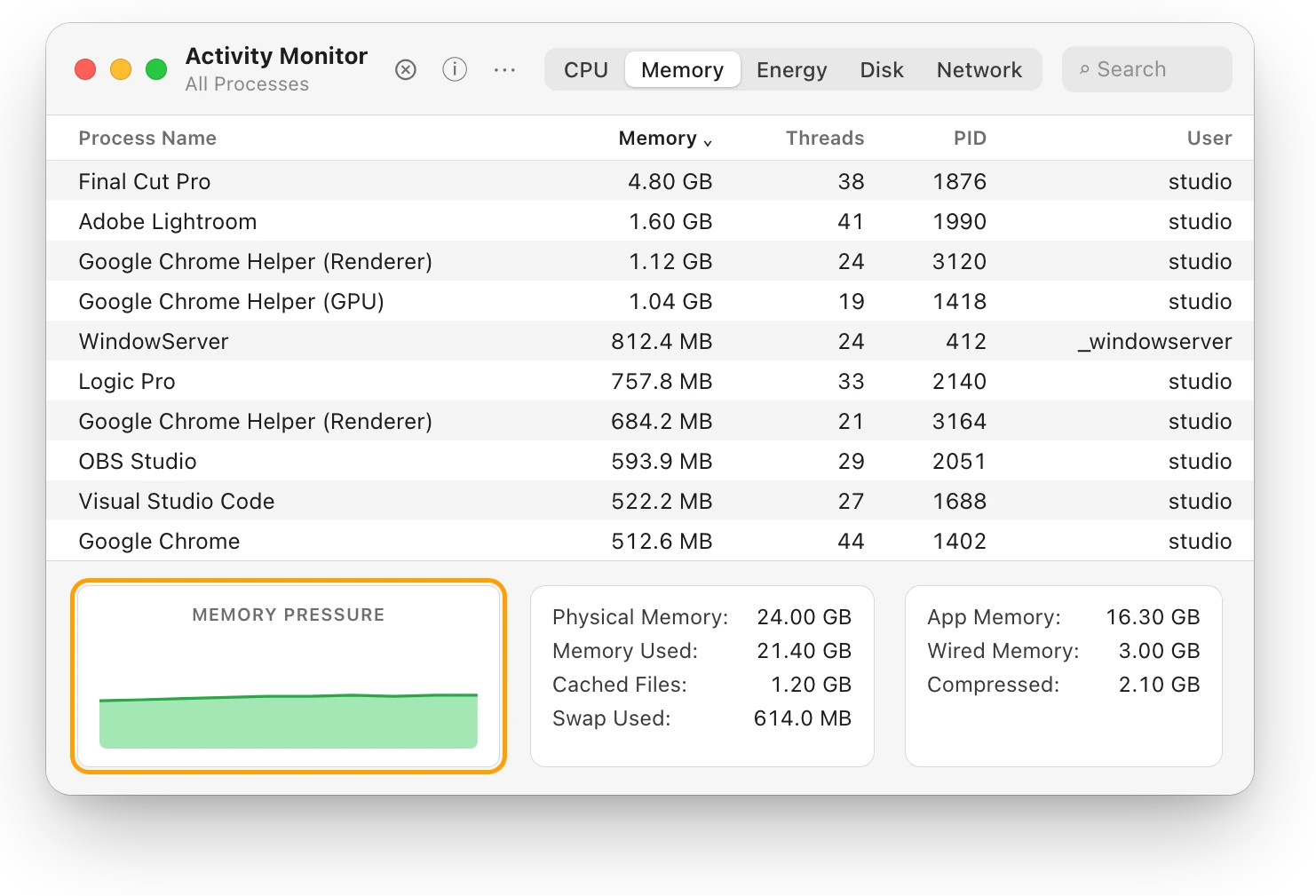
- Open Activity Monitor. It’s in Applications > Utilities, or search for it with Spotlight.
- Click Memory at the top of the window.
- Look at the Memory Pressure graph at the bottom. Green: nothing to do. Yellow or red: your Mac is short of memory for what’s open, so carry on below.
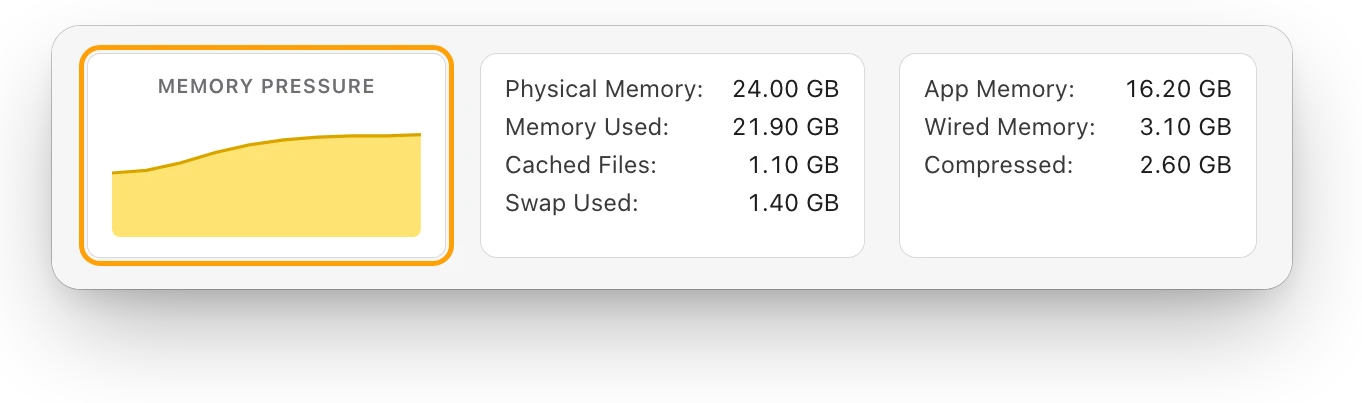
Mac memory pressure: why high RAM use is often fine explains each number in this part of the window.
How do I free up RAM on a Mac?
These actions are ranked by how much memory they usually free.
| Action | What it frees | When it helps | What it costs you |
|---|---|---|---|
| Quit the app using the most memory | All of that app’s memory | Pressure is yellow or red | Reopening it later |
| Close browser tabs | Each tab’s memory | Many tabs are open | Finding the pages again |
| Restart your Mac | Every app’s memory | Apps have piled up | A few minutes |
| Remove login items | Memory those apps would use | They open every login | Opening them yourself |
1. Quit the app using the most memory
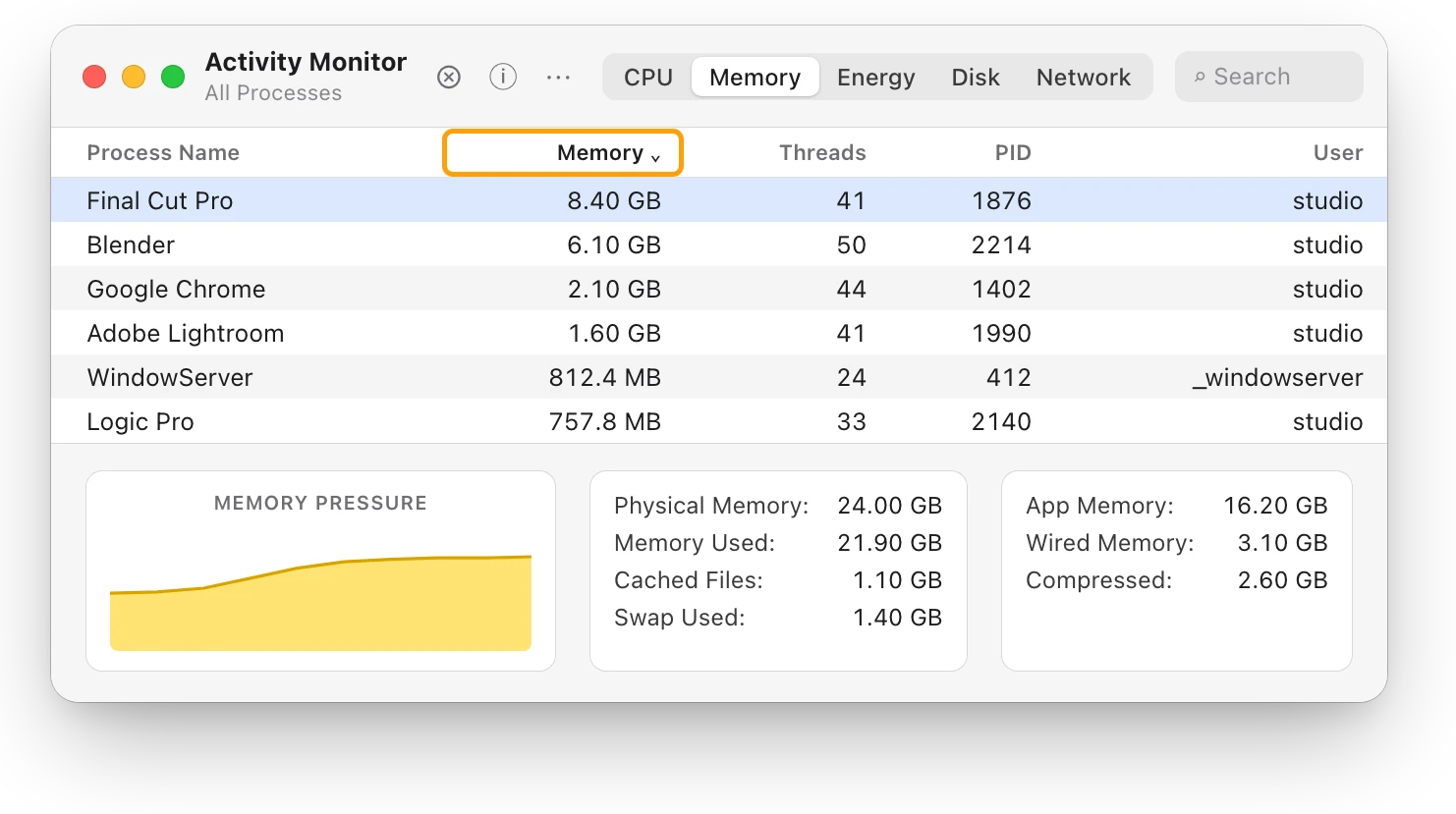
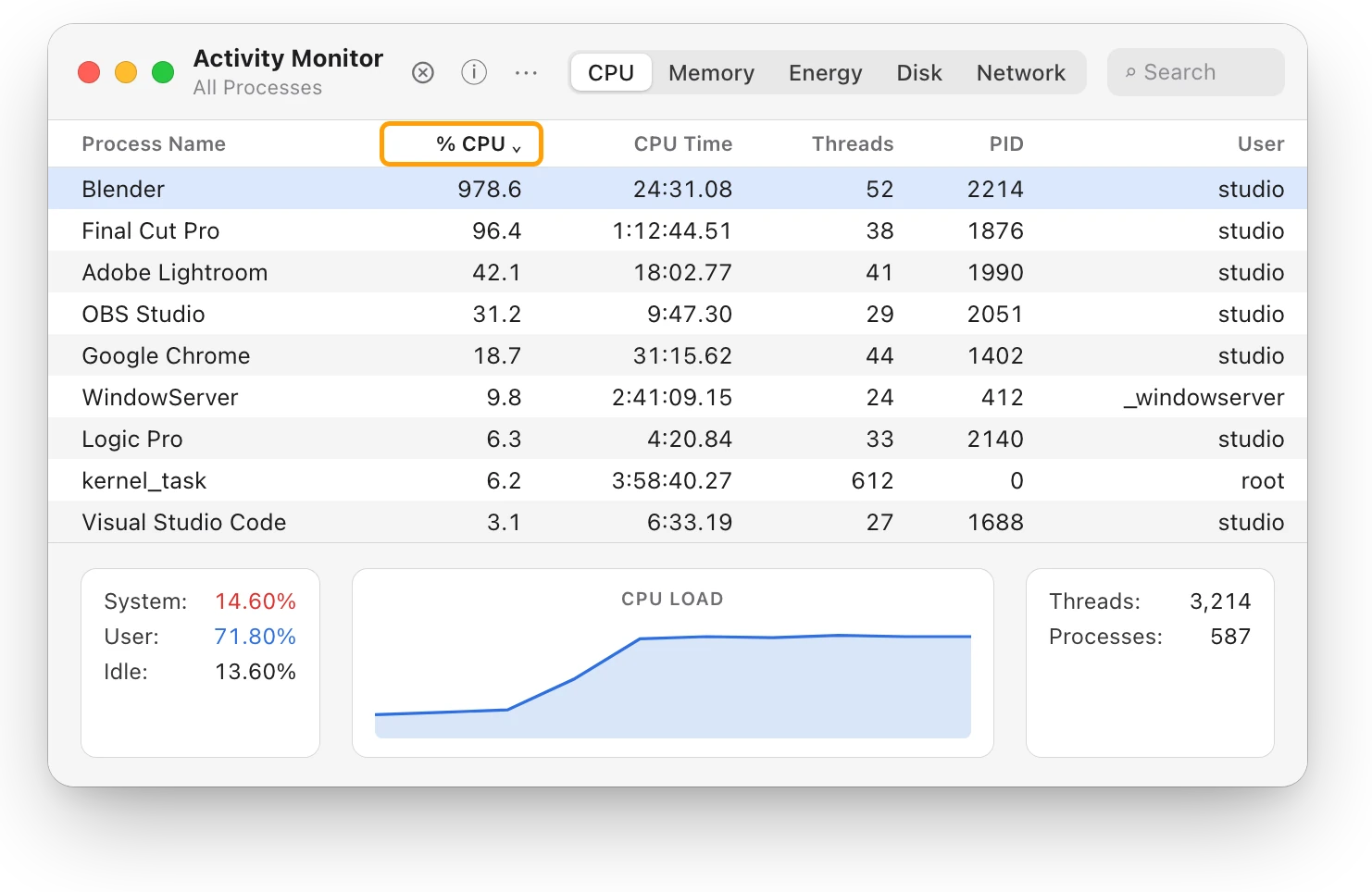
- In Activity Monitor’s Memory tab, click the Memory column heading to sort the list, largest first.
- Look at the top. If you don’t need that app right now, save your work in it and quit it from its own menu.
- If it isn’t responding, select it, click the Stop button at the top of the window, then choose Quit. Choose Force Quit only if Quit doesn’t work, because unsaved work in that app is lost.
- Watch the Memory Pressure graph for a minute. If it turns green again, that was enough.
2. Close browser tabs you’re done with
Each open tab keeps its page in memory, so a browser with many tabs open can use a lot of it. Close the tabs you aren’t using. Why is Chrome using so much memory on a Mac? shows how to find the heaviest tabs.
3. Restart your Mac
Restarting closes every app, so memory starts again with only macOS, your login items and what you open.
- Choose Apple menu > Restart.
- In the dialog that appears, deselect “Reopen windows when logging back in”, so the apps you had open don’t all come back.
4. Open fewer apps at login
Apps that open at login use memory from the moment you log in. To remove one, choose Apple menu > System Settings, click General, click Login Items & Extensions, select the app and click the Remove button (−). How to stop apps opening at startup on a Mac has the details.
Why doesn’t my memory go down after I quit apps?
macOS puts freed memory to work. Activity Monitor’s Cached Files shows files macOS keeps in unused memory to improve performance, and macOS hands that memory to apps when they need it. So memory can look full again soon after you quit an app, while memory pressure stays green. That’s normal.
Do RAM cleaner apps work on a Mac?
Not in the way they promise. Apple says that free or unused memory doesn’t necessarily improve a Mac’s performance. macOS already makes room on its own: Apple says that as a Mac nears its memory limit, inactive apps in memory are compressed, making more memory available to active apps.
An app that “frees” memory can only push out what macOS was keeping there, such as cached files, which macOS may then have to read from the disk again. If memory pressure is green, there’s nothing to gain. If it’s yellow or red, quitting the app you don’t need frees far more.
When don’t you need to free up RAM?
- Memory pressure is green, even with almost all of your RAM in use.
- A little swap is in use. Swap is space on the startup disk that macOS uses to move things in and out of memory. A small, steady amount is normal; What is swap on a Mac? explains when it isn’t.
- Your Mac feels fast. Free memory isn’t a goal in itself.
If memory pressure stays yellow or red with only the apps you need, freeing memory won’t keep up: your Mac needs more memory for that work. Is 8 GB or 16 GB of RAM enough for your Mac? helps you choose for your next Mac.
Questions people also ask
How do I clear RAM on a Mac without restarting?
Quit the apps using the most memory, from Activity Monitor’s Memory tab sorted by Memory, and close browser tabs you don’t need. Check that the Memory Pressure graph turns green.
Why is my Mac using so much memory?
macOS uses spare memory on purpose, for apps and for files you may open again. It’s only a problem when memory pressure is yellow or red.
Does closing tabs free up RAM?
Yes. Each open tab holds memory, so closing tabs you aren’t using frees some, often a lot in a browser with many tabs.
Is it bad if my Mac uses 90% of its RAM?
Not if memory pressure is green. Yellow or red at the same 90% means your Mac is short of memory for what’s open.
Scope for Mac · Free, coming to the Mac App Store
How Scope helps
Scope is a free Mac menu bar app that shows RAM in use beside macOS’s memory pressure, in plain words, and lists the apps using the most memory. It tells you whether there’s anything to free, and which app to close, without opening Activity Monitor.
In your menu bar
RAM reads 91% in the menu bar here, and the panel says whether that’s a problem.

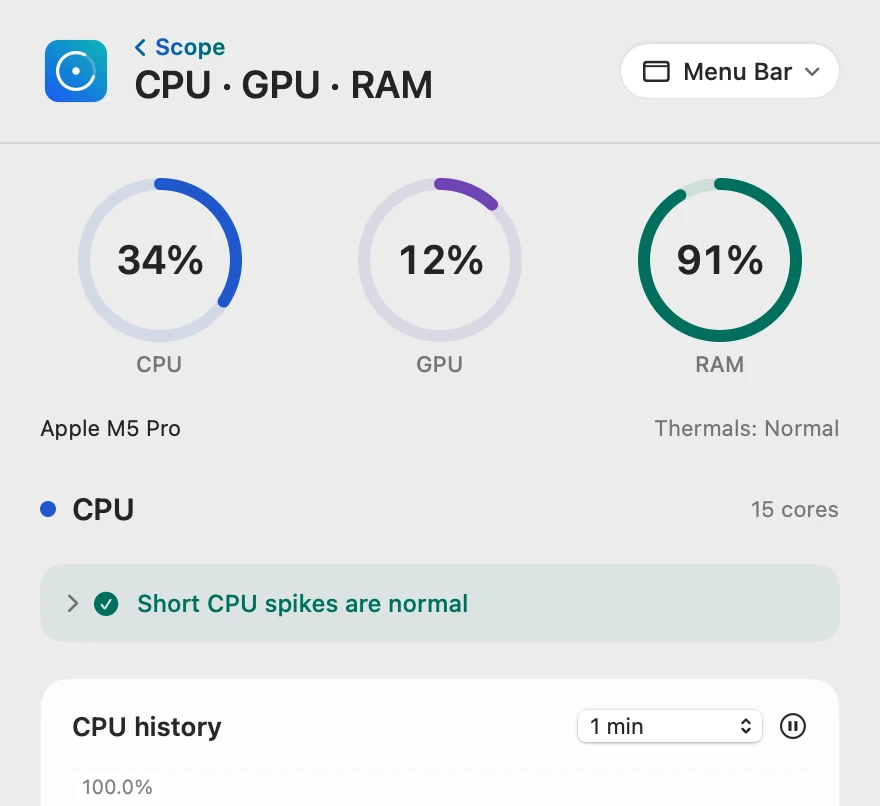
Pressure beside the number
Scope’s RAM pressure is macOS’s memory pressure in words: Normal, Warning or Critical, which Activity Monitor shows as green, yellow or red. Scope writes GiB where Activity Monitor writes GB; for memory they’re the same measure, so 21.90 matches.
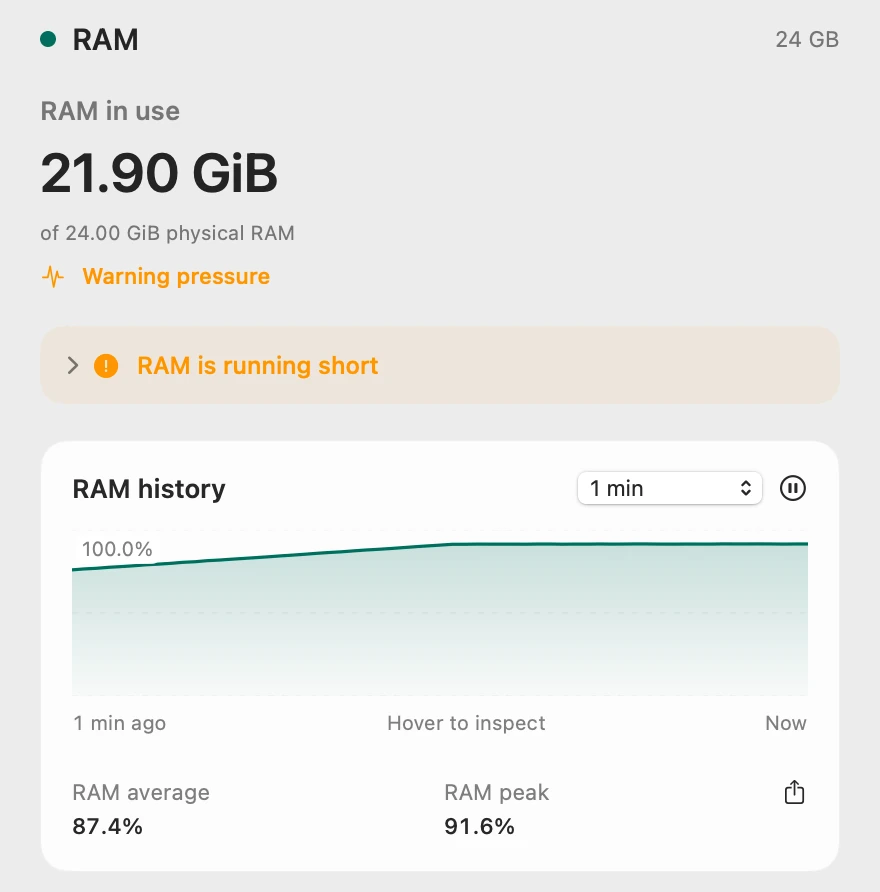
What to close first
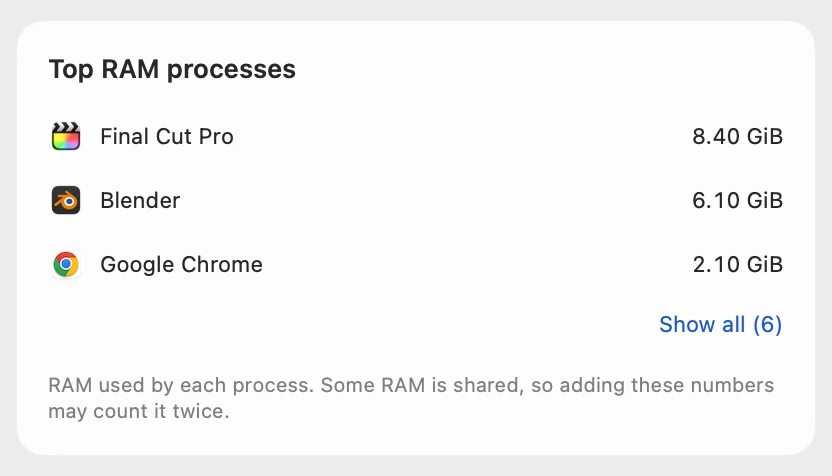
Scope lists each process on its own row with the icon of the app it belongs to, largest first. Click one to see more, or to open Activity Monitor.
Told when memory runs short
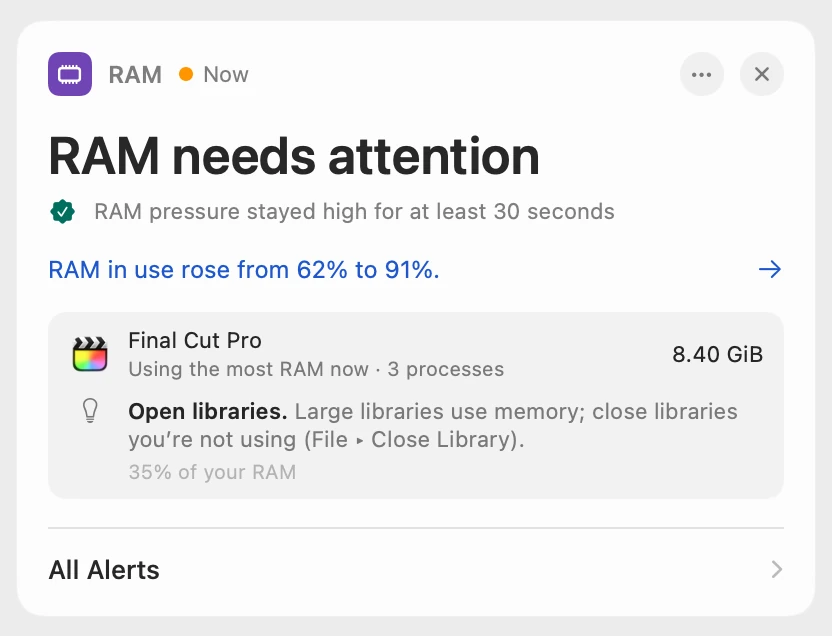
When RAM pressure stays high for 30 seconds, Scope says “RAM needs attention”. Scope Free shows the alert when you open Scope. Scope Pro adds a red + on its menu bar icon and names the app using the most RAM, its processes counted together.
Scope shows and explains. It never quits apps or frees memory for you, so what to close stays your call.
Try it here
The real Scope, working, right in this page.
Click any item in the menu bar, or a card inside, as you would on your Mac.
Scope Pro Every menu bar item is shown here. Scope Free keeps one whole item of your choice, with every reading inside.
See what’s using your own Mac’s memory.
Keep reading
Guide · Slow Mac
Why is my Mac slow? How to find the cause
A slow Mac is usually a busy app, too little memory, a nearly full disk or heat. Here’s how to see which one with macOS’s own tools.
Slow Mac
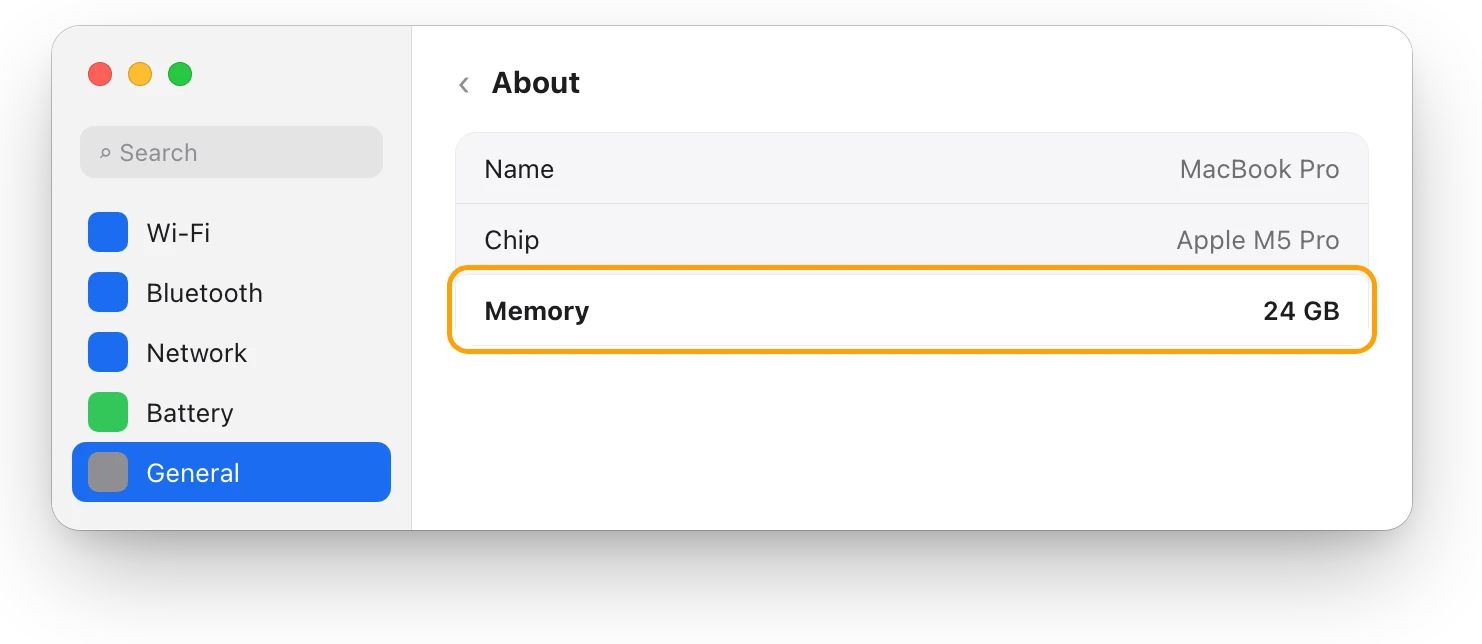
Mac memory pressure: why high RAM use is often fine
Memory pressure, not RAM in use, shows if your Mac has enough memory. Green is fine even when RAM is nearly full; yellow or red means it’s running short.
Slow Mac
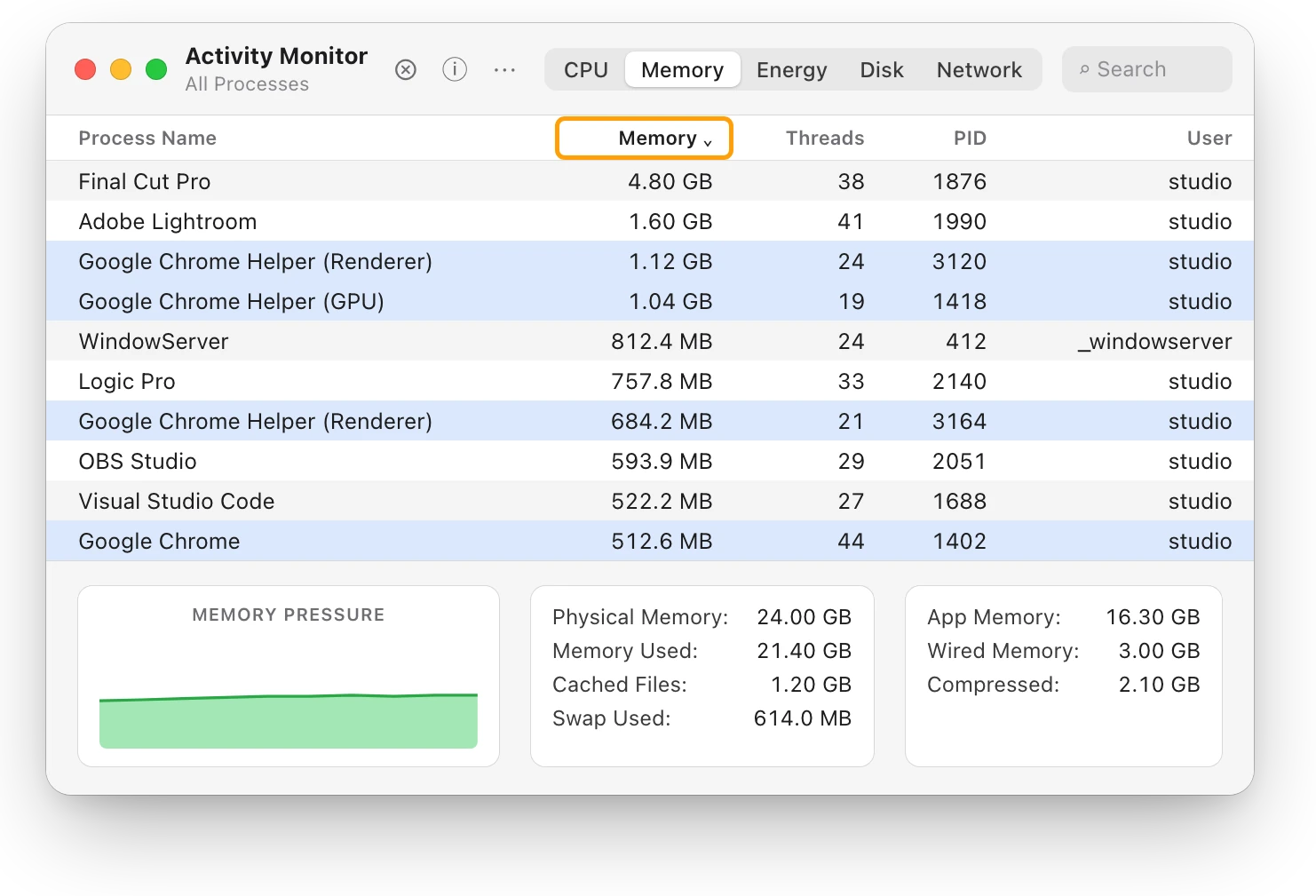
Is 8 GB or 16 GB of RAM enough for your Mac?
Memory pressure tells you if your Mac has enough RAM: green on your busiest day means it does. Here’s how to check, and what to buy next.
Slow Mac
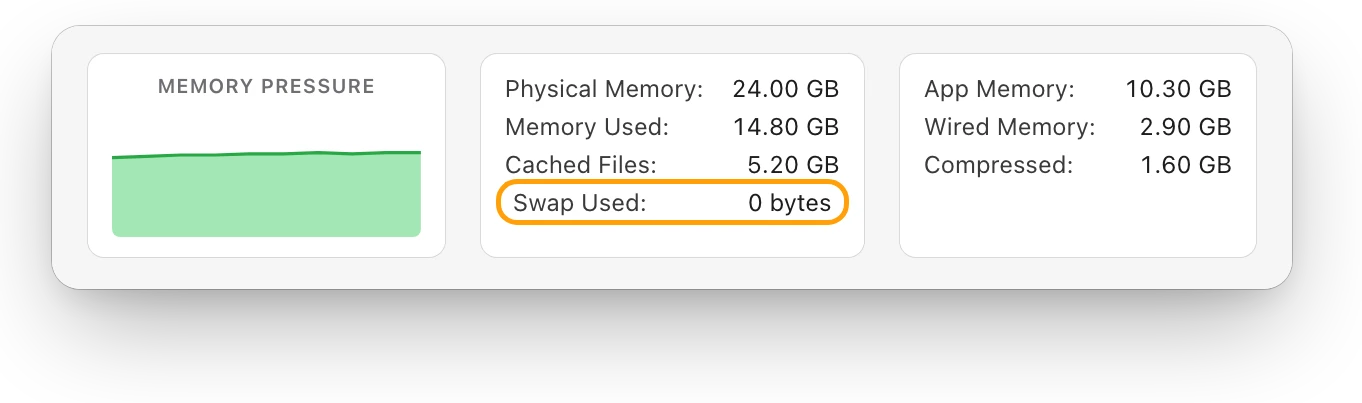
Why is Chrome using so much memory on a Mac?
Chrome runs tabs and parts of the browser as separate processes, so its memory adds up. Here’s how to see it on a Mac, and when it matters.
Slow Mac
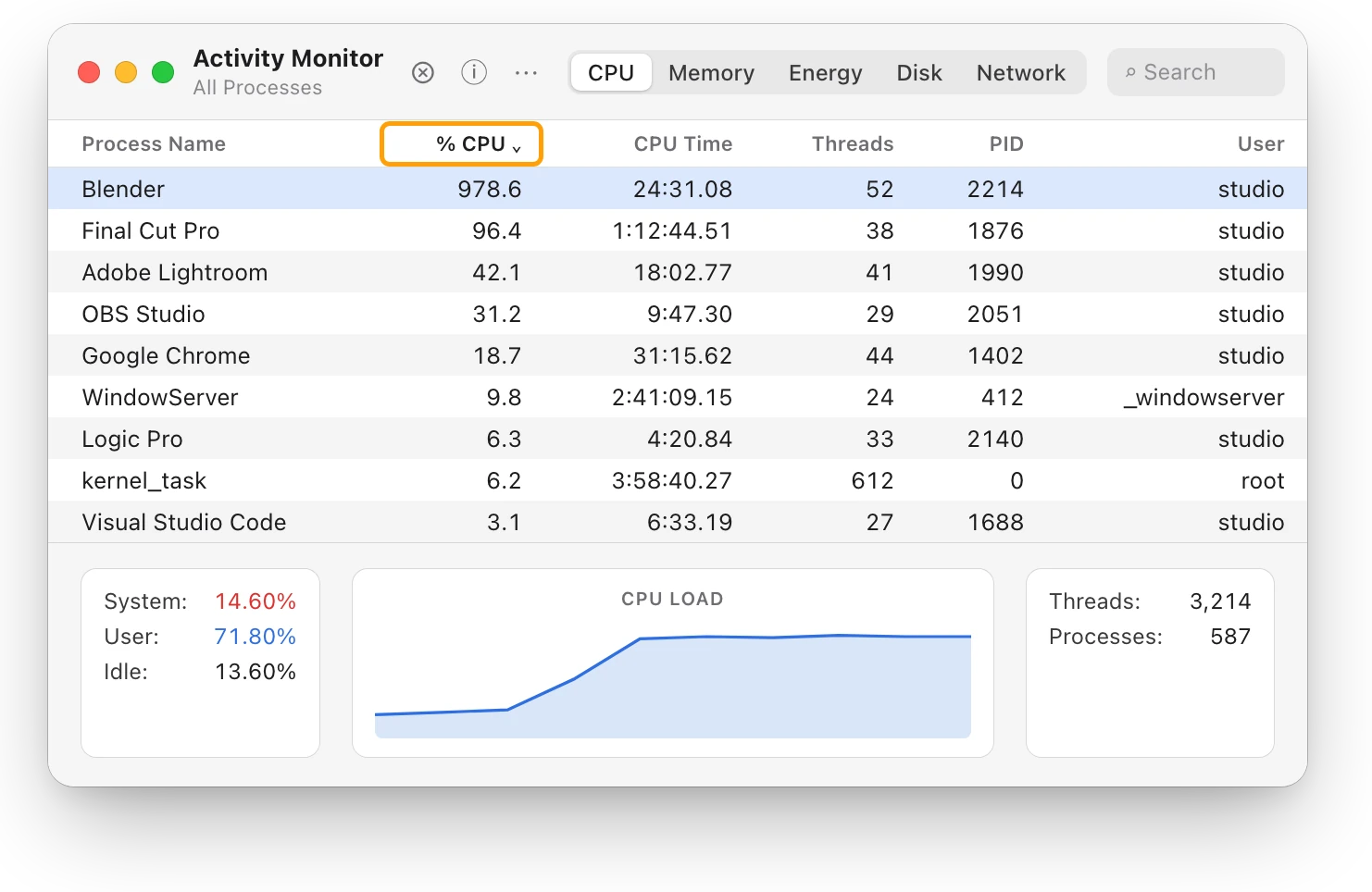
What is swap on a Mac, and when should you worry?
Swap is startup-disk space macOS uses to make room in RAM. Some is normal; it matters when memory pressure is yellow or red and Swap Used keeps growing.
Slow Mac
How to speed up a Mac: what actually helps
Speed up a Mac by fixing the real cause: quit the busy app, free memory or disk space, keep it cool, trim login items. What helps most, and what doesn’t.
Sources
- Apple Support: Check if your Mac needs more RAM in Activity Monitor
- Apple Support: View memory usage in Activity Monitor on Mac
- Apple Support: Quit a process in Activity Monitor on Mac
- Apple Support: If your Mac runs slowly
- Apple Support: Shut down or restart your Mac
- Apple Support: Open items automatically when you log in on Mac
Last checked October 18, 2026. Readings, apps and files in the pictures are from a made-up Mac.