How to stop apps opening at startup on a Mac
To stop apps opening at startup on a Mac, choose Apple menu > System Settings, click General, then click Login Items & Extensions. Under Open at Login, select the app and click the Remove button (−). The app stays on your Mac; it just stops opening each time you log in. Apps allowed to run in the background are listed below it, each with its own switch.
How do I remove a login item?
Login items are apps, documents, folders or server connections that open automatically when you log in. You need to be an administrator of your Mac to change them.
- Choose Apple menu > System Settings.
- Click General in the sidebar, then click Login Items & Extensions. You may need to scroll down.
- Under Open at Login, select the app you don’t need at login.
- Click the Remove button (−) below the list.
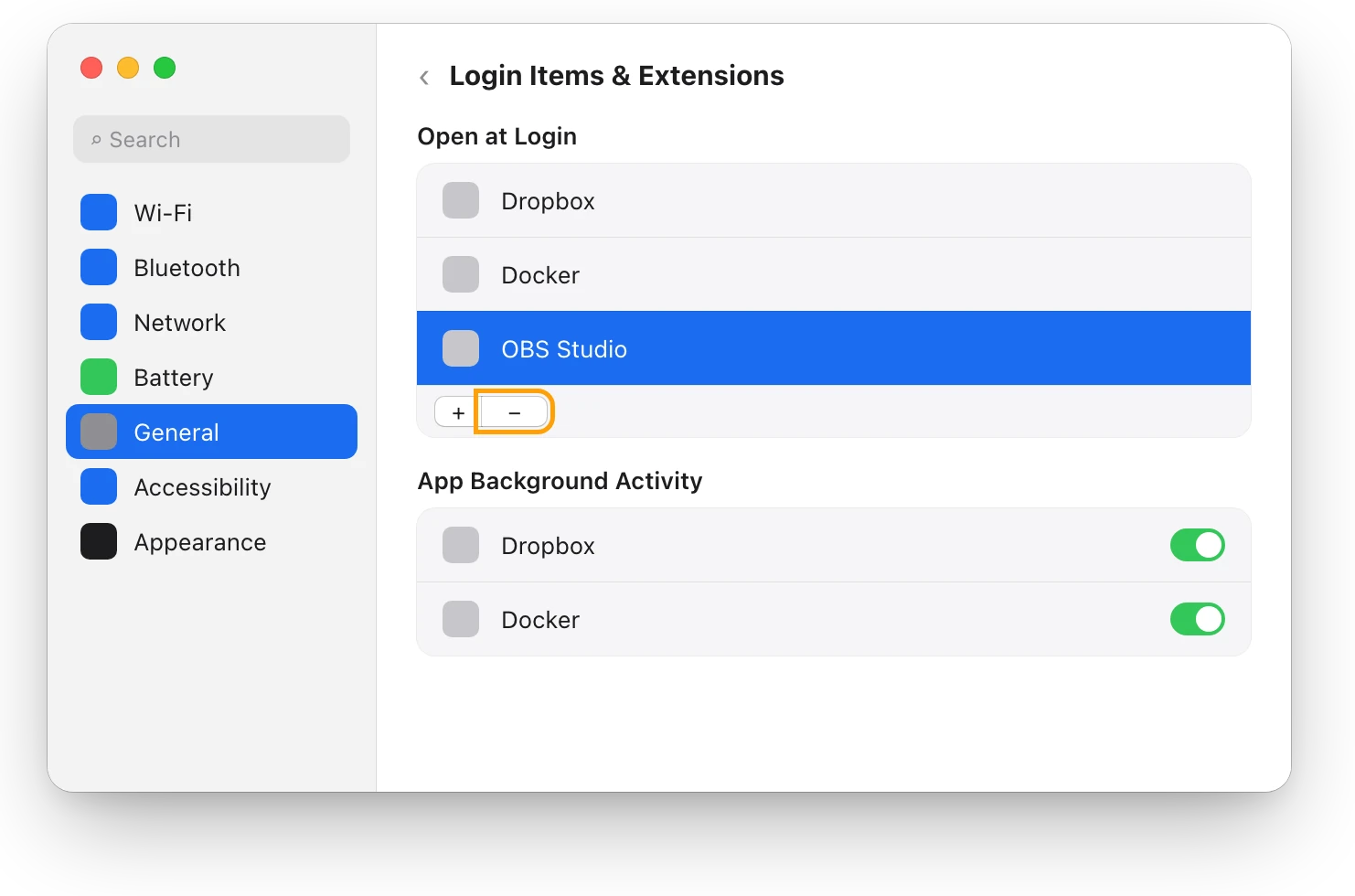
To add an app instead, click the Add button (+) below the list, choose the app and click Add. A yellow warning triangle next to an item means it won’t open, because it was moved or deleted.
What is App Background Activity?
App Background Activity lists apps that are allowed to do work when they aren’t open, such as checking for software updates or syncing data. In macOS Sequoia this section was called Allow in the Background.
- In Login Items & Extensions, look under App Background Activity.
- Turn off the switch next to an app you don’t want working in the background.
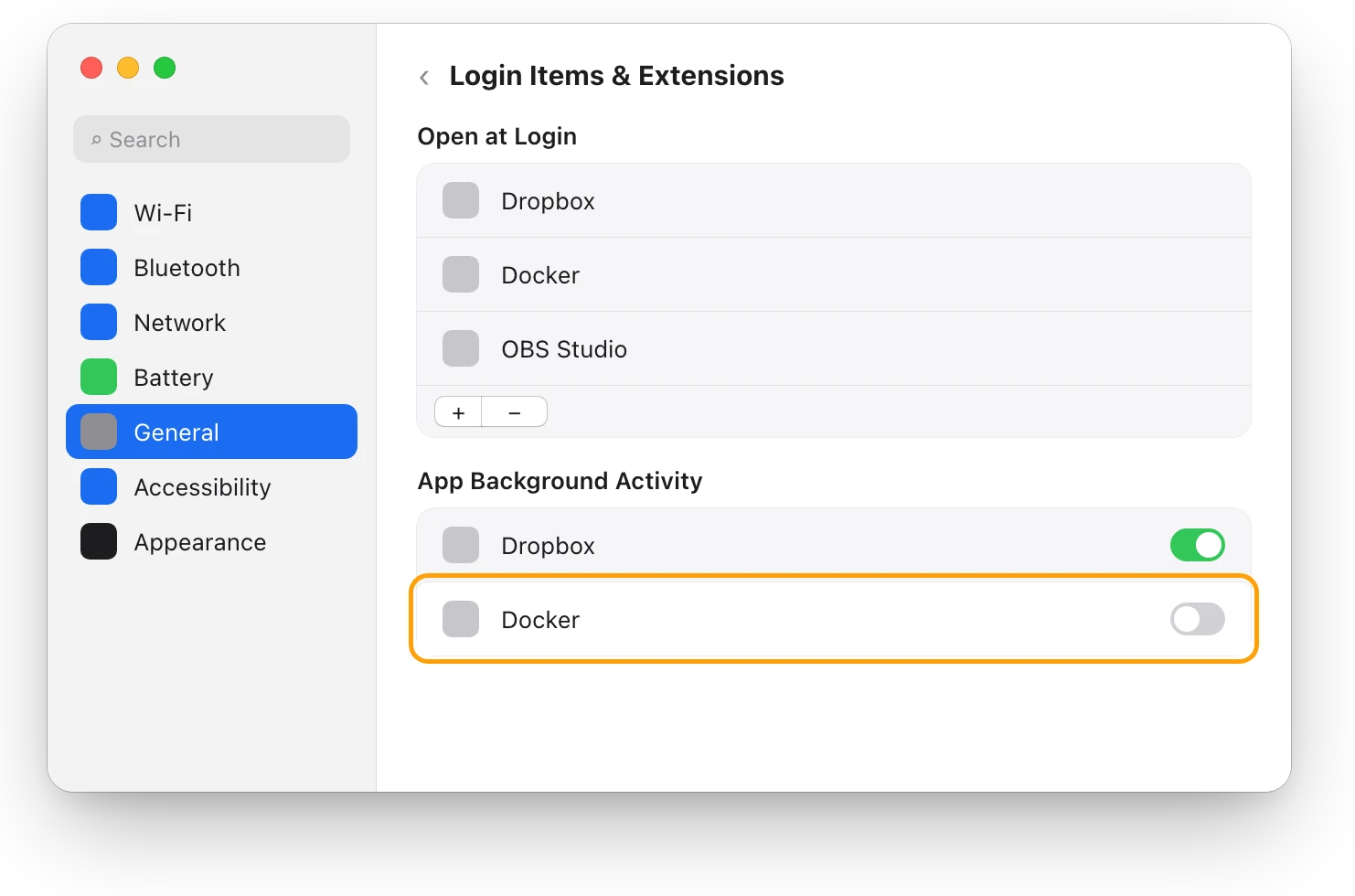
Turning an app off here can stop the work it does while closed. A sync app, for example, may stop syncing until you open it. Leave on the apps whose background work you rely on.
Which login items slow down my Mac?
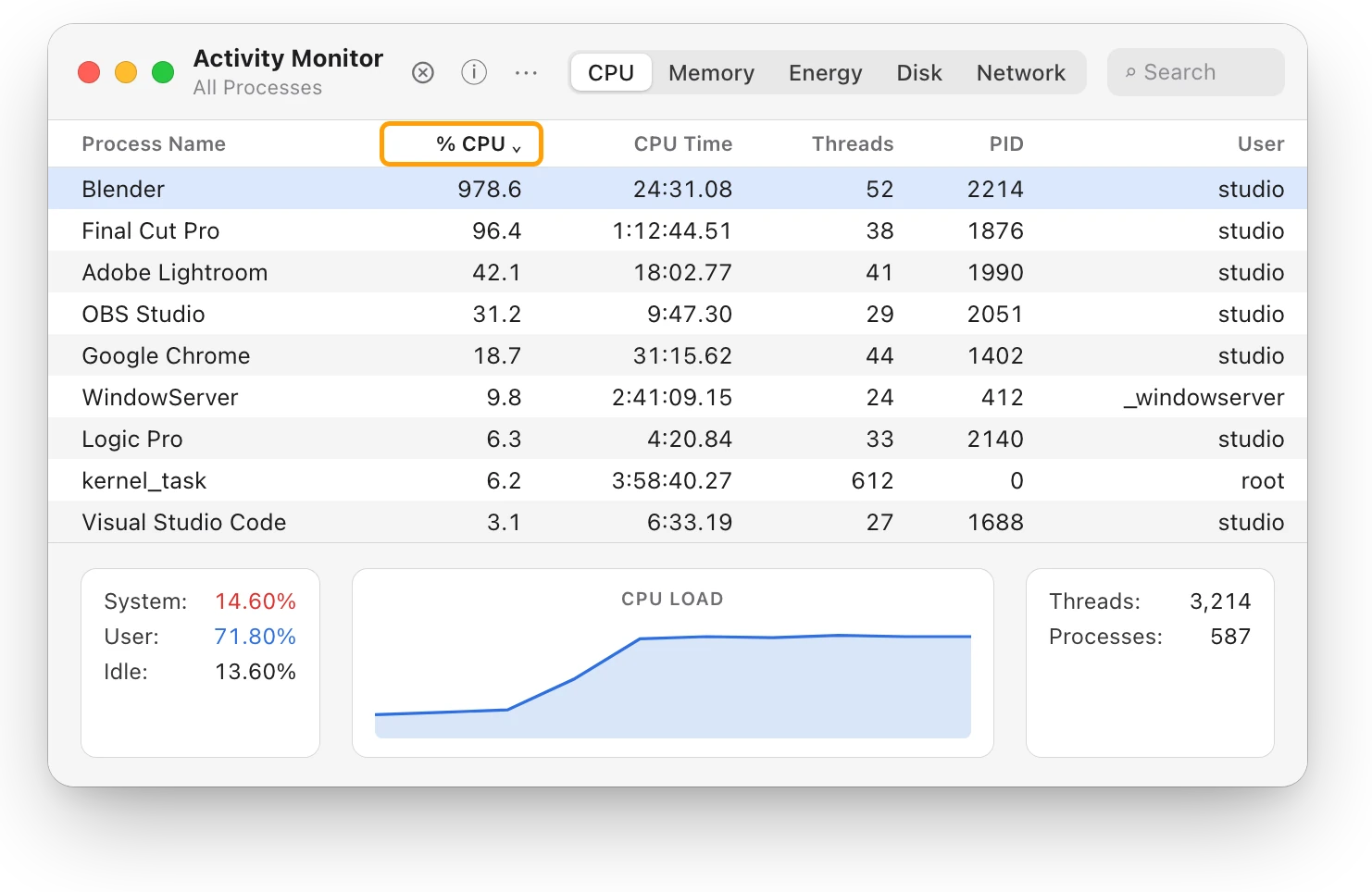
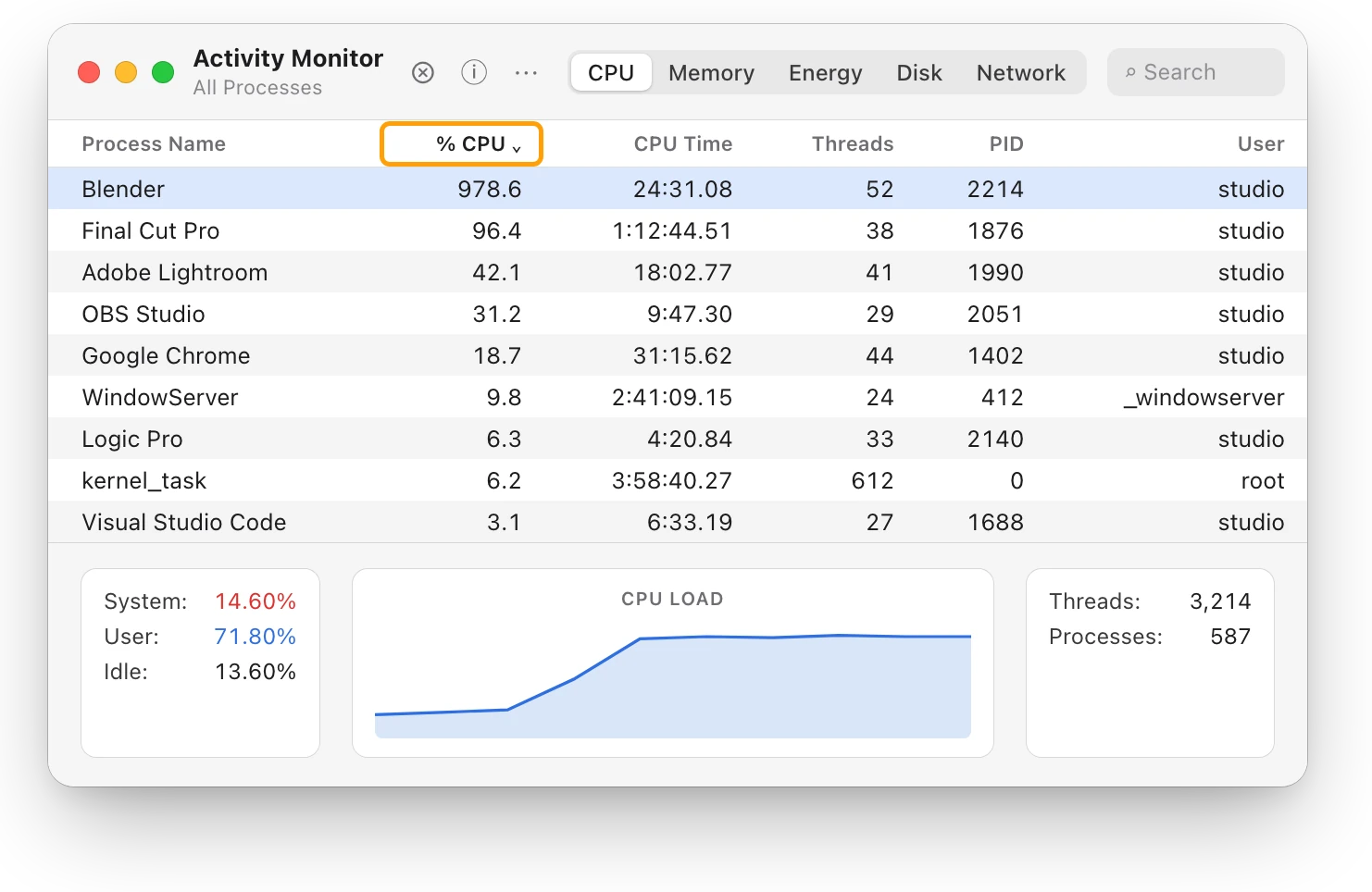
Many login items use little once they’re open. To see whether one keeps your Mac busy, check it in Activity Monitor.
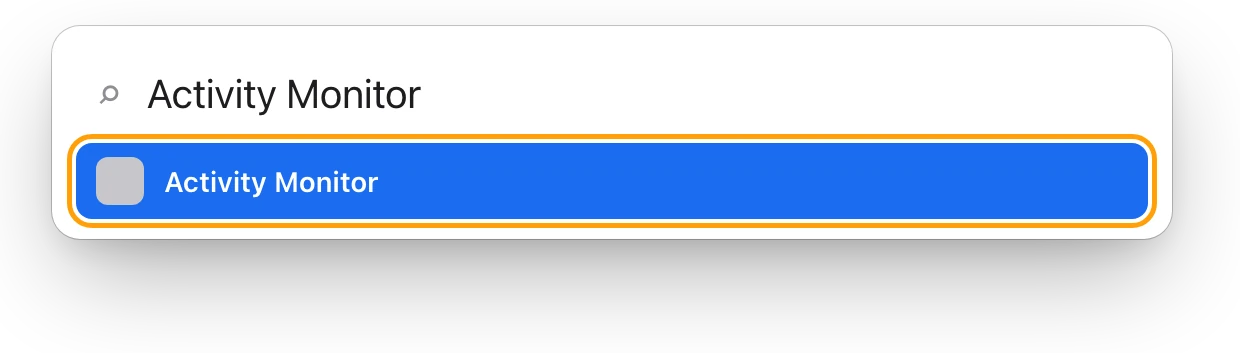
- Open Activity Monitor. It’s in Applications > Utilities, or search for it with Spotlight.
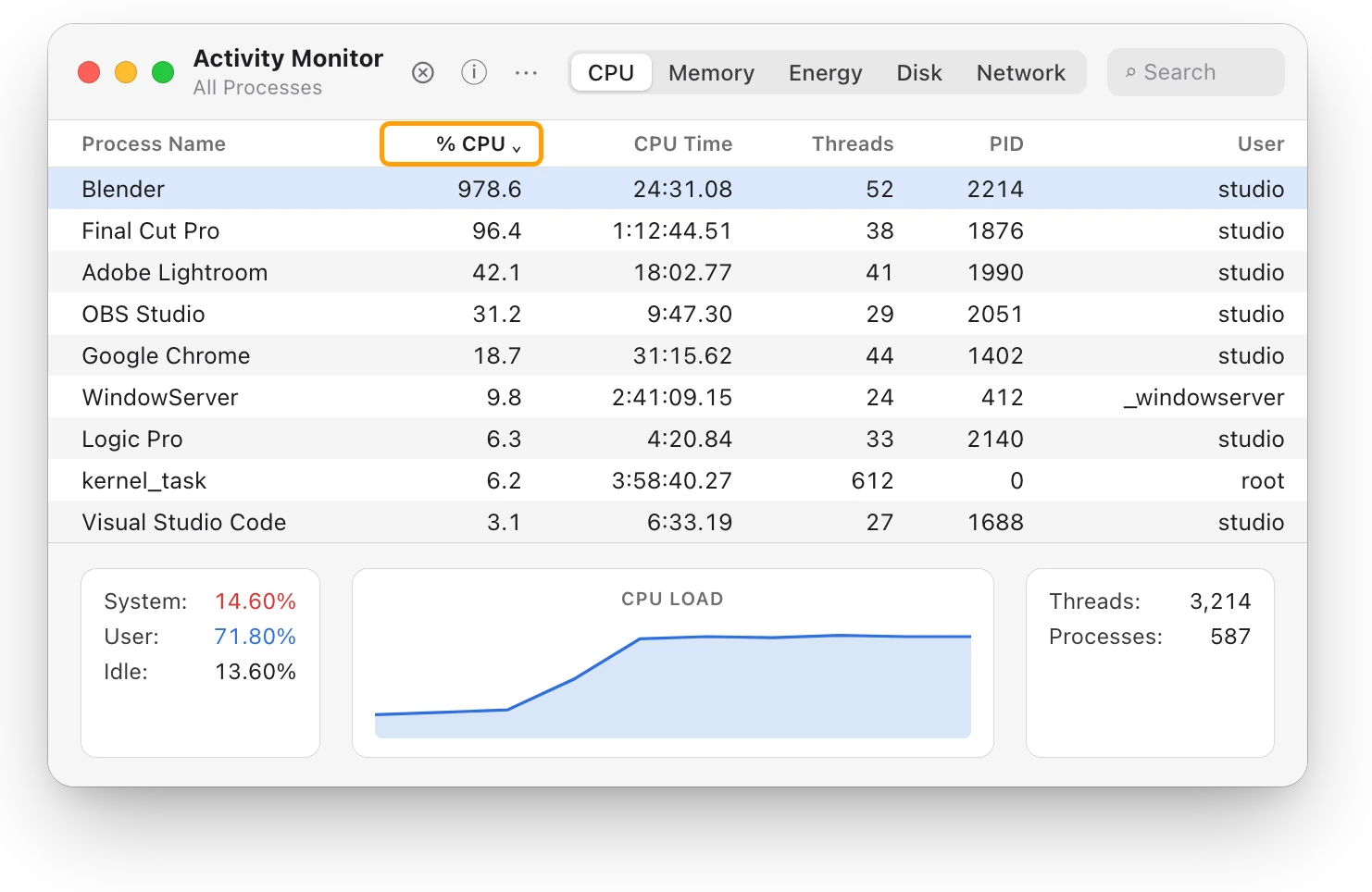
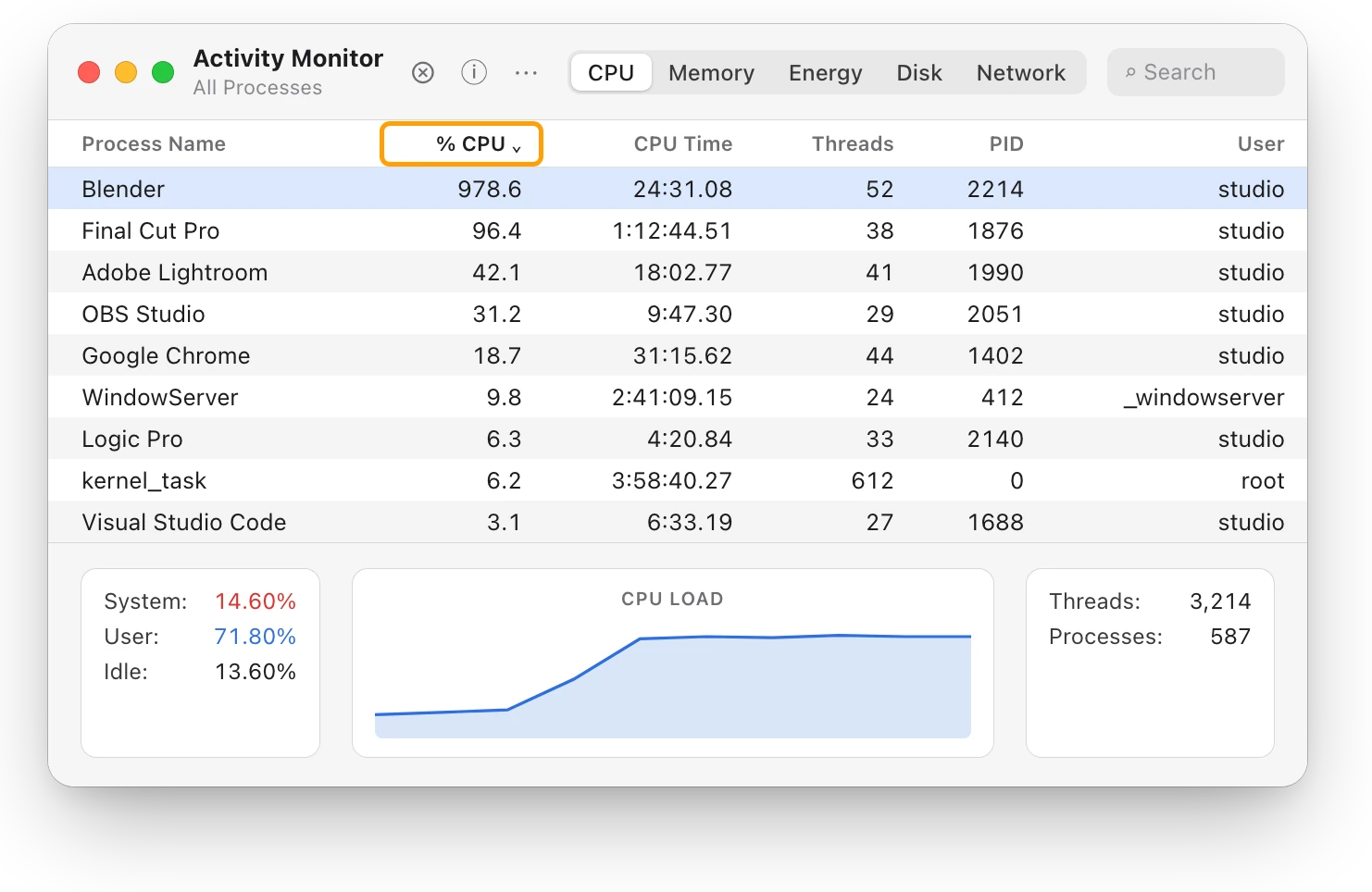
- Click CPU, then click the % CPU column heading to sort the list, busiest first.
- Find your login items in the list. Type a name in the search field at the top right to find one quickly.
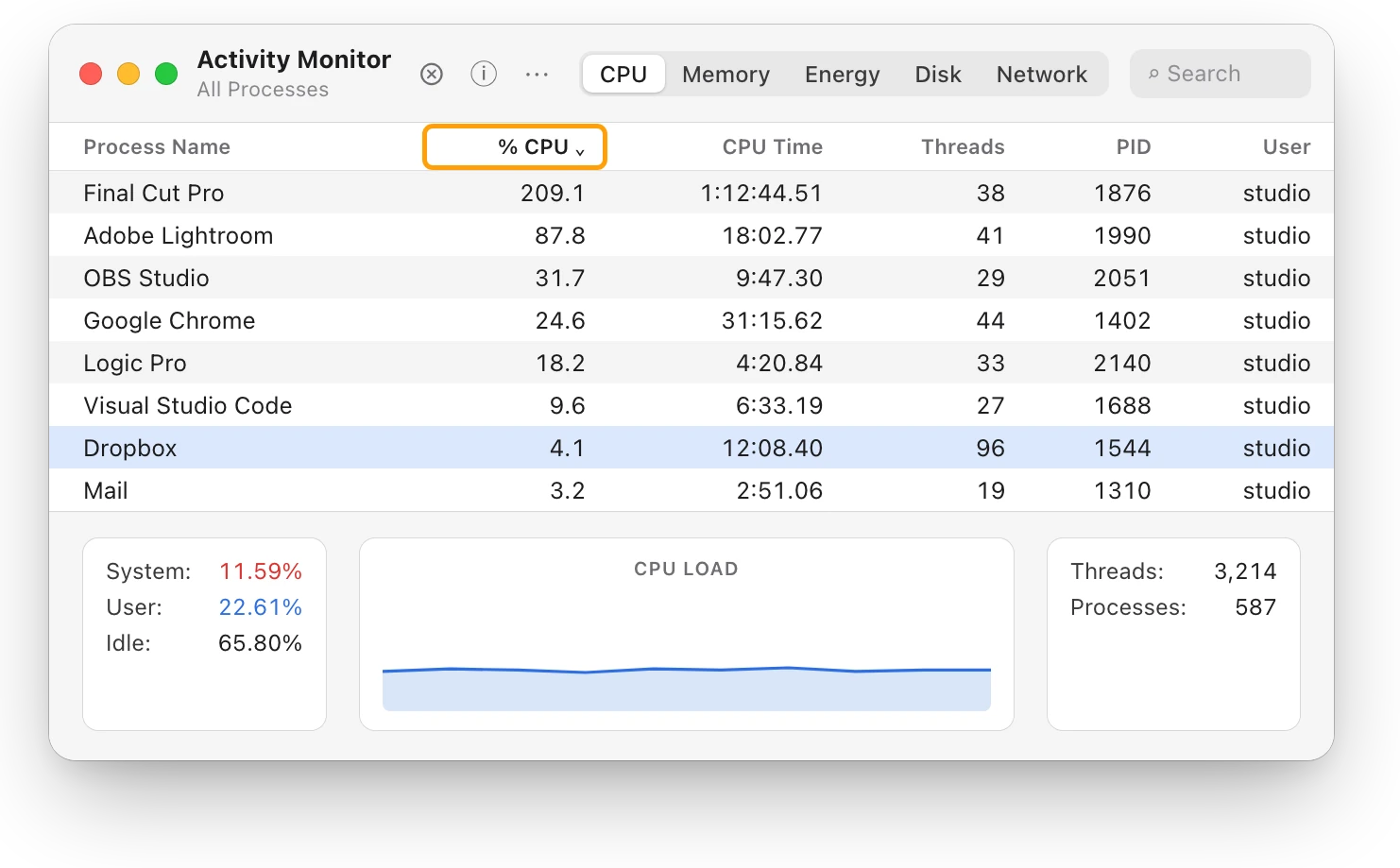
A login item that stays near the top for minutes is worth removing, or opening only when you need it. Activity Monitor counts each core as 100%, so 4.1% is a small share of a Mac with many cores. Which app is slowing down my Mac? explains the lists.
How do I stop windows reopening when I log in?
macOS can reopen the apps and windows you had open when you restarted, which isn’t the same as a login item.
- When you restart, shut down or log out: deselect “Reopen windows when logging back in” in the dialog that appears.
- When you quit an app: choose Apple menu > System Settings, click Desktop & Dock, and turn on “Close windows when quitting an application”. This works in macOS Ventura or later.
- For one app, once: hold the Shift key while you open it. The app forgets the windows it had open, and no setting changes.
Can I log in without my login items, just once?
Yes. Hold the Shift key while you click Log In, and release it when the Dock appears. If you don’t see the login window, restart your Mac, hold Shift when the progress bar appears, and release it once the desktop appears. Nothing in your settings changes.
Why does an app keep opening at login?
If an app keeps coming back, check Login Items & Extensions first: it may be listed under Open at Login. Many apps also have their own setting to open at login, so look in that app’s settings and turn it off there too.
| Where it opens from | Where to stop it |
|---|---|
| Open at Login | System Settings > General > Login Items & Extensions, then the Remove button (−) |
| App Background Activity | The same pane: the app’s switch |
| Windows reopened after a restart | Deselect “Reopen windows when logging back in” |
| The app’s own setting | That app’s settings |
Questions people also ask
Is it safe to remove login items on a Mac?
Yes. Removing an item only stops it opening at login; the app stays on your Mac, and you can open it yourself or add it back.
Where are startup programs on a Mac?
In System Settings > General > Login Items & Extensions. The Mac calls them login items, because they open when you log in.
Do login items slow down a Mac?
They can make the first minutes after login slower, and a busy one can slow your Mac all day. Activity Monitor’s CPU list shows whether one keeps working.
Should I turn off all background items?
No. Turn off the ones you don’t need. Background work such as syncing and update checks stops for any app you turn off.
Scope for Mac · Free, coming to the Mac App Store
How Scope helps
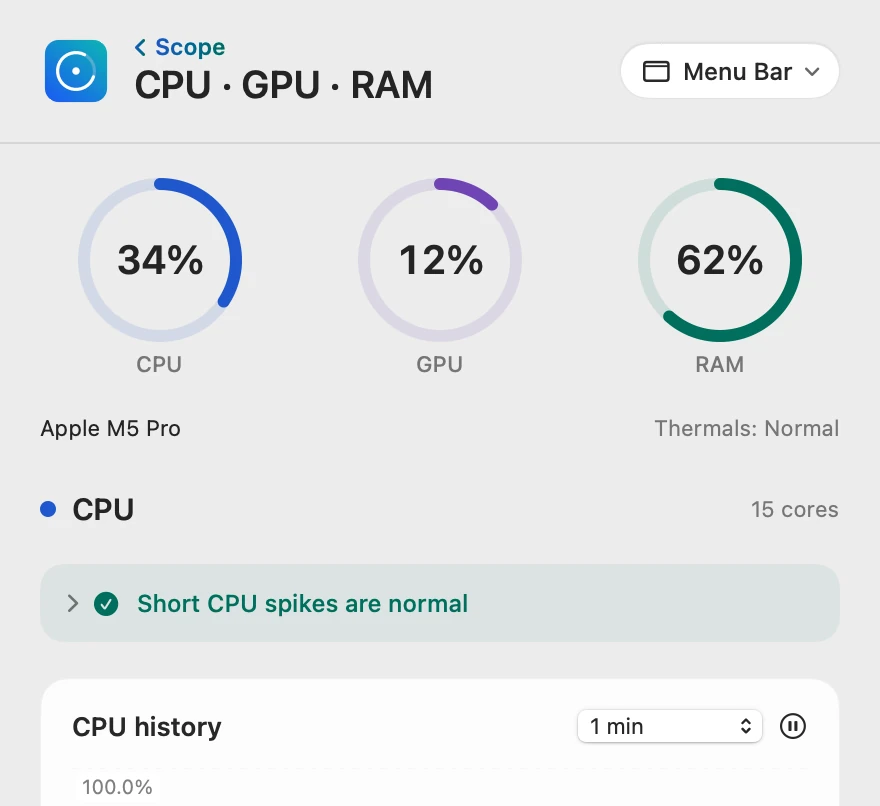
Scope is a free Mac menu bar app that lists the apps using the most CPU and memory, so you can see whether the apps that open at login keep your Mac busy. It never adds, removes or changes other apps’ login items; that stays in System Settings.
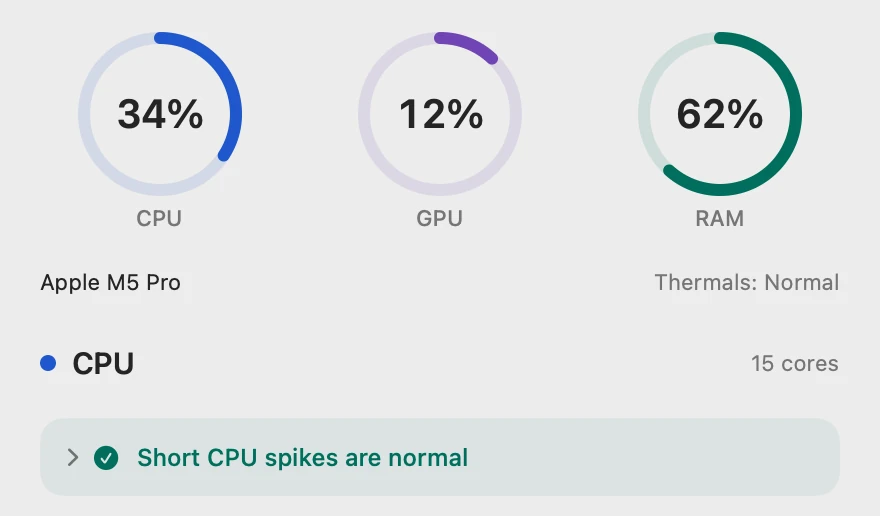
In your menu bar
A busy processor shows in the menu bar from the moment you log in.

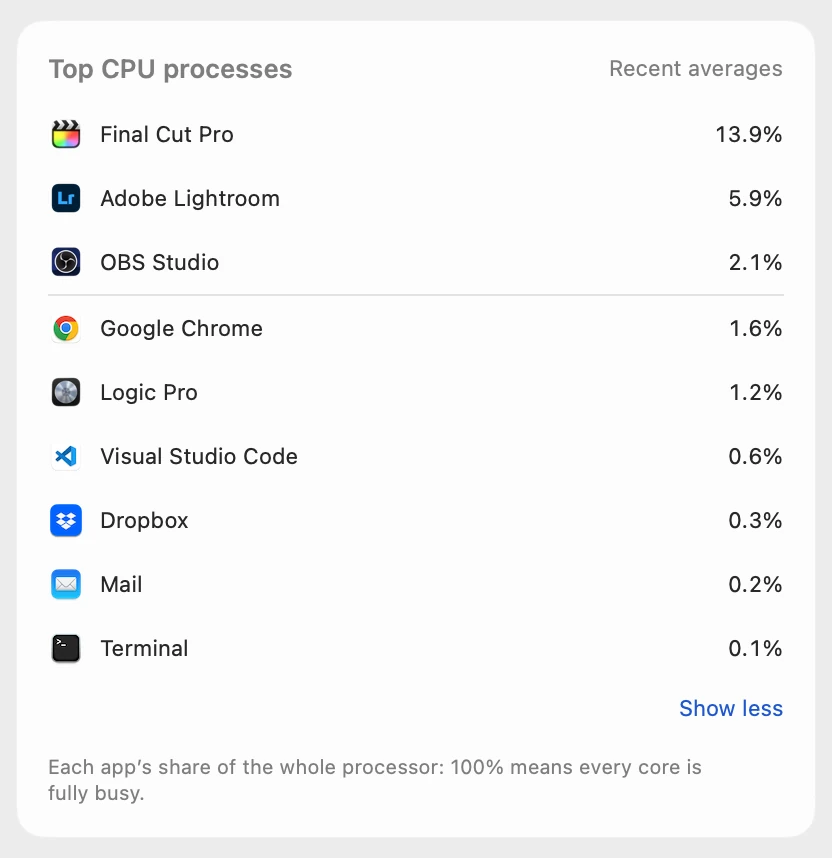
Every app, busiest first
Scope shows each app’s share of the whole processor, so Activity Monitor’s 4.1% for Dropbox on this 15-core Mac is 4.1 ÷ 15 = 0.3% here. Scope lists your own apps, not macOS’s background processes.
Calm, or not
If CPU use stays high, Scope says so and points to Top CPU processes.
Scope shows and explains. It never changes your login items or quits apps. Its own setting, Launch Scope at login in Scope’s Preferences, only decides whether Scope itself opens when you log in.
Try it here
The real Scope, working, right in this page.
Click any item in the menu bar, or a card inside, as you would on your Mac.
Scope Pro Every menu bar item is shown here. Scope Free keeps one whole item of your choice, with every reading inside.
See what opens with your own Mac.
Keep reading
Guide · Slow Mac
Why is my Mac slow? How to find the cause
A slow Mac is usually a busy app, too little memory, a nearly full disk or heat. Here’s how to see which one with macOS’s own tools.
Slow Mac
How to speed up a Mac: what actually helps
Speed up a Mac by fixing the real cause: quit the busy app, free memory or disk space, keep it cool, trim login items. What helps most, and what doesn’t.
Slow Mac
Which app is slowing down my Mac? How to find it
Activity Monitor shows which app is slowing your Mac: sort by % CPU, then by Memory. Here’s how to read the lists, and what to do next.
Slow Mac
Why is my Mac suddenly slow?
A Mac that turns slow all of a sudden usually has something new keeping it busy. Activity Monitor shows what started; here’s how to find it.
Your Mac
Task Manager on a Mac: how to open it
The Mac’s Task Manager is Activity Monitor. Open it with Spotlight, quit a frozen app with Option-Command-Esc, and see what replaces each Windows tool.
Sources
- Apple Support: Open items automatically when you log in on Mac
- Apple Support: Change Login Items & Extensions settings on Mac
- Apple Support: Prevent apps and windows from reopening on Mac
- Apple Support: Shut down or restart your Mac
- Apple Support: View information about Mac processes in Activity Monitor
Last checked October 18, 2026. Readings, apps and files in the pictures are from a made-up Mac.