Task Manager on a Mac: how to open it
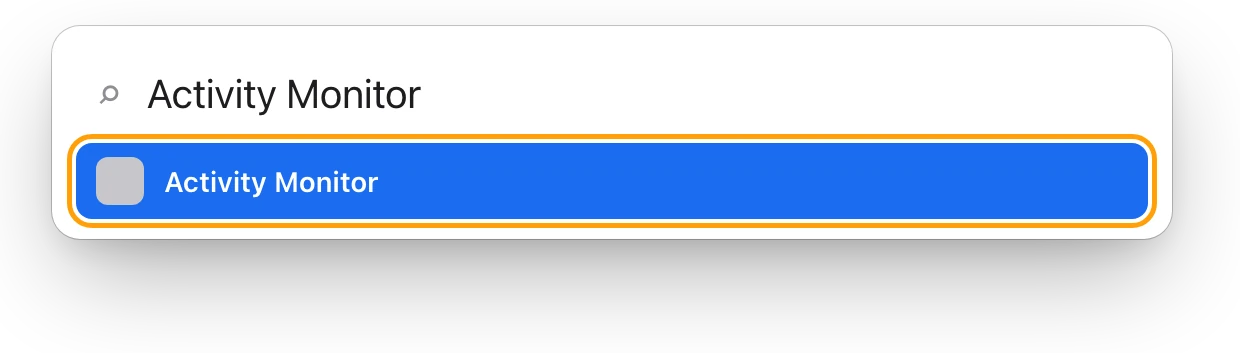
The Mac’s version of Task Manager is Activity Monitor, an app built into macOS. To open it, press Command–Space bar, type Activity Monitor and press Return, or find it in the Utilities folder inside Applications. To quit a frozen app at once, press Option-Command-Esc, the Mac’s answer to Ctrl-Alt-Delete, then choose the app and click Force Quit.
How do I open Activity Monitor?
Spotlight is the quickest way.
- Press Command–Space bar to open Spotlight.
- Type Activity Monitor.
- Press Return.
Other ways to open it:
- From the Dock: click the Apps icon, type Activity Monitor, then click it.
- From the Finder: open Applications, then Utilities, and double-click Activity Monitor.
To keep it one click away, Control-click its icon in the Dock while it’s open, then choose Options > Keep in Dock. Activity Monitor can also show a live CPU graph in its Dock icon: choose View > Dock Icon, then choose the Show CPU option you want.
What does each tab in Activity Monitor show?
Activity Monitor lists every process running on your Mac. A process is a program at work: an app, a helper an app runs in the background, or a part of macOS. The tabs at the top of the window sort that list by what each process uses.
| Tab | What it shows |
|---|---|
| CPU | How much of the processor each process uses, and System, User and Idle at the bottom |
| Memory | How much memory each process uses, and the Memory Pressure graph |
| Energy | Each app’s energy impact, useful on battery |
| Disk | How much each process reads from and writes to disk |
| Network | How much each process sends and receives |
A Cache tab also appears when Content Caching is turned on in System Settings > General > Sharing. For the graphics processor, choose Window > GPU History.
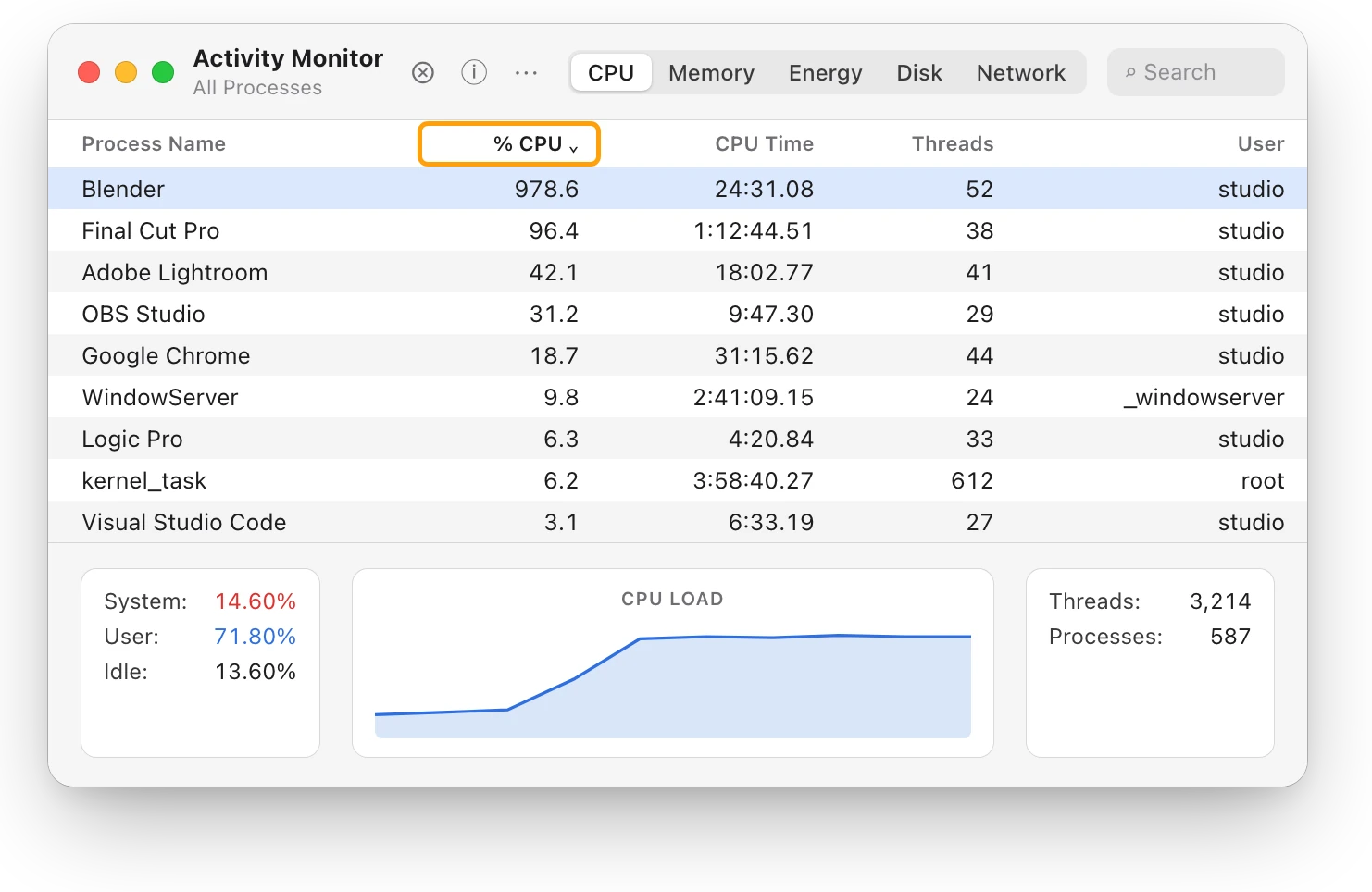
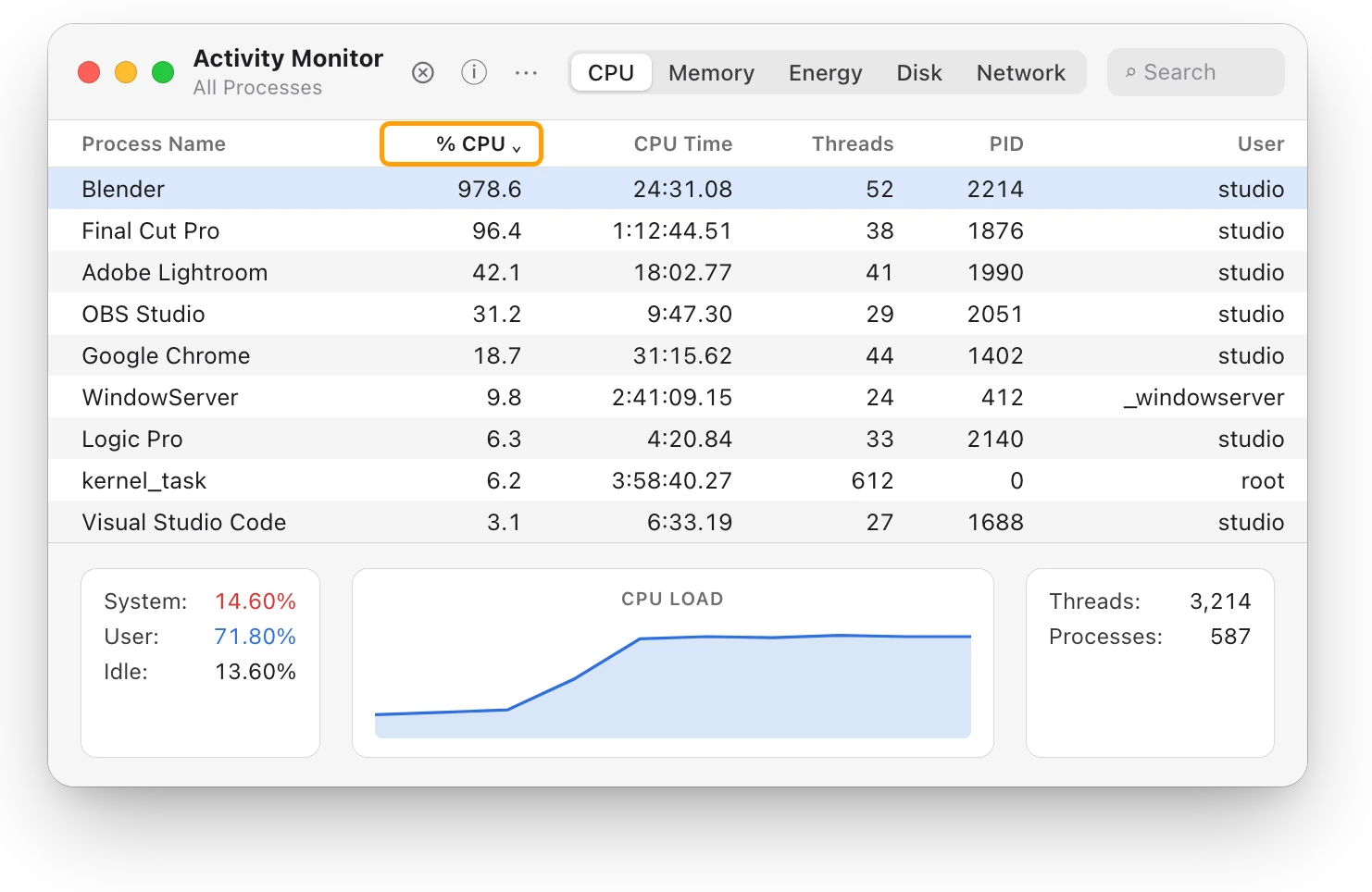
Click a column heading to sort by it, and click it again to reverse the order. Activity Monitor counts each processor core as 100%, so an app working on several cores can pass 100%: on this 15-core MacBook Pro, Blender uses 978.6%. Which app is slowing down my Mac? explains how to read both lists.
How do I end a task on a Mac?
On a Mac, ending a task is called quitting. First try to quit the app the usual way: press Command-Q, or choose Quit from the app’s menu in the menu bar. That lets the app save changes before it closes.
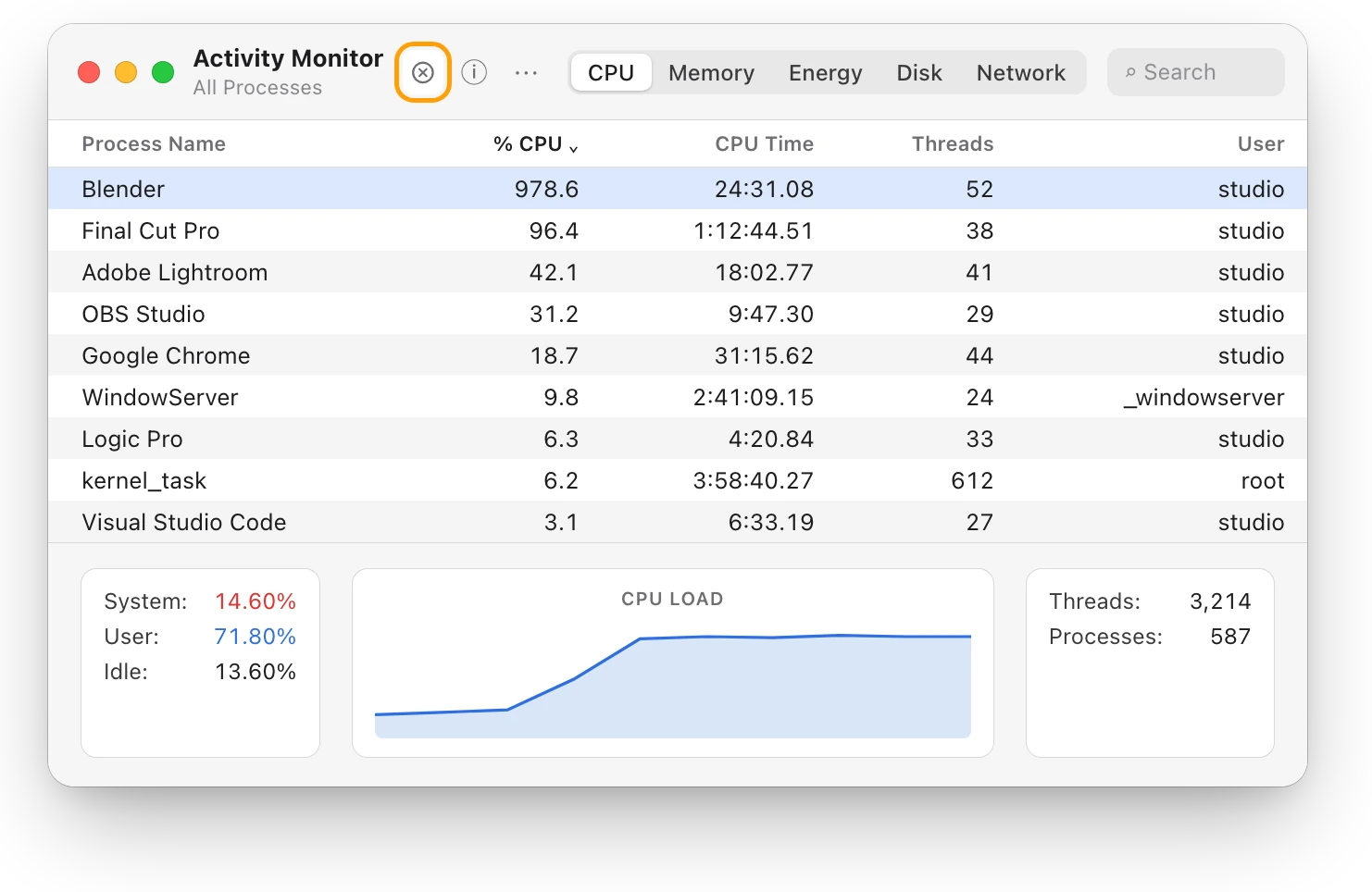
If that doesn’t work, quit it from Activity Monitor:
- Select the app or process in the list. One that isn’t responding shows “(Not Responding)” in red.
- Click the Stop button at the top of the window.
- Choose Quit. It’s the same as choosing File > Quit in the app, and it waits until quitting is safe.
- Choose Force Quit only if Quit doesn’t work. It ends the process at once, so files it has open may lose data.
Apple warns that force quitting a process other apps rely on can cause problems for them. To see which processes belong to others, choose View > All Processes, Hierarchically.
What is the Ctrl-Alt-Delete of a Mac?
Option-Command-Esc. It opens the Force Quit Applications window, a short list of your open apps.
- Press Option, Command and Esc together, or choose Apple menu > Force Quit.
- Select the app that isn’t responding.
- Click Force Quit.
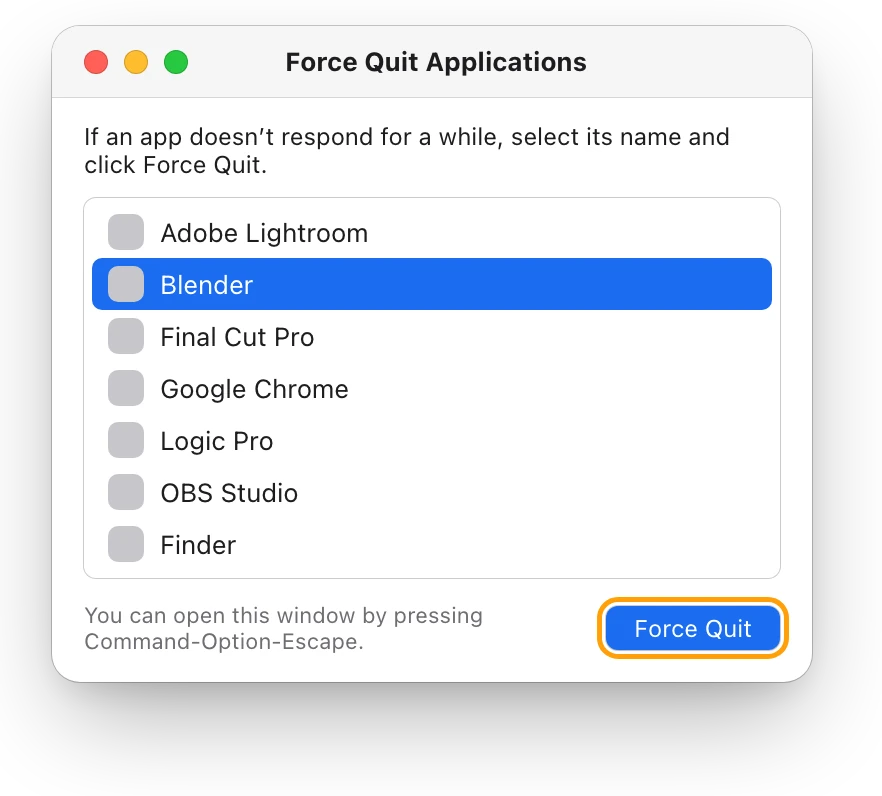
You can also Control-click an app’s icon in the Dock and choose Force Quit. Any changes you haven’t saved in that app may be lost. The Finder is always open, so it has Relaunch instead: select Finder in the Force Quit window, then click Relaunch.
If an app won’t force quit, choose Apple menu > Restart. If your Mac won’t restart, press and hold the power button for up to 10 seconds until it turns off, then press it again to turn your Mac back on.
Windows shortcuts and their Mac equivalents
| On Windows | On a Mac |
|---|---|
| Task Manager | Activity Monitor, in Applications > Utilities |
| Ctrl+Shift+Esc (open Task Manager) | Command–Space bar, then type Activity Monitor |
| Ctrl+Alt+Del | Option-Command-Esc to force quit; Control-Command-Q to lock the screen; Shift-Command-Q to log out |
| End task | Stop button > Quit or Force Quit, or the Force Quit window |
| Processes | Activity Monitor’s CPU and Memory tabs |
| Performance | The graphs at the bottom of each tab, and Window > CPU History or GPU History |
| Startup apps | System Settings > General > Login Items & Extensions |
| Alt+F4 | Command-W closes the front window; Command-Q quits the app |
Questions people also ask
Is there a Ctrl-Shift-Esc on a Mac?
No single shortcut opens Activity Monitor. Press Command–Space bar, type its name and press Return, or keep it in the Dock. Option-Command-Esc opens the Force Quit window.
How do I see which apps open when my Mac starts up?
Choose Apple menu > System Settings > General > Login Items & Extensions. The items in its list open each time you log in; select one and click the remove button below the list to stop it.
Why can’t I quit a process in Activity Monitor?
Quit waits until quitting is safe, and a process doesn’t quit if that could lose data or disturb another app. Some processes belong to macOS or another user, and Activity Monitor may ask for an administrator’s name and password before it quits them.
What does the spinning beachball mean on a Mac?
It’s macOS’s wait cursor, which Apple says appears when a delay of more than a few seconds occurs. If it stays over one app, quit or force quit that app with Option-Command-Esc. If it shows up across your apps, open Activity Monitor and look for a busy app, as in Why is my Mac suddenly slow?.
Is it safe to force quit an app?
Yes, for an app that isn’t responding, but anything you haven’t saved in it may be lost. Leave macOS’s own processes, such as kernel_task and WindowServer, alone: kernel_task and WindowServer explain what they do.
Scope for Mac · Free, coming to the Mac App Store
How Scope helps
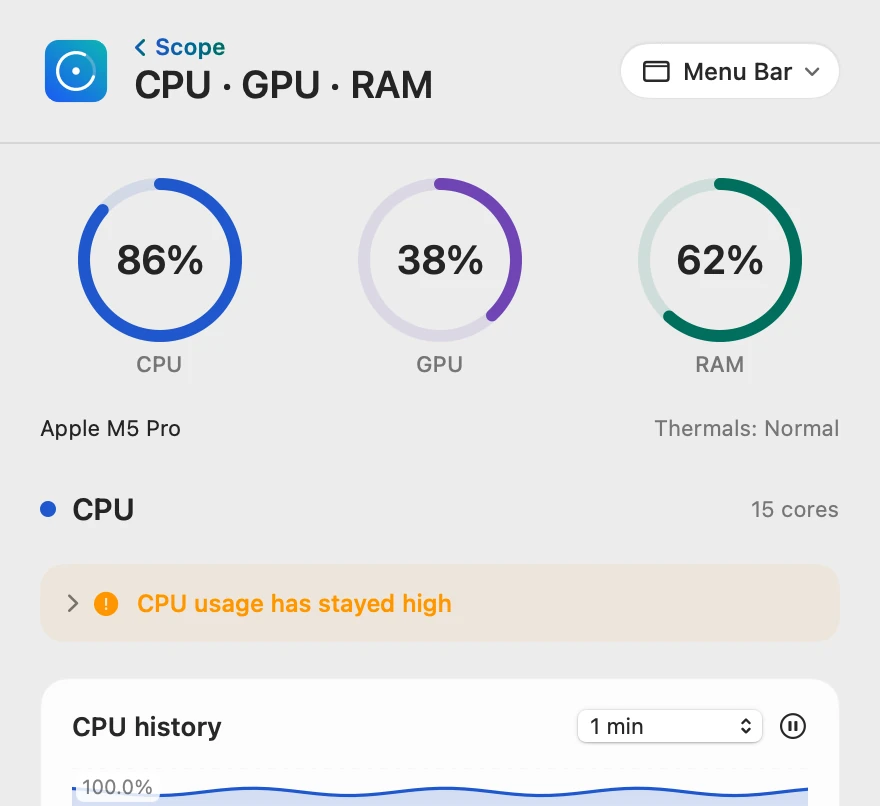
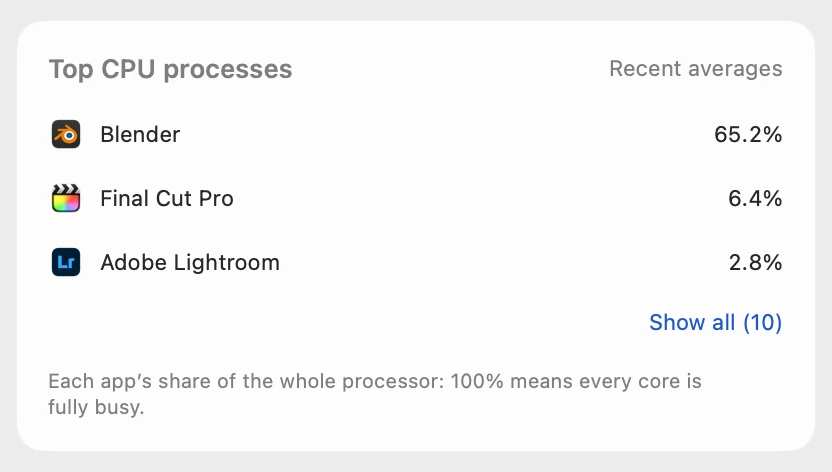
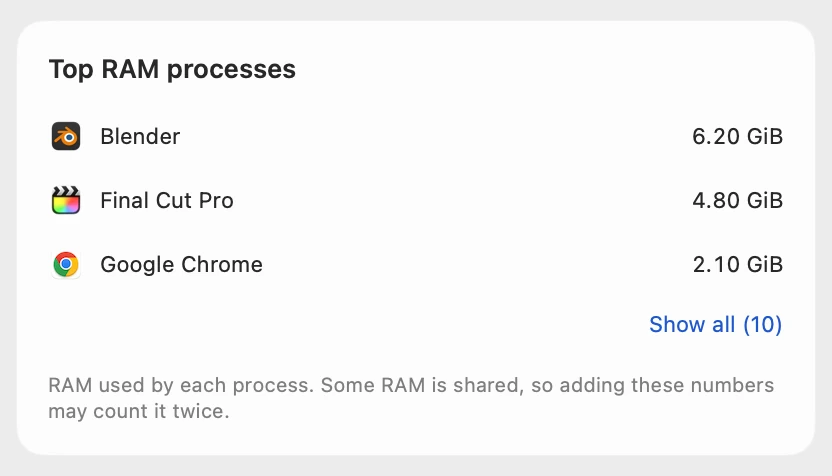
Scope is a free Mac menu bar app that keeps a task manager’s main view a click away: total CPU, GPU and RAM, and the processes using the most CPU and memory, each with the icon of the app it belongs to. You see what’s busy without opening Activity Monitor and sorting its lists.
In your menu bar
Scope Free keeps one whole menu bar item of your choice, such as CPU · GPU · RAM.

The busiest, side by side
Scope shows each process’s share of the whole processor, so 100% means every core is busy. On this 15-core Mac, Blender’s 978.6% in Activity Monitor is 978.6 ÷ 15 = 65.2% in Scope. The lists show the apps you run, not macOS’s background processes.
One click for more
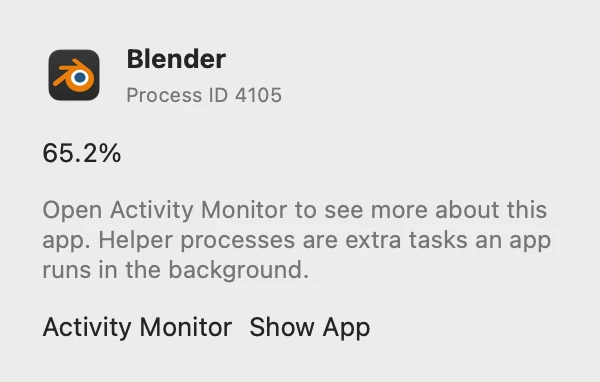
Clicking a process shows its app and process ID, with buttons to open Activity Monitor or show the app in the Finder.
Scope shows and explains. It never quits apps for you, so what to close stays your call, in Activity Monitor or the Force Quit window.
Try it here
The real Scope, working, right in this page.
Click any item in the menu bar, or a card inside, as you would on your Mac.
Scope Pro Every menu bar item is shown here. Scope Free keeps one whole item of your choice, with every reading inside.
See what’s busy on your own Mac.
Keep reading
Slow Mac
Which app is slowing down my Mac? How to find it
Activity Monitor shows which app is slowing your Mac: sort by % CPU, then by Memory. Here’s how to read the lists, and what to do next.
Heat
kernel_task high CPU? Your Mac is cooling itself
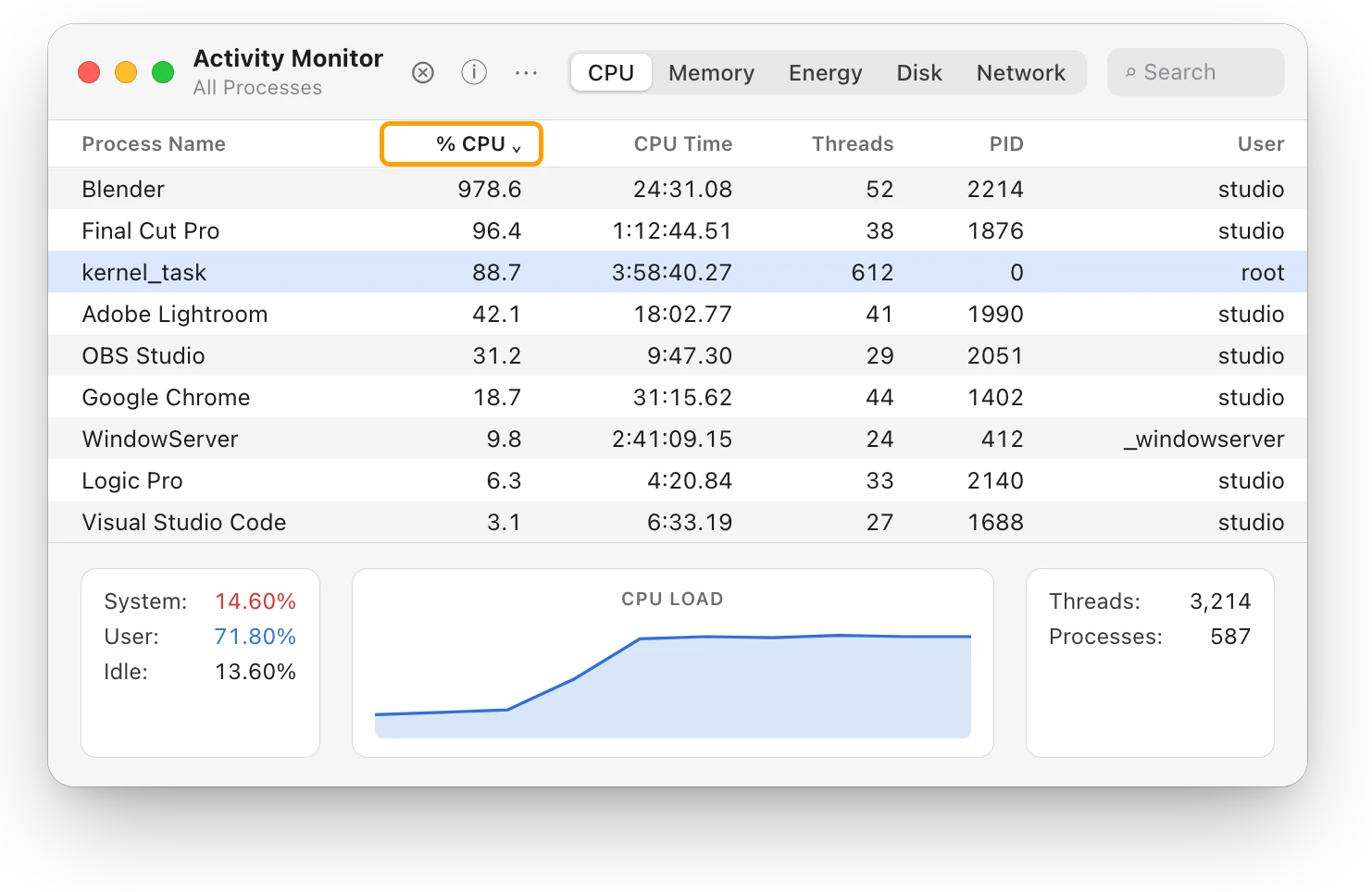
High kernel_task CPU means your Mac is too hot: macOS holds the processor back while it cools. Find the app making the heat, and give your Mac air.
Slow Mac
WindowServer using high CPU on a Mac? What it means
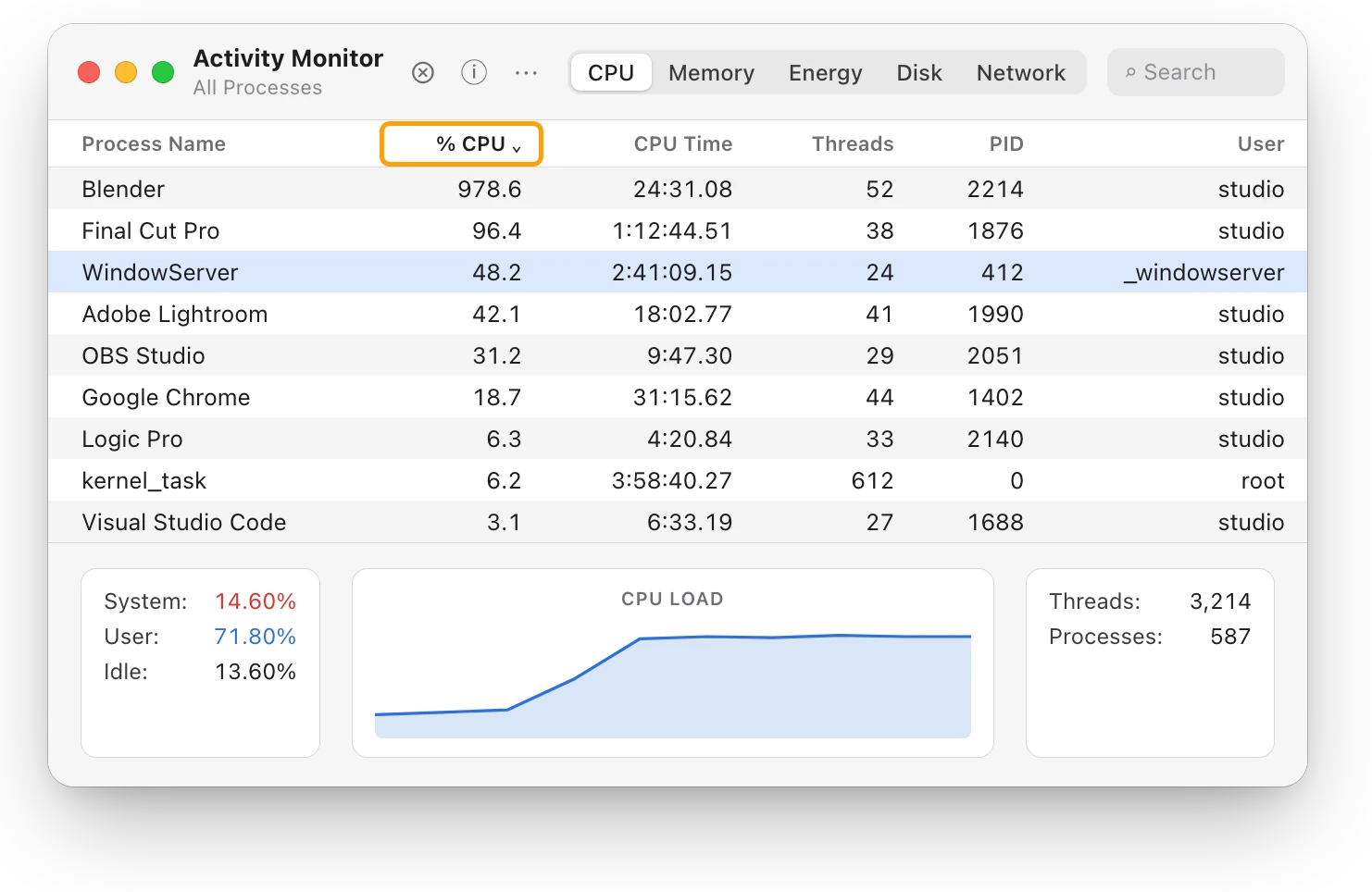
WindowServer is the part of macOS that puts your apps’ windows on screen. If its CPU stays high, look for the busy apps and close what you don’t need.
Your Mac
How to check your Mac’s specs
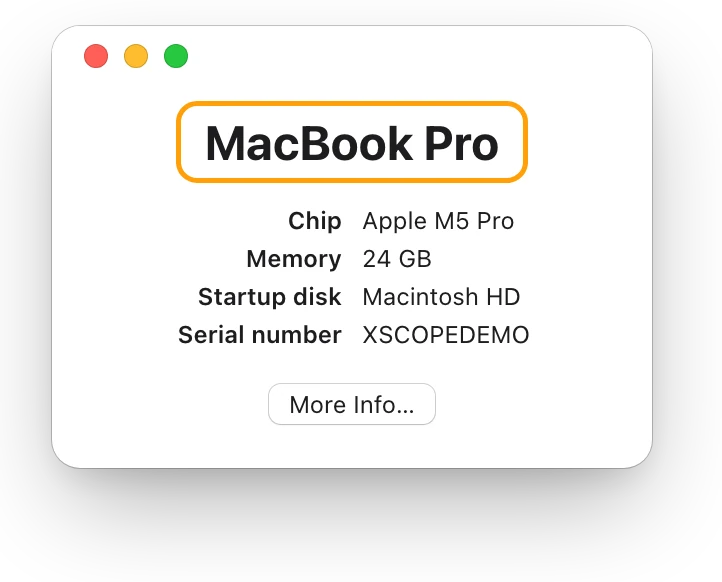
Apple menu > About This Mac shows your Mac’s model, chip, memory and serial number. System Report has the rest. Here’s where each spec is.
Sources
- Apple Support: What’s it called on my Mac?
- Apple Support: How to force an app to quit on Mac
- Apple Support: Pointers in macOS
- Apple Support: Quit a process in Activity Monitor on Mac
- Apple Support: Activity Monitor User Guide
- Apple Support: View information about Mac processes in Activity Monitor
- Apple Support: View CPU activity in Activity Monitor on Mac
- Apple Support: View GPU activity in Activity Monitor on Mac
- Apple Support: View cache activity in Activity Monitor on Mac
- Apple Support: View and open apps on Mac
- Apple Support: Use the Dock on Mac
- Apple Support: Mac keyboard shortcuts
- Apple Support: Windows keys on a Mac keyboard
- Apple Support: Open items automatically when you log in on Mac
- Microsoft Support: Keyboard shortcuts in Windows
Last checked October 18, 2026. Readings, apps and files in the pictures are from a made-up Mac.