How to check your Mac’s specs
To check your Mac’s specs, choose Apple menu > About This Mac. The window shows your Mac’s model name, its chip, how much memory it has, its startup disk, its serial number and the macOS version. For more detail, such as graphics, storage and battery, open System Settings > General > About and click System Report.
What Mac do I have?
About This Mac answers it in one click.
- Click the Apple menu in the corner of your screen.
- Choose About This Mac.
- Read the model name at the top, then Chip, Memory, Startup disk and Serial number below it.
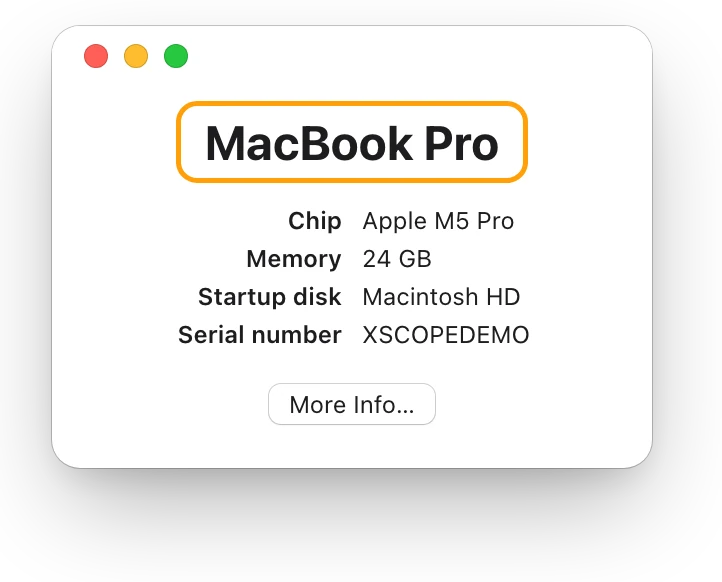
Under the name, the window adds the details that complete the model name: Apple’s own example reads MacBook Pro, then 16-inch, 2021, which makes MacBook Pro (16-inch, 2021).
Where can I see all my Mac’s specs?
About settings has a little more, and opens the full report.
- Choose Apple menu > System Settings.
- Click General in the sidebar, then click About.
- Read Name, Chip, Memory, Serial number and macOS. Coverage, Displays and Storage each have a button for more.
- Click System Report to see everything.
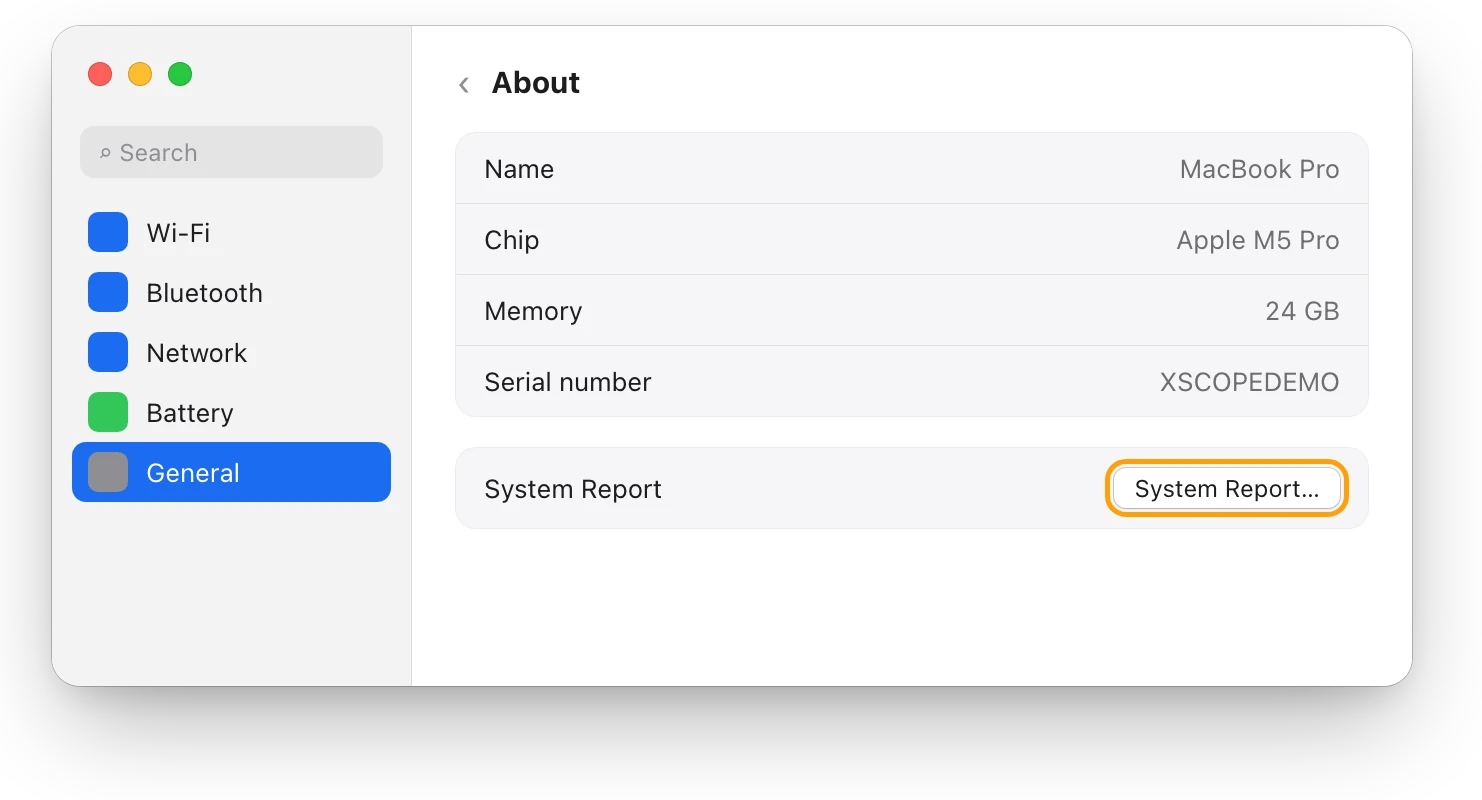
You can also open the report straight away: press and hold the Option key, then choose Apple menu > System Information.
What’s in System Report?
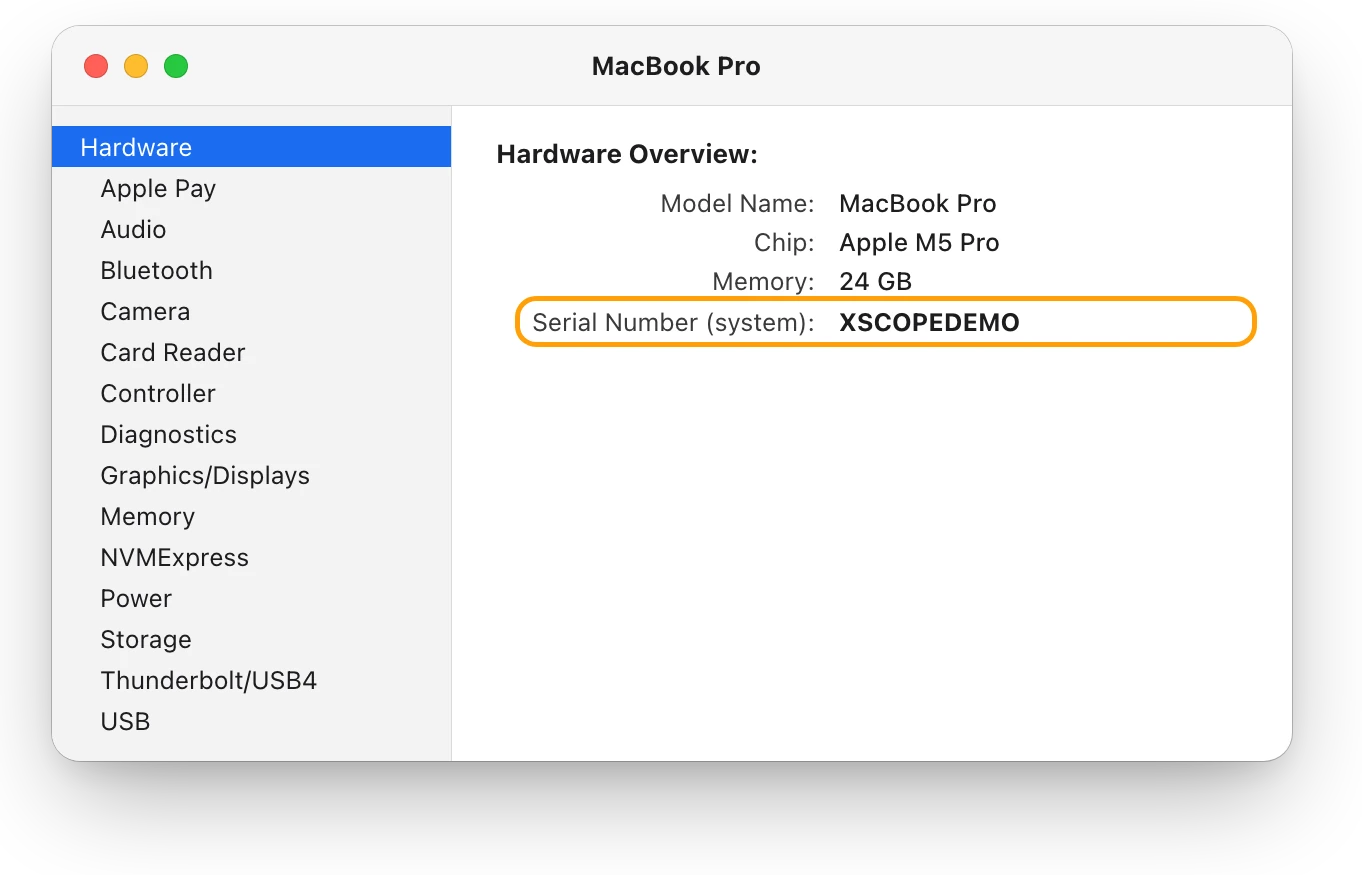
System Report opens the System Information app. It covers your Mac’s hardware, network connections and software, with a section for each part in its sidebar. Select Hardware in the sidebar for the overview.
| To find | Look in |
|---|---|
| Model name, chip, memory, serial number | Hardware (the overview) |
| Model Identifier and Model Number | Hardware (the overview) |
| Graphics | Graphics/Displays |
| Memory | Memory |
| Battery cycle count and condition | Power |
| Drives | Storage and NVMExpress |
To keep a copy, choose File > Save. To print it, choose File > Print.
How do I find my Mac’s model number?
Look in the Hardware Overview in System Information. It shows three numbers that identify your Mac:
- Serial Number: unique to your Mac. Enter it at checkcoverage.apple.com to see your exact model name.
- Model Identifier: a short code, such as MacBookPro18,1 in Apple’s example.
- Model Number: the part number, which may also be on the original box.
Search for the Model Identifier or Model Number in Apple’s Identify your Mac articles, one for each kind of Mac, to find its full name. If your Mac won’t start, the serial number is usually printed on its underside, near the regulatory markings.
How much storage does my Mac have?
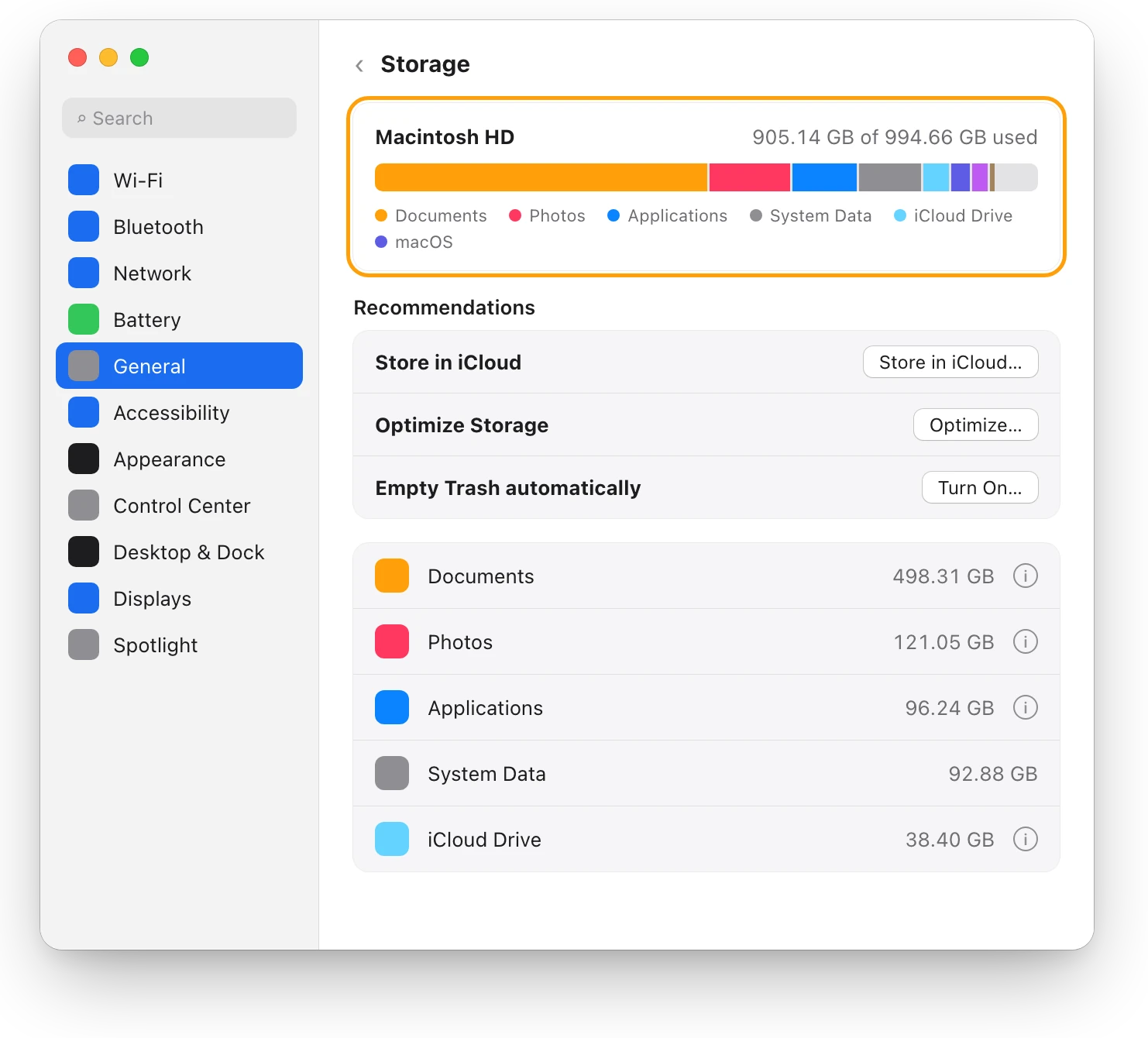
Choose Apple menu > System Settings, click General, then click Storage. The bar at the top shows how much of your startup disk is used, out of its total.
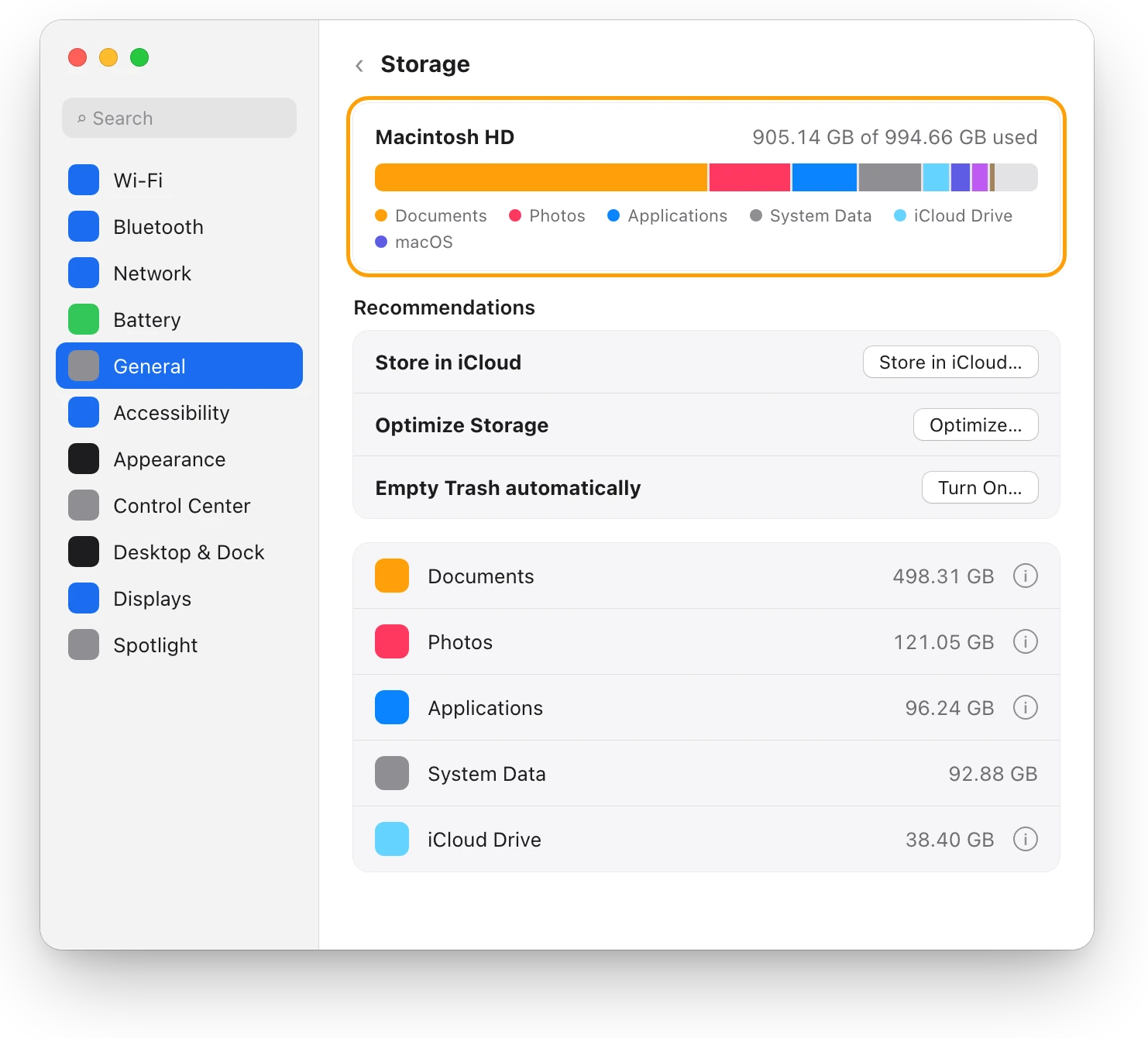
The colored parts show what takes the space, such as Documents, Photos and Applications. How much free space should a Mac have? explains how much room to leave.
How many CPU and GPU cores does my Mac have?
About This Mac names the chip, and Apple’s Tech Specs page for your model lists its cores. On the 14-inch MacBook Pro with M5 Pro shown here, Apple lists a 15-core CPU, with 5 super cores and 10 performance cores, and a 16-core GPU. To find the right page, look up your model name in Apple’s Identify your Mac articles, or search Apple’s site for it with “Tech Specs”.
Questions people also ask
How much RAM does my Mac have?
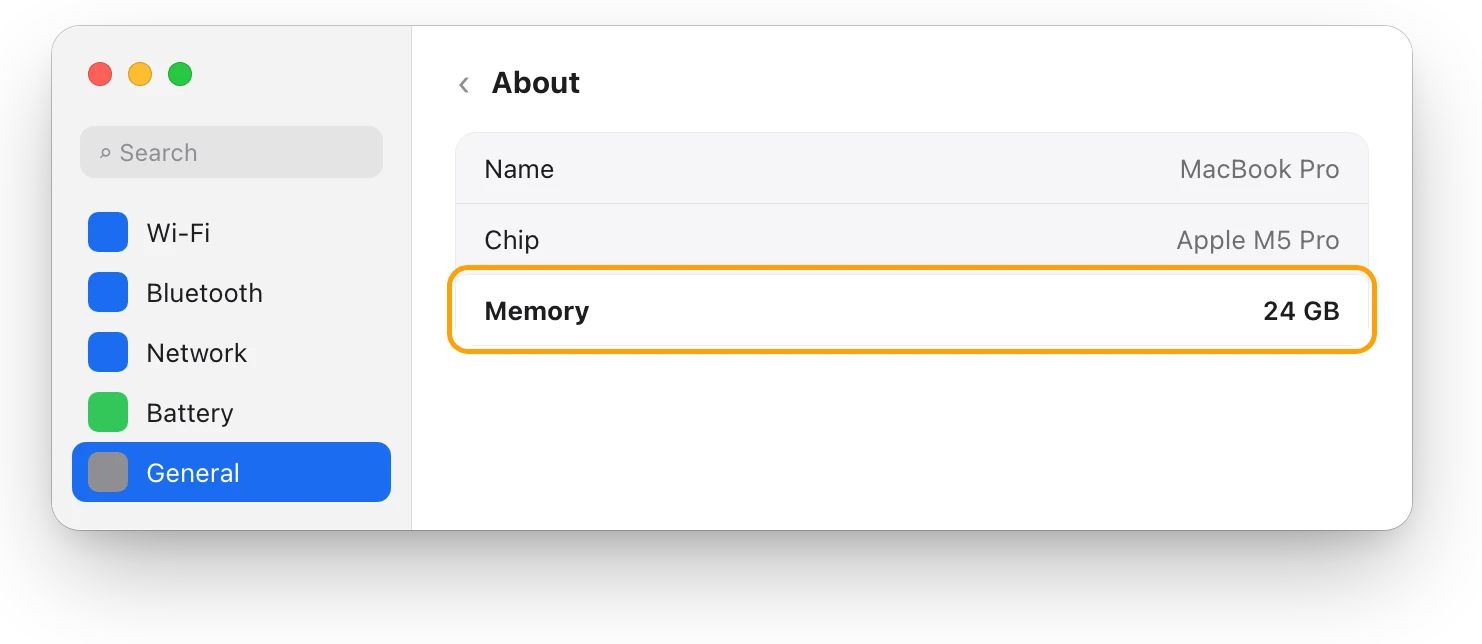
About This Mac shows it next to Memory, such as 24 GB. Is 8 GB or 16 GB of RAM enough for your Mac? helps you tell whether it’s enough for what you do.
Is my Mac Apple silicon or Intel?
In About settings, a Mac with Apple silicon shows Chip, such as Apple M5 Pro. An Intel-based Mac shows Processor instead.
Where do I see my battery’s health?
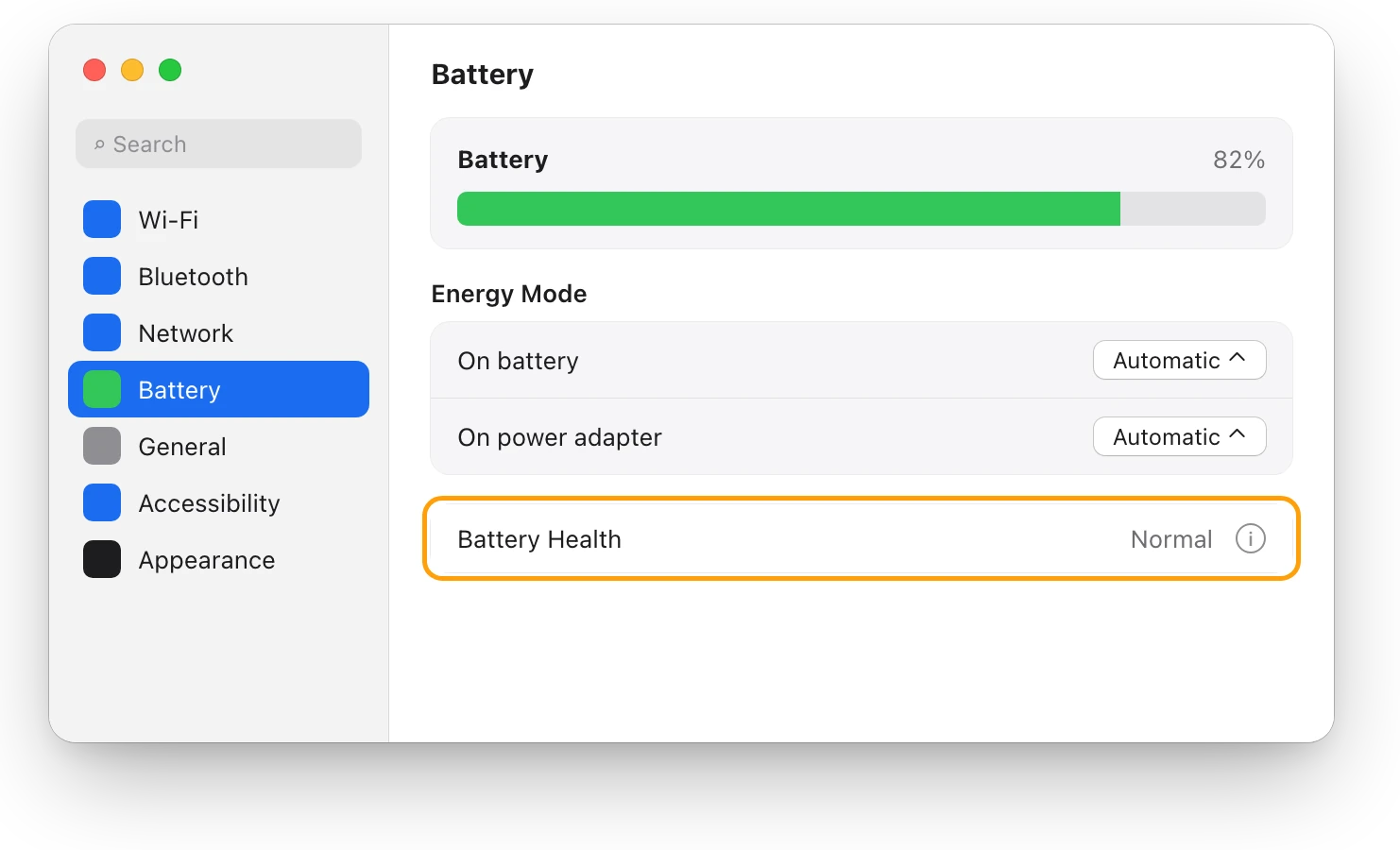
Choose Apple menu > System Settings > Battery, then click the info button next to Battery Health. System Information’s Power section shows the cycle count. MacBook battery health and cycle count, explained shows both.
Can I find my Mac’s model without turning it on?
Yes. Read the serial number on the underside of your Mac or on its original box, and enter it at checkcoverage.apple.com.
Scope for Mac · Free, coming to the Mac App Store
How Scope helps
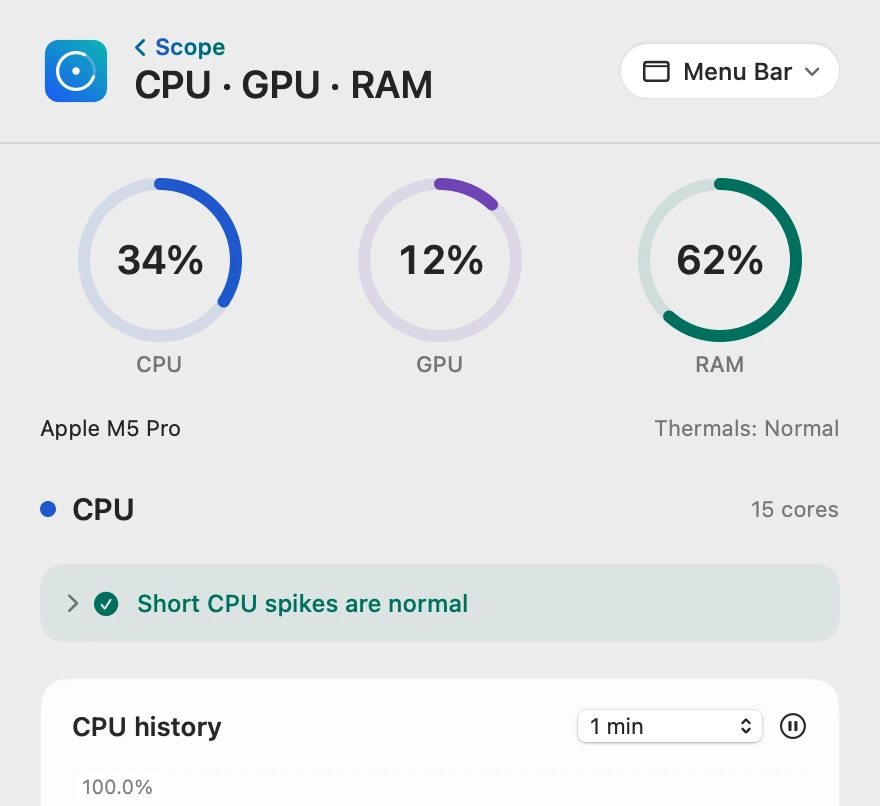
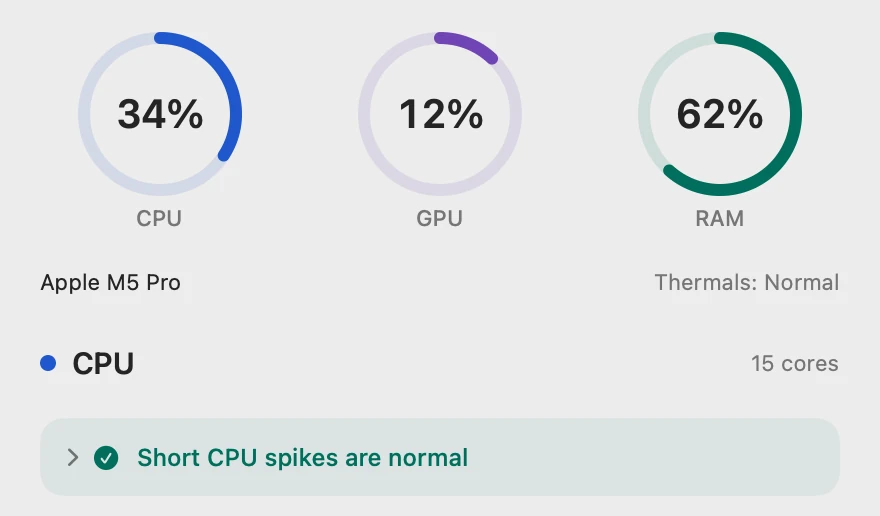
Scope is a free Mac menu bar app that shows your Mac’s chip with its CPU and GPU core counts, its memory, each drive’s size and details, and the battery’s health, beside live readings of how much of each is in use. The specs and what your Mac is doing with them sit in one place.
In your menu bar

Chip, cores and memory
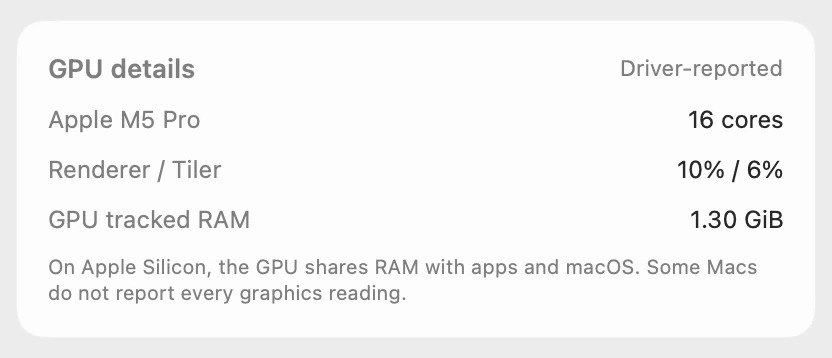
Each section names what it measures: CPU shows 15 cores, GPU details shows the chip’s 16 cores, and RAM shows 24 GB. Scope counts RAM in GiB, so the same memory reads 24.00 GiB in its details.

Your drive, in detail
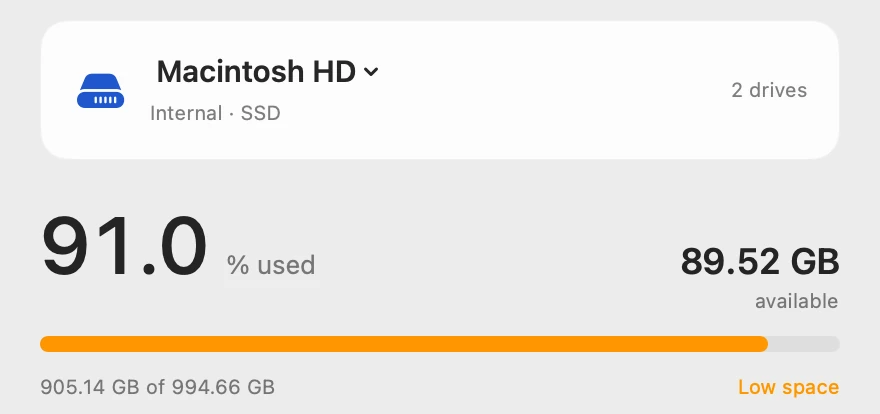
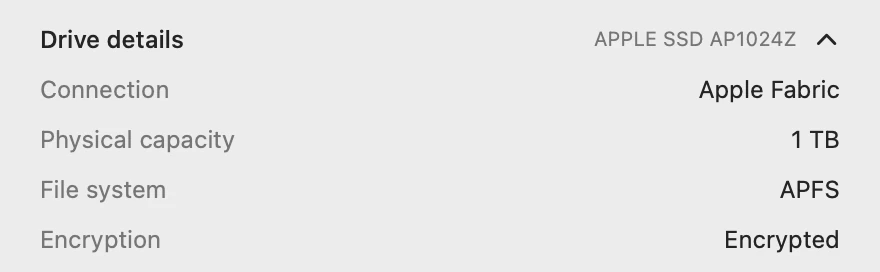
Drive details shows the drive’s model, how it’s connected, its physical capacity, its file system and whether it’s encrypted. Physical capacity is the whole drive, 1 TB, a little more than the 994.66 GB macOS lists for Macintosh HD.
Battery health
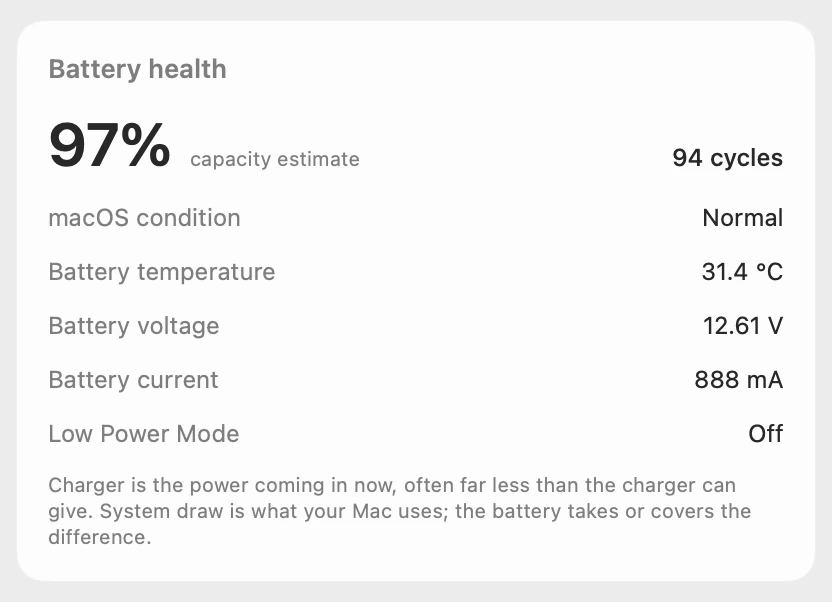
The capacity estimate, cycle count and macOS’s condition are in one card, without opening System Information.
Scope shows and explains. It doesn’t change your settings or your Mac.
Try it here
The real Scope, working, right in this page.
Click any item in the menu bar, or a card inside, as you would on your Mac.
Scope Pro Every menu bar item is shown here. Scope Free keeps one whole item of your choice, with every reading inside.
See your own Mac’s specs at work.
Keep reading
Slow Mac
Is 8 GB or 16 GB of RAM enough for your Mac?
Memory pressure tells you if your Mac has enough RAM: green on your busiest day means it does. Here’s how to check, and what to buy next.
Storage
How much free space should a Mac have?
Apple gives no single number. A Mac needs room for macOS updates and swap, and a nearly full disk can slow it down. Here’s how much to keep free.
Battery
MacBook battery health and cycle count, explained
Battery Health in System Settings shows if your MacBook’s battery is Normal; System Information shows its cycle count. Here’s how to read both.
Your Mac
Task Manager on a Mac: how to open it
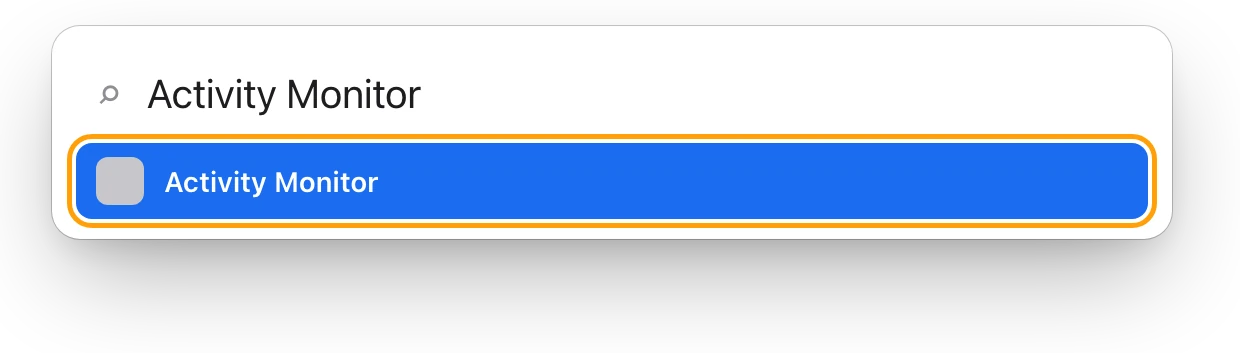
The Mac’s Task Manager is Activity Monitor. Open it with Spotlight, quit a frozen app with Option-Command-Esc, and see what replaces each Windows tool.
Sources
- Apple Support: Find your Mac model name and serial number
- Apple Support: Get system information about your Mac
- Apple Support: View About settings on Mac
- Apple Support: What’s it called on my Mac?
- Apple Support: Identify your MacBook Pro model
- Apple Support: MacBook Pro (14-inch, M5 Pro or M5 Max) - Tech Specs
- Apple Support: If your Mac runs slowly
- Apple Support: Check the condition of your Mac laptop’s battery
- Apple Support: Determine battery cycle count for Mac laptops
Last checked October 18, 2026. Readings, apps and files in the pictures are from a made-up Mac.