How much free space should a Mac have?
Apple doesn’t publish a single percentage or number of gigabytes that a Mac should keep free. What Apple does say is that a startup disk without enough free space can make a Mac run slowly, and that macOS can’t update until there’s enough storage. So keep enough free space on your Mac for the next macOS update and for your largest regular job, and check System Settings > General > Storage whenever space runs low.
How do I check how much free space I have?
- Choose Apple menu > System Settings, then click General in the sidebar. You may need to scroll down.
- Click Storage.
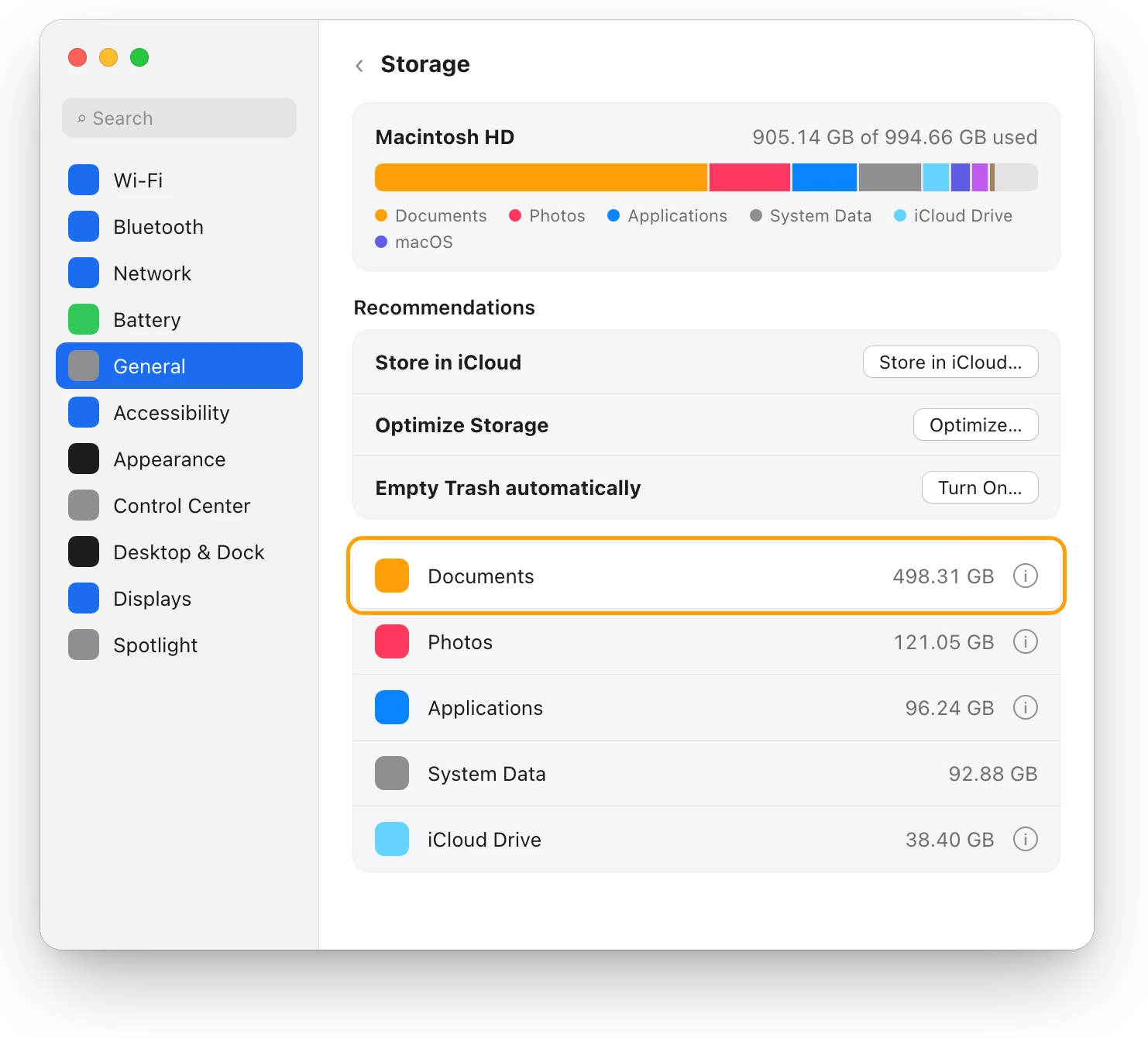
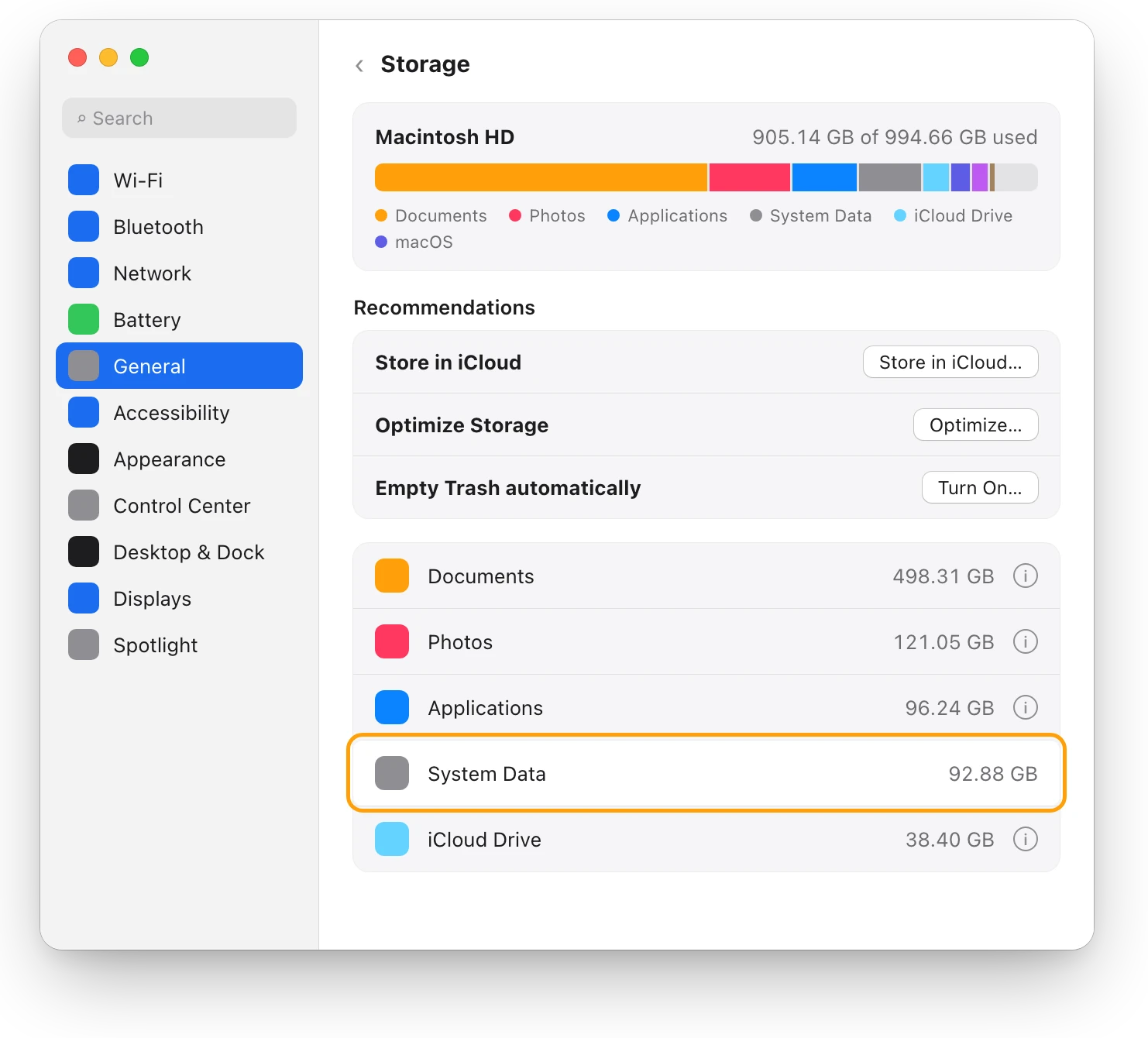
- Read the bar at the top. It shows how much space is used and how much is available.
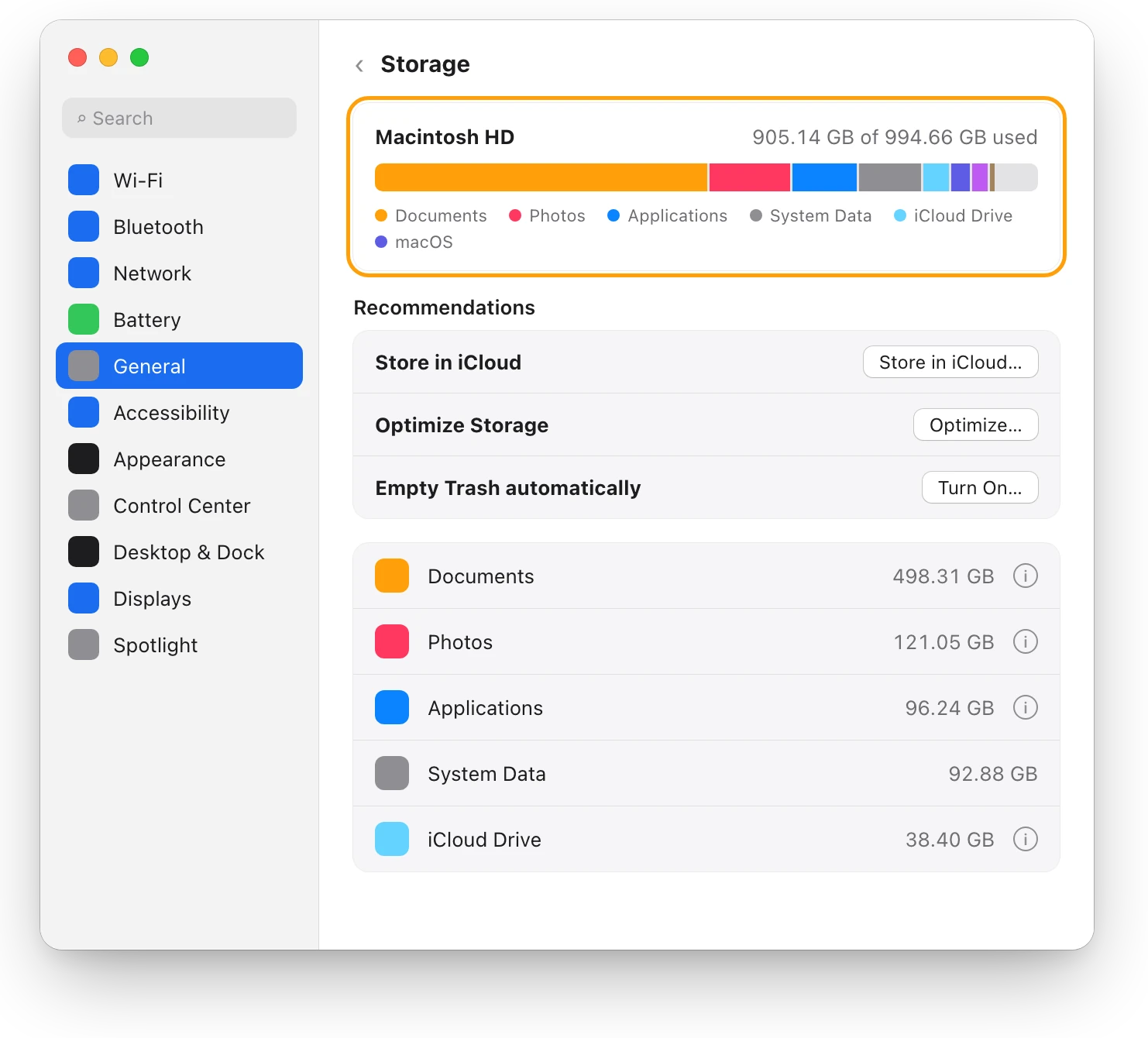
For a quick look while you work, open a Finder window and choose View > Show Status Bar. The bar at the bottom of the window shows the space available on that disk.
Why does free space matter?
A Mac uses its startup disk for more than your files. Here’s what Apple’s pages say about the space:
- Speed. In Apple’s guide to a Mac that runs slowly, the first cause listed is a startup disk without enough free disk space.
- Memory. When apps need more memory than the Mac has free, macOS moves some of it to the startup disk. Activity Monitor calls that space Swap Used.
- Updates. If the macOS installer says your Mac doesn’t have enough storage space, Apple’s answer is to free up space and try again.
- Housekeeping. When space is needed, macOS clears caches and logs that are safe to delete, such as interrupted downloads and staged updates.
How do I know if memory is using the disk?
Activity Monitor shows it.
- Open Activity Monitor. It’s in Applications > Utilities, or search for it with Spotlight.
- Click Memory.
- Look at Swap Used at the bottom of the window, beside the Memory Pressure graph.
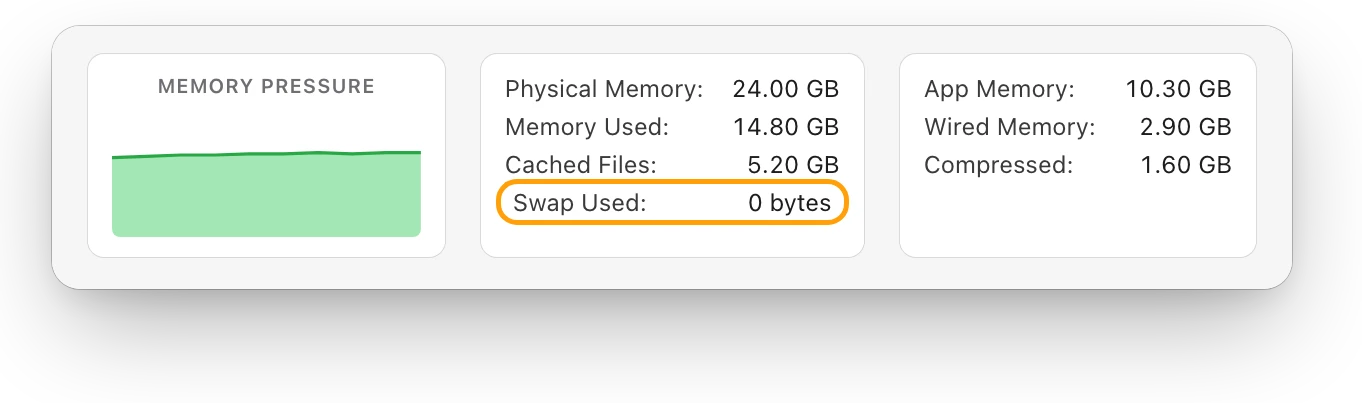
Swap Used is the space on your startup disk that macOS uses to move memory in and out of RAM. When memory pressure is yellow or red and Swap Used climbs, your Mac leans on the disk, and a nearly full disk leaves it less room.
So how much should I keep free?
Because Apple gives no figure, size it to what your Mac has to do:
- Room for the next macOS update. Before you update, check Storage. If the installer asks for more space, free some and try again. Apple says Software Update can use less storage to download and install updates than other ways of installing macOS.
- Room for your biggest regular job. If you import 12 GB of video at a time, or export a large project, keep well more than that free, so the job never fills the disk halfway through.
- Room for memory. If you often see yellow memory pressure with Swap Used in gigabytes, leave extra space for it.
These signs mean it’s time to free up space:
| What you see | Where | What it means |
|---|---|---|
| Little space available | System Settings > General > Storage | Your disk is close to full |
| A message that your Mac doesn’t have enough storage space | The macOS installer | The update can’t install yet |
| Slowness, yellow or red memory pressure, and Swap Used rising | Activity Monitor > Memory | Memory is using the disk, and it needs room |
How do I get more free space?
- Empty the Trash. Files in the Trash take up space until you empty it.
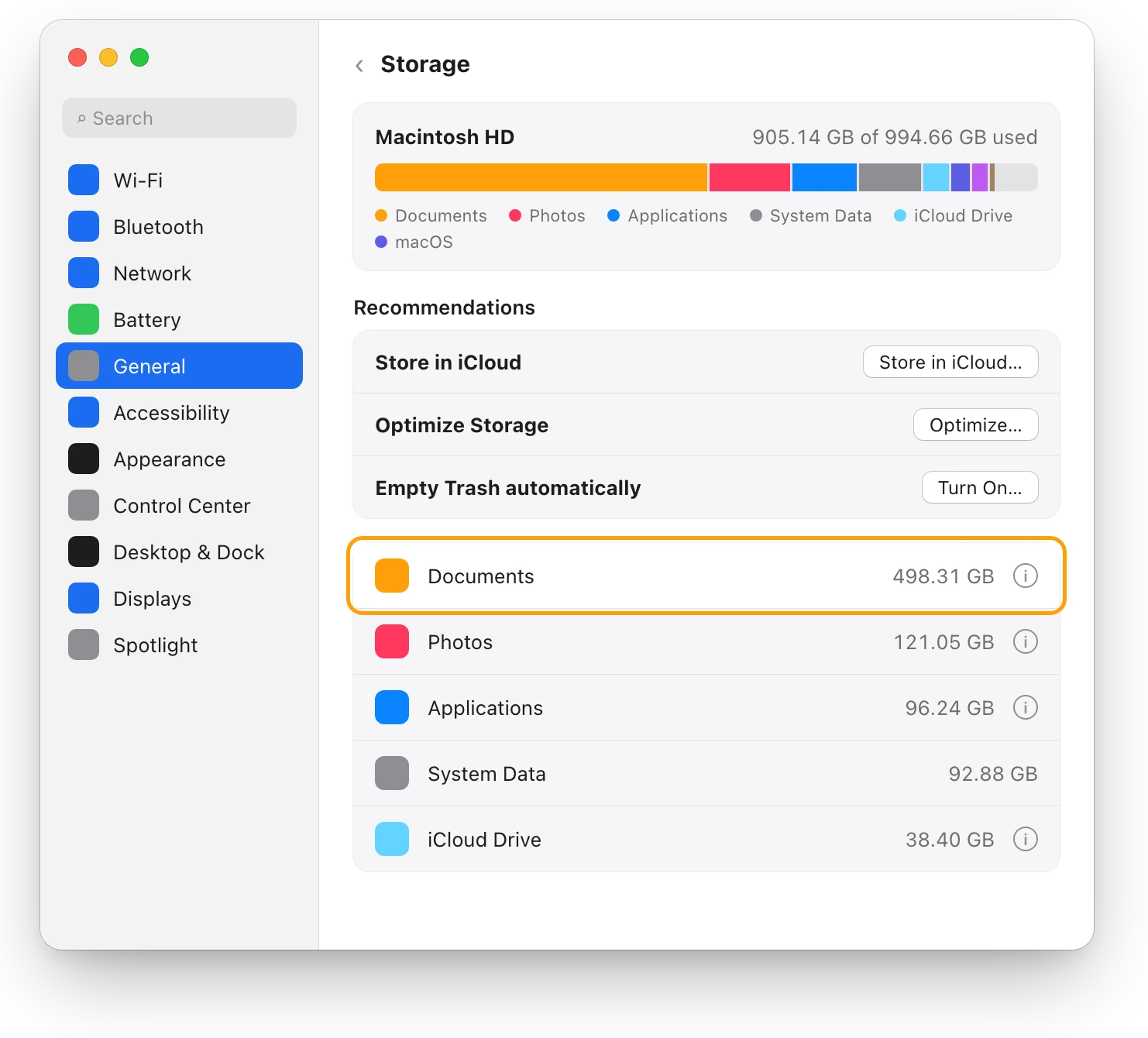
- Delete large files you don’t need. In Storage, click the info button (ⓘ) next to Documents, then click Large Files.
- Move files you want to keep to an external drive.
- Turn on Storage’s recommendations: Store in iCloud, Optimize Storage and Empty Trash automatically.
“Your disk is almost full”: what to do first walks through each step. If an update still won’t fit, starting up in safe mode clears some system caches, which Apple says can free enough space to install it.
Questions people also ask
Is 10% free space enough on a Mac?
Apple doesn’t set a percentage. On a 1 TB Mac, 10% is about 100 GB; on a 256 GB Mac, it’s about 25 GB. What matters is whether updates install and your Mac stays responsive, so check Storage before each macOS update.
Does a nearly full SSD slow down a Mac?
It can. Apple lists a startup disk without enough free space as a cause of a Mac running slowly, and macOS needs free space for swap and its own housekeeping.
Does iCloud storage count as free space on my Mac?
No. An iCloud plan is space in iCloud. Store in iCloud moves files there and keeps recent ones on your Mac when space is needed, which is what frees space on the Mac itself.
Scope for Mac · Free, coming to the Mac App Store
How Scope helps
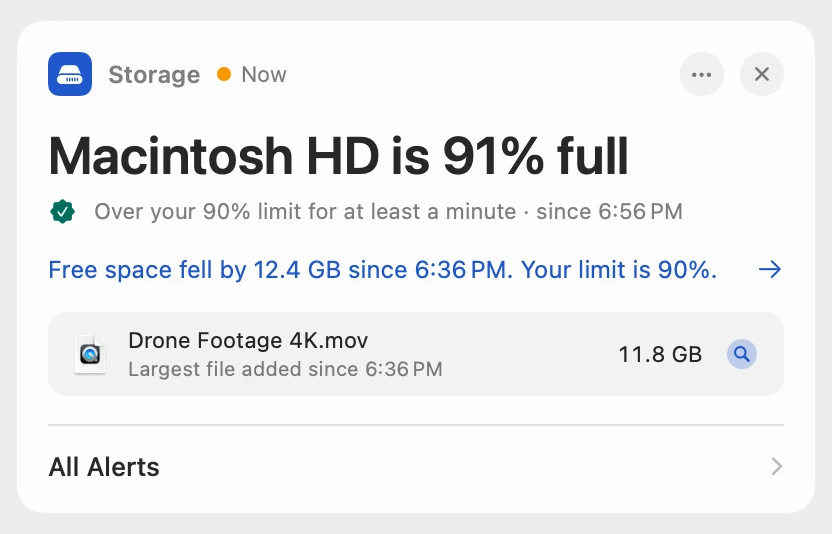
Scope is a free Mac menu bar app that shows how full each drive is and marks it Low space once it passes a limit, 90% unless you change it with Scope Pro. It saves opening Storage to find out how much room is left.
In your menu bar
Scope Free keeps one whole menu bar item of your choice. Drive shows each drive’s used space, so 91% is in view all day.

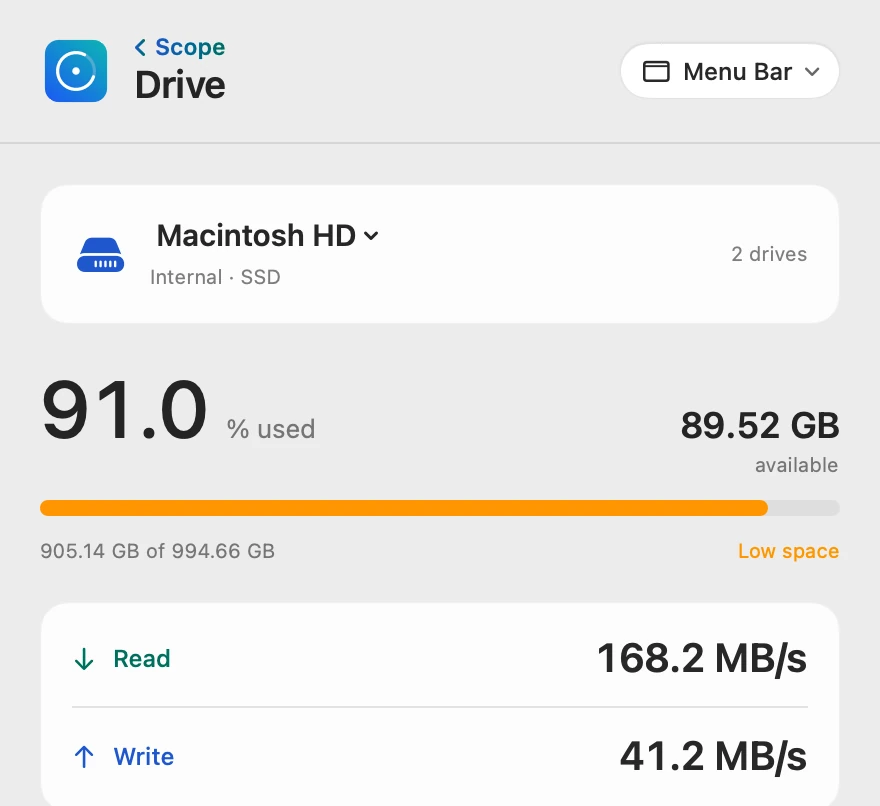
How full, in numbers
The bar turns orange and Low space appears once a drive passes its limit. In Scope Free the limit is 90%. Scope Pro lets you set your own, under Limits > Storage used above in Drive’s menu bar settings.
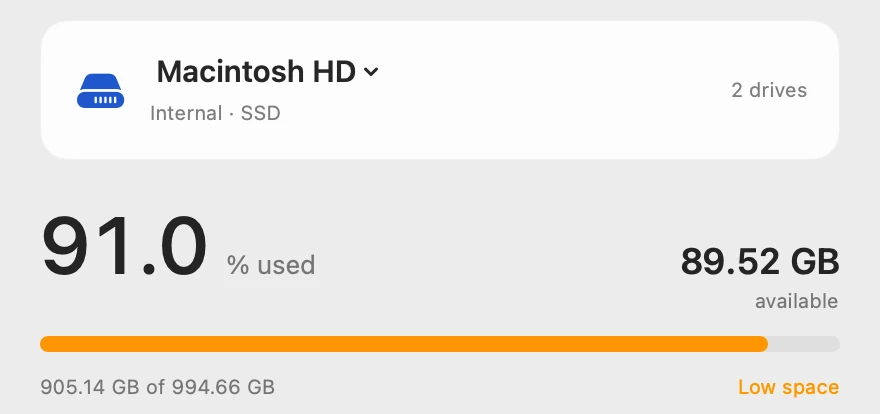
Told when it lasts
Scope waits until a drive has stayed past its limit for a minute, then shows the alert on its overview. Scope Pro adds a red + on its menu bar icon and names the largest file added since free space began to fall.
Scope shows and explains. It never opens, moves or deletes your files.
Try it here
The real Scope, working, right in this page.
Click any item in the menu bar, or a card inside, as you would on your Mac.
Scope Pro Every menu bar item is shown here. Scope Free keeps one whole item of your choice, with every reading inside.
See how much room your own Mac has.
Keep reading
Guide · Storage
Mac storage full? Where your space went
When Mac storage is full, Storage in System Settings shows what’s using it. Here’s where the space usually goes, and how to get it back safely.
Storage
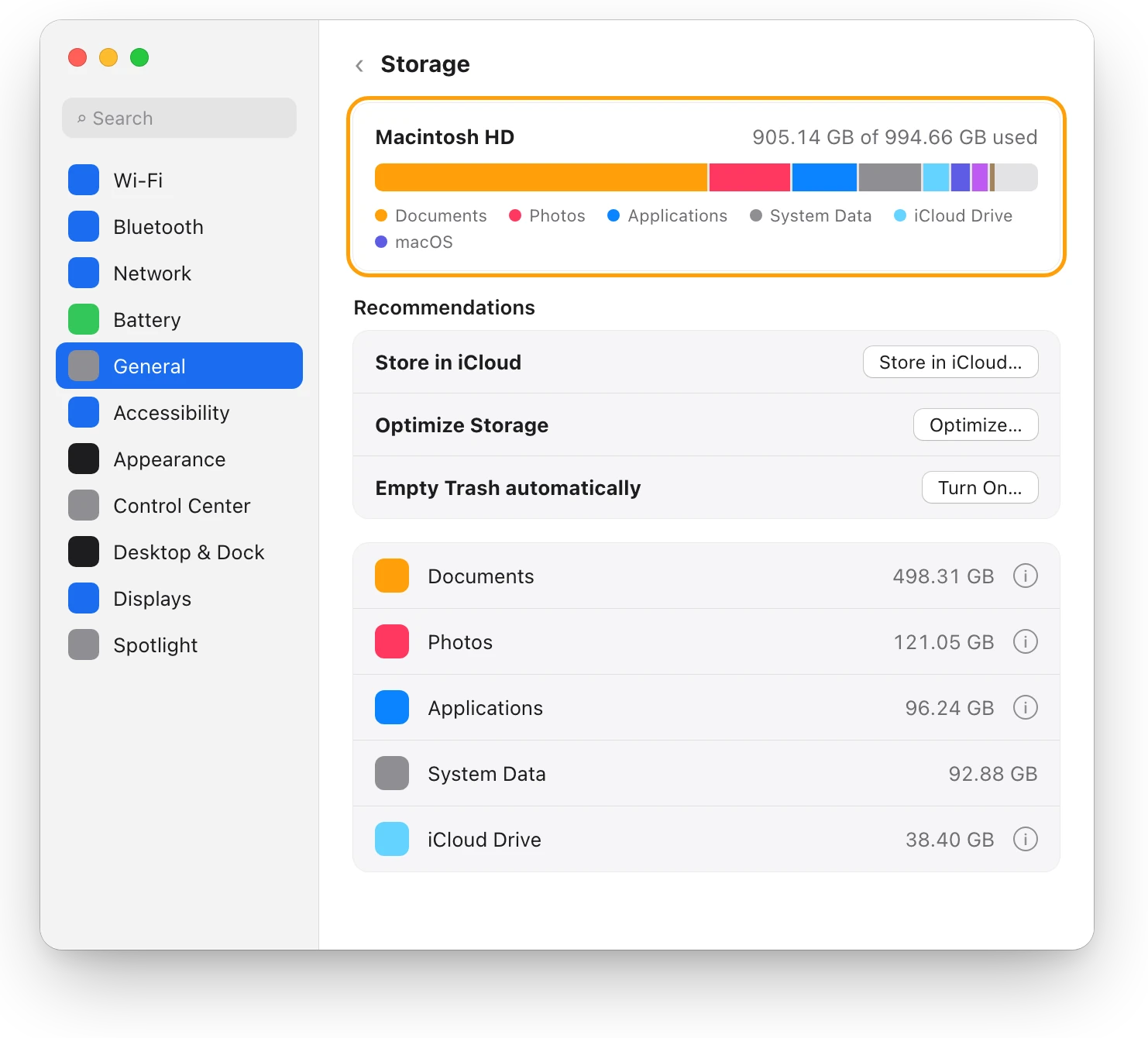
“Your disk is almost full”: what to do first
When your Mac’s disk is almost full, check Storage in System Settings, empty the Trash, then delete or move large files. Here’s what to do first.
Storage
How to find large files on a Mac, safely
Storage in System Settings lists your Mac’s largest files, sorted by size, with Delete and Show in Finder. Here’s how to find them and free space safely.
Storage
What is System Data on a Mac, and why is it so big?
System Data holds files no other Storage category claims, such as caches, logs and temporary files. You can’t delete it directly; here’s what helps.
Sources
- Apple Support: If your Mac runs slowly
- Apple Support: If an error occurred while updating or installing macOS
- Apple Support: How to download and install macOS
- Apple Support: View memory usage in Activity Monitor on Mac
- Apple Support: Check if your Mac needs more RAM in Activity Monitor
- Apple Support: Optimize storage space on your Mac
- Apple Support: Free up storage space on Mac
- Apple Support: Get file, folder, and disk information on Mac
Last checked October 18, 2026. Readings, apps and files in the pictures are from a made-up Mac.