How to delete apps on a Mac, and what’s left behind
To delete apps on a Mac, quit the app, open Finder and click Applications in the sidebar, then drag the app to the Trash or choose File > Move to Trash. If the app came with its own uninstaller, use that instead. Then choose Finder > Empty Trash: the app’s space comes back only when the Trash is emptied.
How do I uninstall an app in Finder?
Finder works for every app you’re allowed to delete, wherever it came from.
- Quit the app if it’s open.
- Open a Finder window and click Applications in the sidebar, or choose Go > Applications. A few apps live in the Applications folder inside your home folder instead: choose Go > Home to find it.
- Drag the app to the Trash at the end of the Dock. Or select it and choose File > Move to Trash, or Control-click it and choose Move to Trash.
- If you’re asked for a name and password, enter an administrator’s. It’s usually the one you use to log in to your Mac.
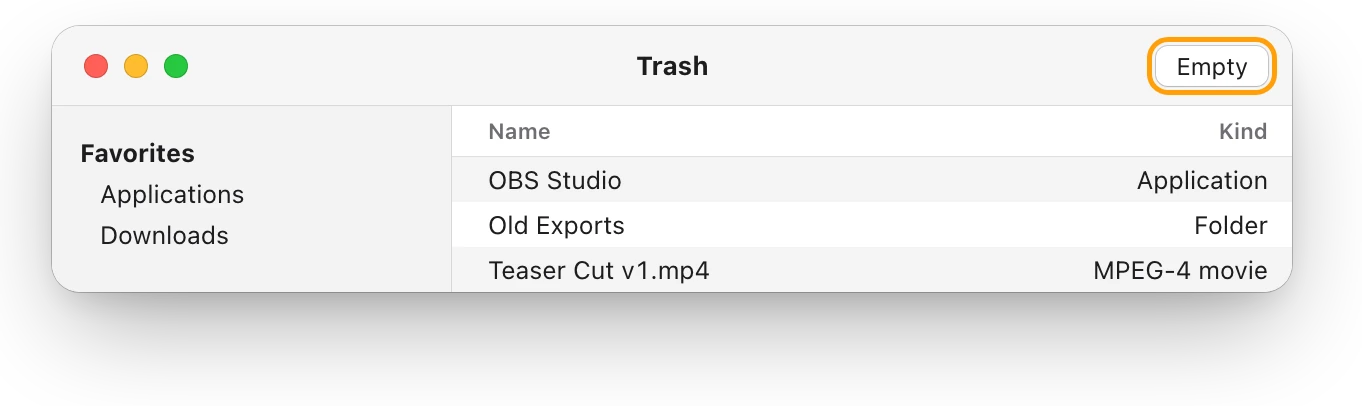
- Choose Finder > Empty Trash to delete the app for good.
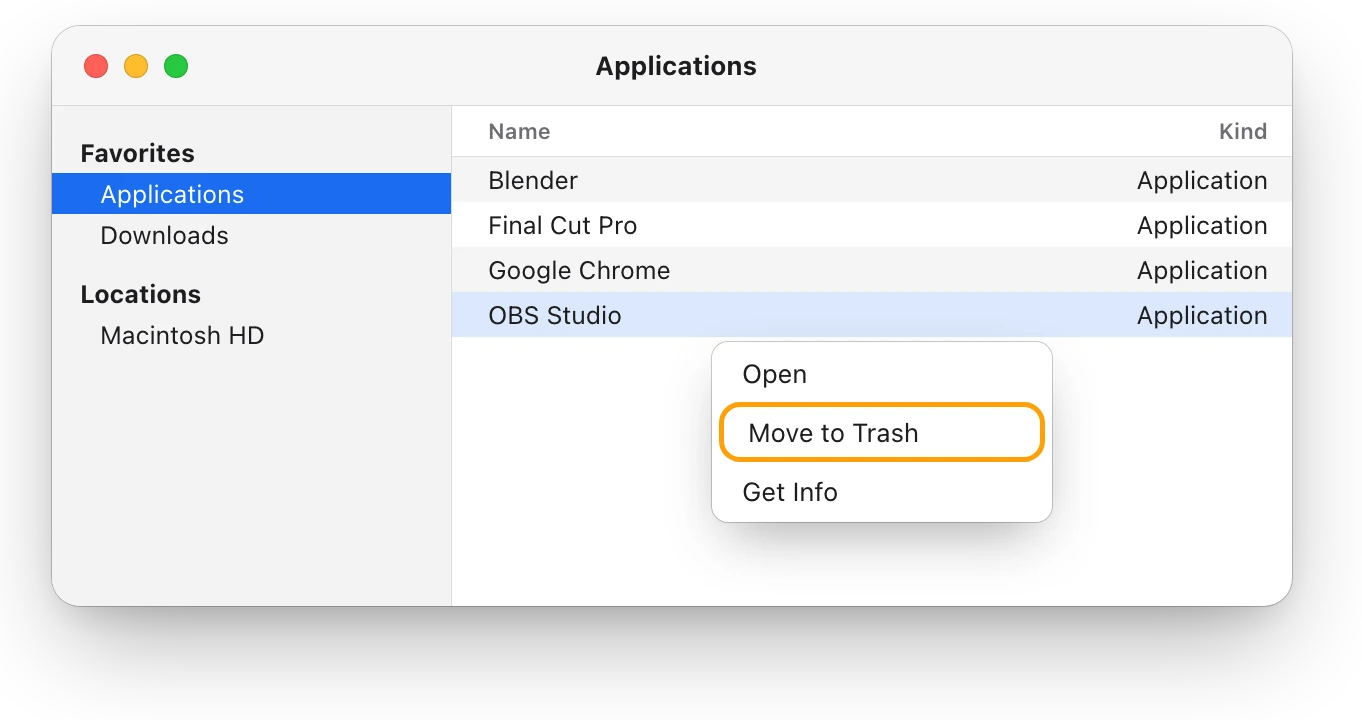
Can’t find the app? Search for it with Spotlight, then hold the Command key while you double-click it in the results. Finder opens with the app selected.
Changed your mind? Until you empty the Trash, the app can come back: open the Trash, select the app and choose File > Put Back.
Should I use the app’s uninstaller?
Yes, if the app has one. Apple says an uninstaller is the best way to delete an app made by another company, because it also removes the login items, extensions and other data the app stored in other places.
- In Finder, open the app’s folder in Applications, if it has one.
- Look for an app named “Uninstall [App]” or “[App] Uninstaller”.
- Double-click it and follow the onscreen instructions.
Some apps put the option inside the app instead, as an uninstall, remove or reset command in a menu or in its settings.
How do I delete an app from Launchpad?
Apps from the App Store can also be deleted where you open your apps. Launchpad did this job in macOS Sequoia and earlier; from macOS Tahoe, the Apps icon in the Dock opens your apps instead.
- macOS Tahoe and later: click the Apps icon in the Dock. Click and hold the app’s icon until it begins to jiggle, then click its Close button.
- macOS Sequoia and earlier: click Launchpad in the Dock. Click and hold an app until all the apps begin to jiggle, then click the app’s Delete button.
If no button appears on an app, it can’t be removed there. Use Finder instead. An app you bought from the App Store can be installed again later: in the App Store, click your name in the bottom-left corner, find the app and click its download button.
Which ways are there to delete an app?
| Way | Works for | What it removes | Where |
|---|---|---|---|
| Drag to the Trash | Any app you’re allowed to delete | The app | Finder > Applications |
| The app’s uninstaller | Apps that include one | The app, its login items, extensions and other data | The app’s folder in Applications, or its menus |
| Apps, or Launchpad | Apps from the App Store | The app | The Apps icon in the Dock (Launchpad in macOS Sequoia and earlier) |
| Storage settings | Apps you installed | The app | System Settings > General > Storage > Applications |
Which apps can’t be deleted?
You can’t delete the apps your Mac needs. Apple names many apps that come with macOS, such as Mail, Music, Books, Notes, Podcasts, Maps, News, Stocks and Safari, and anything in the System folder.
If your Mac says an app can’t be deleted because it’s in use, make sure the app isn’t open. If it still won’t go, restart your Mac or start up in safe mode, then try again.
How do I see which apps take the most space?
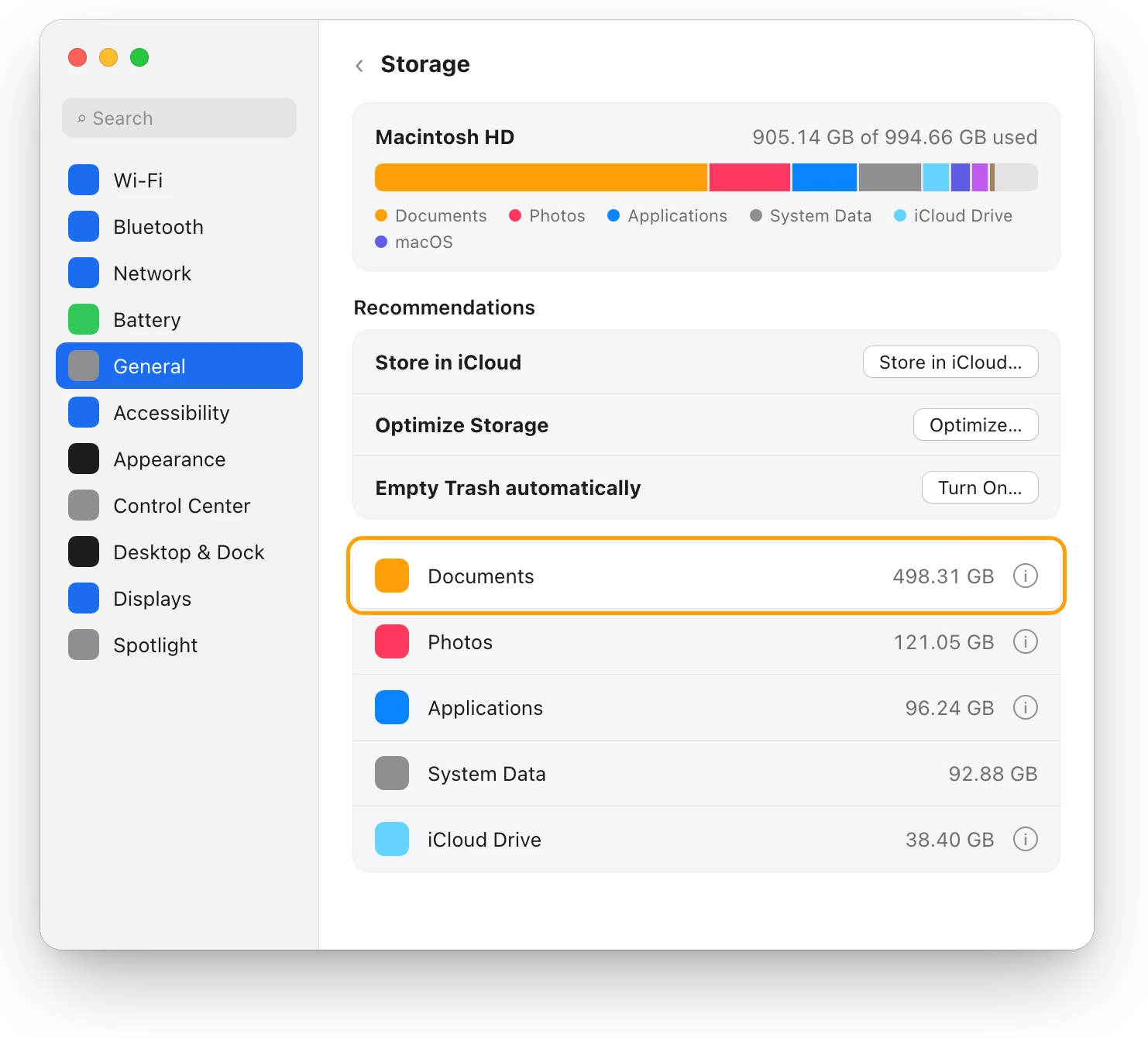
Storage in System Settings lists the apps you’ve installed, without the apps that come with macOS.
- Choose Apple menu > System Settings, then click General in the sidebar. You may need to scroll down.
- Click Storage, and wait while macOS adds up each category.
- Click the info button (ⓘ) next to Applications.
- Select an app you no longer use, then click Delete.
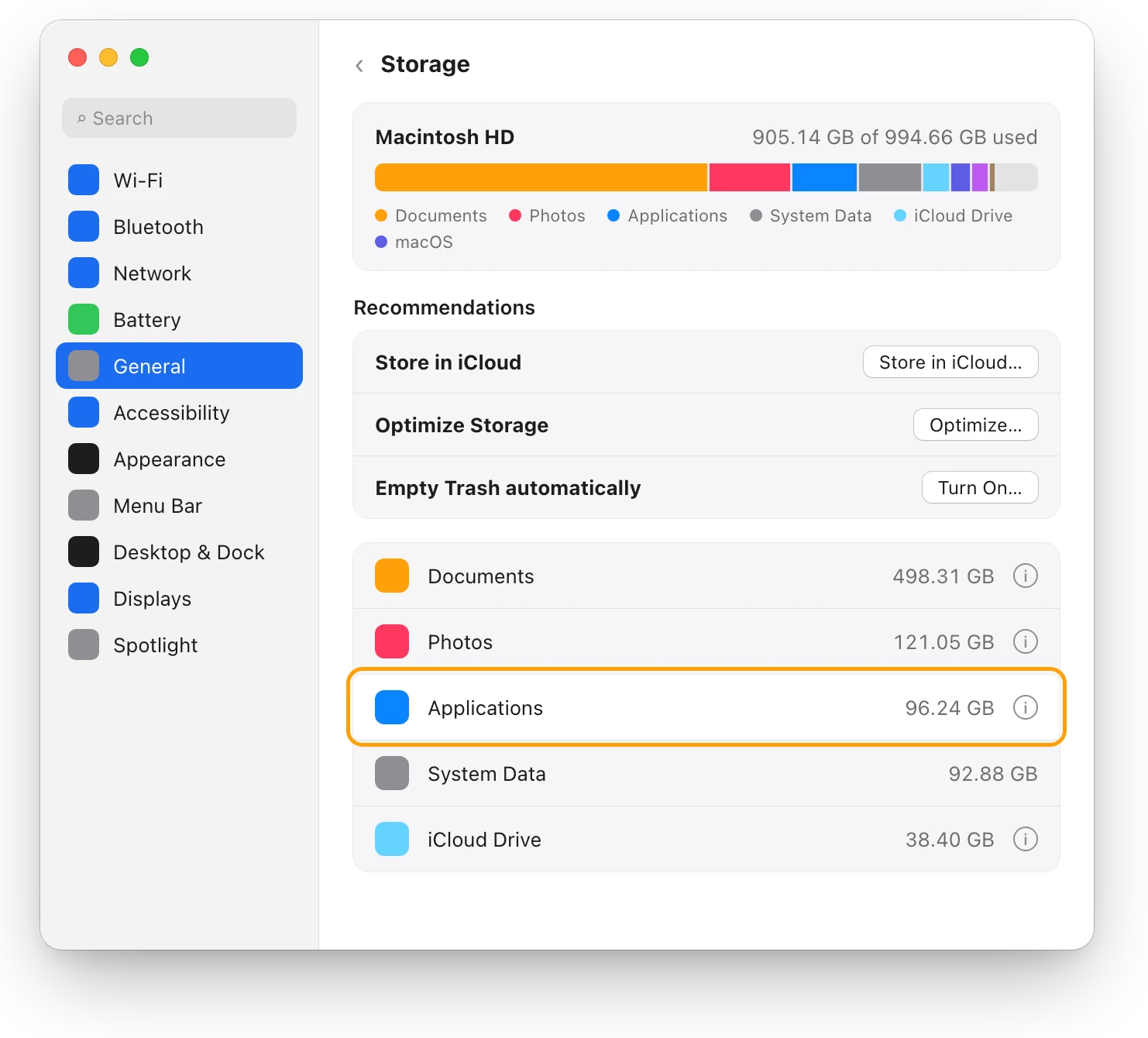
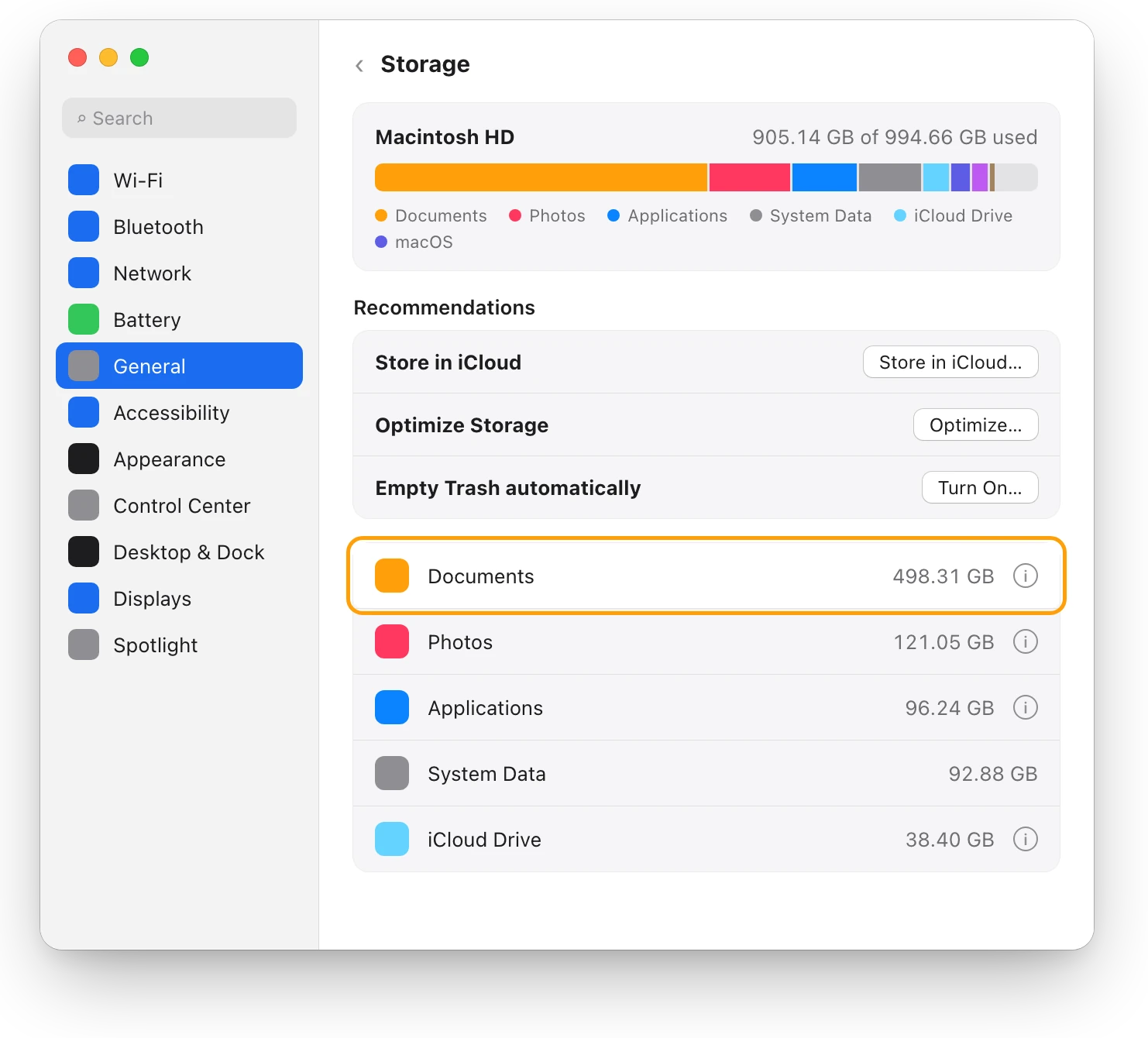
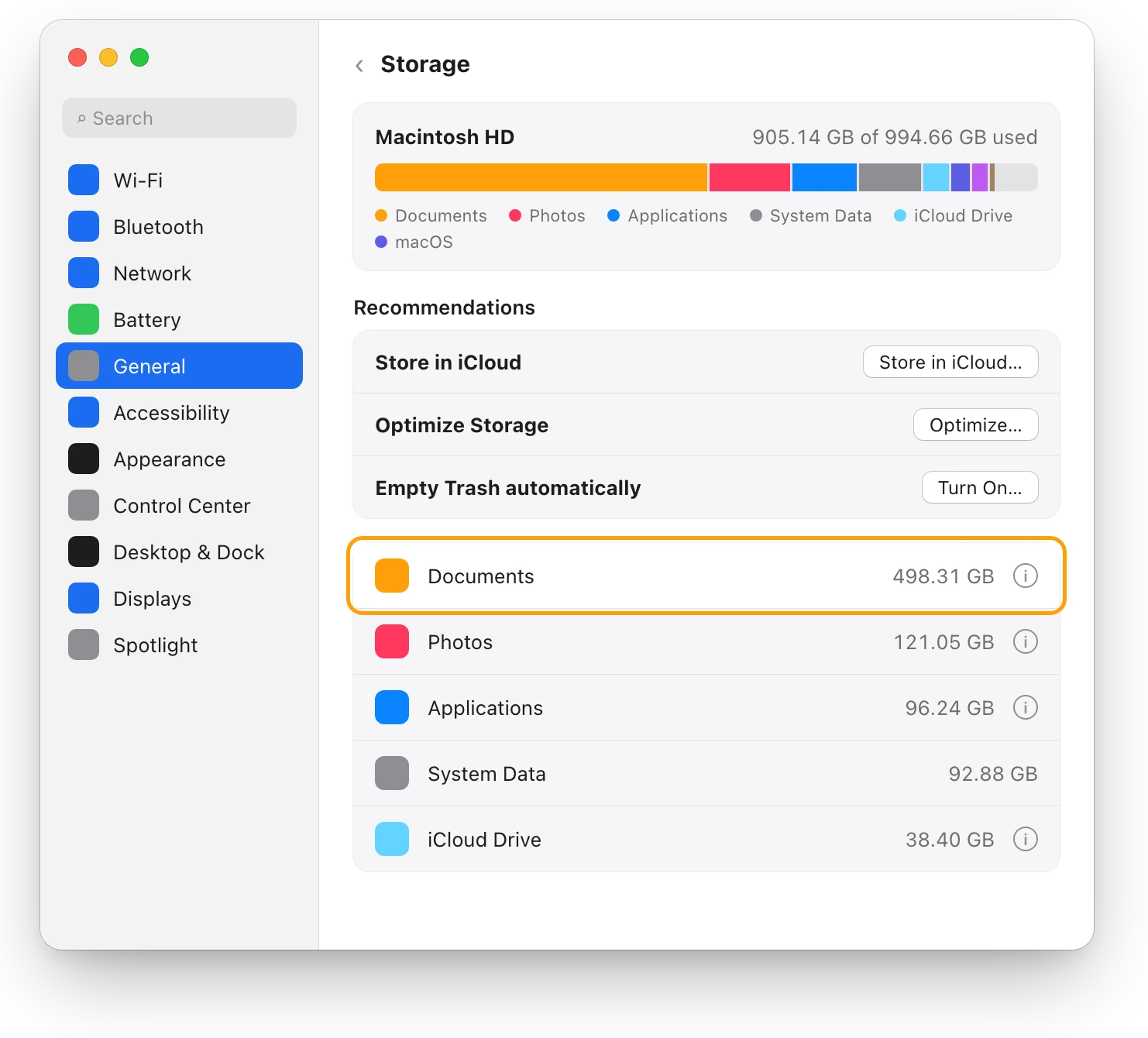
Apps are often not the biggest category. Here, Documents uses 498.31 GB, about five times as much as every app together. How to find large files on a Mac, safely shows where that space usually goes.
What’s left behind when you delete an app?
Deleting an app removes the app itself. Several things can stay:
- Your documents. Files you made with the app stay where you saved them. You may need the app again to open them.
- Subscriptions. Deleting an app doesn’t cancel a subscription you bought with it. Cancel it separately.
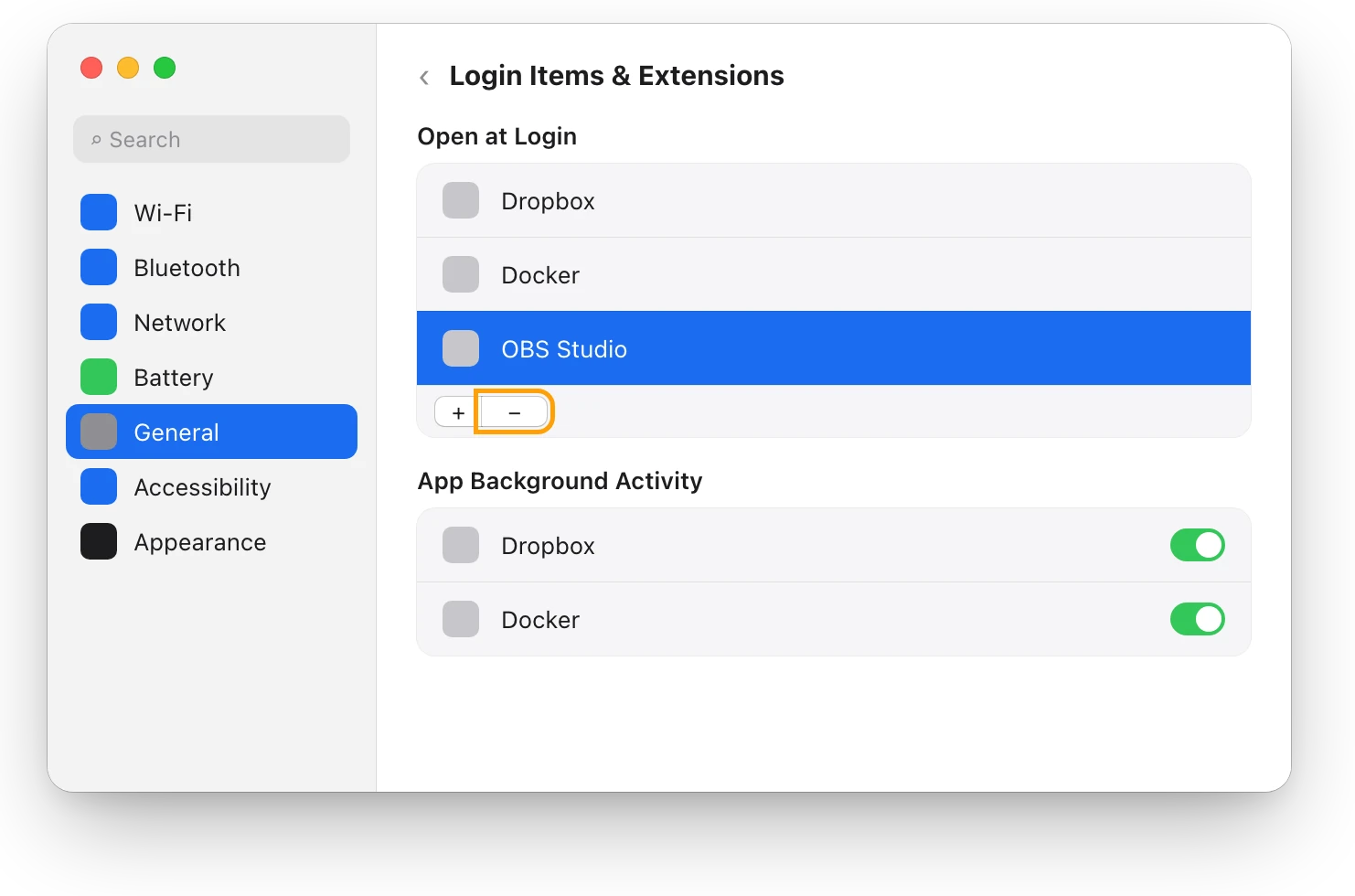
- Login items, extensions and other data. An uninstaller removes these; dragging the app to the Trash may not. If something from the app still opens at login, check System Settings > General > Login Items & Extensions. How to stop apps opening at startup on a Mac has the steps.
- Support files. Storage counts app support files and plug-ins in System Data, which macOS manages. Apple says you can manage that data with Finder or with the app that created it. The safest route is the app’s own uninstaller or reset option; if you’re not sure which files belong to the app, ask its developer.
Does deleting apps free up space?
Yes, once you empty the Trash. Until then, the app still takes up its space. Apple’s last step is the same for every app: choose Finder > Empty Trash. How to empty the Trash on a Mac covers what to do when the Trash won’t empty.
Questions people also ask
How do I uninstall programs on a Mac?
On a Mac, programs are called apps. Run the app’s uninstaller if it has one, or drag the app from Applications to the Trash, then empty the Trash.
Can I get a deleted app back?
Before you empty the Trash, yes: select the app in the Trash and choose File > Put Back. After that, download an App Store app again from your purchases in the App Store, or get other apps again from their developer.
Does deleting an app cancel my subscription?
No. Deleting or uninstalling an app doesn’t cancel a subscription you bought with it.
Do I need a special app to uninstall apps on a Mac?
No. Finder, the app’s own uninstaller and Storage in System Settings cover it.
Scope for Mac · Free, coming to the Mac App Store
How Scope helps
Scope is a free Mac menu bar app that shows how full your Mac’s disk is, in percent and gigabytes, and lists the largest files in your home folder. It saves opening Storage and waiting for it to add up each time you want to know how much room is left.
In your menu bar
Scope Free keeps one whole menu bar item of your choice. Drive shows how full your Mac’s disk is: here, Mac at 91%.

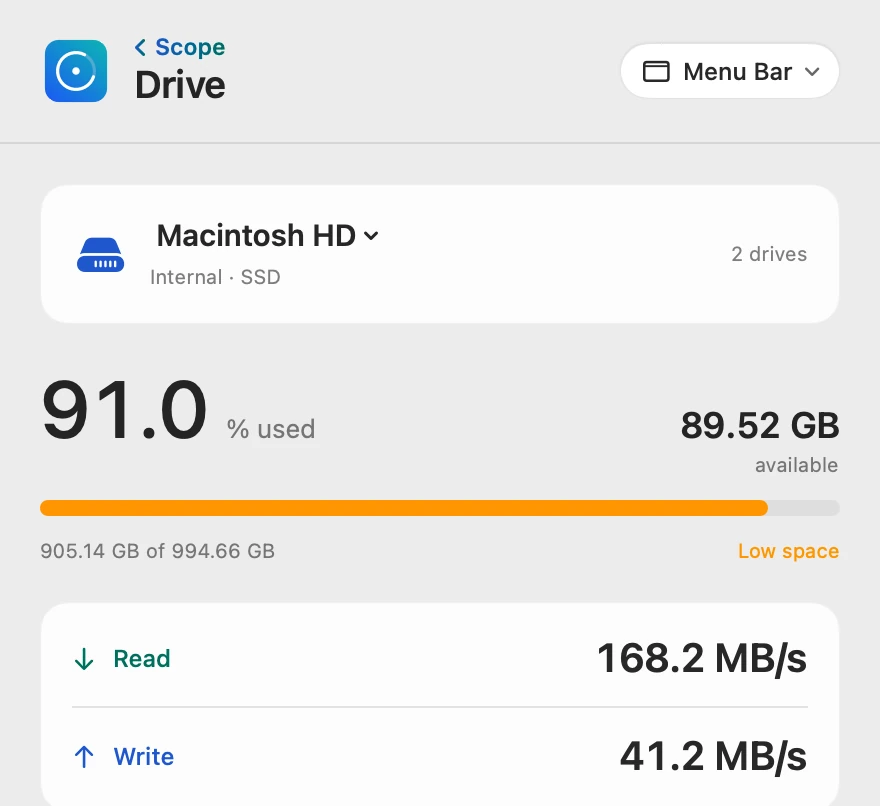
How full, in numbers
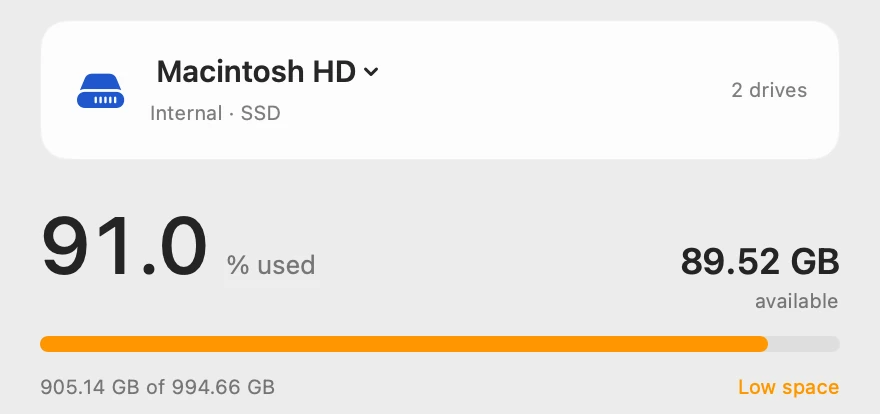
Open Drive again after you empty the Trash to see how much space came back. When a drive passes its limit, 90% by default, the bar turns orange and Low space appears.
Bigger than most apps
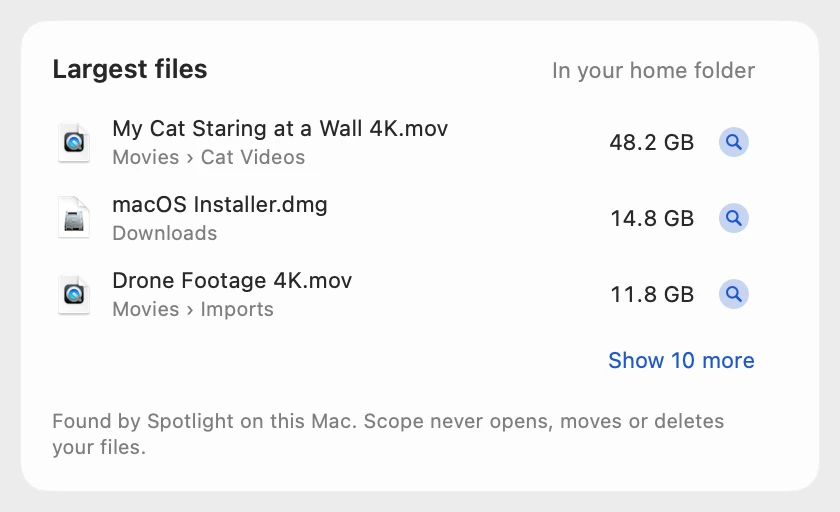
Largest files lists the biggest files in your home folder, each with Show in Finder. Apps in the Applications folder aren’t in your home folder, so they aren’t listed. It’s in Scope Free, once you allow Scope to read your home folder.
Told when it fills
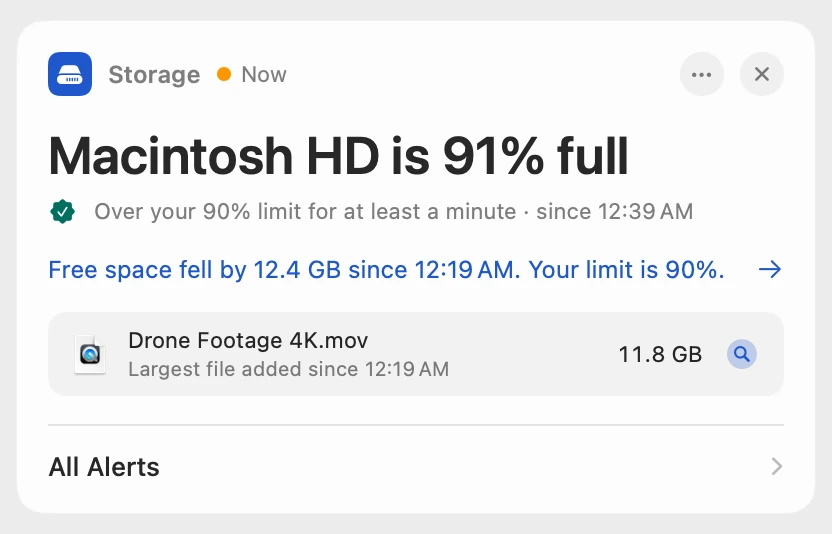
Scope shows the alert on its overview when a drive stays past its limit for a minute. Scope Pro adds a red + on its menu bar icon and names the largest file added since free space began to fall.
Scope shows and explains. It never deletes apps or files, so what to remove stays your call.
Try it here
The real Scope, working, right in this page.
Click any item in the menu bar, or a card inside, as you would on your Mac.
Scope Pro Every menu bar item is shown here. Scope Free keeps one whole item of your choice, with every reading inside.
See how much room your own Mac has.
Keep reading
Guide · Storage
Mac storage full? Where your space went
When Mac storage is full, Storage in System Settings shows what’s using it. Here’s where the space usually goes, and how to get it back safely.
Storage
How to empty the Trash on a Mac, and when it won’t
Empty the Trash on a Mac from the Dock, from Finder or with Shift-Command-Delete, let it empty itself after 30 days, and fix a Trash that won’t empty.
Storage
How to free up space on a Mac: every way, ranked
Every way to free up space on a Mac, biggest first: large files, external drives, Photos and iCloud Drive, Downloads, backups and the Trash, with risks.
Storage
How to find large files on a Mac, safely
Storage in System Settings lists your Mac’s largest files, sorted by size, with Delete and Show in Finder. Here’s how to find them and free space safely.
Slow Mac
How to stop apps opening at startup on a Mac
Stop apps opening at startup in System Settings > General > Login Items & Extensions: select the app and click Remove. Background items and windows too.
Sources
- Apple Support: Delete or uninstall apps on Mac
- Apple Support: Install and uninstall apps from the internet or a disc on Mac
- Apple Support: Install and uninstall purchases from the App Store on Mac (macOS Tahoe guide)
- Apple Support: View and open apps on Mac
- Apple Support: Use Launchpad to view and open apps on Mac (macOS Sequoia guide)
- Apple Support: Change Storage settings on Mac
- Apple Support: Free up storage space on Mac
Last checked October 19, 2026. Readings, apps and files in the pictures are from a made-up Mac.