How to check storage on a Mac: 4 ways
To check storage on a Mac, choose Apple menu > System Settings, click General, then click Storage. The bar at the top shows how much space is used and how much is available, and the categories below show what’s using it. Finder’s Get Info and Disk Utility show the space available on any disk, including external drives.
How do I check storage in System Settings?
Storage in System Settings shows used and available space, and what’s using it.
- Choose Apple menu > System Settings, then click General in the sidebar. You may need to scroll down.
- Click Storage. Wait a moment while macOS adds up each category.
- Read the line at the top: used space of the disk’s capacity. The space that isn’t used is available.
- Move the pointer over a color in the bar to see how much space that category uses. Light gray is free space.
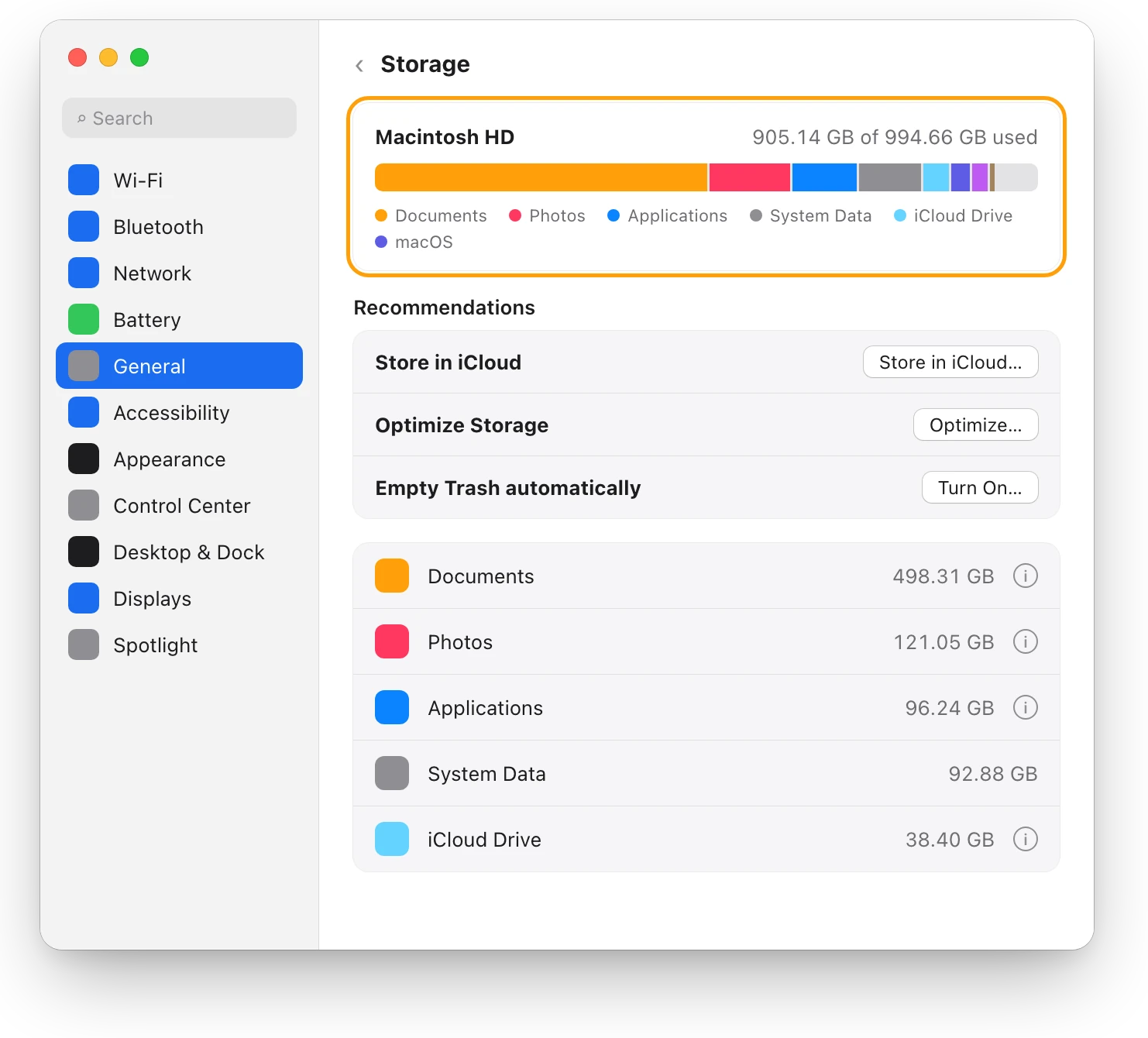
To see every volume, Apple’s steps add one more click: All Volumes. If you see more than one disk there, your internal disk has more than one volume, and they share its space (more on that below).
Where is storage in About This Mac?
On macOS Ventura and later, storage moved from About This Mac to System Settings. A shortcut: choose Apple menu > System Settings, click General, then click About. The Storage row there has a Storage Settings button, which opens Storage. On earlier versions of macOS, choose Apple menu > About This Mac, then click Storage.
How do I check disk space in Finder?
Finder shows any disk’s space, including external drives, without opening System Settings.
- Open a Finder window.
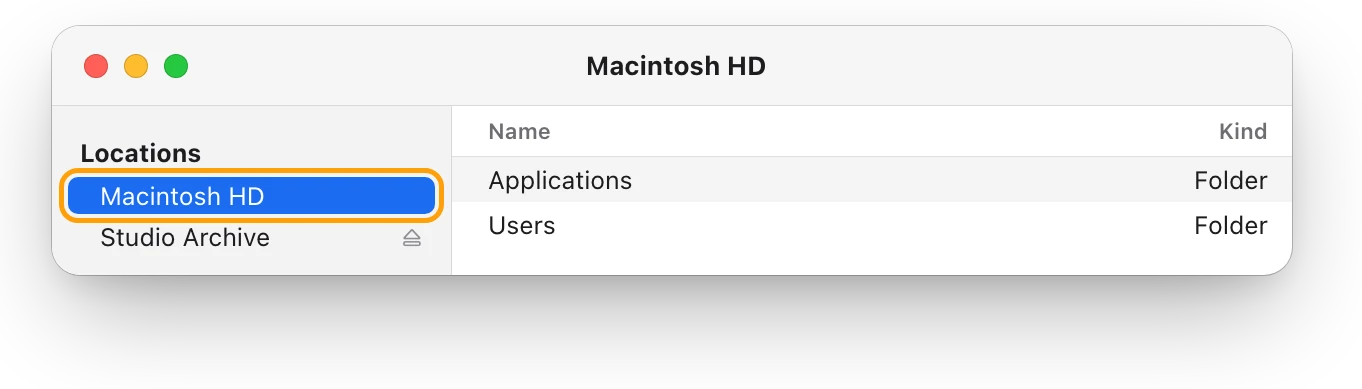
- Select the disk in the Locations section of the sidebar, such as Macintosh HD.
- Choose File > Get Info, or press Command-I.
- In the window that opens, click the arrow next to General if it’s closed. It shows how much space is available on the disk.
For a quick look while you work, choose View > Show Status Bar. The bar at the bottom of the window shows how many items are in that folder and how much space is available on its disk.
How do I check storage in Disk Utility?
Disk Utility shows each disk, container and volume, with its details.
- Open Disk Utility. Search for it with Spotlight, or find it in Applications > Utilities.
- Choose View > Show All Devices.
- Select a disk, container or volume in the sidebar. Its details appear on the right.
- Click the Info button in the toolbar for more.
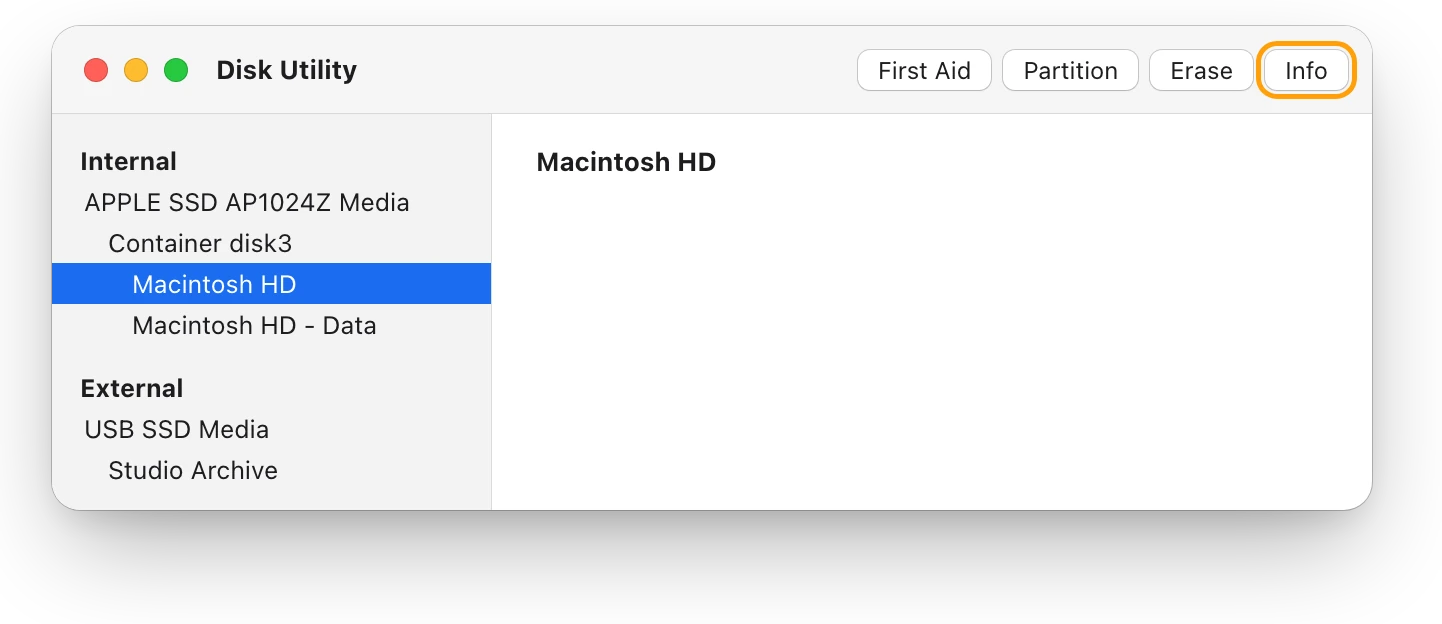
Apple says this can include the total capacity, the format, where the volume is mounted, and the amount of space available, which can include both free space and purgeable space.
Which way should I use?
| Tool | How to open it | What it shows | Best for |
|---|---|---|---|
| Storage | System Settings > General > Storage | Used, available, and space by category | Finding what to delete |
| Get Info | Finder: select the disk, File > Get Info | The space available on that disk | Checking any drive, quickly |
| Status bar | Finder: View > Show Status Bar | Space available on the disk you’re in | A glance while you work |
| Disk Utility | Spotlight, or Applications > Utilities | Capacity, available space, format and where it’s mounted | Every disk, container and volume |
Why do the numbers differ between tools?
Different tools can show different numbers for the same disk, and all of them can be right.
- Available isn’t the same as free. Apple explains that free space is physically open space on the disk, while available space includes free space and purgeable disk caches. So disk space might be both available and used at the same time.
- Purgeable space comes and goes. Purgeable space is space macOS can free up when needed by removing files, such as caches. You can’t remove purgeable files yourself; macOS removes them as space is needed.
- Volumes share one pool. On the Apple File System (APFS), volumes on a disk share its space. A container’s free space can go to any volume that needs it, so a single volume’s “used” can look different from the whole disk’s.
- The box uses round numbers. Drive makers count 1 TB as 1 trillion bytes, and Apple notes that the drive’s formatting uses some of that space. That’s one reason a 1 TB Mac shows less than 1,000 GB.
When numbers disagree, use Storage in System Settings for what’s using the space, and Disk Utility for the disk’s capacity and what’s available.
How much storage do I have?
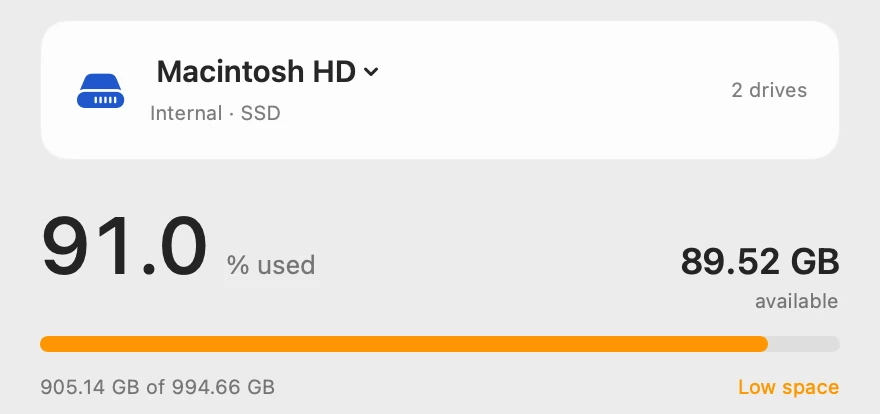
Your Mac’s total storage is the capacity in Storage, Get Info or Disk Utility. On the Mac in these pictures, sold as 1 TB, Macintosh HD has 994.66 GB, with 905.14 GB used and 89.52 GB available. To find out whether that’s enough free space, see How much free space should a Mac have?
Questions people also ask
Why do Finder and Storage show different free space?
Often because of purgeable space. Available space includes free space and purgeable disk caches, which macOS can clear when it needs the room.
How do I check an external drive’s storage?
Select the drive under Locations in Finder and choose File > Get Info, or select it in Disk Utility. Both show how much space is available on it.
What is purgeable space on a Mac?
Space macOS can free up when needed by removing files it doesn’t need, such as caches. You can’t delete purgeable files yourself; macOS removes them as space is needed.
Why is my storage almost full?
Storage in System Settings lists what’s using it, biggest first. How to free up space on a Mac ranks every way to get it back.
Scope for Mac · Free, coming to the Mac App Store
How Scope helps
Scope is a free Mac menu bar app that shows how full each drive is, in percent and gigabytes, for your Mac’s own disk and every external drive. It saves opening System Settings, Finder or Disk Utility each time you want to know how much room is left.
In your menu bar
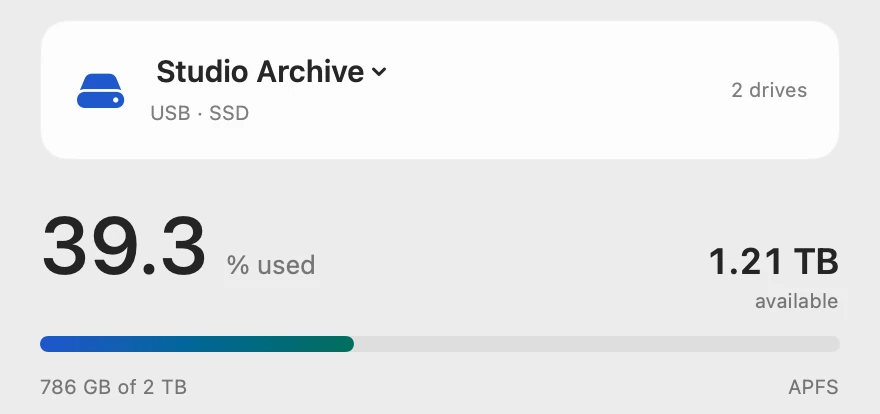
Scope Free keeps one whole menu bar item of your choice. Drive shows each connected drive’s used space: here, Mac at 91% and Stu at 39%.

How full, in numbers
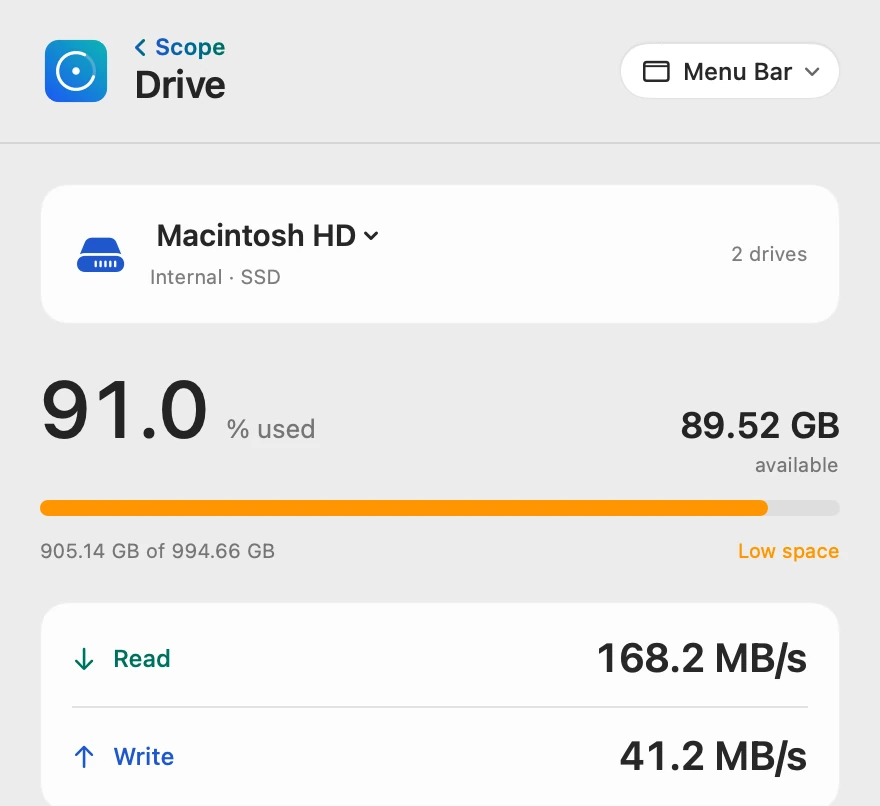
Drive shows used space as a percentage and in gigabytes. Once a drive passes its limit, 90% unless you change it with Scope Pro, the bar turns orange and Low space appears.
Every drive, one click apart
Click the drive’s name at the top of Drive to switch between connected drives. “2 drives” means both are connected now.
Drive details
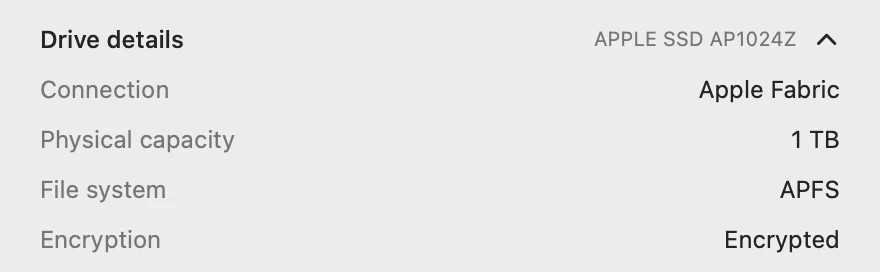
Drive details show the drive’s model, connection, physical capacity, file system and encryption. Physical capacity is the whole drive, 1 TB; the 994.66 GB above is what Macintosh HD has to use.
Scope shows and explains. It never opens, moves or deletes your files.
Try it here
The real Scope, working, right in this page.
Click any item in the menu bar, or a card inside, as you would on your Mac.
Scope Pro Every menu bar item is shown here. Scope Free keeps one whole item of your choice, with every reading inside.
See how much room your own Mac has.
Keep reading
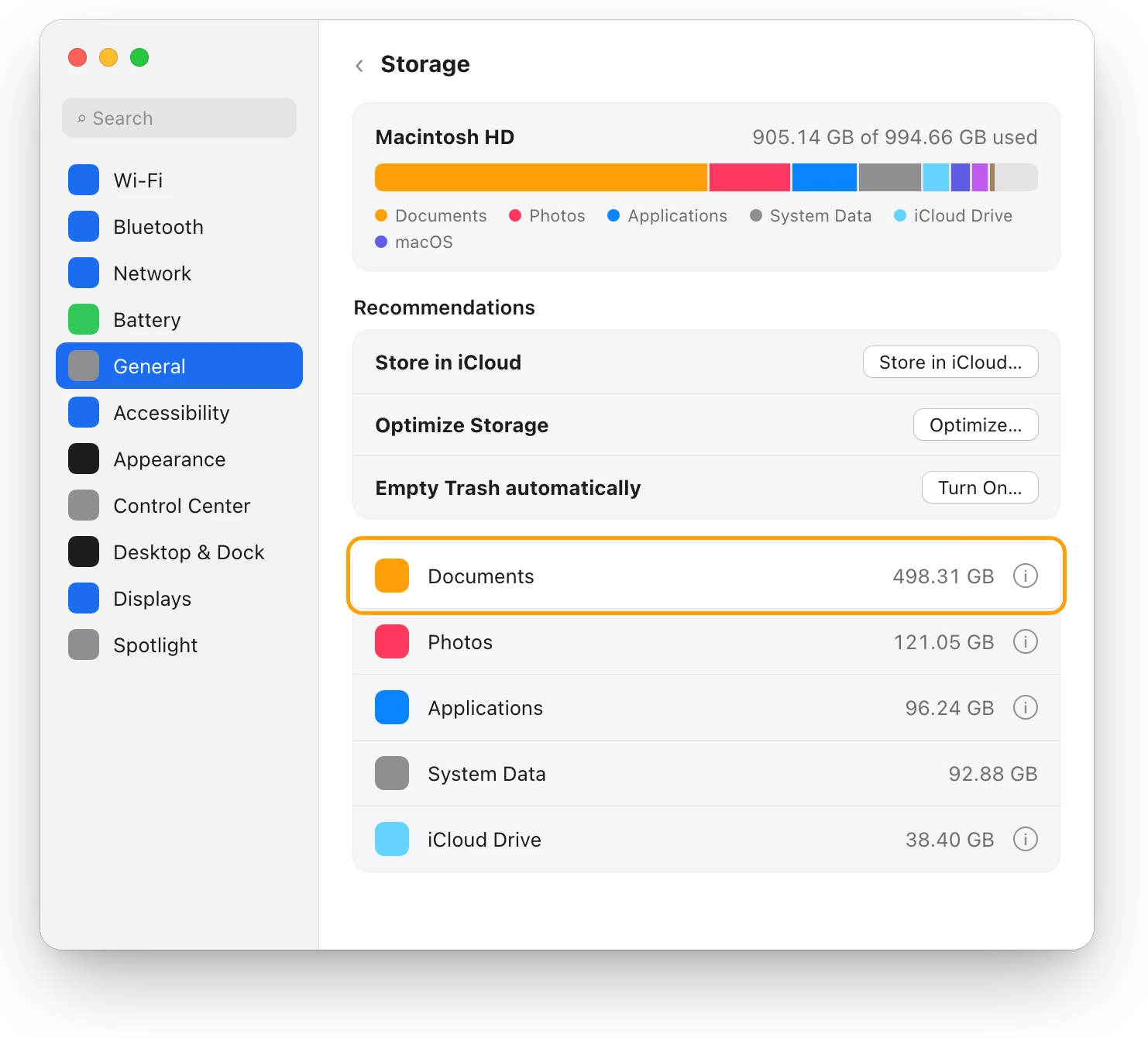
Guide · Storage
Mac storage full? Where your space went
When Mac storage is full, Storage in System Settings shows what’s using it. Here’s where the space usually goes, and how to get it back safely.
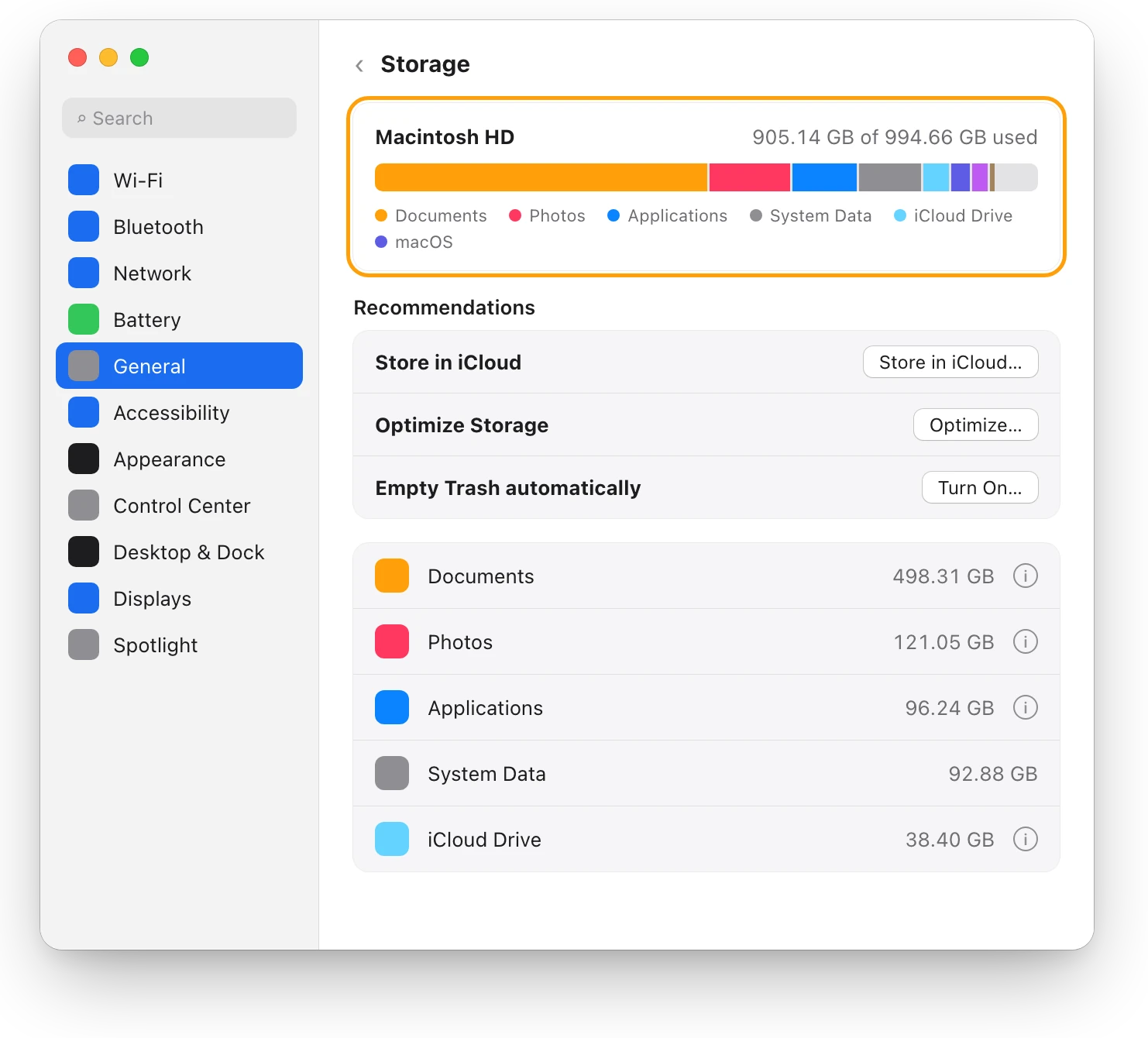
Storage
How much free space should a Mac have?
Apple gives no single number. A Mac needs room for macOS updates and swap, and a nearly full disk can slow it down. Here’s how much to keep free.
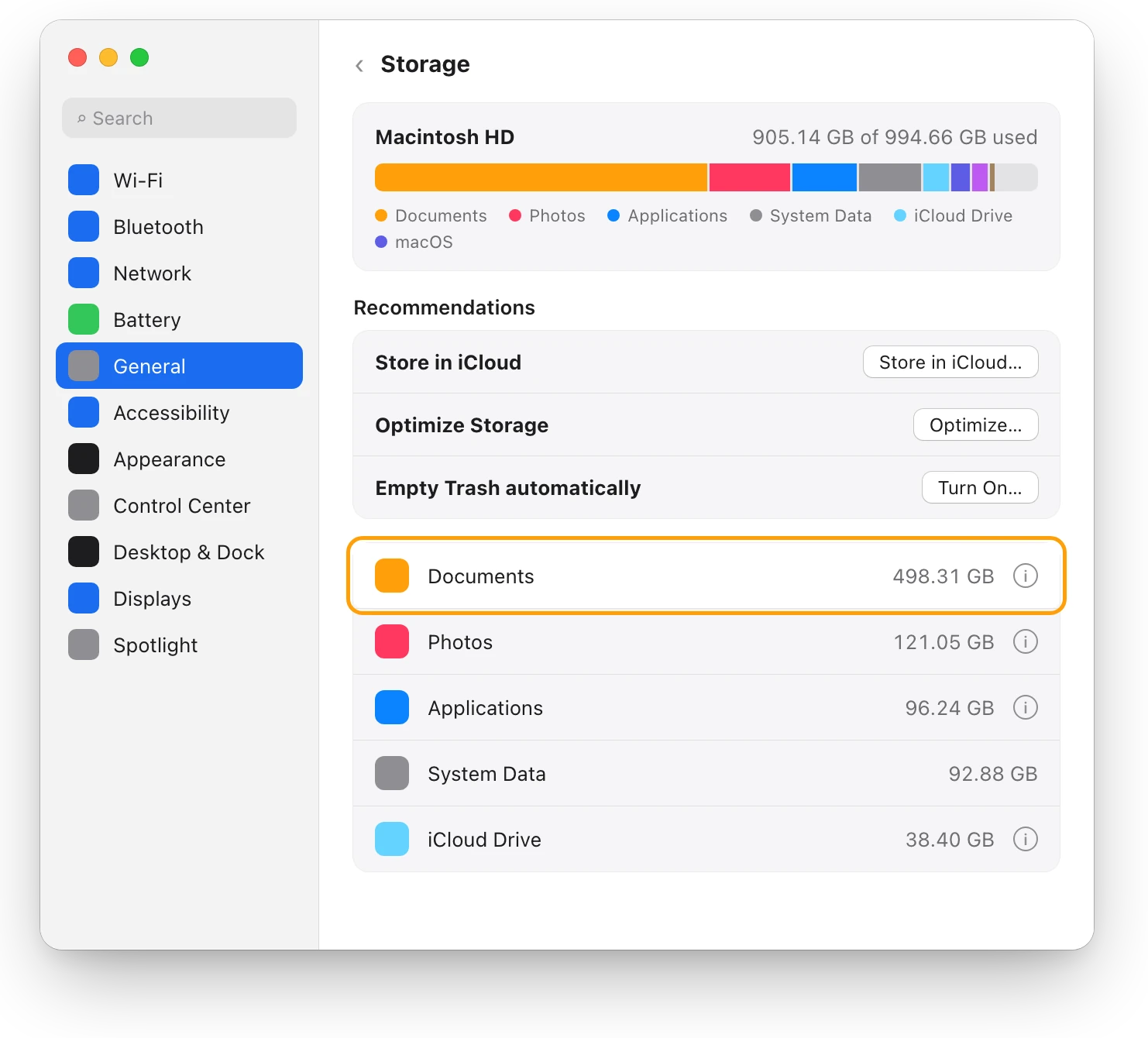
Storage
How to free up space on a Mac: every way, ranked
Every way to free up space on a Mac, biggest first: large files, external drives, Photos and iCloud Drive, Downloads, backups and the Trash, with risks.
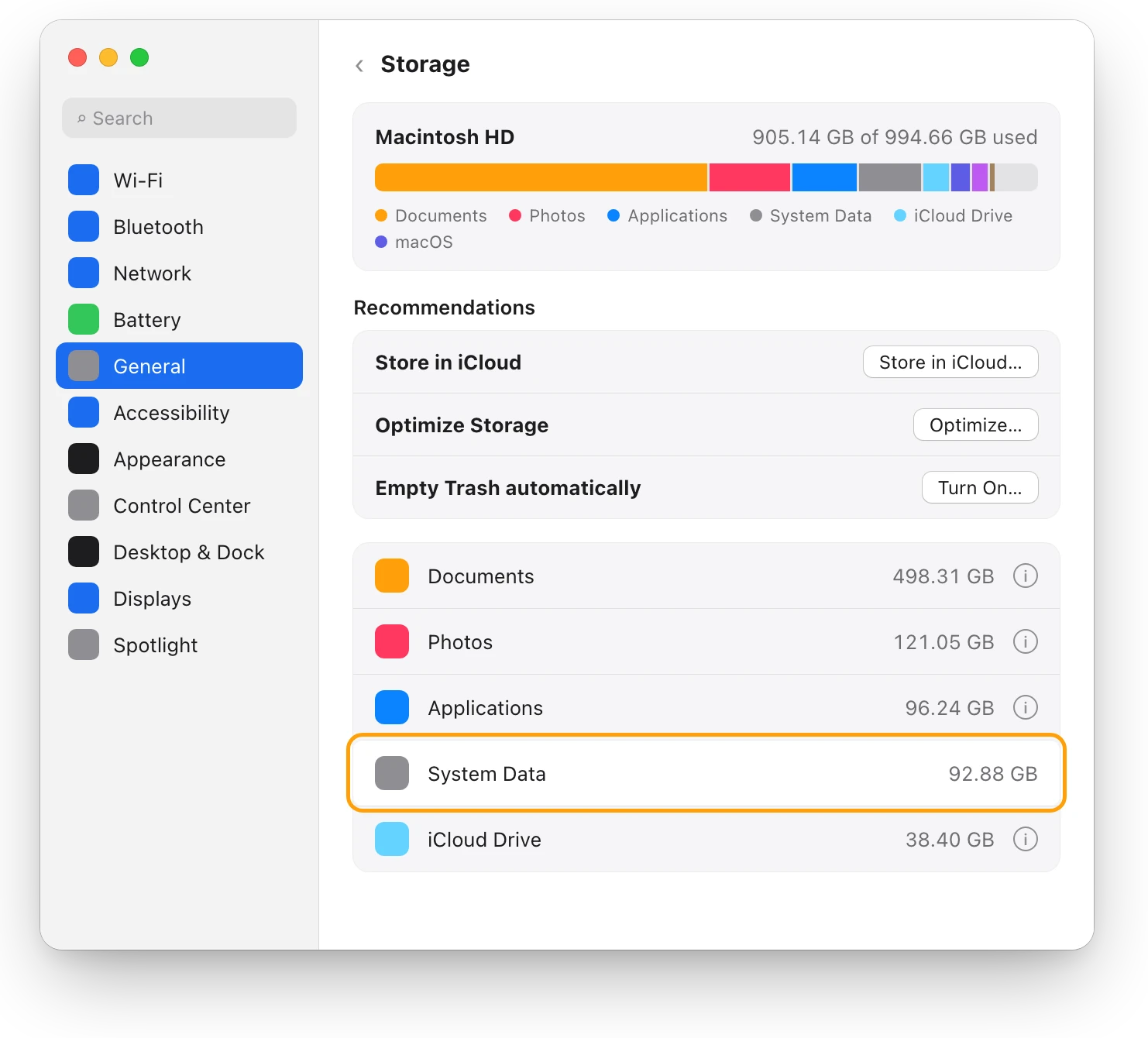
Storage
What is System Data on a Mac, and why is it so big?
System Data holds files no other Storage category claims, such as caches, logs and temporary files. You can’t delete it directly; here’s what helps.
Your Mac
How to check your Mac’s specs
Apple menu > About This Mac shows your Mac’s model, chip, memory and serial number. System Report has the rest. Here’s where each spec is.
Sources
- Apple Support: See used and available storage space on your Mac
- Apple Support: Free up storage space on Mac
- Apple Support: View About settings on Mac
- Apple Support: Learn about your Mac computer’s internal disk
- Apple Support: Get file, folder, and disk information on Mac
- Apple Support: Get detailed information about a disk in Disk Utility on Mac
- Apple Support: Find and delete files on your Mac
- Apple Support: See if your Mac shares space across APFS volumes
- Apple Support: How storage capacity is measured on Apple devices
Last checked October 18, 2026. Readings, apps and files in the pictures are from a made-up Mac.