How to run a ping test on a Mac
To run a ping test on a Mac, open Terminal, type ping -c 10 followed by an address, such as your router’s or a website’s, and press Return. Each reply shows its round-trip time in milliseconds (ms): how long a small message took to get there and back. The summary shows packet loss and the minimum, average and maximum times. 0.0% packet loss means every ping came back.
How do I ping from Terminal?
- Open Terminal. In the Finder, choose Go > Utilities, then open Terminal, or search for it with Spotlight.
- Type
ping -c 10, a space and the address you want to test, then press Return.-c 10sends 10 pings and then stops. - Wait for the summary at the end.
Without -c, ping keeps going until you stop it: press Control-C or Command-period, and the summary appears.
What should I ping first?
Ping your router first, then a website. The router is the first stop for everything your Mac sends, so the two results split the connection in two: the Wi-Fi link to the router, and the internet beyond it.
To find your router’s address:
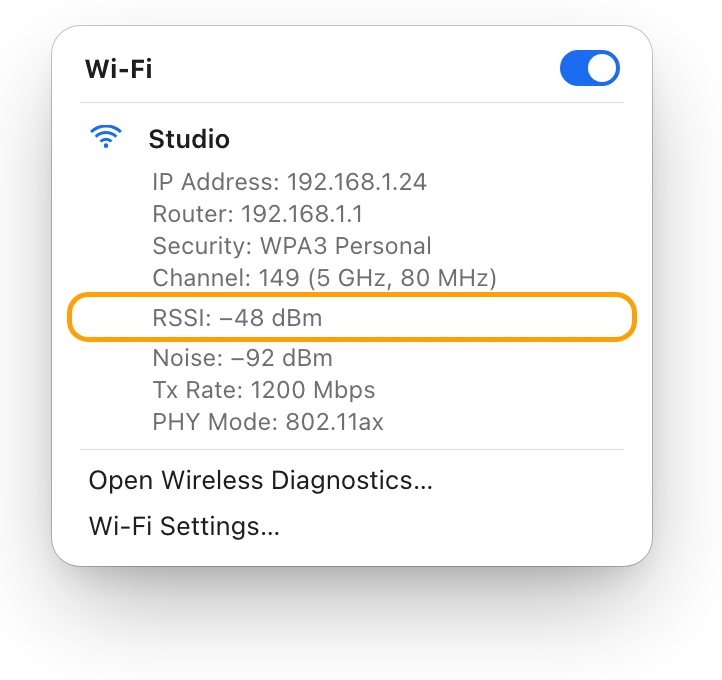
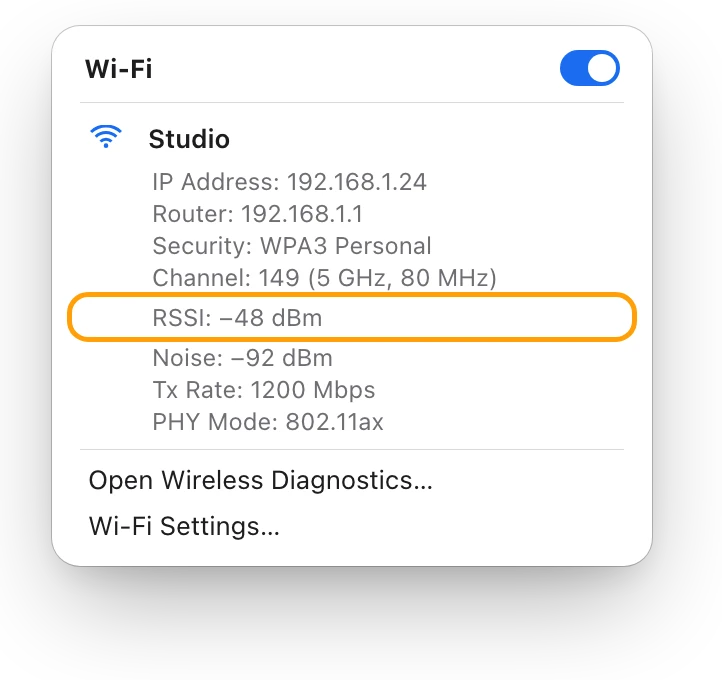
- Hold down the Option key and click the Wi-Fi icon in the menu bar.
- Look under the network you’re connected to: the router’s address is listed with your IP address, channel and signal.
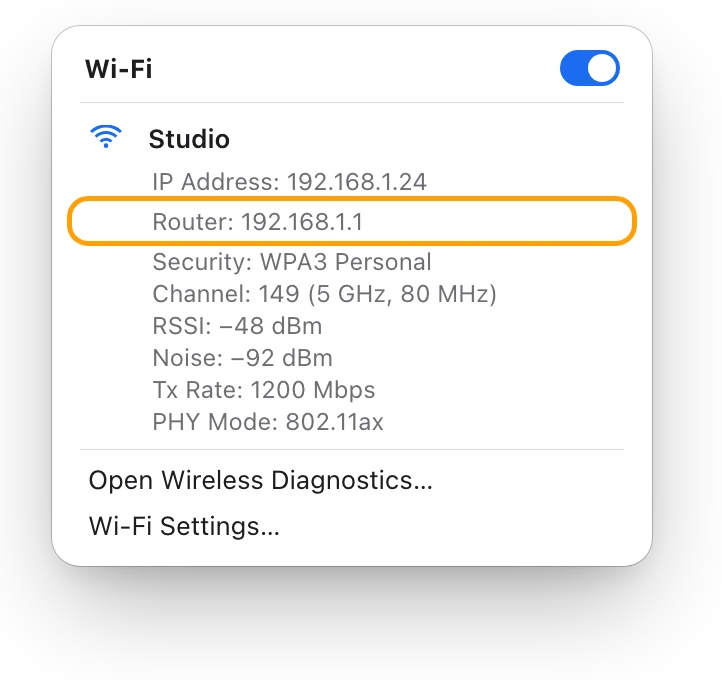
Then ping it:
ping -c 10 192.168.1.1studio@MacBook-Pro ~ % ping -c 10 192.168.1.1PING 192.168.1.1 (192.168.1.1): 56 data bytes64 bytes from 192.168.1.1: icmp_seq=0 ttl=64 time=3.412 ms64 bytes from 192.168.1.1: icmp_seq=1 ttl=64 time=2.987 ms64 bytes from 192.168.1.1: icmp_seq=2 ttl=64 time=4.105 ms64 bytes from 192.168.1.1: icmp_seq=3 ttl=64 time=3.226 ms64 bytes from 192.168.1.1: icmp_seq=4 ttl=64 time=2.874 ms64 bytes from 192.168.1.1: icmp_seq=5 ttl=64 time=3.561 ms64 bytes from 192.168.1.1: icmp_seq=6 ttl=64 time=5.218 ms64 bytes from 192.168.1.1: icmp_seq=7 ttl=64 time=3.047 ms64 bytes from 192.168.1.1: icmp_seq=8 ttl=64 time=2.931 ms64 bytes from 192.168.1.1: icmp_seq=9 ttl=64 time=3.390 ms --- 192.168.1.1 ping statistics ---10 packets transmitted, 10 packets received, 0.0% packet lossround-trip min/avg/max/stddev = 2.874/3.475/5.218/0.678 msstudio@MacBook-Pro ~ %
Now ping a website. Use one you know replies, such as apple.com:
ping -c 10 apple.comstudio@MacBook-Pro ~ % ping -c 10 apple.comPING apple.com (17.253.144.10): 56 data bytes64 bytes from 17.253.144.10: icmp_seq=0 ttl=57 time=11.284 ms64 bytes from 17.253.144.10: icmp_seq=1 ttl=57 time=10.962 ms64 bytes from 17.253.144.10: icmp_seq=2 ttl=57 time=11.607 ms64 bytes from 17.253.144.10: icmp_seq=3 ttl=57 time=11.153 ms64 bytes from 17.253.144.10: icmp_seq=4 ttl=57 time=10.871 ms64 bytes from 17.253.144.10: icmp_seq=5 ttl=57 time=11.438 ms64 bytes from 17.253.144.10: icmp_seq=6 ttl=57 time=12.502 ms64 bytes from 17.253.144.10: icmp_seq=7 ttl=57 time=11.076 ms64 bytes from 17.253.144.10: icmp_seq=8 ttl=57 time=10.994 ms64 bytes from 17.253.144.10: icmp_seq=9 ttl=57 time=11.317 ms --- apple.com ping statistics ---10 packets transmitted, 10 packets received, 0.0% packet lossround-trip min/avg/max/stddev = 10.871/11.320/12.502/0.449 msstudio@MacBook-Pro ~ %
Here, the trip to the router takes about 3.5 ms of the 11.3 ms, so most of the time is spent beyond the router.
How do I read the results?
Each reply line shows, in order, the bytes received, the sequence number (icmp_seq, counting from 0), the time to live (ttl) and the round-trip time (time=).
- time= is the round trip for that ping, in ms. Lower is quicker.
- Packet loss is the share of pings that never came back. Check that the number of packets transmitted equals the number received: 0.0% packet loss is a successful test.
- round-trip min/avg/max/stddev gives the shortest, average and longest times, and the standard deviation: how much the times varied. A small spread means a steady connection; a large one means the delay jumps around.
- Request timeout for icmp_seq means that ping got no reply in time.
Put the two pings together:
| Router ping | Website ping | Where to look |
|---|---|---|
| Replies, 0.0% loss | Replies, 0.0% loss | The basic connection works |
| Replies, 0.0% loss | Timeouts or loss | Past the router: the modem, the provider or that site |
| Timeouts or loss | Timeouts or loss | The Wi-Fi link or the router |
Some devices and servers don’t answer pings at all, so one silent site doesn’t prove a problem. Ping another site before you decide. If nothing past the router answers, see Mac connected to Wi-Fi but no internet?
What’s a good ping on a Mac?
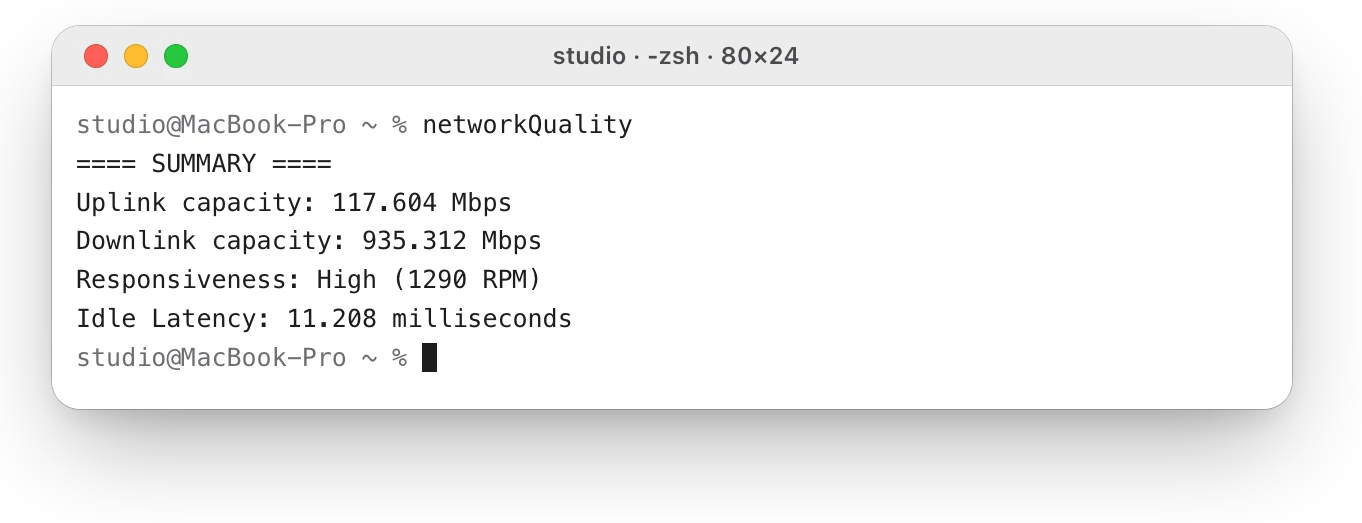
Apple doesn’t give a number in milliseconds. Instead, macOS has its own test that rates the connection: networkQuality. Type it in Terminal and press Return.
studio@MacBook-Pro ~ % networkQuality==== SUMMARY ====Uplink capacity: 117.604 MbpsDownlink capacity: 935.312 MbpsResponsiveness: High (1290 RPM)Idle Latency: 11.208 millisecondsstudio@MacBook-Pro ~ %
- Idle Latency is the round-trip time while the connection is quiet, much like ping.
- Responsiveness is how many round trips the connection completes in a minute under normal working conditions, in round trips per minute (RPM).
Apple rates responsiveness in three steps. Low: when another device downloads a movie or backs up photos, FaceTime calls or games may be unreliable. Medium: with several devices sharing the network, calls may pause or freeze for a moment. High: apps and services should keep a good connection however many devices share it. How to test internet speed on a Mac explains the rest of its numbers.
Questions people also ask
How do I stop ping on a Mac?
Press Control-C or Command-period. Ping stops and shows its summary. With -c 10, it stops by itself after 10 pings.
Why is my ping fine but calls still lag?
Ping measures a quiet connection. Calls lag when the delay grows while something else is downloading or uploading, which is what responsiveness measures. Run networkQuality to see it.
Does a ping test use much data?
No. Each ping is a tiny message, so ten of them use a few kilobytes. networkQuality is different: it moves a lot of data to measure your speed, so it uses much more.
Is ping to my router slower on Wi-Fi?
It can be, because every reply travels over Wi-Fi. If router pings are slow or lost, check the signal: What’s a good Wi-Fi signal? dBm explained.
Scope for Mac · Free, coming to the Mac App Store
How Scope helps
Scope is a free Mac menu bar app that runs macOS’s own networkQuality test in one click and shows your connection’s latency beside its download and upload speed, plus how quickly the connection still replies while it’s busy. It saves typing commands to see whether the delay is in your Wi-Fi or your internet.
In your menu bar

Latency in one click
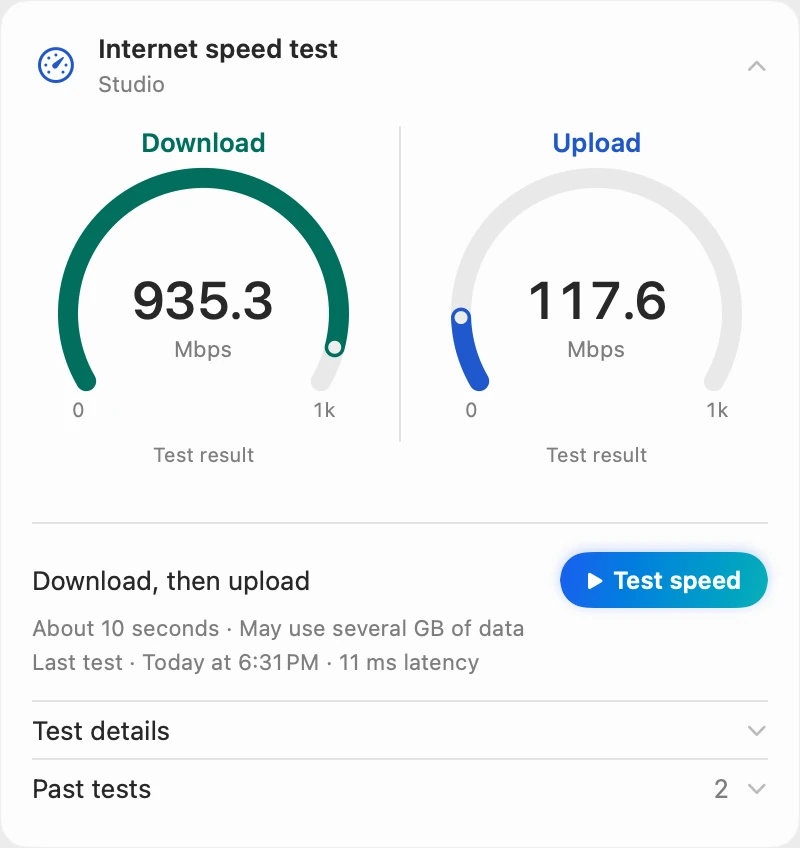
The last test’s idle latency sits under the speed meters, with the time it ran. Click it for one plain sentence on what it means.
Delay when it’s busy
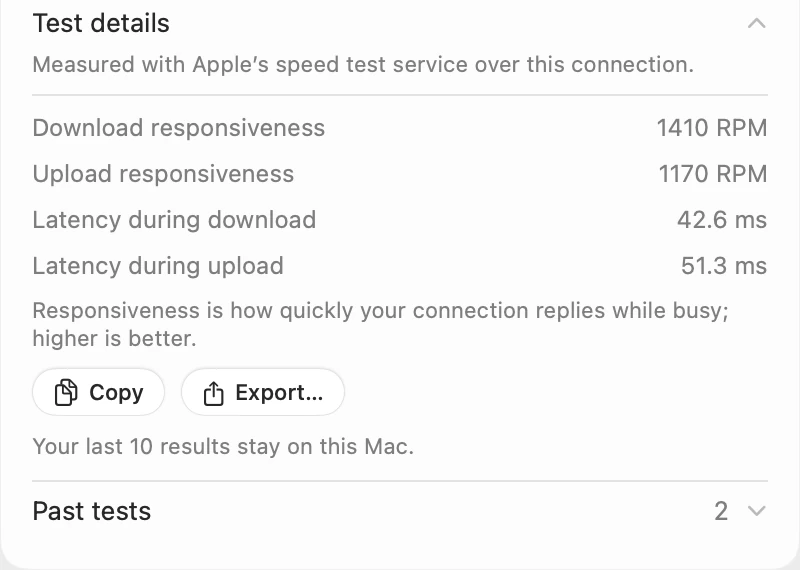
A plain ping on a quiet connection doesn’t show this. Scope tests download, then upload, one after the other, so it gives a responsiveness for each direction and turns it into milliseconds: 60,000 ms ÷ 1410 RPM is about 42.6 ms.
Is it the Wi-Fi?
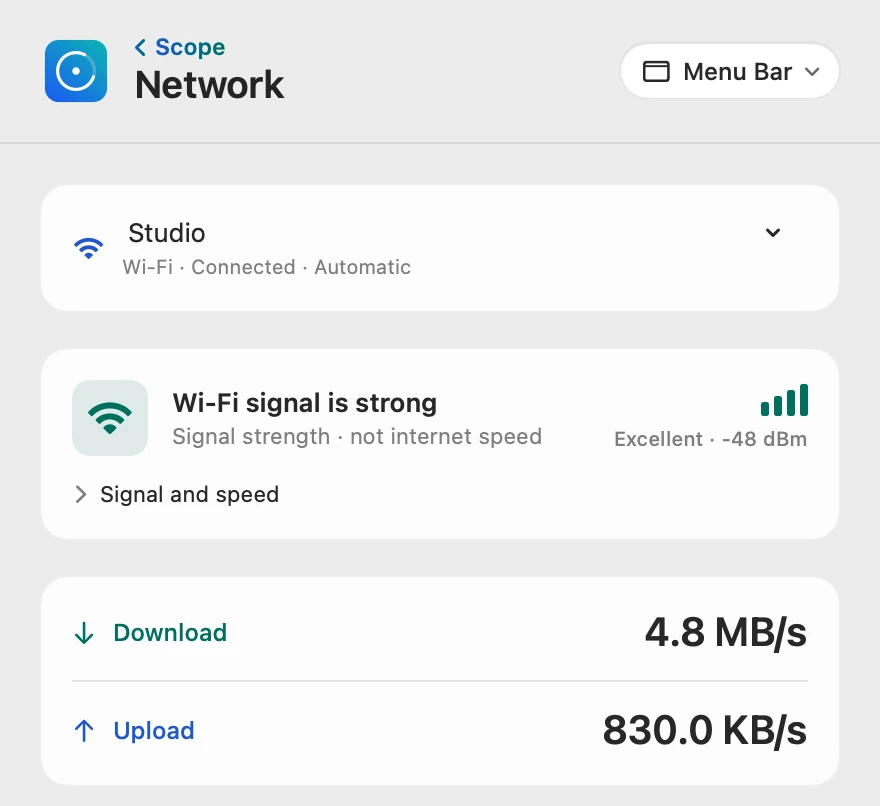
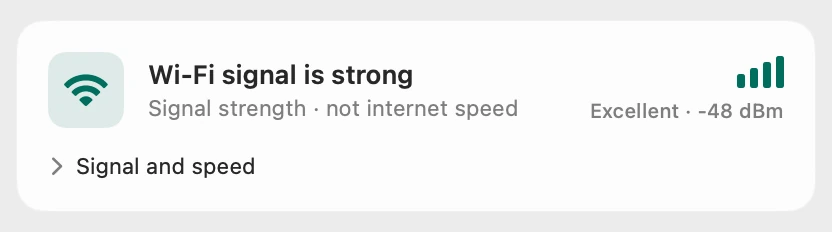
Like the router ping, the signal card checks the first part of the trip: Scope shows the Wi-Fi signal in dBm and in words, apart from the internet test.
Scope shows and explains. It never changes your network or your settings.
Try it here
The real Scope, working, right in this page.
Click any item in the menu bar, or a card inside, as you would on your Mac.
Scope Pro Every menu bar item is shown here. Scope Free keeps one whole item of your choice, with every reading inside.
See your own connection’s delay.
Keep reading
Guide · Internet and Wi-Fi
Mac Wi-Fi problems: slow, dropping or no internet
Mac Wi-Fi problems start in the Wi-Fi link or the internet behind the router. Two checks tell them apart; then fix it when it’s slow, drops or won’t load.
Internet and Wi-Fi
How to test internet speed on a Mac
Every Mac has a built-in internet speed test: type networkQuality in Terminal. Here’s how to run it and read its capacity and responsiveness.
Internet and Wi-Fi
Why is my Mac’s Wi-Fi so slow? How to find out
Slow Wi-Fi on a Mac is a weak link to the router or a slow line behind it. Option-click the Wi-Fi menu, run networkQuality, then check Activity Monitor.
Internet and Wi-Fi
Mac connected to Wi-Fi but no internet? What to do
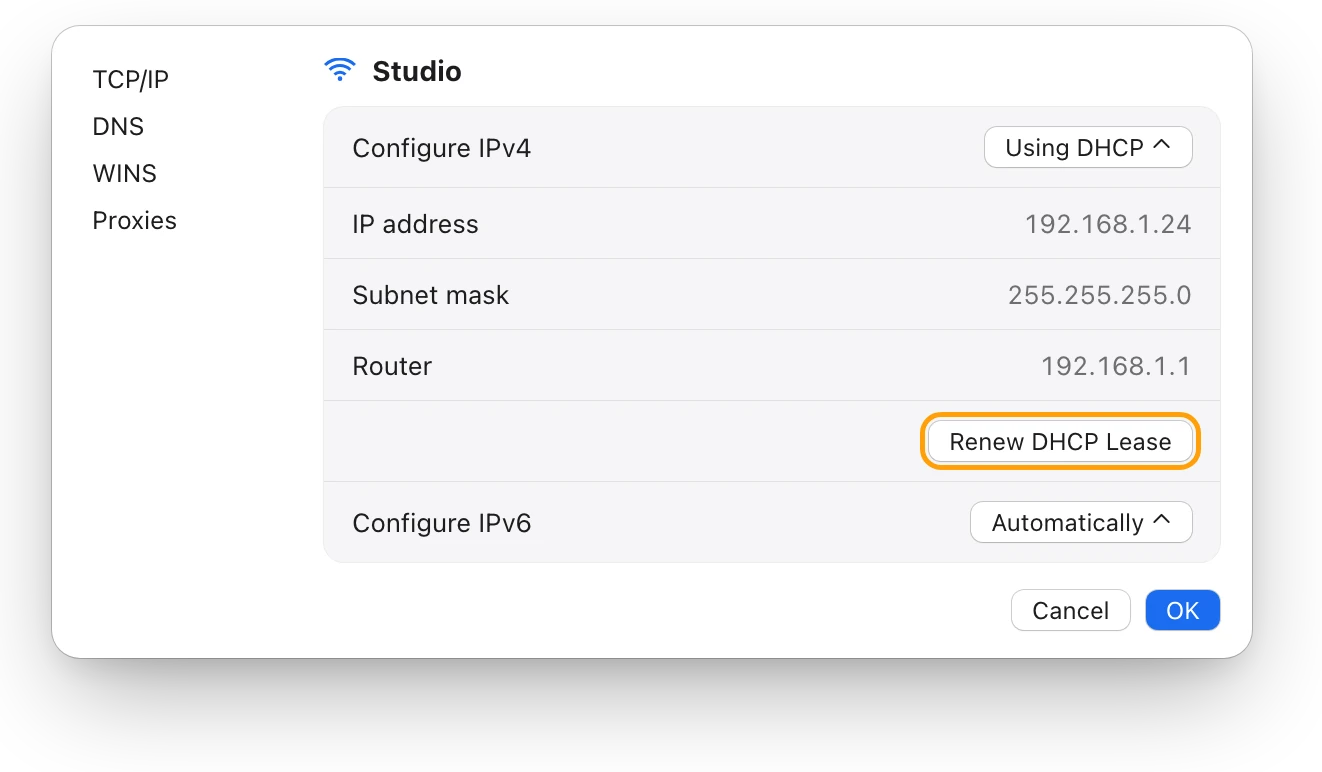
Wi-Fi but no internet means the router link works and the way out doesn’t. Check other devices, restart the router, then renew your Mac’s address.
Internet and Wi-Fi
What’s a good Wi-Fi signal? dBm explained
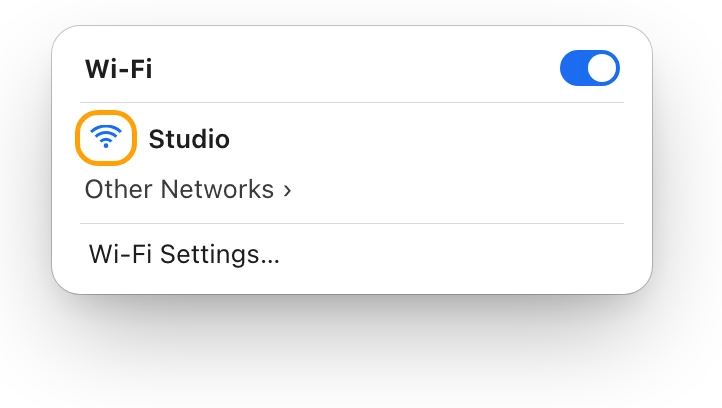
Wi-Fi signal is measured in dBm: closer to zero is stronger. Here’s how to see your Mac’s signal, what RSSI and noise mean, and why signal isn’t speed.
Sources
- Apple Support: Use network tools to test connections
- Apple Support: Use the Wi-Fi status menu on Mac
- Apple Support: Test Wi-Fi networks with Apple Network Responsiveness
Last checked October 18, 2026. Readings, apps and files in the pictures are from a made-up Mac.