Mac overheating? Every cause and what to do
Mac overheating usually has one of three causes: an app keeping the processor busy for minutes, vents that can’t move air, or a room warmer than 35 °C (95 °F). Activity Monitor’s CPU list shows the busy app, and a hard, flat surface lets the fans cool the Mac. At its highest heat levels, macOS slows the Mac down until it cools.
What makes a Mac overheat?
Each cause has a sign you can check, and a guide that goes deeper.
| Cause | The sign | What to do | Guide |
|---|---|---|---|
| A busy app | One app stays at the top of Activity Monitor’s % CPU list for minutes | Let its work finish, or quit it | Getting hot |
| Blocked air or a warm room | The fans run more on a bed or your lap, and start sooner in a warm room | Use a hard, flat surface; keep the room between 10 °C and 35 °C | Fan loud |
| macOS cooling itself | kernel_task near the top of the % CPU list | Look past it for the busy app | kernel_task |
| Heat slowing the Mac | Heavy work takes longer while the fans run at full speed | Let the Mac cool, and give it air | Throttling |
| Charging while busy | Warm while plugged in; charging may stop at 80% | Give the Mac and its power adapter air | Hot while charging |
Is an app making your Mac hot?
A busy processor makes heat. An export, a render, a game or Spotlight indexing after you move your data to a new Mac can keep it busy for minutes.
- Open Activity Monitor. It’s in Applications > Utilities, or search for it with Spotlight.
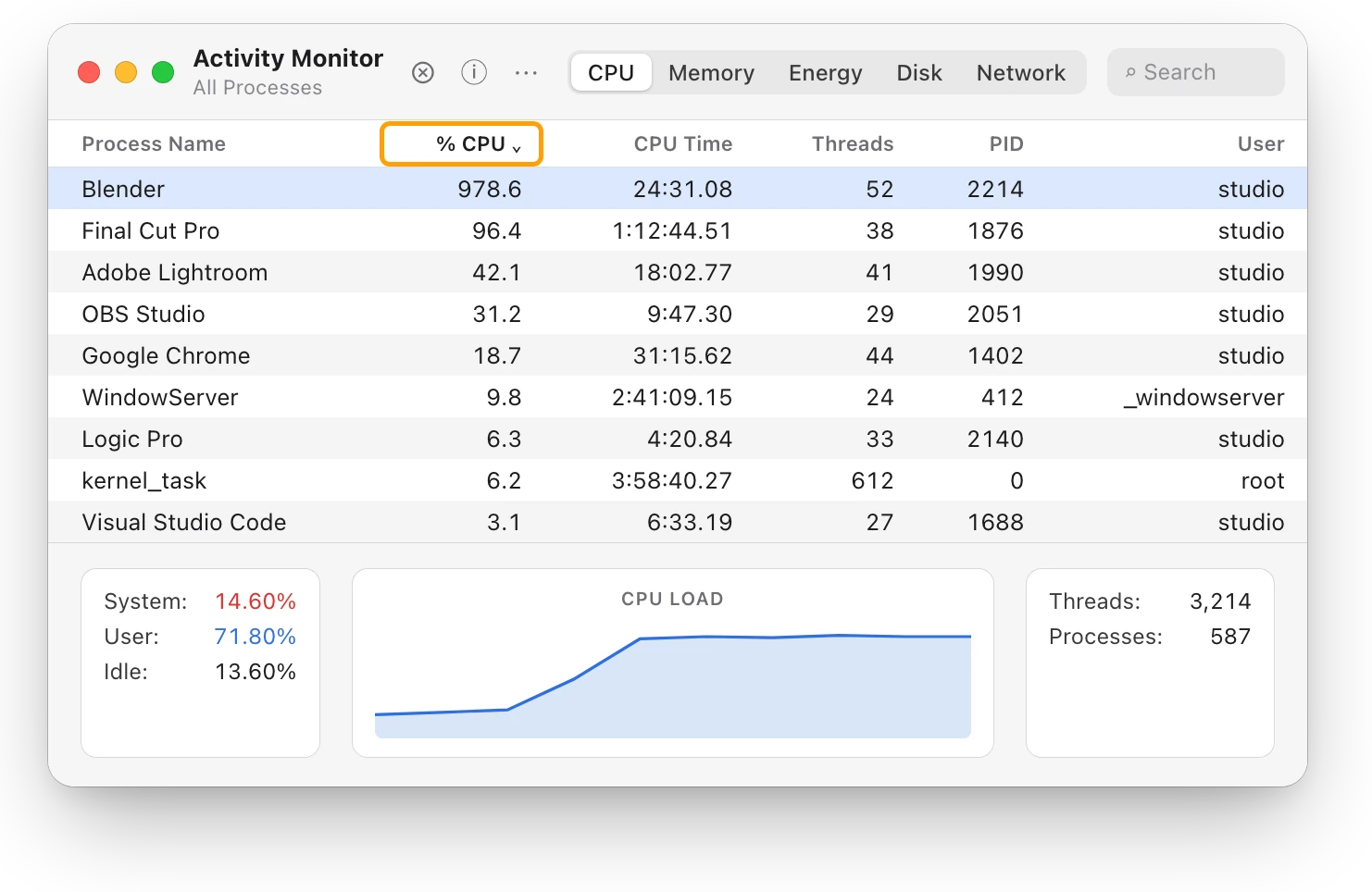
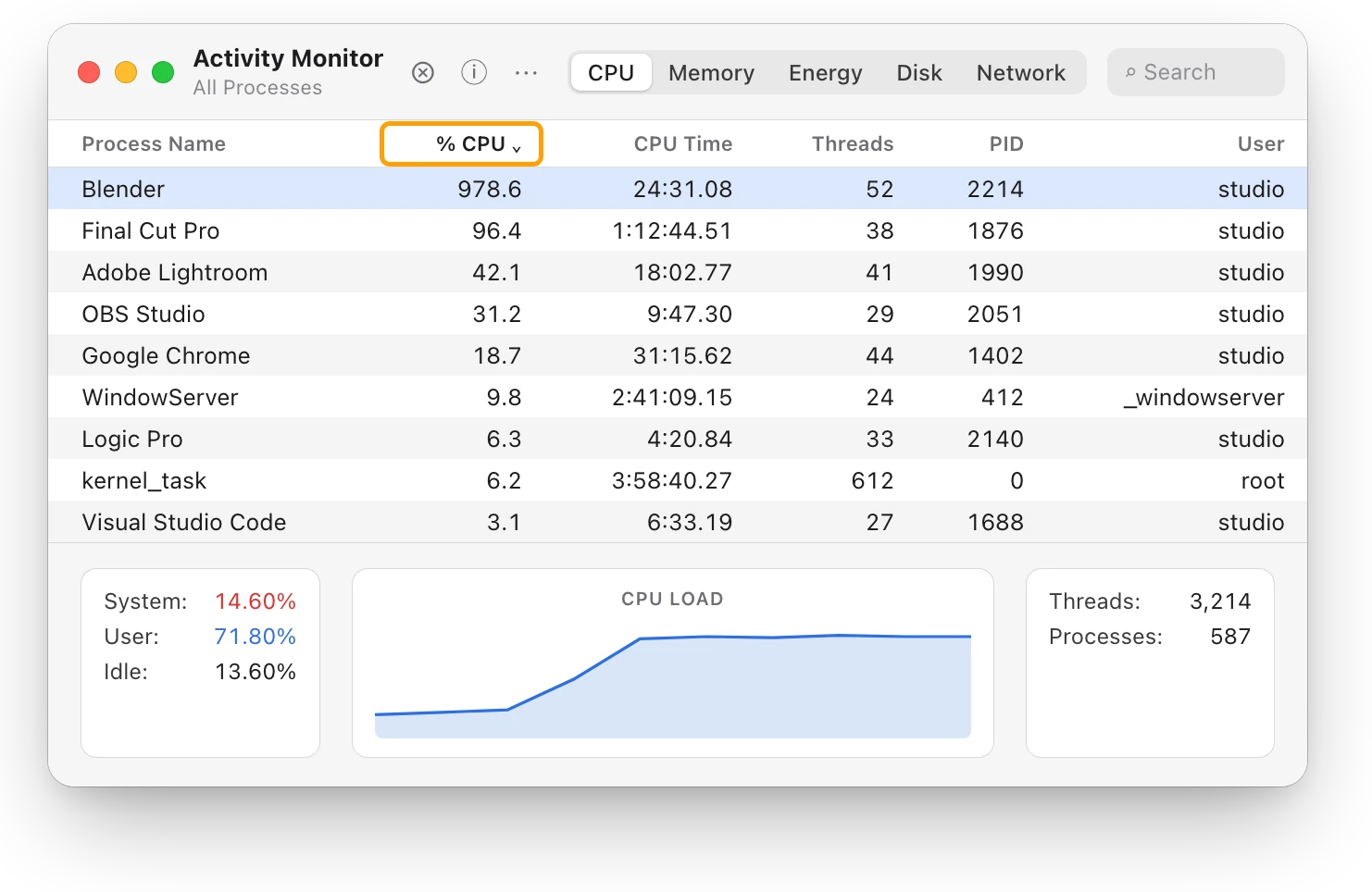
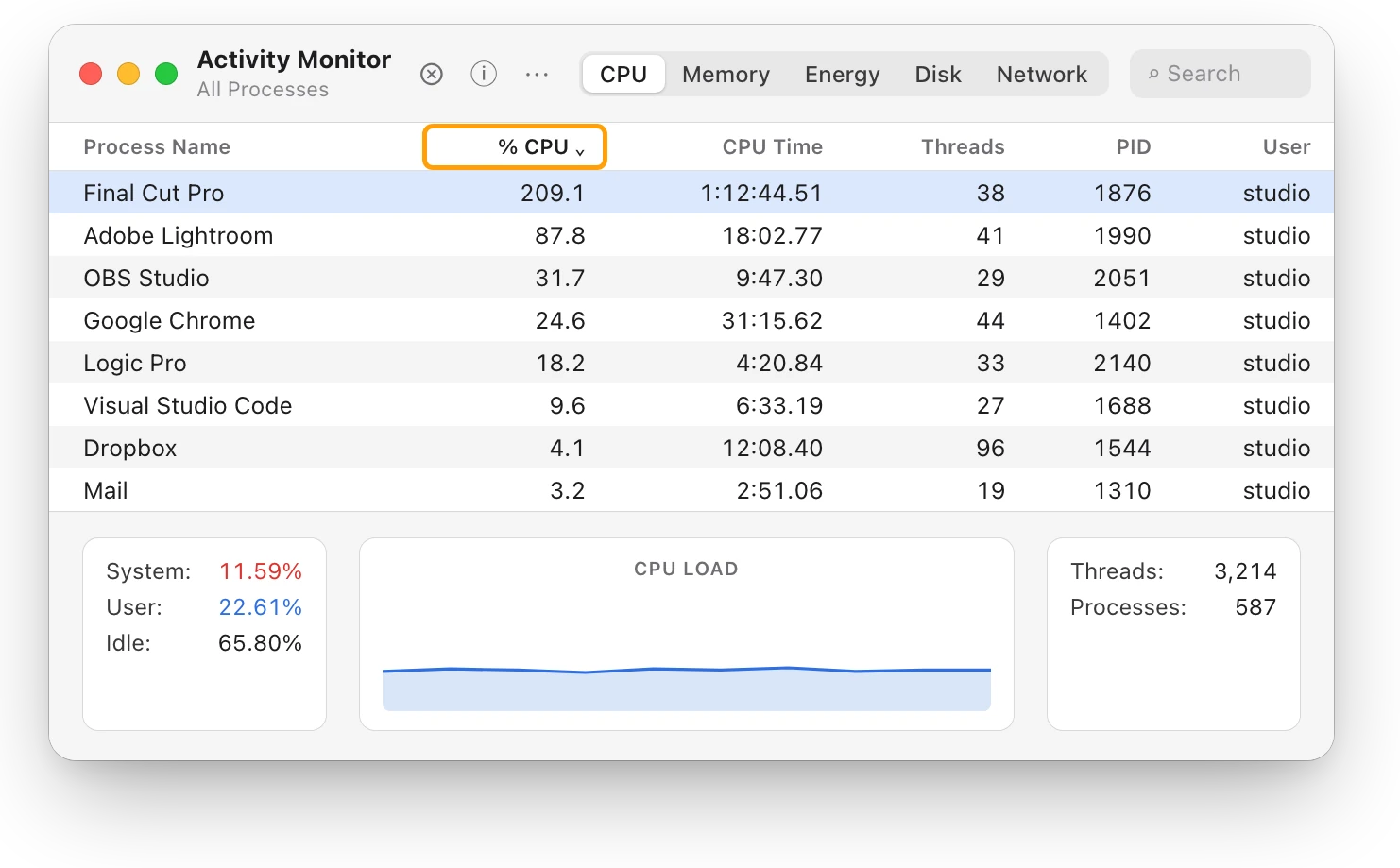
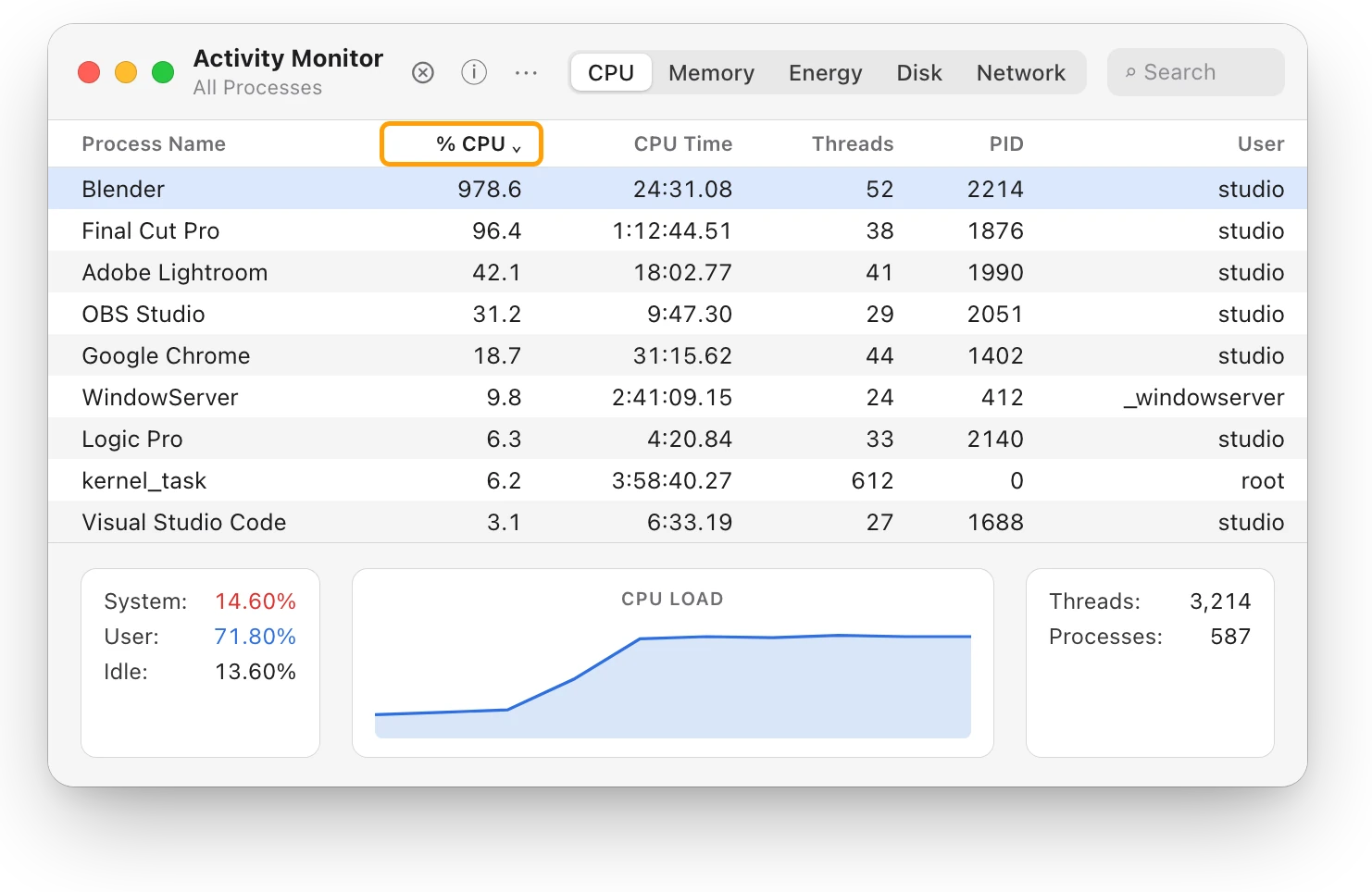
- Click CPU, then click the % CPU column heading to sort the list, busiest first.
- Watch the top of the list for a minute. An app that stays there is making the heat.
- If you don’t need that app now, quit it, saving your work first. If it’s doing work you asked for, let it finish on a desk with room for air.
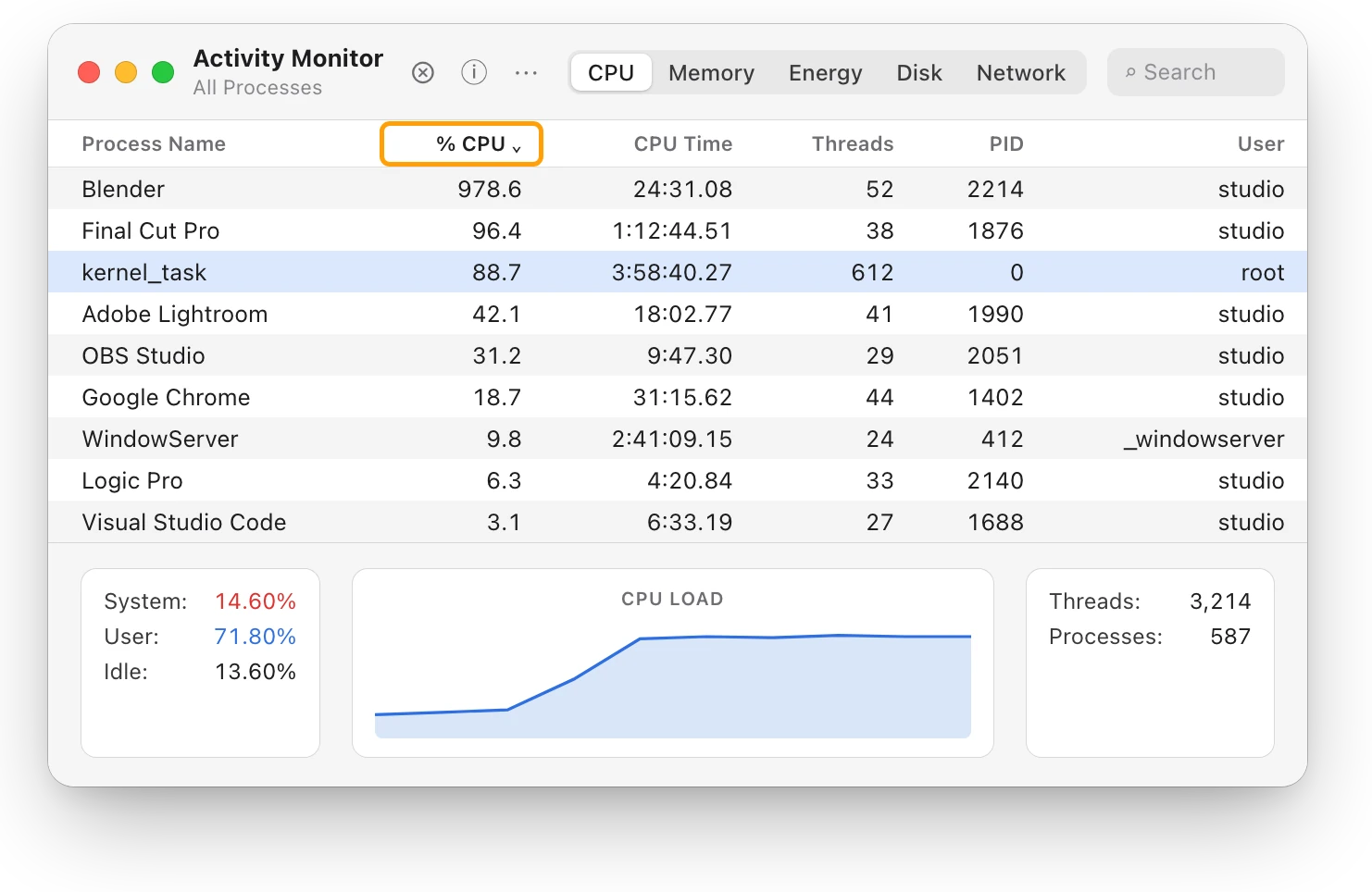
Activity Monitor counts each processor core as 100%, so a render on many cores shows far more than 100%. Why is my MacBook getting hot? covers busy apps and heat in more detail.
Is your Mac getting enough air?
The fans can only cool your Mac if air can reach it. Apple’s advice for Mac laptops:
- Use a hard, flat surface, such as a table or desk. On a couch, a pillow, a bed or your lap, the fans may run more.
- Keep the vents clear. Keep things off the keyboard and out of the vent openings.
- Keep the room in range. Use your Mac laptop where it’s between 10 °C and 35 °C (50 °F and 95 °F). Don’t leave it in a parked car, which can get hotter than that.
- Install software updates, and use only Apple-authorized power adapters.
Why is my Mac’s fan so loud?
The fans speed up to move more air when your Mac works hard. Apple calls the rushing-air sound a normal part of cooling, and says that in a warm room the fans turn on sooner and run faster.
If the fan stays loud for minutes, something is usually keeping the processor busy, so check Activity Monitor’s CPU list as above. MacBook fan loud? What’s making it spin up covers what to do, and what to try when the fan stays loud with nothing busy.
Why is kernel_task using so much CPU?
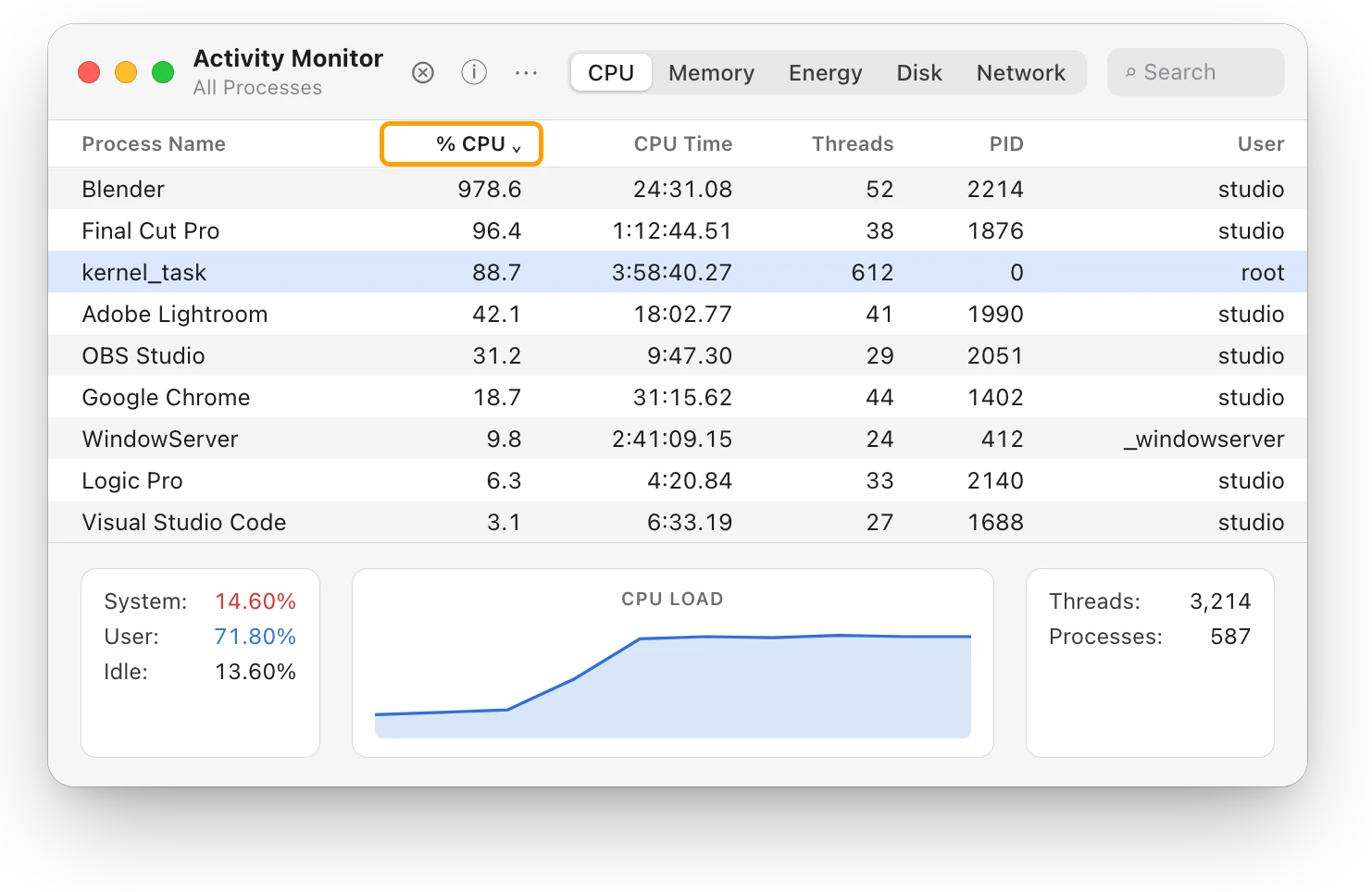
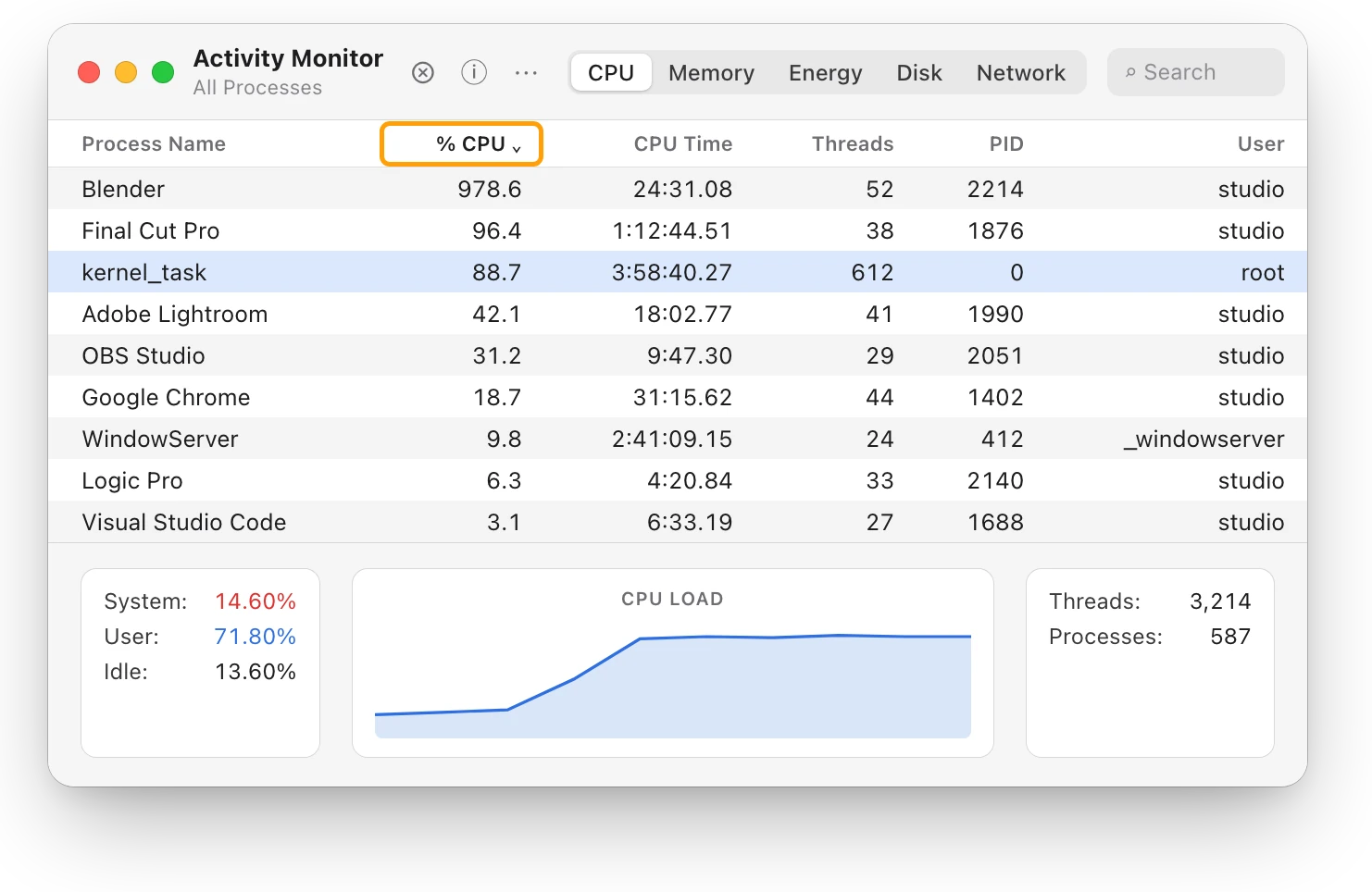
kernel_task is part of macOS, not an app you opened. Apple says one of its jobs is to help manage the processor’s temperature, by making the processor less available to processes using it heavily. It responds to heat; it doesn’t cause it. When the processor cools, kernel_task reduces its activity on its own.
In the picture above, kernel_task is at 88.7% while Blender renders. Don’t try to quit kernel_task: look past it for the app doing the work. kernel_task high CPU? Your Mac is cooling itself explains it in full.
Is my Mac throttling?
Throttling is macOS slowing the processor so it can cool. macOS tracks a heat level in four steps, which Apple’s developer documentation calls thermal states:
| Heat level | What Apple’s documentation says |
|---|---|
| Nominal | Within normal limits |
| Fair | Slightly elevated; macOS runs the fans and stops background work you don’t need right away |
| Serious | High; macOS takes steps that reduce performance, and the fans run at maximum speed |
| Critical | Significantly affecting performance; the Mac needs to cool down |
At serious and critical, macOS reduces performance, so heavy work takes longer until your Mac cools. Mac thermal throttling: what the heat level means shows how to check for it.
Why does my MacBook get hot while charging?
Many people plug in for big jobs, such as exports and renders, so a busy processor adds its heat while the battery charges. Apple says a MacBook Pro and its power adapter may become very warm during normal use, and asks you to leave air around both.
If the battery gets too warm, charging may stop at 80%. Move your Mac somewhere cool and well ventilated, with the power adapter in the open too. MacBook hot while charging: normal or not? explains the 80% stop and when heat while charging is a problem.
How can I check my Mac’s temperature?
macOS doesn’t show your Mac’s chip temperature in degrees. Apps from other developers read sensors inside the Mac, but Apple says those readings aren’t the temperature of the case, which is much cooler, and that you should never use such apps to diagnose hardware problems.
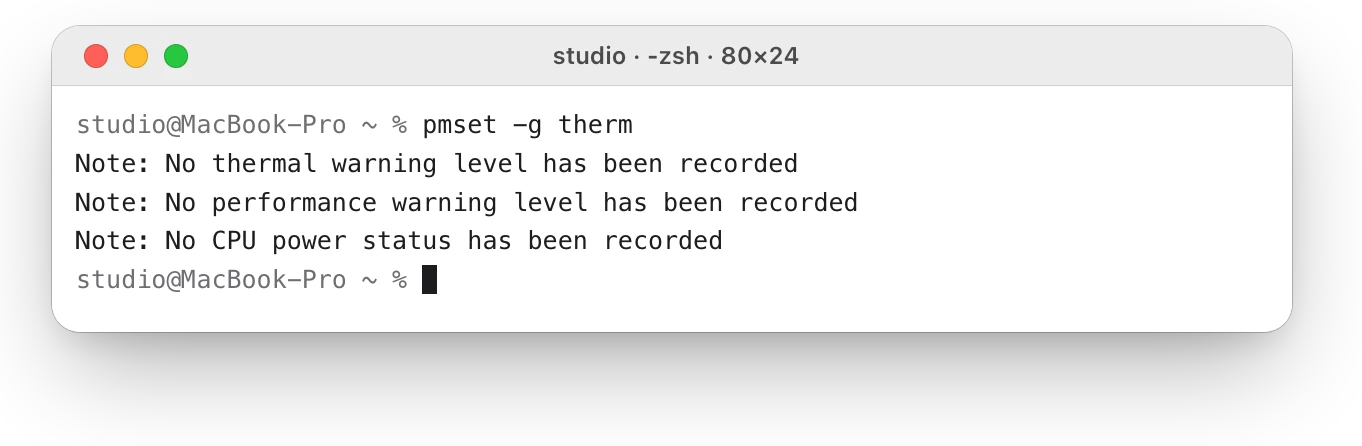
What macOS does report is its heat level. In Terminal, pmset -g therm shows thermal conditions that affect CPU speed. For the room, Apple gives a range for Mac laptops, 10 °C to 35 °C, rather than a chip temperature. How to check your Mac’s CPU temperature walks through both Terminal checks and what their results mean.
When should I contact Apple?
If your Mac stays hot, or its fans run fast while it isn’t doing heavy work and has room for air, follow Apple’s steps:
- Check Activity Monitor’s CPU list for a process putting a heavy load on the processor.
- Close the lid and open it again, or restart your Mac.
- On an Intel-based Mac, reset the SMC (System Management Controller), the chip that manages power and fans. On a Mac with Apple silicon, restarting does that.
- If the problem continues, contact Apple, visit an Apple Store or go to an Apple Authorized Service Provider.
Questions people also ask
How hot is too hot for a Mac?
Apple gives a room temperature range, not a chip limit: use a Mac laptop where it’s between 10 °C and 35 °C (50 °F and 95 °F). If your Mac stays hot during light work, follow Apple’s steps above.
Why is my Mac hot when I’m not doing anything?
Something may be working in the background, such as Spotlight indexing, a sync or an app that opens at login. Sort Activity Monitor’s CPU list by % CPU to see what it is.
Can heat damage my MacBook’s battery?
Yes. Apple says ambient temperatures above 35 °C (95 °F) can permanently damage battery capacity, so the battery won’t last as long on a charge, and that charging in that heat can damage it further. Even storing a battery somewhere hot can harm it.
Scope for Mac · Free, coming to the Mac App Store
How Scope helps
Scope is a free Mac menu bar app that shows the heat level macOS reports, Normal, Warm, High or Critical, beside how busy the processor is and which apps are using it. It shows what macOS itself reports, not temperatures in degrees or fan speeds, so you can see when your Mac is running hot without opening Terminal or Activity Monitor.
In your menu bar
Scope Free keeps one whole menu bar item of your choice, so the processor’s load stays in view.

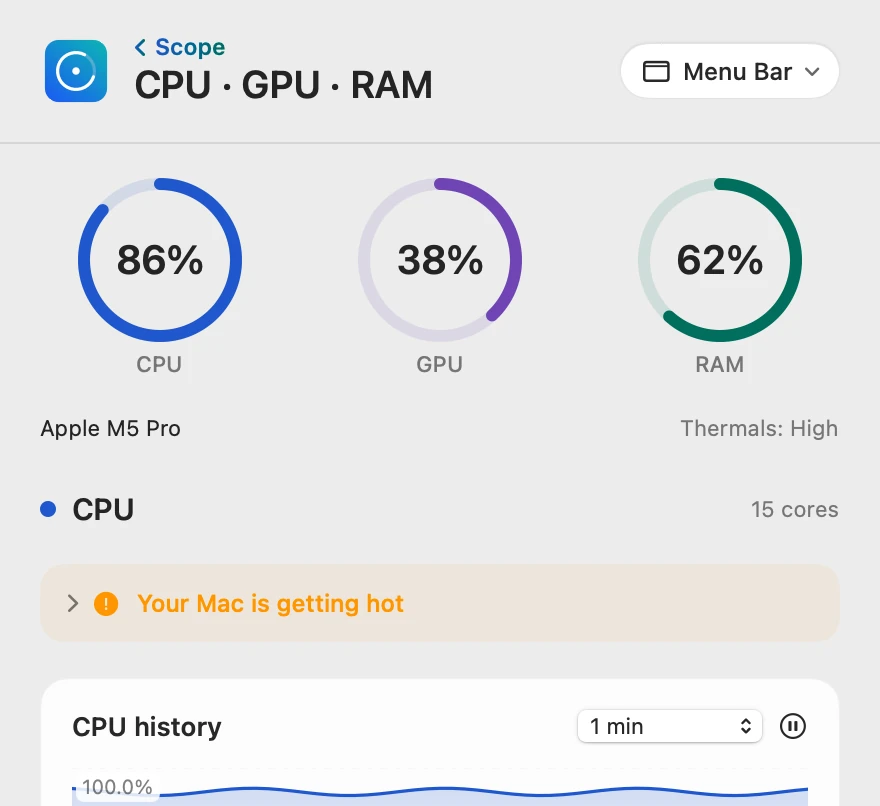
The heat level, beside the work
Thermals sits beside the chip’s name, in macOS’s four levels: Normal is nominal, Warm is fair, High is serious and Critical is critical. At High or Critical, the levels where performance is reduced, Scope’s tip says your Mac is getting hot.
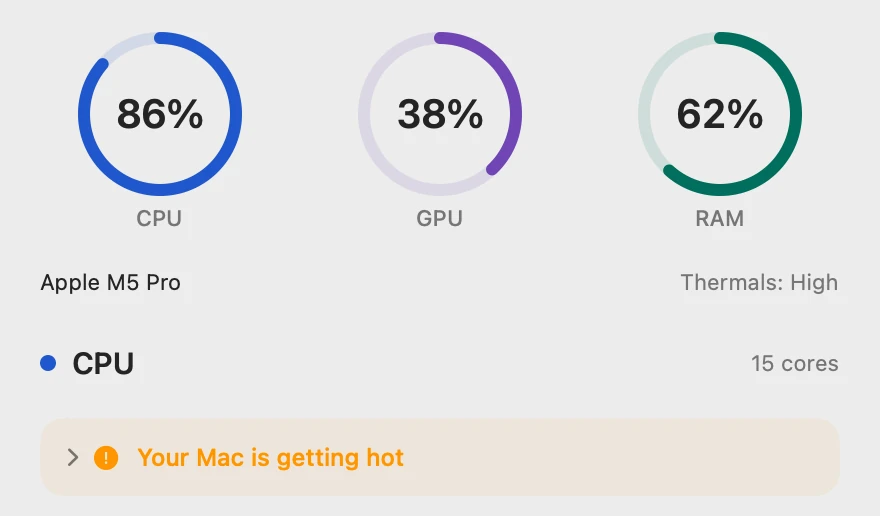
The app behind the heat
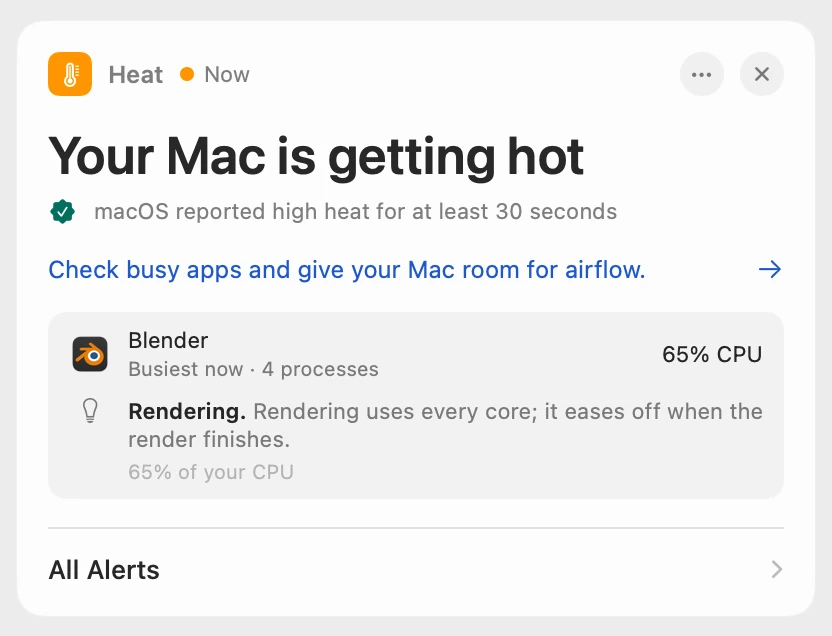
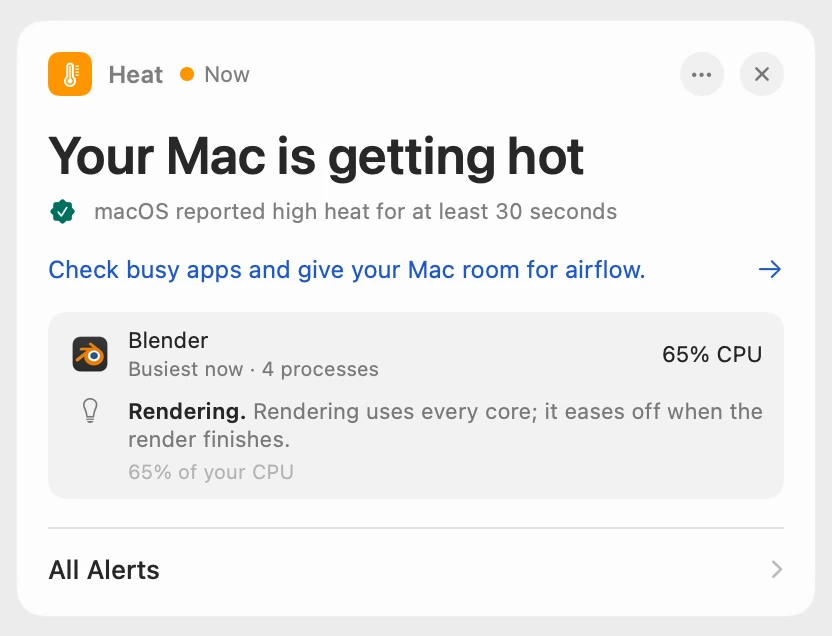
Scope shows each app’s share of the whole processor, so 100% means every core is busy. This Mac has 15 cores, so Blender’s 978.6% in Activity Monitor is 978.6 ÷ 15 = 65.2% here. Scope lists the apps you run, not macOS processes such as kernel_task.
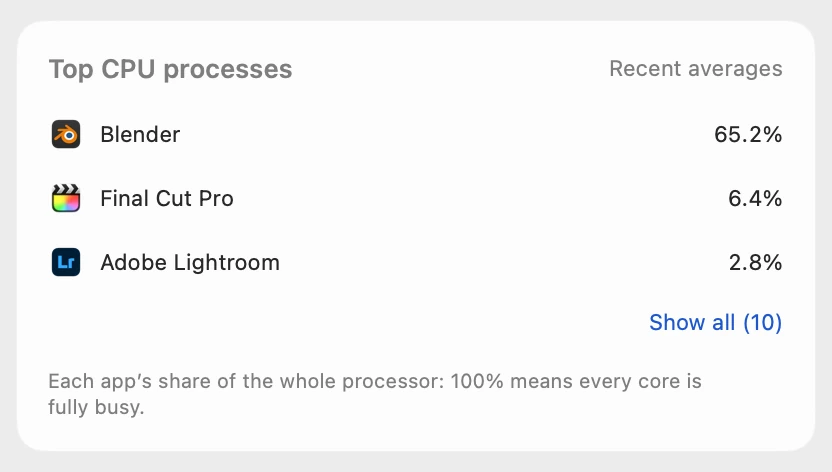
Named when heat lasts
Scope waits until macOS has reported high heat for at least 30 seconds, so a passing spike never raises an alert. Scope Free shows the alert when you open Scope. Scope Pro adds a red + on its menu bar icon and a notification, and names the busiest app, its helper processes counted together, with a tip about what it’s doing.
Scope shows and explains. It doesn’t control the fans, quit apps or change how your Mac cools itself.
Try it here
The real Scope, working, right in this page.
Click any item in the menu bar, or a card inside, as you would on your Mac.
Scope Pro Every menu bar item is shown here. Scope Free keeps one whole item of your choice, with every reading inside.
See what’s heating up your own Mac.
Answers in this guide
Heat
Why is my MacBook getting hot?
A MacBook gets hot when its processor works hard or its vents can’t move air. Here’s how to find the busy app and cool it down, with macOS’s tools.
Heat
MacBook fan loud? What’s making it spin up
A MacBook fan gets loud when the Mac works hard for minutes, the room is warm or the vents are blocked. Find the busy app, then give your Mac air.
Heat
kernel_task high CPU? Your Mac is cooling itself
High kernel_task CPU means your Mac is too hot: macOS holds the processor back while it cools. Find the app making the heat, and give your Mac air.
Heat
Mac thermal throttling: what the heat level means
Thermal throttling is macOS slowing a hot Mac so it can cool. Here’s what its four heat levels mean, how to check for it, and how to keep your Mac cooler.
Heat
MacBook hot while charging: normal or not?
A MacBook often gets warm while it charges, more so when it’s busy. It’s normal on a hard surface in a 10–35 °C room; here’s what to check if it’s hot.
Heat
How to check your Mac’s CPU temperature
macOS doesn’t show your Mac’s CPU temperature in degrees. It reports a heat level instead. Here’s how to check it, and what Apple says is normal.
Heat
Mac alerts for overheating, memory, disk and battery
Scope tells you when your Mac stays hot, runs short of memory, fills a drive or needs battery service, never for a brief spike. Free on the Mac App Store.
Keep reading
Guide · Slow Mac
Why is my Mac slow? How to find the cause
A slow Mac is usually a busy app, too little memory, a nearly full disk or heat. Here’s how to see which one with macOS’s own tools.
Guide · Battery
Mac battery problems: drain, health and charging
Most MacBook battery problems are a busy app, a worn battery, charging paused on purpose or a weak charger. Here’s how to tell which, with macOS’s tools.
Sources
- Apple Support: Keep your Mac laptop within acceptable operating temperatures
- Apple Support: About fans and fan noise in your Apple product
- Apple Support: If kernel_task is using a large percentage of your Mac CPU
- Apple Developer: ProcessInfo.ThermalState
- Apple Support: Important safety information for your MacBook Pro
- Apple Support: If your Mac battery won’t charge
- Apple: Maximizing Battery Life and Lifespan
- Apple Support: View CPU activity in Activity Monitor on Mac
- Apple Support: View information about Mac processes in Activity Monitor
Last checked October 18, 2026. Readings, apps and files in the pictures are from a made-up Mac.