How to check your Mac’s CPU temperature
macOS has no built-in app that shows your Mac’s CPU temperature in degrees. What macOS reports is a heat level: in Terminal, pmset -g therm shows any heat warning that affects CPU speed, and sudo powermetrics --samplers thermal -n 1 shows the current thermal pressure. Apple gives a room temperature range for Mac laptops, 10 °C to 35 °C, not a CPU temperature.
Can a Mac show its CPU temperature?
Not in macOS’s own apps. Apple doesn’t describe a way to see the CPU temperature in degrees, and Activity Monitor’s guide covers CPU, GPU, memory, energy, disk, network and cache activity, with no temperature view.
Instead, macOS manages the temperature itself. Sensors inside your Mac watch it, the fans turn on to cool critical parts, and when heat builds up macOS slows the processor down until it cools. You can’t see the degrees, but you can see how hard macOS is working to keep the heat down.
Apps from other developers can read temperature sensors inside the Mac. Apple says it’s important to understand that these apps don’t measure the case temperature, which is much lower, and that you should never use them to diagnose possible hardware issues.
How do I check my Mac’s heat level?
Terminal has two commands that report it. Terminal is in Applications > Utilities.
Check for heat warnings with pmset
- Open Terminal.
- Type this and press Return:
pmset -g therm- Read the result. Its manual page (
man pmset) says this shows thermal conditions that affect CPU speed. It isn’t available on every Mac.
studio@MacBook-Pro ~ % pmset -g thermNote: No thermal warning level has been recordedNote: No performance warning level has been recordedNote: No CPU power status has been recordedstudio@MacBook-Pro ~ %
“No thermal warning level has been recorded” means macOS hasn’t logged heat that affects the CPU’s speed. This command needs no password.
See the current thermal pressure with powermetrics
- In Terminal, type this and press Return:
sudo powermetrics --samplers thermal -n 1- Enter your administrator password when Terminal asks. Nothing appears as you type; press Return. powermetrics needs administrator rights, or it reports “powermetrics must be invoked as the superuser”.
- Wait about 5 seconds. powermetrics takes one sample (that’s what
-n 1asks for), lists some details about your Mac, then a section headed “Thermal pressure”. - Read the line “Current pressure level”. Nominal is the calm level. Moderate and Heavy mean macOS is under more heat pressure.
The manual page (man powermetrics) says the thermal sampler shows the current thermal pressure, as the value at the end of the sample.
Which check should I use?
| Check | What it tells you | Needs |
|---|---|---|
pmset -g therm | Whether macOS has recorded heat that affects CPU speed | Nothing |
sudo powermetrics --samplers thermal -n 1 | The current thermal pressure: Nominal, Moderate, Heavy | An administrator password |
| Activity Monitor > CPU | Which app is making the heat | Nothing |
| Your ears | Fans speed up during heavy work or in a warm room | Nothing |
What is a normal CPU temperature for a Mac?
Apple doesn’t publish one. Apple sets a room temperature range instead: use a Mac laptop where it’s between 10 °C and 35 °C (50 °F and 95 °F), with relative humidity between 0% and 95%, not condensing. Apple also says Mac laptops comply with all temperature limits set in national and international safety standards.
So the number that matters is the heat level, not degrees. Apple’s developer documentation describes four levels that macOS reports to apps:
- Nominal: within normal limits.
- Fair: slightly elevated; macOS runs the fans and stops background work that isn’t needed right away.
- Serious: high; macOS takes steps that reduce performance, and the fans run at maximum speed.
- Critical: performance is significantly affected, and the Mac needs to cool down.
At Nominal and Fair you won’t feel a difference. Mac thermal throttling explains what happens at the higher levels.
Is it normal for my MacBook to feel hot?
Warm, yes. Apple says a Mac laptop can get warm during normal use. Fans running faster during heavy work, such as compressing video or playing a graphics-heavy game, are a normal part of cooling, and in a warm room they turn on sooner and run faster.
It’s worth a look when your Mac stays hot while it isn’t doing heavy work, or its fans run for a long time.
What should I do if my Mac is running hot?
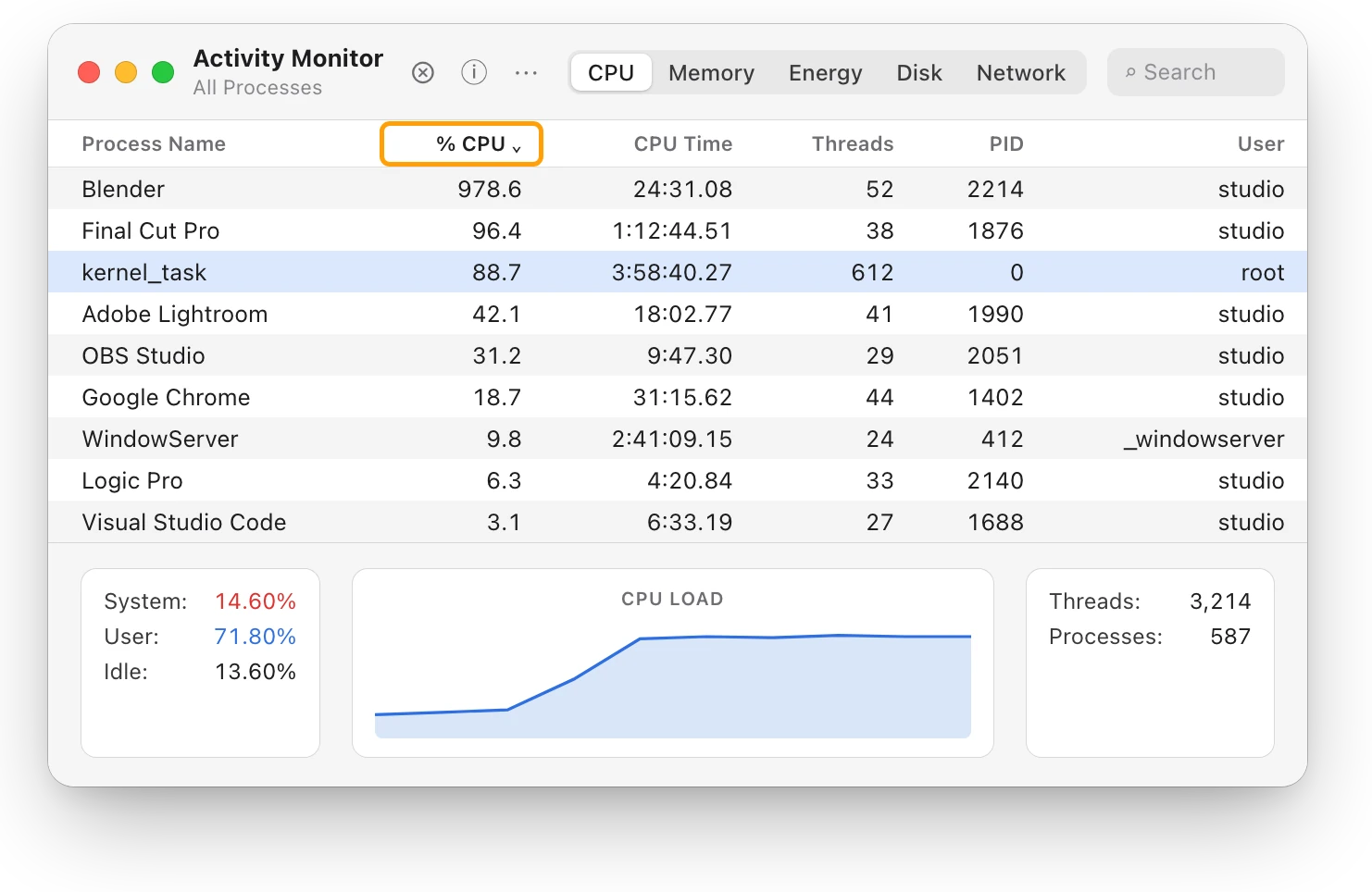
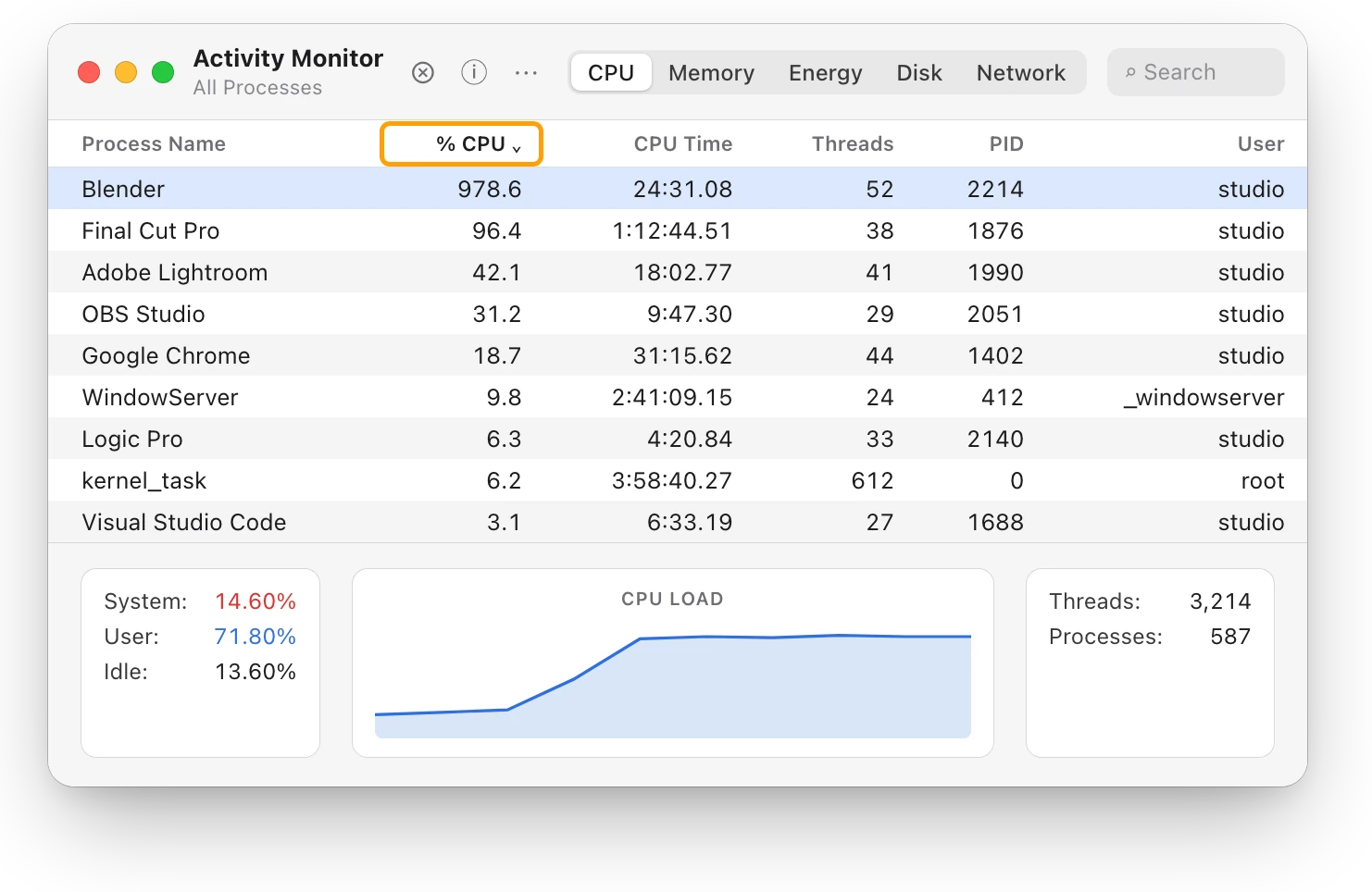
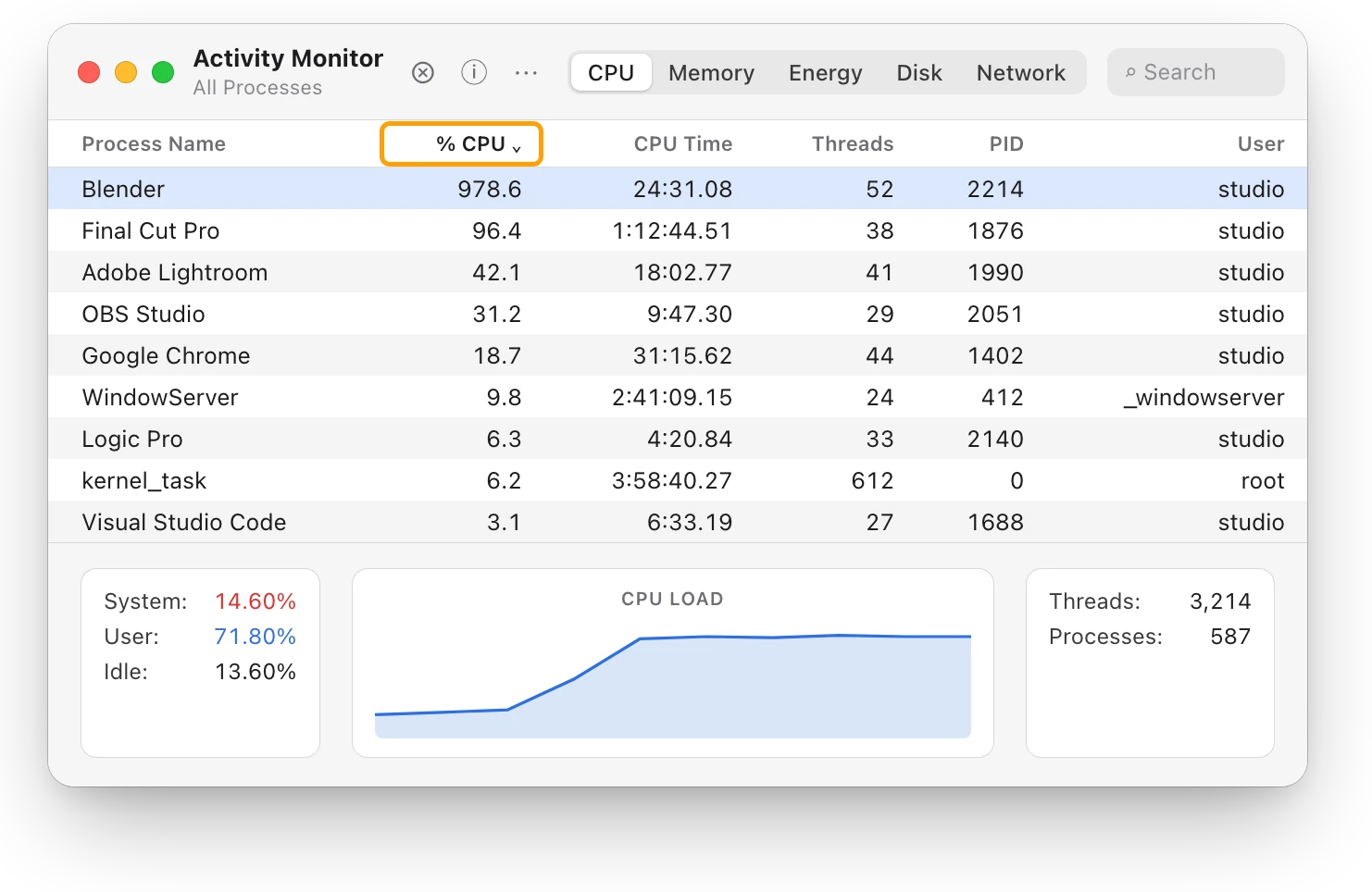
- Find the busy app. Open Activity Monitor, click CPU, then click % CPU to sort, busiest first. An app at the top for minutes is making the heat.
- Let it finish, or quit it. Save your work first.
- Give it air. Use your Mac on a stable surface with good ventilation, not on a bed or pillow, and put nothing over the keyboard or into the vents.
- Check the room. Keep it within 10 °C to 35 °C, and don’t leave it in a parked car.
- Install software updates, and use only Apple-authorized power adapters.
- Close and open the lid, or restart, if it stays hot. On an Intel-based Mac, Apple also suggests resetting the SMC.
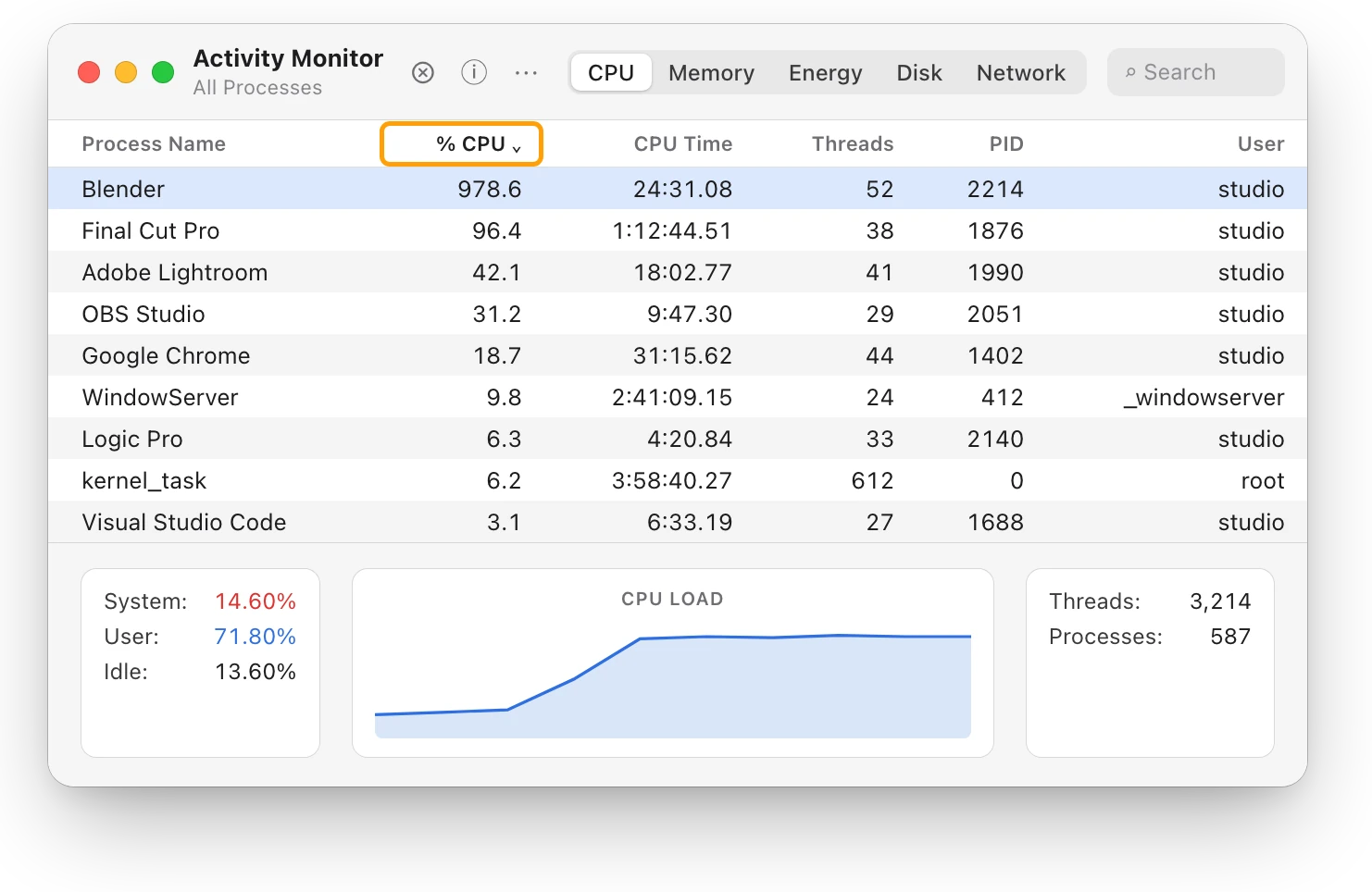
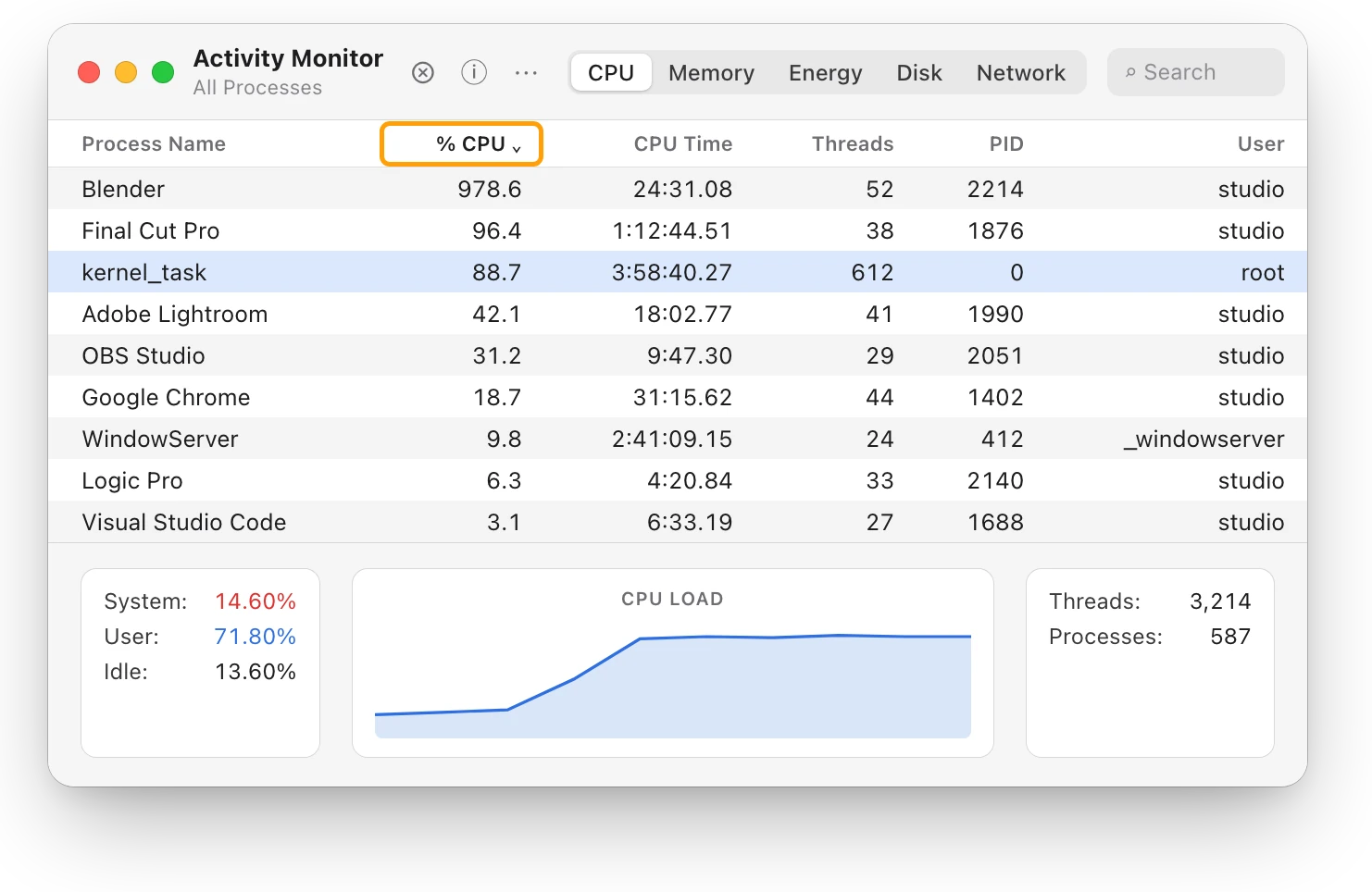
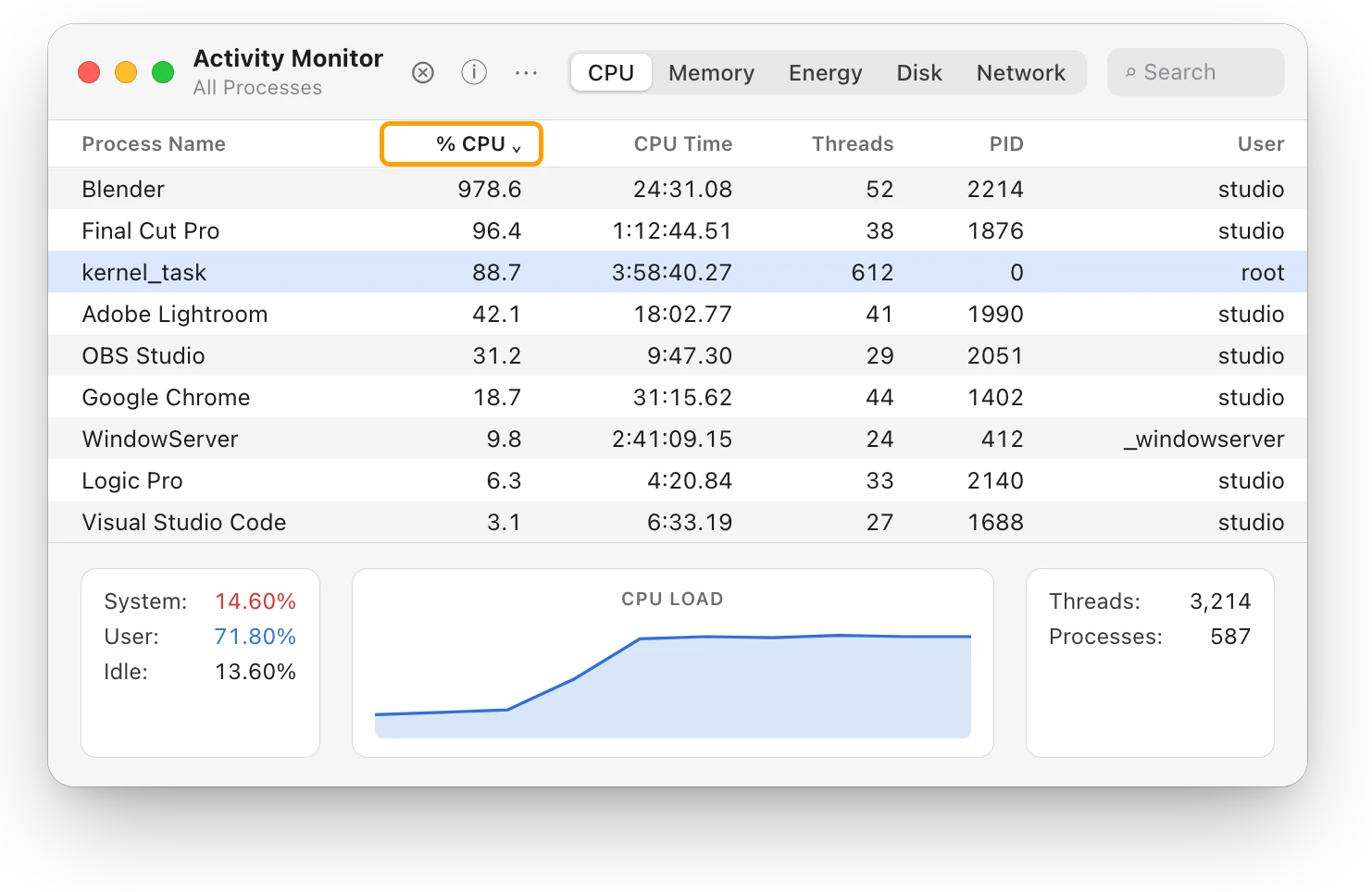
If kernel_task is near the top, it isn’t the cause: Apple says it makes the CPU less available to busy processes, to manage its temperature. If problems continue, contact Apple or an Apple Authorized Service Provider. Why is my MacBook getting hot? and MacBook fan loud? go further.
What about the battery’s temperature?
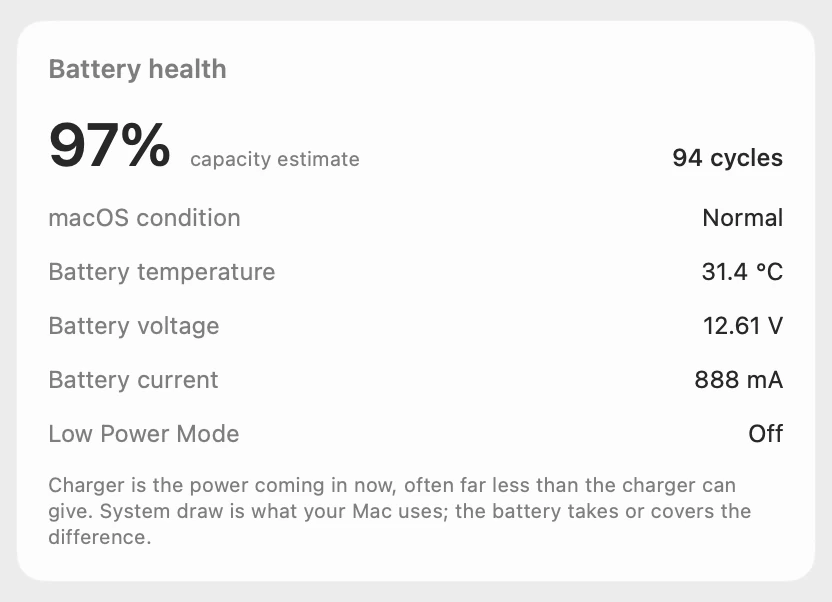
Heat matters most for the battery. Apple says a MacBook works best at ambient temperatures of 10 °C to 35 °C, and that temperatures above 35 °C can permanently damage battery capacity. When the battery is too warm, software may limit charging above 80%. MacBook hot while charging? covers heat during charging.
Questions people also ask
How hot is too hot for a MacBook?
Apple gives a room range, not a chip limit: 10 °C to 35 °C (50 °F to 95 °F). If your Mac stays hot during light work, or its fans run for a long time, follow Apple’s steps above.
Does Activity Monitor show CPU temperature?
No. Activity Monitor shows how busy the CPU is, which app is using it, and the GPU’s recent activity, but no temperatures.
Are Mac temperature apps accurate?
They read sensors inside the Mac, which run much hotter than the case you touch. Apple says never to use third-party apps to diagnose possible hardware issues.
Does high kernel_task CPU mean my Mac is overheating?
It means macOS is managing the CPU’s temperature. Apple says kernel_task responds to conditions that make the CPU too hot, even if your Mac doesn’t feel hot, and doesn’t cause them. kernel_task high CPU? explains it.
Scope for Mac · Free, coming to the Mac App Store
How Scope helps
Scope is a free Mac menu bar app that shows macOS’s own heat level, Thermals: Normal, Warm, High or Critical, beside how busy the CPU, GPU and RAM are, and the battery’s temperature in degrees. Scope doesn’t show CPU temperatures: it shows the level macOS itself reports, in plain words, without Terminal or a password.
In your menu bar
Scope Free keeps one whole menu bar item of your choice, such as CPU · GPU · RAM.

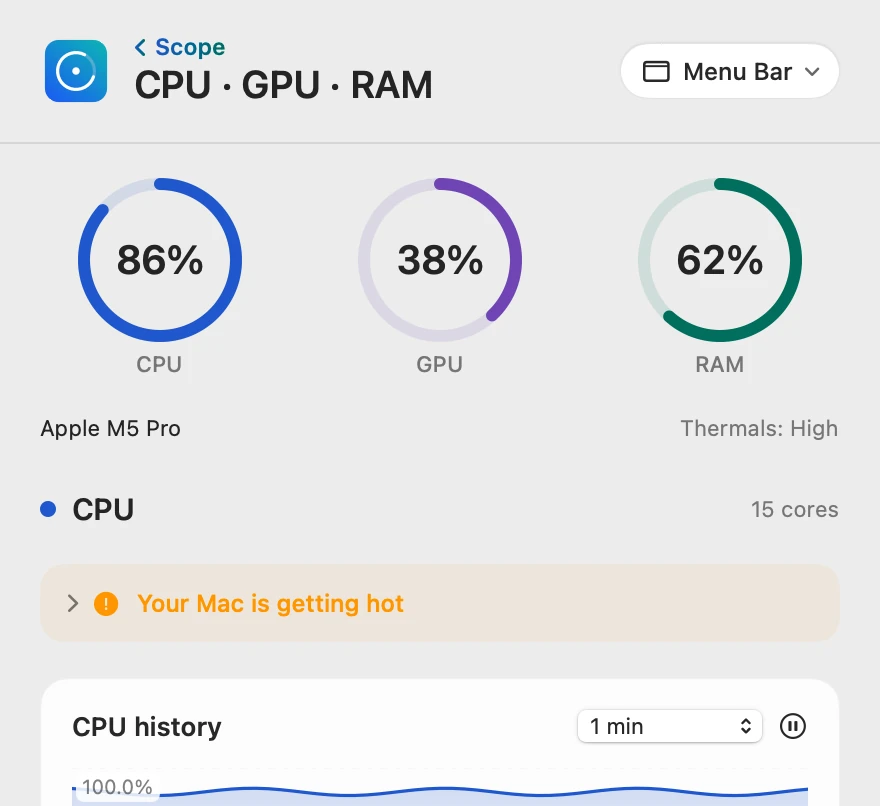
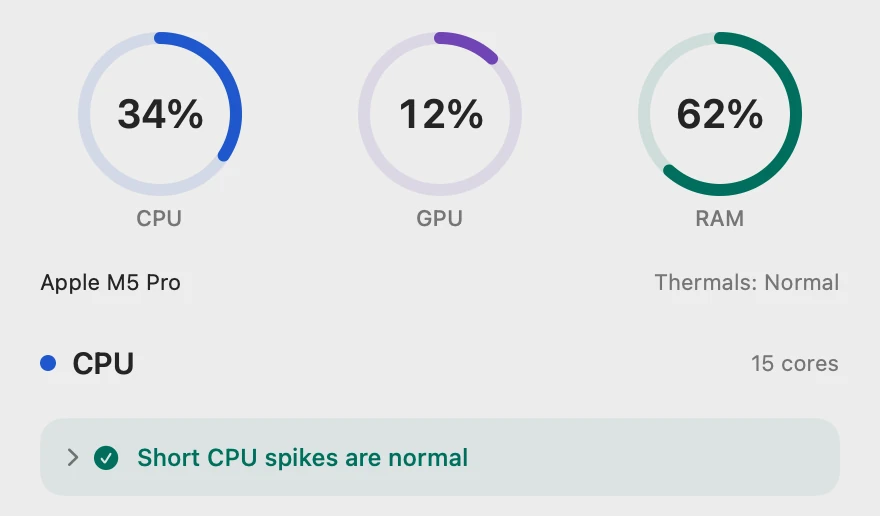
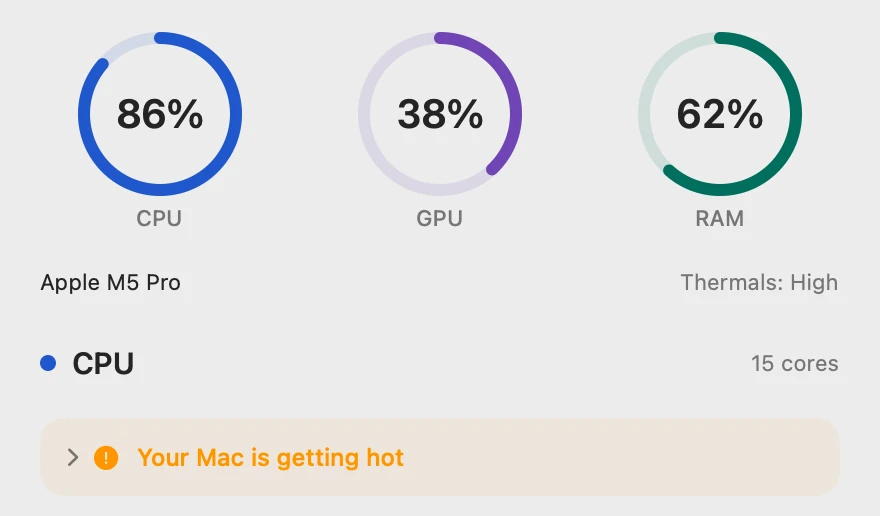
The heat level, in plain words
Thermals is macOS’s own heat level, beside the chip’s name. When it reads High, a tip opens below it with what to check.
The battery’s temperature
This is the battery’s own temperature, not the CPU’s. Scope reads it from the battery and shows it as macOS reports it.
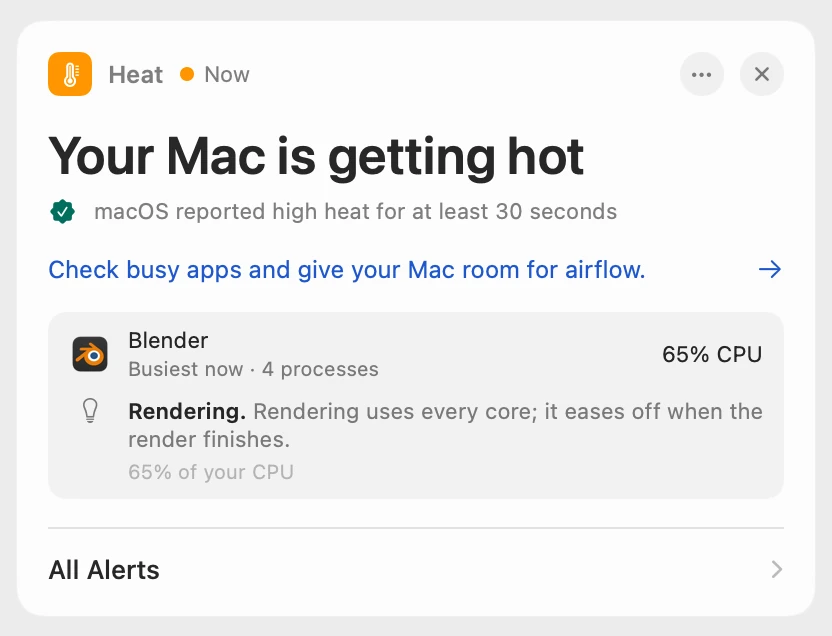
Named when it lasts (Scope Pro)
Scope waits until macOS has reported high heat for at least 30 seconds. Scope Free shows the alert when you open Scope; Scope Pro adds a red + to its menu bar icon and names the app working hardest.
Scope shows and explains. It never controls the fans, quits apps or changes settings.
Try it here
The real Scope, working, right in this page.
Click any item in the menu bar, or a card inside, as you would on your Mac.
Scope Pro Every menu bar item is shown here. Scope Free keeps one whole item of your choice, with every reading inside.
See your own Mac’s heat level.
Keep reading
Guide · Heat
Mac overheating? Every cause and what to do
A Mac overheats when an app keeps the processor busy, the vents can’t move air or the room is too warm. Here’s how to find the cause and cool it down.
Heat
Why is my MacBook getting hot?
A MacBook gets hot when its processor works hard or its vents can’t move air. Here’s how to find the busy app and cool it down, with macOS’s tools.
Heat
Mac thermal throttling: what the heat level means
Thermal throttling is macOS slowing a hot Mac so it can cool. Here’s what its four heat levels mean, how to check for it, and how to keep your Mac cooler.
Heat
MacBook fan loud? What’s making it spin up
A MacBook fan gets loud when the Mac works hard for minutes, the room is warm or the vents are blocked. Find the busy app, then give your Mac air.
Heat
kernel_task high CPU? Your Mac is cooling itself
High kernel_task CPU means your Mac is too hot: macOS holds the processor back while it cools. Find the app making the heat, and give your Mac air.
Sources
- Apple Support: Keep your Mac laptop within acceptable operating temperatures
- Apple Support: About fans and fan noise in your Apple product
- Apple Support: If kernel_task is using a large percentage of your Mac CPU
- Apple Developer: ProcessInfo.ThermalState
- Apple Support: Activity Monitor User Guide
- Apple: Maximizing Battery Life and Lifespan
- Apple: Why Lithium-ion?
Last checked October 18, 2026. Readings, apps and files in the pictures are from a made-up Mac.