MacBook hot while charging: normal or not?
A MacBook getting warm while it charges is normal: Apple says a Mac laptop and its power adapter may become very warm during normal use. The warmth comes from charging and from whatever the Mac is doing at the same time, and it’s fine on a hard, flat surface in a room between 10 °C and 35 °C (50 °F and 95 °F). If the battery gets too warm, macOS may stop charging at 80% until it cools down.
Why does my MacBook get warm when it’s charging?
Two things add up while it’s plugged in:
- Charging itself. Apple notes that charging a device inside certain styles of cases can generate excess heat, and that the USB-C power adapter can become warm during normal use.
- Work at the same time. Many people plug in for big jobs, such as exports, renders and backups. A busy processor makes heat of its own.
Mac laptops have sensors that detect temperature changes inside. If your Mac laptop has fans, they turn on automatically to cool its critical components, and they turn on sooner and run faster when the room is warm.
Is something busy while it charges?
Start with the app working hardest.
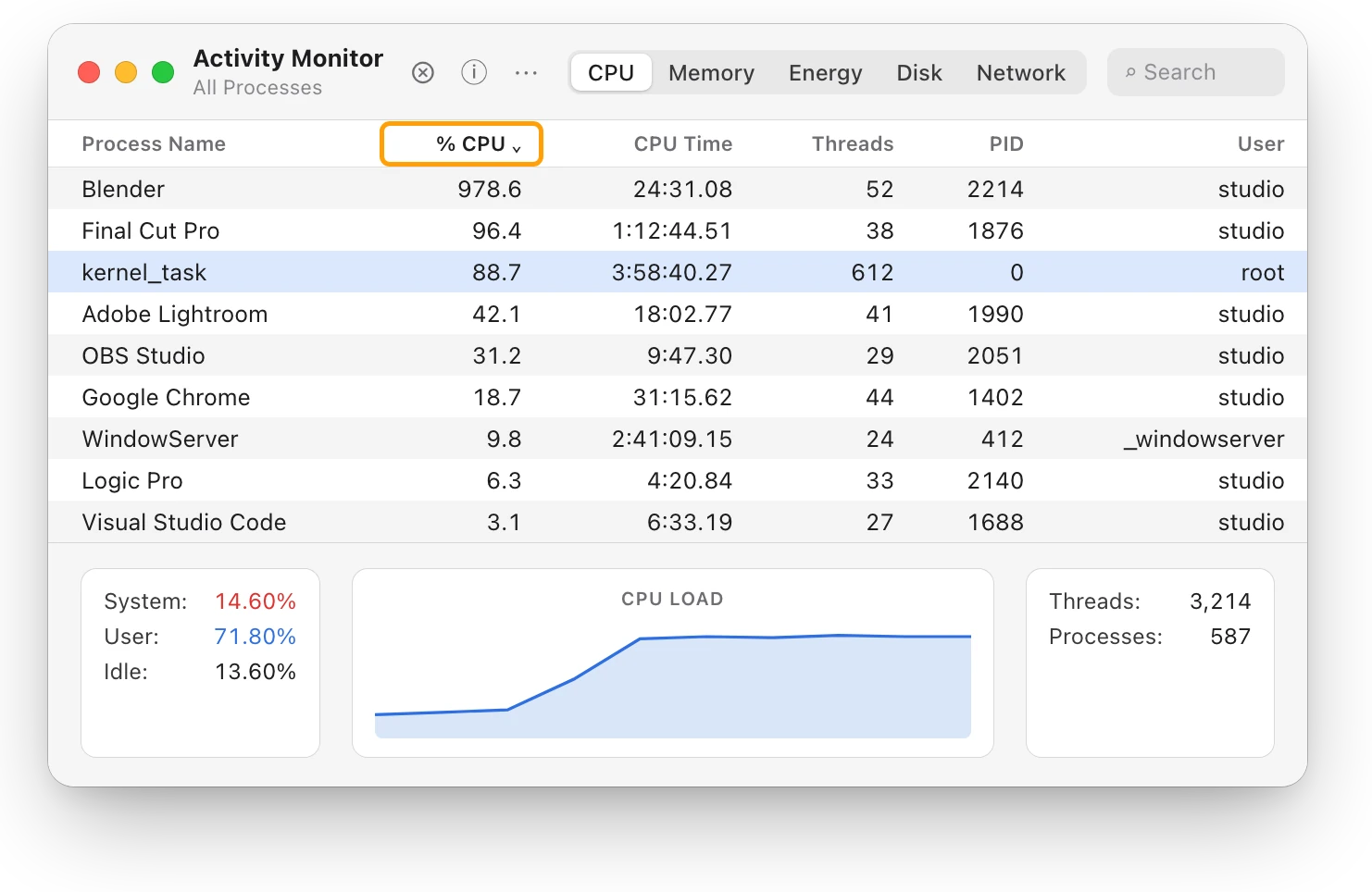
- Open Activity Monitor. It’s in Applications > Utilities, or search for it with Spotlight.
- Click CPU, then click the % CPU column heading to sort the list, busiest first.
- Watch the top of the list for a minute. An app that stays there is doing sustained work.
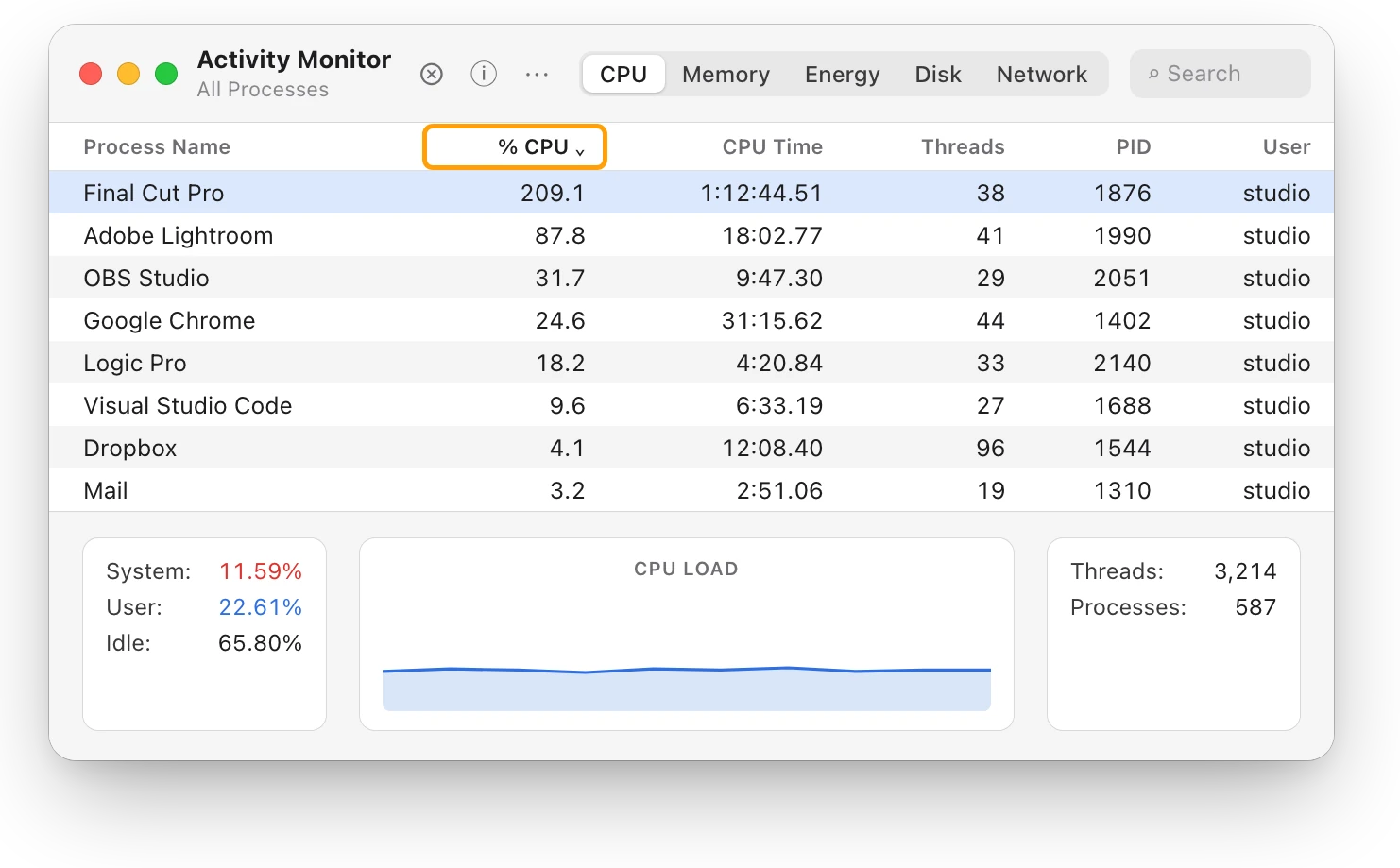
Activity Monitor counts each processor core as 100%, so 209.1% is about two cores’ worth of work. If you don’t need the app right now, quit it, saving your work first. If it’s doing work you asked for, let it finish on a desk with room for air. Why is my MacBook getting hot? covers heat from busy apps in more detail.
How do I keep my MacBook cool while it charges?
- Use a hard, flat surface, such as a table or desk. Don’t use it on a bed, a pillow or under bedding, and don’t sleep with a Mac or its power adapter while it’s plugged in.
- Give the power adapter air too. Plug it straight into the outlet, or put it on a table. Keep it off a couch, thick carpeting, bedding or a pillow, and don’t cover it.
- Keep the room in range. Apple says MacBook works best at 10 °C to 35 °C (50 °F to 95 °F), and calls 16 °C to 22 °C (62 °F to 72 °F) the ideal comfort zone for its devices. Don’t leave your Mac in a parked car. Heat above 35 °C can permanently reduce a battery’s capacity, and charging in that heat can damage it further.
- Take it out of its case. Apple suggests that if a device gets hot when you charge it, you take it out of its case first.
- Move it off your lap if it gets uncomfortably warm. Long contact with warm surfaces can cause discomfort or injury, even within safety limits.
| Where it is | What Apple says |
|---|---|
| Room temperature for using a MacBook | 10 °C to 35 °C (50 °F to 95 °F) |
| Ideal comfort zone | 16 °C to 22 °C (62 °F to 72 °F) |
| Storing a MacBook | −20 °C to 45 °C (−4 °F to 113 °F) |
Why did it stop charging at 80% when it was warm?
That’s macOS protecting the battery. If the recommended battery temperatures are exceeded, charging may stop at 80%, and Apple says charging can pause in extreme temperatures and resume once the battery is back in its normal range. Move your Mac to a cool, well-ventilated spot. If you use your Mac somewhere poorly ventilated, such as under a blanket or on thick carpeting, the power adapter might also turn off to keep from overheating.
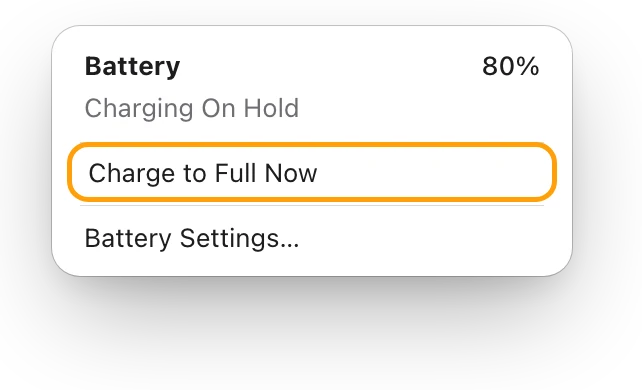
A stop at 80% isn’t always about heat. Optimized Battery Charging can hold the charge there on purpose, and the battery status menu then says “Charging On Hold”. MacBook plugged in but not charging? explains each message.
When is the heat a problem?
Look further if your MacBook gets warm even when it isn’t doing intensive work, or its fans run for a long time:
- Check Activity Monitor’s CPU list for a process putting a heavy load on the processor.
- Close and open the lid, or restart your Mac. On an Intel-based Mac, reset the SMC, the chip that manages power and fans.
- Make sure you’ve installed all Mac software updates.
- Stop using a power adapter or cable that’s damaged. If the adapter turns itself off because it got too warm, disconnect the cable from your Mac and let the adapter cool down before you handle it.
If it keeps happening, contact Apple, or visit an Apple Store or Apple Authorized Service Provider.
Questions people also ask
How hot should a MacBook battery get while charging?
Apple doesn’t publish a battery temperature for Mac laptops. It gives the room temperature a MacBook works best in, 10 °C to 35 °C, and macOS may stop charging at 80% when the battery is warmer than recommended.
Why is my MacBook charger hot?
Apple says the USB-C power adapter can become warm during normal use. Use it somewhere well ventilated, not on bedding or under a blanket; it might turn itself off if it gets too warm.
Is it safe to use my MacBook while it charges?
Yes. Mac laptops and Apple’s recommended USB-C power adapters comply with the surface temperature limits in safety standards. Keep air around both, and avoid long skin contact with them while they’re plugged in.
Scope for Mac · Free, coming to the Mac App Store
How Scope helps
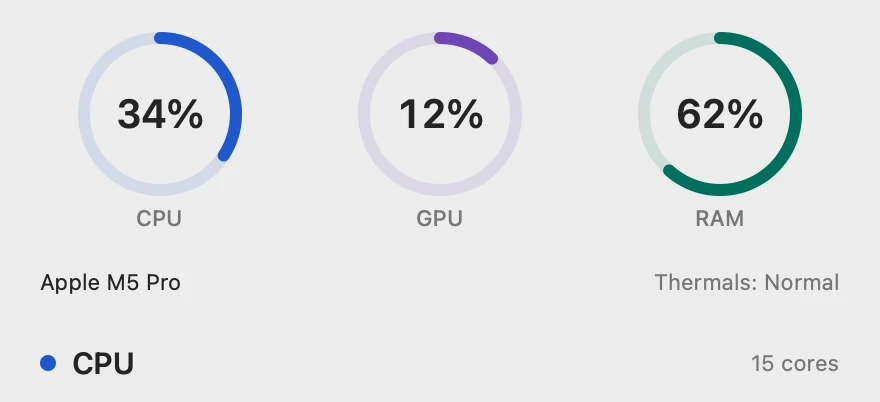
Scope is a free Mac menu bar app that shows your MacBook’s battery temperature while it charges, beside the watts going into the battery and the power coming from the charger. It also shows the heat level macOS reports, so you can see at a glance whether a warm Mac while charging is busy, hot or simply charging.
In your menu bar
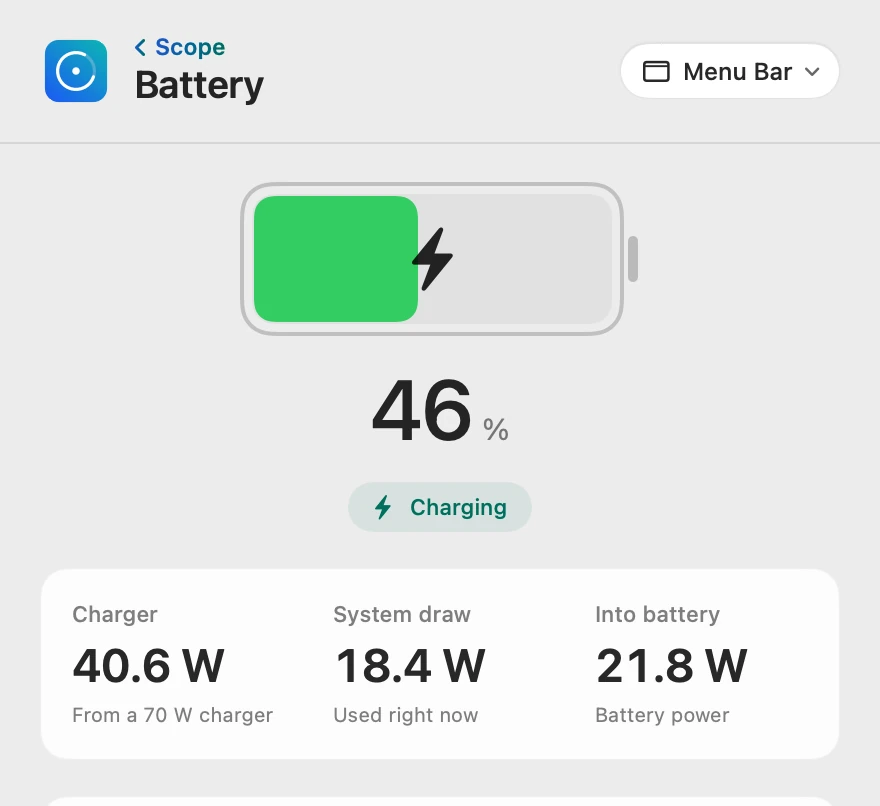
Scope Free keeps one whole menu bar item of your choice. Battery can also show the charger’s power and what your Mac is drawing beside the percentage.

Watts into the battery
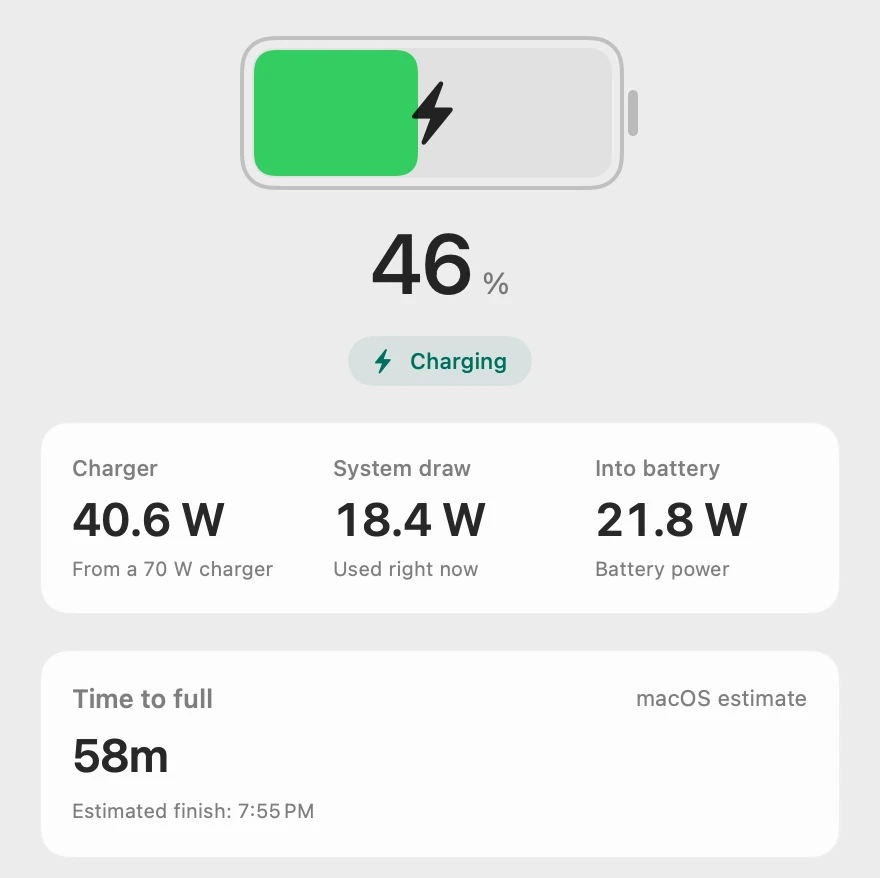
Charger is the power coming in now: 18.4 W runs the Mac and 21.8 W charges the battery. Into battery is the battery’s own measured power, so it shows how hard the battery is charging right now.
The battery’s temperature
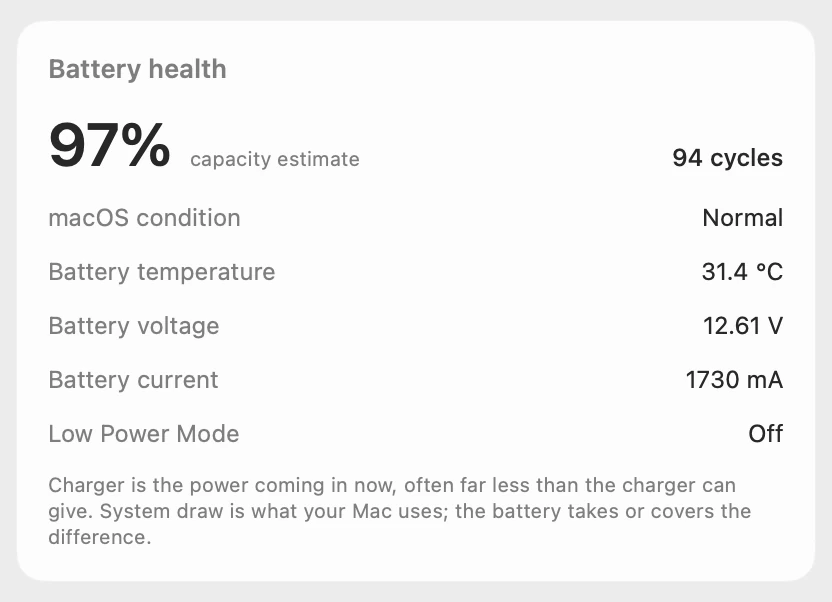
This is the temperature of the battery itself, as macOS reports it, not of the chip. Scope doesn’t show chip temperatures or fan speeds.
The heat level, beside it
Thermals is the heat level macOS reports: Normal, Warm, High or Critical. If high heat lasts, Scope shows an alert when you open it, and Scope Pro adds a red + on its menu bar icon and names the busiest app.
Scope shows and explains. It doesn’t change how your Mac charges or cools itself.
Try it here
The real Scope, working, right in this page.
Click any item in the menu bar, or a card inside, as you would on your Mac.
Scope Pro Every menu bar item is shown here. Scope Free keeps one whole item of your choice, with every reading inside.
See what your own Mac does while it charges.
Keep reading
Guide · Heat
Mac overheating? Every cause and what to do
A Mac overheats when an app keeps the processor busy, the vents can’t move air or the room is too warm. Here’s how to find the cause and cool it down.
Heat
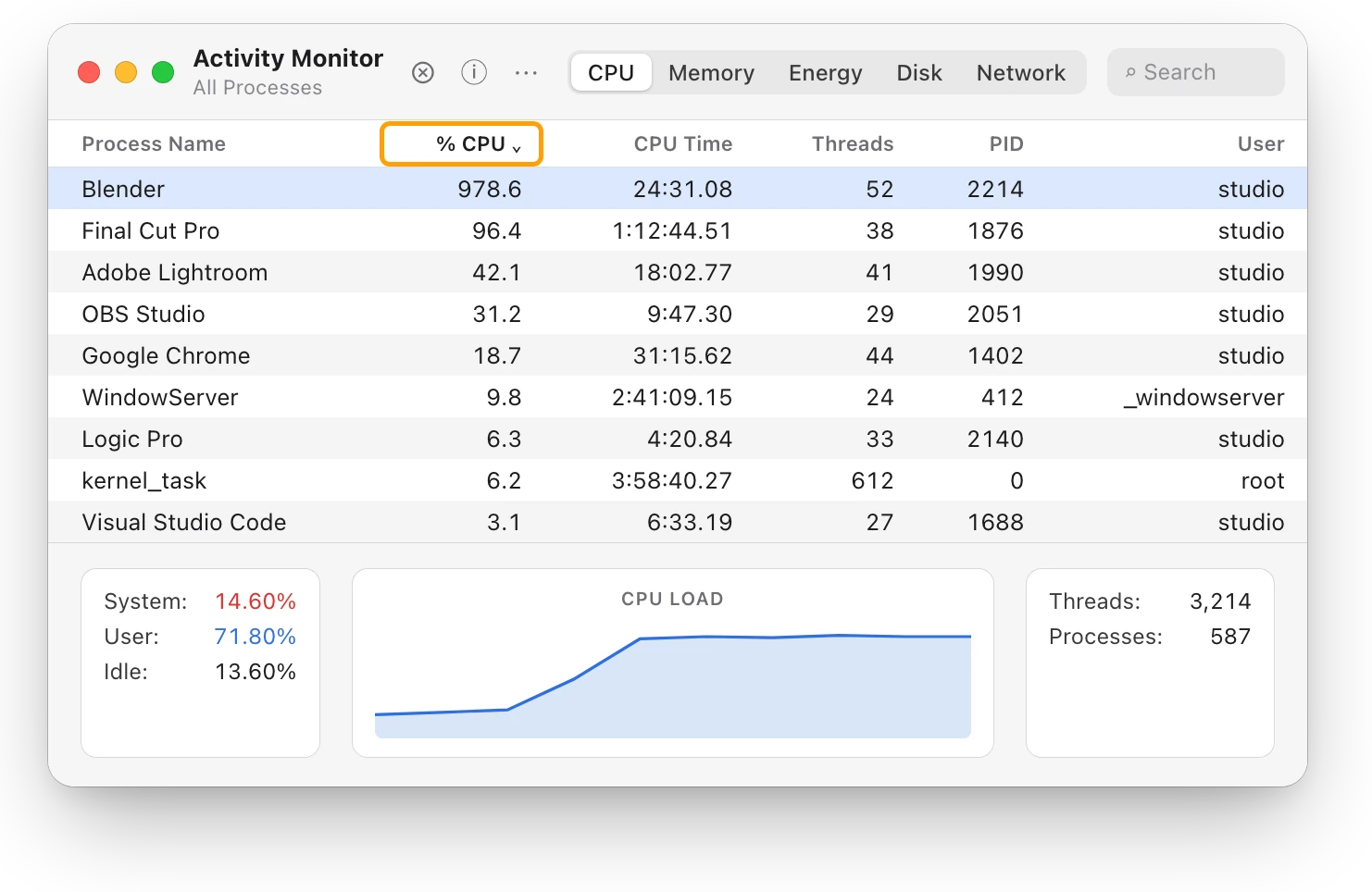
Why is my MacBook getting hot?
A MacBook gets hot when its processor works hard or its vents can’t move air. Here’s how to find the busy app and cool it down, with macOS’s tools.
Battery
MacBook plugged in but not charging?
A MacBook plugged in but not charging is often holding at 80% to protect its battery. Here’s how to see why, and what to try if it won’t charge at all.
Sources
- Apple Support: Keep your Mac laptop within acceptable operating temperatures
- Apple: Batteries, Maximizing Performance
- Apple Support: Important safety information for your Mac (MacBook Pro)
- Apple Support: If your USB-C power adapter isn’t charging your Mac laptop
- Apple Support: If your Mac battery won’t charge
- Apple Support: If your Mac battery won’t charge completely
- Apple Support: About Optimized Battery Charging and Charge Limit on Mac
- Apple Support: About fans and fan noise in your Apple product
Last checked October 18, 2026. Readings, apps and files in the pictures are from a made-up Mac.