Should I keep my MacBook plugged in all the time?
You can keep your MacBook plugged in all the time. Optimized Battery Charging delays charging past 80% when it expects you to stay plugged in, and on a Mac with Apple silicon a Charge Limit stops charging at the level you choose. Heat is the bigger risk: Apple says temperatures above 35 °C (95 °F) can permanently damage battery capacity.
Is it bad to leave a MacBook plugged in?
No. Every rechargeable battery ages, and Apple says its capacity gets smaller as it ages chemically. Apple built two features for a Mac that spends its days on the charger:
- Battery health management, on Mac laptops with Apple silicon, is designed to slow the rate at which the battery chemically ages. It watches the battery’s temperature history and how it’s charged, and may lower the maximum charge for a while.
- Optimized Battery Charging is designed to reduce wear on the battery and improve its lifespan by reducing the time your Mac spends fully charged.
So staying plugged in is fine: these features cut the time your battery spends at a full charge.
What does my Mac do when it stays plugged in?
It decides when to finish charging, on its own.
- It learns your routine. Optimized Battery Charging uses on-device machine learning to learn your daily charging routine.
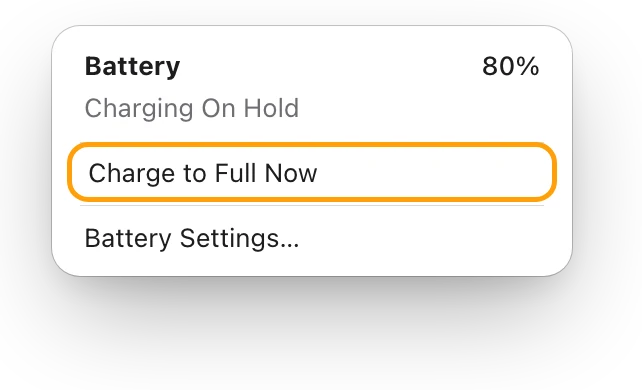
- It waits at 80%. When it expects you to stay plugged in, it delays charging past 80%, and the battery status menu says “Charging On Hold”.
- It finishes before you need it. It aims to have your Mac fully charged by the time it expects you to need a full charge.
- It tops up now and then. Your Mac occasionally charges to 100% to keep its battery charge estimates accurate.
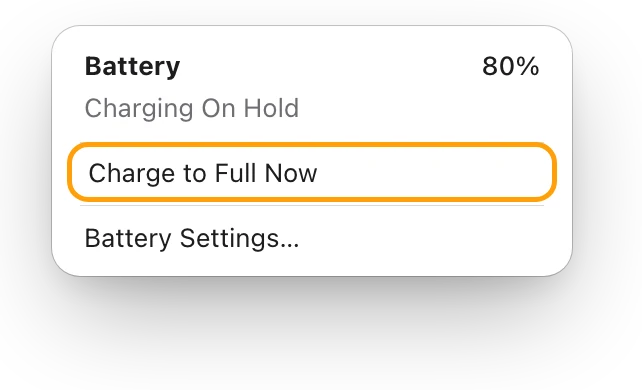
Need 100% today? Click the battery icon in the menu bar and choose Charge to Full Now. If your Mac seems stuck below 100% and you want to know why, MacBook plugged in but not charging? walks through every reason.
How do I turn on Optimized Battery Charging or set a Charge Limit?
Both are in Battery settings.
- Choose Apple menu > System Settings, then click Battery in the sidebar. You may need to scroll down.
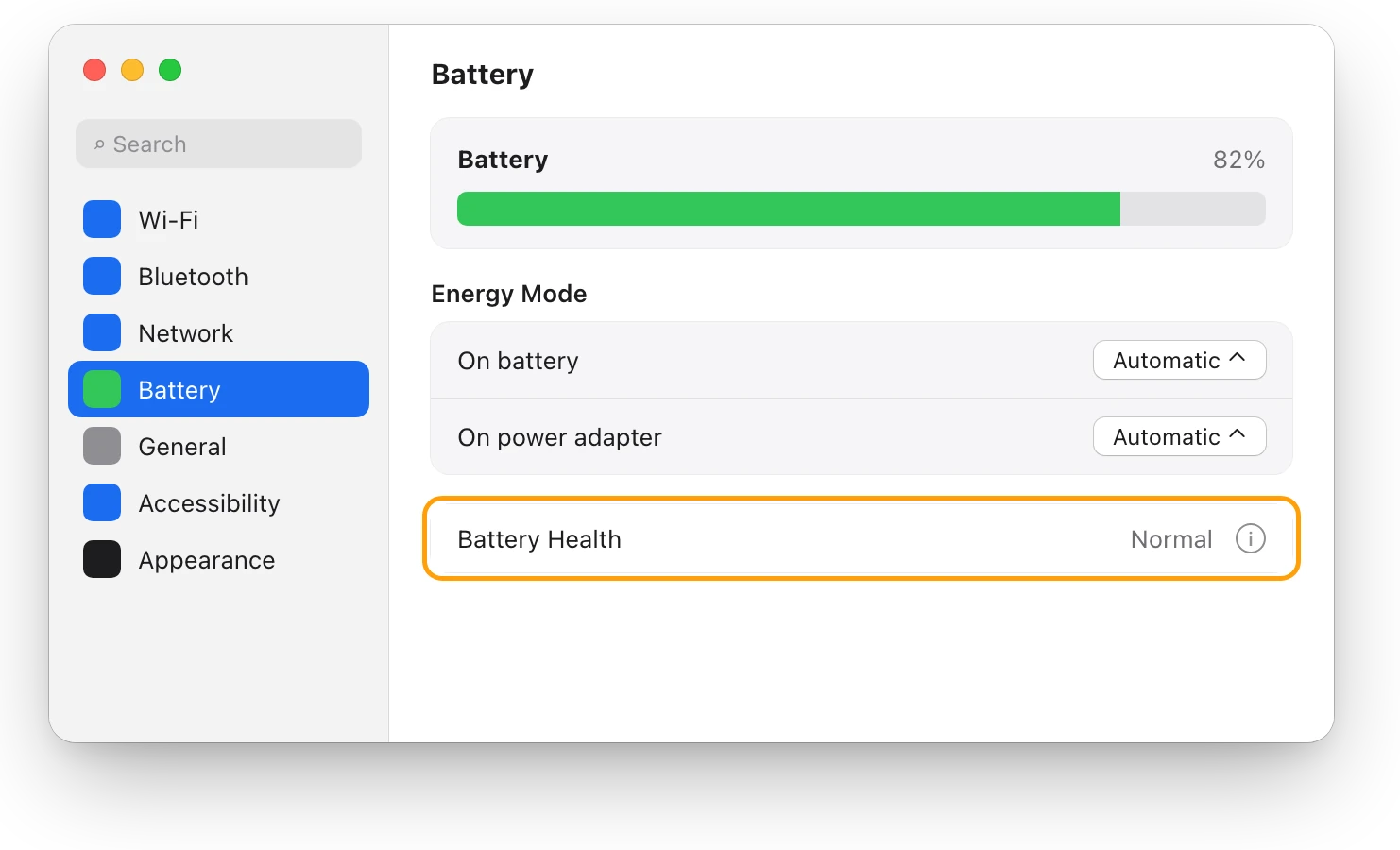
- Click the info button (ⓘ) next to Charging. On some Macs, it’s next to Battery Health.
- Turn on Optimized Battery Charging. If you turn it off, you can choose to turn it off only until tomorrow.
- To set a Charge Limit, choose a limit between 80% and 100%. Charge Limit needs macOS Tahoe 26.4 or later and a Mac with Apple silicon.
- Click Done.
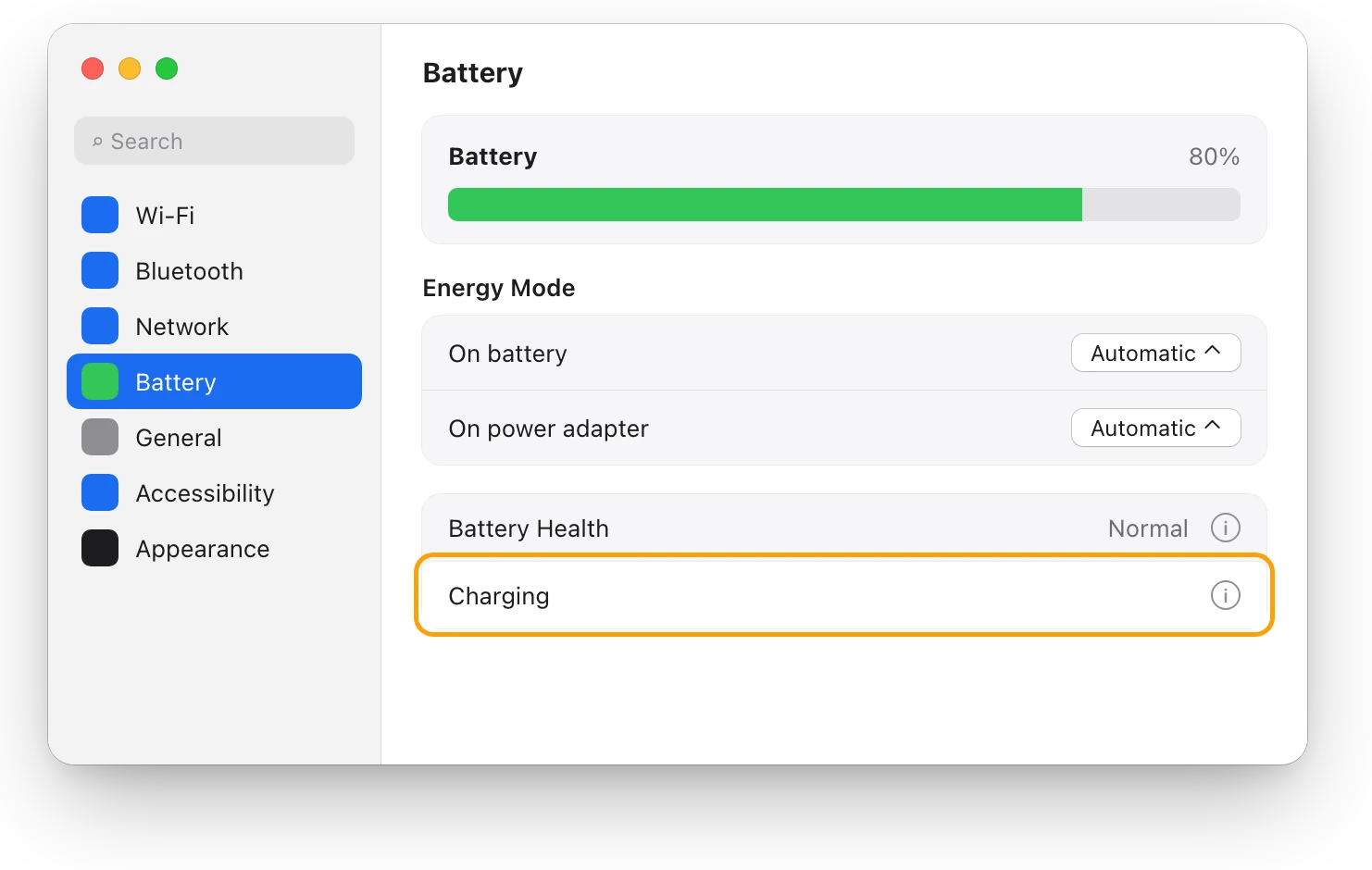
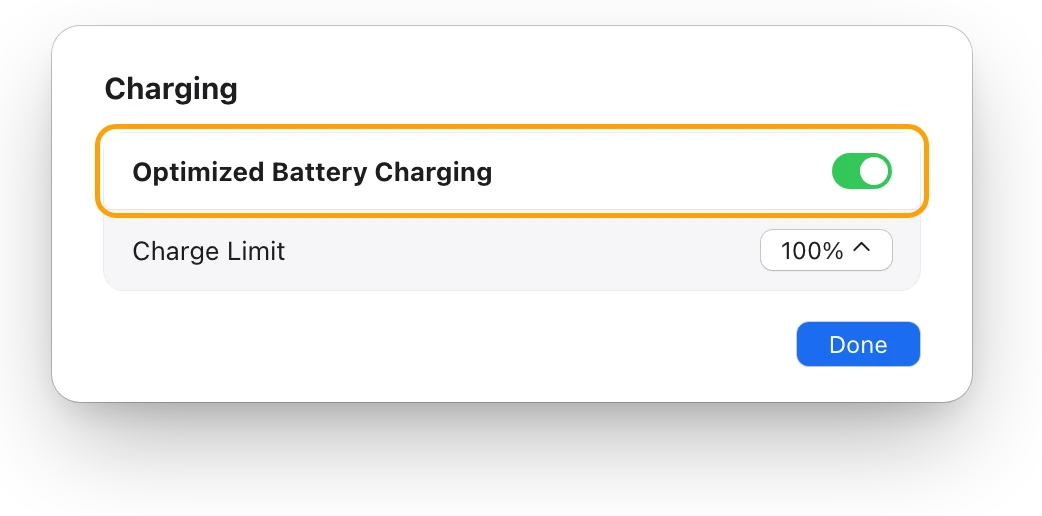
With a Charge Limit, your Mac charges to within a few percentage points of it, then stops, and the battery status menu says, for example, “Charged to 80% Limit”. If the charge drops more than 5% while your Mac is plugged in, charging starts again. Before a day away from a charger, choose Charge to Full Now.
On a Mac laptop with an Intel processor, the setting is Manage battery longevity, under Battery Health. Apple says turning it off might reduce your battery’s lifespan.
Optimized Battery Charging or Charge Limit: which should I use?
Both are in the same Charging sheet. Here’s how they differ:
| Optimized Battery Charging | Charge Limit | |
|---|---|---|
| What it does | Delays charging past 80% when it expects you to stay plugged in | Stops charging at the limit you choose |
| How full it gets | 100%, by the time it expects you to need it | 80% to 100%, as you set it |
| What it needs | macOS Big Sur 11 or later | macOS Tahoe 26.4 or later, and Apple silicon |
| In the battery menu | Charging On Hold | Charged to [%] Limit |
| A good fit for | A routine: on the charger at a desk, off it at set times | A Mac that’s plugged in nearly all the time |
| For a full charge today | Charge to Full Now | Charge to Full Now |
A lower limit means less charge when you unplug, so pick one that still covers your time away from the charger.
What matters more than staying plugged in?
Heat. Apple says ambient temperatures above 35 °C (95 °F) can permanently damage battery capacity, and that charging in high temperatures can damage it further. Even storing a battery somewhere hot can harm it for good.
- Use it between 10 °C and 35 °C (50 °F and 95 °F), where Apple says a MacBook works best.
- Don’t leave it in a parked car. Apple notes that temperatures there can go beyond that range.
- Give it air. Apple says not to use a Mac laptop on a bed, a pillow or under bedding.
- Take it out of its case if it gets hot while it charges.
If Optimized Battery Charging is off and your Mac still won’t charge past 80%, Apple says the battery may be too warm: move your Mac to a cool, well-ventilated spot. MacBook hot while charging: normal or not? covers heat on the charger.
What if I won’t use my MacBook for a while?
For storage, Apple’s advice is the opposite of leaving it full:
- Charge the battery to about 50%. Don’t store it fully charged or fully discharged.
- Shut down your Mac.
- Keep it somewhere cool and dry, below 32 °C (90 °F).
- If you store it for longer than six months, charge it to 50% every six months.
Should I let the battery run down now and then?
There’s no need. Apple says you can charge your battery whenever you want, without letting it discharge fully first. A charge cycle is all of the battery’s power used, not necessarily in one go: using half one day and half the next adds up to one cycle. To make each charge last longer once you unplug, How to make your MacBook battery last longer has Apple’s tips.
Questions people also ask
Is it bad to leave my MacBook plugged in overnight?
No. Optimized Battery Charging learns your daily routine, waits at 80% when it expects you to stay plugged in, and aims to finish charging before you usually need your Mac.
Should I set my Charge Limit to 80%?
If your Mac is plugged in almost all the time, it can help: Apple describes Charge Limit as a way to preserve your battery’s lifespan by limiting how much it charges. The trade-off is less charge when you unplug; Charge to Full Now gives you 100% when you need it.
Why does my Mac charge to 100% even with a Charge Limit?
Apple says your Mac occasionally charges to 100% with Optimized Battery Charging or a Charge Limit on, to keep its battery charge estimates accurate.
How do I know if my battery is worn?
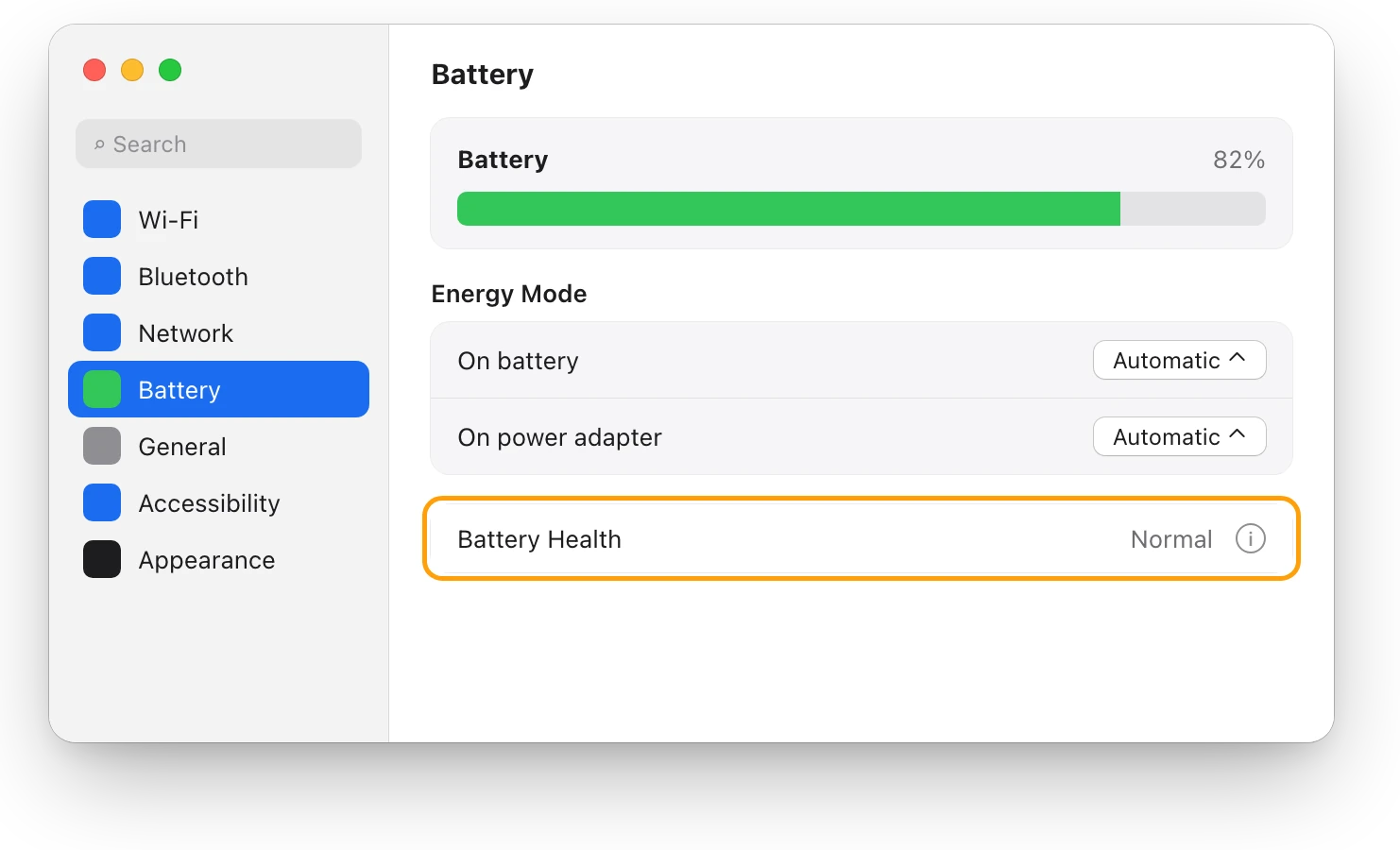
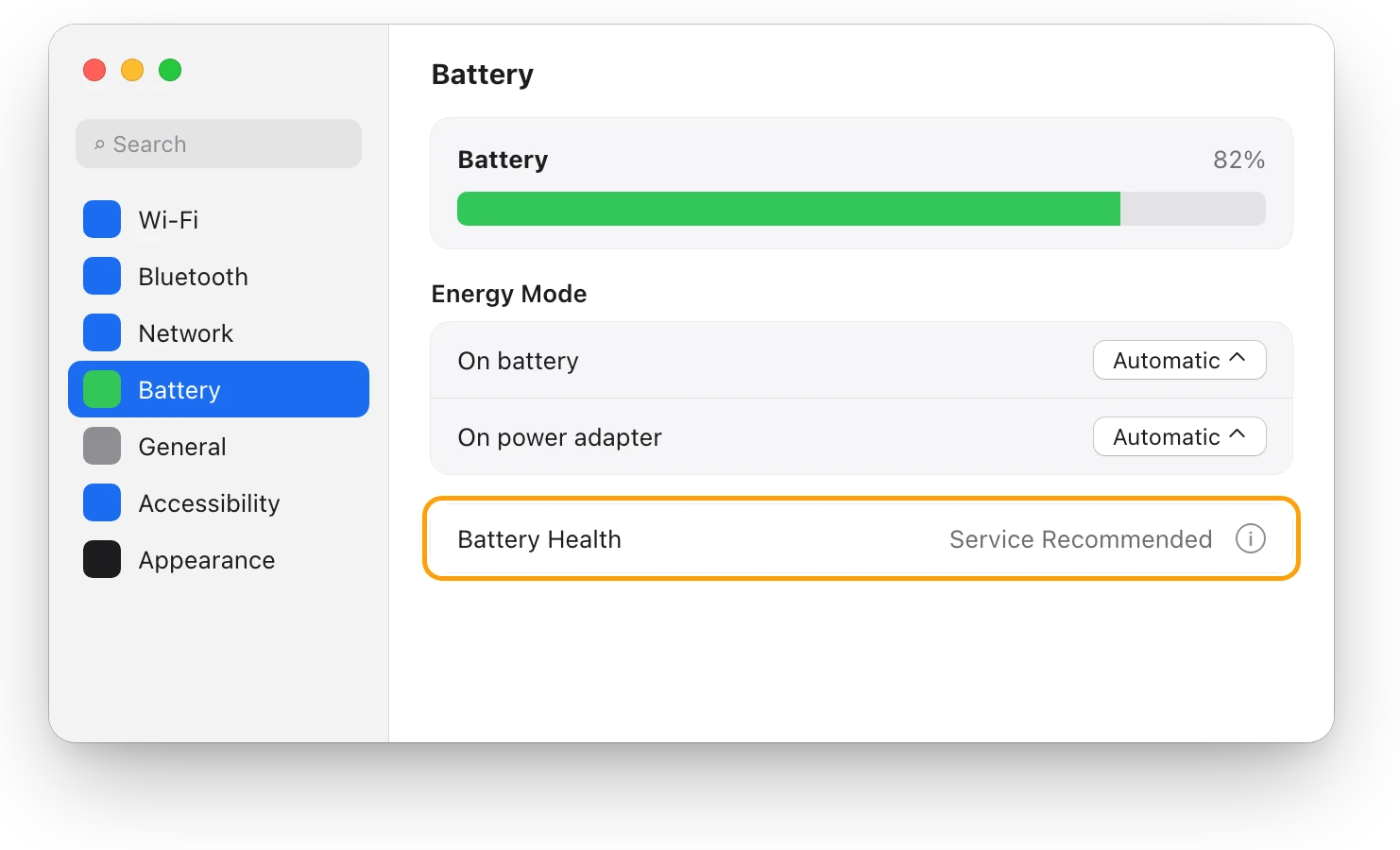
Choose Apple menu > System Settings, click Battery, and read Battery Health. If it says Service Recommended, MacBook battery Service Recommended: what it means explains what to do.
Scope for Mac · Free, coming to the Mac App Store
How Scope helps
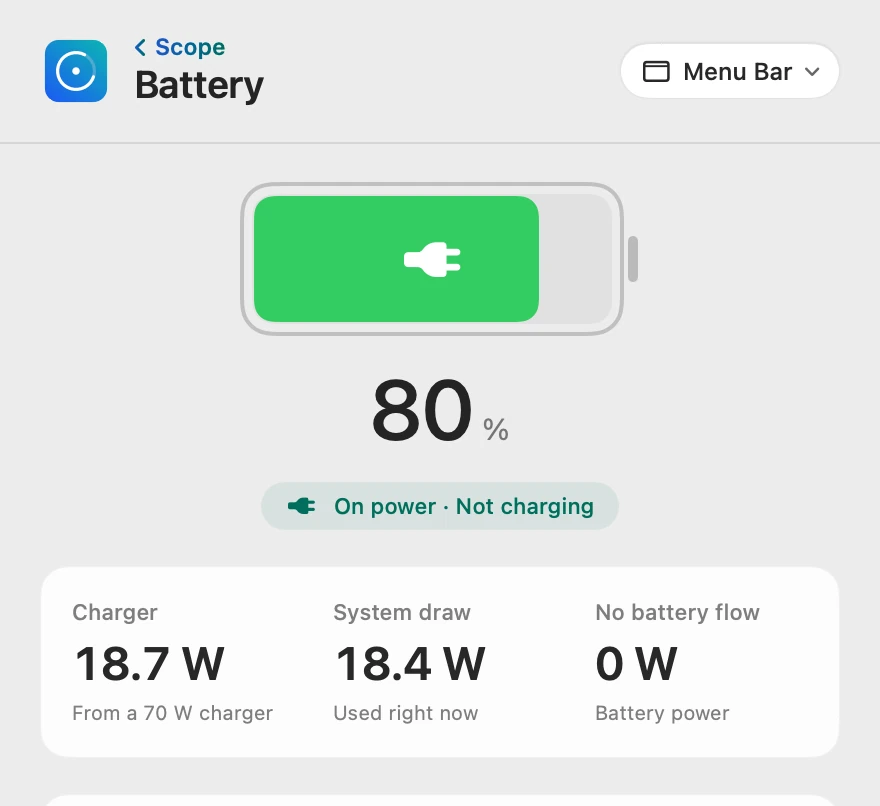
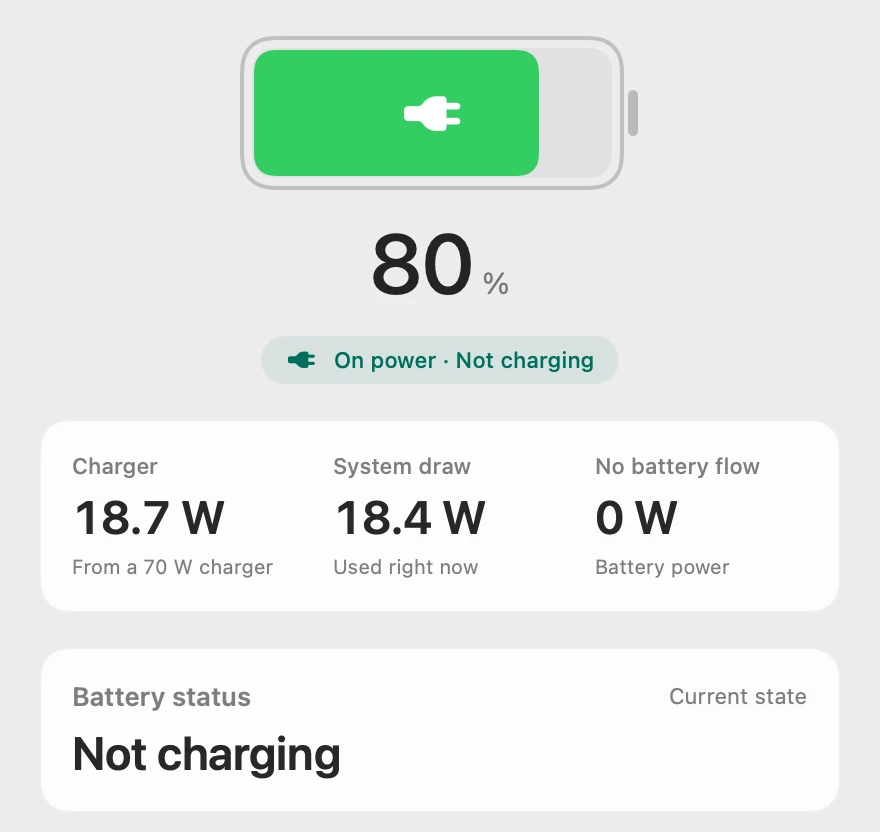
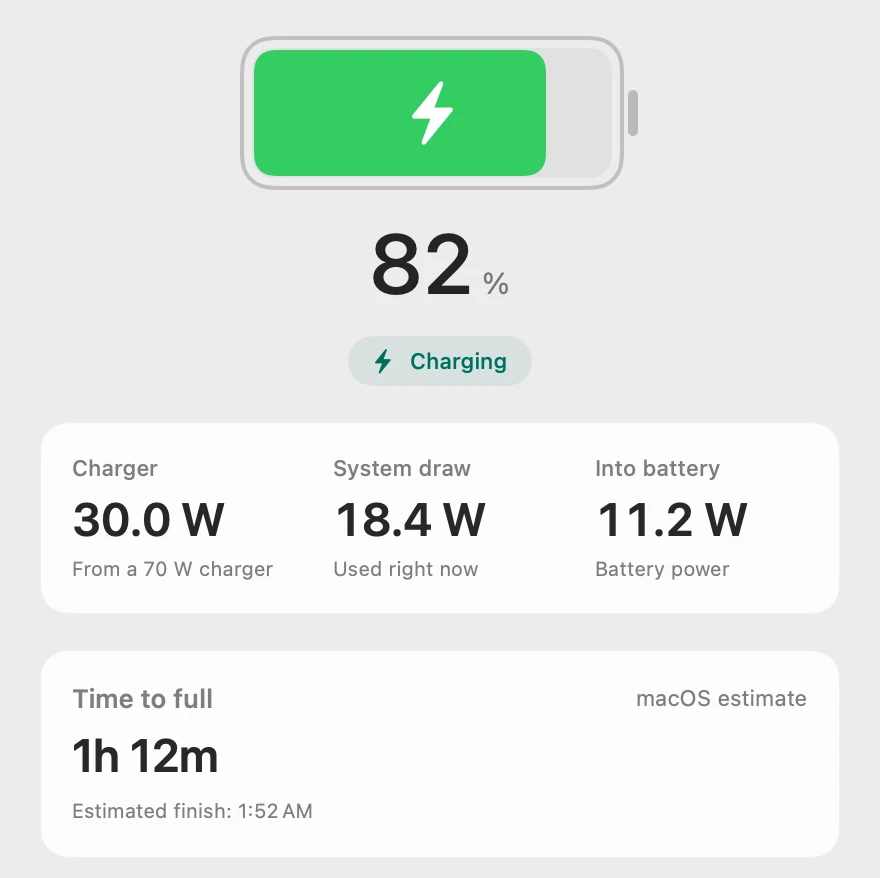
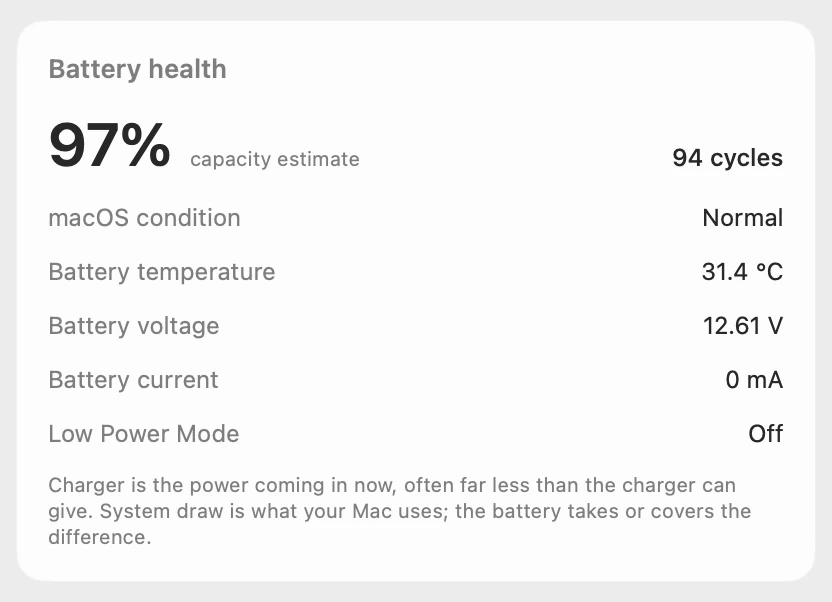
Scope is a free Mac menu bar app that shows whether a plugged-in MacBook’s battery is charging or held, in watts: the power coming in from the charger, what your Mac uses, and what goes into the battery. It also shows the battery’s temperature, beside its health and cycle count.
In your menu bar
On a charger, Scope’s battery shows a bolt while power goes into the battery, and a plug while it’s held.

Held or charging
Charger is the power coming in now, not the charger’s rating. While macOS holds the charge, the charger runs the Mac and No battery flow shows the battery resting; once charging resumes, Into battery shows what goes in.
The battery’s own temperature
Battery temperature is the battery’s own, not the room’s or the chip’s. Apple’s 10 °C to 35 °C range is for the room around your Mac, so use the battery’s reading to notice when it runs warmer than usual on the charger.
Scope shows and explains. It doesn’t change how your Mac charges or set a Charge Limit.
Try it here
The real Scope, working, right in this page.
Click any item in the menu bar, or a card inside, as you would on your Mac.
Scope Pro Every menu bar item is shown here. Scope Free keeps one whole item of your choice, with every reading inside.
See what your own battery does on the charger.
Keep reading
Guide · Battery
Mac battery problems: drain, health and charging
Most MacBook battery problems are a busy app, a worn battery, charging paused on purpose or a weak charger. Here’s how to tell which, with macOS’s tools.
Battery
MacBook plugged in but not charging?
A MacBook plugged in but not charging is often holding at 80% to protect its battery. Here’s how to see why, and what to try if it won’t charge at all.
Battery
How to make your MacBook battery last longer
Make each MacBook charge last longer: quit energy-heavy apps, dim the screen, use Low Power Mode. Plus Apple’s tips for battery lifespan, and the myths.
Heat
MacBook hot while charging: normal or not?
A MacBook often gets warm while it charges, more so when it’s busy. It’s normal on a hard surface in a 10–35 °C room; here’s what to check if it’s hot.
Battery
MacBook battery health and cycle count, explained
Battery Health in System Settings shows if your MacBook’s battery is Normal; System Information shows its cycle count. Here’s how to read both.
Battery
MacBook battery Service Recommended: what it means
Service Recommended means your MacBook’s battery holds less charge than when new, or isn’t working normally. You can keep using it. Here’s what to do next.
Sources
- Apple Support: About Optimized Battery Charging and Charge Limit on Mac
- Apple Support: About battery health management in Mac laptops with Apple silicon
- Apple Support: About battery health management in Intel-based Mac laptops
- Apple Support: Change Battery settings on a Mac laptop
- Apple Support: Charge your Mac laptop computer
- Apple Support: If your Mac battery won’t charge completely
- Apple Support: Keep your Mac laptop within acceptable operating temperatures
- Apple: Maximizing Battery Life and Lifespan
- Apple: Why Lithium-ion?
- Apple Support: Determine battery cycle count for Mac laptops
Last checked October 19, 2026. Readings, apps and files in the pictures are from a made-up Mac.