How to make your MacBook battery last longer
To improve battery life on a MacBook, change what uses the most power first: quit apps listed under Using Significant Energy in the battery menu, dim the display, and choose Low Power Mode for when you’re on battery. To keep the battery healthy for years, leave Optimized Battery Charging on and use your Mac between 10 °C and 35 °C (50 °F and 95 °F).
Apple separates two ideas. Battery life is how long your Mac runs before it needs a charge. Battery lifespan is how long the battery lasts before it needs replacing. This guide covers both.
What uses the most battery on a MacBook?
Apple says the biggest factor is the mix of things you do. A render, an export or a game uses far more power than writing or email. So the first step is to see what’s busy.
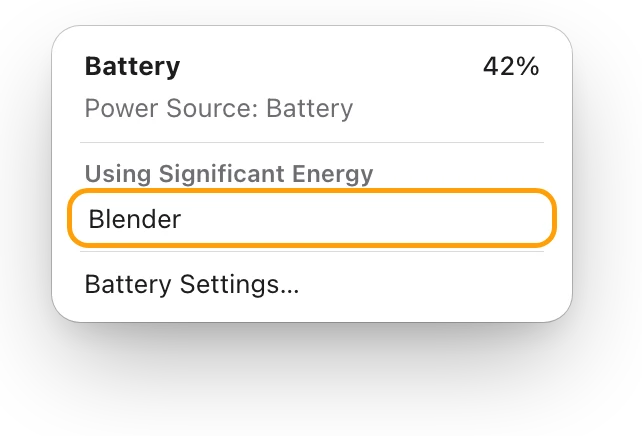
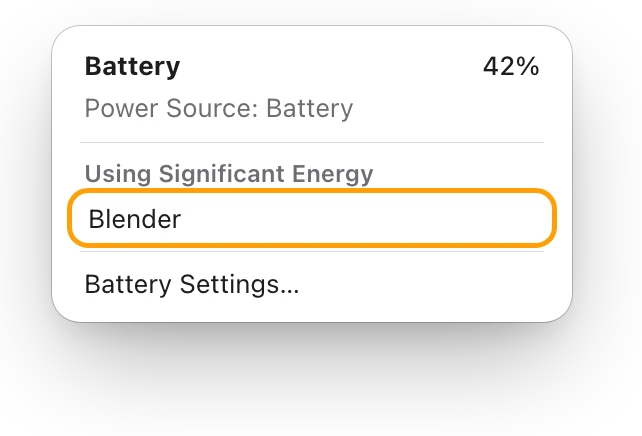
- Click the battery icon in the menu bar.
- Look under Using Significant Energy. If you aren’t using an app listed there, quit it, especially on battery.
For every app at once, open Activity Monitor (in Applications > Utilities), click Energy, then click Energy Impact to sort, highest first.
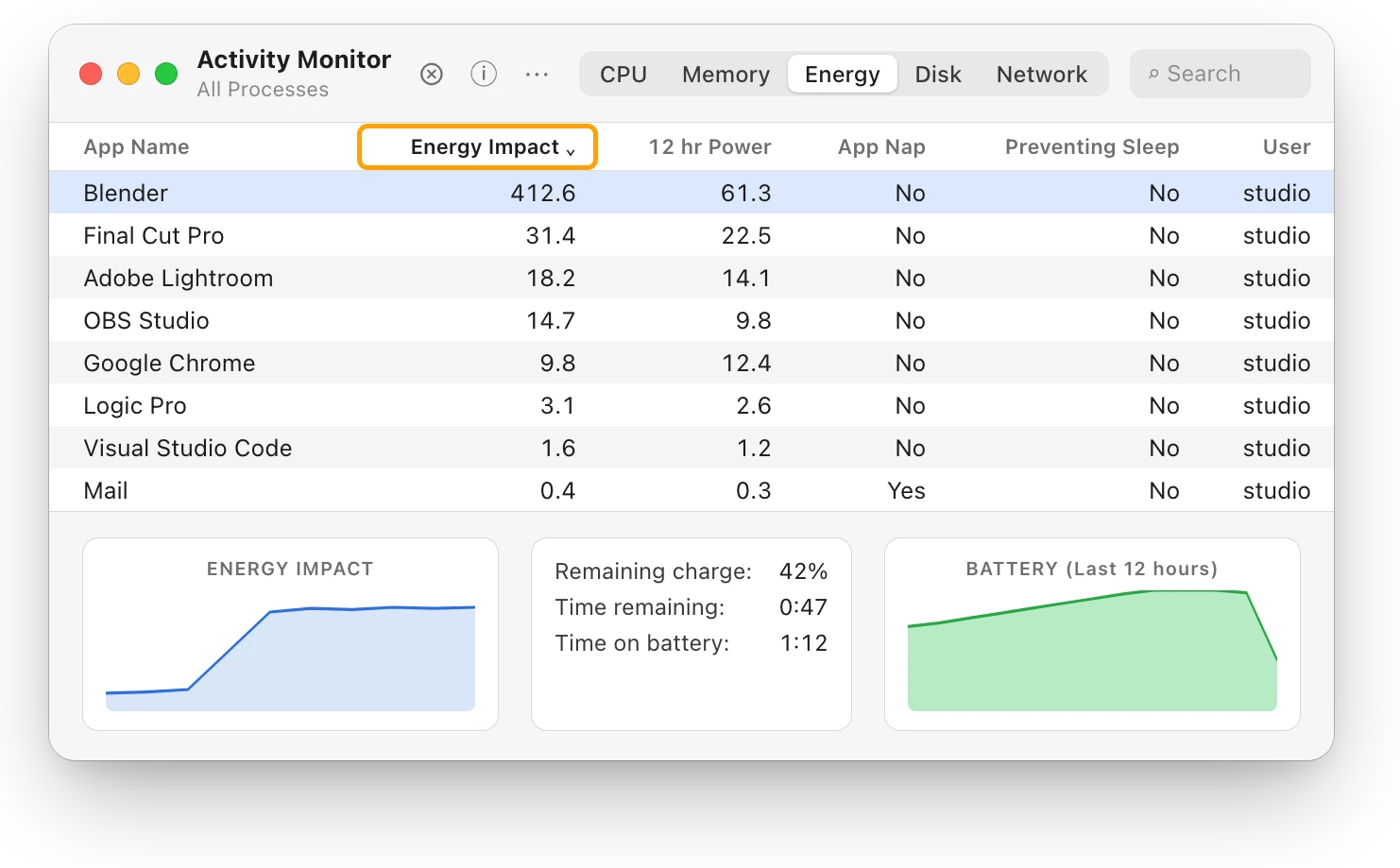
Energy Impact compares apps with each other: lower is better. If a fast drain started suddenly, MacBook battery draining fast? walks through finding the cause.
What are the best ways to save battery on a MacBook?
Here are Apple’s tips, roughly in order of how much they usually help. Apple doesn’t give a number for each, because it depends on what you do.
- Quit apps you aren’t using. Apple notes that even an app you aren’t using may be working in the background.
- Dim the display to the lowest comfortable level, with the brightness keys or in System Settings > Displays. On some MacBooks, the battery menu shows Display Brightness when the screen uses a lot of energy; click it to turn brightness down to about 75%.
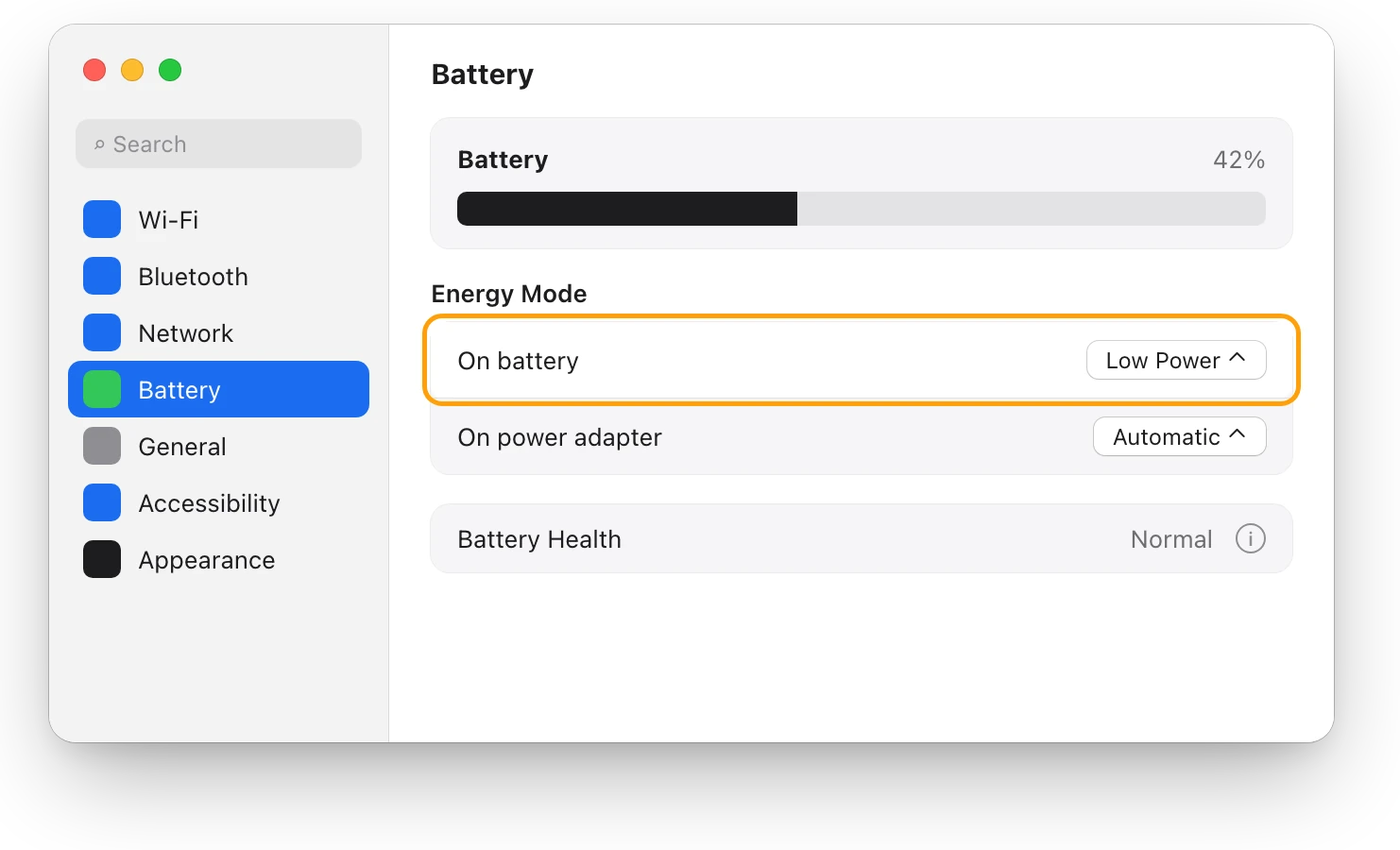
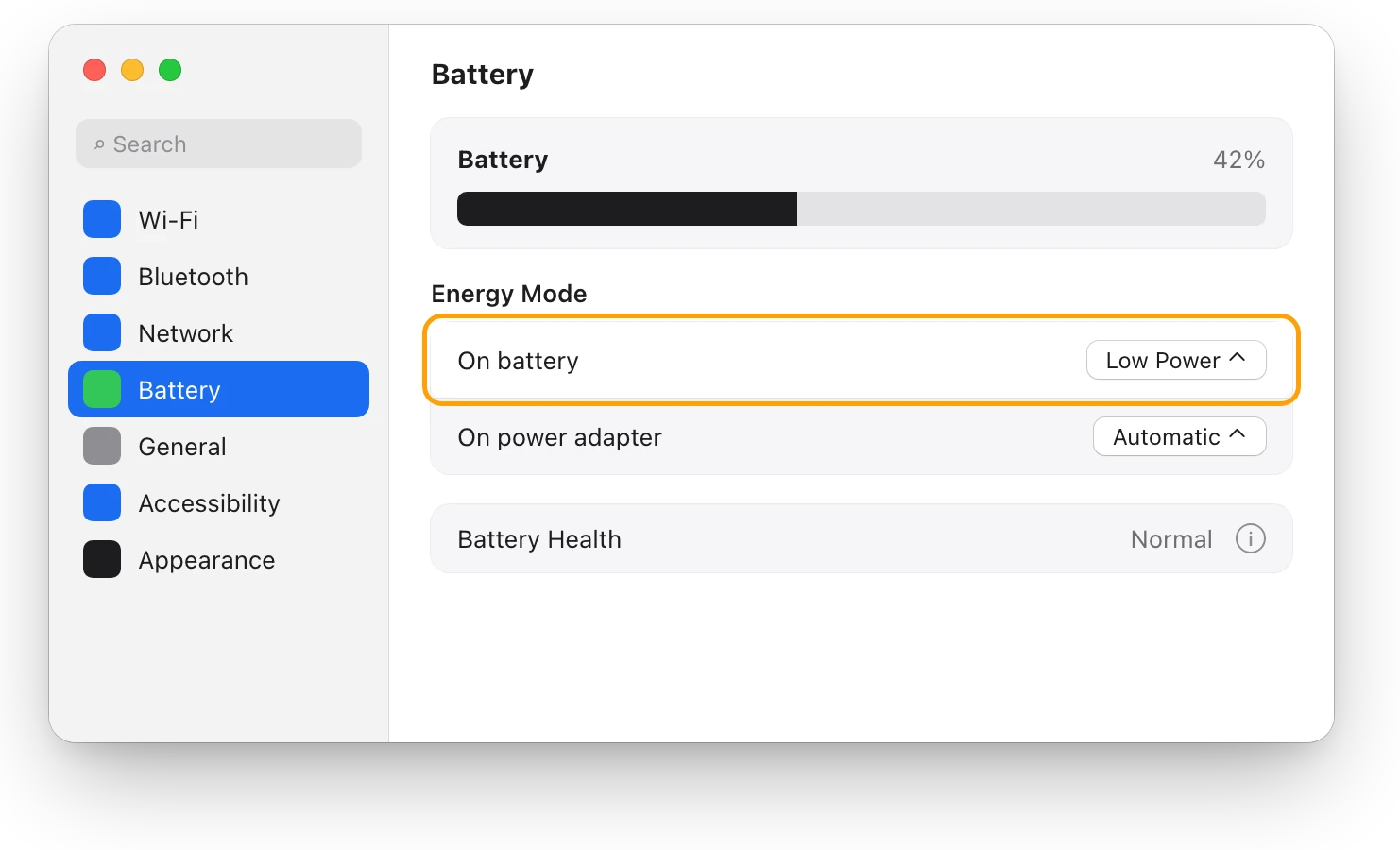
- Choose Low Power Mode on battery. Choose Apple menu > System Settings, click Battery, then under Energy Mode choose Low Power from the On battery pop-up menu. On some Macs it’s a Low Power Mode pop-up menu instead: choose Only on Battery.
- Turn the display off sooner. In System Settings > Lock Screen, choose a shorter time for “Turn display off on battery when inactive.”
- Turn off Wi-Fi and Bluetooth when you don’t need them. Apple says they use energy even when they aren’t in use.
- Disconnect accessories you aren’t using, such as external drives.
- Stop apps you don’t need from opening at login, in System Settings > General > Login Items & Extensions.
- Keep macOS up to date. Apple lists this first among its MacBook battery tips.
Low Power Mode on a Mac explains what that setting changes.
Which battery settings help, and where are they?
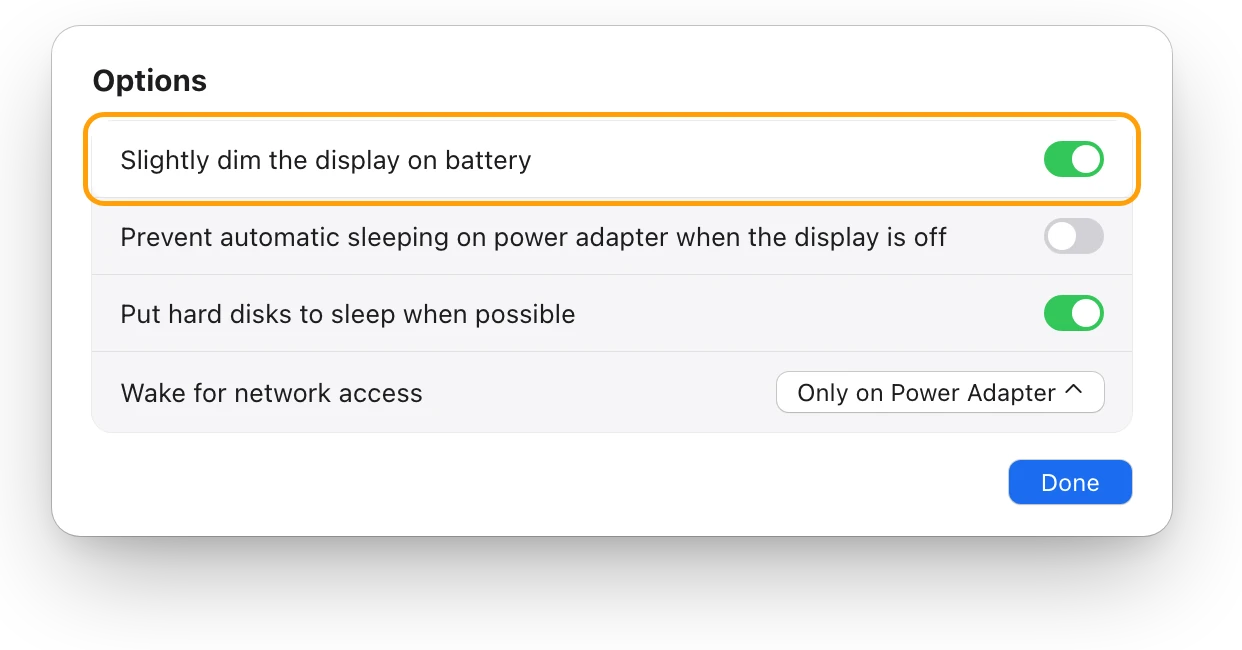
Battery settings has more options under Options. Choose Apple menu > System Settings, click Battery, then click Options.
| Setting | Where | What Apple says it does |
|---|---|---|
| Low Power Mode | Battery > Energy Mode > On battery | Reduces energy use to increase battery life |
| Slightly dim the display on battery | Battery > Options | Dims the display when your Mac isn’t plugged in |
| Optimize video streaming while on battery | Battery > Options | Plays HDR video in standard dynamic range, which uses less energy |
| Turn display off on battery when inactive | Lock Screen | Turns the display off after the time you choose |
| Turn keyboard backlight off after inactivity | Keyboard | Turns the backlight off after the time you choose |
| Optimized Battery Charging | Battery > Charging ⓘ | Reduces battery aging (lifespan, not each charge) |
Avoid High Power Mode on battery unless you need it: Apple says it increases energy use to improve performance during sustained work.
How do I make my MacBook battery last more years?
A battery’s lifespan depends on its chemical age, which Apple says is affected by its temperature history and how it’s charged. Every rechargeable battery holds less charge as it ages. Three things slow that down:
- Leave Optimized Battery Charging on. It learns your daily routine and delays charging past 80% when it predicts you’ll stay plugged in for a long time, then aims to finish charging before you unplug. “Charging On Hold” in the battery menu means it’s working; choose Charge to Full Now when you need 100%.
- Set a Charge Limit if your Mac stays plugged in. In macOS Tahoe 26.4 or later on a Mac with Apple silicon, click the info button (ⓘ) next to Charging and choose a limit between 80% and 100%.
- Keep it cool. Apple says ambient temperatures above 35 °C (95 °F) can permanently damage battery capacity, and that even storing a battery somewhere hot can harm it.
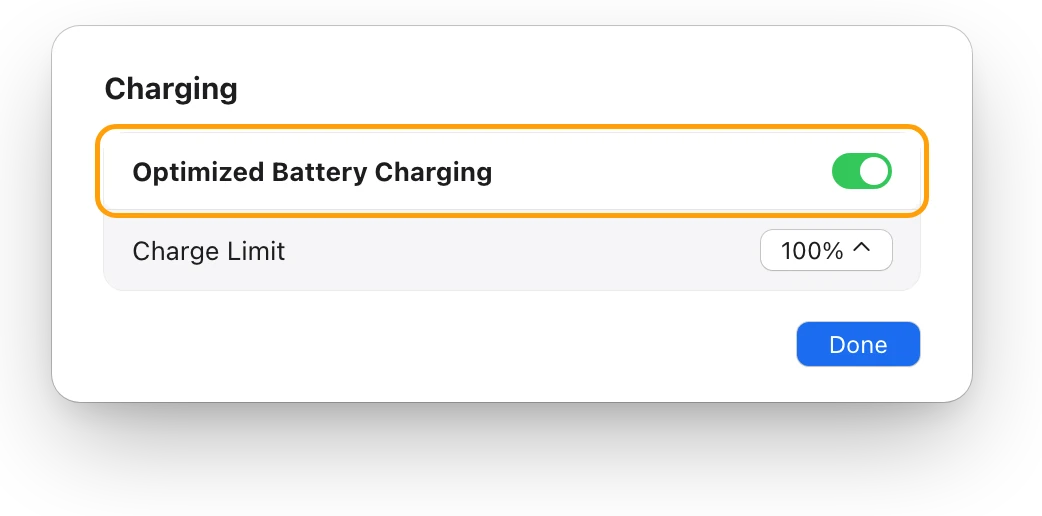
Apple adds that battery health management in Mac laptops with Apple silicon may lower the maximum charge for a while, to reduce wear. Your Mac also charges to 100% now and then, to keep its battery estimates accurate. MacBook battery health and cycle count shows how to check how worn your battery is.
MacBook battery myths: what Apple says
| Myth | What Apple says |
|---|---|
| Drain the battery to 0% before charging | There’s no need: charge whenever you want. Batteries work in charge cycles, which add up across charges |
| Quit every app to save battery | macOS already slows idle background apps with App Nap. Quit apps you aren’t using, because some keep working in the background |
| Keeping it plugged in ruins the battery | Optimized Battery Charging and Charge Limit are designed for this: they reduce the time your Mac spends fully charged |
| Cold permanently damages the battery | Cold shortens battery life only for a while; heat above 35 °C is what can damage capacity for good |
| Store a MacBook fully charged | For long-term storage, Apple suggests about 50%, powered off, somewhere below 32 °C (90 °F) |
How can I tell if the changes help?
Choose Apple menu > System Settings, then click Battery:
- Last 24 Hours shows the battery level, with charging shaded, and how long the screen was on.
- Last 10 Days shows how much energy your Mac used each day, and screen-on time.
Compare a few days before and after a change. A day with less energy used and similar screen-on time means the change worked.
Questions people also ask
How many hours should a MacBook battery last?
It depends on the model and on what you do. Apple lists each model’s battery life on its Tech Specs page, from Apple’s own tests. Heavy work like rendering drains it far faster.
Does Optimized Battery Charging make each charge last longer?
No. It protects the battery’s lifespan by reducing time at full charge. To make each charge last longer, use Low Power Mode and dim the display.
Should I keep my MacBook plugged in all the time?
You can. Apple’s battery health management, Optimized Battery Charging and Charge Limit reduce the wear of staying plugged in. Use it in a cool place.
Why does my MacBook battery drain overnight?
Something may keep it awake. In Activity Monitor’s Energy tab, the Preventing Sleep column shows which app is keeping your Mac from sleeping.
Scope for Mac · Free, coming to the Mac App Store
How Scope helps
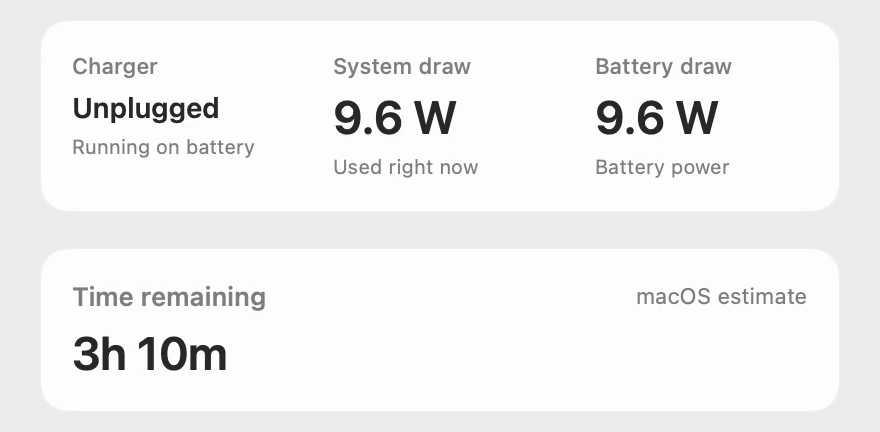
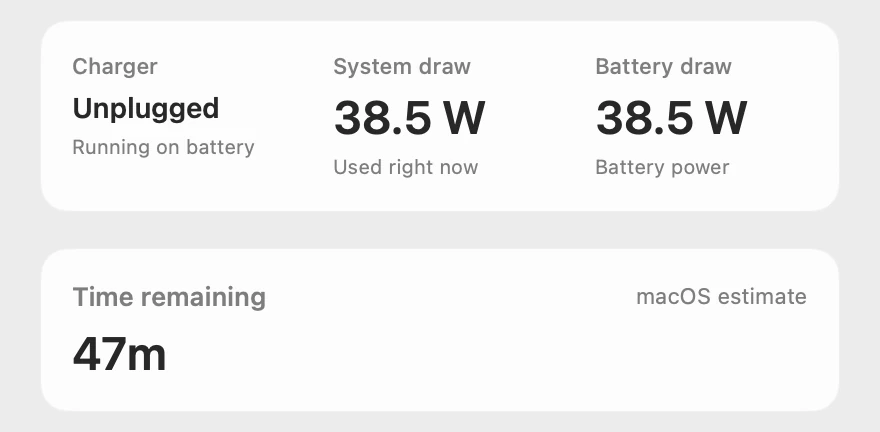
Scope is a free Mac menu bar app that shows how much power your MacBook is drawing right now, in watts, beside macOS’s estimate of the time left. You can see what a change saves, such as quitting a busy app or dimming the display, the moment you make it.
In your menu bar
Scope Free keeps one whole menu bar item of your choice.

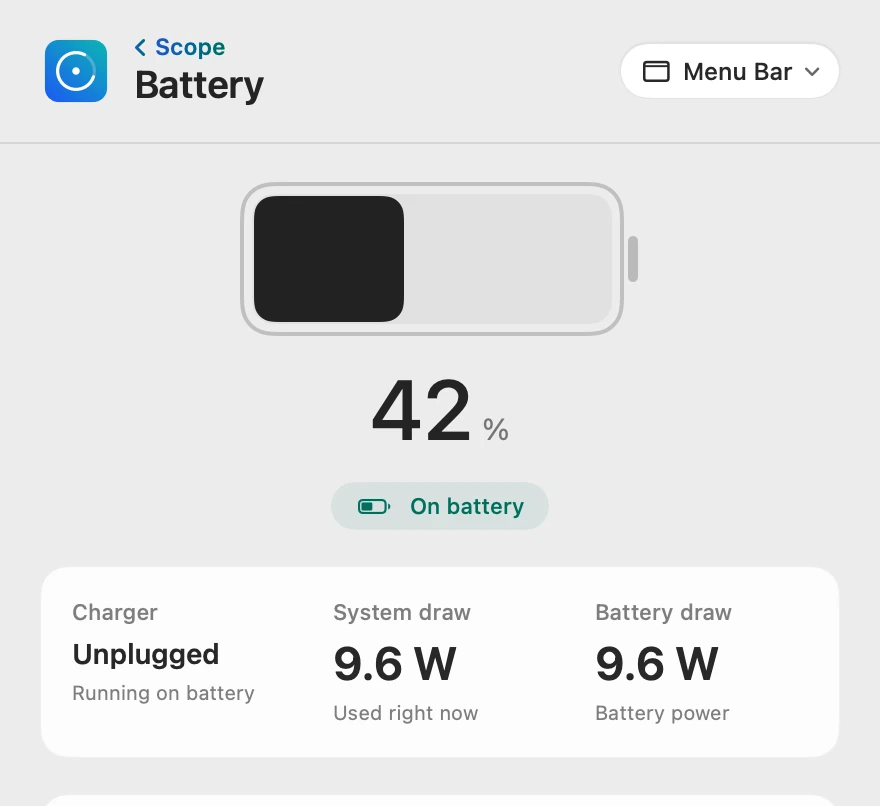
Light work, heavy work
System draw is what your Mac is using right now, and on battery the battery supplies all of it. Time remaining is macOS’s own estimate.
Scope shows and explains. It never changes your settings or quits apps; what to change stays your call.
Try it here
The real Scope, working, right in this page.
Click any item in the menu bar, or a card inside, as you would on your Mac.
Scope Pro Every menu bar item is shown here. Scope Free keeps one whole item of your choice, with every reading inside.
See what your own MacBook is drawing.
Keep reading
Guide · Battery
Mac battery problems: drain, health and charging
Most MacBook battery problems are a busy app, a worn battery, charging paused on purpose or a weak charger. Here’s how to tell which, with macOS’s tools.
Battery
MacBook battery draining fast? See what’s busy
A MacBook battery drains fast when an app keeps it busy. The battery menu and Activity Monitor’s Energy tab show which one; here’s what to do.
Battery
Low Power Mode on a Mac: what it changes
Low Power Mode on a Mac reduces energy use so the battery lasts longer. Here’s how to turn it on, what Apple says it changes, and when to use High Power.
Battery
MacBook battery health and cycle count, explained
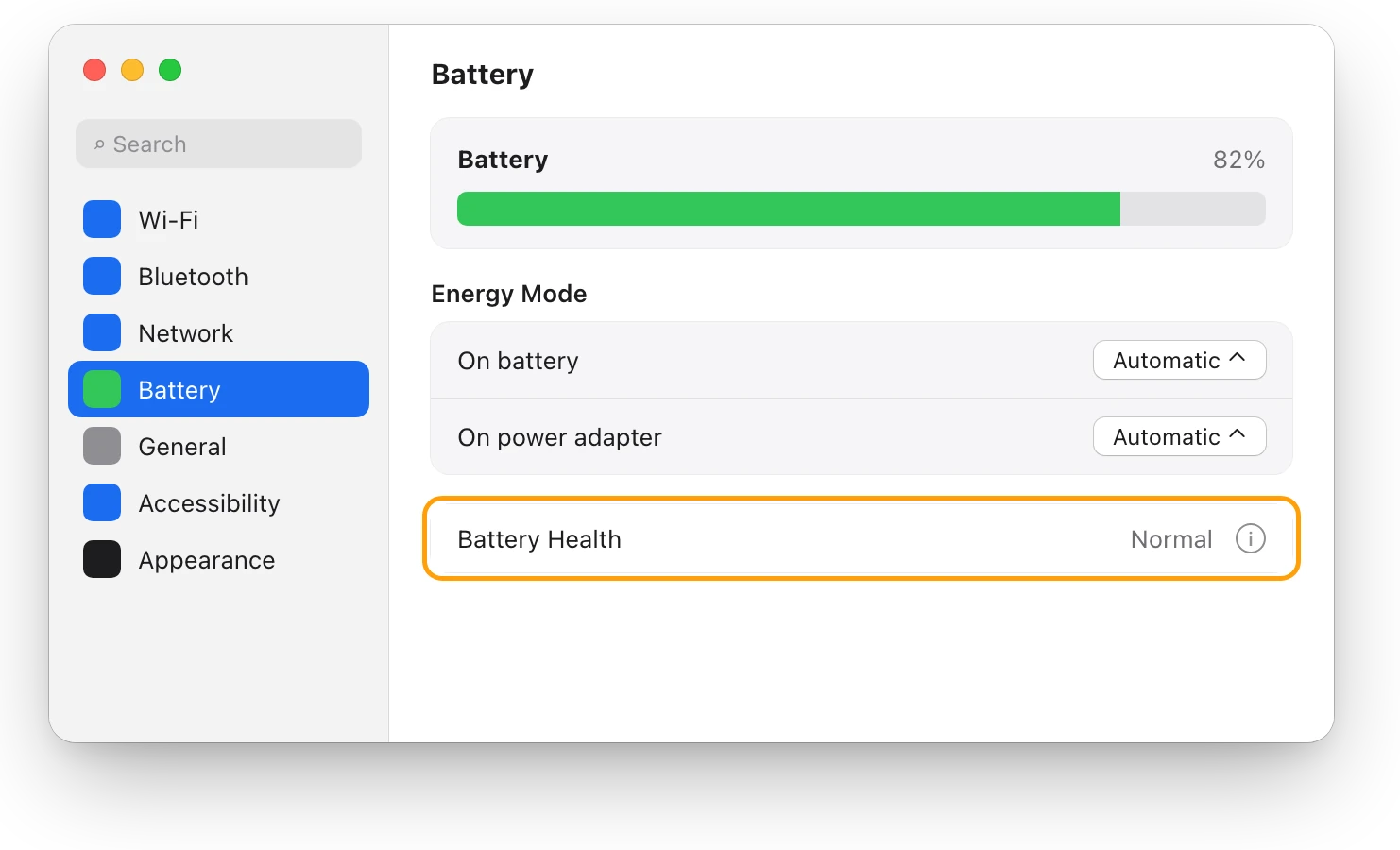
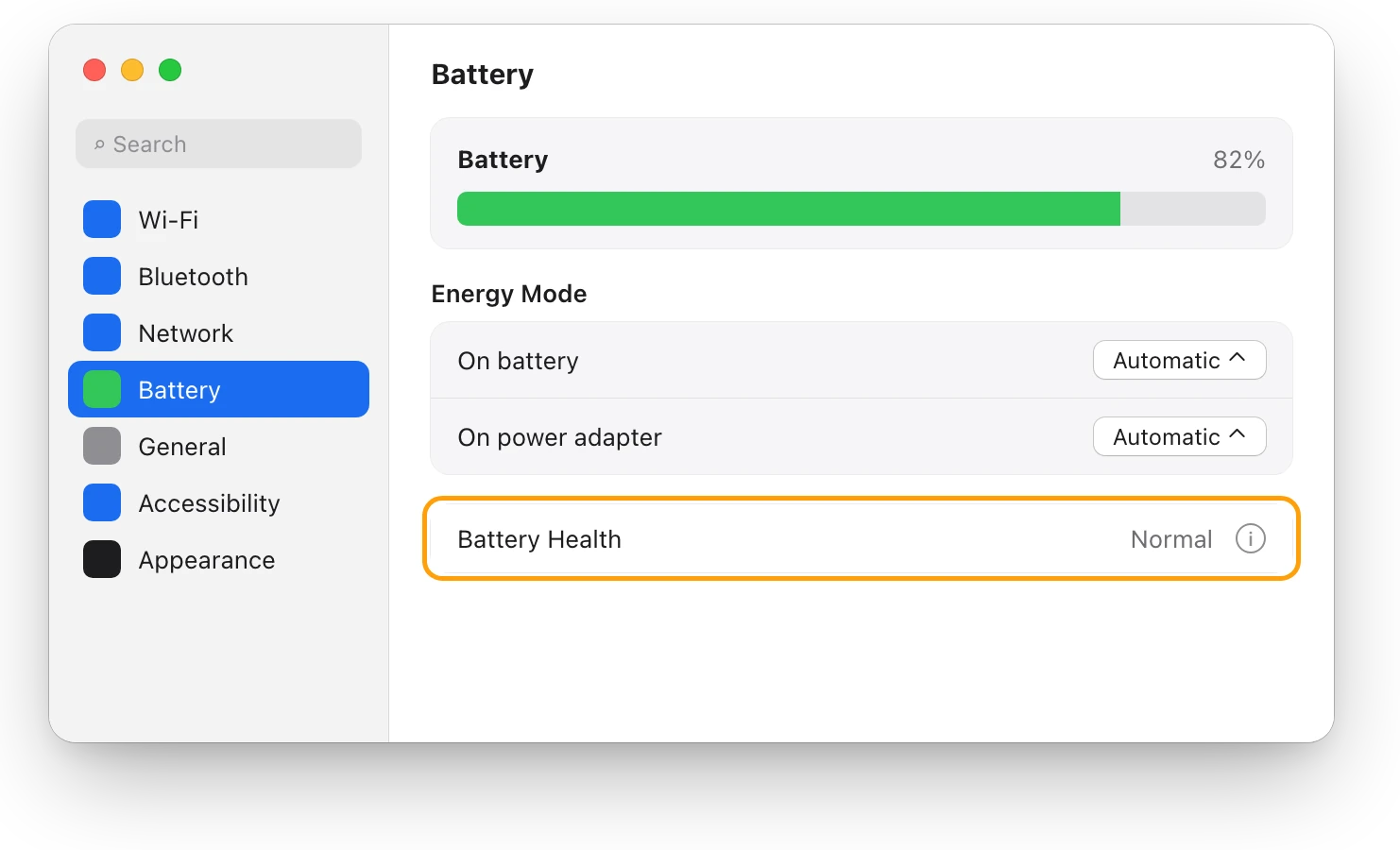
Battery Health in System Settings shows if your MacBook’s battery is Normal; System Information shows its cycle count. Here’s how to read both.
Sources
- Apple: Maximizing Battery Life and Lifespan
- Apple: Why Lithium-ion?
- Apple Support: Save energy on your Mac
- Apple Support: Change Battery settings on a Mac laptop
- Apple Support: About Optimized Battery Charging and Charge Limit on Mac
- Apple Support: About battery health management in Mac laptops with Apple silicon
- Apple Support: What is the Battery Status menu on Mac?
- Apple Support: View energy consumption in Activity Monitor on Mac
- Apple Support: Turn your Mac keyboard’s backlighting on or off
- Apple Support: App Nap (Mac User Guide glossary)
- Apple Support: Open items automatically when you log in on Mac
- Apple: MacBook Pro Tech Specs
Last checked October 18, 2026. Readings, apps and files in the pictures are from a made-up Mac.