How to show battery percentage on a Mac
To show battery percentage on a Mac with macOS Tahoe, choose Apple menu > System Settings, click Menu Bar in the sidebar, select Battery, click Battery Options, and turn on Show Percentage. On macOS Sequoia, Sonoma and Ventura, it’s in System Settings > Control Center, under Battery. The percentage then sits beside the battery icon in the menu bar.
How do I show the battery percentage in macOS Tahoe?
In macOS Tahoe 26 and later, the percentage is one of Battery’s options in Menu Bar settings.
- Choose Apple menu > System Settings.
- Click Menu Bar in the sidebar. You may need to scroll down.
- Under Menu Bar Controls, select Battery, so its icon shows in the menu bar.
- Click Battery Options, then turn on Show Percentage.
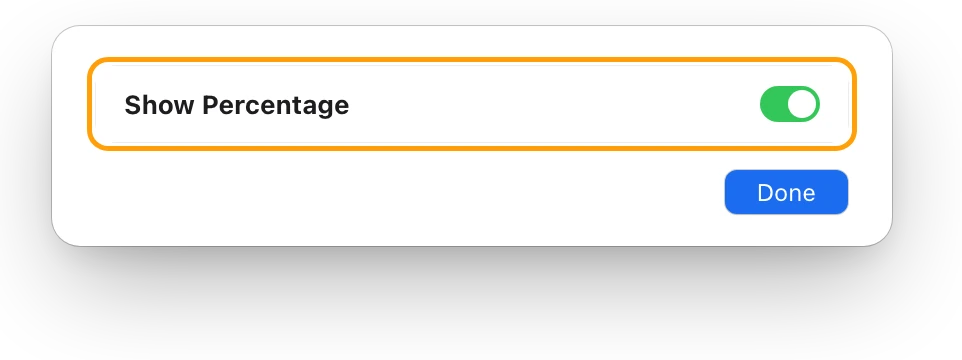
Battery is in Menu Bar settings only on Mac laptops, because a desktop Mac has no battery. Battery Options also lets you choose when the menu bar shows your Energy Mode.
Where is Show Percentage on older versions of macOS?
In macOS Ventura 13 through macOS Sequoia 15, the battery’s menu bar settings are in Control Center settings.
- Choose Apple menu > System Settings, then click Control Center in the sidebar. You may need to scroll down.
- Under Battery, turn on Show in Menu Bar.
- Turn on Show Percentage.
| macOS | Where to find it |
|---|---|
| macOS Tahoe 26 and later | System Settings > Menu Bar > Battery > Battery Options > Show Percentage |
| macOS Sequoia 15 and macOS Sonoma 14 | System Settings > Control Center > Battery > Show Percentage |
| macOS Ventura 13 | System Settings > Control Center > Battery, with Show in Menu Bar turned on |
To see which version you have, choose Apple menu > About This Mac.
Why is my MacBook battery percentage not showing?
Usually because Battery, or its percentage, is turned off in settings. Check these in order:
- Battery is off. In Menu Bar settings, select Battery under Menu Bar Controls. On macOS Ventura to Sequoia, turn on Show in Menu Bar in Control Center settings.
- Show Percentage is off. The icon shows, but no number beside it. Turn on Show Percentage, as above.
- The icon was dragged away. Holding Command while you drag an icon out of the menu bar removes it. Turn Battery back on in settings to bring it back.
- The menu bar is hidden. If your Mac is set to hide the menu bar automatically, move the pointer to the top of the screen to show it. The setting is “Automatically hide and show the menu bar” in Menu Bar settings.
- It’s in Control Center instead. When Battery is in Control Center, Control Center always shows its percentage. Click Control Center in the menu bar to see it.
- It’s a desktop Mac. An iMac, Mac mini, Mac Studio or Mac Pro has no battery to show.
How else can I see my battery percentage?
macOS shows the charge in several places, even with the percentage off in the menu bar.
| Where | How to open it | What it shows |
|---|---|---|
| Battery status menu | Click the battery icon in the menu bar | The percentage, the power source, and the time until full while charging |
| Battery settings | Apple menu > System Settings > Battery | The current level at the top, and its last 24 hours |
| Control Center | Click Control Center in the menu bar | The percentage, if Battery is in Control Center |
| Activity Monitor | Applications > Utilities > Activity Monitor, then Energy | Remaining charge, and Time until full while plugged in |
| Terminal | Type pmset -g batt | The percentage, whether it’s charging, and the time estimate |
The battery status menu
- Click the battery icon in the menu bar.
- Read the percentage at the top of the menu.
- While your Mac charges, the estimated time until it’s full also appears at the top. It may take a few minutes to show, and it doesn’t show when a Charge Limit below 100% is set.
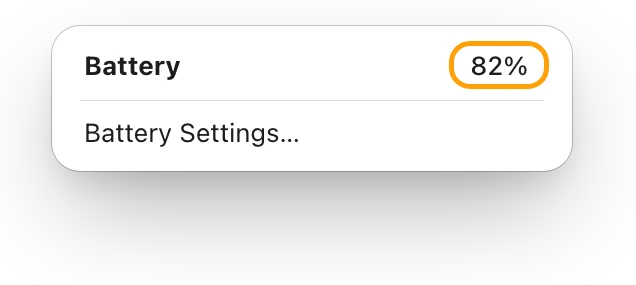
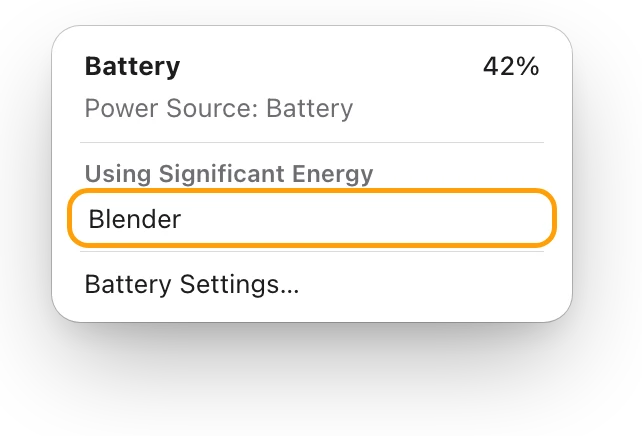
The same menu lists apps using significant energy, and whether Low Power Mode is on.
Battery settings
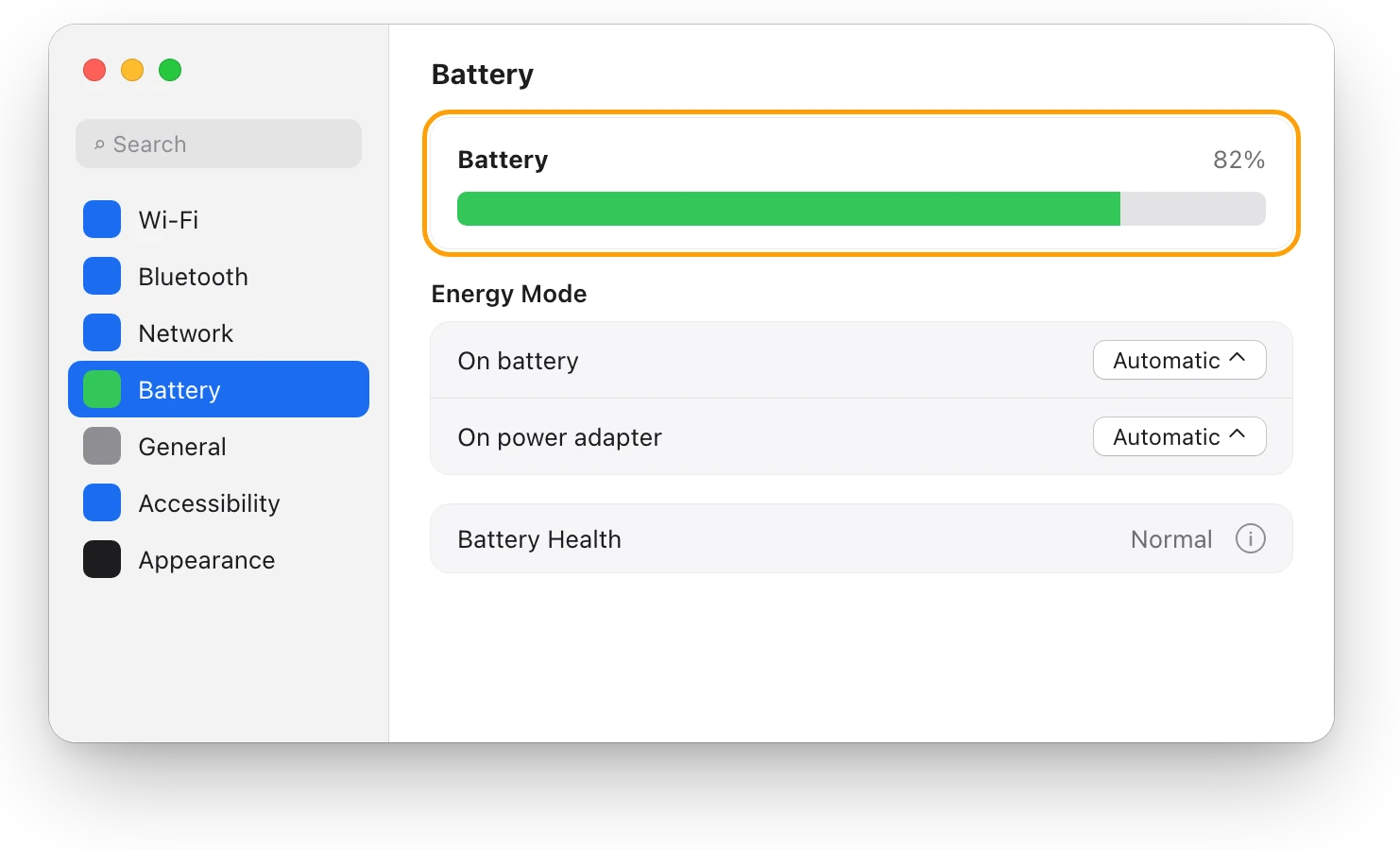
- Choose Apple menu > System Settings, then click Battery in the sidebar. You may need to scroll down.
- Read the battery level at the top. Battery alerts show there too.
- For the past day, look at Last 24 Hours: Battery Level shows the average charge for each 15-minute period.
Terminal
- Open Terminal. It’s in Applications > Utilities.
- Type this and press Return:
pmset -g batt- Read the line under “Now drawing from”: the percentage, then the state, such as charging, charged, discharging, or AC attached; not charging. Then the time estimate. While your Mac is plugged in, that’s the time until full.
studio@MacBook-Pro ~ % pmset -g battNow drawing from 'AC Power' -InternalBattery-0 (id=12345678) 82%; charging; 1:12 remaining present: truestudio@MacBook-Pro ~ %
The command needs no password. Its manual page (man pmset) says -g batt displays the status of batteries.
Why does my battery stop at 80%?
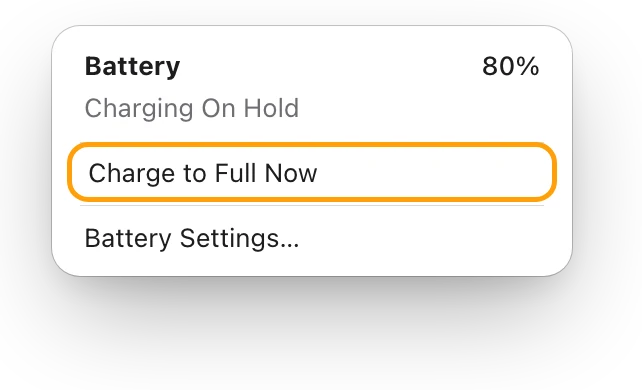
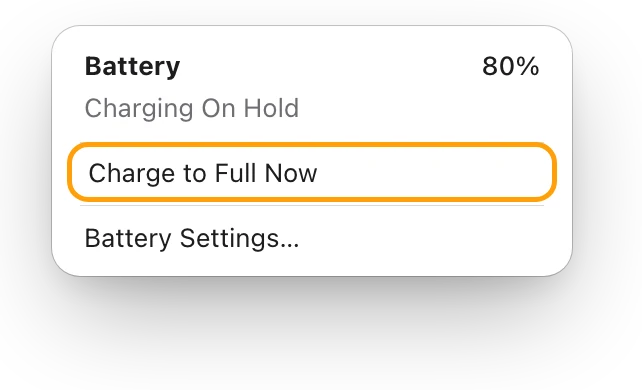
Often on purpose. Optimized Battery Charging can hold the charge at 80% when your Mac expects to stay plugged in, and a Charge Limit stops it at the level you set. MacBook plugged in but not charging? shows how to tell which, and Should I keep my MacBook plugged in all the time? explains why macOS does it.
Questions people also ask
Can I show the battery percentage on an iMac or Mac mini?
No. Battery appears in Menu Bar settings only on Mac laptops, because desktop Macs have no battery.
How do I see the time left on battery?
Open Activity Monitor and click Energy. While your Mac is unplugged, Time remaining at the bottom of the window is macOS’s estimate of the battery time left.
Why did my battery icon disappear from the menu bar?
It may have been dragged out while the Command key was held, which removes it. Turn Battery back on in System Settings > Menu Bar.
How do I check my battery’s health?
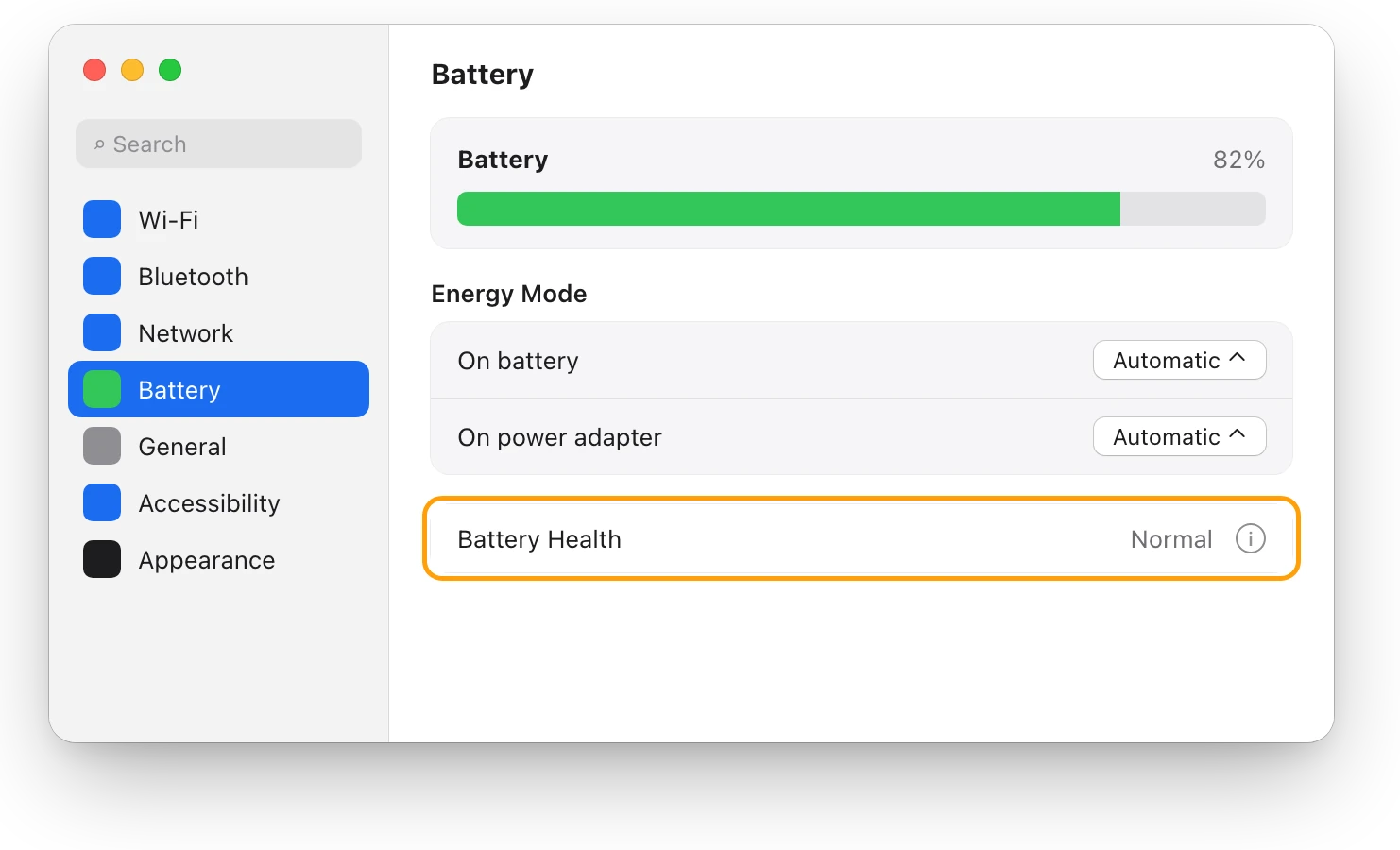
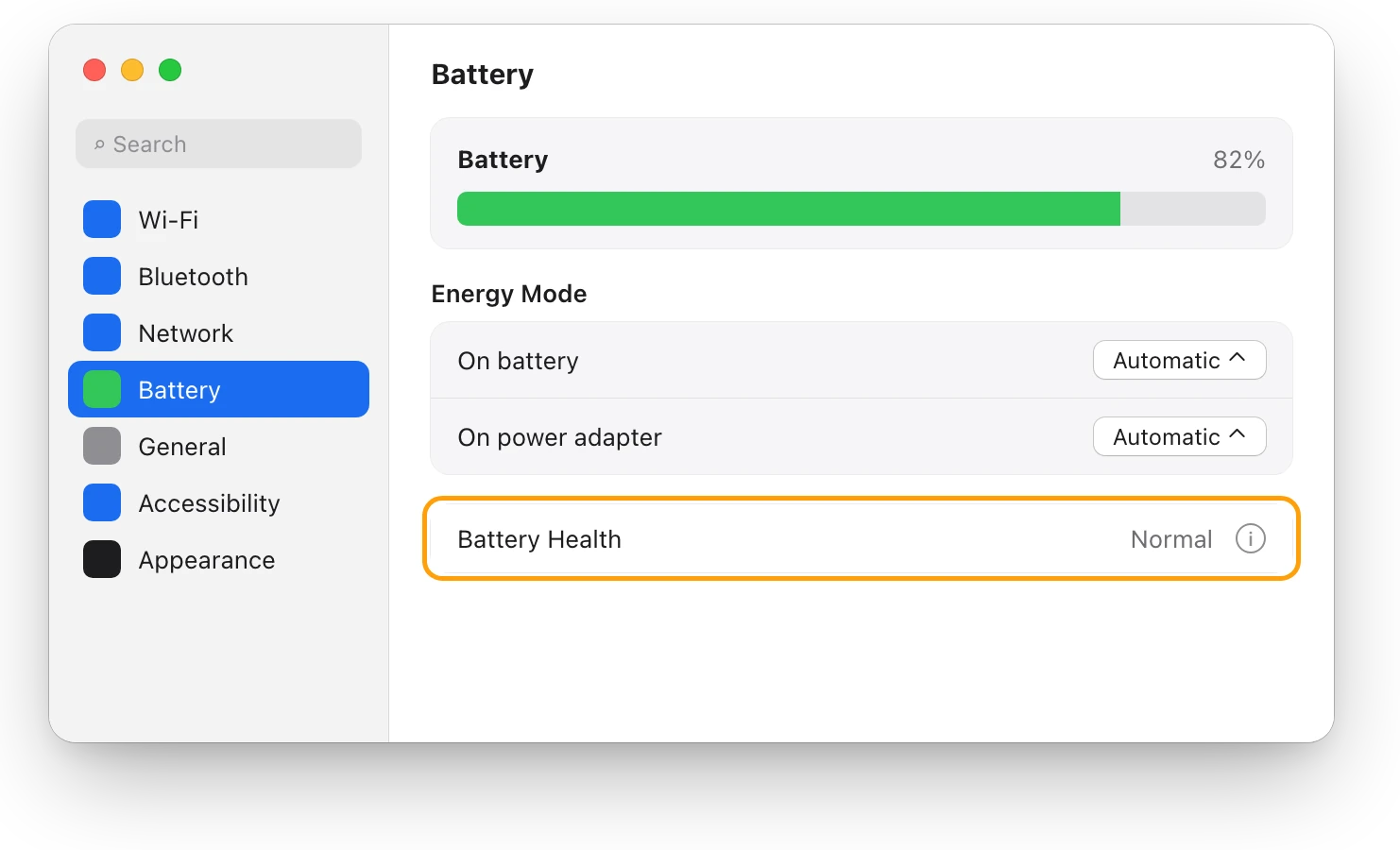
Choose Apple menu > System Settings, click Battery, and read Battery Health. MacBook battery health and cycle count, explained shows what Normal and Maximum Capacity mean.
Scope for Mac · Free, coming to the Mac App Store
How Scope helps
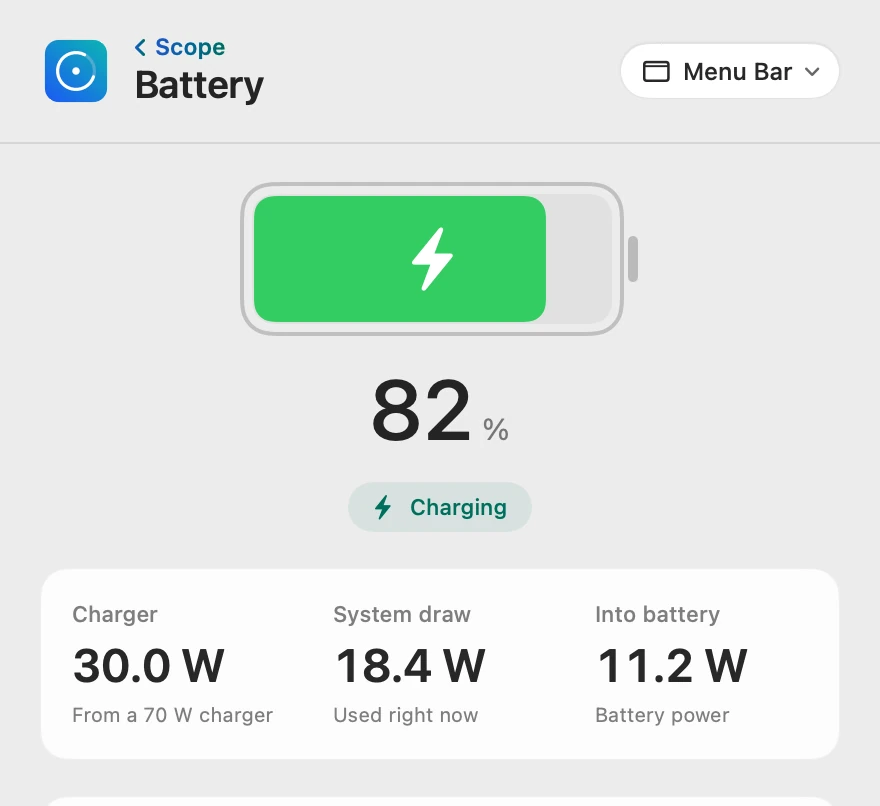
Scope is a free Mac menu bar app that shows your MacBook’s battery percentage in the menu bar in three styles, with the watts your charger gives and your Mac uses beside it if you choose. One click opens the charge, macOS’s time to full and the battery’s health.
In your menu bar
Scope Free keeps one whole menu bar item of your choice.

Three styles
Choose one in Battery’s Menu Bar settings, under Style. Standard is the battery as macOS shows it, with its percentage beside it. Liquid fills the battery with its charge, the percentage inside, and Gauge is a ring beside the percentage; both are green while the Mac charges, and turn yellow and red as it runs low.

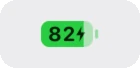

Watts beside the percentage
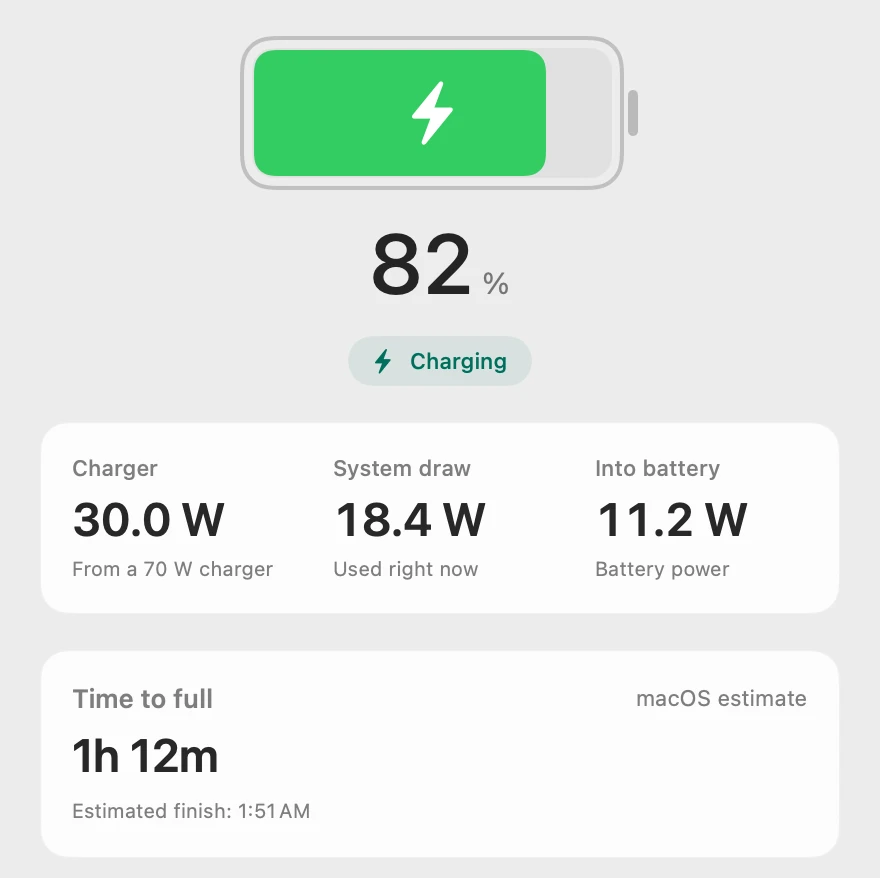
Under Readout, turn on Charger power, System draw or Battery draw; all three start off. Charger is the power coming in from the charger right now, not the charger’s rating.

The charge, one click away
Time to full is macOS’s own estimate: the same 1 hour 12 minutes that pmset -g batt shows.
Scope shows and explains. It doesn’t change your settings or how your Mac charges.
Try it here
The real Scope, working, right in this page.
Click any item in the menu bar, or a card inside, as you would on your Mac.
Scope Pro Every menu bar item is shown here. Scope Free keeps one whole item of your choice, with every reading inside.
See your own battery at a glance.
Keep reading
Guide · Battery
Mac battery problems: drain, health and charging
Most MacBook battery problems are a busy app, a worn battery, charging paused on purpose or a weak charger. Here’s how to tell which, with macOS’s tools.
Battery
MacBook battery health and cycle count, explained
Battery Health in System Settings shows if your MacBook’s battery is Normal; System Information shows its cycle count. Here’s how to read both.
Battery
MacBook plugged in but not charging?
A MacBook plugged in but not charging is often holding at 80% to protect its battery. Here’s how to see why, and what to try if it won’t charge at all.
Battery
How to make your MacBook battery last longer
Make each MacBook charge last longer: quit energy-heavy apps, dim the screen, use Low Power Mode. Plus Apple’s tips for battery lifespan, and the myths.
Battery
Should I keep my MacBook plugged in all the time?
You can keep a MacBook plugged in: Optimized Battery Charging and Charge Limit cut its time at full charge. Heat matters more. Here’s how to set them.
Sources
- Apple Support: Monitor your Mac laptop’s battery (macOS Tahoe)
- Apple Support: Monitor your Mac laptop’s battery (macOS Sequoia)
- Apple Support: Change Menu Bar settings on Mac
- Apple Support: Change Control Center settings on Mac (macOS Ventura)
- Apple Support: The menu bar on Mac
- Apple Support: Find out which macOS your Mac is using
- Apple Support: What is the Battery Status menu on Mac?
- Apple Support: Change Battery settings on a Mac laptop
- Apple Support: View energy usage in Activity Monitor on Mac
- Apple Support: About Optimized Battery Charging and Charge Limit on Mac
Last checked October 19, 2026. Readings, apps and files in the pictures are from a made-up Mac.