Is my Mac OK? A 5-minute checkup
To check a Mac’s health in five minutes, use macOS’s own tools: Activity Monitor for the processor and memory pressure, System Settings > General > Storage for free space, System Settings > Battery for Battery Health on a MacBook, and General > Software Update for updates. These are readings of how your Mac is doing right now, not a hardware test. If you suspect a hardware problem, Apple Diagnostics tests your Mac’s components.
What does OK look like?
| Check | Where | OK looks like | On this Mac |
|---|---|---|---|
| Processor | Activity Monitor > CPU | No app stays at the top for minutes, unless it’s doing work you asked for | Idle 65.80% |
| Memory | Activity Monitor > Memory | Memory Pressure green | Green, Swap Used 0 bytes |
| Storage | System Settings > General > Storage | Room for updates and your work | 137.72 GB available |
| Battery | System Settings > Battery | Battery Health: Normal | Normal |
| Updates | System Settings > General > Software Update | Nothing waiting to install | Up to date |
How do I check the processor and memory? (2 minutes)
- Open Activity Monitor. It’s in Applications > Utilities, or search for it with Spotlight.
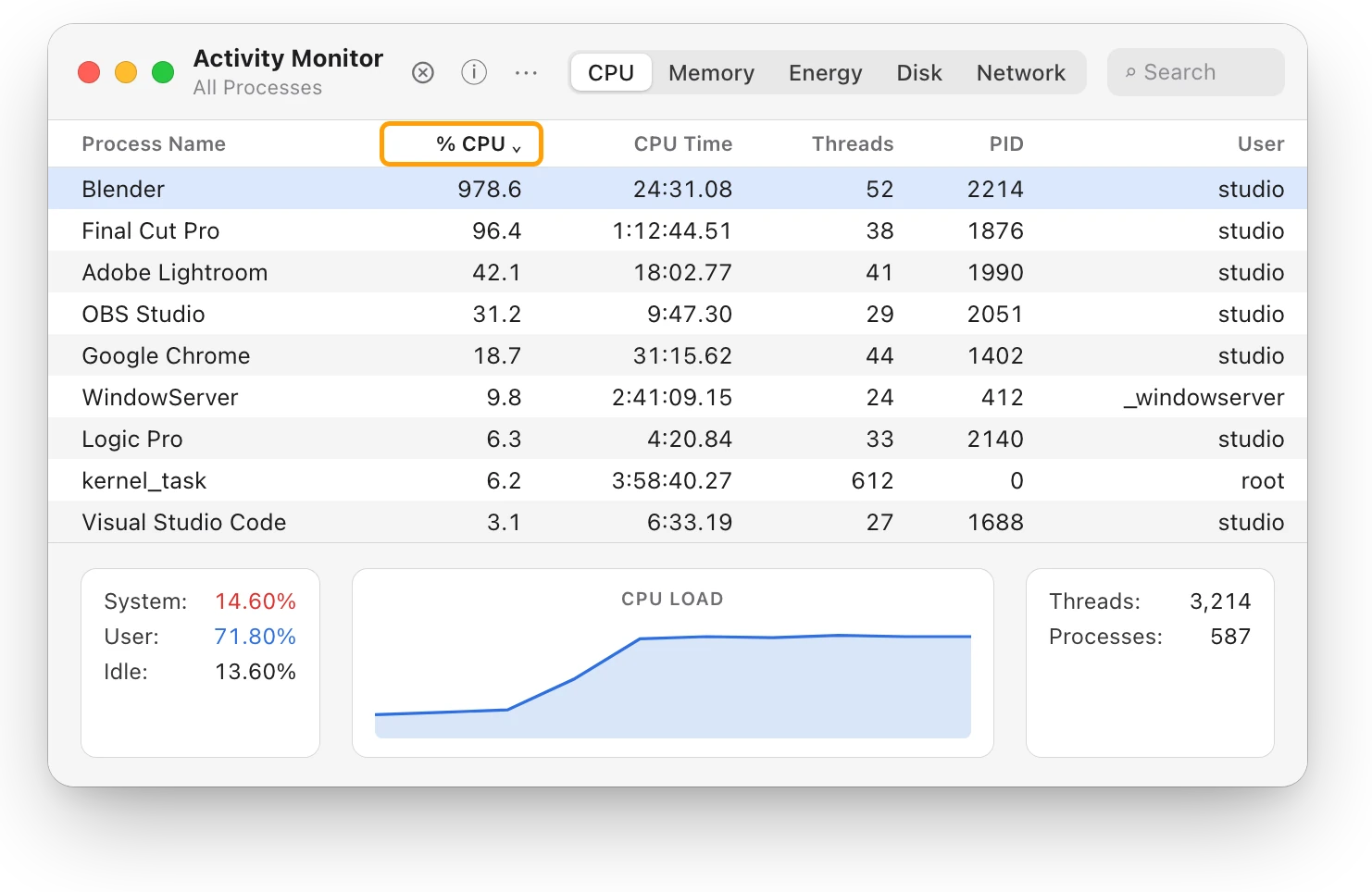
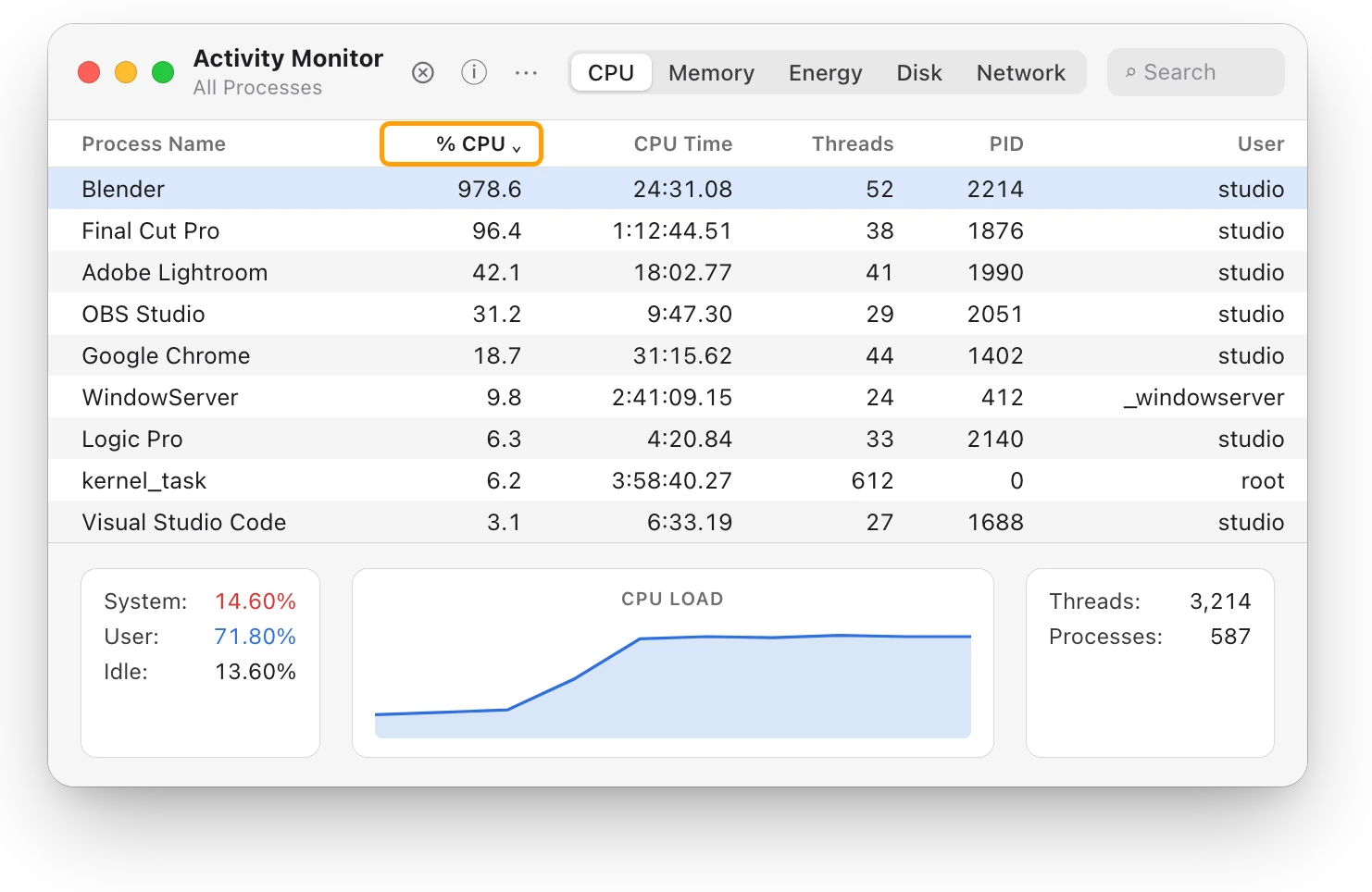
- Click CPU, then click the % CPU column heading to sort, busiest first. Watch the top for a minute. Apps jump up briefly when they open or save, which is normal. An app that stays at the top is doing sustained work.
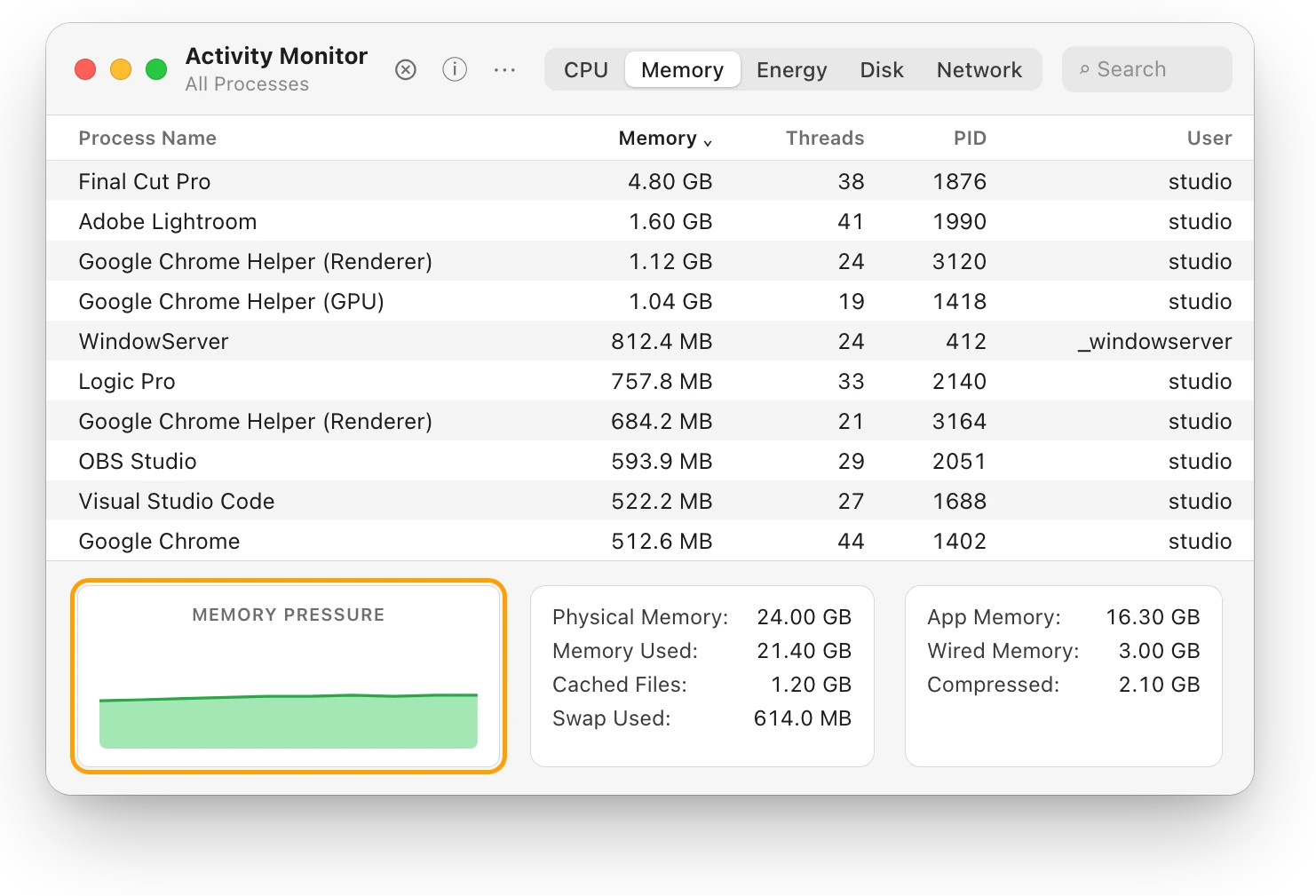
- Click Memory and look at the Memory Pressure graph at the bottom of the window.
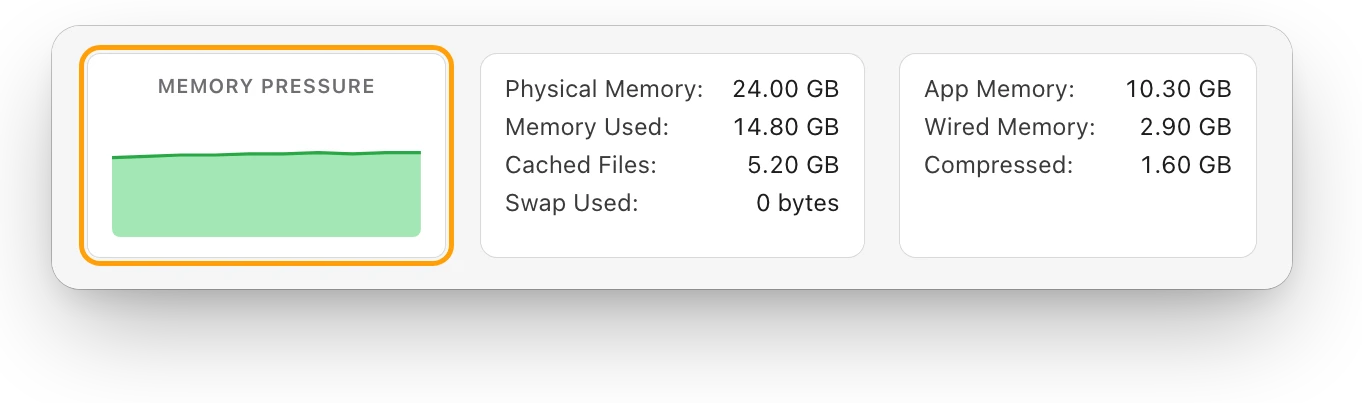
Green means your Mac is using its memory efficiently, even when most of it is in use. Yellow means it might eventually need more, and red means it needs more. On this Mac, 14.80 GB of 24 GB is in use with green pressure: fine.
In the CPU list, Final Cut Pro leads at 209.1% while it renders in the background, and the processor is 65.80% idle. Activity Monitor counts each core as 100%, so an app can show more than 100%. If an app you don’t need stays at the top, see Which app is slowing down my Mac?
How do I check storage? (1 minute)
- Choose Apple menu > System Settings, then click General in the sidebar.
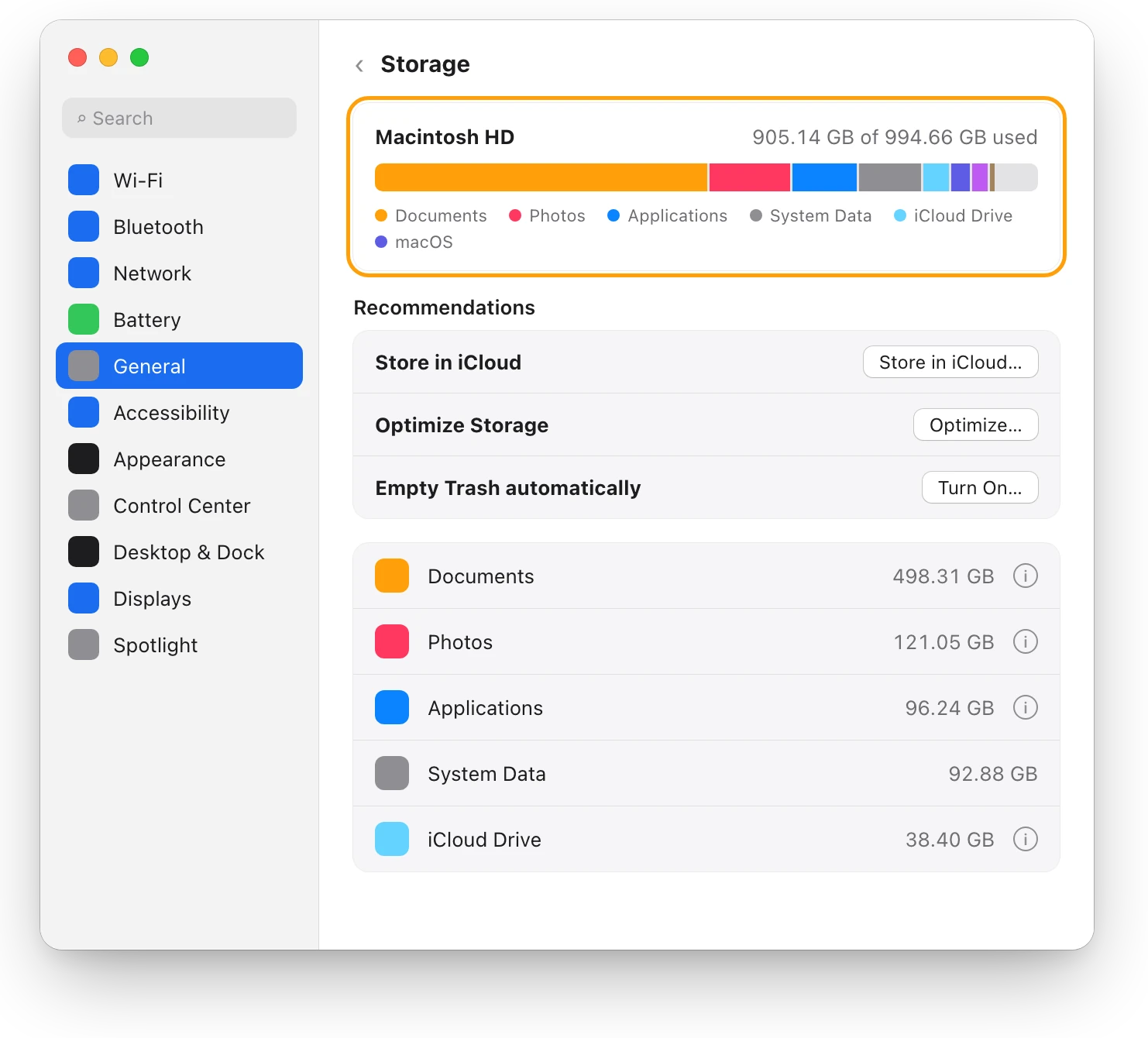
- Click Storage, and read the bar at the top: used and available space.
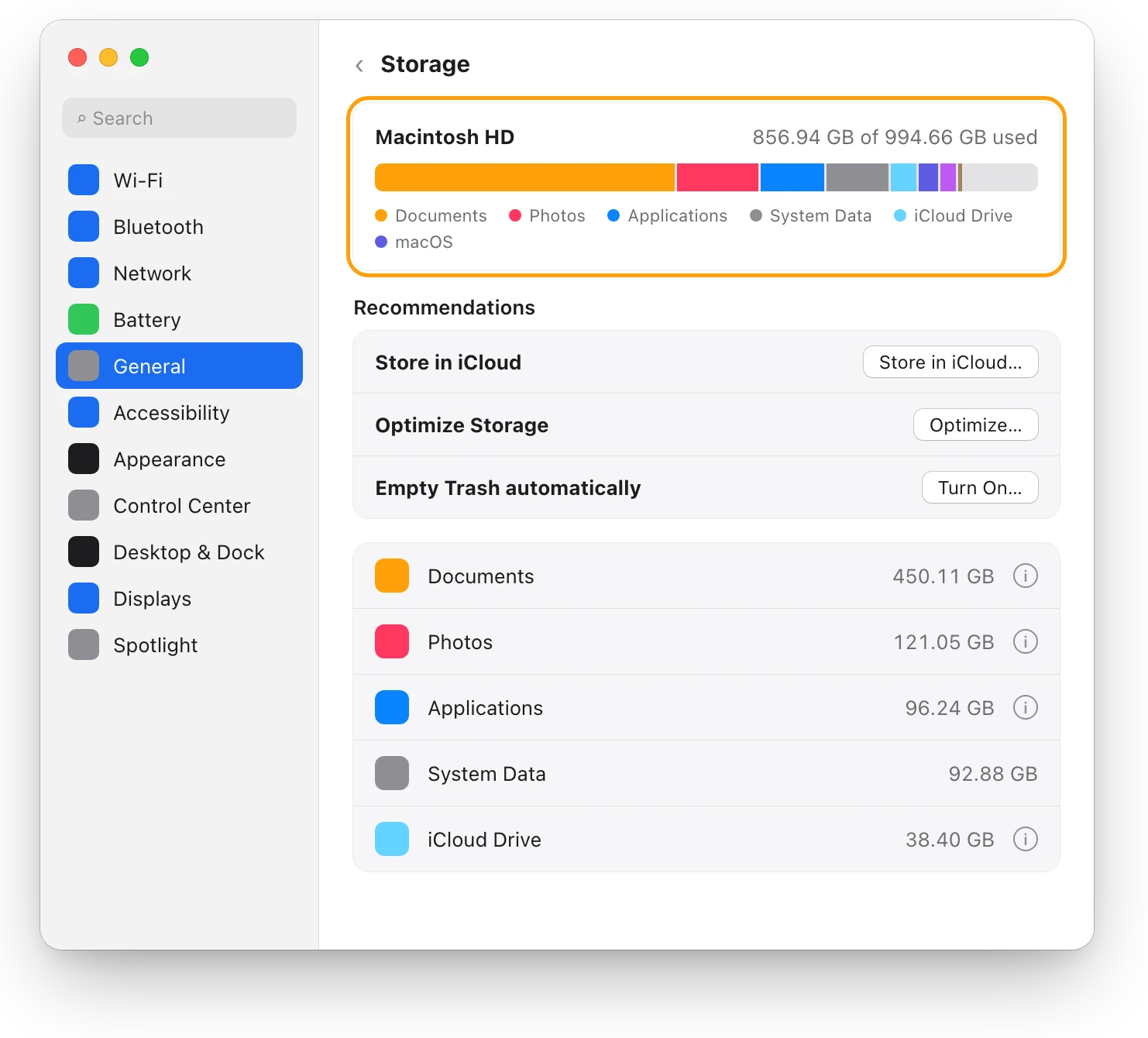
Apple doesn’t give one number for how much to keep free, but a startup disk without enough space can slow a Mac down and stop macOS updates. How much free space should a Mac have? explains how much to leave.
How do I check battery health? (30 seconds)
On a MacBook:
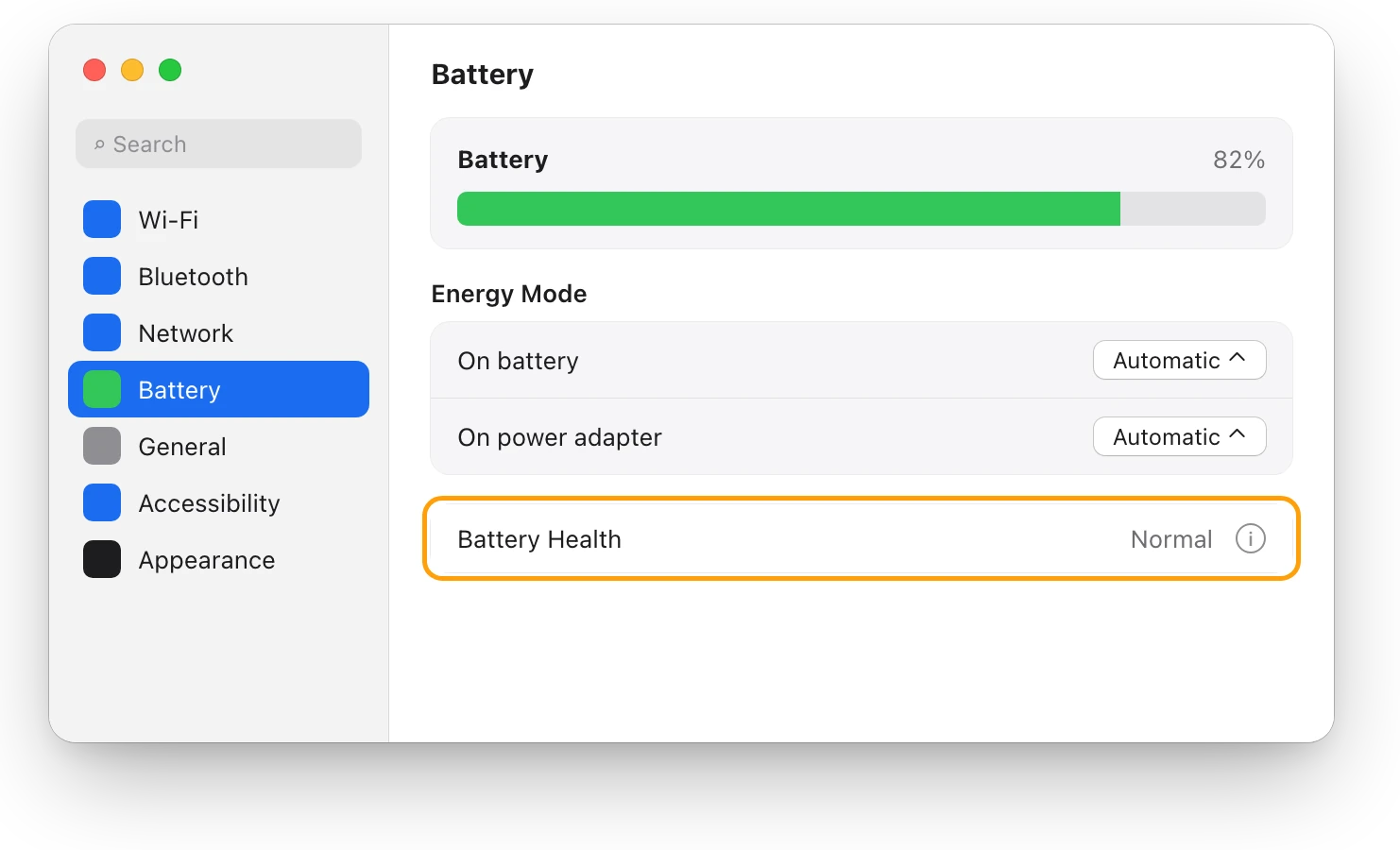
- Choose Apple menu > System Settings, then click Battery in the sidebar.
- Look at Battery Health. Normal means the battery is functioning normally. Service Recommended means it holds less charge than when it was new.
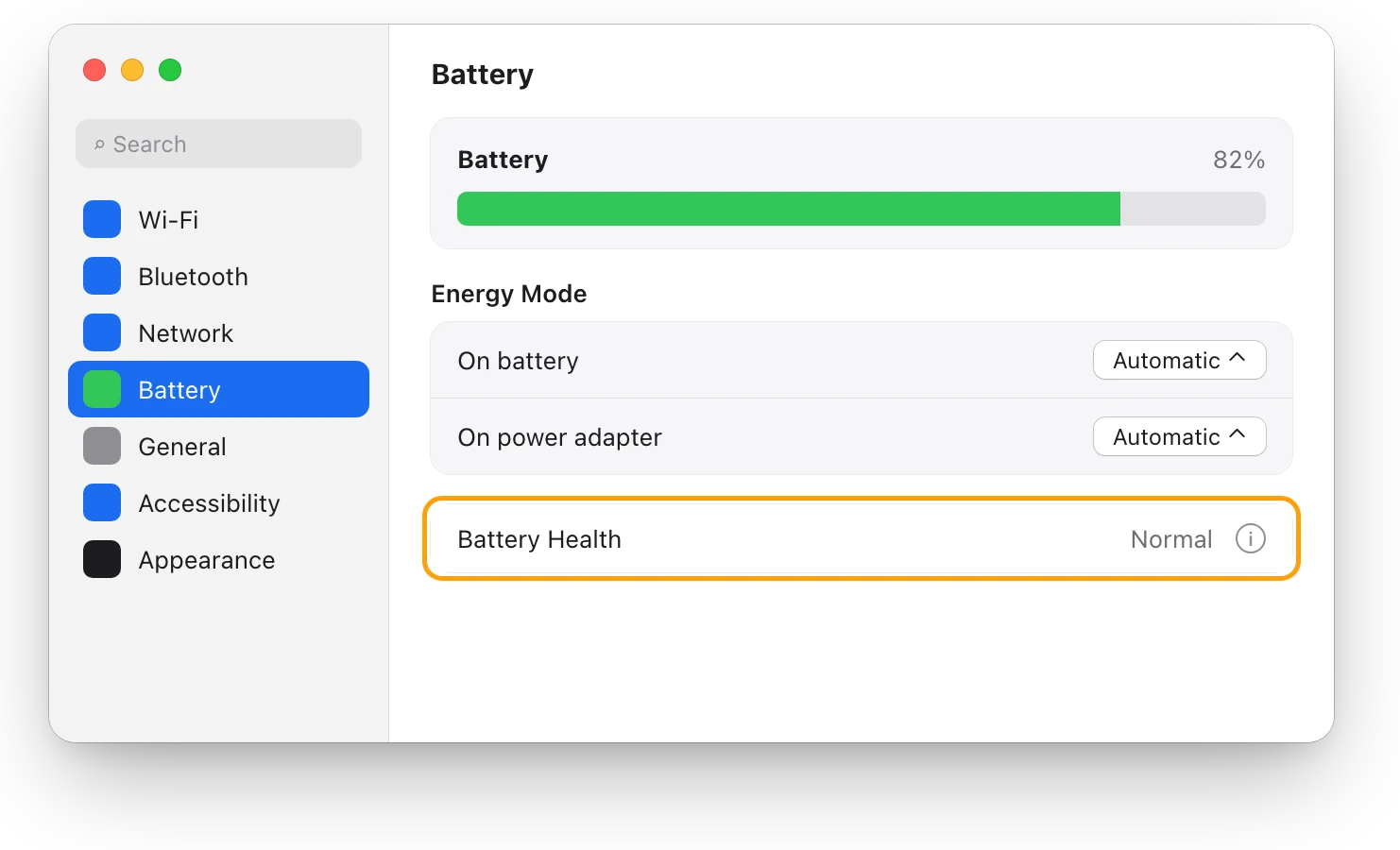
Click the info button (ⓘ) next to it for Maximum Capacity. MacBook battery health and cycle count, explained shows how to read it, and where to find the cycle count.
How do I check for updates? (1 minute)
- Choose Apple menu > System Settings, then click General in the sidebar.
- Click Software Update. If an update is waiting, install it.
Updates for apps from the App Store are in the App Store: choose Apple menu > App Store. The Apple menu shows how many are waiting.
What if something seems wrong with the disk?
If apps quit unexpectedly or a file seems corrupted, Disk Utility’s First Aid can check the disk for errors in its formatting and directory structure, and fix some of them.
- Open Disk Utility, in Applications > Utilities.
- Choose View > Show All Devices.
- Select a volume in the sidebar, click First Aid, then click Run. Click Done when it finishes.
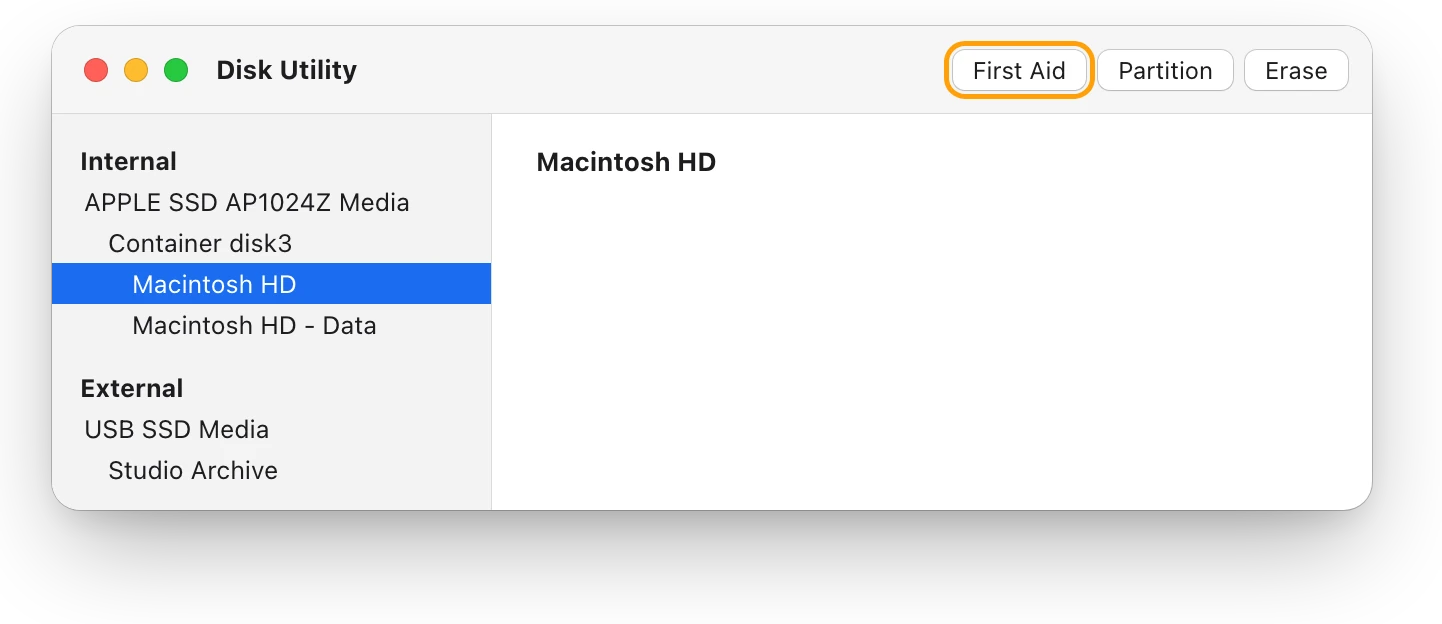
Apple says to check each volume, then each container, then the device itself. For a full check of your startup disk, Apple recommends running First Aid from macOS Recovery. If Disk Utility says the disk is about to fail, back up your data and have the disk replaced.
Does this test my Mac’s hardware?
No. These are readings: what macOS reports about your Mac right now. To test hardware, use Apple Diagnostics, which can help find which hardware component might be at fault. Install macOS updates first if you can, shut down, and disconnect everything except your keyboard, mouse, display, Ethernet cable and power.
- Mac with Apple silicon: press and hold the power button until startup options appear, then press and hold Command-D.
- Intel-based Mac: turn on your Mac and immediately press and hold D, until you see a progress bar or are asked to choose a language.
Apple Diagnostics doesn’t repair anything. If it reports a problem, Apple’s page explains the reference code and your service options.
Questions people also ask
Does a Mac have a built-in health check?
Not on one screen. Activity Monitor, Storage, Battery Health, Software Update and Disk Utility each check one part, and Apple Diagnostics tests the hardware.
How often should I check my Mac?
There’s no set schedule. Run this checkup when your Mac feels slow, hot or full, and before a macOS update.
Does a high CPU number mean something is wrong?
Not if the app is doing work you asked for, such as an export or a render. It’s worth a look when an app you aren’t using stays at the top for minutes.
Can I check my Mac’s SSD health?
Disk Utility’s First Aid checks a disk for errors in its formatting and directory structure, and tells you if the disk is about to fail. It can’t find every problem a disk may have.
Scope for Mac · Free, coming to the Mac App Store
How Scope helps
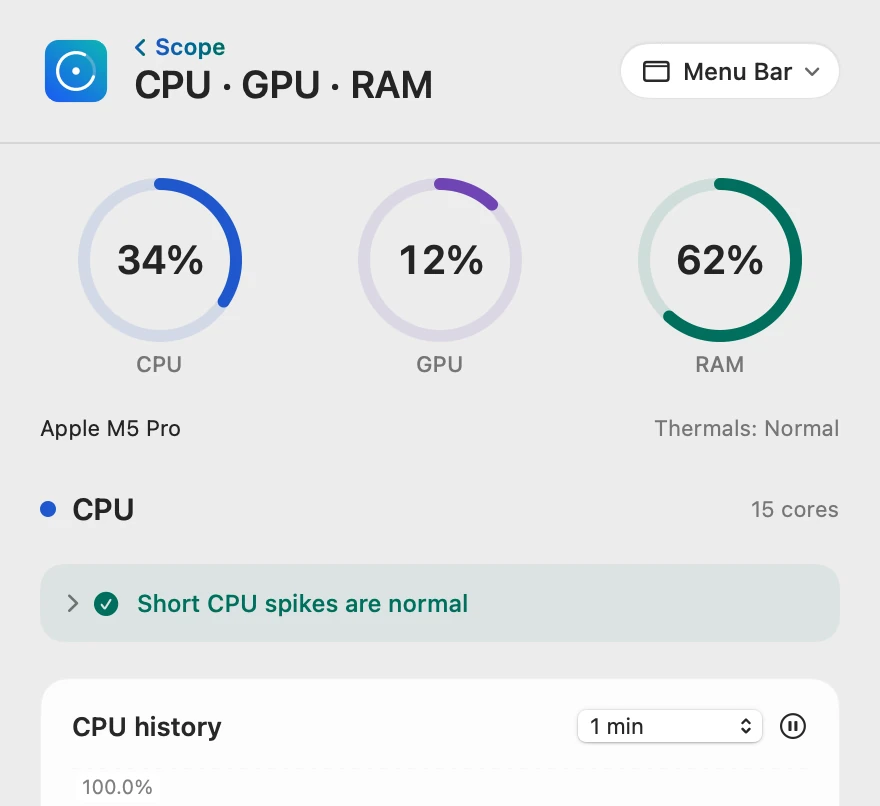
Scope is a free Mac menu bar app that puts CPU, GPU, RAM, network, drives and battery on one overview and explains each reading in a plain sentence. It turns this checkup into one glance, and when a problem lasts, the overview says so.
In your menu bar
Scope Free keeps one whole menu bar item of your choice, with every reading in its panel.

Everything on one screen
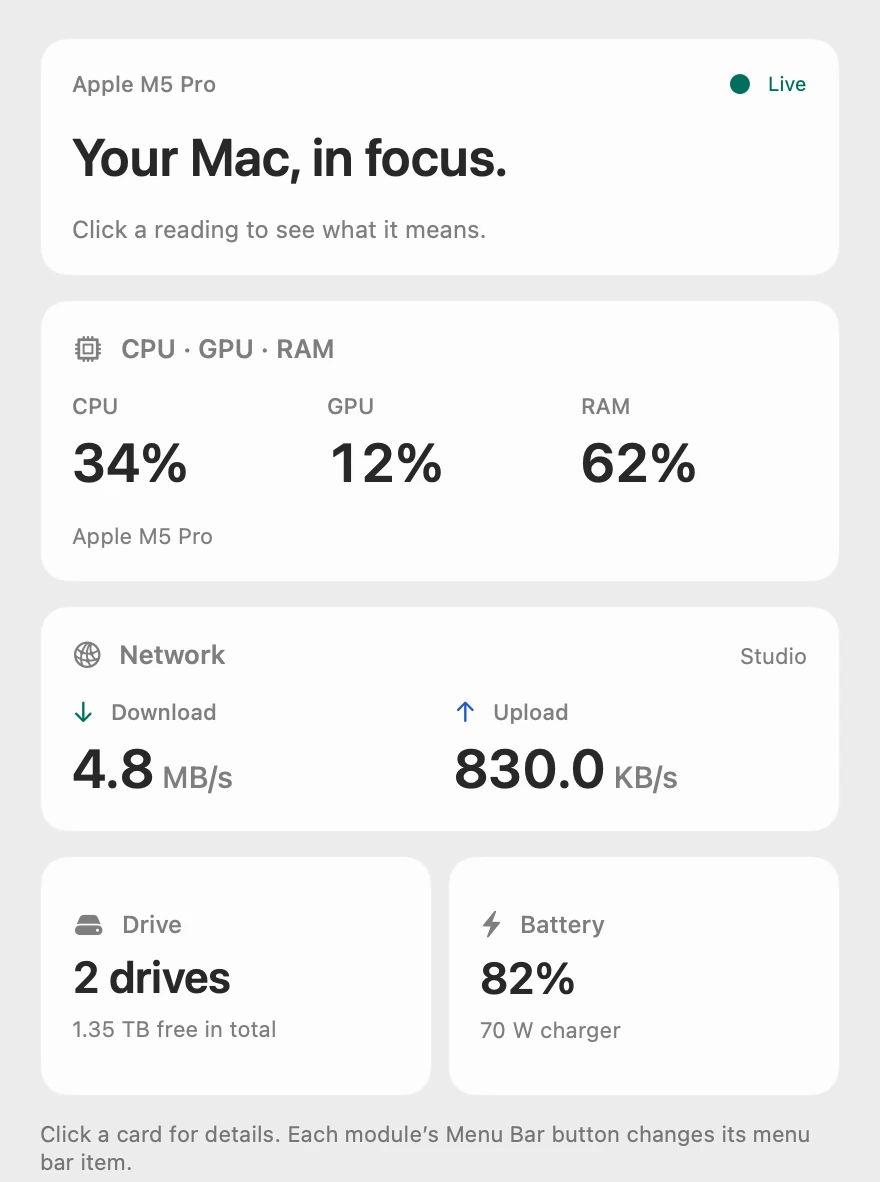
The overview shows processor, graphics and memory, the network, your drives and the battery together. Click a card for its details.
What each reading means
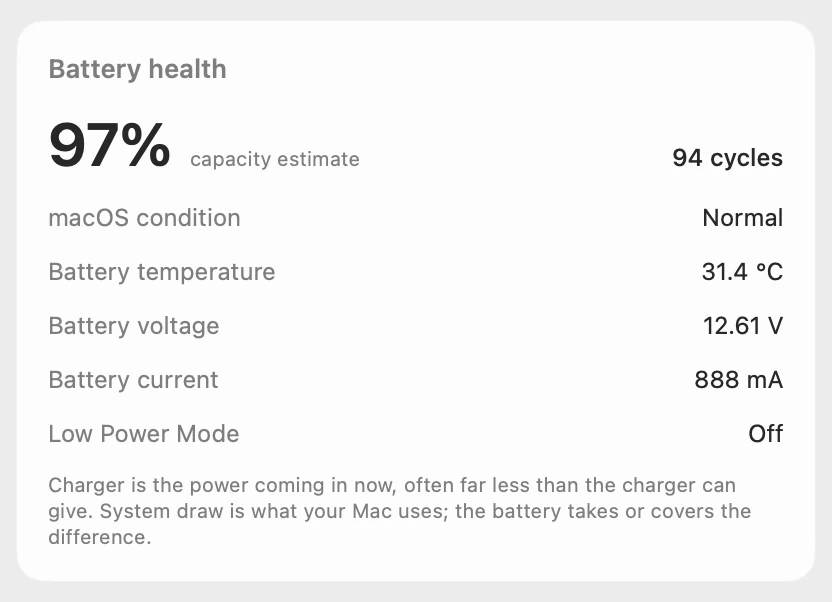
Click a reading for one plain sentence about what it means, and copy it if you like.

Battery health in one card
When something lasts, such as a drive past its limit or memory running short, Scope shows it on the overview’s first card. Scope Pro adds a red + on its menu bar icon and names the app or file behind it.
Scope shows readings and explains them. It doesn’t test hardware, and it never fixes, quits or deletes anything.
Try it here
The real Scope, working, right in this page.
Click any item in the menu bar, or a card inside, as you would on your Mac.
Scope Pro Every menu bar item is shown here. Scope Free keeps one whole item of your choice, with every reading inside.
See how your own Mac is doing.
Keep reading
Guide · Slow Mac
Why is my Mac slow? How to find the cause
A slow Mac is usually a busy app, too little memory, a nearly full disk or heat. Here’s how to see which one with macOS’s own tools.
Slow Mac
Which app is slowing down my Mac? How to find it
Activity Monitor shows which app is slowing your Mac: sort by % CPU, then by Memory. Here’s how to read the lists, and what to do next.
Slow Mac
Mac memory pressure: why high RAM use is often fine
Memory pressure, not RAM in use, shows if your Mac has enough memory. Green is fine even when RAM is nearly full; yellow or red means it’s running short.
Storage
How much free space should a Mac have?
Apple gives no single number. A Mac needs room for macOS updates and swap, and a nearly full disk can slow it down. Here’s how much to keep free.
Storage
What is System Data on a Mac, and why is it so big?
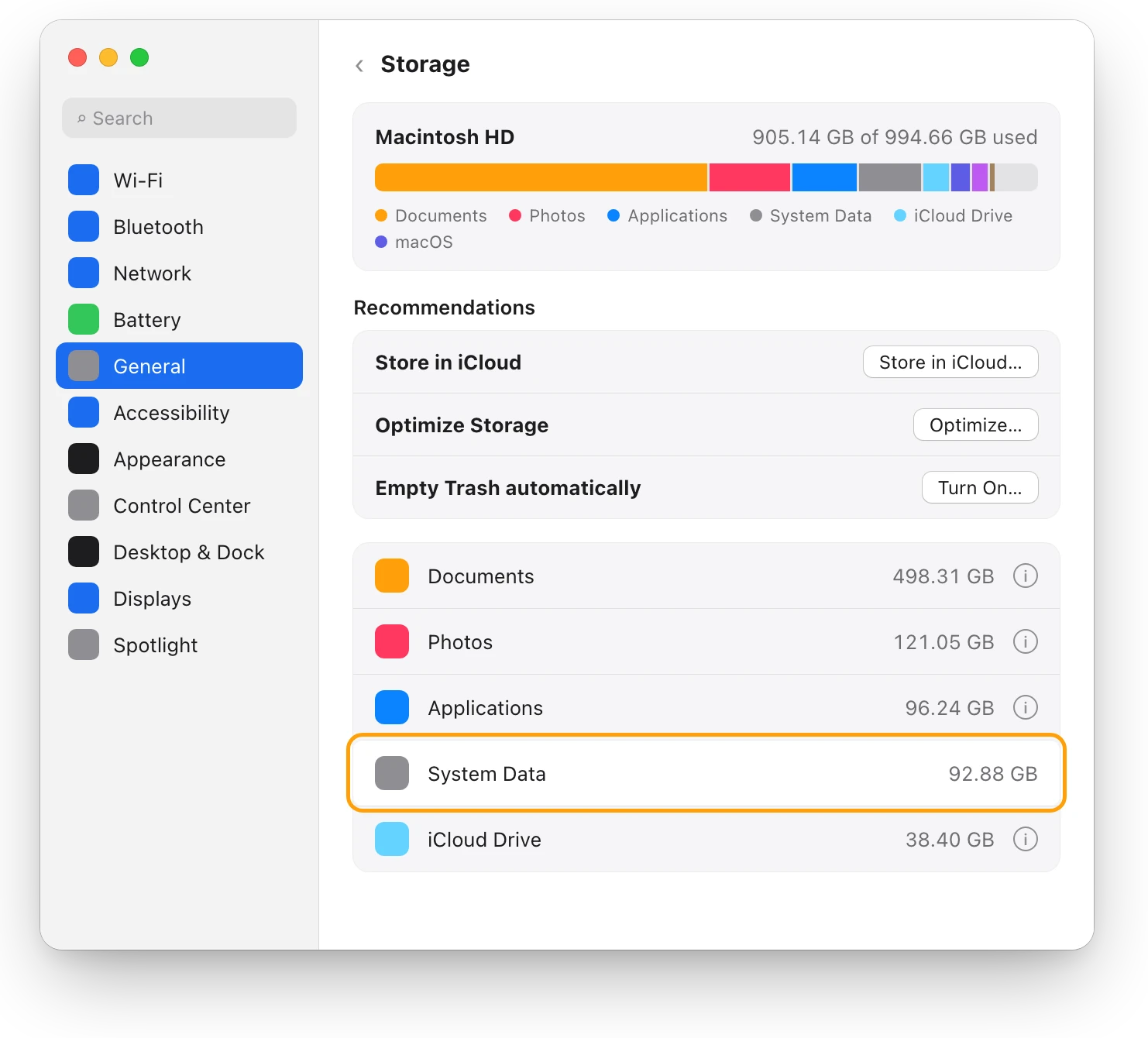
System Data holds files no other Storage category claims, such as caches, logs and temporary files. You can’t delete it directly; here’s what helps.
Battery
MacBook battery health and cycle count, explained
Battery Health in System Settings shows if your MacBook’s battery is Normal; System Information shows its cycle count. Here’s how to read both.
Sources
- Apple Support: Check if your Mac needs more RAM in Activity Monitor
- Apple Support: View information about Mac processes in Activity Monitor
- Apple Support: If your Mac runs slowly
- Apple Support: Change Storage settings on Mac
- Apple Support: Check the condition of your Mac laptop’s battery
- Apple Support: Get macOS updates
- Apple Support: Repair a storage device in Disk Utility on Mac
- Apple Support: How to repair a Mac storage device with Disk Utility
- Apple Support: Use Apple Diagnostics to test your Mac
Last checked October 18, 2026. Readings, apps and files in the pictures are from a made-up Mac.